

Cura vs PrusaSlicer vs Bambu Studio: Best 3D Print Slicer in 2026
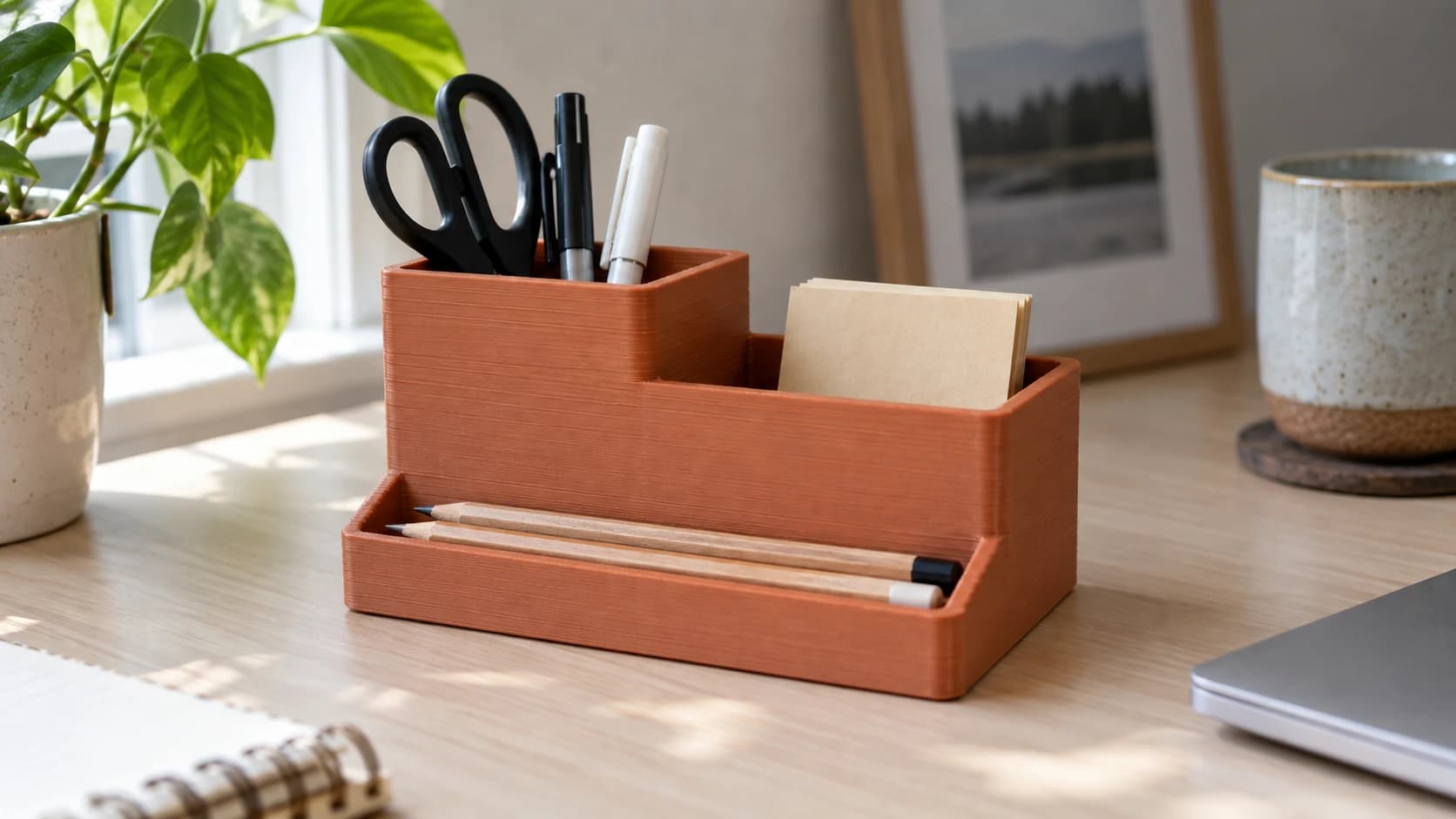
Your 3D printer doesn't understand STL files. It understands G-code: a sequence of precise movement and extrusion commands. The slicer is the translator between your 3D model and those commands. Pick the wrong slicer (or use it badly) and your print fails, warps, strings, or looks like it survived a hurricane.
Three slicers dominate the hobby 3D printing world in 2026: Cura, PrusaSlicer, and Bambu Studio. All three are free. All three work. But they're built for different printers, different skill levels, and different workflows.
Here's how to pick the right one without wasting a week of test prints.
The Quick Answer
If you have a Bambu Lab printer: use Bambu Studio. It's built for your machine and the integration is seamless.
If you have a Prusa printer: use PrusaSlicer. Same reason.
If you have anything else (Creality, Anycubic, Elegoo, etc.): start with Cura, then try PrusaSlicer if you want more control. Both support your machine.
Now the details.
PRINT. CUT. CARVE.



- Multiple formats (SVG, DXF, PNG)
- Machine-tested designs
- Commercial licenses
Sponsored by PrintCutCarve.com
Printer Compatibility
This is the deciding factor for most people.
Cura has the broadest printer support. Creality, Anycubic, Artillery, Elegoo, Sovol, and dozens of other brands ship with Cura profiles. If your printer isn't a Prusa or Bambu Lab machine, Cura probably has a ready-made profile for it.
PrusaSlicer officially supports Prusa printers but also works well with other machines. You can add custom printer profiles for Creality, Anycubic, and others. The community has built profiles for most popular machines, though the initial setup takes a bit more work than Cura.
Bambu Studio is designed for Bambu Lab printers (A1, A1 Mini, P1S, X1 Carbon). It technically supports other printers since it's forked from PrusaSlicer, but the multi-printer support is limited and the Bambu-specific features (AMS integration, LAN mode, cloud printing) only work with Bambu machines.
| Slicer | Best For | Price | Base |
|---|---|---|---|
| Cura | Creality, Anycubic, most FDM printers | Free | UltiMaker |
| PrusaSlicer | Prusa printers, advanced users | Free | Prusa Research |
| Bambu Studio | Bambu Lab printers | Free | Fork of PrusaSlicer |
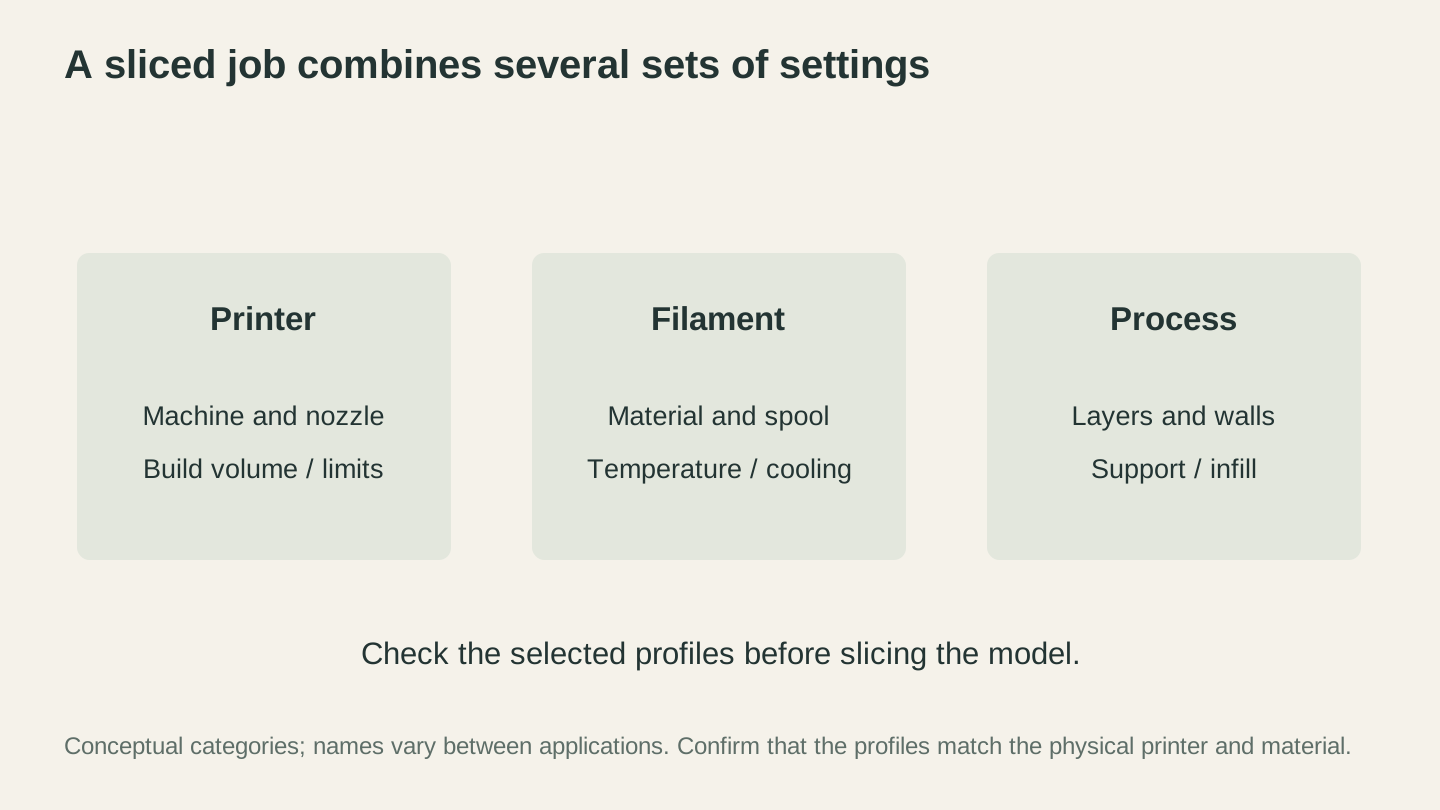
Check all three parts of the setup before slicing. A familiar slicer cannot compensate for selecting settings that do not match the physical printer or filament.
User Interface and Learning Curve
Cura has three modes: Recommended (simplified), Custom (full settings), and a settings search. The Recommended mode hides complexity behind a few sliders, making it the easiest entry point for beginners. Switch to Custom when you're ready for the 500+ available settings. The interface is clean but can feel sluggish with complex models on older hardware.
PrusaSlicer shows you everything upfront, organized into Print Settings, Filament Settings, and Printer Settings tabs. There's less hand-holding than Cura's Recommended mode, but the organization is logical. The learning curve is moderate. If you understand what layer height and infill percentage mean, you'll feel comfortable quickly.
Bambu Studio looks and feels a lot like PrusaSlicer (because it's forked from it) but adds Bambu-specific panels for AMS filament management, remote printing, and timelapse. If you're coming from PrusaSlicer, the interface is familiar. If you're brand new, it's comparable to PrusaSlicer's learning curve.
Print Quality Out of the Box
All three slicers can produce excellent prints when properly configured. The difference is how much effort that takes.
Bambu Studio with a Bambu printer wins this category because the profiles are perfectly tuned by the same company that made the hardware. Generic PLA at 0.2mm on a P1S? It just works. The auto-calibration and flow rate compensation mean fewer failed prints from the start.
PrusaSlicer with a Prusa printer is the same story. Prusa's profiles are battle-tested by their support team and user base. The defaults are conservative and reliable.
Cura with a Creality or other budget printer requires more tuning. The stock profiles are decent starting points but often need adjustment for your specific machine. Retraction settings, temperature, and speed might need tweaking for your particular Ender 3 or Neptune 4. This isn't Cura's fault. Budget printers have more unit-to-unit variation, so no single profile can be perfect for all of them.
Key Feature Comparison
| Feature | Cura | PrusaSlicer | Bambu Studio |
|---|---|---|---|
| Printer profiles | 500+ | 100+ (community) | Bambu only |
| Plugin system | Yes (Marketplace) | No | No |
| Tree supports | Yes | Yes (organic) | Yes (organic) |
| Multi-color | Yes (complex) | Yes (MMU) | Yes (AMS, excellent) |
| Paint-on supports | No | Yes | Yes |
| Ironing (smooth tops) | Yes | Yes | Yes |
| Arachne engine | Yes | Yes | Yes |
| Cloud slicing | No | No | Yes (Bambu Cloud) |
| Remote monitoring | Via plugin | Via PrusaConnect | Built-in |
| Adaptive layer height | Yes | Yes | Yes |
| Estimated print time | Moderate accuracy | Good accuracy | Excellent accuracy |
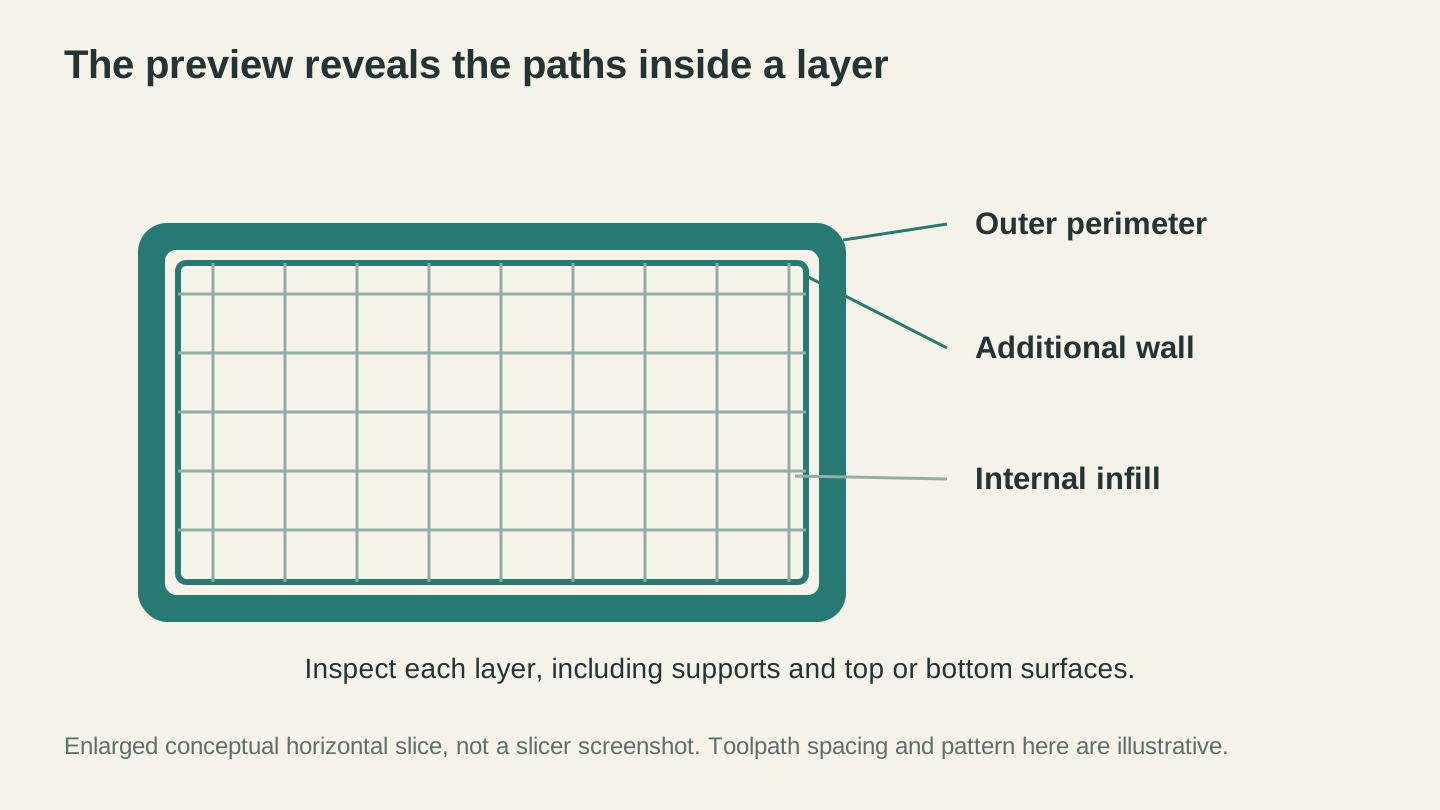
The layer preview is where to inspect what the printer will actually follow. This enlarged diagram explains the parts of a layer; it is not a screenshot or a recommended infill pattern.
Support Generation
Support structures are where slicers really differ.
PrusaSlicer introduced organic (tree-style) supports that wrap around models using branch-like structures. They use less material, are easier to remove, and leave fewer marks. The paint-on support tool lets you manually specify exactly where supports should and shouldn't go. This level of control is a big deal for functional parts and visible surfaces.
Bambu Studio inherited PrusaSlicer's organic supports and paint-on tools (since it's a fork) and they work identically well.
Cura has tree supports and a comprehensive set of support settings. The results are comparable, but Cura lacks the intuitive paint-on interface. You're setting support rules globally rather than painting them onto specific faces.
Tip
If you print models with complex overhangs regularly, PrusaSlicer's (or Bambu Studio's) paint-on support tool will save you hours of cleanup over time. It's one of those features that seems minor until you use it.
Multi-Color Printing
Bambu Studio is the clear winner here. The AMS (Automatic Material System) integration is seamless. You assign colors to different parts of the model in the slicer, the printer automatically swaps filaments, and you get multi-color prints with minimal effort. The color painting tool lets you add color to specific faces or regions.
PrusaSlicer supports Prusa's MMU3 (Multi Material Upgrade) with a similar workflow. It works, but the MMU hardware has historically been fussier than Bambu's AMS.
Cura supports multi-extrusion setups but the workflow is more complex. Assigning meshes to different extruders and managing the purge tower requires more manual configuration.
Speed and Slicing Performance
All three slicers produce toolpaths at reasonable speeds, but there are differences:
Cura is the slowest slicer of the three, especially with complex models. A detailed model can take 30-60 seconds to slice on a mid-range computer. Not a dealbreaker, but noticeable if you're iterating on settings.
PrusaSlicer is faster than Cura for most models. Typical slice times are 10-30 seconds.
Bambu Studio matches PrusaSlicer's speed (same codebase) and adds cloud slicing for Bambu printers, offloading the computation if your computer is slow.
For actual print speed, the differences depend more on your printer's capabilities and your configured speed settings than on the slicer itself. All three support input shaping profiles and high-speed printing settings where the hardware allows it.
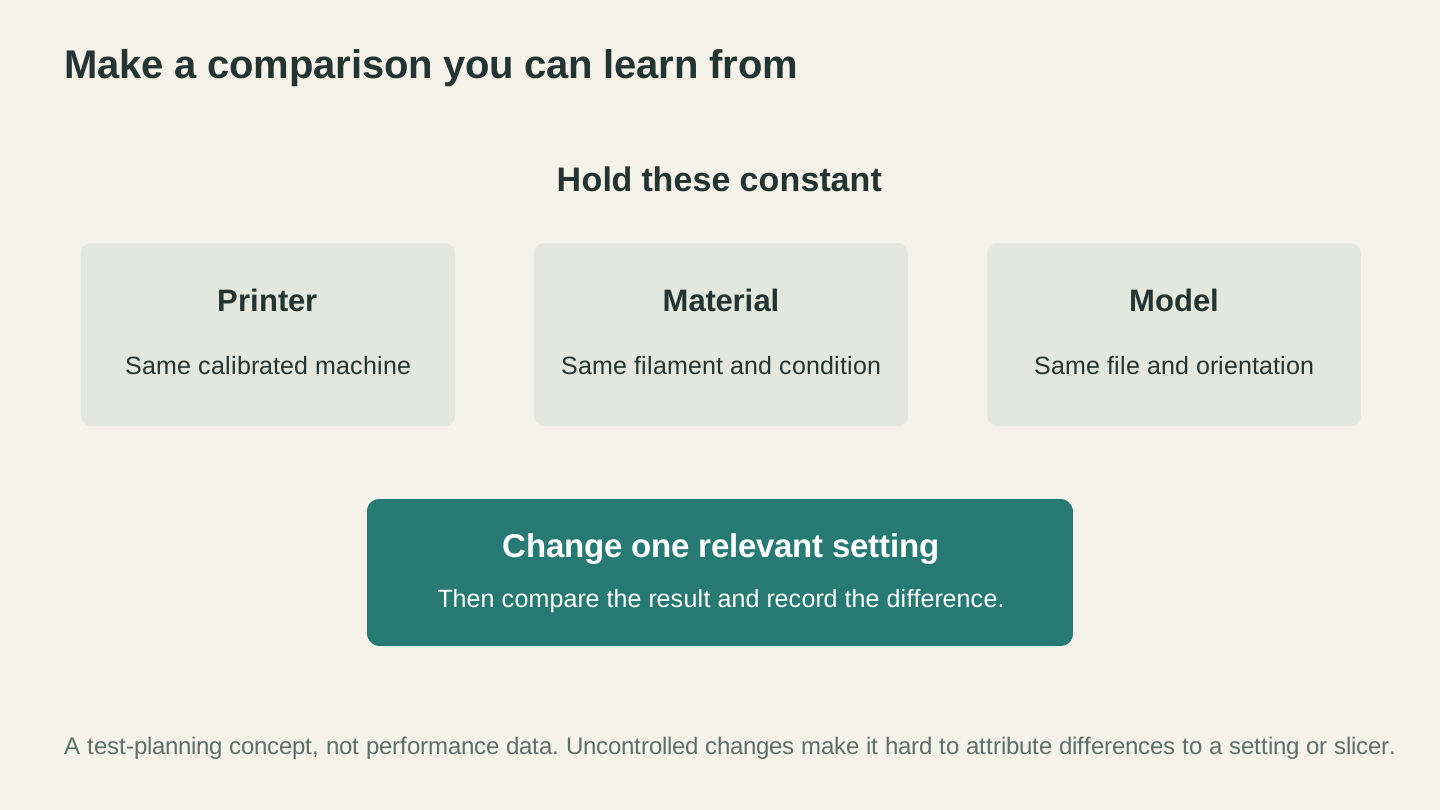
Change one relevant variable when diagnosing a difference, then record the result. These are test-planning principles, not comparative performance data for the three slicers.
Before You Slice: File Preparation
One area none of these slicers handle well is creating the 3D model in the first place. They all expect you to show up with an STL, OBJ, or 3MF file ready to go.
If you're working with files from different sources, File Converter can convert between STL, OBJ, and 3MF formats without using tool credits. Got an STL that your slicer complains about? Converting to 3MF sometimes resolves mesh issues. Downloading the converted file requires an active paid plan.
If you want to create 3D relief models from photos (for lithophanes, CNC carvings, or decorative prints), ReliefMaker generates STL and OBJ files from any photo. The depth map conversion handles the hard part, and you get a file ready to drop into your slicer.
The Verdict for Each Printer Brand
You own a Bambu Lab printer: Use Bambu Studio. The integration is too good to ignore. AMS support, accurate time estimates, remote monitoring, and cloud features all work seamlessly. You'll miss out on Cura's plugin ecosystem, but you gain a workflow that's optimized end to end.
You own a Prusa printer: Use PrusaSlicer. The profiles are perfectly tuned, the organic supports and paint-on tools are excellent, and PrusaConnect gives you remote monitoring. If you want experimental features, PrusaSlicer's beta releases are usually stable enough for daily use.
You own a Creality, Anycubic, or other budget printer: Start with Cura. The pre-built profiles save you setup time, and the Recommended mode eases the learning curve. Once you're comfortable, try PrusaSlicer for its paint-on supports and (sometimes) faster slicing. Many experienced makers keep both installed.
You own multiple printers from different brands: PrusaSlicer handles this best. Add custom profiles for each machine and switch between them. Cura also works but managing multiple printer profiles is slightly less intuitive.
Stop Optimizing the Slicer. Start Printing.
Here's the thing nobody says in these comparisons: the difference between these three slicers matters way less than your print settings, material choice, and machine calibration. A well-tuned Creality with Cura will outprint a miscalibrated Bambu with Bambu Studio every time.
Pick the slicer that matches your printer. Learn the basics. Print things. Adjust settings when prints fail. You'll develop preferences naturally, and switching slicers later is always an option.
All three are free. All three are good. The best slicer is the one you actually use.
Before your next print, make sure your files are ready. File Converter fixes STL, OBJ, and 3MF format issues without using tool credits, and ReliefMaker turns a photo into a printable 3D model if you need a design to start from. Downloading the converted file requires an active paid plan.
Related Tools
Ready to try these tools?
Sign up free, no credit card required. Free tools available immediately.
Start Free