

Holiday Product Photos for Handmade Shops, Without a Photo Shoot
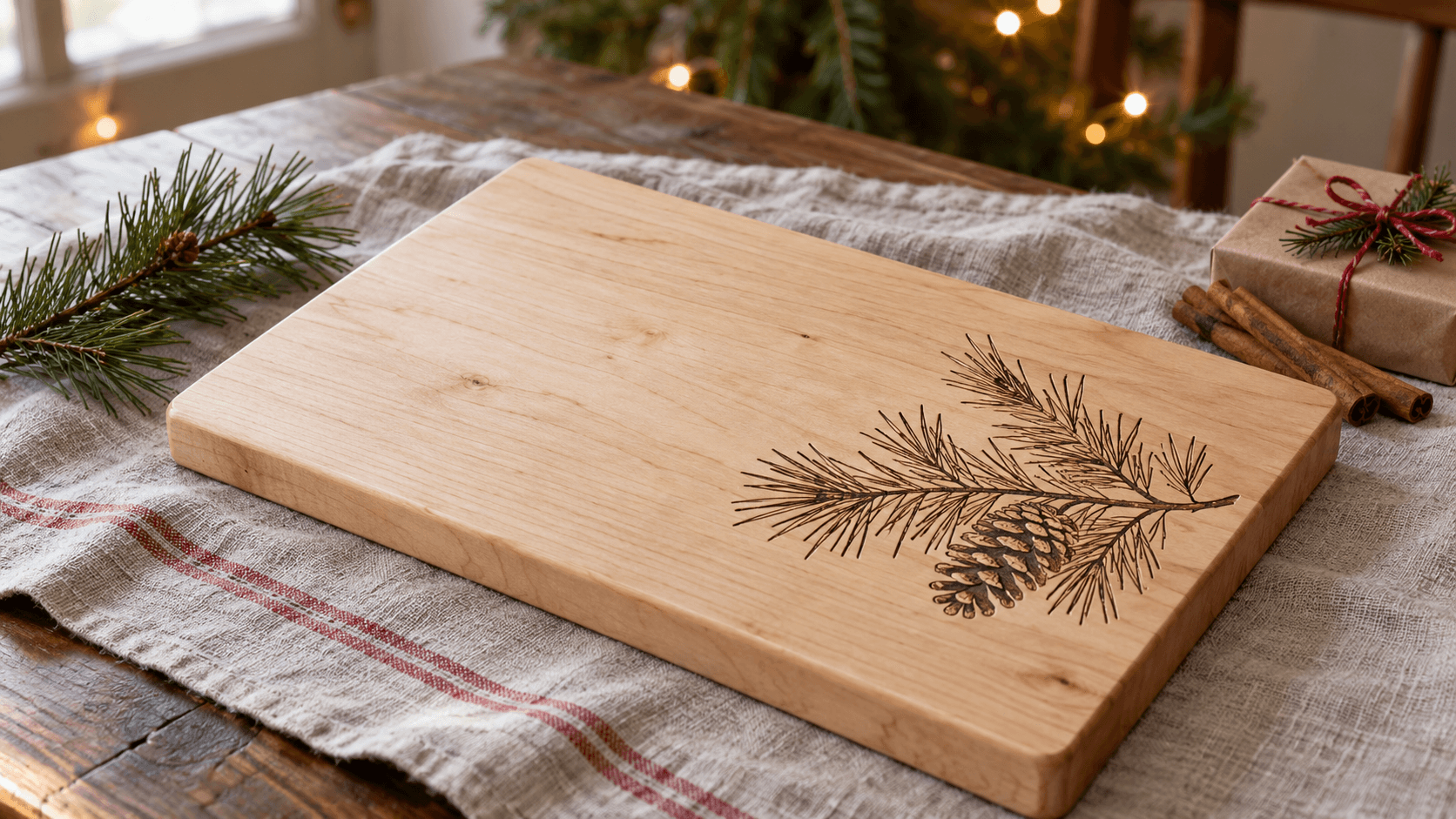
Your listing photos worked fine in September. Then December arrives, and every competing listing has twinkle lights, pine branches, and a mug of cocoa, while yours sits on a white background looking like it's waiting for a dentist appointment.
Seasonal photos sell because they help shoppers picture the gift being opened. You don't need a holiday set in your living room to get them, though. You need one good base photo and a smart way to dress it up.
Start With a Good Base Photo
Everything else depends on this. A festive scene can't rescue a poorly shot product photo.
- Use daylight. A window with indirect light beats most cheap lights. Turn off overhead bulbs so colors stay accurate.
- Plain background. White poster board or a sheet of foam board works great.
- Shoot straight on or slightly above, the way a buyer would see it on a table.
- Fill the frame with the product, then leave a little room around it for cropping.
- Get the engraving or detail in focus. Tap to focus on the engraving, not the edge.
Our product photography tips covers lighting setups in more depth.
Tips
Shoot your base photos now, before December. Once orders pick up, nobody has an hour for photos.
Clean It Up
If the base photo has a messy background, a stray cable, or it's too small, fix that first. PixelPrep removes backgrounds and upscales images. Background removal needs a paid plan, and upscaling costs a credit. A clean cutout of your product also makes AI scene photos look more natural.
Add the Holiday Scene
This is where ListingLab earns its keep. Upload your product photo, pick a style, and it generates a product photo in that setting. Holiday-relevant styles include:
| Style | What you get | Best for |
|---|---|---|
| Christmas | Festive backdrop with subtle holiday elements | Ornaments, gifts, decor |
| Winter | Cozy snow and frost feel | Mugs, candles, home goods |
| Hanukkah | Respectful, festive Jewish holiday theme | Hanukkah gifts and decor |
| New Year's | Celebration setting | Glassware, party items |
| Rustic/Handmade or Farmhouse | Warm wood and natural textures | Cutting boards, signs |
Each generated photo costs one credit. ListingLab can also write your listing titles, descriptions, and tags from the same photo, and that text uses your monthly chat messages instead of credits. Our post on AI product photos for Etsy walks through the tool in more detail.
Varning
Always check an AI photo against the real product. If the engraving changed shape, a name got re-spelled, or the size looks wrong next to the props, don't use it. Shoppers who get something different from the photo leave bad reviews, and they're right to.
Which Photo Goes First?
Not every photo should be festive. A practical December line-up for a listing:
- Holiday scene first. It's what catches the eye in search results.
- Clean, plain shot second. Shows exactly what they're getting.
- Close-up of the detail. The engraving, the grain, the finish.
- Size reference. Next to a mug or a ruler.
- Personalization example, if it's a custom item.
Then in January, swap the holiday photo out and move the plain shot back to the front. Leftover Christmas photos in February make a shop look abandoned.
Write a Seasonal Title, Too
Photos get the click. Titles get you found. In December, add the occasion to titles where it fits ("Personalized Christmas Ornament," "Hanukkah Gift for Her"). Our Etsy listings guide covers how to fit keywords in without stuffing.
Shoot one clean photo of your best seller today, then give it a Christmas scene in ListingLab. It's the cheapest holiday makeover your shop will get.
Läs vidare
Relaterade verktyg
Redo att prova de här verktygen?
Registrera dig gratis – inget kreditkort krävs. Gratisverktyg är tillgängliga direkt.
Kom igång gratis