

How to Convert SVG to DXF for Free (Laser & CNC)
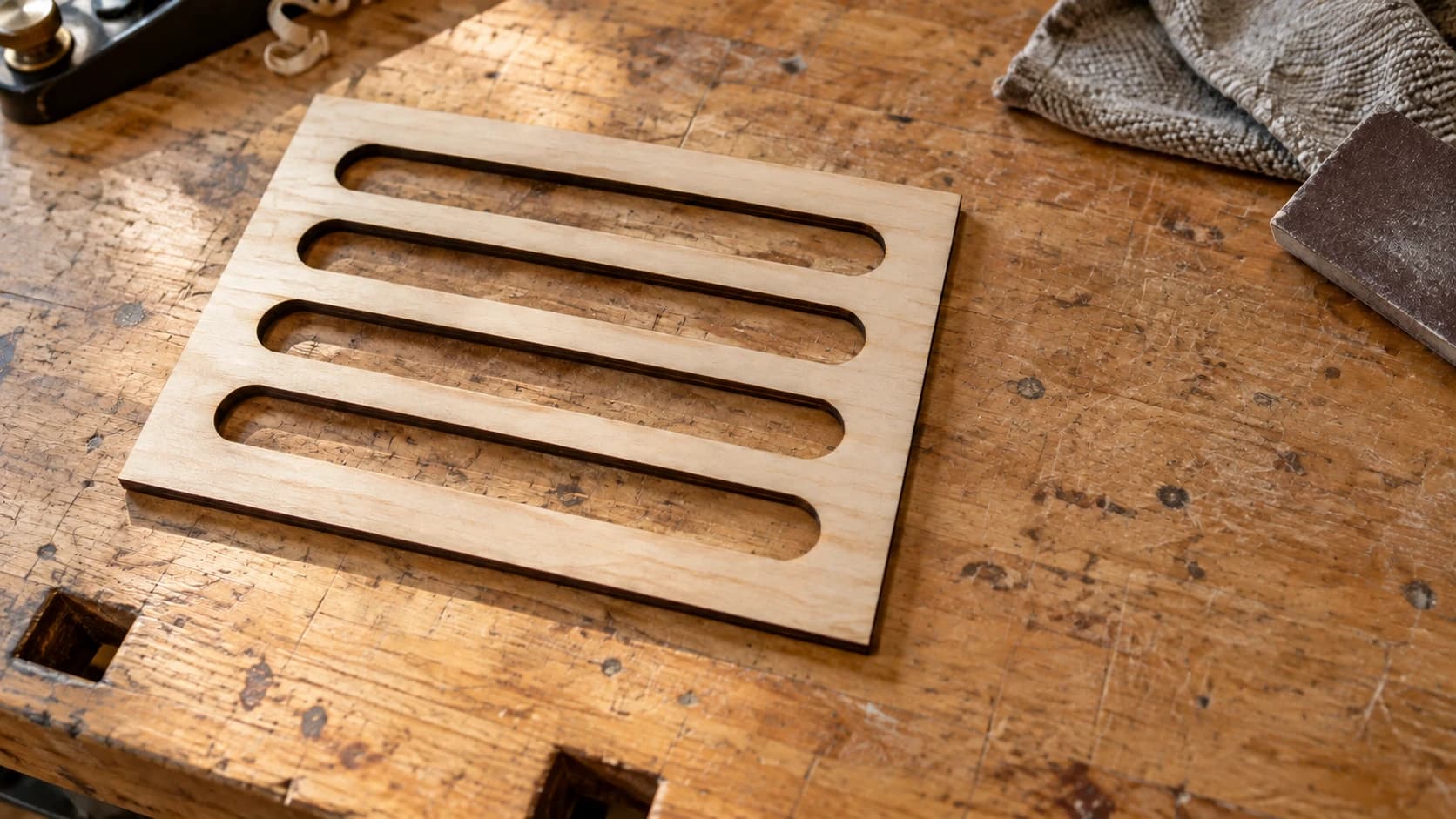
You've got a killer design ready to go. You open your laser software, hit import, and... it doesn't take SVG files. Only DXF. So now you're Googling "SVG to DXF converter" at 11pm instead of actually cutting anything.
Sound familiar? Yeah, we've all been there.
The good news: converting SVG to DXF is quick, free, and you don't need to install anything. Let's get you back to making things.
Why Your Machine Wants DXF (and Won't Shut Up About It)
SVG was built for the web. It's great for displaying graphics in a browser, but your laser cutter doesn't care how pretty something looks on screen. It needs to know where to move the beam.
DXF (Drawing Exchange Format) is the language of machines. Autodesk created it for CAD software, and it stuck around because it does one thing really well: it describes geometry. No fills, no fancy gradients. Just paths.
Here's where you'll run into DXF requirements:
- Most laser software technically accepts SVG, but DXF imports are more reliable for complex paths
- Most Chinese laser controllers only speak DXF or AI
- CNC CAM software overwhelmingly prefers DXF
- Some cutting machine workflows need DXF for clean imports
PRINT. CUT. CARVE.



- Multiple formats (SVG, DXF, PNG)
- Machine-tested designs
- Commercial licenses
Sponsored by PrintCutCarve.com
SVG vs DXF: Quick Comparison
They're both vector formats, but they were built for completely different jobs:
| Feature | SVG | DXF |
|---|---|---|
| Primary use | Web, design tools | CAD, manufacturing |
| Color/style info | Yes (fill, stroke, opacity) | Minimal (layers, line types) |
| Text handling | Embedded fonts | Converted to paths |
| Bezier curves | Native support | Approximated as polylines or splines |
| File size | Usually smaller | Usually larger |
| Machine compatibility | Limited | Wide |
Think of it this way: SVG cares about how something looks. DXF cares about where the tool should move. Your machine doesn't need to know that your design is teal with a drop shadow. It just needs the cut lines.
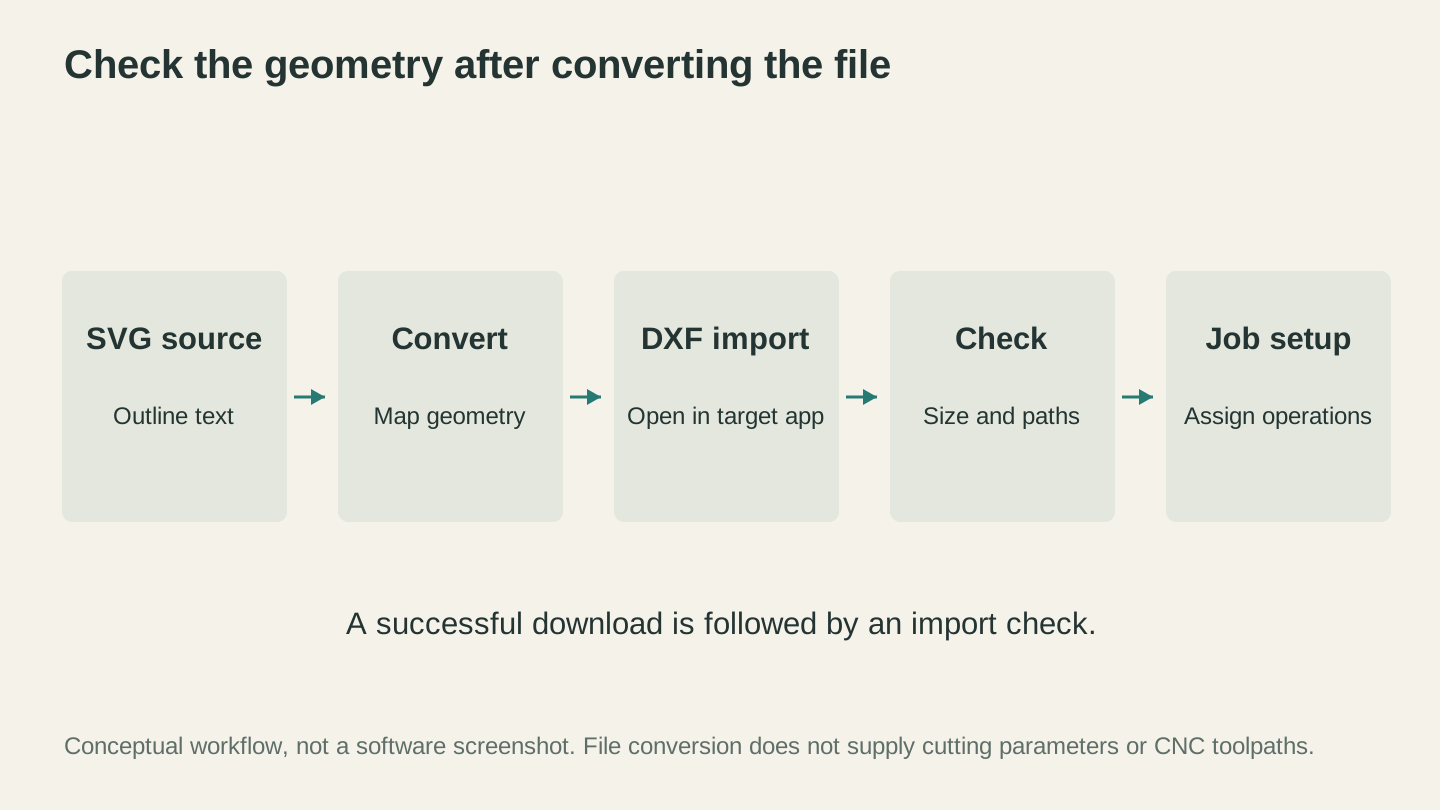
Open the converted file in the destination application and inspect it there. Conversion supplies geometry; cutting parameters and CNC toolpaths belong to the machine workflow.
How to Convert SVG to DXF (Takes About 15 Seconds)
Seriously, this is the easy part. File Converter handles it without using tool credits. Downloading the converted file requires an active paid plan.
Step 1: Open File Converter
Head to File Converter in your Craftgineer dashboard. Conversion does not charge tool credits. Downloading the converted file requires an active paid plan.
Step 2: Upload Your SVG
Drag your SVG file onto the upload area or click to browse. It handles complex files just fine, so don't worry about simplifying anything first.
Step 3: Select DXF as Output
Pick "DXF" from the output format options. The converter preserves your geometry and translates the paths into something your machine can actually use.
Step 4: Download and Go
Hit convert, download your DXF, and open it in your laser or CNC software. That's the whole process. I spent years doing this through vector editor plugins and command-line tools before finding a better way.
Tip
Starting with a photo or PNG instead of a vector file? Use MonoTrace first to vectorize it into an SVG, then run it through File Converter to get your DXF. Neither operation uses tool credits. Downloading the converted file requires an active paid plan.
Pitfalls That'll Ruin Your Day (and How to Dodge Them)
Not all SVG-to-DXF converters are created equal. Here's what goes wrong with the bad ones.
1. Jagged Curves
SVG uses cubic Bezier curves (the smooth ones). Cheap converters approximate those curves with straight-line segments, so your beautiful circle comes out looking like a stop sign. File Converter uses proper spline conversion, so your curves stay smooth.
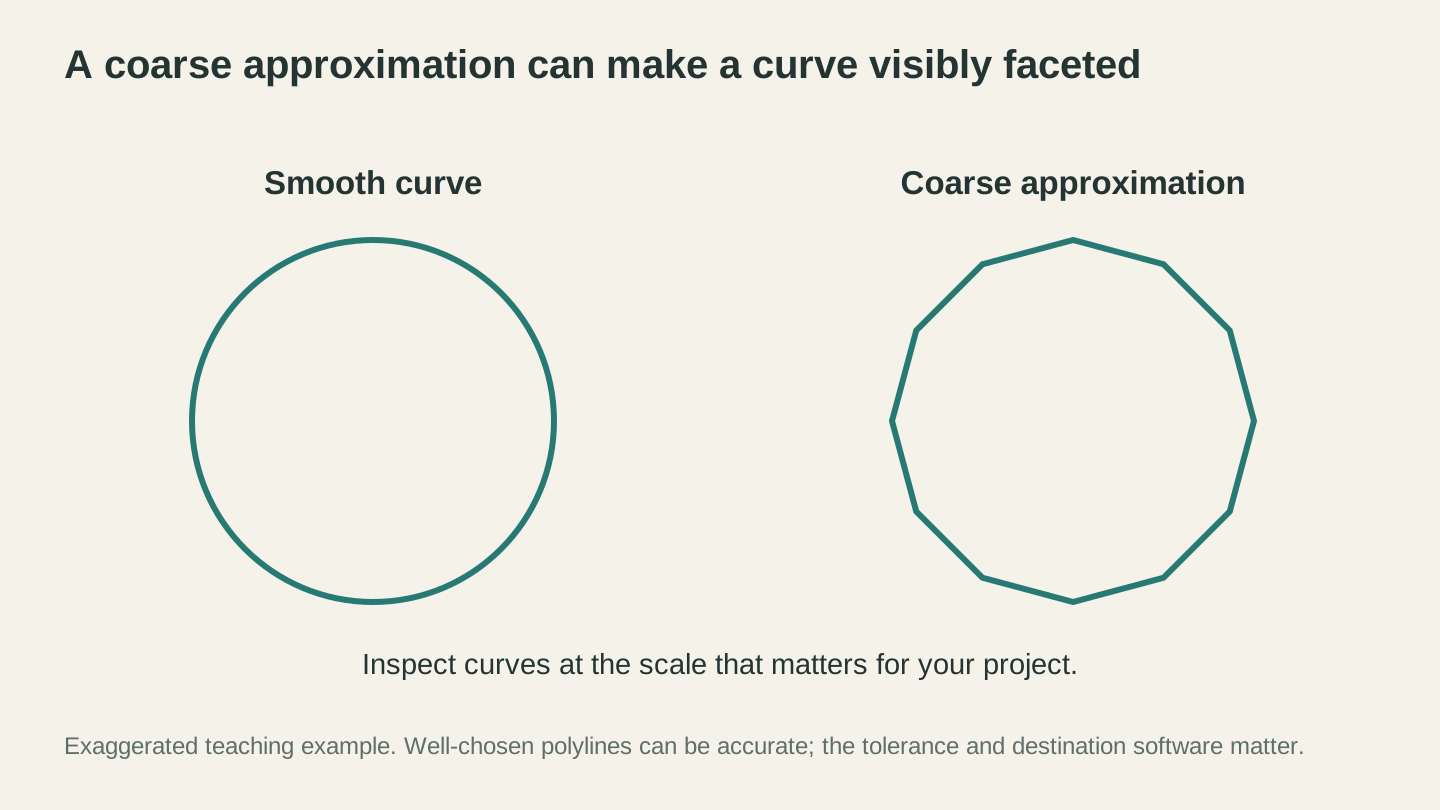
Inspect curved edges at a useful zoom level. This exaggerated example shows coarse approximation; a polyline with a suitable tolerance can still be accurate.
2. Double-Cut Paths
Some SVG files have both a fill and a stroke on the same shape. A lazy converter turns that into two overlapping paths in the DXF. Your laser cuts the same line twice, wastes time, and might burn right through thinner materials.
Warning
Double-cut paths are sneaky. Your DXF might look fine in the preview, but the laser runs the same line twice, leaving scorch marks or burning through thin stock. Always check your path count before hitting Start.
3. Text That Disappears
If your SVG has live text (actual editable text, not outlines), File Converter skips it entirely instead of rendering it. Always convert your text to outlines in your design tool before exporting the SVG.
4. Wrong Size
This one is frustrating. SVG coordinates can be unitless, pixels, millimeters, or inches. DXF needs real-world units. If your coaster design shows up the size of a dining table, your SVG units are probably off. Set your canvas to millimeters before exporting.
Info
Most laser and CNC software defaults to millimeters. Save yourself a headache and set your SVG canvas to mm in your design tool before you export. Future you will be grateful.
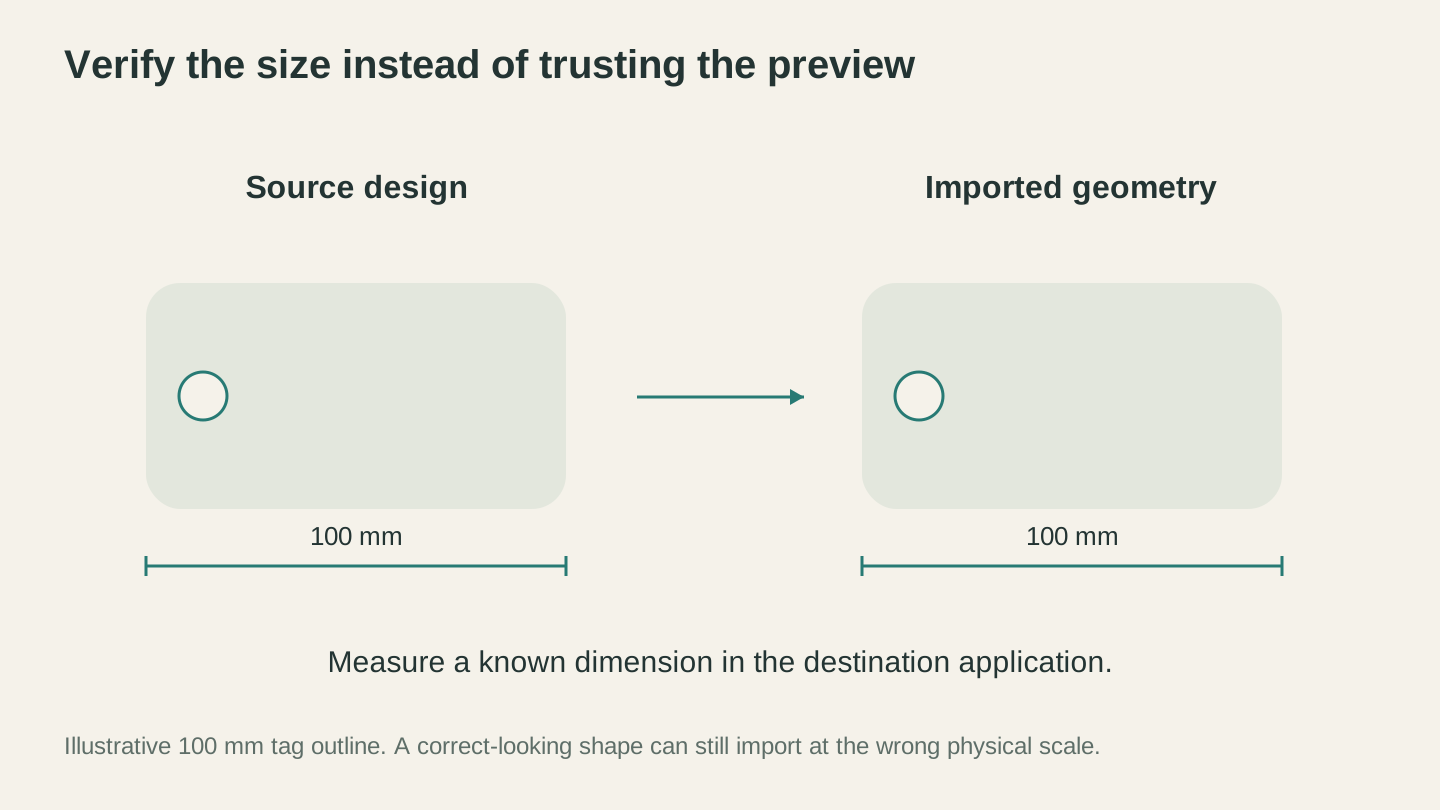
Measure a known dimension after import. A design can look correct on screen while being scaled incorrectly for the actual material.
Five Habits for Clean DXF Files
A little prep work saves a lot of frustration at the machine:
- Outline all text before converting. Fonts are the #1 source of "it worked on my screen" problems
- Delete hidden layers and leftover elements you're not using
- Merge overlapping paths in your design tool (boolean union) so you don't get double cuts
- Set your units to millimeters in the SVG source file, not after conversion
- Simplify complex paths if your controller chokes. Fewer nodes means smoother, faster cuts
When You Need More Than a Format Swap
Sometimes you don't have a vector file to begin with. You've got a photo, a logo screenshot, or a PNG you found online. You can't convert a raster image directly to DXF because there are no vector paths to convert. You need to vectorize it first.
- MonoTrace turns any image into clean SVG vector paths for free. Upload your PNG, hit Vectorize, and download the SVG. Then run it through File Converter for your DXF. Downloading the converted file requires an active paid plan.
- MosaicFlow is the move when you need separate layers for each color. It splits your image into color-separated SVG layers, perfect for multicolor inlay projects.
Both tools output machine-ready files, not pretty-on-screen files. Big difference.
Go Make Something
File Converter uses no tool credits. A paid subscription is needed to download the converted file. If you've been fighting with file formats instead of actually running your machine, give it a shot. Your first conversion takes about 15 seconds, and you'll wonder why you ever did it the hard way. Downloading the converted file requires an active paid plan.
Related Tools
File Converter
Convert supported combinations of vector, document, raster-image, and 3D-mesh formats.
Plan required for downloads
MonoTrace
Turn photos and artwork into SVG outlines for free, with an optional sketch mode.
MosaicFlow
Turn uploaded or AI-generated artwork into separate color regions for inlays, with optional 3D exports.
Downloads require a plan or a design unlock
Ready to try these tools?
Sign up free, no credit card required. Free tools available immediately.
Start Free