

Inkscape vs Illustrator for Laser Cutting and CNC (Honest Comparison)
You need vector files to cut, engrave, or carve. That means you need a vector editor. And unless you've been living under a rock (or a very large sheet of plywood), you've heard the same two names over and over: Inkscape and Adobe Illustrator.
The problem is that most comparisons between these two are written for graphic designers. They talk about print workflows, CMYK color spaces, and brand asset management. None of that matters when your end goal is feeding an SVG into LightBurn or a DXF into your CAM software.
This is the comparison you actually need. Two vector editors, evaluated purely for maker workflows: laser cutting, CNC routing, and cutting machines.
The Quick Answer
If you want the short version before we dig in: Inkscape is the better choice for most makers. It's free, handles SVG natively, and does everything you need for preparing cut and engrave files. Illustrator is a more polished tool with a steeper price tag, and most of its advantages don't apply to maker work.
Now let's break that down properly.
PRINT. CUT. CARVE.



- Multiple formats (SVG, DXF, PNG)
- Machine-tested designs
- Commercial licenses
Sponsored by PrintCutCarve.com
Cost
This one's simple.
Inkscape: Free. Open source. Download it, use it forever, no subscriptions, no feature gates. Updates come when they come.
Illustrator: $22.99/month (as part of the Adobe Creative Cloud single-app plan). That's about $276 per year. You can also get it bundled with the full Creative Cloud suite for $59.99/month, but if you only need a vector editor, that's overkill.
For a hobby maker, nearly $300 a year for software that preps your cut files is a hard sell. For a maker business doing design work daily, it might be worth it for the polish and speed. But "worth it" depends on what you're actually using.
SVG Handling
SVG is the universal language of laser cutters and cutting machines. It's the format LightBurn, Lightburn, xTool Creative Space, Cricut Design Space, and most laser software expect.
Inkscape uses SVG as its native file format. When you save a file, it saves as SVG. Every feature maps directly to SVG capabilities. There's no translation layer, no export step where things get lost. What you see is what your machine gets.
Illustrator uses its own .ai format natively and exports to SVG. The export is generally clean, but there are quirks. Illustrator sometimes embeds fonts as outlines differently, uses its own grouping conventions, and can produce SVGs with Adobe-specific metadata that bloats the file. Nothing that breaks machines, but occasionally you'll get unexpected behavior in LightBurn or other software.
Tip
If you're using Illustrator, always use File → Export As → SVG rather than Save As → SVG. The Export path gives you more control over the output and tends to produce cleaner files for machine use.
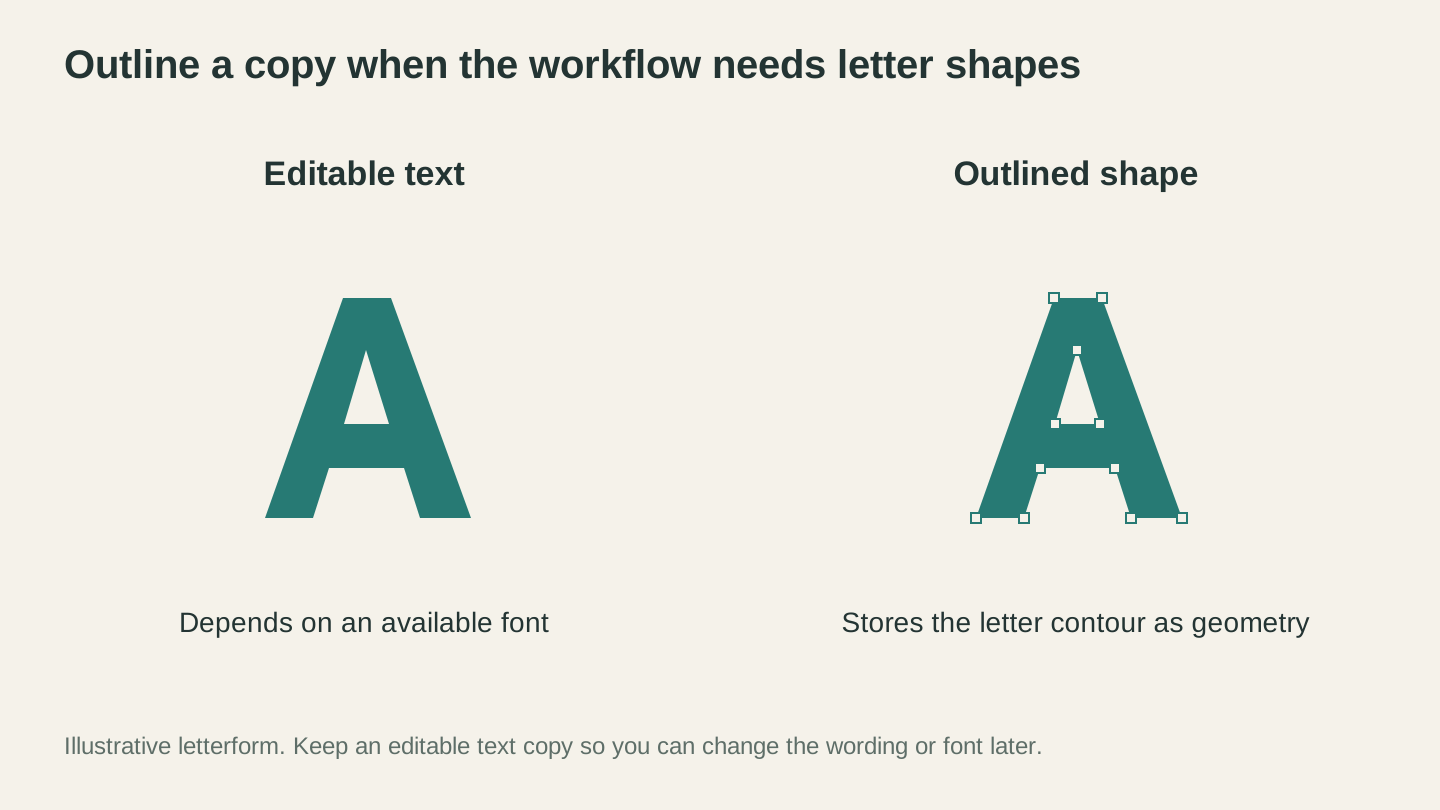
Outlining a copy stores the letter as geometry for workflows that require paths. Keep an editable text version for future wording or font changes.
DXF Export
CNC users and some laser users need DXF files for their CAM software (Carbide Create, Fusion, VCarve, etc.).
Inkscape can export DXF, but it's historically been rough. The built-in DXF export sometimes drops curves, mishandles splines, or loses layer information. There are extensions that improve this, but out of the box it's the weakest part of Inkscape for makers.
Illustrator handles DXF export more reliably. The curves translate correctly, and layer structure is preserved. If DXF is your primary output format, Illustrator has a genuine advantage here.
That said, if you need reliable SVG-to-DXF conversion without either tool, Craftgineer's File Converter does it without using tool credits. Upload your SVG, download a clean DXF. No software install required. Downloading the converted file requires an active paid plan.
Learning Curve
Inkscape is... not intuitive. The interface looks dated, the tool names don't always match what you'd expect, and some common operations require multiple steps. Node editing is powerful but takes time to learn. The good news: there are thousands of maker-specific Inkscape tutorials on YouTube. The community has basically built a parallel education system.
Illustrator has a more modern interface and better-designed tools. If you've used any Adobe product, you'll feel at home faster. The Pen tool is best-in-class. But Illustrator is a deep application with features you'll never touch as a maker, and that complexity can be overwhelming in its own way.
| Feature | Inkscape | Illustrator |
|---|---|---|
| Price | Free | $22.99/month |
| Native format | SVG | .ai (exports SVG) |
| DXF export | Rough (use extensions) | Clean |
| Learning curve | Steep but free resources | Moderate with polished UI |
| Boolean operations | Good | Excellent |
| Node editing | Powerful, clunky UI | Smooth, intuitive |
| Trace bitmap | Built-in, decent | Image Trace, excellent |
| Plugin ecosystem | Extensions available | Extensive |
| Platform | Windows, Mac, Linux | Windows, Mac |
Image Tracing
Both editors can trace raster images into vector paths. This is how you turn a PNG logo into cuttable paths.
Inkscape's Trace Bitmap works but gives you limited control. You get brightness cutoff, edge detection, and color quantization. The results are usable for simple high-contrast images. For complex images, you'll spend time cleaning up the paths.
Illustrator's Image Trace is significantly better. More presets, better edge handling, and a live preview that updates as you adjust settings. For professional-quality tracing, Illustrator wins this category clearly.
But here's the thing: if you just need to vectorize an image for your machine, MonoTrace does exactly that, for free, in your browser. No software needed. Upload a PNG, get a clean SVG. For most maker tracing tasks, a dedicated tool beats a general-purpose feature buried in a menu.
What About Performance?
Inkscape can slow down with complex files (lots of nodes, many layers, large canvases). It's gotten better with recent releases, but it's still not as smooth as Illustrator when handling files with thousands of paths.
Illustrator handles large, complex files much better. GPU acceleration and better memory management keep things responsive even with detailed engrave files.
If you're doing simple cut designs with a few dozen paths, you won't notice any difference. If you're working with intricate engrave patterns or detailed inlay designs with hundreds of color regions, Illustrator is noticeably smoother.
The Features That Don't Matter for Makers
A lot of Illustrator's premium features are irrelevant for maker work:
- CMYK color management: Your laser doesn't care about color profiles
- Artboard management: Useful for print, not for cut files
- Typography tools: You convert text to outlines anyway
- Cloud collaboration: You're sending files to a machine, not a team
- Creative Cloud integration: Photoshop round-tripping doesn't help your CNC
This is the fundamental problem with the comparison. Illustrator is a better application overall, but "overall" includes a massive surface area that makers never touch. You're paying for features built for print designers, web designers, and brand teams.
When Illustrator Actually Wins for Makers
There are cases where Illustrator is genuinely the better choice:
- You already have Creative Cloud for other work (photography, video, web design)
- You work with DXF files constantly and need reliable export
- You design complex, detailed files with hundreds of paths
- You do client design work and need professional output consistently
- You trace images regularly and need the best results with minimal cleanup
When Inkscape Is the Right Call
Inkscape wins when:
- You're a hobbyist and $276/year isn't justified for your volume
- SVG is your primary format (laser cutters, Cricut, Silhouette)
- You're on Linux (Illustrator doesn't support it)
- You want to learn once without worrying about subscription lapses
- You do straightforward cut designs that don't need advanced features
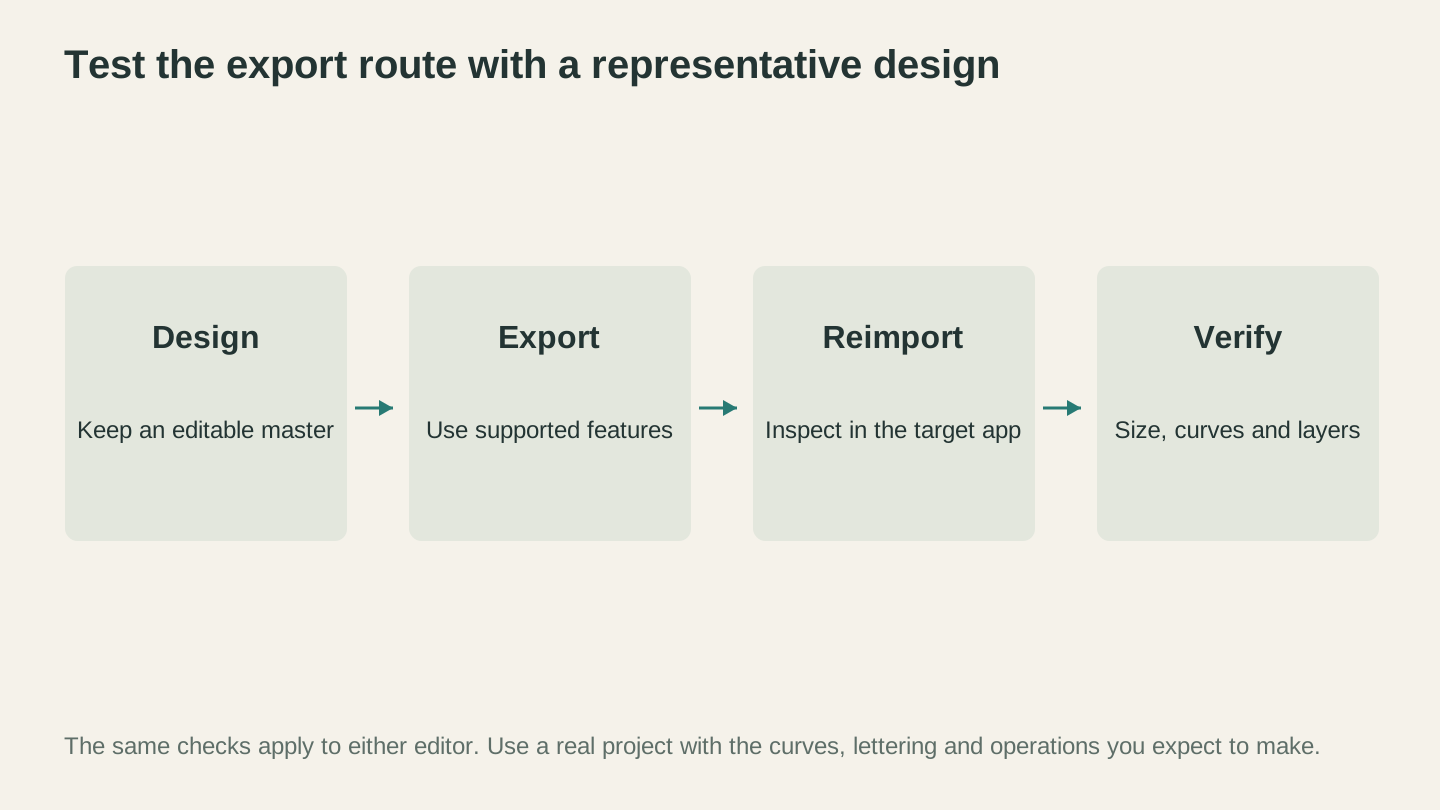
Test the export route with a representative project. Inspect the imported dimensions, curves and layer organization in the application that will use the file.
The Third Option: Skip the Editor Entirely
Here's what neither the Inkscape nor Illustrator communities will tell you: for many common maker tasks, you don't need a full vector editor at all.
Need to convert a PNG to SVG? MonoTrace handles that in seconds.
Need to generate a design from a description? Vector Studio creates machine-ready SVGs from text prompts.
Need to convert between file formats? File Converter handles SVG, DXF, PDF, and more.
Need to edit an image before vectorizing? Canvas Pro is a full image editor in your browser.
These tools don't replace a vector editor for complex custom design work. But for the everyday "I need an SVG of X for my laser" workflow, they're faster than opening either Inkscape or Illustrator.
The Verdict
For most makers, Inkscape is the right choice. It's free, it handles SVG natively, and it does the job. The learning curve is real, but so are the thousands of free tutorials. Your laser cutter doesn't know or care whether your SVG was made in a free tool or a $300/year subscription.
Illustrator is worth it if you already pay for Creative Cloud or if you do high-volume design work where the polish and speed pay for themselves in saved time.
And for quick tasks, skip both and use purpose-built maker tools that get you from idea to machine-ready file without the overhead of a desktop application.
The best tool is the one that gets your design onto your material. Everything else is just preference.
Related Tools
MonoTrace
Turn photos and artwork into SVG outlines for free, with an optional sketch mode.
Canvas Pro
Edit images with layers, brushes, shapes, text, and selection tools. Export PNG, JPEG, or WebP.
File Converter
Convert supported combinations of vector, document, raster-image, and 3D-mesh formats.
Plan required for downloads
Vector Studio
Generate SVG artwork from a written prompt and selected style.
Ready to try these tools?
Sign up free, no credit card required. Free tools available immediately.
Start Free