

Getting Started with Laser Engraving: A Complete Beginner's Guide
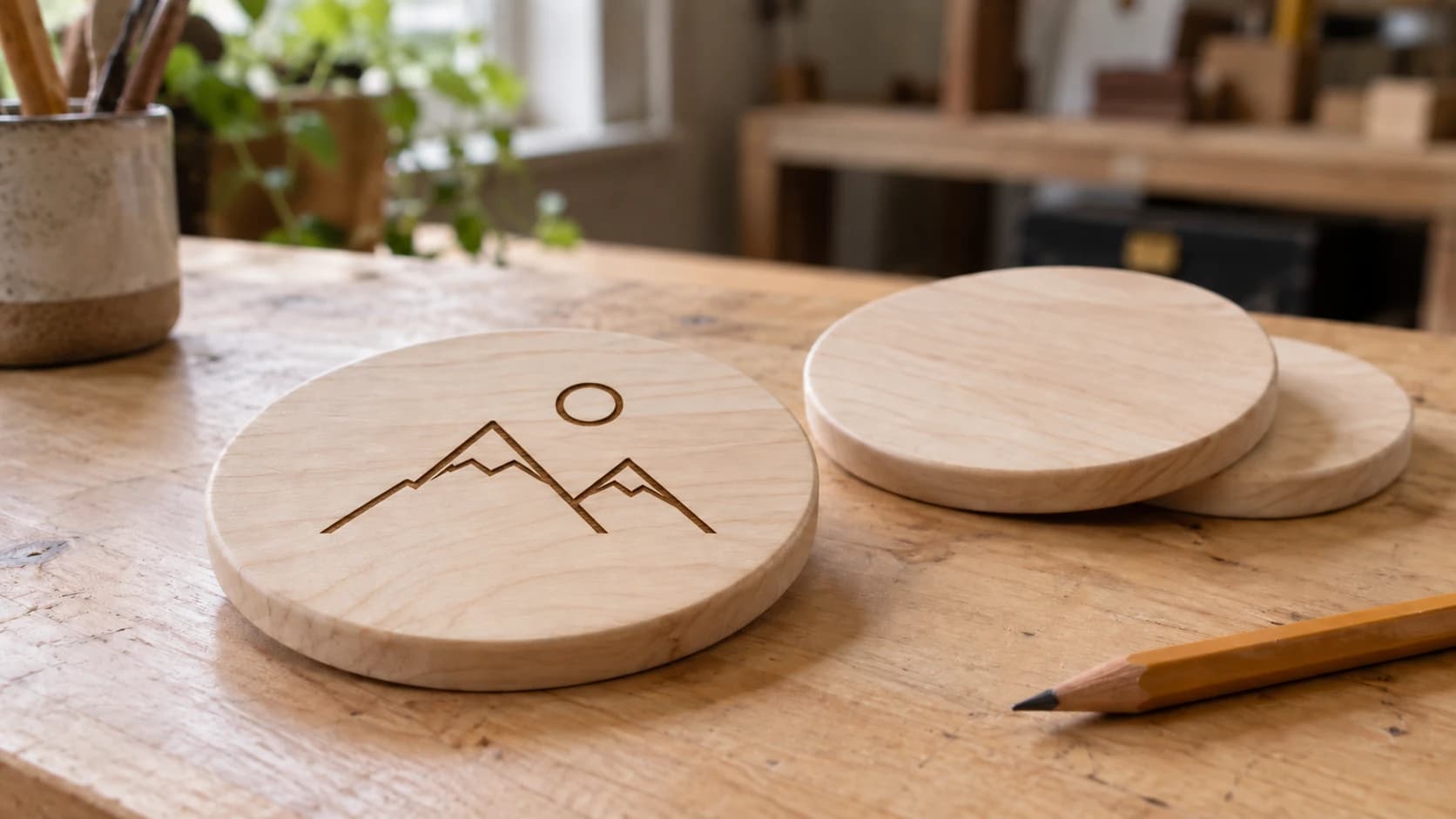
You just got a laser engraver. There's a big box in your garage, a bunch of parts in bags, and about forty pages of instructions that were clearly translated from another language by someone who has never used a laser. Congrats. You're about to have a lot of fun once you get past the initial "what did I get myself into" phase.
This guide covers everything from unboxing to your first finished engrave. No fluff, no theory lectures. Just the stuff you actually need to know to start making things.
Safety First (Seriously, Don't Skip This)
Lasers are not toys. A diode laser can blind you instantly. A CO2 laser can set things on fire. Neither of those outcomes is great for your weekend plans.
Here's your non-negotiable safety checklist:
-
Wear your laser safety glasses. Every single time. Check the wavelength range, optical density (OD) rating, and fit printed on the glasses against what your machine's manual specifies, don't just assume any pair that came in the box is a match. Regular sunglasses don't count.
-
Never leave it running unattended. Fires happen. They happen fast. Keep a fire extinguisher within arm's reach of your machine. A small ABC extinguisher is perfect.
-
Ventilate properly. Laser engraving produces fumes, and some materials produce genuinely nasty ones. At minimum, use the exhaust fan that came with your machine. Better yet, vent it outside with a dryer hose. Best case: add an inline fan for extra airflow.
-
Know what you can't cut. PVC and vinyl release chlorine gas when lasered, toxic to breathe and corrosive to your machine's optics and rails. ABS releases its own hazardous fumes when cut with a laser. Neither is a "this smells bad" situation, it's a "this can hurt you and your machine" situation. Stick to known-safe materials until you learn the ropes.
Warning
Never laser PVC, vinyl, or artificial leather containing PVC. They release chlorine gas, which is toxic to breathe and corrosive to your machine. Never laser ABS plastic either, it releases its own hazardous fumes when lasered. When in doubt about a material, don't laser it until you've confirmed what it's made of.
PRINT. CUT. CARVE.



- Multiple formats (SVG, DXF, PNG)
- Machine-tested designs
- Commercial licenses
Sponsored by PrintCutCarve.com
Diode vs CO2: What Kind of Laser Do You Have?
Most beginners land in one of two camps. Knowing which you're in determines your settings, materials, and expectations.
| Feature | Diode Laser | CO2 Laser |
|---|---|---|
| Typical power | 5W - 20W (optical) | 40W - 80W |
| Price range | $200 - $800 | $400 - $3,000+ |
| Cuts wood? | Thin wood, multiple passes | Yes, cleanly in one pass |
| Engraves wood? | Yes | Yes, faster |
| Cuts acrylic? | Struggles with clear | Yes, beautifully |
| Engraves metal? | Only coated/anodized | No (needs fiber laser) |
| Enclosure? | Usually open frame | Usually enclosed |
| Eye safety | Visible beam; requires OD-rated glasses matched to your laser | Invisible beam; requires OD-rated glasses matched to your laser, and stray reflections are harder to notice |
Diode lasers (xTool D1, Atomstack, Ortur, Sculpfun) are the most popular beginner machines. They're affordable, compact, and handle wood and leather nicely. They struggle with clear acrylic and can't cut anything thick very fast.
CO2 lasers (Glowforge, OMTech, Monport, Boss) are more powerful and versatile. They cut acrylic like butter, handle thicker wood easily, and engrave much faster. They cost more and take up more space.
Either way, the workflow is the same. The settings just change.
Software: Getting Your Design to the Machine
Your laser doesn't understand JPGs or PDFs. It needs a specific file type sent through specific software. Here's the chain:
Design tool (where you create or edit) → Laser software (where you set power/speed) → Machine (where it burns)
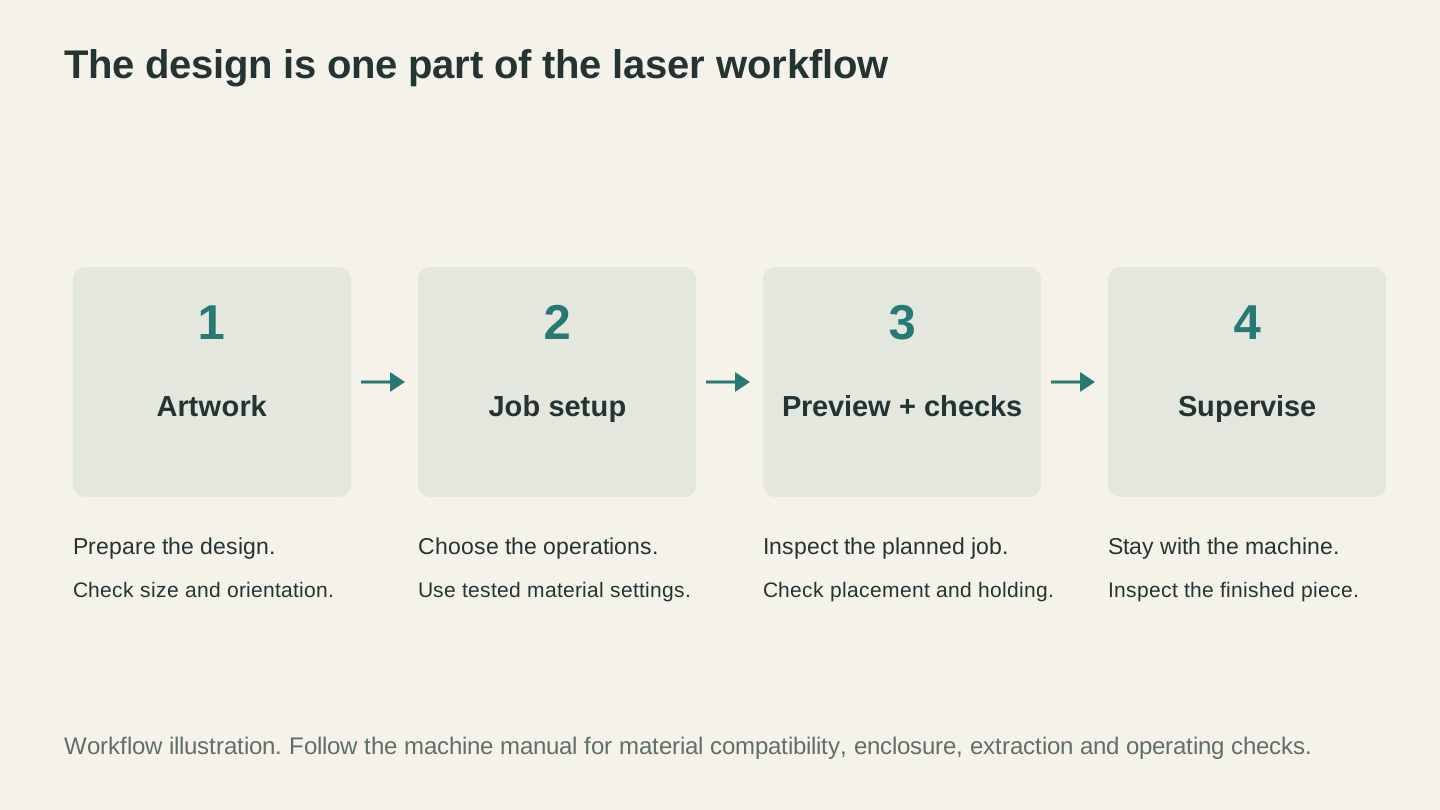
The artwork still needs operation settings, placement checks and a supervised machine job before it becomes a finished coaster.
Laser Control Software
This is the program that actually talks to your machine. The most common options:
- Paid, one-time purchase (around $60): The gold standard for most laser owners. Works with almost every laser. Worth it if you plan to stick with this hobby.
- Beam Bench (free): Craftgineer's own laser software, browser-based, handles design and running jobs.
- Free, Windows only: Works well with GRBL-based diode lasers. Good for getting started without spending money.
- Machine-specific apps (free): Some brands ship their own free software for their machines, which is often the easiest starting point if you own that machine. Glowforge's cloud-based app is one example, dead simple, but only works with Glowforge machines.
File Formats Your Laser Wants
| Format | Best for | Notes |
|---|---|---|
| SVG | Cut lines, vector engraving | Clean paths, scalable, the standard |
| DXF | Cut lines (industrial software) | Some controllers prefer this over SVG |
| PNG/JPG | Photo engraving, raster images | Converted to dots/lines by the software |
| AI | Vector designs | A vector format some design tools export; most laser software can read it |
Vector files (SVG, DXF) give you the crispest results for anything with clear outlines. Raster images (PNG, JPG) work for photo engraving but the software converts them to a dot pattern, so quality depends on your settings.
Tip
If you've got a PNG logo or image you want to engrave as clean vector lines instead of a raster image, MonoTrace will convert it to SVG for free. That gives you sharp, scalable paths instead of a grid of dots.
Your First Test Engrave (Do This Before Anything Else)
Before you engrave your masterpiece on that nice piece of walnut, run a test grid. This is how you figure out what settings work for your specific machine and material. Every machine is slightly different, even the same model.
What You Need
- A scrap piece of wood (basswood or plywood works great)
- Your laser software installed and connected
- About 15 minutes
The Test Grid Method
A test grid engraves a matrix of small squares at different power and speed combinations. This lets you see exactly what each setting looks like on your material.
-
Create a grid in your laser software. Most programs have a built-in material test generator you can run directly.
-
Set your ranges. For a first test on wood with a diode laser, try:
- Power: 20% to 100% (in 10% steps)
- Speed: 1000mm/min to 4000mm/min (in 500mm/min steps)
-
Focus your laser. This is the single most important step. Use the focus tool or spacer that came with your machine. If the laser isn't focused, nothing else matters. Your engraving will be blurry no matter what settings you use.
-
Run the test. It'll take 10-15 minutes depending on your grid size.
-
Read the results. You're looking for the sweet spot: dark enough to see clearly, but not so hot that it chars or burns through. Write the winning settings on the test piece with a marker. You'll thank yourself later.
Info
Keep your test pieces. Label them with the material, date, and machine. Over time you'll build a library of settings for different materials. It beats running a new test every time.
Basic Settings Explained
Three numbers control everything your laser does. Once you understand these, you can figure out settings for any material.
Power (%)
How hard the laser fires. Higher power = deeper burn. Too much power on thin material burns right through it. Too little and you get a faint, barely visible mark.
Speed (mm/min or mm/s)
How fast the laser head moves. Slower = more energy per spot = deeper engrave. Faster = lighter touch. Speed and power work together. High power + slow speed = deep cut. Low power + fast speed = light surface mark.
DPI / Lines Per Inch
For raster (image) engraving, this controls how many lines the laser draws per inch. Higher DPI = more detail but slower. For most wood engraving, 254 DPI is a solid starting point. Photo engraving on wood usually benefits from 300-318 DPI.
| Setting | Engraving (Wood) | Cutting (3mm Plywood) |
|---|---|---|
| Power | 60-80% | 100% |
| Speed | 2000-4000 mm/min | 200-400 mm/min |
| DPI | 254-318 | N/A |
| Passes | 1 | 1-3 depending on power |
These are ballpark numbers for a typical 10W diode laser. Your machine will be different, which is why you run the test grid first.
Your First Real Project: A Wooden Coaster
Time to make something you can actually use. A simple engraved coaster is the perfect first project because it's small, forgiving, and makes a great gift.
What You Need
- 4" round or square basswood coaster blank (craft stores sell packs of these)
- A simple design: your name, a short quote, or a simple graphic
- Settings from your test grid
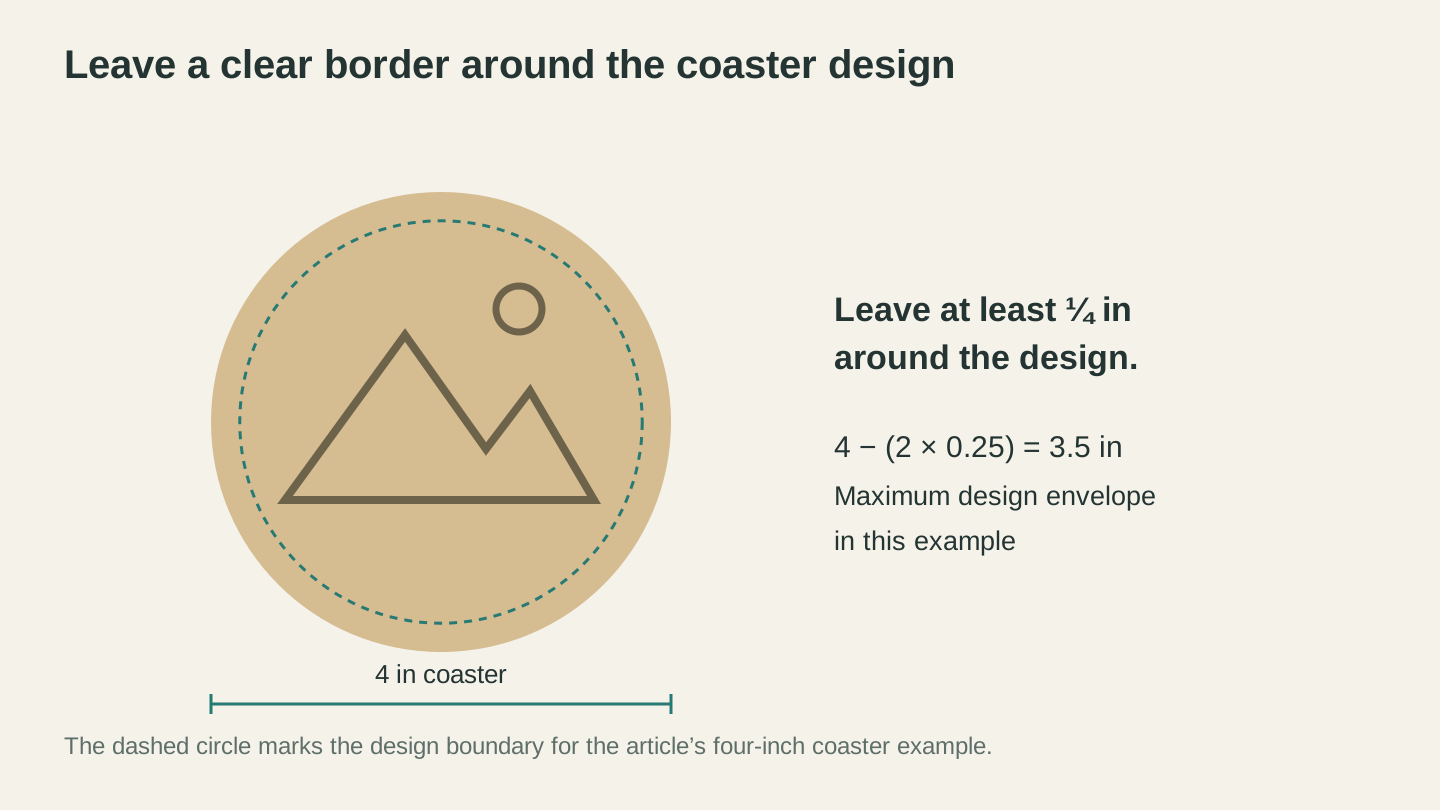
A quarter-inch margin on each side of a four-inch coaster leaves a maximum design envelope of 3.5 inches. Keep the artwork inside that boundary.
Steps
-
Pick a design. Keep it simple for your first one. A name or short word in a bold font works perfectly. If you want a graphic, grab a simple SVG from a free design site.
-
Set up in your software. Import your design, resize it to fit the coaster (leave at least 1/4" margin from the edges), and position it centered.
-
Secure the coaster. Tape it down or use hold-down pins. If it moves during engraving, the design will shift and you'll be starting over.
-
Focus the laser. Yes, again. Every time. Different material thickness means different focus distance.
-
Run a frame test. Most laser software has a "Frame" or "Boundary" button that moves the laser head around the outline of your design without firing. This shows you exactly where the engrave will land. If it's off-center, adjust now.
-
Hit Start. Stay with the machine and keep watching the whole time it runs. Don't walk away just because the first few seconds look fine.
-
Clean up. Lightly sand any char marks with fine sandpaper (320 grit). If you masked the surface with painter's tape before engraving (a great habit), peel it off now for clean edges.
Tip
Apply painter's tape (the blue kind) over your material before engraving. It prevents smoke residue from staining the surface around the engraved area. Peel it off after and you get noticeably cleaner results.
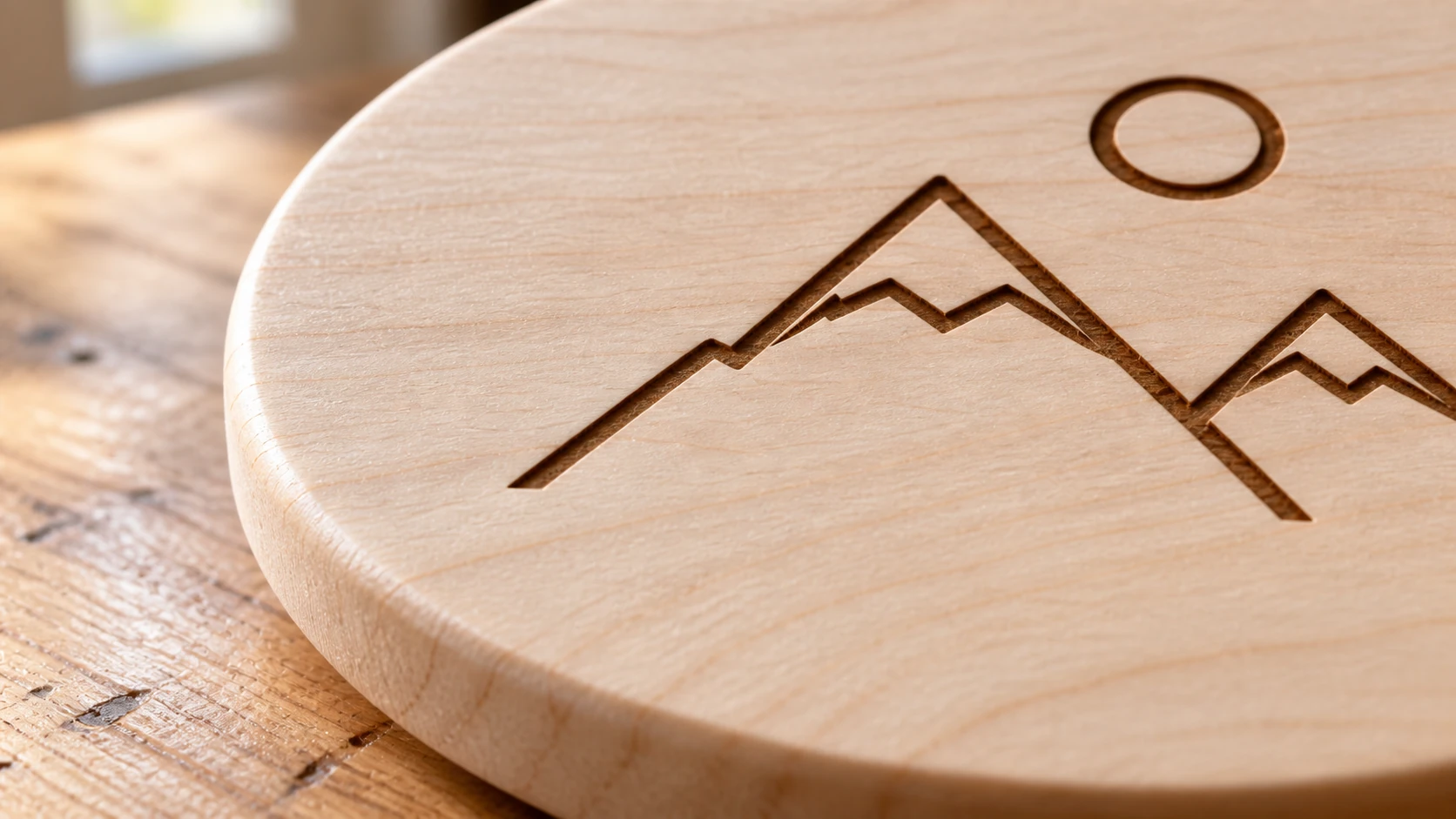
The same first-project coaster at closer range: a simple design, visible basswood grain and a clear border around the engraving.
Common Beginner Questions
"My engraving is blurry." 99% of the time this is a focus issue. Re-check your focal distance. The other 1% is a loose belt or wobbly frame.
"The engraving is too light." Increase power or decrease speed. Try 10% more power first, then slow down if that's not enough.
"The wood is charring/burning too much." Decrease power or increase speed. You can also try adding an air assist if your machine supports it. Moving air blows the flame out and reduces char.
"My circles are coming out oval." Your belt tension is uneven, or your steps-per-mm calibration is off. Tighten your belts first (they should twang like a guitar string, not flop around). If that doesn't fix it, look up calibration for your specific machine.
"What materials can I start with?" Basswood, plywood (not MDF for cutting), craft leather (vegetable tanned), cardboard, and anodized aluminum are all beginner-friendly. Each one reacts differently, so run a test grid on each new material.
What to Learn Next
You've got the basics down. From here, the rabbit hole goes deep (in the best way):
- Material guides: Every material has its own quirks. Wood species, acrylic types, leather grades. Learn one material really well before branching out.
- Photo engraving: Turning photos into laser engravings is a whole skill unto itself. It requires image preparation, specific DPI settings, and the right material. Photo Converter can help convert your photos to clean line art optimized for laser work.
- Cutting: Once you're comfortable engraving, cutting is the next step. It needs slower speeds, higher power, and proper air assist.
- Vector design: Learning to create your own SVG designs opens up everything. Vector Studio can generate AI vector designs from text descriptions if you want to skip the learning curve.
- Selling your work: A lot of makers start selling personalized items within a few months. Custom cutting boards, ornaments, signs, and pet tags are consistently popular.
Go Burn Something (Safely)
You've got the knowledge. You've got the machine. The test grid will tell you the settings. Everything else is practice and experimentation.
Start with that coaster project. Make five of them. Give them to people. You'll learn more from those first five projects than from reading another ten articles. And once you've got the basics dialed in, the project ideas never stop coming.
Happy making.
Got a logo or image you want to engrave as clean lines instead of a raster grid? MonoTrace converts it to laser-ready SVG for free, so you can skip straight to running your test grid.
Related Tools
Ready to try these tools?
Sign up free, no credit card required. Free tools available immediately.
Start Free