

LightBurn vs LaserGRBL: Which Laser Software Should You Use?
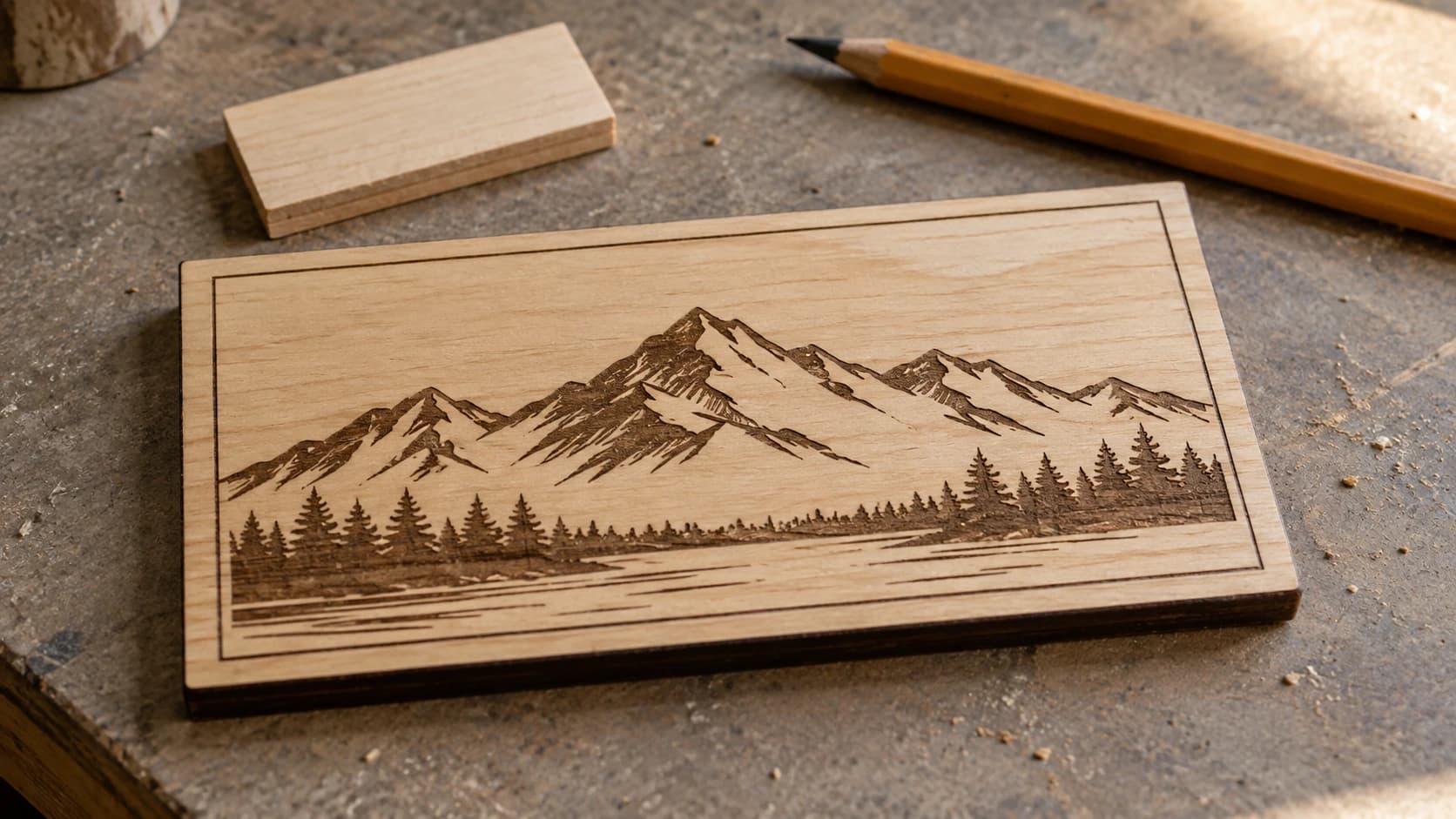
You've got a diode laser. Maybe an xTool D1, an Ortur Laser Master, or an Atomstack. You need software to actually control the thing. Two names dominate every forum and Facebook group: LightBurn and LaserGRBL.
One costs $60. The other is free. And the internet will give you wildly different advice depending on who you ask.
Here's the real comparison. Not based on feature checklists from marketing pages, but on what actually matters when you're trying to put a design onto a piece of wood without losing your mind.
What These Tools Actually Do
Quick clarification, because this confuses beginners: LightBurn and LaserGRBL are machine control software. They send commands to your laser. They handle power settings, speed, movement patterns, and job management.
They are not design tools. You create your designs elsewhere (Inkscape, Canva, Craftgineer, wherever) and then import them into LightBurn or LaserGRBL for the actual burning and cutting.
Think of it like this: your design tool is the kitchen where you prep ingredients. LightBurn or LaserGRBL is the oven.
PRINT. CUT. CARVE.



- Multiple formats (SVG, DXF, PNG)
- Machine-tested designs
- Commercial licenses
Sponsored by PrintCutCarve.com
Price
LaserGRBL: Free. Open source. Windows only.
LightBurn: $60 one-time for the GCode license (diode lasers). $120 for the DSP license (CO2 lasers with Ruida/Trocen controllers). Includes 12 months of updates, then updates cost extra but the software keeps working forever.
$60 is not nothing, but it's a one-time cost for software you'll use every single session. If you're spending $300+ on a laser, the software cost is a small fraction of the total investment.
Platform Support
LaserGRBL: Windows only. No Mac, no Linux.
LightBurn: Windows, Mac, and Linux.
If you're on a Mac, the decision is already made. LightBurn is your only option between these two. (There are other alternatives like LaserWeb, but they're much less polished.)
Machine Compatibility
LaserGRBL works with GRBL-based controllers. That covers most diode lasers: xTool D1 (in GRBL mode), Ortur, Atomstack, Sculpfun, Two Trees, and similar machines. It does not work with Ruida, Trocen, or other DSP controllers found in CO2 lasers.
LightBurn supports GRBL, Ruida, Trocen, Marlin, and several other controller types. If you ever upgrade from a diode laser to a CO2 machine, LightBurn grows with you. LaserGRBL doesn't.
| Feature | LaserGRBL | LightBurn |
|---|---|---|
| Price | Free | $60 (GCode) / $120 (DSP) |
| Platform | Windows only | Windows, Mac, Linux |
| GRBL support | Yes | Yes |
| CO2/Ruida support | No | Yes ($120 license) |
| Interface | Functional | Polished |
| Vector cutting | Basic | Full layer system |
| Image engraving | Good | Excellent |
| Camera support | No | Yes |
| Material library | No | Yes |
| Regular updates | Occasional | Active development |
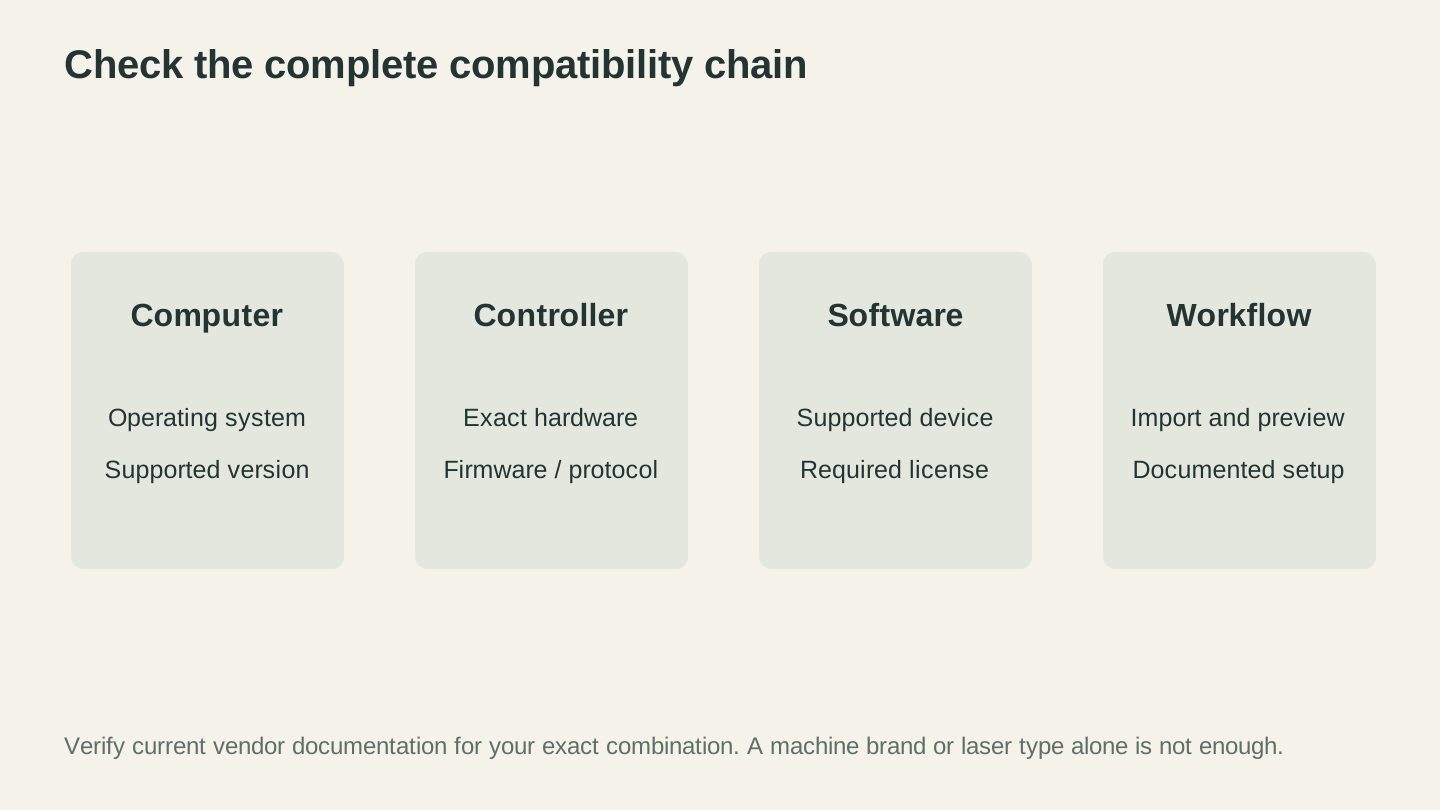
Check the exact operating system, controller and software version together. Use current vendor documentation for support and license requirements.
User Interface
LaserGRBL looks like it was designed by an engineer, for engineers. And that's not an insult. The interface is dense, with lots of small buttons and controls packed together. Everything you need is there, but discoverability is low. New users often feel overwhelmed by the number of options visible at once.
LightBurn has a more modern, organized interface with dockable panels, a proper layer system, and a visual canvas that shows exactly how your design will be engraved. It feels more like a design application that happens to control a laser.
For beginners, LightBurn is noticeably easier to navigate. For experienced users who've memorized LaserGRBL's layout, the difference matters less.
Image Engraving
This is where many users spend most of their time: burning photos and images onto wood, slate, or leather.
LaserGRBL handles image engraving well. It has several dithering modes (ordered, Floyd-Steinberg, Atkinson, etc.), contrast and brightness adjustment, and the ability to set resolution (lines per inch). For a free tool, the image engraving quality is genuinely good.
LightBurn offers all the same dithering modes plus more advanced options: multiple passes, variable power (grayscale) engraving, and the ability to preview exactly how the engraved result will look before you start. The pass-through and image manipulation tools are more refined.
For basic photo engraving, LaserGRBL gets surprisingly close to LightBurn's results. The gap widens with complex images where fine-tuning matters.
Tip
Regardless of which software you use, the quality of your engraved photos depends heavily on image preparation. Adjusting contrast, sharpening edges, and removing backgrounds before importing will improve your results dramatically. Photo Converter can convert photos to optimized line art for engraving.
Vector Cutting
Here's where the gap gets significant.
LaserGRBL can import SVG and DXF files for vector cutting, but the support is basic. There's no layer system for assigning different operations (cut, engrave, score) to different parts of the design. You can't easily set one path to cut at full power and another to engrave at low power in the same job.
LightBurn has a full layer system with color-coded operations. Drop in an SVG, assign red paths to "cut at 80% power, 5mm/s" and blue paths to "engrave at 30% power, 100mm/s." You can set the order, add multiple passes, and preview the tool path. This is how professional laser work gets done.
If you do any vector cutting (not just raster engraving), LightBurn's layer system alone is worth the $60.
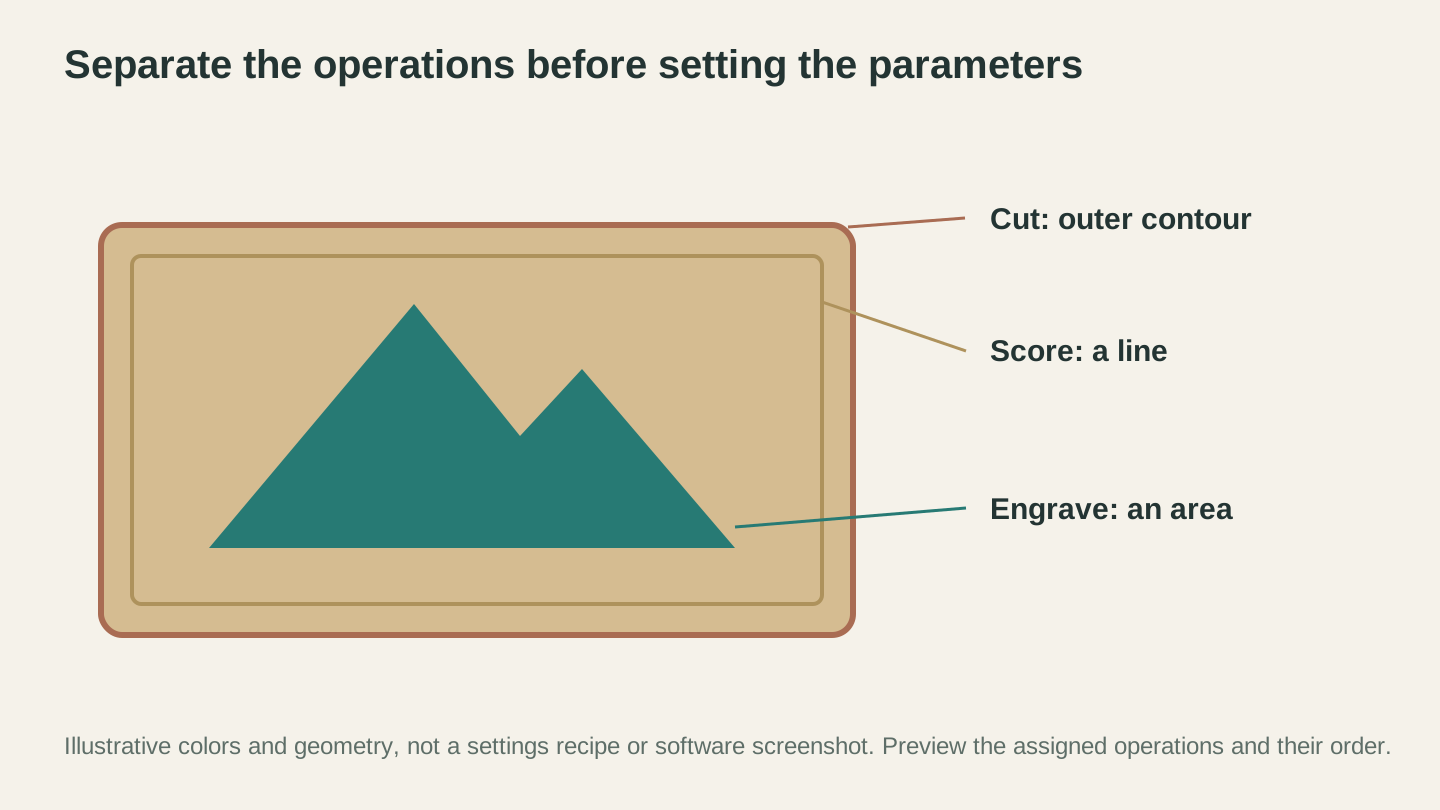
Separate the operations before choosing parameters. The colors identify the examples here; use the actual operation controls and preview in your laser software.
Camera and Alignment
LightBurn supports camera alignment. Mount a camera in your laser enclosure, calibrate it, and you can position designs precisely on your workpiece by seeing exactly where things will land on the actual material. This is invaluable for aligning engravings on pre-cut pieces, positioning text on tumblers, or doing multi-pass work.
LaserGRBL has no camera support. You're relying on manual positioning, test fires, or frame burns to align your work.
Material Library
LightBurn includes a material library where you can save and recall speed/power/passes settings for specific materials. Once you dial in the perfect settings for 3mm birch plywood, save it and recall it months later. You can also import community-created material libraries.
LaserGRBL doesn't have this feature. You'll keep a spreadsheet, a notebook, or rely on memory. It works, but it's less convenient.
Design Prep Before Your Laser Software
Regardless of which machine control software you choose, you still need to prepare your designs before importing them. This is where Craftgineer fits in:
- MonoTrace: Convert any image to a clean SVG for vector cutting. Free.
- Photo Converter: Transform photos into optimized line art for laser engraving.
- File Converter: Convert between SVG, DXF, and other formats. No tool credits are charged. Downloading the converted file requires an active paid plan.
These tools handle the "before" step. Design prep happens here. Machine control happens in LightBurn or LaserGRBL. They're different parts of the workflow, and they complement each other.
When to Choose LaserGRBL
LaserGRBL is the right choice when:
- You're just getting started and want to test laser engraving before spending money on software
- You primarily do image/photo engraving and don't need advanced vector cutting
- Budget is tight and you'd rather put that $60 toward materials or accessories
- You're on Windows (it's your only option for this tool)
- You have a simple diode laser and don't plan to upgrade to CO2
LaserGRBL is a capable tool. Thousands of makers use it daily and produce excellent work. Don't let anyone tell you it's "not good enough." For raster engraving, it absolutely is.
When to Choose LightBurn
LightBurn is the right choice when:
- You do vector cutting and need layer-based operation control
- You're on Mac or Linux (LaserGRBL isn't available)
- You plan to upgrade to a CO2 laser eventually
- You want camera alignment for precise positioning
- You value polish and workflow speed and $60 is a reasonable investment
- You run a business and time saved per job adds up
The Common Upgrade Path
Here's what actually happens in practice: most makers start with LaserGRBL because it's free and they're just experimenting. They learn the basics, engrave some photos, get hooked on the hobby. Within a few months, they hit a limitation (usually the vector cutting workflow) and buy LightBurn.
There's nothing wrong with this path. LaserGRBL is a great starting point. LightBurn is a great upgrade. They're not enemies. They're different stages of the same journey.
The Verdict
Start with LaserGRBL if you're new to laser engraving and want to learn without spending money. It'll teach you the fundamentals and produce good results for image engraving.
Move to LightBurn when you need vector cutting layers, camera support, or you find yourself fighting LaserGRBL's limitations. The $60 pays for itself quickly in saved time and frustration.
Use Craftgineer for design prep regardless of which machine software you choose. MonoTrace for vectorization, Photo Converter for photo preparation, and File Converter for format conversion. Your machine software handles the last mile. These tools handle everything before it.
Related Tools
MonoTrace
Turn photos and artwork into SVG outlines for free, with an optional sketch mode.
File Converter
Convert supported combinations of vector, document, raster-image, and 3D-mesh formats.
Plan required for downloads
Photo Converter
Convert a photo into engraving-oriented line art with standard or inverted output.
Ready to try these tools?
Sign up free, no credit card required. Free tools available immediately.
Start Free