

How to Create QR Codes for Products, Packaging, and Marketing
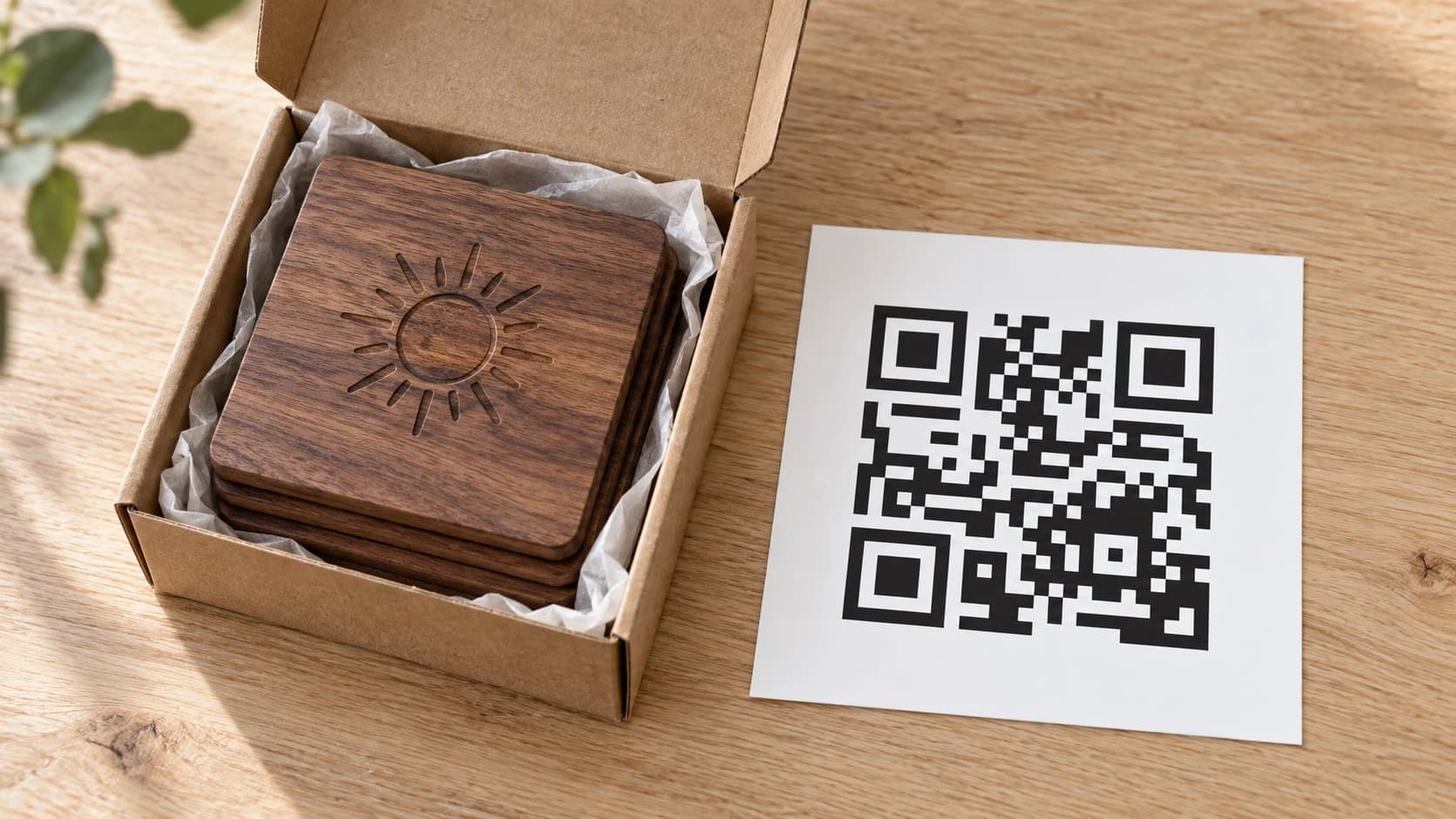
QR codes had a rough decade. They showed up in the mid-2000s on every billboard, magazine ad, and cereal box, and almost nobody scanned them. The technology was ahead of its time. You needed a dedicated app, the codes were ugly, and they usually just linked to a company's homepage.
Then the pandemic happened. Suddenly every restaurant replaced their menus with QR codes, and phone manufacturers built QR scanning directly into the default camera app. No extra software needed. Point your phone at a square of black and white pixels, and you're instantly on a webpage.
Now QR codes are genuinely useful, and for makers selling physical products, they solve a real problem: how do you connect a physical item to your digital presence? A cutting board can't have a clickable link. A wooden sign can't redirect to your Etsy shop. But a QR code can.
Why Makers Need QR Codes
If you make and sell physical products, there's a gap between the thing in someone's hands and everything else you want them to know. Your shop URL. Care instructions. Your social media. A review page. Your full product catalog.
Printed URLs work, but nobody is going to type etsy.com/shop/WoodworksbyDave/listing/1234567890 into their phone browser. They just won't. A QR code turns that 50-character URL into a one-second scan.
The real value is reducing friction. Every extra step between "customer holds your product" and "customer visits your page" loses people. QR codes eliminate all the steps in between. Point, scan, done.
For makers who sell at craft fairs, markets, or through wholesale, QR codes also solve the "I forgot to grab a business card" problem. Your product itself becomes the business card.
PRINT. CUT. CARVE.



- Multiple formats (SVG, DXF, PNG)
- Machine-tested designs
- Commercial licenses
Sponsored by PrintCutCarve.com
QR Code Types Every Maker Should Know
Not all QR codes just link to websites. Different QR types encode different kinds of data, and knowing what's available opens up some creative options.
URL: The most common type. Encodes a web address. The scanner opens the link in the phone's browser. Use this for shop links, product pages, care instruction pages, and landing pages.
vCard (Contact): Encodes a full contact card with your name, phone number, email, website, and address. When someone scans it, their phone offers to save the contact directly. No typing required. Perfect for business cards.
WiFi: Encodes a WiFi network name and password. The scanner offers to connect automatically. Great for craft fair booths where you want visitors to connect to your hotspot or demo tablet.
Plain Text: Encodes a short text message. Useful for serial numbers, batch identifiers, or short care instructions that don't need to link anywhere.
For most maker applications, URL codes are what you'll use 90% of the time. But vCard codes for business cards and WiFi codes for booth setups are worth knowing about.
7 Practical QR Code Uses for Your Maker Business
1. Product Packaging to Your Online Shop
The simplest and most valuable use. Put a QR code on your product packaging that links to your shop or product listing page. A customer who bought your laser engraved coaster set at a craft fair can scan the code six months later when they want to order more, or buy something else from your shop.
If you sell on Etsy, link to your shop's main page rather than a specific listing. Listings expire or sell out, but your shop URL stays the same. For tips on optimizing your Etsy shop for these visitors, check out our guide to selling on Etsy.
Print the QR code on a small sticker, a hang tag, or directly on the box. Even a simple card tucked inside the packaging works.
2. Care Instructions and How-To-Use Guides
Physical products have limited space for instructions. A laser engraved cutting board doesn't come with a manual, but buyers often want to know: Can I put this in the dishwasher? What oil should I use? How do I maintain the engraving?
Create a care instructions page on your website and encode its URL as a QR code. Attach the code to a small tag or card included with the product. When the buyer scans it, they get the full instructions on their phone.
This is better than a printed card for two reasons. First, you can update the instructions anytime without reprinting anything. Second, the customer is now on your website, where they might browse your other products.
3. Review Request Cards
Reviews are the lifeblood of online selling. A product with 50 five-star reviews sells dramatically better than the same product with 3 reviews. But most buyers don't leave reviews unless you make it easy.
Include a small card in every package with a QR code that links directly to your review page. Not your shop page. Not the product page. The actual review submission form. Remove every possible barrier between "satisfied customer" and "written review."
Tip
On Etsy, you can't link directly to the review form, but you can link to the order's listing page. Include a friendly message on the card: "Love your purchase? A quick review helps our small shop more than you'd think." Keep it genuine, not pushy.
4. WiFi Codes for Craft Fair Booths
If you demo products on a tablet at craft fairs, you know the WiFi struggle. Venue WiFi is either nonexistent, painfully slow, or requires a complicated login. Most makers bring a phone hotspot, but then customers who want to browse your online shop on their own phone can't connect easily.
Create a QR code with your hotspot network name and password. Print it on a small sign at your booth. Customers scan it and connect instantly, no password typing required. Now they can browse your online shop while standing in front of your physical products.
5. Business Cards with Contact Info
Traditional business cards get lost, thrown away, or shoved in a drawer and forgotten. A vCard QR code on your business card lets someone scan it and save your full contact information directly to their phone in one step.
Include your name, email, phone number, website, and social media links. The contact is saved permanently on their phone, not sitting in a pocket waiting to go through the wash.
You can also go fully digital: skip the physical card and just have the QR code displayed at your booth. But honestly, a physical card with a QR code on it covers both bases. Some people still prefer a tangible card.
6. Product Authentication and Origin Story
For higher-end products, a QR code can link to a page that tells the story behind the piece. Where the wood came from, how it was made, what makes it unique. This works especially well for custom and one-of-a-kind items.
Some makers use QR codes as a basic authentication measure. The code links to a page on your website that confirms the item is genuine. If you're building a brand and your products are being resold, this adds a layer of trust and traceability.
If you make personalized gifts, an origin story QR code can include details about the customization process, materials used, and care tips specific to that order.
7. Social Media Follow Links
You want customers to follow you on Instagram, TikTok, or YouTube, but asking someone to "find me at @WoodworksbyDave on Instagram" relies on them remembering and searching later. They won't.
A QR code on your packaging, booth display, or business card that opens your social media profile directly gets far more follows. Use a link-in-bio service or your own landing page if you want to offer multiple platforms from a single code.
Sizing and Scanning Reliability
A QR code that doesn't scan is worse than no QR code at all. It makes your product look unprofessional and frustrates the customer. Size and contrast are the two factors that determine whether a code scans reliably.
Minimum Size Guidelines
Close-range scanning (handheld, product tags, business cards): 1 inch (25mm) minimum. This works when someone holds their phone 6-12 inches from the code. For packaging inserts and business cards, 1 inch is usually sufficient.
Mid-range scanning (table signs, booth displays): 2 inches (50mm) minimum. At arm's length or slightly farther, the camera needs more pixels to resolve the pattern. Booth signs and display cards should use at least 2-inch codes.
Long-range scanning (banners, wall signs): Scale up proportionally. A code that needs to scan from 6 feet away should be at least 6 inches. The general rule: QR code width should be about 1/10th of the expected scanning distance.
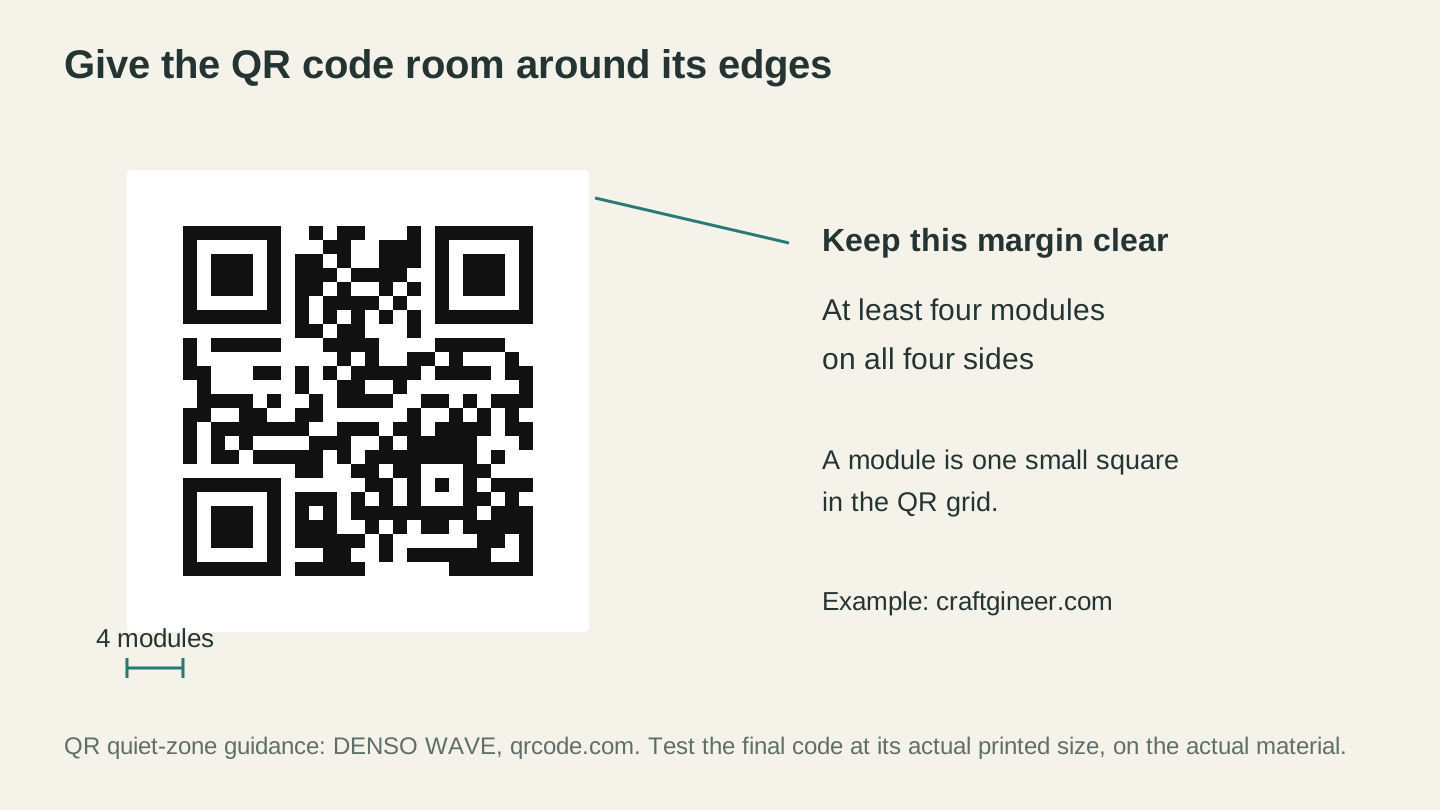
Leave at least four modules of clear space on every side, following DENSO WAVE’s quiet-zone guidance. This example links to Craftgineer; test your own code after printing or engraving.
Error Correction
QR codes have built-in error correction, which means they can still scan even if part of the code is scuffed, grubby, or partly covered. There are four levels:
| Level | Damage Tolerance | Best For |
|---|---|---|
| Low (L) | ~7% | Screen displays, pristine print |
| Medium (M) | ~15% | General use, most applications |
| Quartile (Q) | ~25% | Products that may get handled roughly |
| High (H) | ~30% | Outdoor use, laser engraving, heavy wear |
For most maker applications, Medium or Quartile is the right choice. If you're laser engraving QR codes directly onto products (where precision varies and the surface may wear), use High error correction.
Warning
More error correction means a denser code with more modules (the tiny squares). At small sizes, high error correction can actually make the code harder to scan because the individual modules become too small for the camera to resolve. For codes under 1 inch, stick with Medium error correction.
Contrast Requirements
QR codes need strong contrast between the dark modules and the light background. Black on white is ideal. Dark brown on light wood works. Dark gray on medium gray does not.
As a rule of thumb, if you squint at the QR code and the pattern starts to blend together, it won't scan well. The contrast ratio should be at least 4:1 between the dark and light areas.
Material Considerations
Makers have the unique advantage of being able to fabricate QR codes in materials beyond paper. But each material has its own challenges.
Laser Engraved QR Codes
Engraving a QR code directly onto a wooden product looks fantastic, but the contrast issue is real. Engraved wood is typically a slightly darker shade of the same wood, which often isn't enough contrast for reliable scanning.
Solutions:
- Paint fill: Engrave the code, then fill the engraved areas with black paint or paint pen. Wipe the surface clean so paint only remains in the recesses. This creates strong black-on-wood contrast.
- Light wood with deep engrave: Maple, birch, and other light woods create better natural contrast. Increase your laser power to get a darker burn.
- Engrave on painted surface: Apply a light colored paint to the surface first, then engrave through the paint to expose dark wood underneath. Or reverse it: paint the surface dark and engrave to expose light wood.
Test your engraved QR code with multiple phones before committing to production. What scans on your phone might not scan on an older device with a weaker camera.
Vinyl-Cut QR Codes
Cutting machines can produce QR codes from adhesive vinyl, which gives you perfect contrast and the ability to apply the code to almost any surface. Black vinyl on a light product, or white vinyl on a dark product.
The challenge is weeding. QR codes have dozens or hundreds of tiny individual squares, and removing the waste vinyl between them is tedious at small sizes. Keep vinyl QR codes at 2 inches or larger to make weeding manageable.
Use transfer tape to apply the weeded code to your product surface. Press firmly to ensure all the tiny modules adhere properly.
Printed Sticker QR Codes
The most practical option for most makers. Print QR codes on sticker paper using a regular inkjet or laser printer. Black on white gives perfect contrast, stickers are cheap, and you can print dozens on a single sheet.
For a more professional look, use weatherproof vinyl sticker paper or order custom stickers from a printing service. Matte finishes scan better than glossy finishes, which can create glare under certain lighting.
Metal Engraving
If you engrave on anodized aluminum, the contrast between the engraved area and the anodized surface can work well for QR codes. Black anodized aluminum with a light engraving, or clear/silver anodized with a dark marking, both produce scannable results.
Bare stainless steel or raw aluminum typically don't have enough contrast without additional treatment (color filling or chemical etching).
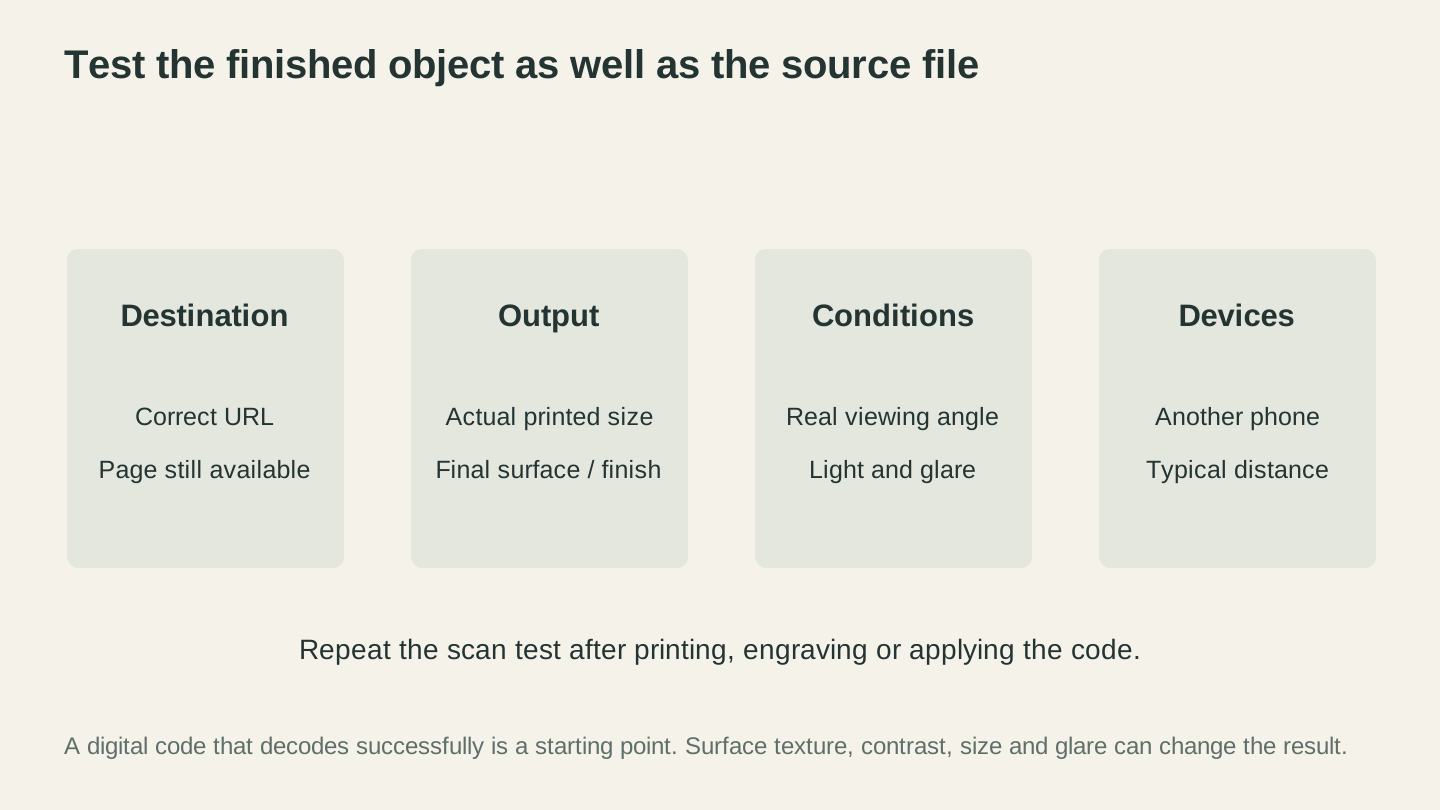
Test the finished application as well as the source file. Size, surface reflections and contrast can change how reliably a code scans.
Creating QR Codes with Craftgineer
QR Code Generator is free to use and produces QR codes ready for any application. Here's how to get from idea to finished code in about a minute.
Choose your QR type. URL/Text for web links or plain messages (most common), vCard for contact information, or WiFi for network credentials.
Enter your data. For URL/Text, paste the full web address or type your message. For a vCard, fill in the contact fields you want to include. For WiFi, enter the network name, password, and security type.
Customize the output. Adjust the error correction level based on your application (Medium for most uses, High for laser engraving). The generator shows a live preview as you make changes.
Download. Grab the QR code as a PNG for printing or stickers, or download as SVG for laser engraving and vinyl cutting. The SVG output is a clean vector file that scales to any size without losing sharpness.
Info
The QR Code Generator is completely free, no credits required. It supports URL/Text, vCard, and WiFi codes with adjustable error correction. Download as PNG or machine-ready SVG.
Test before production. Always scan your generated QR code with your phone before engraving, cutting, or printing a batch. Verify it goes to the right destination. Then test again on a second phone if possible. Two minutes of testing saves you from a box of unscannable products.
Start Linking Your Products to Your Digital Presence
QR codes are rare in being both free and immediately useful, without adding much complexity. Every product you ship, every craft fair booth you set up, every business card you hand out is an opportunity to connect a physical moment to your digital world.
Pick one use case from the list above and try it on your next product run. A QR code on a packaging insert that links to your shop is the easiest starting point, and it pays for itself the first time a customer scans it and places a second order.
Open the QR Code Generator, create your first code, and test it on your phone. The whole process takes about a minute.
Happy making.
Related Tools
Ready to try these tools?
Sign up free, no credit card required. Free tools available immediately.
Start Free