

How to Make 3D Printed Lithophanes from Any Photo
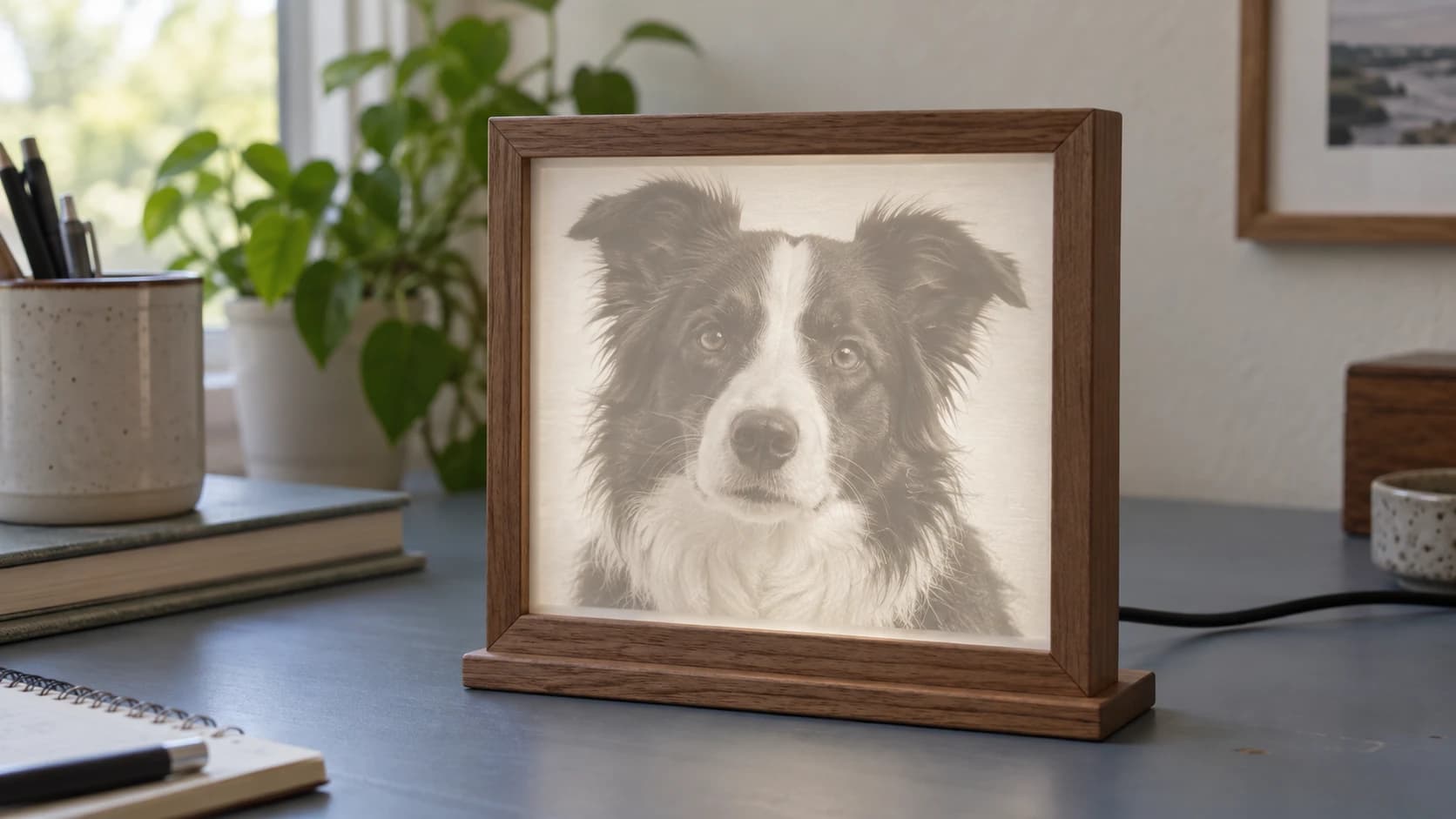
A lithophane turns a photograph into a 3D printed panel that reveals the image when you hold it up to light. The thinner areas let more light through and appear brighter. The thicker areas block light and appear darker. The result is a photograph that exists as a physical object, visible only when backlit. Hold it in your hand without light behind it and it looks like a plain white rectangle. Turn on a light behind it and a detailed photo appears.
Lithophanes have been around since the 1820s, originally made from translucent porcelain. 3D printers make them accessible to everyone. A lithophane takes about an hour to print and costs almost nothing in material. As gifts, they consistently get the "how did you make this?" reaction.
How Lithophanes Work
The concept is simple. White PLA (or any translucent material) blocks varying amounts of light depending on thickness:
| Area | Thickness | Light Transmission | Appearance |
|---|---|---|---|
| Dark areas of photo | Thickest | Blocks most light | Dark/shadow |
| Mid-tones | Medium | Partial light | Gray tones |
| Bright areas of photo | Thinnest | Most light through | Bright/white |
The relationship between thickness and brightness is surprisingly linear. A well-printed lithophane can reproduce remarkably fine tonal detail, including subtle gradients and facial features. The resolution of a lithophane is limited by your printer's XY resolution and layer height, not by the image resolution.
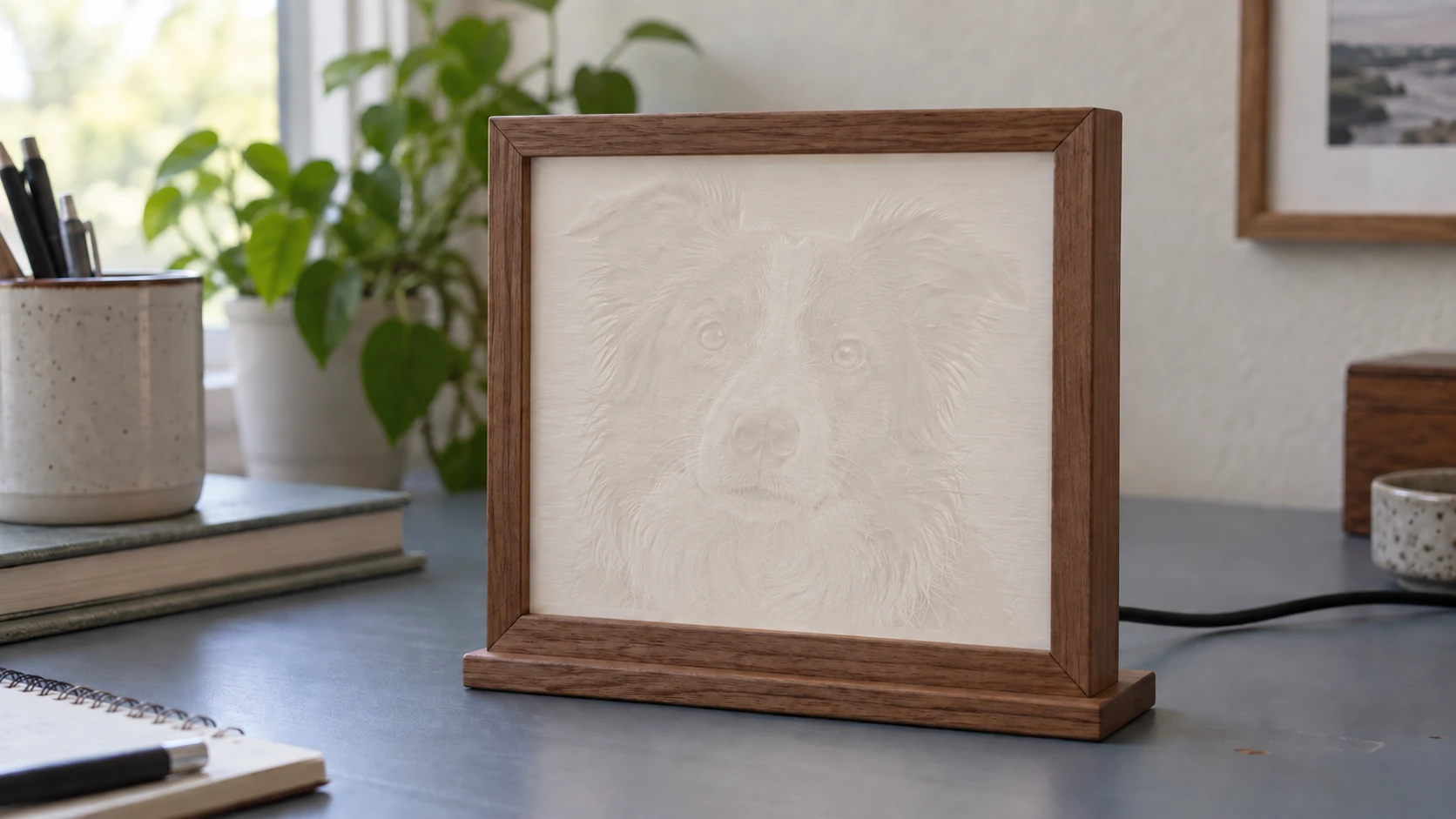
With the backlight off, the same panel reads mostly as white plastic. Turning the light on reveals the tonal image shown at the top of the article.
PRINT. CUT. CARVE.



- Multiple formats (SVG, DXF, PNG)
- Machine-tested designs
- Commercial licenses
Sponsored by PrintCutCarve.com
Creating the Model with ReliefMaker
ReliefMaker converts your photo into a printable STL file optimized for lithophane production. Here's the process:
Step 1: Upload Your Photo
Open ReliefMaker and select "From Photo" mode. Upload a JPG or PNG. Any photo works, but some subjects produce better lithophanes than others (more on that below).
Step 2: Choose an AI Engine
Fast (Local AI): Free, generates in about 2 seconds. Good for most photos.
Quality (Gemini): Costs 1 credit, takes about 3 seconds. Better at handling complex scenes with multiple depth layers.
For lithophanes, the free local mode usually works perfectly. Lithophanes depend more on brightness values than precise depth, and the local model captures those well.
Step 3: Enable Lithophane Mode
Toggle the Lithophane Mode setting. This adjusts the depth map specifically for lithophane printing:
- Inverts the depth so thin areas correspond to bright parts of the photo
- Adjusts the thickness range for optimal light transmission
- Sets appropriate base thickness
Step 4: Adjust Settings
Height scale: Controls the thickness variation. Higher values create more pronounced contrast between light and dark areas. Too high and the thick areas block all light (pure black, no detail). Too low and the entire panel is semi-transparent with low contrast. Start with the default and adjust from the 3D preview.
Base thickness: The minimum thickness of the thinnest (brightest) areas. Too thin and the panel is fragile and the bright areas blow out to pure white. Too thick and even the "bright" areas look gray. A base of 0.8-1.2mm is typical.
Smoothing: Controls how gradual the thickness transitions are. For lithophanes, moderate smoothing produces the best results. Too little creates a gritty, textured surface. Too much blurs fine detail.
Step 5: Export STL
Download the STL file. Import it into your slicer.
For a detailed overview of how ReliefMaker works beyond lithophanes (CNC relief carving, depth maps for other uses), check out our photo to 3D relief guide.
Print Settings for Great Lithophanes
Lithophanes are one of the few cases where 3D print settings make a dramatic difference in the final result. Here's what matters:
Layer Height: 0.12mm or Lower
This is the most important setting. Each layer is visible in the final lithophane as a horizontal line when backlit. Thinner layers mean finer lines and smoother tonal gradients. 0.12mm is the sweet spot for quality versus print time. 0.08mm is noticeably better but takes 50% longer. 0.2mm (the default on many printers) produces visible banding that degrades the image quality significantly.
Print Speed: Slow
Print at 30-40mm/s or slower. Lithophanes need precise layer placement to maintain consistent thickness across the surface. Fast printing introduces vibration and slight layer shifts that show up as artifacts in the backlit image.
Infill: 100%
Lithophanes must be printed at 100% infill. Any internal voids or infill patterns create visible artifacts when light passes through. This is non-negotiable.
Walls: 0 (or Max)
Set wall count to 0 and rely entirely on infill, or set walls to the maximum so the entire panel is walls. Either approach produces a solid, consistent panel. What you don't want is a thin wall shell with standard infill inside, which creates visible grid patterns.
Orientation: Standing Up
Print the lithophane standing vertically (like a book on a shelf). This sounds counterintuitive because standing tall increases print time and risks wobble, but it's critical for quality. Here's why:
When printed flat (lying down), each layer is a horizontal slice across the full width of the image. Layer height controls the Z-axis detail but not the XY detail. Printed flat, the XY resolution of your nozzle limits the detail.
When printed standing up, each layer is a thin vertical slice of the image. The layer height (0.12mm) controls the horizontal detail, and your printer's XY resolution controls the vertical detail. Since layer height can be set much finer than nozzle width, vertical printing produces significantly more detail.
Warning
Vertical lithophanes are tall and thin, making them susceptible to wobbling during printing. Use a brim (5-8mm) for bed adhesion. Print in an enclosure if possible to avoid drafts. If your printer has an issue with tall, thin prints, consider printing at an angle (45 degrees) as a compromise.
Material
White PLA is the standard lithophane material. It's translucent enough to transmit light but opaque enough to block it where needed. Most white PLA brands work well, though some are slightly more translucent than others.
Translucent/natural PLA works too, producing a warmer, more amber-toned image. Some people prefer this look.
White PETG is slightly more translucent than PLA and produces brighter lithophanes. It's also more heat-resistant, which matters if you're putting the lithophane near a warm light source.
Translucent resin (SLA/MSLA printing) produces the highest quality lithophanes. The layer resolution of resin printers (0.05mm or less) creates incredibly smooth tonal transitions. If you have a resin printer, this is where it shines.
| Material | Quality | Light Warmth | Durability | Cost |
|---|---|---|---|---|
| White PLA | Very good | Neutral/cool | Good | Low |
| Natural PLA | Good | Warm/amber | Good | Low |
| White PETG | Very good | Bright | Better heat resistance | Low |
| Translucent resin | Excellent | Depends on resin | Brittle if thin | Medium |
Photos That Work Best
Not every photo makes a great lithophane. Here's what to look for:
High contrast photos with a wide range of light and dark areas. Portraits with strong lighting work exceptionally well. A face lit from the side with deep shadows produces a dramatic lithophane.
Simple compositions where the subject is clearly defined. A portrait, a pet, a single object against a clean background.
Photos with good tonal range. Avoid photos that are mostly one brightness level. A photo that's mostly white (overexposed) or mostly dark (underexposed) won't have enough thickness variation.
Photos That Don't Work Well
Very busy scenes with lots of small details at similar brightness levels. The details merge when printed and backlit.
Low-contrast photos where everything is mid-tones. The lithophane will be uniformly semi-transparent with no clear image.
Text-heavy images. Small text is hard to read in a lithophane. If you need text, make it large and bold.
Tip
Convert your photo to grayscale before uploading to preview how it'll look as a lithophane. If the grayscale version looks good with clear contrast, the lithophane will too. If the grayscale version looks flat and muddy, pick a different photo.
Backlight Options
The lithophane only looks like a photo when backlit. Here are the common backlight approaches:
Window mount: Attach to a window with suction cups or a small stand. Natural daylight provides the backlight. Free, beautiful, but only works during the day.
LED light panel: A slim LED panel behind the lithophane provides even, consistent light. These are available cheaply as tracing light boxes. Even illumination across the entire surface.
Night light base: Print or buy a small base with an LED bulb socket. Insert a small LED bulb. The lithophane sits in the base like a lampshade. Functional night light that displays a photo. Popular gift item.
Light box: Build a box frame with an LED strip inside. The lithophane sits in the front of the box. The box provides a finished, displayable product. Add USB power for easy placement anywhere.
Flameless LED holder: Wrap a lithophane into a cylinder around a cool-running flameless LED tealight. Keep adequate clearance between the LED and printed plastic, and follow the LED and enclosure manufacturers' instructions. Never use an open flame or a heat-generating lamp near a printed lithophane.
Go Print One
Find a portrait photo or a picture of your pet. Upload it to ReliefMaker, enable lithophane mode, export the STL. Slice at 0.12mm layers, 100% infill, vertical orientation, white PLA. Print it, hold it up to a window, and watch the image appear.
The first one will surprise you. The tenth one will be a gift for someone who will ask you to make ten more.
Happy making.
Related Tools
Ready to try these tools?
Sign up free, no credit card required. Free tools available immediately.
Start Free