

How to Turn Any Photo into a 3D Relief for CNC Carving
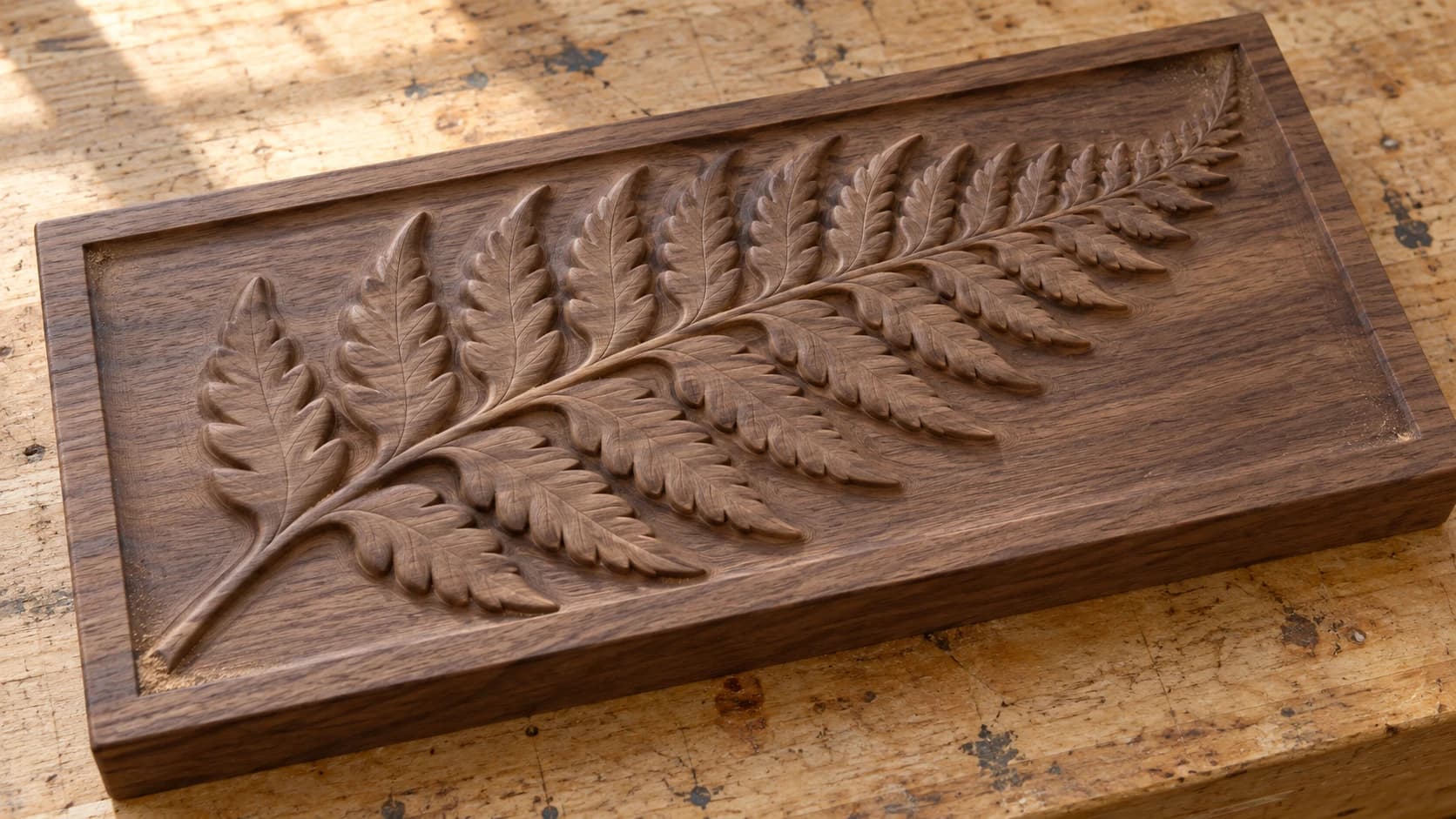
Relief carving is one of the most visually stunning things a CNC router can produce. A portrait emerging from a block of wood. A landscape with actual mountains rising from the surface. The problem is that creating a 3D model for relief carving traditionally requires serious 3D modeling skills or expensive specialized software. Most CNC hobbyists have never touched a 3D sculpting program, and the learning curve is steep.
What if you could just upload a photo and get a carvable 3D model back? That's what depth maps make possible, and ReliefMaker handles the entire conversion.
What's a Depth Map?
A depth map is a grayscale image where brightness represents height. White areas are the highest points (closest to the viewer), black areas are the lowest (farthest from the viewer or deepest in the carving), and everything in between is a gradient of elevation.
Your CNC software reads this grayscale image and translates it directly into Z-axis movement. White pixels become the shallowest cuts. Black pixels become the deepest. The result is a 3D surface carved from flat stock.
| Grayscale Value | Meaning | CNC Result |
|---|---|---|
| White (255) | Highest point | Shallowest cut (or untouched surface) |
| Light gray | High elevation | Shallow carve |
| Mid gray | Middle elevation | Medium depth |
| Dark gray | Low elevation | Deep carve |
| Black (0) | Lowest point | Deepest cut (or base plane) |
Depth maps aren't a new concept. CNC manufacturers have supported them for decades. The new part is using AI to generate accurate depth maps from regular photos, which used to require manual work in an image editor or paid depth-map generators.
PRINT. CUT. CARVE.



- Multiple formats (SVG, DXF, PNG)
- Machine-tested designs
- Commercial licenses
Sponsored by PrintCutCarve.com
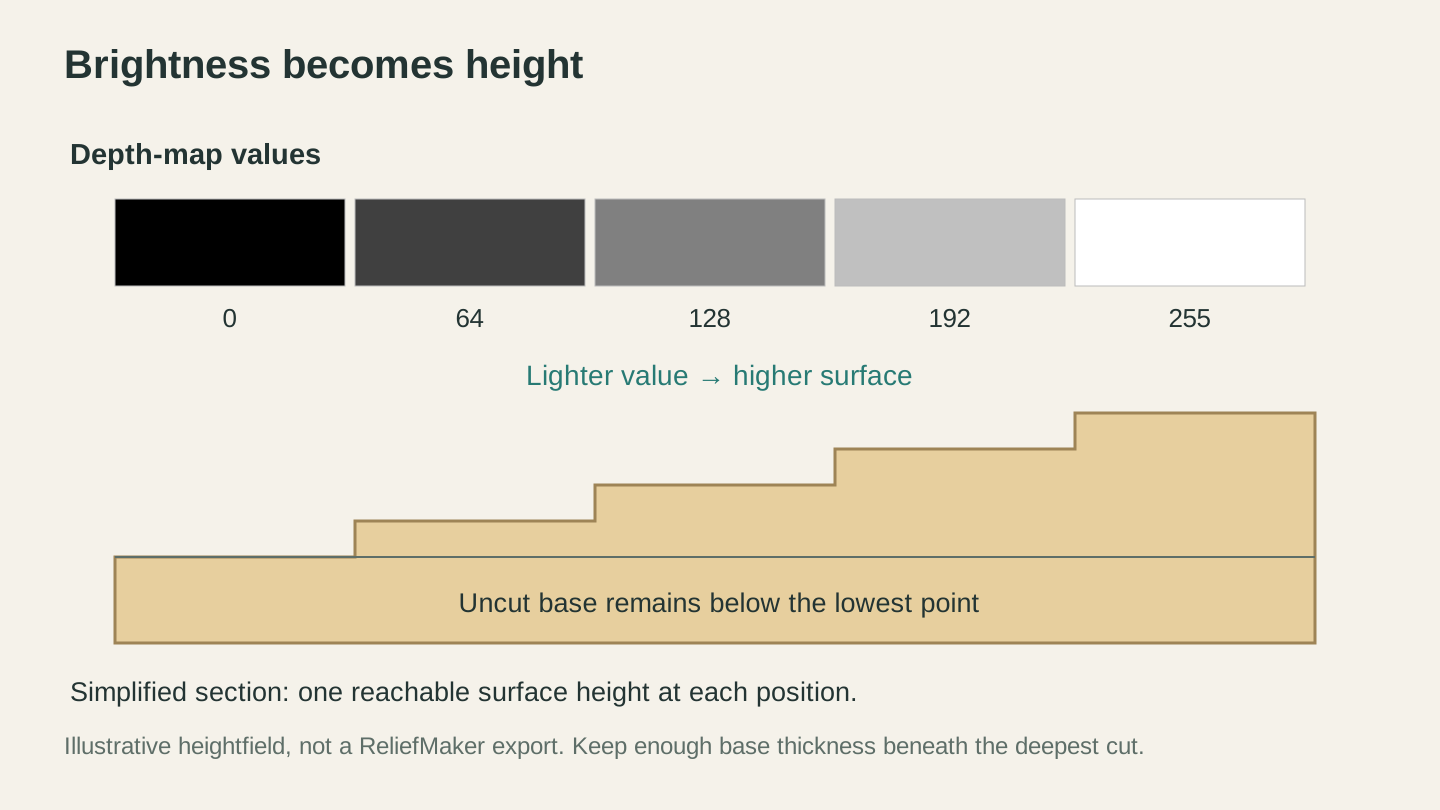
A heightfield assigns one surface height to each image position. Lighter values sit higher; the lowest points still need a sound base beneath them.
How ReliefMaker Works
ReliefMaker gives you two ways to create a 3D relief:
From Photo mode: Upload any photo and AI generates the depth map automatically. The AI analyzes the image, figures out what's in front of what, and creates a grayscale depth map that translates into a carvable 3D surface.
Upload Depth Map mode: If you already have a grayscale depth map (from an image editor, ZBrush, or another source), upload it directly and skip the AI step.
Two AI Engines
When using "From Photo" mode, you choose between two AI depth engines:
Fast (Local AI): Uses the Depth Anything V2 model running locally on the server. Free (no credit cost), generates results in about 2 seconds. The depth quality is solid for most subjects, especially photos with clear foreground and background separation.
Quality (Gemini): Uses Google's Gemini Vision model. Costs 1 credit, takes about 3 seconds. Tends to produce cleaner depth separation and handles complex scenes (multiple overlapping objects, subtle depth differences) better than the local model.
For most photos, the free local model works great. Try it first. If the depth doesn't look right (objects at different distances showing as the same elevation), switch to Quality mode.
Tip
Photos with strong depth cues produce the best results. A portrait with a blurred background, a landscape with foreground objects, or a still life with objects at different distances all work well. Flat, head-on photos of textures or patterns have no depth information for the AI to extract.
Interactive 3D Preview
After the depth map generates, ReliefMaker shows you an interactive 3D preview. Rotate, zoom, and pan to inspect the relief from every angle. This is what your CNC carving will look like (minus the tooling marks, which sanding removes).
The preview updates in real time as you adjust settings, so you can dial in the look before downloading anything.
Settings That Matter
Height Scale
Controls the total depth of the relief. Higher values create more dramatic elevation changes (deeper carving, taller peaks). Lower values create subtler, shallower reliefs.
For CNC carving, match this to your practical cutting depth. If your stock is 3/4" thick and you want to leave a 1/4" base, your maximum relief height is 1/2". Set the height scale accordingly.
Base Thickness
Adds a flat base layer beneath the relief. For CNC carving, this should be thick enough that your deepest cut doesn't go through the back of the material. For 3D printing, a 2-3mm base is usually sufficient.
Smoothing
Controls how much the depth transitions are smoothed. Low smoothing preserves sharp depth edges, which looks good for architectural subjects and hard-edged objects. High smoothing creates gentle, flowing transitions, which works better for portraits and organic subjects.
Too much smoothing mushes out the detail. Too little can create visible stepping artifacts. For most subjects, medium smoothing is the right starting point.
Invert Depth
Flips the depth map. What was the highest point becomes the lowest, and vice versa. Useful when the AI interprets the depth backwards (background as foreground), or when you intentionally want an "intaglio" style carving where the design is recessed rather than raised.
Lithophane Mode
A special mode for creating lithophanes (covered in detail in our lithophane guide). Inverts and adjusts the depth map so that thinner areas allow more light through, creating a backlit photo effect when 3D printed in white material.
Export Formats
ReliefMaker exports in three formats:
STL: The standard format for CNC relief carving. Import into any CAM software that supports 3D toolpaths. Also works for 3D printing.
OBJ: An alternative 3D format. Some software prefers OBJ over STL, and OBJ files can include texture information. Works in most 3D printing slicers and CNC CAM software.
PNG depth map: The raw grayscale image. Import directly into CNC software that supports height-map carving. Also useful for further editing in image editors before conversion.
Resolution Options
Choose Full, Half, or Quarter resolution for the 3D export. Full resolution preserves maximum detail but creates larger files that take longer to process in your CAM software. Half resolution is usually the practical sweet spot. Quarter resolution is for quick previews or very large pieces where fine detail won't be visible.
CNC Carving Tips
Material Selection
Relief carving looks good in almost any wood, but some species work better than others:
| Wood | Pros | Cons |
|---|---|---|
| Basswood | Carves like butter, holds fine detail | Soft, dents easily |
| White pine | Affordable, widely available | Grain can chip on cross-grain cuts |
| Cherry | Beautiful natural color, carves cleanly | More expensive |
| Walnut | Stunning contrast, tight grain | Hard, slower to carve |
| Maple | Holds extremely fine detail | Very hard, wears bits faster |
| MDF | No grain, consistent carving, cheap | Not a natural look, creates dust |
For your first relief, basswood or MDF are forgiving choices. Basswood for a natural look, MDF if you plan to paint the finished piece.
Bit Selection
Relief carving typically uses two bits:
Roughing pass: A flat end mill (1/4" or 1/8") removes the bulk of material quickly. This pass takes the stock down close to the final surface, leaving a stepped, terraced surface.
Finishing pass: A ball nose bit (1/8" or 1/16" for fine detail) cuts the smooth, rounded surface. This pass follows the contours of the 3D model and leaves a smooth, organic surface that needs minimal sanding.
Smaller ball nose bits produce finer detail but take longer. A 1/8" ball nose is a good balance for pieces under 12". For large pieces or very fine detail, step down to 1/16".
Stepover
Stepover is the distance between adjacent passes of the finishing bit. Smaller stepover = smoother surface, longer carve time. A stepover of 10% of the bit diameter produces a nearly smooth surface. 20% is faster with slightly visible scalloping that sands out easily.
Info
A 10" x 8" relief at 1/8" ball nose and 10% stepover might take 2-3 hours to carve. The same piece at 20% stepover takes roughly half the time. For most projects, 15% stepover is a good compromise between quality and time.
Finishing
Sand the carving with 220 grit to remove any tool marks. Don't over-sand or you'll lose fine detail. Apply finish (oil, stain, or clear coat) to bring out the depth and grain. Dark stains work especially well on reliefs because they settle into the deep areas and highlight the elevation changes.
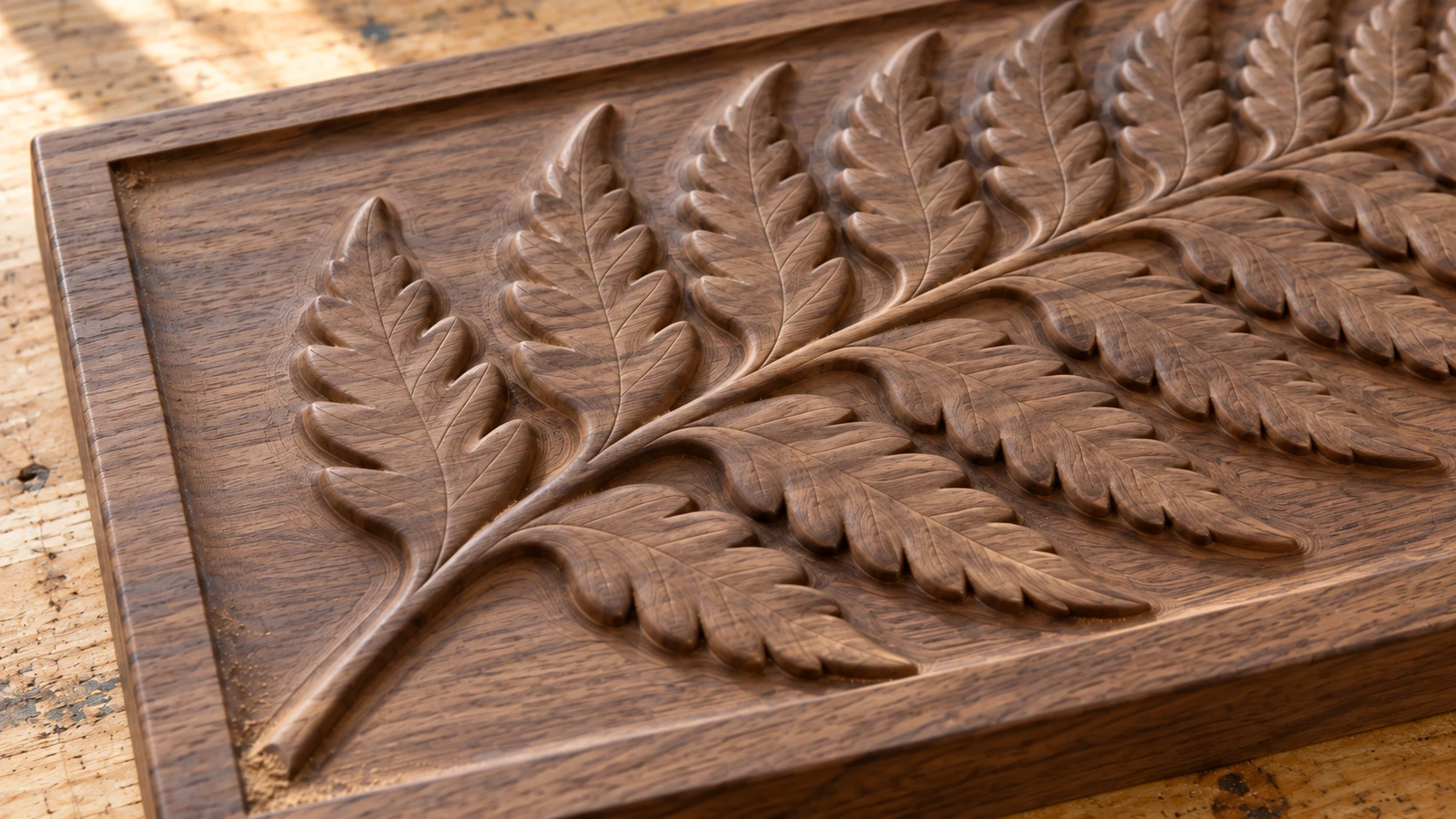
The leaves rise from the same walnut block as the background. Keep the relief reachable from above and leave enough material beneath its deepest areas.
Photos That Work Best
Not every photo makes a good relief. Here's what to look for:
Portraits: Face photos with clear lighting work exceptionally well. The nose, cheekbones, and brow ridge create natural elevation changes. Side-lit portraits produce the most dramatic reliefs.
Landscapes: Mountains, rolling hills, and layered scenery translate directly to 3D elevation. The depth is already there.
Animals: Pets, wildlife, and animal portraits carve beautifully. Fur texture adds visual interest to the carved surface.
Architecture: Buildings with columns, arches, and decorative elements have strong, well-defined depth.
Photos to avoid for reliefs: Flat textures (brick walls, fabric), top-down views (no depth), and very busy scenes where the AI can't clearly separate foreground from background.
For photo-to-laser-engraving (flat, not 3D), our photo engraving guide covers that different workflow.
Go Carve Something
Grab a portrait photo, a landscape, or an image of your pet. Upload it to ReliefMaker and try the free Local AI mode first. Rotate the 3D preview, adjust the height scale, and export an STL. Import it into your CNC software, set up a roughing and finishing pass, and carve it.
The first time you pull a 3D portrait out of a flat board of wood, you'll realize why relief carving has been prized for centuries. The difference is that it used to require years of hand-carving skill. Now it takes a photo and an afternoon.
Happy making.
Related Tools
Ready to try these tools?
Sign up free, no credit card required. Free tools available immediately.
Start Free