

How to Generate AI Product Photos for Etsy
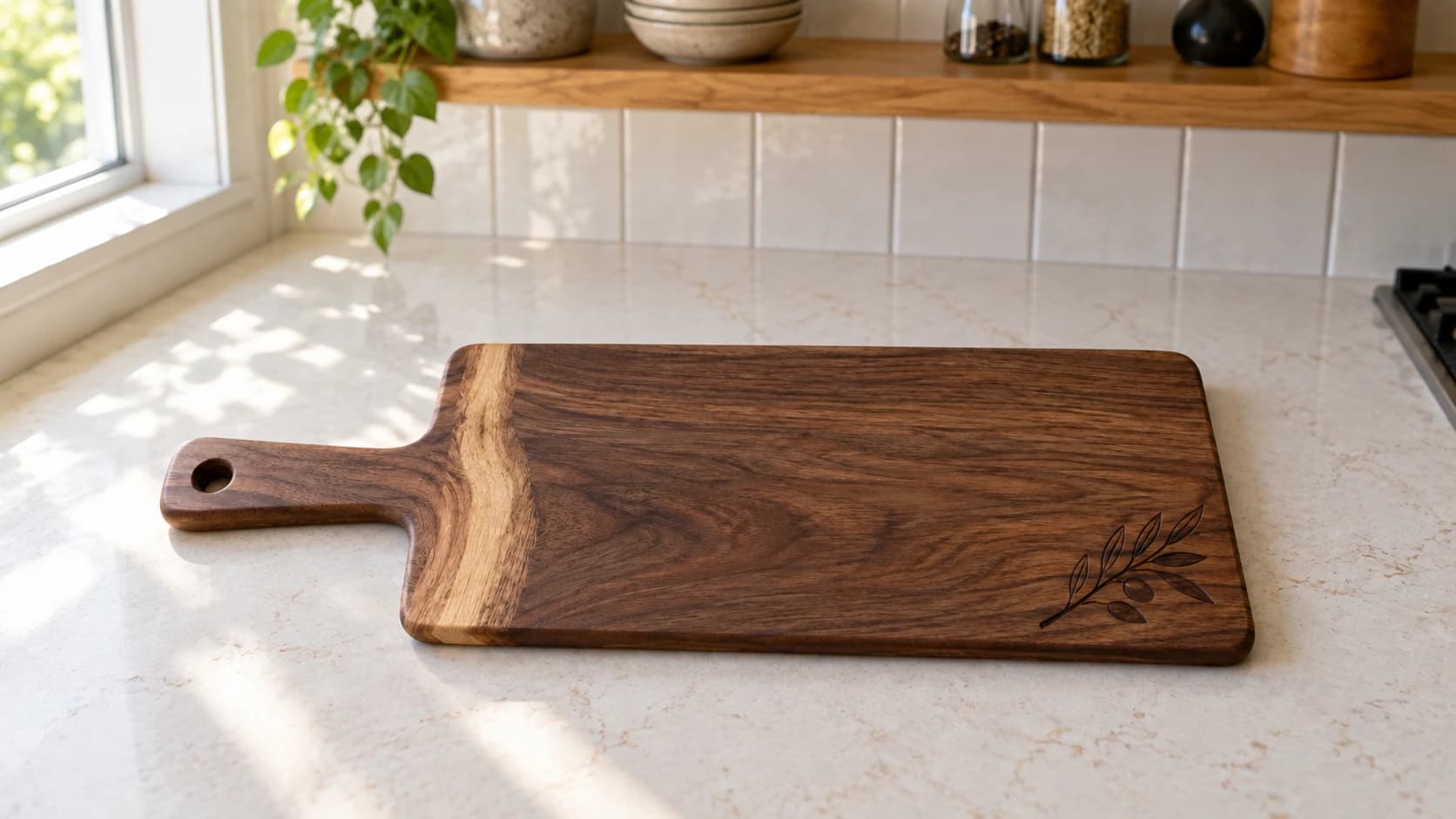
You spent two hours setting up a Christmas scene on your kitchen table. Fake snow, pine branches, tiny ornaments, a string of fairy lights. All so you could photograph your laser engraved cutting board in a holiday setting for your Etsy shop.
The photos turned out okay. Not great. The lighting was uneven, the fake snow looked fake, and your cat kept walking through the shot. You ended up with maybe three usable images out of forty.
Now multiply that by every holiday, every season, every "lifestyle in use" photo you need for the dozen products in your shop. That's not a photography hobby. That's a part-time job.
There's a faster way. AI can generate product photos in professional settings, seasonal scenes, and lifestyle contexts from a single clean photo of your product. Not to replace your real photography. To supplement it with the variety that Etsy's algorithm rewards.
Why Photo Variety Matters on Etsy
Etsy gives you up to 10 image slots per listing. Most successful sellers use all of them. And here's why that matters: Etsy's search algorithm considers listing quality when deciding which products to surface. Listings with more photos get ranked higher than listings with fewer photos.
But it's not just about filling slots. It's about the types of photos you include.
A listing with 10 photos of the same product on a white background isn't meaningfully better than a listing with 3 photos. What moves the needle is variety: different angles, different contexts, lifestyle shots showing the product in use, scale reference images, detail close-ups, and seasonal or themed backgrounds that connect with what shoppers are searching for right now.
The click-through rate (CTR) on your listing thumbnail directly affects how often Etsy shows your product in search results. Etsy tracks which listings get clicked versus scrolled past, and listings with higher CTR get shown to more shoppers. It's a self-reinforcing cycle: better photos lead to more clicks, which leads to more visibility, which leads to more sales.
Seasonal context matters especially. A personalized ornament photographed on a white background in October will get fewer clicks than the same ornament photographed hanging on a Christmas tree. Shoppers are in holiday mode. They want to see the product in the context they're imagining it.
PRINT. CUT. CARVE.



- Multiple formats (SVG, DXF, PNG)
- Machine-tested designs
- Commercial licenses
Sponsored by PrintCutCarve.com
The Real Photography Problem for Makers
If you're running a maker business from your workshop, garage, or spare bedroom, you already know the photography struggle. You're a maker first and a photographer second (or third, or last).
Real product photography is important. Your main listing photo should be a real, well-lit photo of the actual product. Buyers want to see what they're actually getting, and nothing beats an honest photo for building trust. We covered the fundamentals of product photography in our Etsy selling guide, and those basics still apply.
But here's where reality collides with best practice: Etsy recommends filling all 10 photo slots. For each product. And those photos should include multiple angles, lifestyle shots, seasonal variations, and scale references.
If you have 20 products in your shop, that's 200 photos. If you want seasonal variations for the four major shopping seasons, that's 800 photos. If you add holiday-specific themes (Christmas, Valentine's Day, Mother's Day, Father's Day, graduation, wedding season), you're pushing well past a thousand.
Nobody is shooting a thousand product photos in their garage. Professional Etsy sellers either hire photographers (expensive), build elaborate setups (time-consuming), or simply don't have the seasonal variety their listings need (leaving money on the table).
The Seasonal Content Treadmill
The timing pressure makes it worse. Holiday shopping behavior starts earlier than you think. Christmas shopping on Etsy starts picking up in September. Valentine's Day shoppers start browsing in early January. Mother's Day? Mid-March.
That means you need Christmas-themed photos ready by late August. Valentine's photos by December. Spring photos while it's still winter outside. You're always shooting the next season's photos during the current season, and the logistics of storing seasonal props, finding good natural light during short winter days, and fitting photo sessions around your actual production work is exhausting.
This is where AI product photos make practical sense. Not as a replacement for real photography, but as a way to get seasonal and lifestyle variety without building a different photo set every six weeks.
How ListingLab's AI Photo Generation Works
ListingLab is a product listing tool built for Etsy sellers and makers. The text generation side handles titles, descriptions, SEO keywords, and social media captions. But the feature we're focused on here is the AI product photo generator.
The process is straightforward:
Step 1: Upload a Clean Product Photo
Start with a real photo of your product. The better the input photo, the better the AI output. You want:
- A clear, well-lit shot of your product
- A clean or solid background (white or simple works best)
- The full product visible, not cropped or partially hidden
- Good focus and sharpness
- No other distracting objects in the frame
You don't need a professional studio shot, but you do need a photo where the product is clearly the subject. A quick smartphone photo on a clean table in good natural light works perfectly.
Tip
The single best thing you can do for AI photo quality is start with a clean product shot on a plain background. The AI needs to clearly identify your product to place it convincingly in a new scene. A cluttered background or partially hidden product leads to confused results.
Step 2: Choose a Photo Style
ListingLab offers 35+ photo styles organized into categories. Each style tells the AI what kind of scene to generate around your product. You might choose a cozy kitchen lifestyle scene for a cutting board, a Christmas mantle setting for an ornament, or a clean studio backdrop for a professional product shot.
You'll see a full breakdown of the style categories later in this post, but the key idea is simple: you pick the scene, and the AI generates a photo of your product in that context.
Step 3: Generate and Download
Click generate, and the AI creates a product photo in the chosen style. Each generation costs 1 credit. You can generate multiple variations with different styles until you have the mix of photos your listing needs.
The generated images are high-resolution and ready to upload directly to Etsy. No additional editing or resizing needed.
What It Costs
Each AI product photo costs 1 credit. For context on how credits work:
| Plan | Monthly Credits | AI Photos Possible |
|---|---|---|
| Free | 5 on signup | 5 photos total |
| Starter ($4.99/mo) | 40/month | 40 photos/month |
| Maker ($9.99/mo) | 100/month | 100 photos/month |
| Engineer ($29.99/mo) | 500/month | 500 photos/month |
If you need more credits beyond your monthly allowance, the Credit Boost ($9.99) adds additional non-expiring credits based on your tier.
For most makers with a small-to-medium Etsy shop (10-30 products), the Starter or Maker plan provides enough credits for a solid photo library and seasonal refreshes. Generate your seasonal photos in batches at the start of each shopping season and you'll use credits efficiently.
Info
ListingLab's text generation (titles, descriptions, keywords, social media captions) uses your chatbot messages, not credits. So you can generate listing text without dipping into your photo generation budget. Only the AI product photos cost credits.
When to Use AI Photos vs. Real Photos
This is the most important section in this post. AI product photos are a supplement, not a replacement. Understanding when each type works best will make your listings stronger than using either approach alone.
Always Use Real Photos For:
Your main listing photo (thumbnail). This is the image that appears in Etsy search results. It should be a real, honest photo of the actual product. Buyers click on it expecting to see what they'll receive. Starting with an AI-generated hero image risks a disconnect between expectation and reality, and that leads to returns and negative reviews.
Detail and quality shots. Close-ups of engraving depth, wood grain, stitching quality, or material texture should be real. These photos exist to prove the quality of your craftsmanship. AI can't show the actual texture of your specific product.
Scale reference photos. A photo of your product next to a hand, a coffee mug, or being held should be real. These images communicate physical size, and AI sometimes gets proportions wrong in subtle ways that erode trust.
Proof of customization. If you sell personalized items, a real photo showing an actual engraved name or custom detail proves that you really do what you claim. AI-generated customization examples can look generic.
AI Photos Work Great For:
Seasonal and holiday contexts. Christmas scenes, Valentine's Day setups, spring garden settings, fall harvest themes. These are expensive and time-consuming to shoot in real life, change every few weeks, and serve primarily to create emotional context rather than demonstrate product quality.
Lifestyle "in use" shots. Showing a cutting board in a beautiful kitchen, a sign on a living room wall, or a 3D printed planter on a sunny windowsill. These aspirational images help shoppers imagine the product in their own homes.
Secondary listing images (slot 4 and beyond). After your real main photo, real detail shots, and real scale reference, the remaining slots can feature AI-generated lifestyle and seasonal variations that add variety and visual interest.
Social media content. Instagram, Pinterest, and Facebook posts benefit from eye-catching, styled photography. AI-generated lifestyle shots make excellent social media content that drives traffic back to your Etsy listings. Check out our social media guide for makers for more on this strategy.
New product launches. When you've just finished a new product and want to list it immediately, an AI photo in a lifestyle setting lets you launch the listing today while you schedule a proper photo session for later.
The Ideal Photo Mix for an Etsy Listing
Here's a practical breakdown of how to fill your 10 image slots:
| Slot | Photo Type | Real or AI |
|---|---|---|
| 1 (Thumbnail) | Clean product shot, white/simple background | Real |
| 2 | Product detail / close-up of craftsmanship | Real |
| 3 | Scale reference (product with hand or common object) | Real |
| 4 | Lifestyle shot (product in its intended setting) | AI or Real |
| 5 | Seasonal context (current shopping season) | AI |
| 6 | Different angle or variation | Real |
| 7 | Gift context / packaging (if applicable) | AI or Real |
| 8 | Another lifestyle setting | AI |
| 9 | Holiday or occasion theme | AI |
| 10 | Alternative color/material option (if you offer variants) | Real or AI |
This gives you 3-4 rock-solid real photos that build trust and demonstrate quality, plus 4-6 AI-generated photos that provide the variety and seasonal relevance that boost CTR. Adjust the ratio based on what you have available. More real photos is always fine. The AI slots are there to fill gaps you can't easily shoot.
Best Practices for AI Product Photos
AI photo generation isn't magic. The output quality depends on what you put in and how you use the results. Here are the practices that produce the most convincing, useful AI product photos.
Start With a Great Input Photo
This bears repeating because it's the single biggest factor in output quality. The AI needs to clearly identify your product to place it in a new scene. That means:
Good lighting. Even, diffused light without harsh shadows. Natural daylight near a window is ideal. Avoid direct overhead lights that create dark shadows underneath the product.
Clean background. A white surface, a sheet of paper, or any solid neutral background. The simpler the background, the more accurately the AI can isolate your product.
Full product visible. Don't crop off edges. Don't partially cover the product with props. Show the complete item.
In focus. This seems obvious, but blurry smartphone photos are common. Tap to focus on the product, hold the phone steady, and make sure the entire product is sharp.
Proper orientation. If your product has a front (like a sign or a cutting board with engraving), photograph it head-on. The AI will maintain whatever orientation and angle you provide.
Warning
Avoid using photos where your product is already in a busy scene as the input. The AI may incorporate elements of the original background into the generated image, creating visual artifacts or confusing compositions. Always start with a clean, isolated product shot.
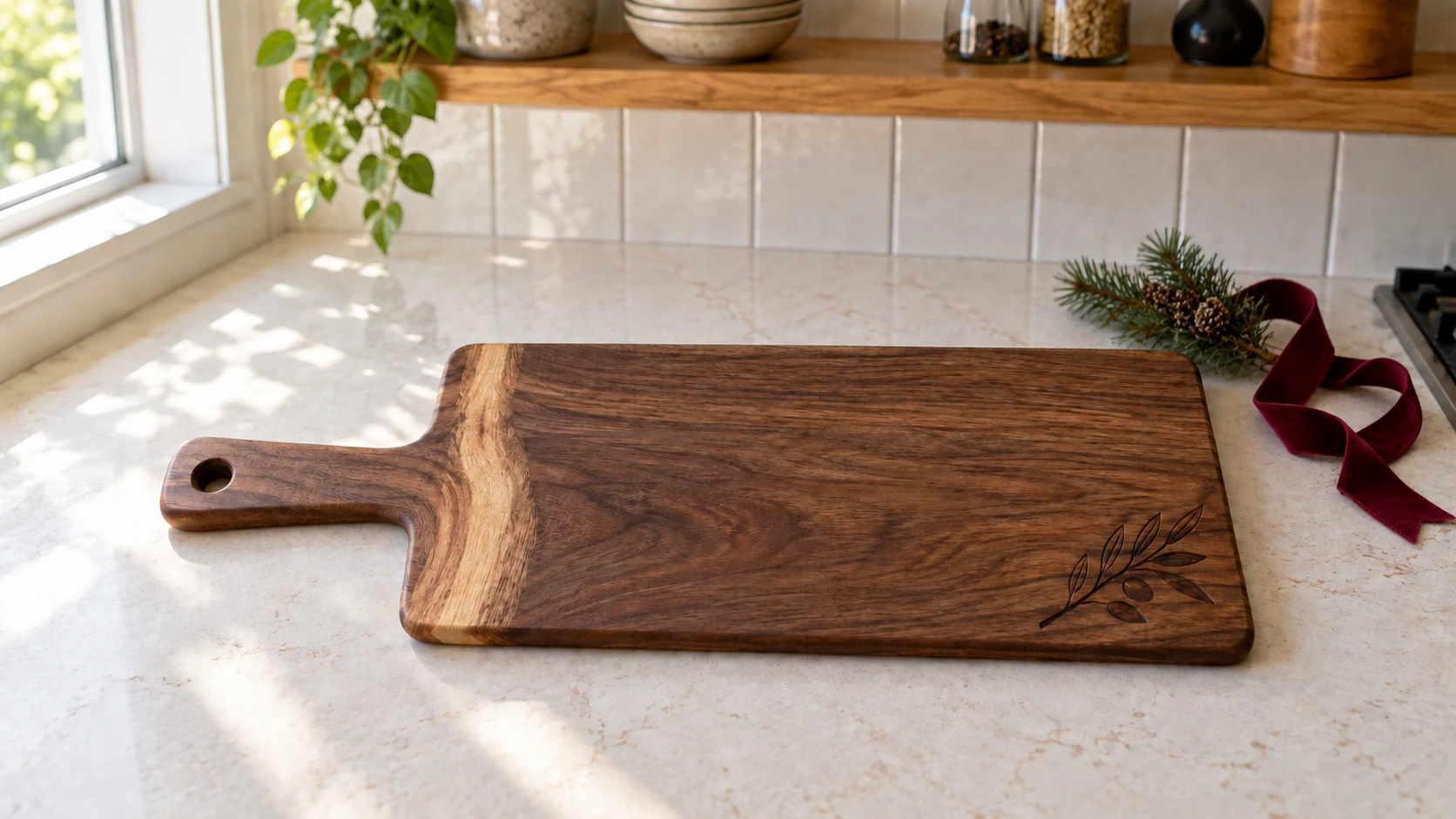
Winter styling example: the board, engraving and kitchen stay consistent while a few props change. This generated illustration demonstrates the idea; it is not a Listing Lab test result.
Match Seasonal Photos to Shopping Timelines
Etsy shoppers browse ahead of holidays. Your seasonal photos should be live before the shopping rush begins. Here's a practical timeline:
| Season/Holiday | Shopping Starts | Have Photos Ready By |
|---|---|---|
| Valentine's Day | Early January | Late December |
| Spring / Easter | Mid-February | Early February |
| Mother's Day | Mid-March | Early March |
| Father's Day / Graduation | Early May | Late April |
| Back to School | Early July | Late June |
| Halloween | Early September | Late August |
| Christmas / Hanukkah | Mid-September | Early September |
| New Year's | Late November | Mid-November |
With AI photo generation, updating your seasonal imagery takes minutes instead of hours. Generate a batch of Christmas-themed photos in August, Valentine's photos in December, and spring photos in January. Swap them into your listings at the right time, and your shop always feels current and relevant.
Use Lifestyle Shots Strategically
Lifestyle photos (product shown in a real-world context) serve a specific psychological purpose: they help the buyer imagine owning and using the product. A cutting board on a clean white background says "this is a cutting board." A cutting board on a marble kitchen counter next to a bowl of lemons says "this is what your kitchen will look like."
But not every lifestyle context works for every product. Match the setting to the product's actual use:
- Kitchen/dining scenes: cutting boards, coasters, serving trays, spice racks
- Living room/mantle: signs, wall art, candle holders, bookends
- Garden/patio: planters, outdoor signs, garden markers
- Office/desk: desk organizers, pen holders, name plates, coasters
- Nursery/kids room: name signs, growth charts, toy organizers
- Bathroom: soap dishes, wall art, custom signs
Avoid placing products in contexts that don't make sense. A laser-engraved cutting board in a bathroom setting is going to confuse shoppers, not inspire them.
Keep Your Main Photo Honest
Your thumbnail (the first photo buyers see in search results) should always be a real photo. This is non-negotiable for building buyer trust.
When a shopper clicks your listing because of a beautiful AI-generated lifestyle shot in the thumbnail, then scrolls through and sees the actual product looks different from what was presented, you've created a trust gap. Even if the product itself is identical, the perceived difference between an AI-styled scene and the product that arrives in a plain brown box creates disappointment.
Real thumbnail. AI for supporting images. This order is important.
Generate Multiple Variations
One credit per photo is cheap enough that you should generate several options and keep the best ones. Not every AI generation will be perfect. Sometimes the product placement looks slightly off, or the lighting in the generated scene doesn't match the product lighting, or the scene just doesn't feel right.
Generate 3-4 variations per style and pick the winner. This is still dramatically faster and cheaper than physically setting up and shooting each scene.
Batch Your Seasonal Updates
Rather than updating photos one listing at a time, batch your seasonal work:
- Set aside 30 minutes at the start of each shopping season
- Open ListingLab and upload your core product photos
- Generate seasonal photos for all your products at once
- Download everything
- Go through your Etsy listings and swap in the new seasonal images
- When the season passes, swap back to your standard lifestyle shots or rotate in the next season's imagery
This batch approach is more credit-efficient and saves time compared to doing one product at a time throughout the season.
Style Categories and When to Use Each
ListingLab has 35 photo styles organised into six groups. Here is the actual list, and when each group earns its place on a listing.
Core (4). Standard Product Shot, Dark & Moody, Natural Light, Detail Close-Up. These are your workhorses. Standard is the clean white-background shot most marketplaces expect as the first image, and Detail Close-Up is the one that sells craftsmanship, because it shows the grain, the joint, or the engraving up close.
Creative (6). Lifestyle, In-Use Context, Flat Lay, Hero, Rustic, Minimalist. Lifestyle and In-Use are what make a browser picture the thing in their own home, which is usually the difference between a scroll and a click.
Seasonal (4). Spring, Summer, Fall, Winter. Worth regenerating your main listing image each season rather than leaving a summer shot up in November.
Holidays (10). Christmas, Valentine's, Easter, Mother's Day, Father's Day, Halloween, St Patrick's, Fourth of July, New Year's, Hanukkah. The largest group, because gift-driven searches are where a lot of maker sales actually happen.
Life Events (5). Graduation, Wedding, Baby Shower, Birthday, Anniversary. These map directly onto the personalised-gift searches that bring people to handmade in the first place.
Aesthetic (6). Boho, Farmhouse, Coastal, Cottagecore, Vintage, Coffee & Tea. Pick the one your buyer already decorates in. A farmhouse sign photographed in a coastal setting reads as a mismatch even if the product is right.
Each generated photo costs 1 credit, so it is worth deciding which two or three styles suit a product before generating rather than working through the whole list.
Advanced Strategies for AI Product Photos
Once you've got the basics down, these strategies help you get even more value from AI-generated product photos.
A/B Test Your Thumbnails
If you have the inventory depth, create two identical listings with different thumbnail approaches and see which gets more traffic. Some sellers find that lifestyle thumbnails outperform white-background thumbnails for certain product categories, especially gifts and home decor.
You can also A/B test within a single listing by swapping your secondary photos and watching your listing's click-through rate in Etsy Stats. This takes more patience, but it works if you don't want to manage duplicate listings.
Rotate Photos with the Shopping Calendar
Don't just set your photos once and forget them. Rotating your secondary images to match the current shopping season keeps your listings fresh and relevant.
Create a simple schedule:
- January: Swap to Valentine's Day themes
- March: Swap to Spring / Mother's Day themes
- May: Swap to Summer / Father's Day / Wedding themes
- July: Swap to Back to School themes
- September: Swap to Fall / Halloween themes
- November: Swap to Christmas / Holiday themes
Each rotation takes maybe 30 minutes if you batch-generate all your seasonal photos ahead of time. That's a small time investment for listings that always feel timely and relevant.
Use AI Photos for Listing Variations
If you sell products in multiple colors, materials, or sizes, you may not have physical samples of every combination. AI can help visualize options you don't have photographed yet.
For example, if you sell a personalized cutting board in walnut, maple, and cherry, but you only have a walnut sample to photograph, you can use the AI to generate lifestyle shots that help you fill out the listings for your maple and cherry variations while you build inventory.
Tip
If you're using AI photos to represent product variants you haven't produced yet, make sure your listing description clearly states what the buyer will receive. Accuracy in product representation is both an Etsy policy requirement and good business practice.
Combine AI Photos with Your Social Media Strategy
AI product photos aren't just for Etsy listings. They're equally valuable for social media marketing. A Christmas-themed product photo makes an excellent Instagram post or Pinterest pin during the holiday season, driving traffic back to your Etsy shop.
Pinterest is especially powerful here because the platform skews heavily toward the same demographic that shops on Etsy: people looking for home decor, gift ideas, and handmade products. A well-styled AI product photo with the right Pinterest keywords can drive organic traffic to your listings for months. Our social media marketing guide covers Pinterest strategy in detail.
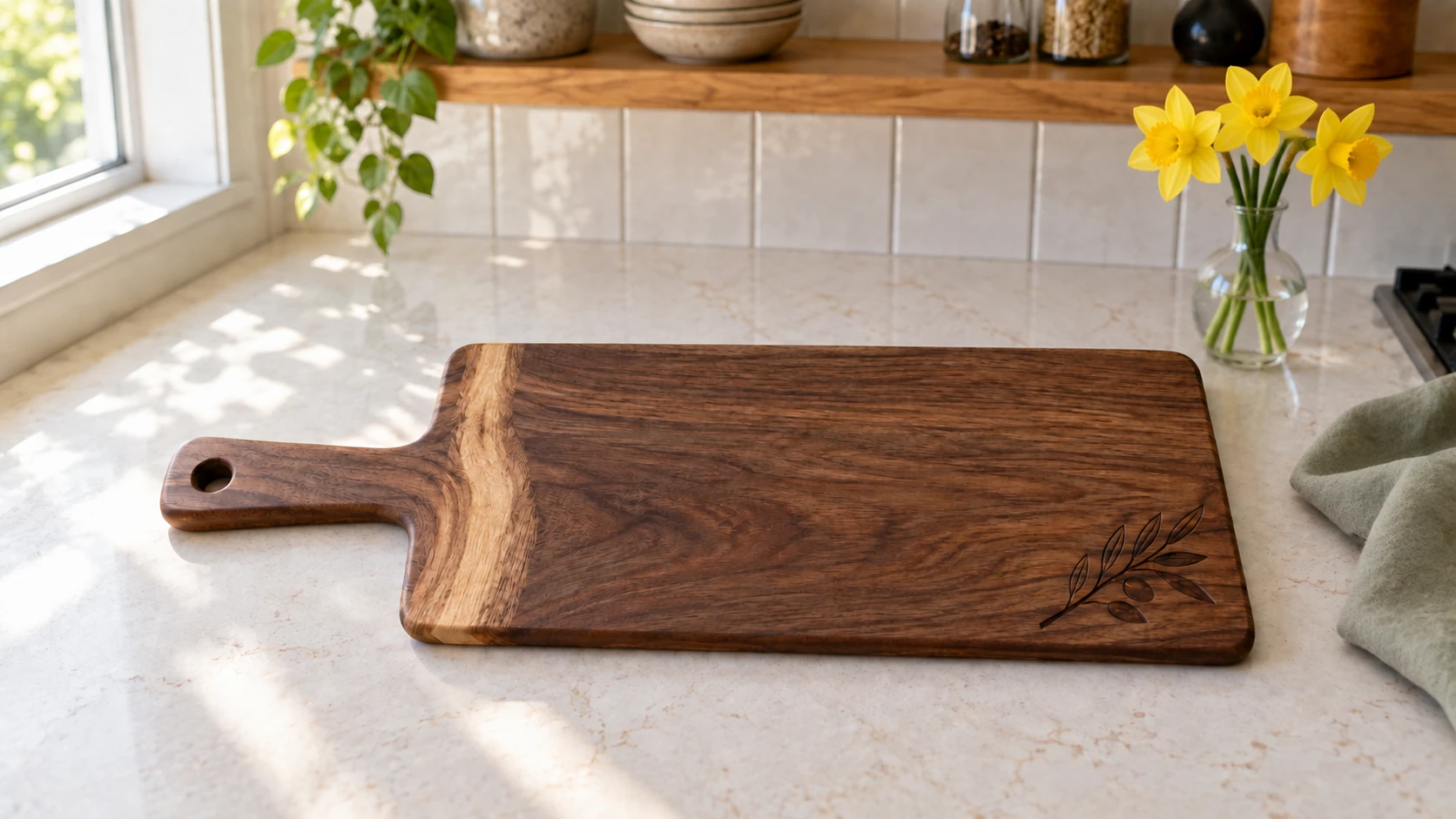
Spring styling example: change the surrounding props while preserving the product. Compare its grain, shape and engraving with the original before using an edited listing image.
Create Consistent Visual Branding
When generating AI photos across multiple products, try to use consistent style selections. If your brand aesthetic is rustic/farmhouse, use the rustic lifestyle style for most of your products. This creates visual cohesion across your shop that makes it look professional and intentional.
Shoppers who click into your shop and see a consistent photographic style across listings perceive higher quality and professionalism. A shop where every listing has a different visual feel looks disjointed. Pick 2-3 core styles that match your brand and use them consistently.
Etsy's Rules on AI-Generated Images
Etsy addresses AI-generated content in its Creativity Standards, and it's important to check the current rules before publishing.
What Etsy Currently Requires
As of this article, Etsy's current rules say:
- Seller-prompted AI creations are permitted under Etsy's current Creativity Standards.
- Etsy currently requires sellers to disclose in the listing description when an item was created using AI. Check each platform's current rules before publishing; Etsy's official Creativity Standards are the primary reference.
- Your product itself must still be handmade, vintage, or a craft supply to qualify for Etsy's marketplace. AI-generated imagery for marketing purposes doesn't change the handmade nature of your physical product.
- Listings must accurately represent the product the buyer will receive. AI-styled backgrounds are fine, but the product itself should look like what the buyer gets.
Best Practices for Compliance
Always use real photos as your primary image. This ensures buyers see an accurate representation of the product first.
Don't misrepresent your product. If the AI generation changes the appearance of your product (wrong color, added details that don't exist, different proportions), don't use that image. The generated photo should show your actual product in a styled context, not a better-looking version of your product.
Disclose AI use in the listing description. State clearly when an item was created using AI, and recheck Etsy's current Creativity Standards before publishing.
Keep your real photos in the listing. Even if your AI photos look incredible, always include real photos of the product alongside them. Buyers should be able to compare the styled AI shots with the genuine product photos to feel confident about what they're ordering.
Monitor policy updates. Etsy's AI policies are evolving as the technology matures. Check Etsy's seller handbook periodically for updates to their guidelines on AI-generated content.
Info
This summary is time-bounded. Etsy currently allows seller-prompted AI creations and requires disclosure in the listing description when an item was created using AI. Always check the current Creativity Standards before publishing.
Common Mistakes to Avoid
AI product photo generation is easy to use, but there are some pitfalls that can hurt your listings instead of helping them.
Using AI Photos as Your Only Photos
This is the biggest mistake. A listing with exclusively AI-generated photos feels less trustworthy than one that mixes real and AI imagery. Buyers want to see what the actual product looks like, not just what the AI thinks it looks like in a pretty kitchen.
Always include at least 3-4 real photos showing the product from different angles, detail shots, and scale references. AI photos fill the variety gaps. They don't replace the foundation.
Starting with a Bad Input Photo
Garbage in, garbage out. An input photo that is blurry and badly lit produces output that looks exactly the same way. Spend five minutes setting up a clean shot in good light before you generate anything. It's the highest-ROI five minutes in your entire listing workflow.
Ignoring Product Proportions
Sometimes the AI will subtly change the proportions of your product, making it look slightly larger, smaller, thicker, or thinner than it actually is. Always compare the generated image to your real product. If the proportions are noticeably off, regenerate or pick a different style.
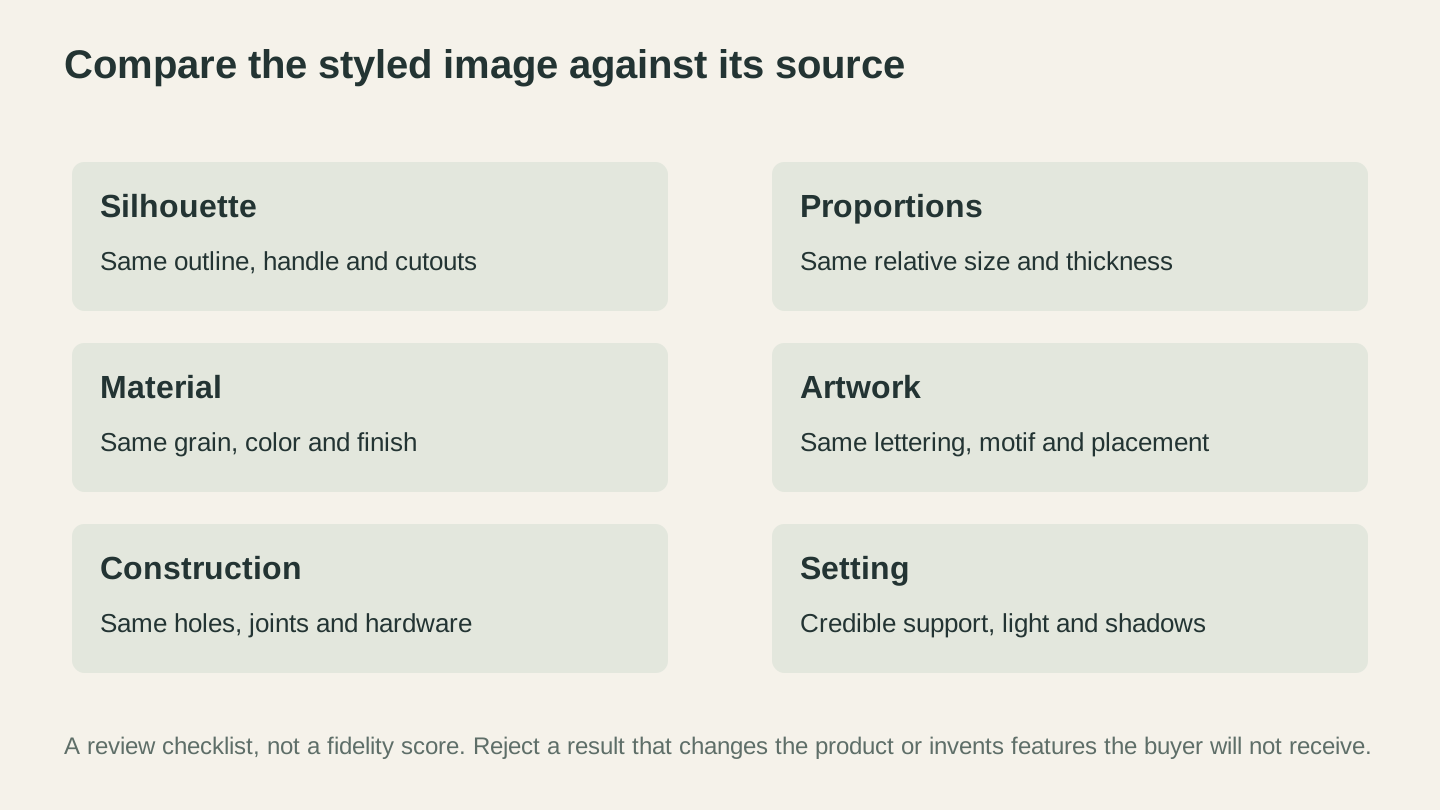
Check the product itself, not just the attractiveness of the new scene. A changed hole, edge, pattern or material can misrepresent what the buyer will receive.
Using the Wrong Seasonal Photos at the Wrong Time
A Christmas-themed product photo in July is confusing, not festive. Shoppers who see holiday imagery outside the holiday season may wonder if the listing is outdated or abandoned. Match your seasonal photos to the actual shopping calendar, and swap them back to neutral lifestyle shots when the season passes.
Over-Styling Products That Sell on Simplicity
Some products sell because they're simple and functional, not flashy. A desk organizer or a pen holder doesn't need a lavish Christmas scene. It needs a clean workspace photo showing how it looks on an actual desk. Match the style intensity to the product. Simple products benefit from simple, clean styling. Decorative products can handle more elaborate scenes.
Not Disclosing AI Use
Beyond Etsy policy compliance, transparency builds trust. A note in your listing description that says "some photos are AI-styled mockups showing the product in different settings" is honest and appreciated. Trying to pass off AI-generated images as real photography can backfire if a buyer notices and feels misled.
Real World ROI: Is It Worth It?
Here's the math for a practical example.
Say you have 25 products in your Etsy shop. Each listing has 4 real photos. You want to add 4 seasonal/lifestyle AI photos to each listing.
That's 100 AI photos. On the Maker plan ($9.99/month with 100 credits), you can generate all of them in a single month. You'll spend about 2-3 hours uploading product photos and generating the AI variations.
Compare that to physically shooting those same 100 photos:
| Approach | Time | Cost |
|---|---|---|
| AI generation (100 photos) | 2-3 hours | $9.99 (Maker plan) |
| DIY photography (100 styled shots) | 40-60 hours | $50-200 (props, backgrounds, time) |
| Professional photographer (100 shots) | 4-8 hours (your time) | $500-2,000 |
The time savings alone make AI photos worthwhile. But the real value is in what those photos do for your sales. More photo variety means higher listing quality scores, better CTR, and more seasonal relevance. Even a 10-15% improvement in click-through rate across 25 listings can meaningfully increase your monthly revenue.
And because seasonal photo updates become trivially easy, you can keep your shop looking fresh year-round without the production overhead that causes most makers to just... not bother.
Combining ListingLab Photos with Other Tools
ListingLab doesn't just generate photos. It also creates optimized listing text, titles, descriptions, SEO keywords, and social media captions. The full workflow for creating a complete, optimized Etsy listing looks like this:
- Take a clean product photo on a simple background in good light
- Upload to ListingLab to generate listing text (titles, description, keywords)
- Generate AI product photos in 3-5 styles relevant to your product
- Create your Etsy listing using the generated text and a mix of real plus AI photos
- Use the social media captions to promote the listing on Instagram and Pinterest
The text generation uses chatbot messages (included with your plan), and only the photo generation costs credits. So you can generate complete listings (text + photos) efficiently.
If your products need additional design work before listing, Craftgineer has other tools that fit into the workflow:
- MonoTrace converts photos to SVG vectors (free, no credits required)
- File Converter handles format conversions between SVG, DXF, PNG, and other formats (no tool-credit charge). Downloading the converted file requires an active paid plan.
- Canvas Pro provides a full image editor for touching up product photos before upload (free)
- Vector Studio generates SVG designs from text descriptions if you need graphics for new products
Setting Up Your AI Photo Workflow
Here's a step-by-step process for integrating AI photos into your Etsy selling routine.
One-Time Setup (About 1 Hour)
-
Photograph all your products. Take clean, well-lit photos of every product on a plain background. Store these in a folder organized by product. These are your "master" product photos that you'll use as inputs for AI generation.
-
Generate your core lifestyle photos. For each product, generate 2-3 lifestyle photos in styles that match the product type (kitchen for cutting boards, home for signs, etc.). These stay in your listings year-round.
-
Upload to Etsy. Add the AI lifestyle photos to your listings alongside your real photos. Fill all 10 image slots if possible.
Seasonal Updates (About 30 Minutes Per Season)
- Check the calendar. What shopping season is coming up in the next 4-6 weeks?
- Batch generate. Upload your product photos and generate the appropriate seasonal photos for all your products.
- Swap in Etsy. Replace the oldest seasonal photos in your listings with the new ones.
- Update social media. Use the new seasonal photos for Instagram and Pinterest posts linking to your listings.
Ongoing Maintenance
- When you add a new product, photograph it and generate AI photos before listing it.
- When a season ends, swap seasonal photos back to neutral lifestyle shots.
- Periodically check your Etsy Stats to see which listings have the highest and lowest CTR. Update the low-performing listings with new photo styles.
- Regenerate photos for your best sellers whenever you want to test a fresh look.
Making the Most of Your Credits
Credits are a shared resource across all of Craftgineer's AI tools, so you'll want to use them strategically.
Prioritize your best sellers. Your top-selling products benefit most from photo variety because they're already getting traffic. A 10% CTR improvement on a product that gets 1,000 views per month is worth more than the same improvement on a product that gets 50 views.
Generate seasonal photos in batches. Rather than generating one photo here and one there, batch your seasonal work. You'll make better style choices when you can see all your products in a seasonal theme at once, and you'll finish faster.
Check which allowance each operation uses. ListingLab's text generation uses chatbot messages, not credits. MonoTrace, File Converter, and Canvas Pro use no tool credits. Reserve your credits for the AI-powered features that actually cost credits: photo generation, Vector Studio designs, and other AI tools. Downloading the converted file requires an active paid plan.
Consider the Maker plan for serious sellers. 100 credits per month gives you enough to generate a handful of photos for 25 products. If you're running a serious Etsy shop, the Maker plan pays for itself quickly in time savings alone.
Frequently Asked Questions
Can buyers tell which photos are AI-generated?
Good AI-generated product photos are difficult to distinguish from professionally photographed lifestyle shots. The product in the photo is based on your real product image, so it looks authentic. The background and scene context are generated, but they're designed to look realistic. That said, always include real photos too. Mixing both types is the best practice.
Does Etsy penalize listings with AI photos?
Etsy currently allows seller-prompted AI creations, but requires disclosure in the listing description when an item was created using AI. Photos must still represent the product accurately. Check Etsy's current Creativity Standards before publishing rather than relying on a permanent rule.
What if the AI changes my product's appearance?
This can occasionally happen, especially with products that have fine details like text engraving or intricate patterns. If the generated photo doesn't accurately represent your product, simply don't use it. Generate a new variation or try a different style. You're never obligated to use a result that doesn't look right.
How many AI photos should I include per listing?
Aim for a mix of 3-4 real photos and 4-6 AI-generated photos per listing. The exact ratio depends on what real photos you have available. The key is that your main photo and detail/quality shots are real, and the lifestyle/seasonal variety comes from AI generation.
Can I use the same AI photo in multiple listings?
Technically yes, but it's not recommended. Etsy's search algorithm favors unique content across listings. Using the same lifestyle photo for multiple products doesn't help your search ranking, and it looks lazy to shoppers browsing your shop.
What resolution are the AI-generated photos?
ListingLab generates at 1K, which is fine for the supporting lifestyle and seasonal shots in a listing. Etsy recommends at least 2,000 pixels on the shortest side, so use a real photograph for your main listing image, or upscale a generated one before it becomes the first thing a buyer sees.
Getting Started
If you've been struggling to fill your Etsy photo slots, or if your listings look the same in December as they do in June, AI product photos are the easiest fix available.
The whole workflow takes less time than setting up one seasonal photo shoot in your kitchen. And you get professional-looking results across every holiday, every season, and every lifestyle context your products need.
Open ListingLab, upload a clean photo of your best-selling product, pick a seasonal style, and generate your first AI product photo. That's all it takes. One photo, one click, one credit. If you like the result, batch-generate the rest and give your Etsy shop the visual variety it deserves.
Your cutting board doesn't need to sit on your kitchen table surrounded by fake snow ever again.
Related Tools
Ready to try these tools?
Sign up free, no credit card required. Free tools available immediately.
Start Free