

How to Make Custom Stencils with a Laser Cutter or Cricut
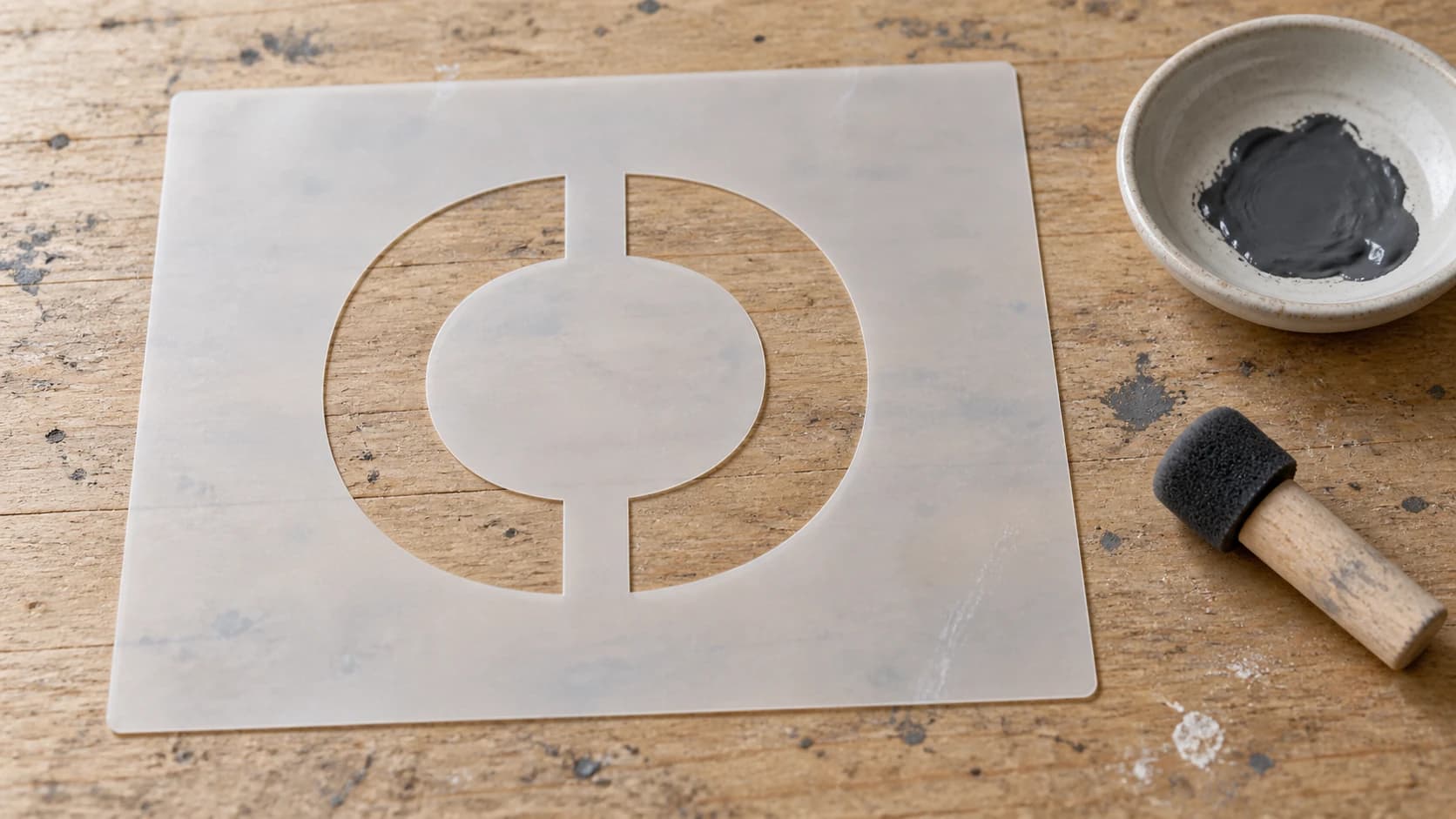
Buying stencils is fine until you need one that doesn't exist. A specific font for a wood sign. Your dog's face on a t-shirt. A pattern that matches a design in your head but not in any stencil pack on Amazon.
Making your own stencils with a laser cutter or Cricut skips the markup of pre-made packs and gets you the exact design you actually want. Once you understand the design rules and material options, the process gets fast and repeatable.
Here's the complete process.
Choosing Your Stencil Material
The material you cut determines how durable and reusable your stencil is. Different materials suit different applications.
PRINT. CUT. CARVE.



- Multiple formats (SVG, DXF, PNG)
- Machine-tested designs
- Commercial licenses
Sponsored by PrintCutCarve.com
Mylar (PET Film)
Best for: Reusable stencils, paint, airbrush
Mylar is the professional choice. It's thin (typically 4-10 mil) and flexible. It also resists chemicals and wipes clean easily, and a well-made mylar stencil can be used hundreds of times.
Laser cutters handle mylar beautifully. The cuts are clean, the edges don't melt or fray, and you can cut extremely fine details. Use a low-power, medium-speed setting to avoid melting. Cricut can cut mylar too, but stick with 4-7 mil thickness; thicker mylar needs a deep-point blade and multiple passes.
Warning
When laser cutting mylar or any plastic, ensure proper ventilation. PET releases fumes when cut. Use exhaust ventilation or a fume extraction system. Never cut PVC (vinyl) on a laser. PVC releases chlorine gas, which is toxic and corrodes your machine.
Cardstock
Best for: Single-use or low-count stencils, paper crafts
Cardstock is the cheapest option and the easiest to cut. Both laser and Cricut handle it perfectly. The downside: cardstock absorbs moisture from paint, softens, and loses its edge after a few uses. Plan for 3-5 uses max.
For a one-off project (a single wood sign, a cake decoration, a test before committing to mylar), cardstock is perfect. Keep a stack of 65-80lb cardstock on hand. At pennies per sheet, there's no reason not to prototype on cardstock first.
Acetate (Transparency Film)
Best for: See-through stencils for alignment
Acetate is transparent, which lets you see exactly where you're placing the stencil on your workpiece. Useful for aligning text on a sign or positioning a design on a specific area.
Laser cuts acetate cleanly. Cricut can cut thin acetate with a fine-point blade. Durability is moderate. It's stiffer than mylar and can crack if bent too aggressively.
Thin Plywood or MDF
Best for: Spray painting, durable workshop stencils
For rough, industrial-style stencils that you'll use with spray paint on concrete, metal, or outdoor surfaces, thin (1/8") plywood or MDF is excellent. Laser cuts it easily. Cricut can't handle wood.
Wood stencils are rigid, which makes them easy to hold flat against surfaces. They don't flex like mylar, so they're great for spray painting signs, numbering crates, or marking workshop surfaces. The tradeoff: you can't wrap them around curved surfaces.
Adhesive Vinyl (for Cricut)
Best for: One-time paint stencils with clean edges
Cut your design from adhesive vinyl, apply it to your workpiece, paint over it, and peel. The adhesive holds the stencil perfectly flat, preventing paint bleed under the edges. This gives the cleanest results of any stencil method.
The downside: it's single-use. You peel and discard after painting. For one-off custom signs and craft projects, that's often worth it for the crispness.
| Material | Machine | Reusability | Detail Level | Cost |
|---|---|---|---|---|
| Mylar (4-7 mil) | Both | 100+ uses | Excellent | $$ |
| Cardstock | Both | 3-5 uses | Good | $ |
| Acetate | Both | 10-20 uses | Good | $ |
| Thin plywood | Laser only | 50+ uses | Moderate | $ |
| Adhesive vinyl | Cricut only | Single use | Excellent | $ |
Design Rules for Stencils
A stencil is not just any SVG with the background removed. Stencils have specific design constraints that regular cut files don't. Ignore these rules and your stencil won't work.
Rule 1: Everything Must Be Connected (Bridges)
This is the most important rule. In a stencil, the negative space (the parts you cut away) forms the pattern you'll paint. The positive space (the material that remains) must all be connected in one continuous piece.
Think about the letter "O." If you cut out the entire O shape, the center island (the inside of the O) falls out. Your stencil is now just a frame with a hole, and the painted result is a solid blob instead of an O.
The solution: bridges. Small tabs of material that connect interior islands to the surrounding stencil. In the O example, you'd leave two small tabs at the top and bottom connecting the center island to the outer frame.
Most fonts already have stencil-style variants that include bridges. Search for "stencil font" in any font library. If you're using a non-stencil font, you'll need to manually add bridges in your design tool.
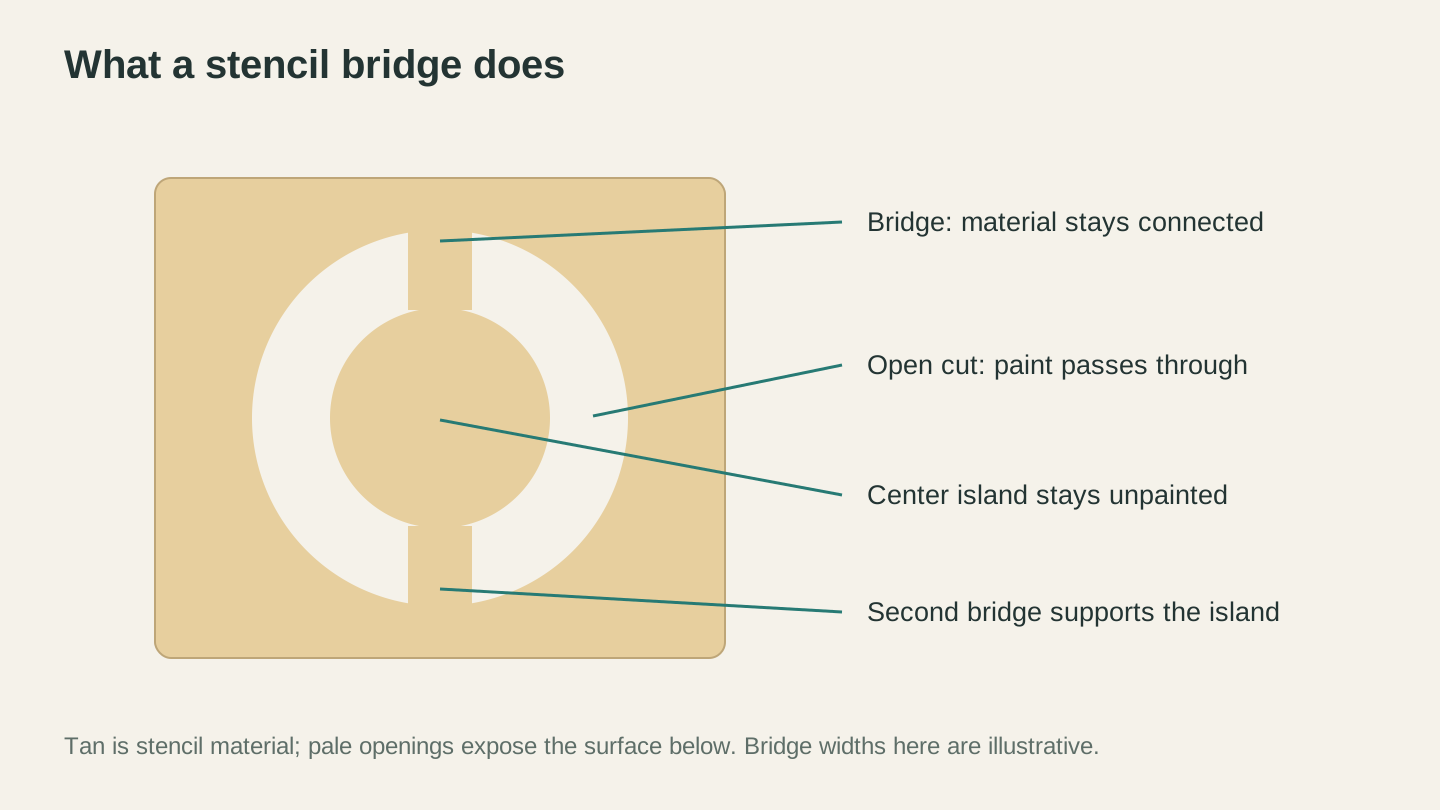
The bridges connect the center to the surrounding sheet. Paint passes through the open arcs and leaves a gap wherever a bridge covers the surface.
Rule 2: Minimum Feature Size
Your stencil needs to survive handling and paint application. Thin lines of material will bend, break, or let paint bleed through.
For mylar stencils: Minimum line width of about 1mm (0.04"). Bridges connecting islands should be at least 1.5mm wide.
For cardstock stencils: Minimum 1.5mm lines. Cardstock is weaker than mylar.
For plywood stencils: Minimum 2mm. Wood can splinter at thin points.
If your design has very fine details that violate these minimums, simplify it or increase the overall size.
Rule 3: Leave a Border
The area around your design needs a solid border of at least 1-2 inches. This border:
- Keeps the stencil rigid
- Prevents paint from going past the edges
- Gives you something to hold or tape down
- Protects the surface around your design
Creating Your Stencil Design
Two paths: vectorize an existing image, or generate a design from scratch.
Path 1: From an Image
Got a photo, logo, or drawing you want to turn into a stencil?
- Upload the image to MonoTrace to convert it to an SVG
- Open the SVG in your design software
- Check for unconnected islands that need bridges
- Add bridges where needed (small rectangles connecting islands to the frame)
- Add a border around the design
- Export as SVG (for Cricut) or SVG/DXF (for laser)
MonoTrace does the heavy lifting of converting raster images to clean vector paths. The bridge-checking and border-adding step still needs to be done manually, but it's straightforward once you know what to look for.
Path 2: Generate from Scratch
Don't have an image to start with? Describe what you want.
Vector Studio generates machine-ready SVGs from text descriptions. Ask for "a simple deer silhouette" or "a geometric mandala pattern" and you'll get a vector design. You'll still need to add bridges for any enclosed areas, but the design work is done.
Tip
When describing designs for stencils, add "simple, bold lines, stencil-friendly" to your prompt. This encourages designs with thicker features that translate well to stencils.
Path 3: Stencil Fonts
For text stencils (signs, labels, markings), use a stencil font that already has bridges built into the letterforms. Popular free stencil fonts: Allerta Stencil, Stencil (built into most systems), Stardos Stencil, Bungee Shade.
Machine Settings
Laser Cutter Settings
Mylar (4 mil):
- Speed: Fast (around 80-100% on a diode laser)
- Power: Low (15-25% on a 10W diode, adjust for your machine)
- Single pass
- Air assist ON (prevents flaming, keeps edges clean)
Cardstock:
- Speed: Fast
- Power: Very low (10-15% on a 10W diode)
- Single pass
- Air assist on (prevents scorching)
Thin plywood (1/8"):
- Use your standard wood cutting settings
- Usually 2-3 passes at moderate speed
Test on scrap material first. You want a clean cut that goes all the way through without excessive charring or melting. One clean pass is better than two sloppy ones.
Cricut Settings
Mylar (4-7 mil):
- Material: Acetate or custom
- Blade: Fine-point or deep-point (depending on thickness)
- Pressure: Medium to high
- May need 2 passes for thicker mylar
Cardstock:
- Material: Cardstock (Medium or Heavy)
- Blade: Fine-point
- Pressure: Default
- Single pass
Adhesive vinyl (stencil use):
- Material: Vinyl
- Blade: Fine-point
- Pressure: Default
- Single pass
Using Your Stencil
With a Brush
Dab, don't brush. Loading a brush with paint and swiping across the stencil pushes paint under the edges. Instead, use a stencil brush or a sponge and dab vertically (straight up and down). Use minimal paint. Multiple thin coats beat one thick coat.
With Spray Paint
Hold the can 6-8 inches away and use light, sweeping coats. Heavy spray paint pools under stencil edges and causes bleeding. Two light coats are cleaner than one heavy coat.
With Airbrush
Airbrush gives the cleanest results with stencils. The fine mist doesn't push paint under edges the way brushes and spray cans do. If you have an airbrush, this is the way.
With Etching Cream
For glass etching, apply vinyl stencil to the glass, brush etching cream over the exposed areas, wait the recommended time (usually 5 minutes), and rinse. The vinyl adhesive prevents the cream from bleeding.
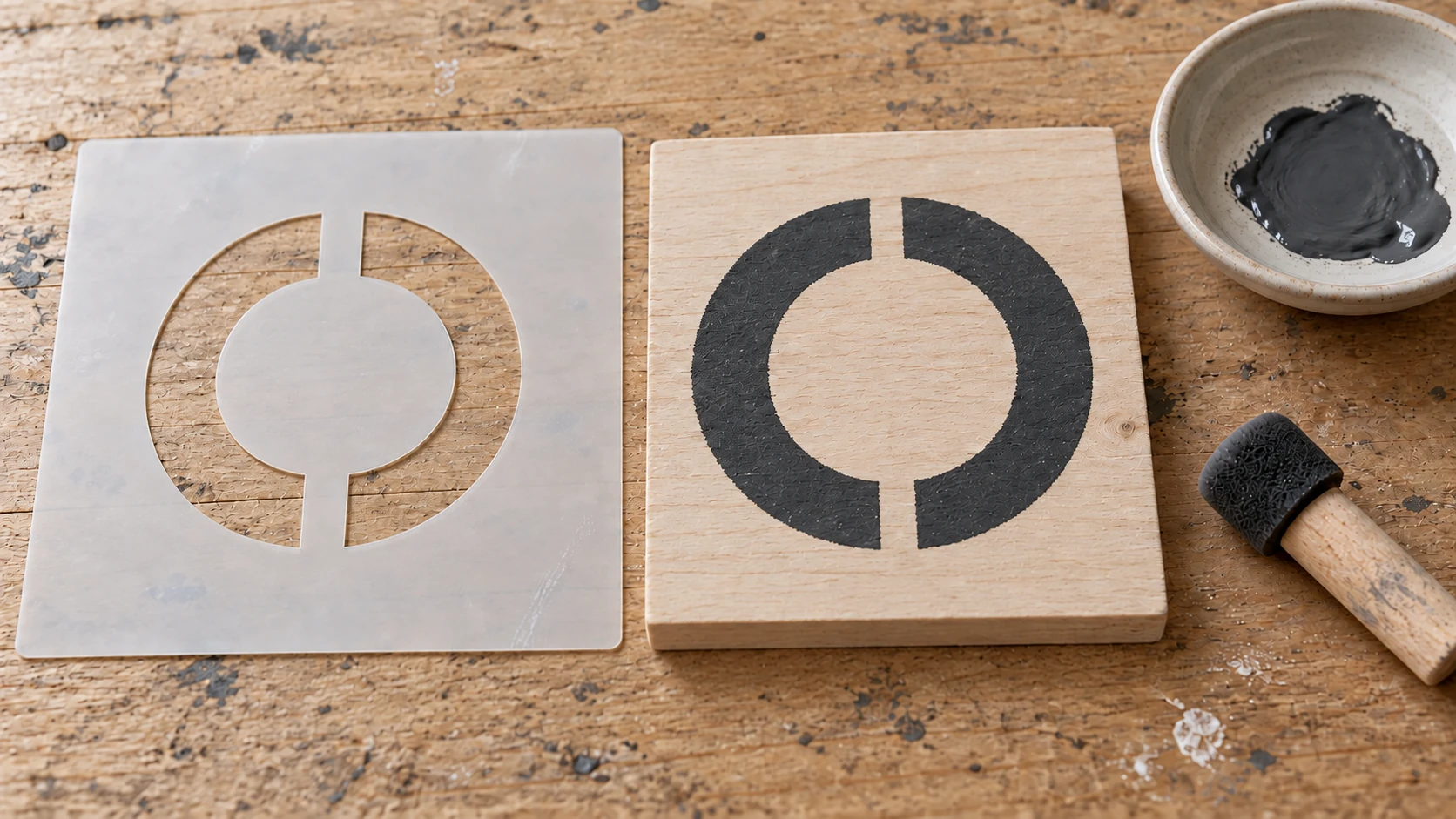
The two gaps in the painted O match the stencil’s bridges. Its center stays bare because the connected island covers that area.
Stencil Care and Storage
Cleaning: After each use, rinse mylar stencils in warm water or wipe with a damp cloth before the paint dries. Dried acrylic on mylar can be peeled off, but it's easier to clean while wet.
Storage: Store flat between sheets of parchment paper. Rolling mylar stencils can cause them to curl. Flat storage keeps them ready to use.
Labeling: Write the design name and date on the border of each stencil. When you have 50 stencils in a drawer, labels save time.
Make It Once, Use It Forever
That's the real value of making your own stencils. Buy a pack of stencils and you get the 50 designs someone else picked. Make your own and you get exactly the designs you need, in exactly the sizes you need, on exactly the materials that work for your application.
MonoTrace converts any image to clean vectors for free, which is the starting point for a stencil once you have added the bridges and border yourself. Vector Studio generates designs you can't find anywhere else. And File Converter handles format conversion when your machine needs DXF instead of SVG. Downloading the converted file requires an active paid plan.
Your first stencil might take 20 minutes. Your tenth will take 5. Once the workflow clicks, you'll wonder why you ever bought pre-made stencils.
Ready to make one? Upload your image to MonoTrace and turn it into a cut-ready SVG in a few clicks, no credits required. For more cutting machine project ideas, check out our guide to vinyl decals and stickers.
Related Tools
Ready to try these tools?
Sign up free, no credit card required. Free tools available immediately.
Start Free