

How to Make Custom Vinyl Decals and Stickers
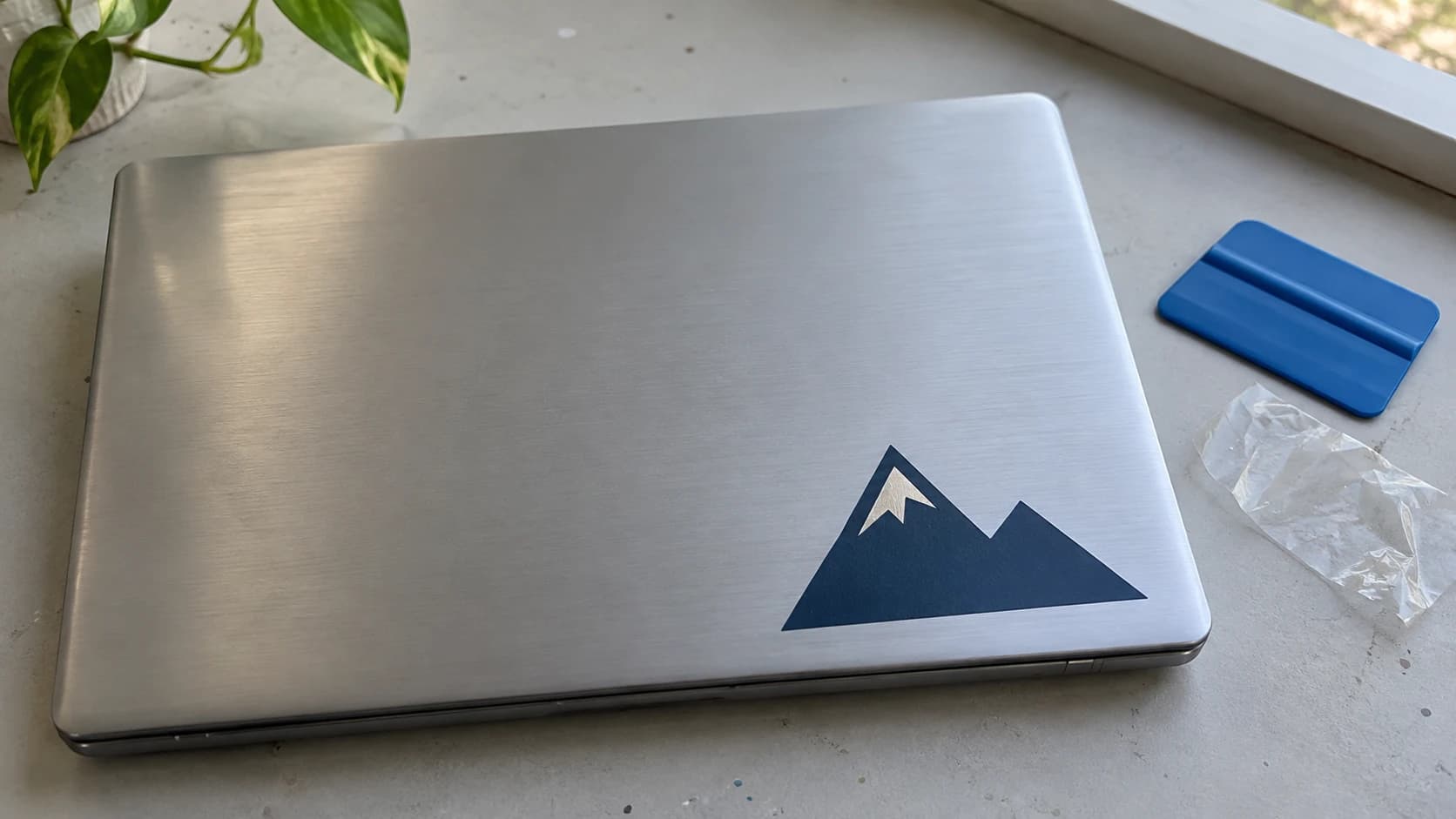
Vinyl decals are the gateway drug of cutting machines. You buy a Cricut or Silhouette for some vague idea about "crafting," and two weeks later you're putting custom decals on your water bottle, your car, your mailbox, and your neighbor's mailbox (with permission, hopefully). Everyone starts here. It's the most satisfying first project because the results look genuinely professional, the materials are cheap, and the learning curve is about thirty minutes.
If you're brand new to cutting machines, our cutting machine beginner's guide covers setup, software, and the basics of how these machines work. This guide assumes you've got your machine plugged in and ready to go. We're going straight into making things.
What You'll Need
Before you start cutting, gather your supplies. You probably already have most of these if you've set up your machine.
For vinyl decals:
- Cutting machine (Cricut or Silhouette)
- Adhesive vinyl (permanent for outdoor or dishwasher use, removable for walls and temporary applications)
- Standard grip cutting mat (green)
- Weeding tools (hook tool, tweezers)
- Transfer tape
- Scraper or squeegee (an old credit card works fine)
- A design file, preferably SVG
For printed stickers (print-then-cut):
- Everything above, plus an inkjet or laser printer
- Sticker paper (matte or glossy)
- Optional: laminate sheets for waterproofing
That's the full list. No specialty equipment, no expensive accessories. A roll of adhesive vinyl costs about $5, a roll of transfer tape is $8, and a basic weeding hook is $3. You can make dozens of decals from a single roll.
PRINT. CUT. CARVE.



- Multiple formats (SVG, DXF, PNG)
- Machine-tested designs
- Commercial licenses
Sponsored by PrintCutCarve.com
Designing Your Decal
The design file is everything. A good file cuts cleanly. A bad file turns into a weeding nightmare that ends with vinyl confetti on your desk and regret in your heart.
SVG is the Goal
Your cutting machine follows vector paths. The blade traces the outlines in your design, so you need a vector file. SVG (Scalable Vector Graphics) is the universal format that cutting machine software accepts.
Where to get SVG files:
- Design your own in your cutting machine's software or a free vector editor
- Buy them from Creative Fabrica, Design Bundles, So Fontsy, or Etsy
- Convert from images using MonoTrace to vectorize any PNG or JPG for free
That last option is the one most people miss. You've got a logo, a sketch, or a clipart PNG you found. You need it as an SVG. MonoTrace traces the pixels into actual vector paths with clean curves that scale and cut at any size. Upload, hit Vectorize, download. Takes about thirty seconds. Our PNG to SVG guide walks through the full process.
If your design file is in the wrong format (DXF instead of SVG, for example), run it through File Converter for conversion without a tool-credit charge. Some cutting software accepts DXF directly, but others need SVG. Downloading the converted file requires an active paid plan.
Design Tips for Beginners
Start simple. A single-color design with bold shapes and thick lines is ideal for your first project. A name in a bold font. A simple silhouette. A geometric shape. Save the intricate mandala for project number ten.
Tip
Keep lines and gaps at least 1/16 inch (about 1.5mm) apart. Anything thinner becomes nearly impossible to weed, and the vinyl tends to tear or lift during transfer. If your design has fine details, scale it up or simplify the paths.
Sizing Your Design
Measure the surface you're applying to before you cut. A decal for a water bottle needs to be shorter than the bottle's flat area. A car window decal needs to fit the window. Sounds obvious, but it's easy to get excited and skip this step. Cut a piece of paper to the final size and hold it against the surface. If it fits, you're good.
Cutting Adhesive Vinyl (Step by Step)
This is the core process. Once you learn this workflow, every vinyl project follows the same pattern.
Step 1: Load the Vinyl
Place your vinyl on the cutting mat with the colored side facing up. The shiny adhesive backing goes against the mat. The blade needs to cut through the vinyl layer without cutting through the backing paper underneath. That backing paper is your friend. It holds everything in place while you weed and transfer.
Smooth the vinyl flat with your scraper. Air bubbles and wrinkles cause the blade to skip or cut unevenly. Push from the center outward.
Step 2: Select Your Material and Settings
In your cutting software, select the material type:
- Cricut: Premium Vinyl (for permanent) or Removable Vinyl
- Silhouette: Vinyl, Glossy or Vinyl, Matte
These presets configure the blade depth, pressure, and speed automatically. They're good starting points for most vinyl brands.
Step 3: Run a Test Cut
Before you send your full design, do a test cut. Most cutting software has a test cut button that cuts a small square in the corner of your material. After it cuts, use your weeding hook to check: the blade should cut cleanly through the vinyl but leave the backing paper intact. If the backing paper is scored or cut through, reduce the pressure. If the vinyl isn't fully cut, increase pressure or add a second pass.
This test takes ten seconds and saves you from wasting a full sheet of vinyl.
Step 4: Cut the Full Design
Send the design to your machine. For a typical decal (4 to 6 inches wide), cutting takes 30 to 90 seconds depending on complexity. You'll hear the blade tracing each path. When it's done, unload the mat.
Step 5: Check the Cut
Before you start weeding, peel up one corner of the excess vinyl. It should lift cleanly away from the backing. If it drags or tears, the cut wasn't deep enough. Recut before you waste time weeding a bad cut.
Weeding (The Satisfying Part)
Weeding is removing the vinyl you don't want. It's the step that separates a pile of cut vinyl from a finished decal, and once you get the hang of it, it's oddly satisfying. Like peeling the plastic film off a new phone, but craftier.
How to Weed
Start from the corners. Use your hook tool to lift the edge of the excess vinyl (the part that isn't your design) and peel it away. Work slowly from the outside in, pulling at a 45-degree angle.
For the small interior pieces (the insides of letters like A, B, D, O, P, Q, R), use the pointed tip of your weeding hook to pierce into the piece, then lift and pull. Tweezers help with tiny bits.
Weeding Tricks
Use a light pad. A cheap LED light pad placed under your vinyl makes the cut lines glow, so you can see exactly where to weed. This is especially helpful for white or light-colored vinyl where the cut lines are hard to spot.
Weed warm. Vinyl is slightly more pliable when warm. A few seconds with a hair dryer makes stubborn small pieces easier to lift.
Reverse weeding. For very intricate designs with lots of tiny detail, try reverse weeding. Instead of removing the background, peel the entire sheet off the backing, apply transfer tape to the back, then remove the design pieces you don't want. This keeps the delicate elements supported by the surrounding vinyl until the very end.
Warning
Don't rush weeding. If you pull too fast, thin lines stretch and snap. Tiny pieces fly off the backing and stick to your fingers, your desk, and somehow your coffee. Take your time, especially on your first few projects.
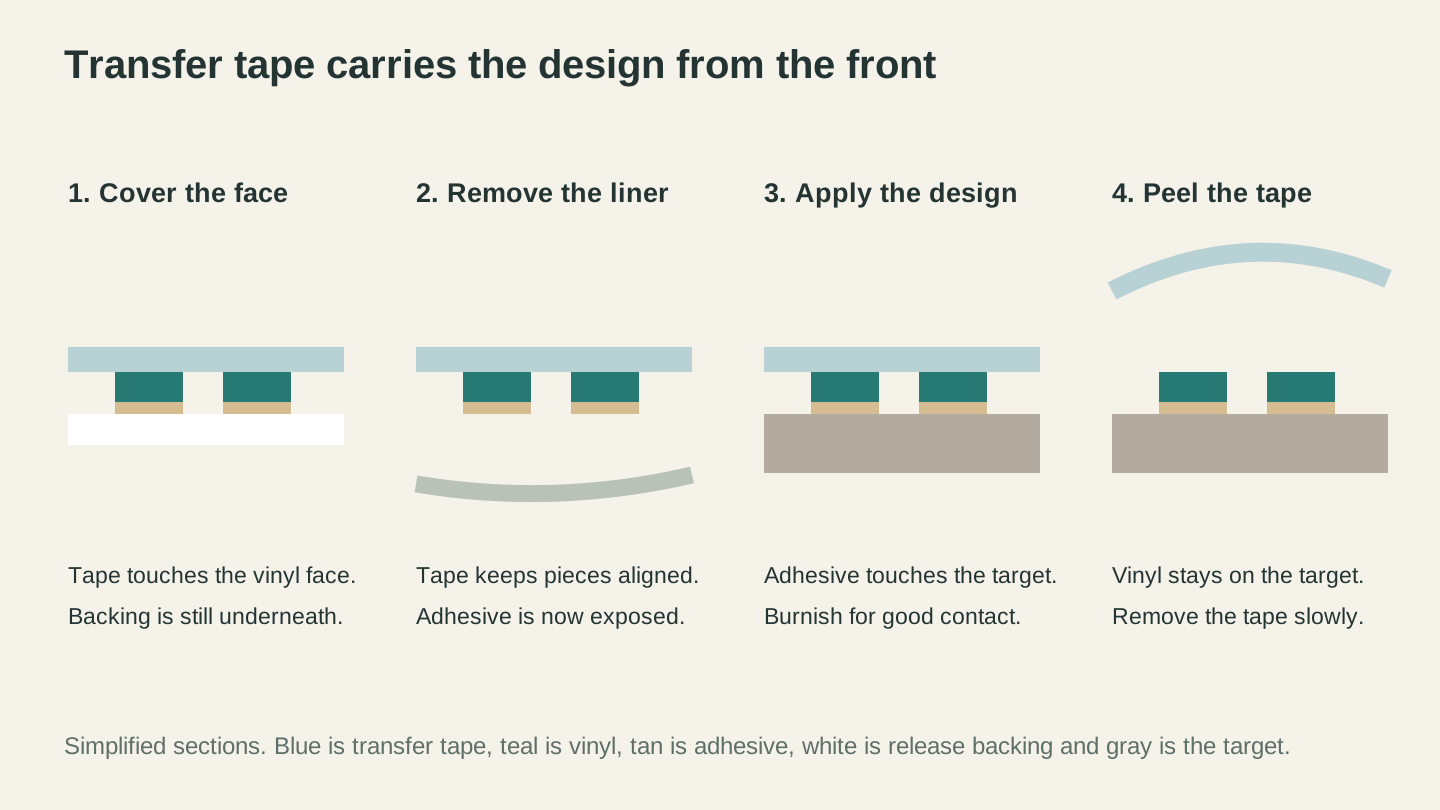
Transfer tape holds the design from the front. Remove the release backing, apply the exposed adhesive to the surface, then peel away the tape.
Applying Transfer Tape
Your design is weeded and sitting pretty on the backing paper. Now you need to move it from the backing to your target surface. Transfer tape is the bridge.
Step 1: Apply Transfer Tape to Your Design
Cut a piece of transfer tape slightly larger than your design. Peel the transfer tape liner and lay the tape sticky-side-down over your weeded vinyl. Press firmly across the entire surface with your scraper, working from center to edges. You want full contact between the tape and every piece of your design.
Step 2: Peel Off the Backing
Flip the whole thing over and slowly peel the vinyl backing paper away. Your design should lift off the backing and stay stuck to the transfer tape. If a piece stays on the backing, lay the tape back down over it, press that area firmly, and try again.
Step 3: Position and Apply
Clean your target surface with rubbing alcohol. Position the transfer tape (with your design) where you want the decal. When you're happy with placement, press the center down first, then smooth outward toward the edges with your scraper. Apply firm, even pressure everywhere.
Step 4: Remove the Transfer Tape
Slowly peel the transfer tape away at a sharp angle (almost folding it back on itself). The vinyl should stay on the surface. Go slow. If an edge lifts with the tape, press it back down and peel more carefully from the other direction.
Wet vs Dry Application
Everything above is the dry application method. It works great for small to medium decals. For large decals (bigger than about 8 inches), consider the wet method.
Spray the target surface lightly with a mixture of water and a tiny drop of dish soap. Position your decal on the wet surface. The soapy water lets you slide the decal around for perfect positioning. Once it's placed, squeegee the water out from center to edges, pressing firmly. Let it dry for several hours before touching it. The wet method takes longer but gives you a repositioning window that's invaluable for large or precise applications.
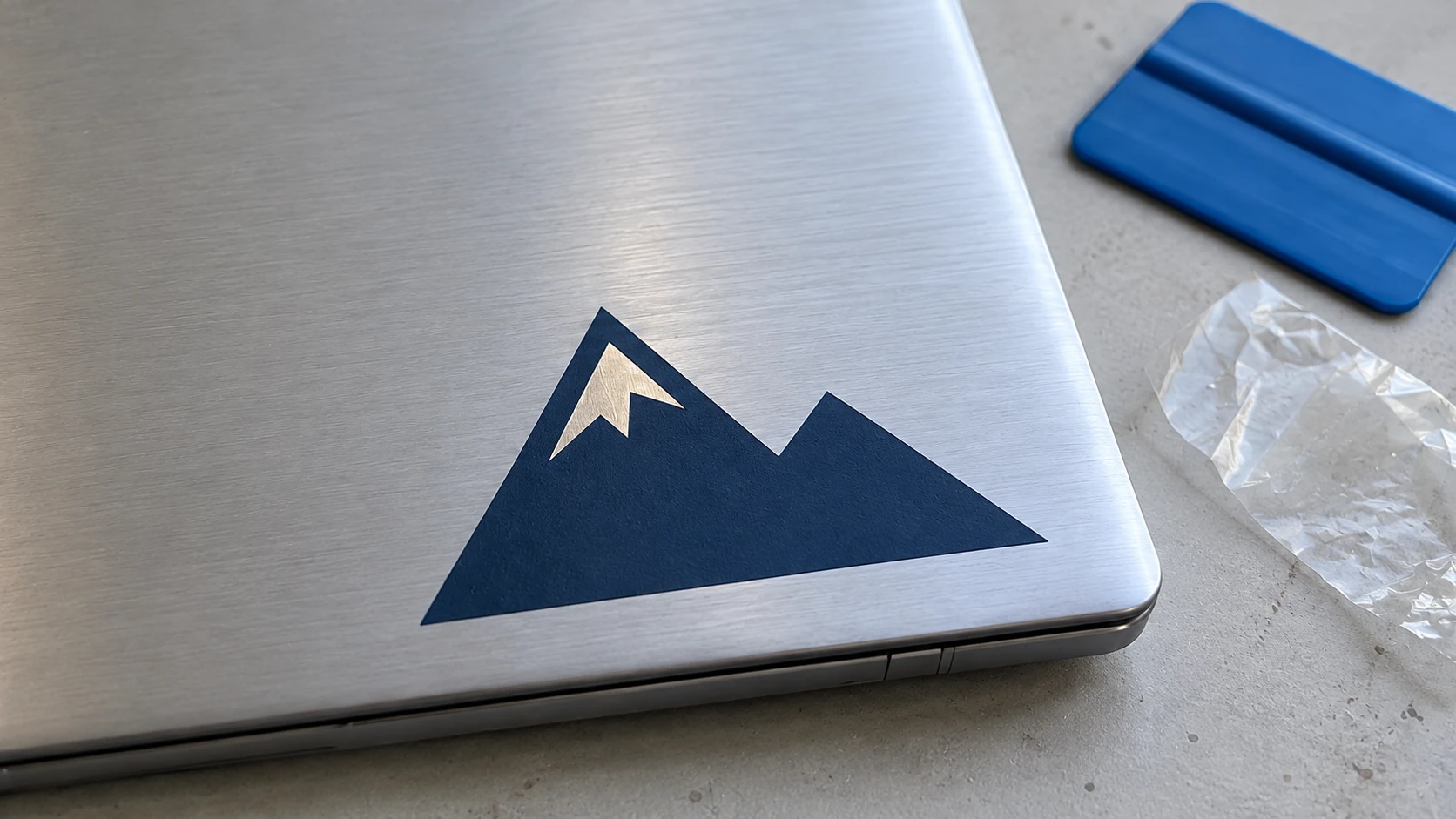
The same decal up close. The snow gap reveals the laptop surface; it is an opening in the vinyl rather than a second printed color.
Making Stickers (Print Then Cut)
Print-then-cut is a completely different workflow from vinyl decals, and it's worth understanding the distinction. With vinyl decals, the machine cuts colored vinyl. With print-then-cut, your printer handles the colors and your cutting machine cuts the shape.
How It Works
- Design your sticker sheet in your cutting software. Each sticker has a printed graphic and a cut line around it.
- Print the sheet on sticker paper using your inkjet or laser printer. The software adds registration marks (small alignment indicators) around the edges.
- Load the printed sheet into your cutting machine. The machine's optical sensor reads the registration marks to align precisely with the printed designs.
- The machine cuts around each sticker, leaving a clean edge.
Design Tips for Print-Then-Cut
Add bleed. Extend your sticker artwork at least 1mm beyond the cut line. This prevents white edges if the cut is slightly off from the print. Most cutting software handles this automatically when you set up the bleed option.
Mind the printable area. Print-then-cut has a smaller maximum area than a regular cut. On Cricut, it's roughly 6.75 x 9.25 inches. On Silhouette, it depends on your model but is generally a bit larger. Don't put stickers near the edges where registration marks need space.
Use sticker paper, not regular paper. This sounds obvious, but sticker paper comes in adhesive-backed sheets designed for this workflow. Matte finish scans better for the optical sensor. Glossy can sometimes cause sensor issues, though most modern machines handle both fine.
Laminating for Durability
If you're selling stickers or want them to survive water bottles, dishwashers, and general life, laminate them. Apply a clear laminate sheet over the printed sticker paper before cutting. The laminate adds waterproofing, UV resistance, and scratch protection. Your $0.10 sticker suddenly feels like a $3 product.
Cold laminate (peel and stick) is easier. Hot laminate (run through a laminating machine) gives a tighter bond. Either works. Apply the laminate before loading into the cutting machine, and the machine cuts through all layers at once.
Selling Vinyl Decals and Stickers
Once you've made a few decals for yourself, the next thought is inevitable: "I could sell these." And you'd be right. Custom decals and stickers are one of the lowest-barrier, highest-margin products you can make with a cutting machine.
Why Decals Sell Well
The economics are excellent. A sheet of permanent vinyl costs about $0.50 per decal. Transfer tape adds pennies. Your time per decal (once you're practiced) is 5 to 10 minutes. Decals sell for $3 to $8 each on Etsy, at craft fairs, and through social media. Stickers sell for $2 to $5 each, or $8 to $15 for a sheet.
What Sells Best
- Car and truck decals: Family stick figures, sports logos, pet breeds, hobby-related designs
- Water bottle and tumbler decals: Names, quotes, floral designs
- Laptop stickers: Pop culture references, minimalist designs, funny quotes
- Wall decals: Nursery names, kitchen quotes, seasonal decorations
- Custom orders: Business logos, wedding decor, event signage
Packaging Matters
Present your decals professionally. A cellophane bag with a cardstock backing turns a loose piece of vinyl into a product. Print application instructions on the backing card. People will pay more for something that looks like a product rather than a piece of vinyl in a plastic bag.
For stickers, die-cut shapes on a branded backing card perform well. Kiss-cut sticker sheets (where the blade cuts through the sticker but not the backing) are easy to make and feel premium.
For a deep dive on vinyl types and which to use for different products, check out our guide to materials for Cricut and Silhouette. Picking the right vinyl for the right application is the difference between a product that lasts years and one that peels off next week.
Start with One Decal
Don't overthink your first project. Pick a word, a name, or a simple shape. Cut it from a scrap piece of vinyl. Weed it. Transfer it. Stick it on something. The entire process takes ten minutes, and by the end you'll understand the workflow better than any YouTube video could teach you.
Your second decal will be faster. Your third will feel routine. By your tenth, you'll be eyeing every smooth surface in your house as a potential canvas.
Happy making.
Got a logo, sketch, or clipart image you need in a cutter-ready format first? MonoTrace turns any PNG or JPG into a clean SVG for free, and File Converter handles SVG to DXF and back if your software needs a different format. Both use no tool credits, just sign in and go. Downloading the converted file requires an active paid plan.
Related Tools
Ready to try these tools?
Sign up free, no credit card required. Free tools available immediately.
Start Free