

Laser Engraving Settings for Wood (Beginner's Cheat Sheet)
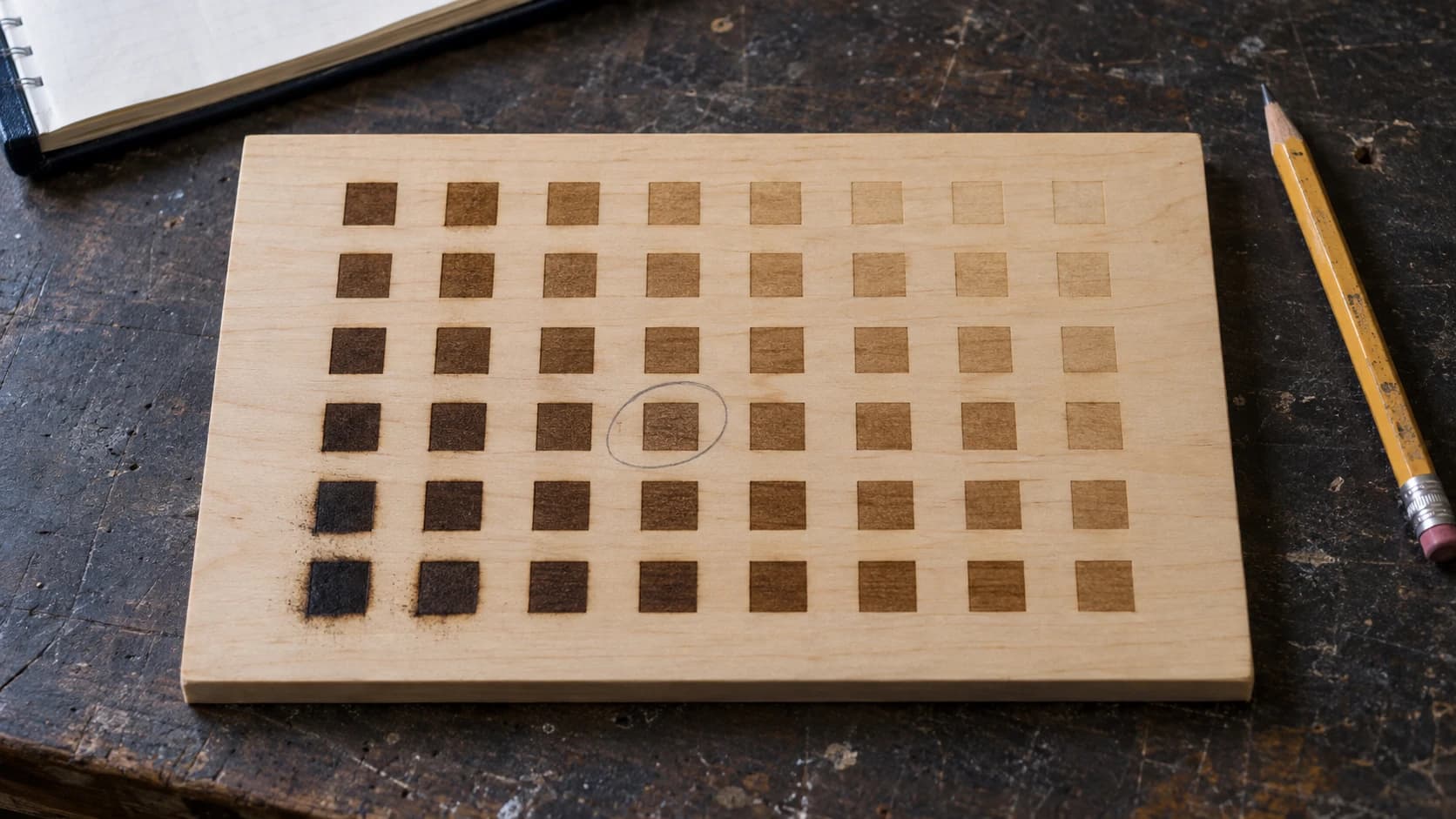
You've got your laser set up. You've done your first test engrave. Now you're staring at a pile of different wood pieces wondering: what settings do I use for walnut? Is cherry different from maple? Will this plywood setting work on oak?
If you followed our laser engraving beginner's guide, you already know the basics of power, speed, and DPI. This post gives you the actual numbers for specific wood species, so you can skip straight to getting great results instead of burning through your nice stock running test after test.
One big caveat before we dive in: these are starting points, not gospel. Every laser is a little different. A 10W Atomstack won't behave exactly like a 10W xTool. Ambient temperature, lens cleanliness, and even humidity in the wood all affect results. Use these tables to get in the ballpark, then fine-tune from there.
Quick Refresher: What the Numbers Mean
If you need a deeper explanation, the beginner's guide covers this in detail. Here's the short version:
- Power (%): How hard the laser fires. Higher = deeper/darker burn.
- Speed (mm/min): How fast the head moves. Slower = more energy per spot = darker result.
- DPI (dots per inch): Resolution for raster engraving. Higher = more detail, slower job. Also sometimes shown as "lines per inch" or "LPI."
- Passes: Number of times the laser runs the same path. More passes = deeper cut/engrave.
PRINT. CUT. CARVE.



- Multiple formats (SVG, DXF, PNG)
- Machine-tested designs
- Commercial licenses
Sponsored by PrintCutCarve.com
Diode Laser Settings (10W Optical)
These settings are calibrated for a typical 10W optical diode laser (like xTool D1 Pro, Atomstack X20 Pro, or Sculpfun S30 Pro). If your laser is 5W, try slowing down by about 30% or bumping power up. If you've got a 20W, speed up by 20-30%.
Engraving Settings
| Wood | Power (%) | Speed (mm/min) | DPI | Notes |
|---|---|---|---|---|
| Basswood | 60 | 3000 | 254 | Very forgiving, ideal for beginners |
| Birch Plywood (3mm) | 65 | 3000 | 254 | Clean results, watch for glue layers |
| Pine | 50 | 3500 | 254 | Light touch needed, chars easily |
| Cedar | 55 | 3000 | 254 | Soft grain, aromatic when cut |
| Poplar | 60 | 3000 | 254 | Inexpensive, good for practice |
| Cherry | 70 | 2500 | 300 | Beautiful natural contrast |
| Maple | 75 | 2500 | 300 | Hard, needs more power for contrast |
| Walnut | 65 | 2800 | 300 | Naturally dark, less contrast visible |
| Oak | 70 | 2500 | 300 | Open grain shows in engraving |
| Bamboo | 60 | 3000 | 254 | Consistent density, predictable |
| MDF | 55 | 3500 | 254 | Uniform density, no grain surprises |
Cutting Settings
| Wood | Power (%) | Speed (mm/min) | Passes | Max Thickness |
|---|---|---|---|---|
| Basswood | 100 | 300 | 2 | 3mm |
| Birch Plywood (3mm) | 100 | 200 | 3-4 | 3mm |
| Pine | 100 | 250 | 2 | 3mm |
| MDF | 100 | 250 | 3 | 3mm |
| Bamboo | 100 | 200 | 3 | 3mm |
Info
Diode lasers struggle to cut anything thicker than about 3mm in a reasonable number of passes. If you regularly need to cut thicker stock, a CO2 laser is a much better fit for that job.
CO2 Laser Settings (40W)
These settings are for a typical 40W CO2 laser (like OMTech 40W, Monport 40W, or Glowforge Basic). Scale proportionally for higher wattages: a 60W laser can run about 50% faster at the same power, and an 80W even faster.
Engraving Settings
| Wood | Power (%) | Speed (mm/s) | DPI | Notes |
|---|---|---|---|---|
| Basswood | 20 | 300 | 300 | Light, clean engrave |
| Birch Plywood (3mm) | 25 | 300 | 300 | Very popular for craft projects |
| Pine | 18 | 350 | 254 | Easy to over-burn, keep power low |
| Cedar | 20 | 300 | 254 | Smells amazing |
| Poplar | 22 | 300 | 300 | Consistent results |
| Cherry | 25 | 250 | 300 | Rich contrast without staining |
| Maple | 30 | 250 | 300 | Dense, needs more energy |
| Walnut | 22 | 280 | 300 | Dark wood, subtle engrave |
| Oak | 28 | 250 | 300 | Grain pattern shows through |
| Bamboo | 22 | 300 | 300 | Clean, predictable |
| MDF | 20 | 350 | 254 | Smooth, no grain variation |
Cutting Settings
| Wood | Power (%) | Speed (mm/s) | Passes | Max Thickness |
|---|---|---|---|---|
| Basswood | 60 | 8 | 1 | 6mm |
| Birch Plywood (3mm) | 55 | 10 | 1 | 3mm |
| Birch Plywood (6mm) | 70 | 5 | 1-2 | 6mm |
| Pine | 55 | 10 | 1 | 5mm |
| MDF (3mm) | 50 | 12 | 1 | 3mm |
| MDF (6mm) | 70 | 5 | 1-2 | 6mm |
| Bamboo | 60 | 8 | 1 | 4mm |
| Acrylic (3mm) | 55 | 8 | 1 | 3mm |
Warning
CO2 laser speeds are typically specified in mm/s, while diode laser software often uses mm/min. Don't mix these up or your first test will either do nothing (too fast) or burn a hole through your table (too slow). 300 mm/s = 18,000 mm/min.
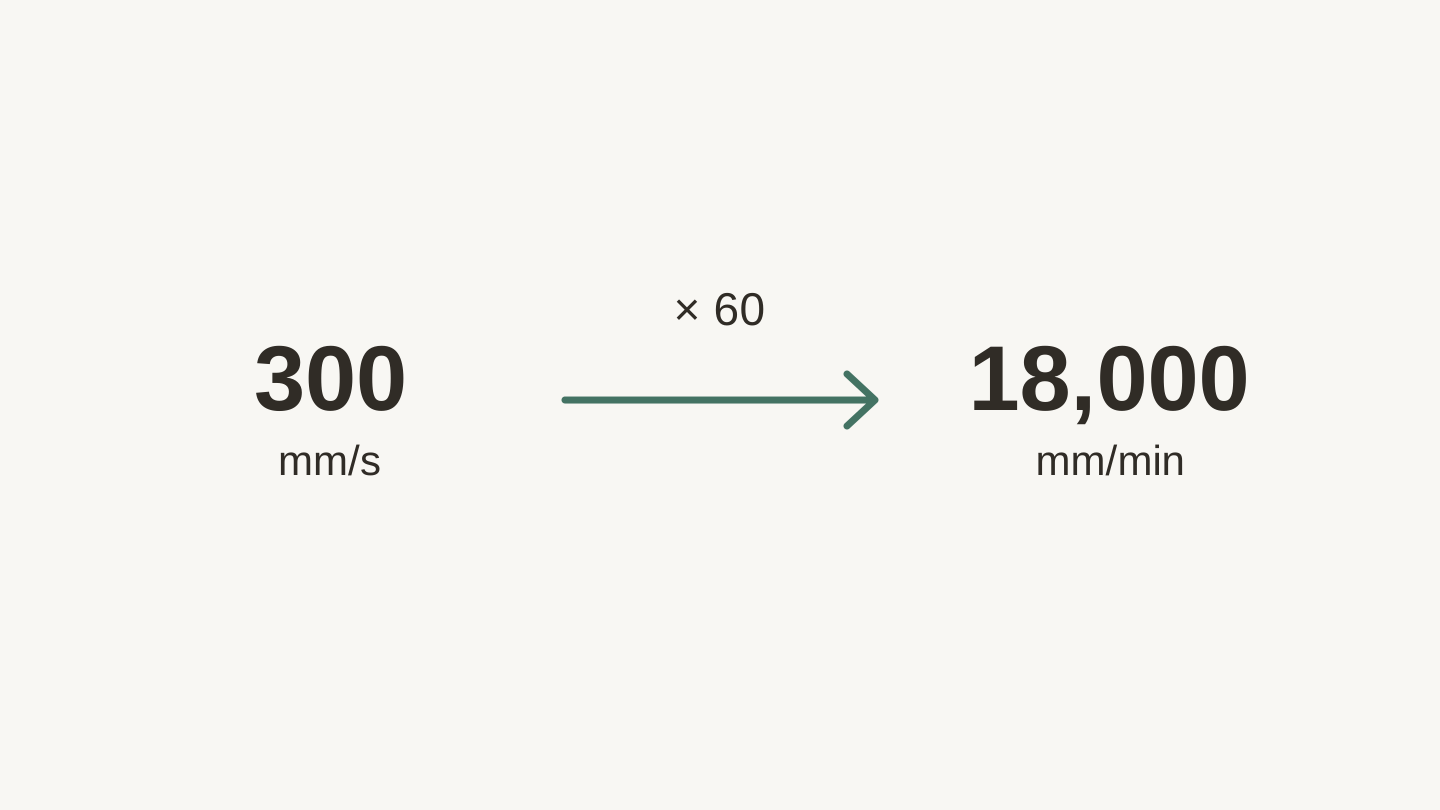
These are two ways to express the same speed. Multiply mm/s by 60 to get mm/min; divide by 60 to convert back.
Understanding the Differences Between Species
Not all wood is the same, and that matters more than you'd think for laser work.
Softwoods vs Hardwoods
Softwoods (pine, cedar, basswood) engrave easily at lower power. They also char more readily, so the line between "nice contrast" and "black smudge" is thinner. Use less power and faster speeds than you think you need.
Hardwoods (maple, cherry, walnut, oak) need more energy to get a visible mark but give you a wider sweet spot. You can push power higher without suddenly going from "light mark" to "crater." The tradeoff is slower engraving times.
Grain Matters
Open-grain woods like oak and ash have visible pores. The laser hits the soft springwood and hard latewood differently, so your engraving can look uneven across the grain. This is normal, not a settings problem. Some people love the organic look. If you want uniformity, stick to closed-grain species like maple, cherry, or basswood.
The Walnut Paradox
Walnut is a gorgeous wood, but it's already dark. That means laser engravings don't have much contrast against the surrounding surface. You have two options:
- Go deep. Use higher power and slower speed to create a noticeably textured engrave that catches light differently.
- Use a fill. Engrave your design, then rub white paint or chalk into the grooves and wipe the surface clean. The fill material stays in the engraved areas and pops against the dark wood.
Plywood Gotchas
Plywood is layers of wood glued together. The glue layers engrave differently than the wood, which can create visible banding on cut edges. Birch plywood from craft stores (often marketed as "laser plywood") is usually the most consistent. Random plywood from the hardware store is a crapshoot.
Also, some plywood uses formaldehyde-based glue. Check the label. If it says "exterior grade" or doesn't specify, it's probably not great for laser work. "Interior grade" or "laser grade" plywood uses safer adhesives.
How to Run Your Own Test Grid
The tables above will get you close, but your specific machine and your specific piece of wood will have their own opinion about optimal settings. Here's how to find your perfect numbers in about 15 minutes.
The Method
-
Set up a test grid in your laser software. Many laser programs include a built-in material test generator, or you can find test grid files online to import. If you need laser software, Beam Bench is free.
-
Choose your range. For engraving, test power from 30% to 100% on one axis and speed across a reasonable range on the other. For a 10W diode, try 1500-4000 mm/min. For a 40W CO2, try 150-400 mm/s.
-
Use the actual material you plan to engrave. Different pieces of the same species can vary. The scrap piece should come from the same board if possible.
-
Run the grid. It takes 10-15 minutes for a typical 8x6 grid.
-
Label the winner. Write the settings directly on the test piece with a marker. Stick it on the wall or keep it in a drawer. Over time, you'll build a settings library that makes dialing in new projects instant.
Tip
When you find a setting you love, take a photo of the test grid with your phone and save it in a "Laser Settings" album. Way faster than digging through a drawer of wood scraps when you need to remember what worked on cherry six months ago.
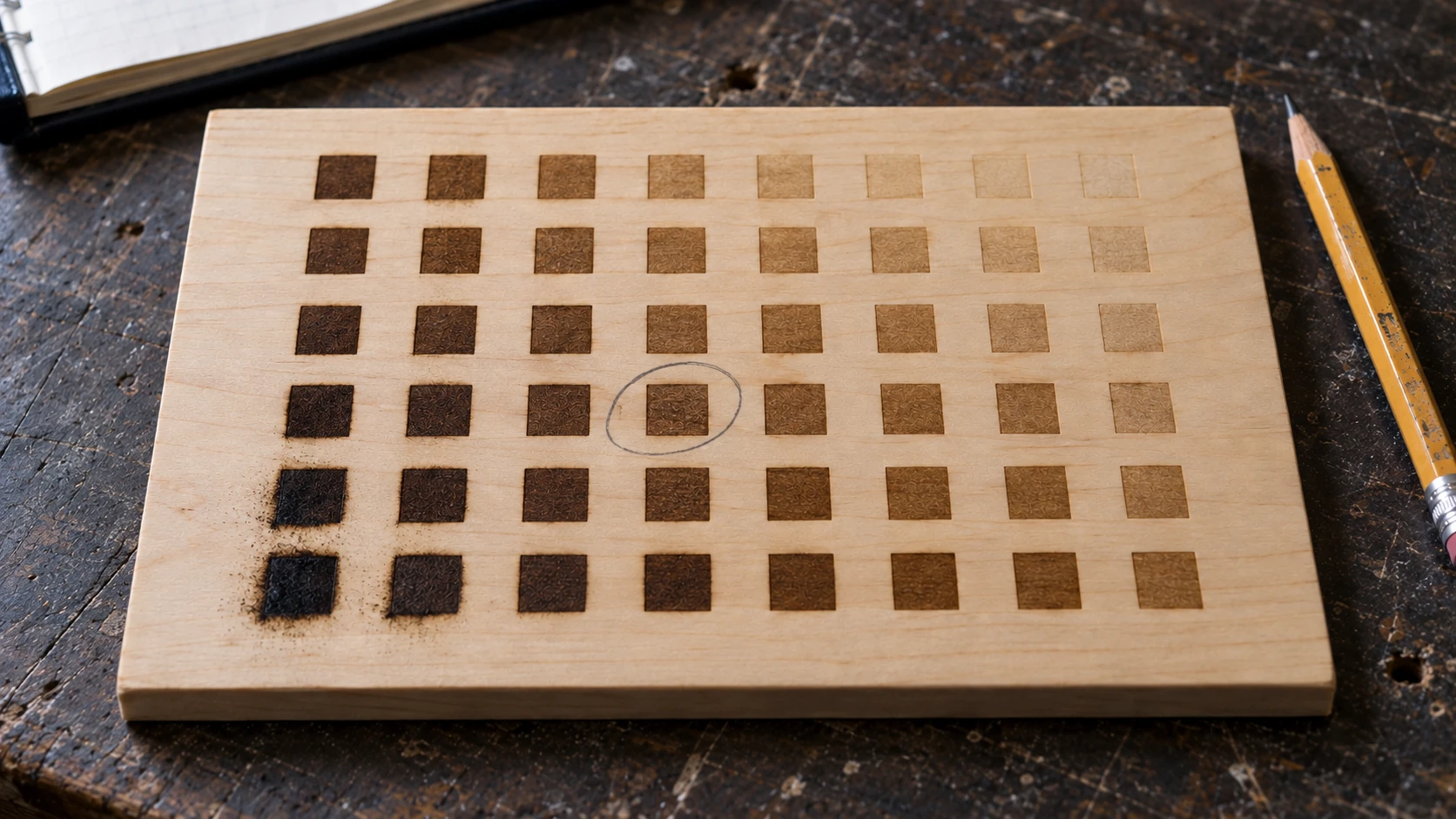
Compare the marks as well as their darkness: look for readable contrast without excessive charring. This illustrative grid is not a settings chart.
Photo Engraving on Wood: Special Considerations
Engraving photos onto wood is a whole sub-skill. The basics:
- Use a higher DPI. 300-318 DPI is the sweet spot for most wood. Going higher than 350 rarely helps and just makes the job take longer.
- Choose tight-grain woods. Maple and basswood are the best for photo engraving because the grain doesn't interfere with the image detail.
- Prepare the image. Convert your photo to grayscale and boost the contrast. Many laser programs have built-in image processing, but doing it manually in an image editor gives you more control.
- Dither settings matter. "Jarvis" dithering tends to look the best on wood. "Stucki" is a close second. "Ordered" dithering looks more mechanical, which can work for certain artistic styles.
- Test on scrap first. Always. Photos are especially sensitive to settings because you're trying to reproduce a gradient, not just burn a solid shape.
Quick Reference Card
Here's the condensed version you can screenshot and keep on your phone:
Diode (10W) Engraving Defaults:
- Softwood: 55-65% power, 3000-3500 mm/min, 254 DPI
- Hardwood: 65-75% power, 2500-3000 mm/min, 300 DPI
- Photo: 60-70% power, 2500-3000 mm/min, 300-318 DPI
CO2 (40W) Engraving Defaults:
- Softwood: 18-22% power, 300-350 mm/s, 254-300 DPI
- Hardwood: 25-30% power, 250-300 mm/s, 300 DPI
- Photo: 20-25% power, 250-300 mm/s, 300-318 DPI
Universal Tips:
- Always focus the laser before every job
- Always run a test grid on new materials
- Pine chars fast, go lighter than you think
- Maple and cherry give the best natural contrast
- Walnut looks better with a paint fill technique
Go Test Something
Grab a scrap piece, pick the closest settings from the tables above, and fire up a test grid. In 15 minutes you'll have dialed-in settings for that specific material on your specific machine, and you'll never have to guess again.
Save your test pieces. Label them. Your future self will be very glad you did. Happy making.
If you're engraving a photo onto one of these woods, run it through Photo Converter first. It turns your image into clean pen-and-ink line art that engraves far better than a raw photo, so those photo settings above have something good to work with.
Related Tools
Ready to try these tools?
Sign up free, no credit card required. Free tools available immediately.
Start Free