

How to Create Stacked Layer Art from Any Image
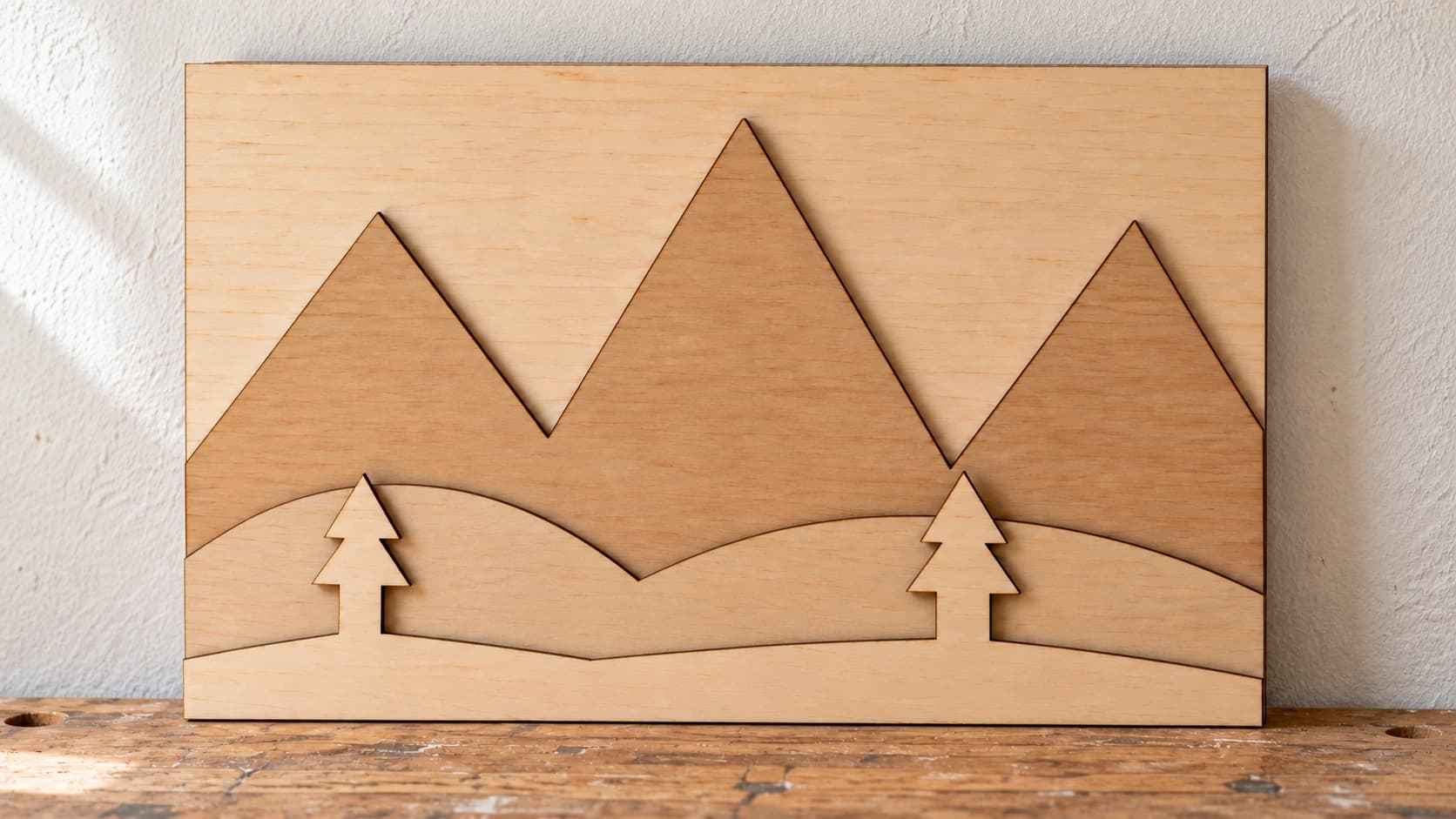
Stacked layer art turns a flat image into something with real physical depth. Each layer is cut from a separate sheet of material, and when you stack them together, the shadows between layers create a 3D effect that flat prints or engravings can't match. A mountain scene with four layers of wood has actual depth. The foreground trees cast shadows on the mid-ground hills. It looks impressive on a wall, and people always want to touch it.
The design process used to be the bottleneck. Manually separating an image into layers, making sure each layer includes the right content, keeping the silhouettes clean. That's where StackLab comes in. Upload an image, and the AI separates it into cumulative layers with clean vector outlines. Download the SVG, cut each layer, stack them up, done.
How Stacking Layers Work
This is the key concept, and it's different from what you might expect. Each layer isn't just its own color region. Each layer is cumulative: it contains itself plus everything from all layers above it.
Think of it like looking at a landscape from above. The top layer might be just a small bird. The next layer down is the bird plus the treetops. The next layer adds the hills behind the trees. The bottom layer is the full silhouette of everything.
When you stack these layers physically, the bottom layer is the largest (the full scene outline). Each layer on top is slightly smaller, adding detail as the stack goes up. The result is a dimensional piece where each layer sits on top of the one below it.
Stacking vs Inlays (StackLab vs MosaicFlow)
These two tools solve different problems, and the distinction matters.
| StackLab (Stacking Layers) | MosaicFlow (Inlays) | |
|---|---|---|
| Concept | Layers stack on top of each other | Pieces fit side by side like a puzzle |
| Each layer | Cumulative (itself + all layers above) | Independent (just that color region) |
| Assembly | Stack and glue from bottom up | Arrange flat on a backer board |
| 3D effect | Real physical depth from layer offsets | Flat surface, color contrast creates the image |
| Materials | Same color works (depth creates the effect) | Needs contrasting colors/materials |
| Best for | Landscapes, silhouettes, wall art | Logos, portraits, detailed color images |
With MosaicFlow, each color is a puzzle piece. You need different colored materials because the color contrast IS the design. For a full walkthrough of that approach, see our multicolor inlay guide.
With StackLab, the shadows between layers create the design. You can cut every layer from the same sheet of birch plywood and it still looks fantastic because the depth and shadows do the work.
PRINT. CUT. CARVE.



- Multiple formats (SVG, DXF, PNG)
- Machine-tested designs
- Commercial licenses
Sponsored by PrintCutCarve.com
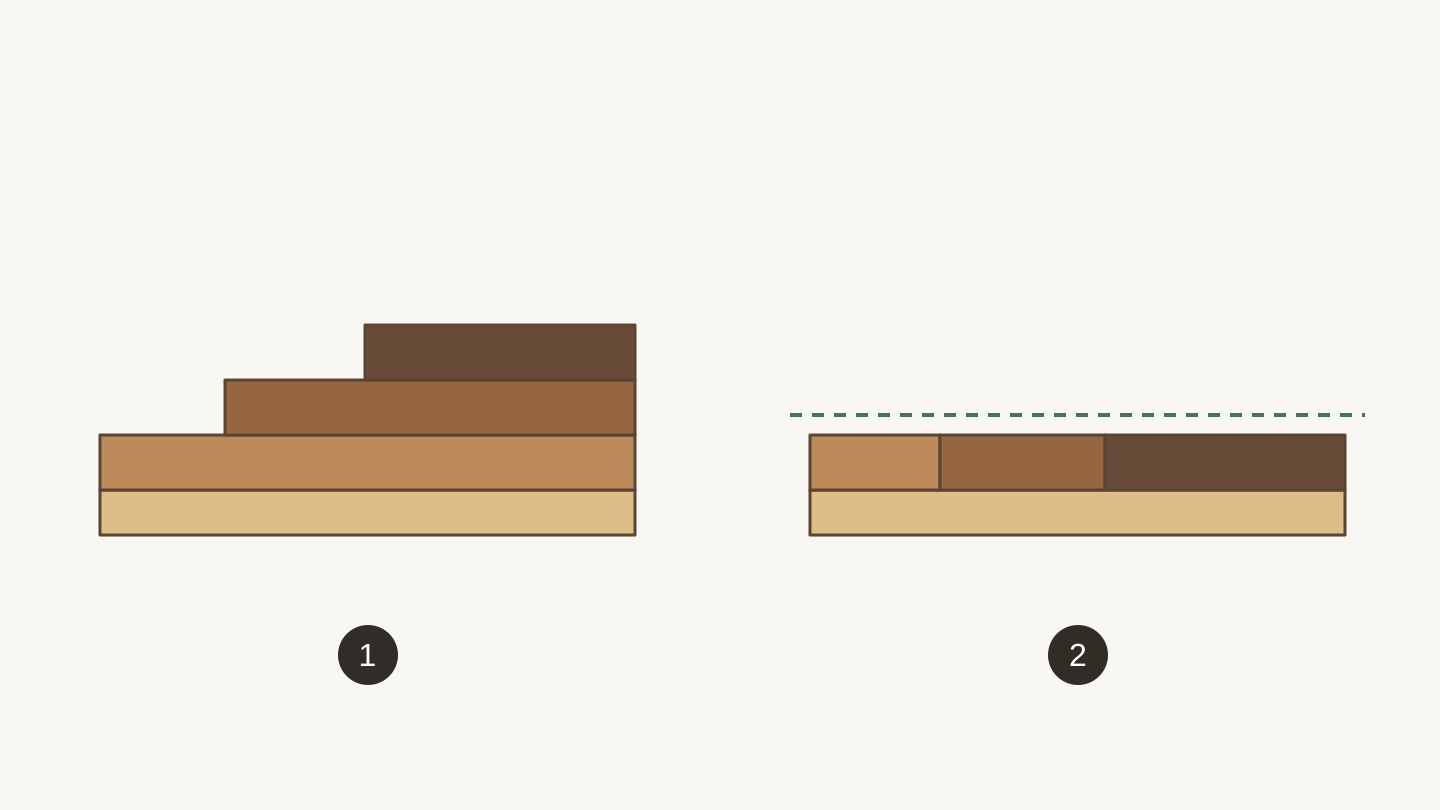
Side views: 1, overlapping sheets build up height; 2, adjacent inlay pieces share one flat surface. The drawing simplifies the shapes to show how the layers fit.
The StackLab Workflow
Step 1: Upload Your Image
Head to StackLab and upload a PNG or JPG. The tool groups colors into stackable layers. Uploads and previews do not charge credits. AI generation uses credits. Downloads require an active paid subscription or a current unlock for that design.
Images that work best for stacked art:
- Landscapes: Mountains, forests, cityscapes. Natural depth translates perfectly to physical layers.
- Silhouettes: Wildlife, people, buildings against a sky. Strong outlines and simple shapes.
- Illustrations with clear foreground/background: Anything where you can see distinct depth planes.
Images that don't work as well:
- Flat logos or text: No natural depth to separate into layers.
- Photographs with subtle gradients: The layer separation needs distinct color regions to work with.
- Very busy compositions: Too many overlapping elements make messy layers.
Tip
For best results, use images with obvious foreground, mid-ground, and background elements. A mountain landscape with trees in front is ideal. An abstract pattern with no depth structure will produce layers that don't make visual sense when stacked.
Step 2: Reorder Layers
StackLab shows your layers in a draggable list. The top of the list is the top of the stack (smallest, most detailed) and the bottom is the base layer (largest, full silhouette).
The AI suggests a layer order, but you can drag layers to rearrange them. Moving a layer higher in the stack means it becomes smaller (only its content and everything above it). Moving it lower means it becomes larger (it now includes more cumulative content).
Play with the order until the 3D preview looks right. You want a natural progression from detail at the top to broad shapes at the bottom.
Step 3: Merge and Exclude Colors
Like MosaicFlow, StackLab gives you a bubble palette to merge similar colors or exclude unwanted ones.
Merge: If the AI detected "light blue" and "medium blue" as separate colors, merge them into one layer. This reduces the total number of layers you need to cut.
Exclude: Remove colors that shouldn't be layers. Background sky colors are the most common exclusion. You typically want the sky to be the open space between your frame and the top layer, not a solid piece of material.
For a first project, aim for 3-5 layers. That's enough depth to look impressive without making assembly complicated.
Step 4: Preview in 3D
StackLab renders a 3D preview of your stacked design. Rotate it around to see how the layers will look from different angles. Check that the layer order creates a natural depth progression and that no layers are awkwardly overlapping.
Step 5: Download SVG
Download the layered SVG. Each layer is a separate group in the file. Import into your design software and cut each layer from a separate sheet of material.
Choosing Materials
Single Material (Easiest)
The simplest approach: cut every layer from the same material. The depth between layers creates all the visual interest. This works surprisingly well with:
- Baltic birch plywood (1/8" or 1/4"): Clean cuts, light color that catches shadows beautifully.
- MDF (1/8"): Uniform, no grain. Paint it matte black for a dramatic shadow-box look.
- Acrylic (1/8"): Matte black or white acrylic creates a modern, gallery feel.
Multi-Material (More Visual Impact)
Different materials for different layers add color contrast to the depth effect:
| Layer Position | Material Choice | Effect |
|---|---|---|
| Back (bottom) | Dark walnut | Deep, rich backdrop |
| Mid layers | Cherry, maple | Medium tones bridge the depth |
| Front (top) | Light maple or birch | Bright foreground pops against darker layers |
Painted Layers
Cut all layers from MDF or plain plywood, then paint each layer a different shade. Gradient painting (darkest at the back, lightest at the front) enhances the depth illusion dramatically.
Info
Layer thickness matters. Thicker material (1/4") creates more pronounced shadows between layers, which looks great on larger pieces. Thinner material (1/8") is better for smaller pieces and creates subtler depth. For most wall art projects in the 8-16" range, 1/8" material hits the sweet spot.
Cutting and Assembly
Cutting Tips
Laser: The ideal tool for stacked art. Clean cuts, no tabs needed, fast. Cut each layer from its own sheet. Mark the layer number on the back of each piece with a pencil so you know the stacking order during assembly.
CNC: Works great for thicker material (1/4"+). Use tabs to hold pieces in place during cutting, then trim with a hobby knife. A downcut bit gives the cleanest top edges.
3D Printing: StackLab exports a bed-aligned STL for each layer plus a combined OBJ assembly. The 3D preview shows exactly what you'll get. Try printing standing up (layers vertical) or flat, and check your slicer preview for supports and surface quality before committing to a full print.
Assembly
-
Dry-fit all layers in order. Make sure they look right before committing glue.
-
Glue from the bottom up. Apply a thin layer of wood glue to the back of each layer and press it onto the one below. Align carefully.
-
Use spacers for dramatic depth. Instead of gluing layers directly together, add small spacer blocks (1/4" cubes of scrap material) between layers. This creates air gaps that cast deeper shadows. The extra depth looks incredible, especially with side lighting.
-
Clamp and dry. A flat board with weights works for clamping stacked art. Heavy books do the job.
-
Add a frame (optional). A simple box frame around the base layer turns it into a shadow box. The frame walls hide the layer edges and make the depth effect more dramatic.
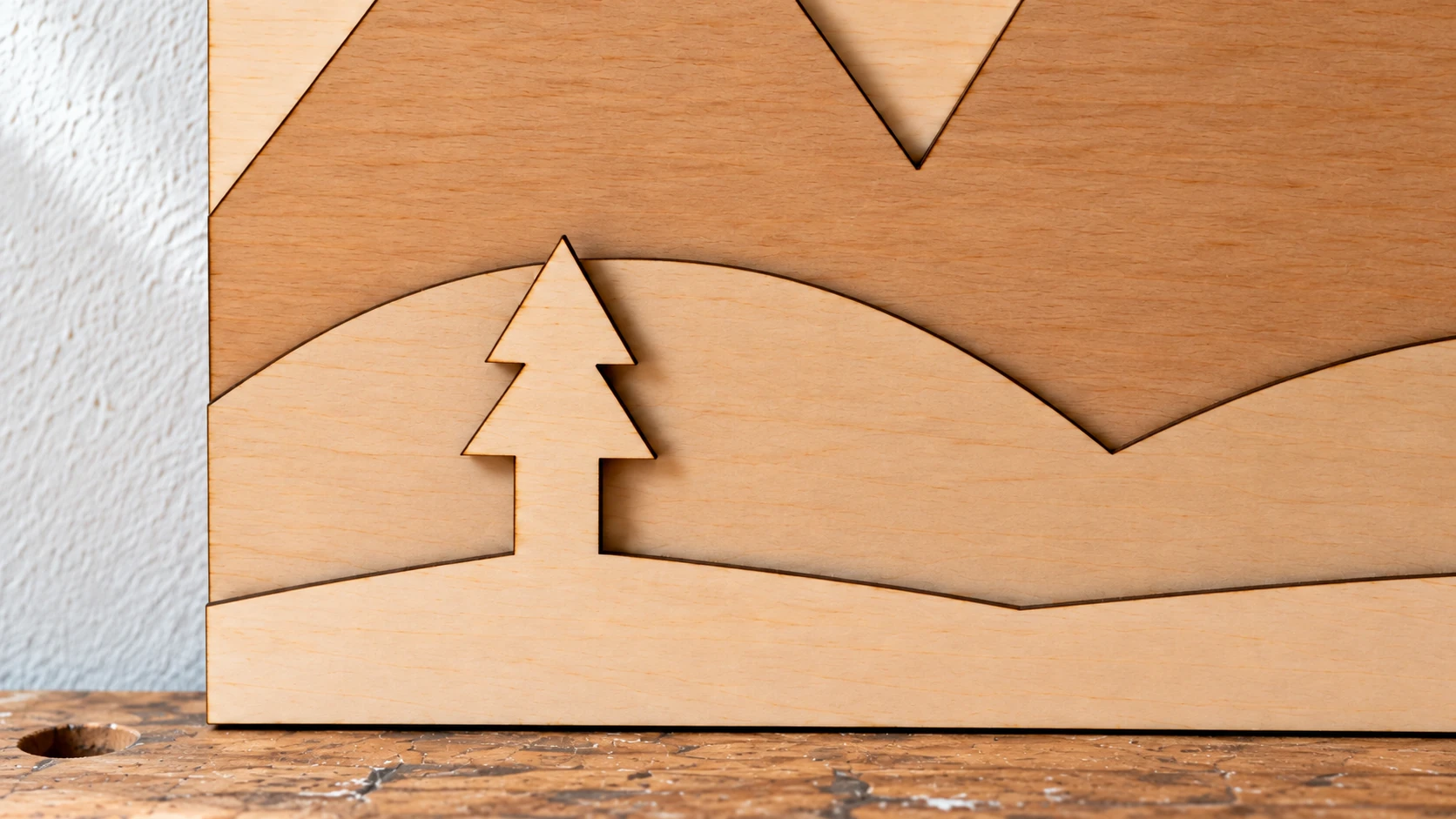
The tree and foreground are one cut piece. That connection keeps the narrow feature attached while the layers underneath support the scene.
Mounting
For wall mounting, attach a sawtooth hanger or french cleat to the back of the base layer. The finished piece is lightweight (especially in 1/8" plywood), so standard picture hanging hardware works fine.
Project Ideas
Mountain landscapes: The classic stacked art subject. Three to five layers of rolling mountains with trees. Cut from different wood species or painted in gradient blues and grays.
City skylines: Your hometown skyline in three layers. Buildings in the foreground, mid-ground, and background. Especially striking in matte black acrylic with LED backlighting.
Wildlife scenes: A deer in a forest, a bear on a mountainside, an eagle over a lake. The animal goes on the top layer for maximum definition.
Ocean waves: Layered wave forms create a surprisingly convincing sense of water depth. Great in blues and teals.
Map topography: Your favorite hiking trail or national park as a topographic layer map. Each layer represents an elevation band.
Go Stack Something
Find a landscape photo, a skyline image, or any picture with clear foreground and background elements. Upload it to StackLab, adjust the layer order, and download the SVG. Cut the layers, stack them up, and hang it on your wall.
The first time you see sunlight hit a stacked piece from the side and the shadows between layers come alive, you'll want to make ten more.
Happy making.
Related Tools
Ready to try these tools?
Sign up free, no credit card required. Free tools available immediately.
Start Free