

Jak generować niestandardowe projekty SVG za pomocą AI
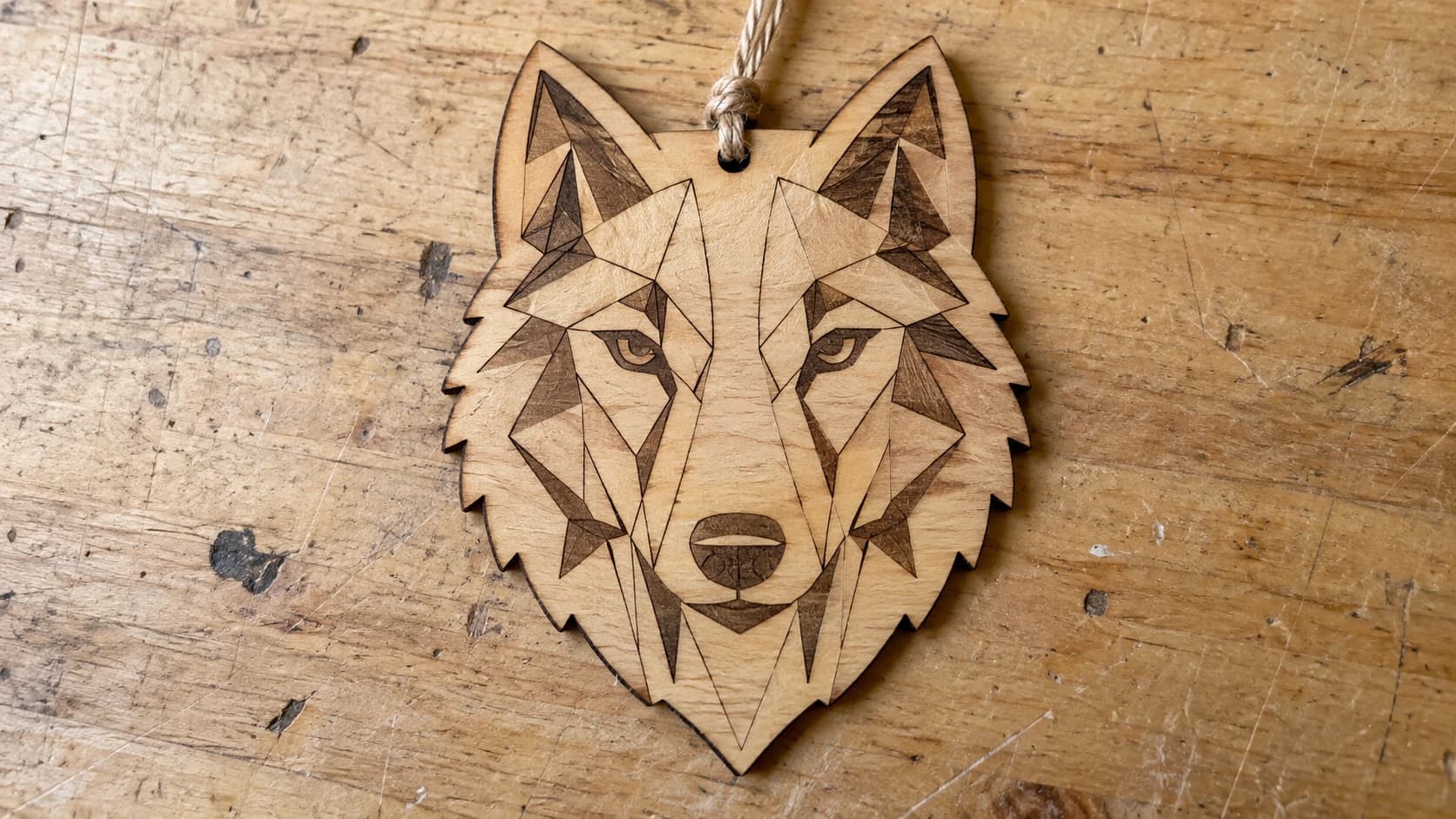
Potrzebujesz niestandardowego projektu do realizacji. Może to być dekoracyjny panel do frezarki CNC, koncepcja logo na szyldzie grawerowanym laserem albo szablon do maszyny tnącej. Możesz spędzić godzinę na przeszukiwaniu darmowych stron z plikami SVG i znaleźć coś zbliżonego, ale nie do końca właściwego. Możesz otworzyć edytor wektorowy i narysować projekt samodzielnie, zakładając, że dobrze radzisz sobie z krzywymi Béziera (większość osób sobie nie radzi). Możesz też po prostu opisać po angielsku, czego chcesz, i pozwolić AI wygenerować projekt.
Ta ostatnia możliwość nie istniała jeszcze rok temu. Teraz już istnieje i jest naprawdę przydatna.
Co robi Vector Studio
Vector Studio przyjmuje opis tekstowy i generuje na jego podstawie czysty projekt SVG. Wpisz coś w rodzaju "sylwetka dębu ze szczegółowymi gałęziami" albo "geometryczna głowa wilka", a otrzymasz plik wektorowy, który możesz od razu wysłać do swojej maszyny.
To nie jest sztuczka, w której AI rysuje coś rozmazanego, a potem trzeba przez trzy godziny to poprawiać. Wynikiem są rzeczywiste ścieżki wektorowe z gładkimi krzywymi. Projekty to jednokolorowe pliki SVG gotowe do użycia na maszynie — bez modyfikacji nadają się do cięcia laserowego, frezowania CNC lub cięcia winylu.
Każde wygenerowanie kosztuje jeden kredyt. Możesz ponawiać generowanie z innymi promptami lub ustawieniami, aż uzyskasz zadowalający efekt.
DRUKUJ. WYCINAJ. RZEŹB.



- Wiele formatów (SVG, DXF, PNG)
- Projekty przetestowane na maszynach
- Licencje komercyjne
Sponsorowane przez PrintCutCarve.com
Jak pisać dobre prompty
Jakość wyniku w dużej mierze zależy od tego, co wpiszesz. Ogólny prompt daje ogólne rezultaty. Konkretny prompt daje coś, czego można faktycznie użyć.
Precyzyjnie opisz temat
Słabo: "ptak"
Lepiej: "płomykówka w locie, ze skrzydłami całkowicie rozpostartymi, widziana z przodu"
Im więcej szczegółów podasz na temat obiektu, tym więcej informacji AI ma do wykorzystania. Zastanów się, co wyróżnia Twój projekt. Jaki gatunek? Jaka poza? Jaki kąt widzenia?
Opisz styl
Vector Studio oferuje gotowe ustawienia stylu, ale możesz również opisać styl w prompcie.
"geometryczny" daje kanciaste kształty o małej liczbie wielokątów. Świetnie sprawdza się w nowoczesnych dekoracjach ściennych i projektach o przemysłowym wyglądzie.
"sylwetka" tworzy jednolite, wypełnione kształty z wyraźnymi konturami. Idealne do szyldów i szablonów.
"rysunek liniowy" tworzy szczegółowe kontury z wewnętrznymi detalami liniowymi. Dobrze sprawdza się przy grawerowaniu, gdy potrzebne są widoczne detale bez wypełnionych obszarów.
"mandala" lub "symetryczny" tworzą wyważone, wyśrodkowane projekty. Dobre do podkładek, ozdobnych paneli i dekoracyjnych elementów.
"vintage" lub "art deco" dodają styl odpowiedni dla danej epoki. Obramowania, ornamenty i kształty charakterystyczne dla danego okresu.
Uwzględnij swoją maszynę
To, w czym Twoja maszyna radzi sobie najlepiej, powinno wpływać na treść promptu.
Cięcie laserowe: pozwala odwzorowywać drobne detale, ale rozmiar elementów nie jest nieograniczony. Uwzględnij rzaz, minimalny rozmiar mostków i elementów, zachowanie materiału, ilość dostarczanego ciepła oraz optykę maszyny; upraszczaj delikatne detale i wykonuj cięcia testowe przed użyciem wartościowego materiału.
Frezowanie CNC: ma minimalny rozmiar elementu zależny od średnicy frezu. Frez 1/8" nie wytnie detali mniejszych niż 1/8". Jeśli frezujesz większymi frezami, dodaj do promptu określenia "wyraziste kontury" lub "grube linie".
Maszyny tnące: świetnie radzą sobie z gładkimi krzywymi, ale mają trudności z bardzo ostrymi narożnikami lub niezwykle drobnymi detalami. Aby uzyskać najlepsze rezultaty, dodaj do promptu określenia "gładkie krzywe" i "proste kształty".
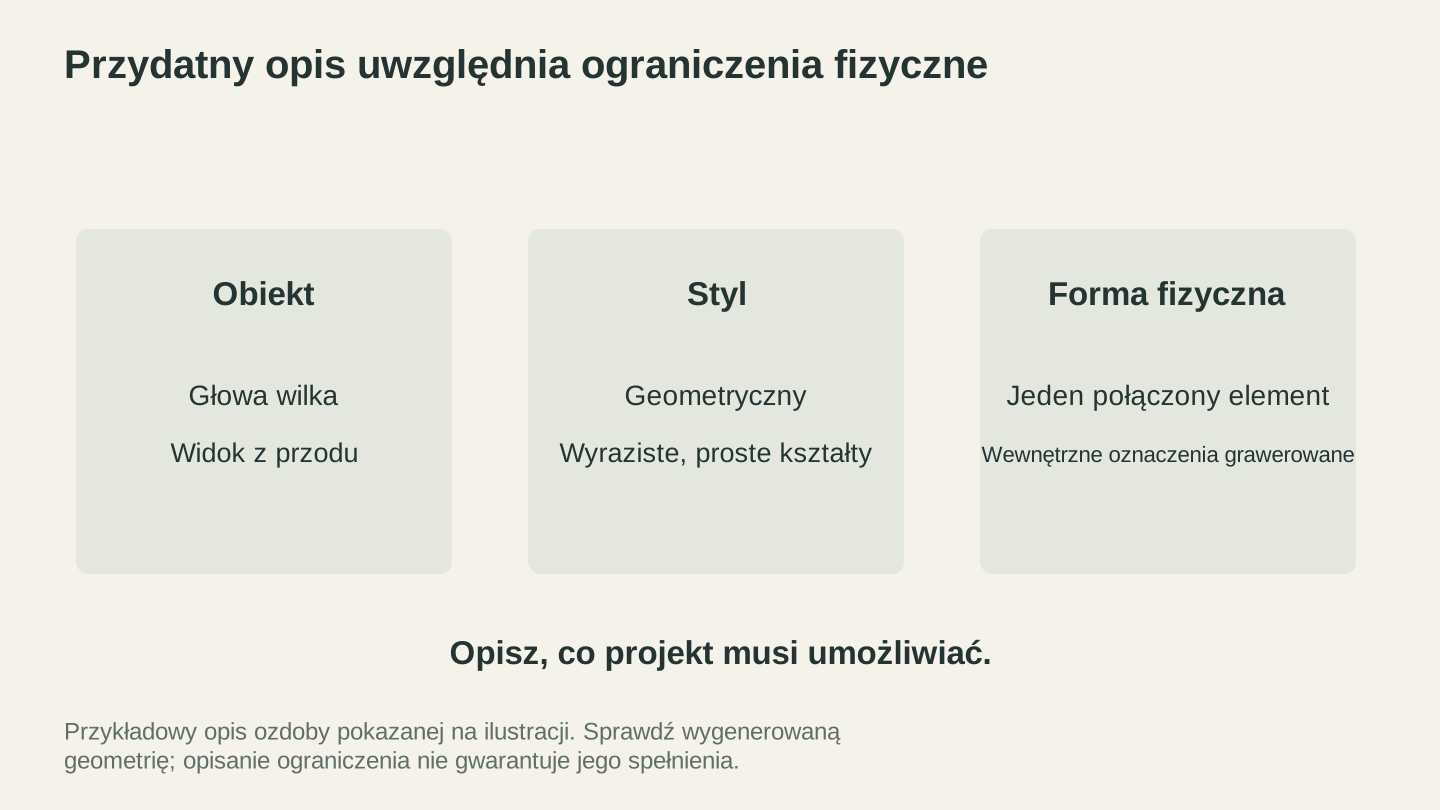
W opisie uwzględnij wymagania fizyczne, a także temat i styl. Powstały projekt nadal wymaga sprawdzenia w rozmiarze, w którym ma zostać wykonany.
Przykłady skutecznych promptów
Oto kilka promptów, które dają naprawdę użyteczne projekty:
| Prompt | Zastosowanie |
|---|---|
| "Szczegółowa róża wiatrów z kierunkami świata, styl marynistyczny" | Dekoracje ścienne, intarsje na blacie |
| "Sylwetka wiejskiej scenerii: stodoła, wiatrak, linia płotu, łagodne wzgórza" | Rustykalne szyldy, dekoracyjne panele |
| "Misterny węzeł celtycki, okrągły, przeplatające się pasma" | Podkładki, ozdobne krążki |
| "Minimalistyczne pasmo górskie z sosnami na pierwszym planie" | Szyldy, akcenty na deskach do krojenia |
| "Kwiatowe obramowanie w stylu art nouveau, prostokątna rama" | Ramy do obrazów, obramowania certyfikatów |
| "Zespół mechanicznych kół zębatych, styl steampunkowy" | Dekoracje ścienne, wystrój przemysłowy |
Wskazówka
Jeśli pierwszy wynik nie jest całkiem trafiony, zmodyfikuj prompt zamiast zaczynać od nowa. Dodaj szczegóły tam, gdzie projekt był zbyt prosty, albo uprość go, jeśli był zbyt przeładowany. Każde wygenerowanie kosztuje jeden kredyt, więc dopracowanie wyniku, który jest już bliski celu, jest wydajniejsze niż całkowita zmiana kierunku.
Opcje stylu
Oprócz promptu tekstowego Vector Studio oferuje ustawienia stylu:
Presety stylu nadają projektowi ogólny kierunek artystyczny: Rysowany odręcznie, Linoryt, Kreskówka, Anime, Sylwetka, Kontur, Logo i Klasyczny. Wybór presetu i napisanie prostego promptu często daje lepsze rezultaty niż długi, skomplikowany prompt bez presetu.
Jeśli chcesz uzyskać więcej lub mniej szczegółów w wyniku, opisz to bezpośrednio w prompcie, na przykład "proste, wyraziste kształty" albo "misterna, szczegółowa kreska". Dopasuj to do swojej maszyny i projektu. Podkładka nie potrzebuje misternych detali. Panel ścienny 24" może pomieścić takie detale.
Informacja
Vector Studio generuje jednokolorowe pliki SVG. Jeśli potrzebujesz wielokolorowego projektu z osobnymi warstwami dla każdego koloru, właściwym narzędziem będzie MosaicFlow. Prześlij zdjęcie lub ilustrację do MosaicFlow, a narzędzie rozdzieli kolory na osobne warstwy wektorowe, aby można je było wyciąć z różnych materiałów.
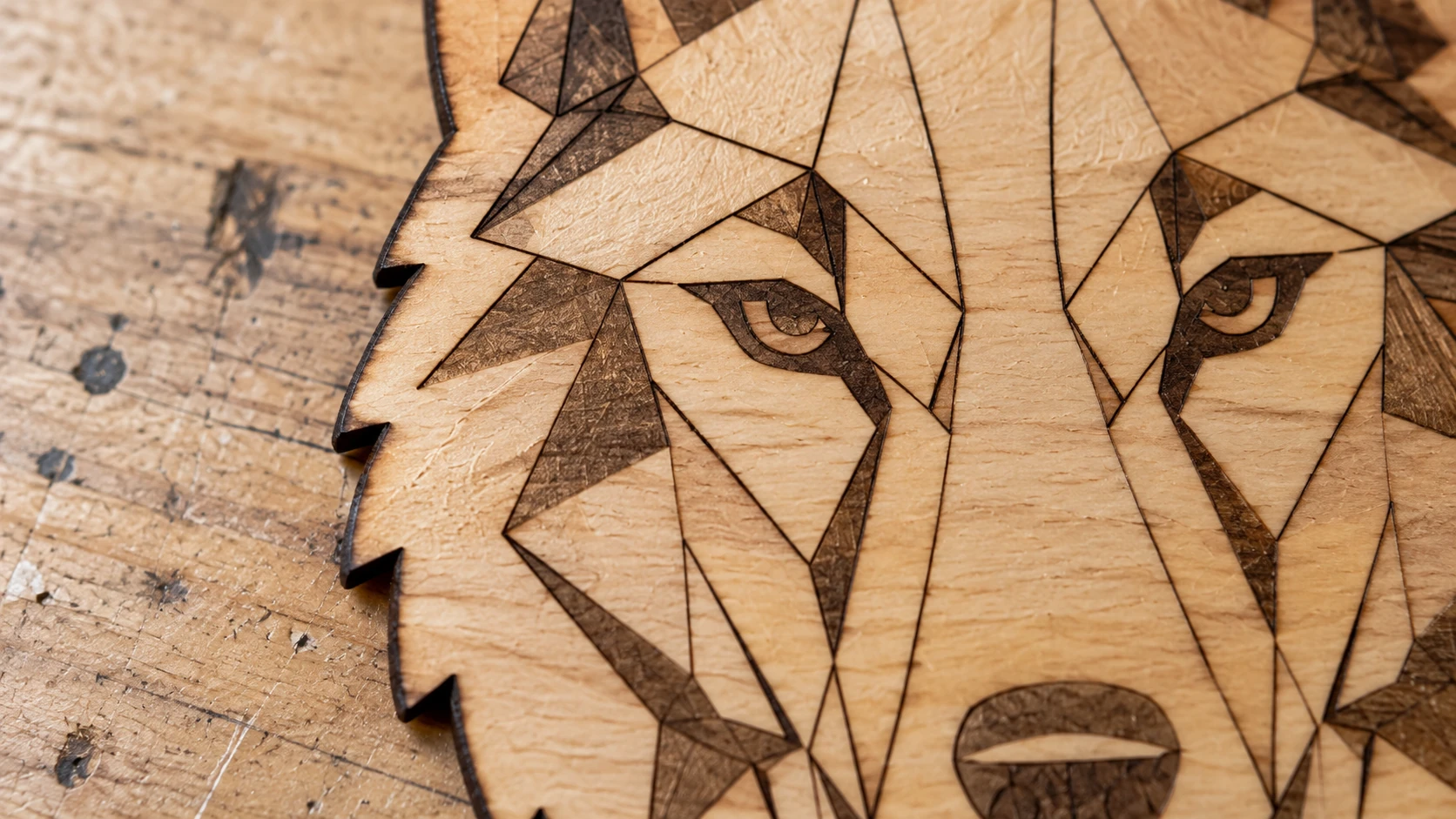
Zbliżenie tego samego ornamentu pokazuje jeden ciągły element ze sklejki. Wewnętrzne detale pyska są wygrawerowane na powierzchni, dzięki czemu pozostają podparte po wycięciu zewnętrznego obrysu.
Generowanie AI a wektoryzacja obrazów
Dwa różne narzędzia i dwa różne zastosowania. Wiedza o tym, kiedy użyć którego z nich, pozwala oszczędzić czas i kredyty.
| Vector Studio (generowanie AI) | MonoTrace (wektoryzacja obrazu) | |
|---|---|---|
| Dane wejściowe | Opis tekstowy | Istniejący obraz (PNG/JPG) |
| Wynik | Nowy projekt SVG | Wektorowy obrys obrazu w formacie SVG |
| Najlepsze zastosowanie | Gdy chcesz czegoś oryginalnego | Gdy masz obraz, który trzeba zwektoryzować |
| Koszt | 1 kredyt za wygenerowanie | Bezpłatnie |
| Poziom szczegółowości | Sterowany ustawieniami | Zależy od jakości obrazu źródłowego |
| Kolor | Jednokolorowy | Jednokolorowy (obrys monochromatyczny) |
Użyj Vector Studio, gdy:
- Masz pomysł, ale nie masz obrazu źródłowego
- Chcesz czegoś oryginalnego, a nie obrysu istniejącej grafiki
- Opisujesz projekt słowami "chcę coś w tym rodzaju..."
- Potrzebujesz konkretnego stylu, którego nie ma w bibliotekach gotowych grafik SVG
Użyj MonoTrace, gdy:
- Masz już obraz, którego chcesz użyć (logo, rysunek, grafika clipartowa)
- Potrzebujesz dokładnej wektorowej kopii czegoś, a nie interpretacji
- Chcesz zwektoryzować odręczny szkic
- Potrzebujesz bezpłatnych, nielimitowanych konwersji
Czasami warto użyć obu narzędzi. Wygeneruj koncepcję w Vector Studio, wykonaj zrzut ekranu lub pobierz podgląd, a następnie użyj MonoTrace, aby ponownie utworzyć jego obrys z innymi ustawieniami. Możesz też wygenerować kilka koncepcji i połączyć elementy z każdej z nich w wybranym edytorze wektorowym.
Pełny przebieg pracy z MonoTrace opisano w naszym przewodniku konwersji PNG do SVG.
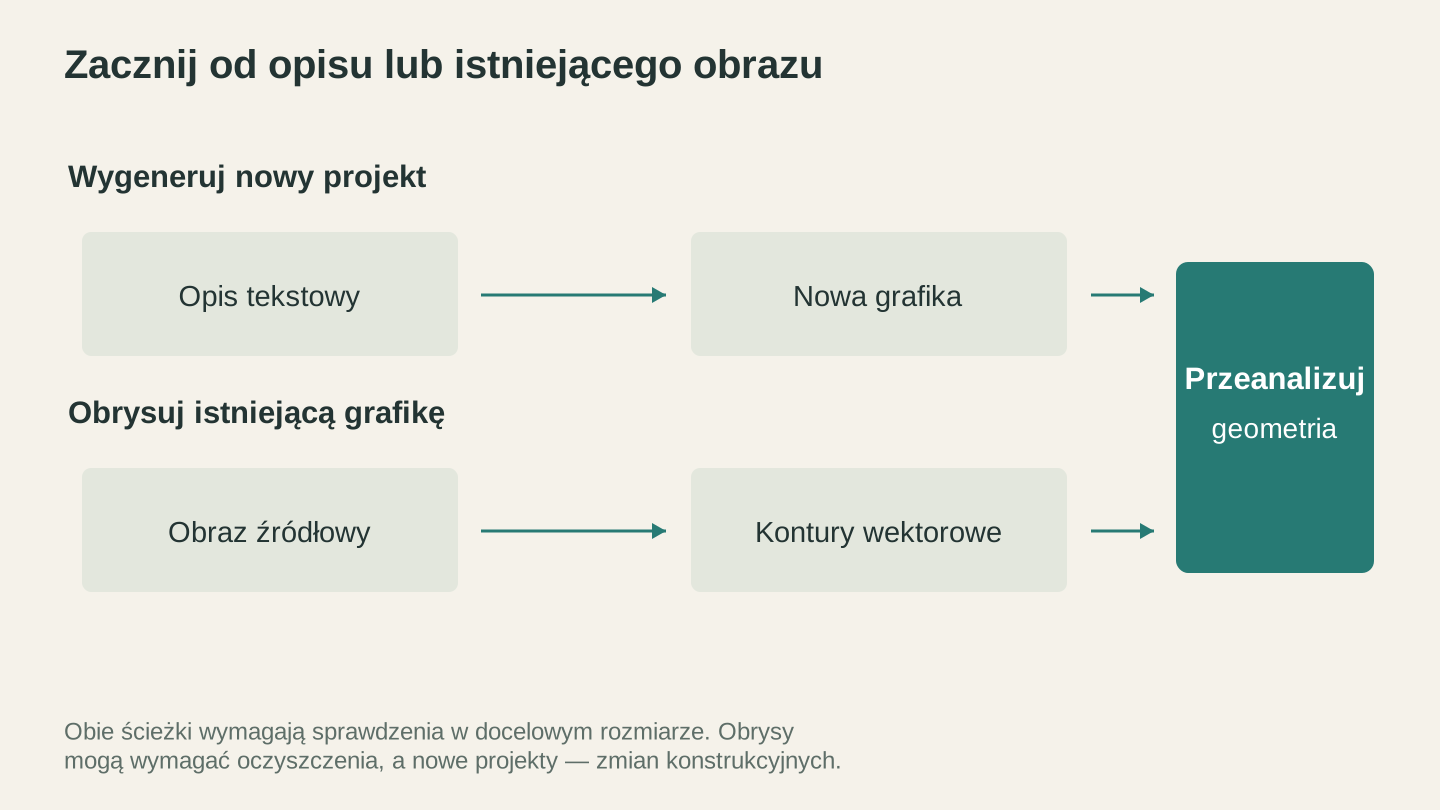
Nowy projekt zaczyna się od opisu, a trasowanie od istniejącej grafiki. W obu przypadkach przed dopasowaniem geometrii do rzeczywistego projektu może być potrzebne czyszczenie.
Praca z wynikiem
Vector Studio udostępnia plik SVG do pobrania. Dalej:
Zaimportuj plik do oprogramowania maszyny
Oprogramowanie laserowe, oprogramowanie CAM lub aplikacja maszyny tnącej. Wszystkie te programy bezpośrednio obsługują pliki SVG. Jeśli potrzebujesz oprogramowania laserowego, Beam Bench jest bezpłatny. Zaimportuj plik, przeskaluj go do rozmiaru projektu i skonfiguruj ścieżkę narzędzia.
W razie potrzeby przekonwertuj do DXF
Niektóre programy CNC i starsze maszyny laserowe preferują pliki DXF. Przepuść SVG przez File Converter, aby przekonwertować go bez opłaty w kredytach narzędziowych. Szczegóły opisano w naszym przewodniku SVG do DXF. Pobieranie przekonwertowanego pliku wymaga aktywnego płatnego planu.
Edytuj i dostosuj projekt
Plik SVG można w pełni edytować w wybranym edytorze wektorowym. Dodaj tekst, połącz go z innymi projektami, zmień rozmiar elementów i usuń części, które Ci się nie podobają. To prawdziwe dane wektorowe, a nie zablokowany obraz.
Dowolnie zmieniaj rozmiar
Jedną z największych zalet grafiki wektorowej jest możliwość skalowania do dowolnego rozmiaru bez utraty jakości. Wygeneruj projekt podkładki, a potem uznaj, że świetnie wyglądałby jako element ścienny o długości 3 stóp? Po prostu zmień jego rozmiar. Krzywe pozostaną gładkie w dowolnej skali.
Wskazówka
Jeśli potrzebujesz przekonwertować SVG do DXF na potrzeby oprogramowania laserowego lub CNC, File Converter zrobi to bez używania kredytów narzędziowych. Pełny opis znajdziesz w naszym przewodniku SVG do DXF. Pobieranie przekonwertowanego pliku wymaga aktywnego płatnego planu.
Pomysły na projekty
Spersonalizowane szyldy: wygeneruj dekoracyjne obramowanie lub ramę, a następnie dodaj własny tekst w programie do projektowania. AI zajmie się trudną częścią (ozdobnym projektem), a Ty łatwą (wpisaniem imienia).
Podkładki: wygeneruj zestaw tematycznych projektów (dzika przyroda, marynistyka, botanika, geometria) i wytnij pasujący komplet z różnych gatunków drewna. Zestaw będzie gotowy do wręczenia w mniej niż godzinę.
Wstawki do paneli szafek: panele art nouveau lub art deco dopasowane do ram drzwiczek szafek. Wygeneruj projekt, wytnij go z cienkiej sklejki lub akrylu i zamontuj za ramą.
Szablony: wygeneruj projekt szablonu, wytnij go z folii mylarowej lub kartonu na maszynie tnącej i użyj go do malowania, trawienia lub piaskowania.
Ozdoby: małe, misterne projekty wycinane ze sklejki lub akrylu 1/8". Wygeneruj tuzin różnych projektów i wytnij cały arkusz za jednym razem.
Wygeneruj coś
Otwórz Vector Studio, wpisz opis tego, co sobie wyobrażasz, i zobacz, co powstanie. Pierwsze wygenerowanie może Cię zaskoczyć. Drugie lub trzecie, po dopracowaniu promptu, prawdopodobnie będzie dokładnie tym, czego potrzebujesz.
Nie potrzebujesz umiejętności rysowania. Nie musisz przeszukiwać bibliotek gotowych grafik. Po prostu opisz projekt i go wytnij.
Udanej pracy.
Powiązane narzędzia
Chcesz wypróbować te narzędzia?
Zarejestruj się bezpłatnie, bez podawania karty kredytowej. Bezpłatne narzędzia są dostępne od razu.
Zacznij bezpłatnie