

How to Convert PNG to SVG for Free (Vectorize Any Image)
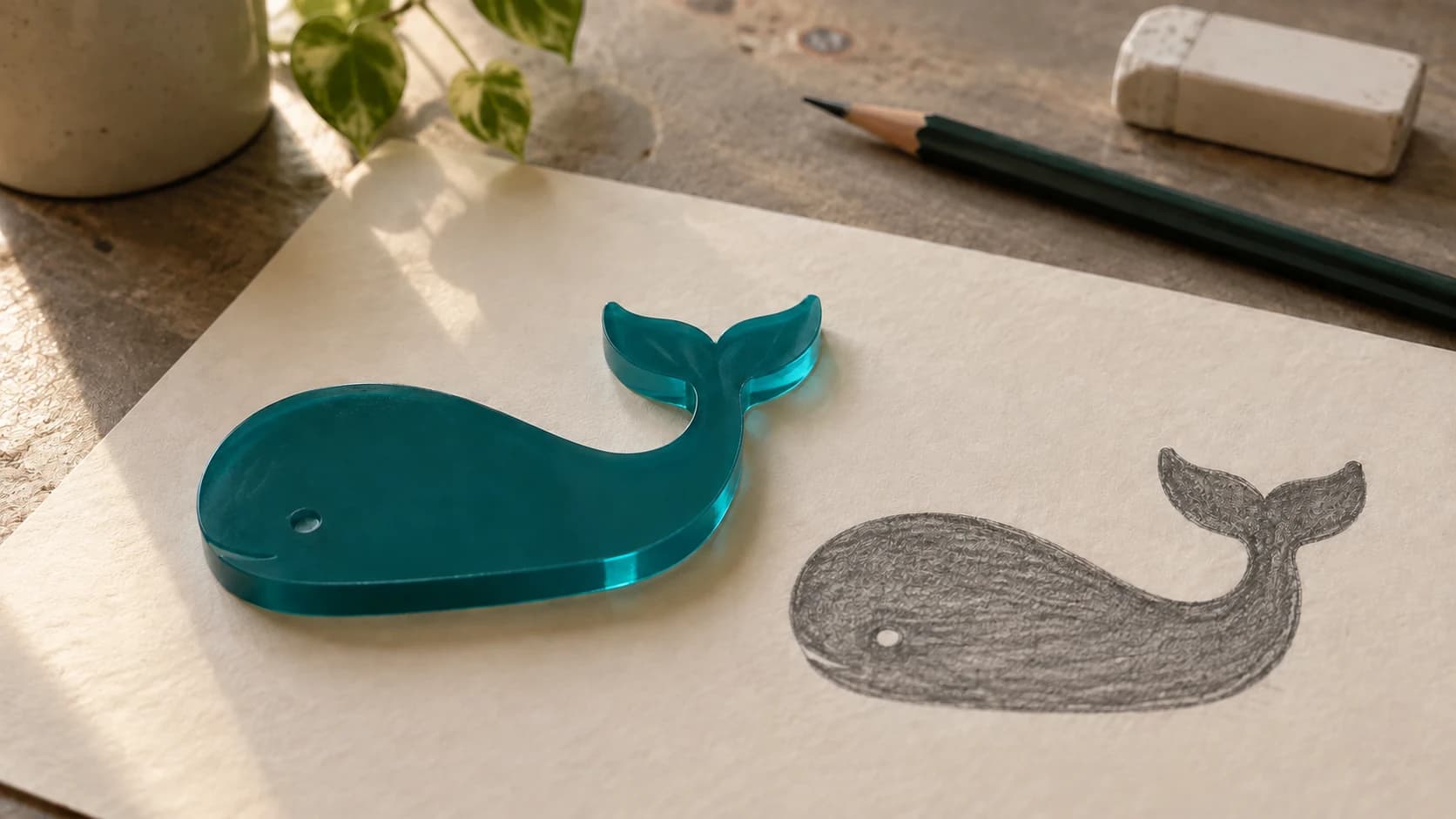
You've got a PNG image of a logo, a design, or some clip art you found. You need it as an SVG so your laser cutter, CNC router, or cutting machine can actually use it. You Google "PNG to SVG converter" and get a hundred results, most of which just embed your raster image inside an SVG wrapper and call it done. That's not conversion. That's a scam in a trenchcoat.
Real PNG to SVG conversion means tracing the pixels into actual vector paths. Clean mathematical curves that scale to any size and cut cleanly at any resolution. That's what you need, and that's what this guide covers.
Raster vs Vector: Why This Matters
Before we get into the how, a quick explanation of why you can't just rename a .png to .svg and call it a day.
Raster images (PNG, JPG, BMP) are grids of colored pixels. They have a fixed resolution. Zoom in far enough and you see the individual squares. When a laser or CNC tries to use a raster image, it has to convert it to a dot pattern (dithering) or scan it line by line. The result depends heavily on the resolution and can look fuzzy at larger sizes.
Vector images (SVG, DXF, AI) are mathematical descriptions of shapes. A circle isn't a bunch of pixels arranged in a circle pattern; it's an equation that says "draw a circle here with this radius." Vectors scale infinitely with zero quality loss. Your laser or CNC follows the actual path, so cuts are clean and engraves are crisp.
| Raster (PNG/JPG) | Vector (SVG/DXF) | |
|---|---|---|
| Made of | Pixels | Paths and curves |
| Scale up | Gets blurry | Stays sharp |
| File size | Based on resolution | Based on complexity |
| Best for | Photos, complex images | Logos, text, line art |
| Machine use | Raster engraving only | Cutting, scoring, vector engraving |
| Edit paths? | No | Yes |
If you're doing laser cutting, CNC routing, or vinyl cutting, you almost always want vector files. If you're laser engraving photos onto wood, raster is fine. For everything else, vector is the way.
PRINT. CUT. CARVE.



- Multiple formats (SVG, DXF, PNG)
- Machine-tested designs
- Commercial licenses
Sponsored by PrintCutCarve.com
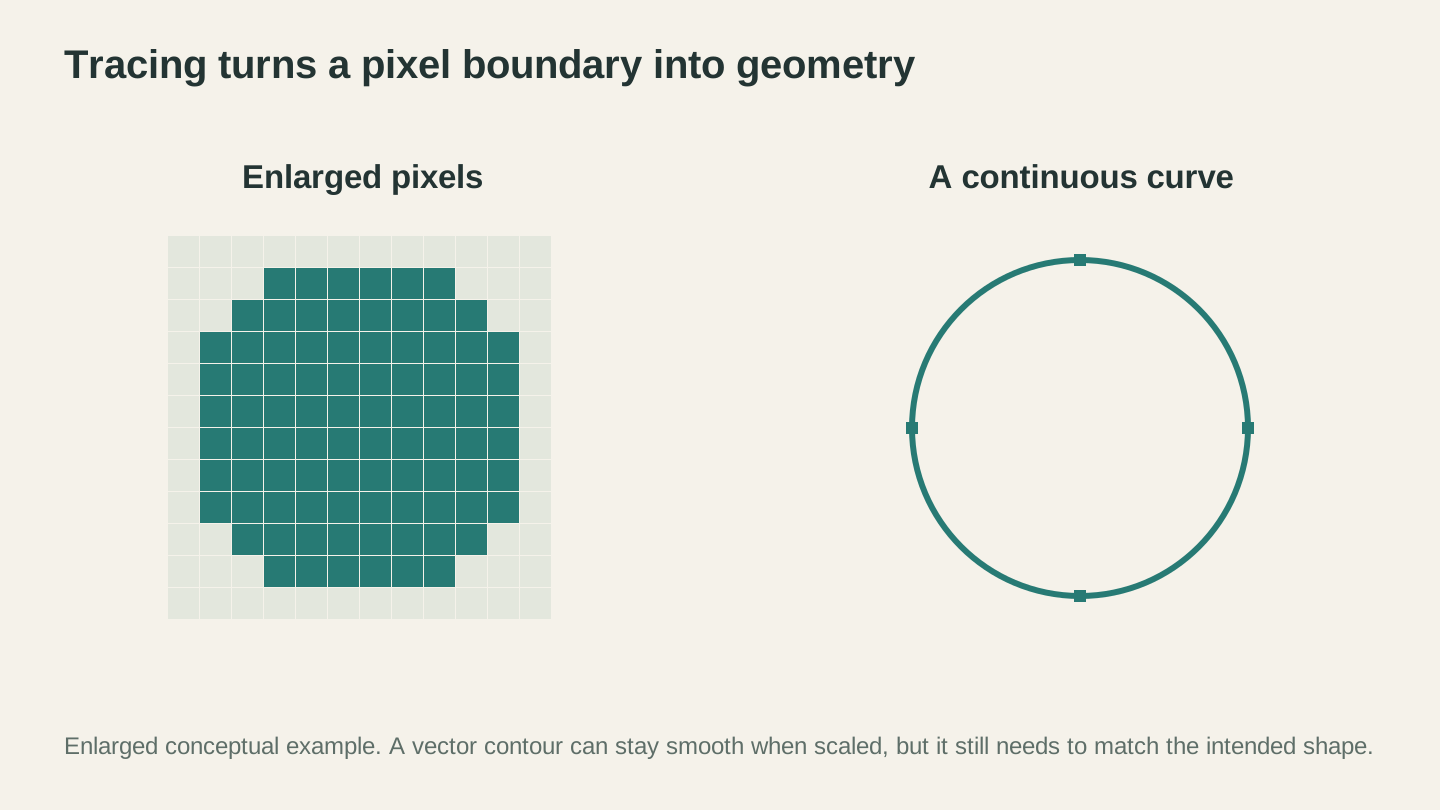
Tracing interprets pixel boundaries as geometry. This enlarged example separates the pixel grid from the continuous curve; the contour still needs to match the intended design.
How MonoTrace Works
MonoTrace is a free image-to-SVG vectorizer built into Craftgineer. No credits required. Sign in, upload a PNG (or JPG, WebP, or GIF), and get a clean SVG back.
Under the hood, it uses a bitmap tracing algorithm that analyzes the contrast in your image and generates smooth bezier curves along the edges. It's the same fundamental approach used by professional vector editors, but tuned specifically for the kinds of images makers work with: logos, text, simple graphics, and line art.
Step 1: Upload Your Image
Head to MonoTrace and drop your PNG onto the upload area. You'll see a preview of your image immediately.
For best results, start with the cleanest, highest-resolution version of the image you have. A 1000px wide PNG will trace much better than a 100px thumbnail. If all you have is a small image, it'll still work, but the paths might be rougher.
Step 2: Turn On Sketch Mode If It Applies
MonoTrace keeps the controls deliberately short. There is one option that matters: a Sketch mode checkbox.
Turn it on when your source is a photographed pencil or ink drawing. It evens out paper tone and the shadow gradient you get from shooting a page under room light, which otherwise traces as a big grey blob around your linework.
Leave it off for clean digital images, screenshots, logos, and anything already sitting on a solid white background.
Step 3: Vectorize and Check the Node Count
Hit Vectorize. The result panel shows your traced preview along with the path node count and how long the trace took.
That node count is the number worth watching. A clean logo lands low. A number in the thousands usually points to source noise or weak contrast, and your machine will grind through a lot of unnecessary points for no visible gain.
If the count looks wild or the preview has speckles, the fix is upstream in the image rather than in the tracer. Raise the contrast, erase background junk, and crop tight, then trace again. Canvas Pro is free and good for exactly that cleanup pass.
Step 4: Download Your SVG
Hit the download button and you've got a clean SVG file ready for your machine. The whole process takes about 30 seconds.
Tip
If you need DXF instead of SVG (common for CNC CAM software), run the SVG through File Converter after downloading. The full PNG to DXF pipeline takes under a minute. We cover that workflow in detail in our SVG to DXF guide.
When Vectorization Works Great
MonoTrace shines with certain types of images. Here's where you'll get the best results:
Logos and brand marks. Clean shapes with solid fills. These trace beautifully into crisp vectors, even from relatively low-resolution sources.
Text and lettering. Bold text, especially sans-serif fonts, traces cleanly. Script and very thin fonts need higher resolution sources to get good results.
Line art and illustrations. Simple drawings, clip art, silhouettes, and outlines. The clearer the contrast between the design and the background, the better.
Stencils and templates. Any image that's essentially black shapes on a white background is ideal for tracing.
Silhouettes. Animal shapes, landscape profiles, figure outlines. These produce clean, usable vectors with almost no cleanup needed.
When Vectorization Needs Help
Not every image traces cleanly, and that's okay. Here's where to expect some extra work:
Photographs. A photo of your dog isn't going to trace into a clean vector. It'll produce a mess of blobs. For photo-based projects, you're usually better off laser engraving the photo directly as a raster image. If you really want a vector version, consider using Photo Converter first to turn the photo into line art, then vectorize the line art result.
Very low-resolution images. That 50x50 pixel favicon you pulled from a website? It'll trace, but the result will be blocky and rough. Try to find a larger version of the image first.
Gradient-heavy designs. Vectorization converts everything to solid shapes. Smooth gradients become hard edges. If your design relies on color blending, the vector version will look very different from the original.
Multi-color images. MonoTrace creates single-color (monochrome) vector output. It works with the contrast between light and dark areas. If you need separate vector layers for each color, MosaicFlow is designed exactly for that.
Tips for Better Results
A few tricks that make a real difference in trace quality:
Clean up the source image first
If your PNG has a cluttered or noisy background, crop or erase it before uploading. A clean white background with a dark design gives the best traces. Even a quick pass with the eraser tool in any basic image editor helps.
Increase contrast
If your image is washed out or the design doesn't contrast strongly against the background, bump up the contrast in an image editor before tracing. The more distinct the boundary between "shape" and "not shape," the cleaner the trace.
Remove anti-aliasing for small images
Anti-aliasing creates semi-transparent pixels along edges to make them look smooth on screen. When tracing, these blurry edge pixels can create rough or doubled paths. For small images, sharpening the edges before tracing gives cleaner results.
Use SVG editing for cleanup
If the trace is 95% perfect but has a few stray nodes or rough spots, open the SVG in a free vector editor and clean it up manually. Delete stray dots, smooth rough paths, and simplify node counts. A couple minutes of cleanup can turn a good trace into a perfect one.
Info
A free, open-source vector editor is worth keeping around for SVG cleanup like this, even if you use other design tools for everything else. It runs on Windows, Mac, and Linux.
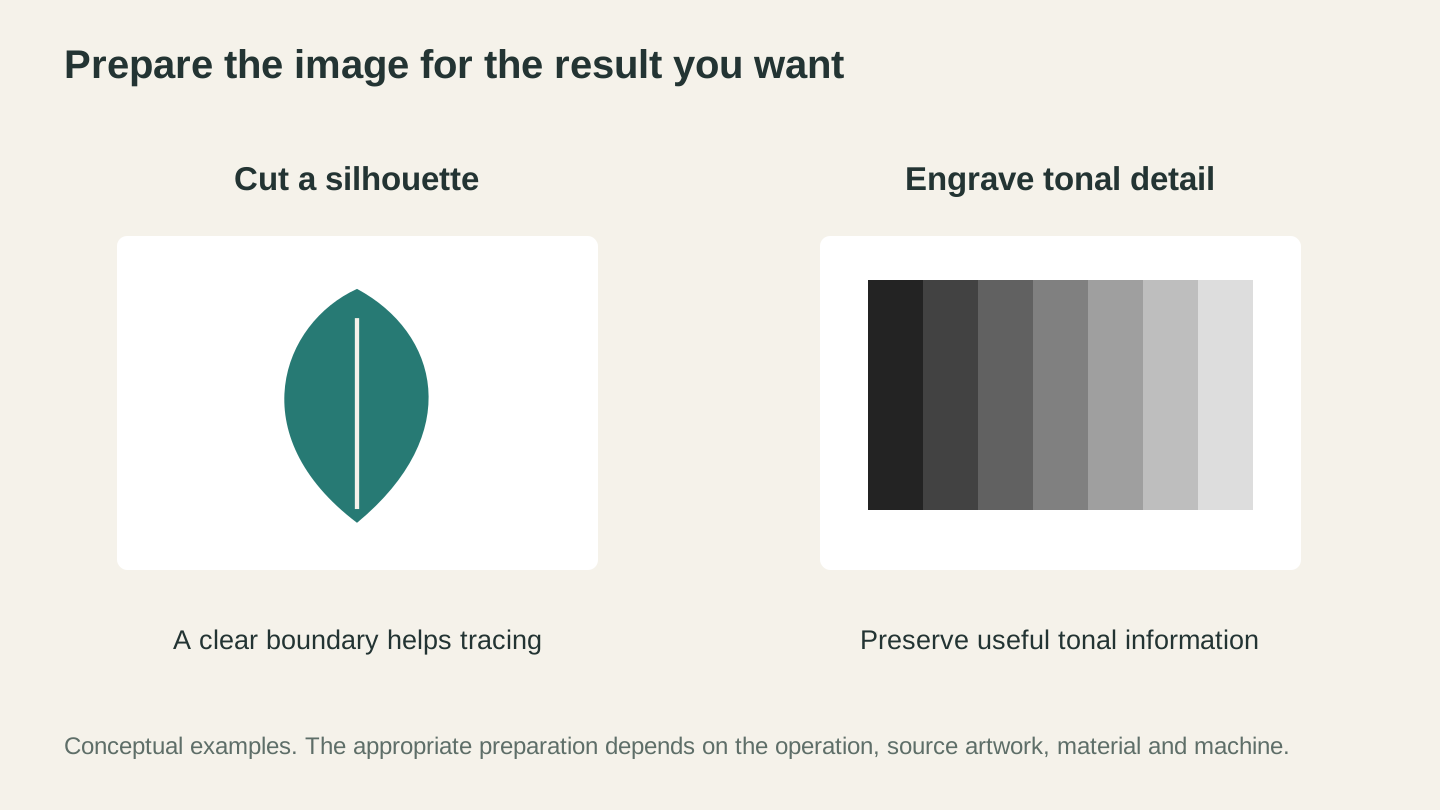
Choose the preparation method for the result you want. A silhouette may suit tracing, while a photograph can retain more tonal detail as a raster engraving.
The Full PNG-to-Machine Pipeline
Here's the complete workflow for getting a PNG image onto your laser, CNC, or cutting machine:
-
Start with the best PNG you can find. High resolution, clean background, good contrast.
-
Vectorize with MonoTrace. Upload, use Sketch mode if it is a photographed drawing, download the SVG.
-
Edit if needed. Open in your vector editor to delete stray elements, smooth curves, or resize.
-
Convert format if needed. If your machine wants DXF, run the SVG through File Converter.
-
Import into your machine software. Whatever laser, CNC, or cutting machine software you use.
-
Set up your toolpath or laser settings. If you're new to this step, our laser beginner's guide or CNC beginner's guide will walk you through it.
-
Cut, engrave, or carve. The fun part.
The whole pipeline from PNG to finished project takes minutes, not hours. And every tool in the chain is free.
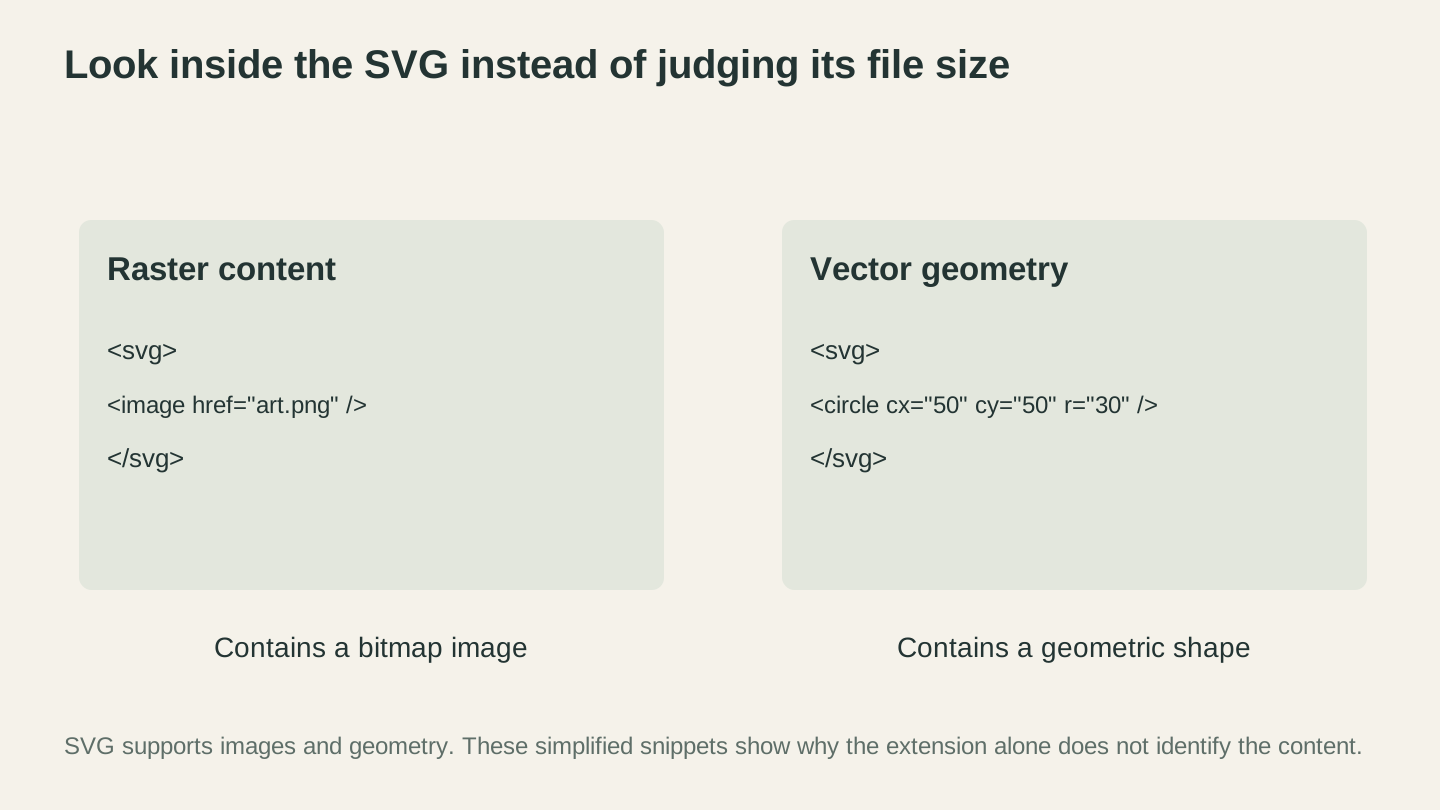
The SVG extension alone does not prove that a file contains cuttable paths. Inspect its contents and the imported geometry, rather than judging from its file size.
Alternatives to MonoTrace
MonoTrace isn't the only option. Here's how it compares:
Full vector editors with a trace feature: Most professional vector editors include their own bitmap-tracing tool. Powerful, lots of options, but usually requires a paid subscription. Overkill if all you need is a simple trace.
Free vector editors: Free, open-source vector editors often include a built-in trace-bitmap tool. Works well but has a learning curve with its settings panels. Good for power users who want maximum control.
Online converters (various): Most free online "PNG to SVG" converters simply embed the raster image inside an SVG container. That's not vectorization. If the "SVG" file is roughly the same size as the PNG, it probably just wrapped the raster image. A real vector trace produces a much smaller file (for simple designs) or a file full of path data, not pixel data.
Paid online tracing services: A few paid services do legitimate tracing with good quality, but they cost money per conversion or require a subscription.
MonoTrace is free to use with no credit charge, and it's tuned for maker use cases. For most people converting images for their machines, it's the fastest path from PNG to usable vector.
Go Vectorize Something
Got a PNG sitting on your desktop that you wish was an SVG? Open MonoTrace, drop it in, and have a vector file in 30 seconds. Then run it through File Converter if you need DXF. The entire pipeline uses no tool credits and takes less time than reading this paragraph. Downloading the converted file requires an active paid plan.
Happy making.
Related Tools
MonoTrace
Turn photos and artwork into SVG outlines for free, with an optional sketch mode.
Canvas Pro
Edit images with layers, brushes, shapes, text, and selection tools. Export PNG, JPEG, or WebP.
File Converter
Convert supported combinations of vector, document, raster-image, and 3D-mesh formats.
Plan required for downloads
Photo Converter
Convert a photo into engraving-oriented line art with standard or inverted output.
MosaicFlow
Turn uploaded or AI-generated artwork into separate color regions for inlays, with optional 3D exports.
Downloads require a plan or a design unlock
Ready to try these tools?
Sign up free, no credit card required. Free tools available immediately.
Start Free