

Best Materials for Cricut and Silhouette Cutting Machines
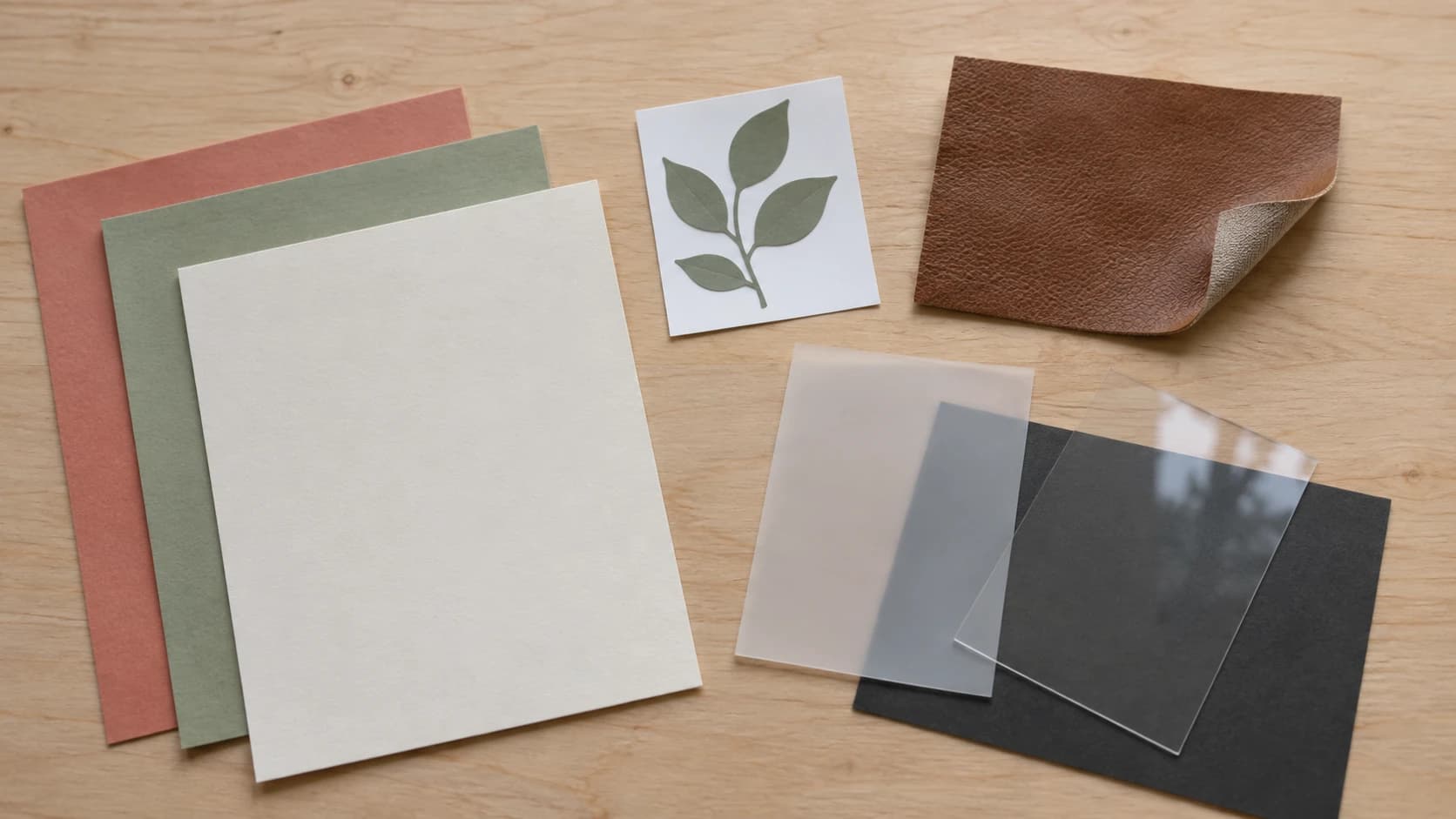
You walk into the craft store for "just some vinyl" and twenty minutes later you're standing in the cutting machine aisle staring at an entire wall of materials. Permanent vinyl. Removable vinyl. Heat transfer vinyl. Glitter vinyl. Holographic vinyl. Printable vinyl. And that's just the vinyl. There's also cardstock in forty colors, faux leather, felt, fabric stabilizer, wood veneer, and something called chipboard that you're pretty sure is just thick cardboard.
It's a lot. And the packaging doesn't always tell you which blade to use, what mat to put it on, or whether your machine can even handle it. If you're new to cutting machines, start with our cutting machine beginner's guide to get comfortable with the basics. Then come back here for the full materials breakdown.
This guide covers the ten most popular materials for Cricut and Silhouette machines, with the blade types, settings, and mat recommendations you actually need.
Adhesive Vinyl (Permanent)
Permanent adhesive vinyl is the workhorse material. It has a pressure-sensitive adhesive backing that sticks to smooth, hard surfaces and stays there. Think of it as a really fancy sticker that doesn't peel off.
The go-to brand is Oracal 651. It's the industry standard for permanent vinyl. You'll find it at every craft store and online retailer in hundreds of colors and finishes. It's rated for outdoor use (up to six years), is dishwasher-safe when applied to mugs and tumblers (top rack), and handles sun, rain, and general abuse without peeling.
Best for: Tumblers, mugs, car window decals, mailbox lettering, outdoor signs, water bottles, laptops, and anything that needs to survive regular use or washing.
Machine settings: Fine-point blade, standard grip (green) mat, medium pressure. Both Cricut and Silhouette have built-in presets for vinyl. Use them as your starting point and adjust from there.
Pro tips: Always apply permanent vinyl to clean, dry surfaces. A quick wipe with rubbing alcohol before application removes oils and dust that weaken adhesion. Let the vinyl cure for 24 to 72 hours before washing or heavy use. The adhesive strengthens over time.
Permanent vinyl comes in specialty finishes too. Glitter, holographic, metallic, matte, and glossy are all available. The specialty versions usually need slightly more pressure and may require a strong-grip mat.
PRINT. CUT. CARVE.



- Multiple formats (SVG, DXF, PNG)
- Machine-tested designs
- Commercial licenses
Sponsored by PrintCutCarve.com
Adhesive Vinyl (Removable)
Removable vinyl is the same concept as permanent, but with a lower-tack adhesive designed to peel off cleanly without leaving residue. It won't survive a dishwasher or a rainstorm, but that's not what it's for.
Oracal 631 is the standard here. It's specifically designed for indoor use and clean removal.
Best for: Wall decals, seasonal decorations, chalkboard labels, rental-friendly wall art, temporary signage, window displays, and anything you'll want to change out periodically.
Machine settings: Same as permanent vinyl. Fine-point blade, standard grip mat, medium pressure. The material cuts identically. The only difference is the adhesive.
One important note: Removable doesn't mean repositionable. Once you press it down firmly and burnish it, you'll get one clean removal. You can't peel it up and restick it in a new position multiple times. Well, you can try, but the adhesive weakens with each lift.
Tip
Not sure whether you need permanent or removable? Ask yourself two questions. Will it get wet? Will it be outdoors? If yes to either, go permanent. If it's staying indoors and dry, removable gives you the flexibility to change things later without damaging the surface.
Heat Transfer Vinyl (HTV / Iron-On)
Heat transfer vinyl goes on fabric instead of hard surfaces. It uses a heat-activated adhesive, so instead of peeling and sticking, you cut your design, place it on fabric, and apply heat with an iron or heat press.
HTV is how you make custom t-shirts, tote bags, baby onesies, hats, pillowcases, and basically anything made of fabric.
The mirror rule is non-negotiable. You must mirror (flip horizontally) every HTV design before cutting. The vinyl goes face-down on the mat with the carrier sheet underneath. When you transfer the design to fabric, the carrier sheet ends up on top and gets peeled away. If you forget to mirror, your text reads backwards on the shirt. Every cutting machine user does this at least once. Some of us have done it more than once.
Layering HTV is how you get multi-color designs. Each color is a separate cut. You apply the bottom layer first, then layer additional colors on top, pressing each one. The trick is to press each layer for slightly less time so you don't overheat previous layers, then do one final full-duration press at the end.
Machine settings: Fine-point blade, standard grip mat, medium pressure. Cut from the vinyl side (shiny carrier side down on the mat).
Heat settings: Most standard HTV presses at 152 to 157°C (305 to 315°F) for 10 to 15 seconds with firm pressure. Always check the manufacturer's recommendation for your specific brand. Specialty HTV (glitter, flock, foil) often requires different temperatures and times.
Best for: Custom apparel, team jerseys, baby clothes, tote bags, canvas pillows, hats, and anything fabric.
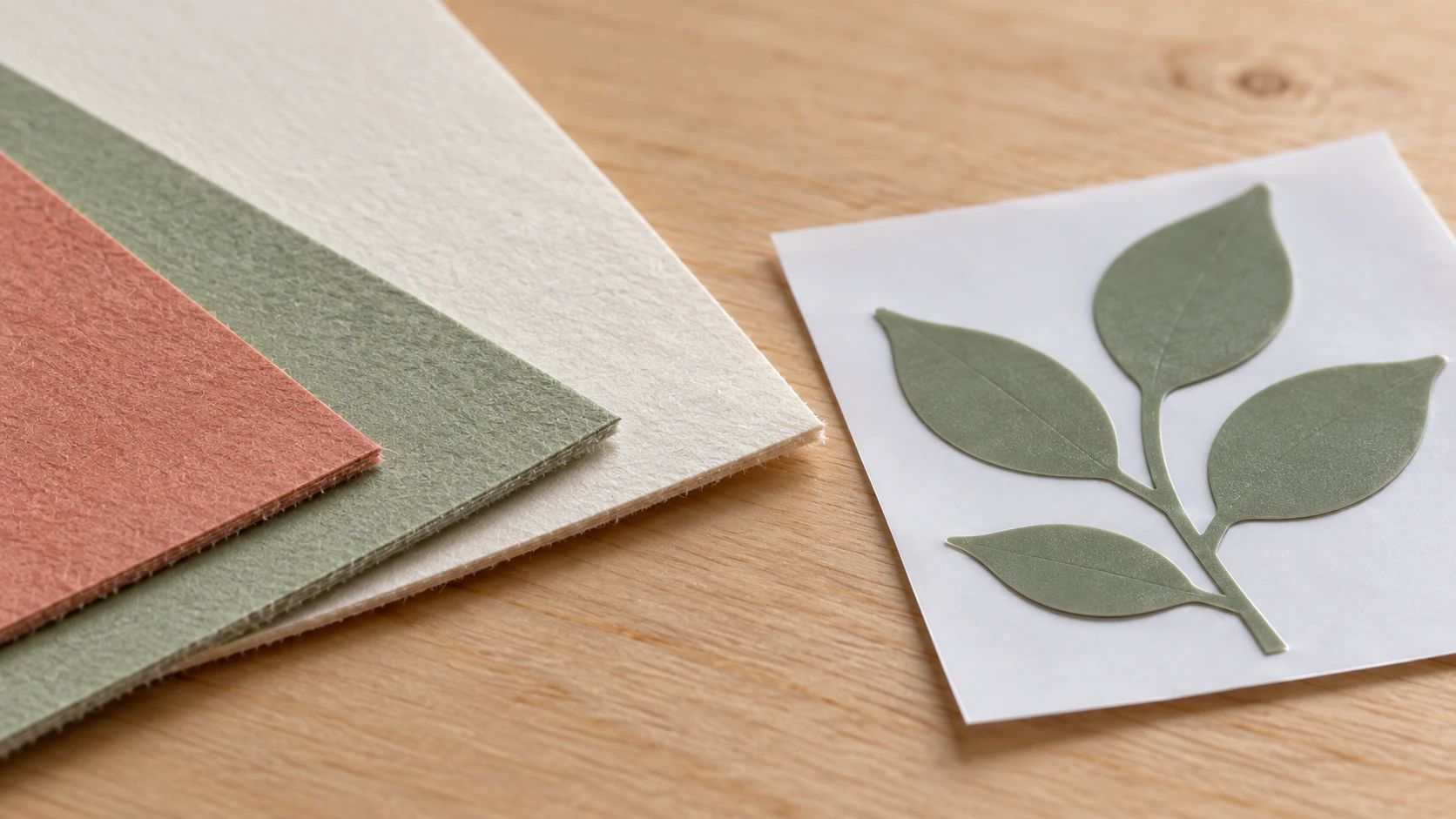
A closer look at the same cardstock samples shows their fibrous edges and surface texture. Test small features on your actual sheet before cutting a full design.
Cardstock and Paper
Cardstock is where cutting machines really shine for paper crafters. Intricate wedding invitations, 3D paper flowers, layered cake toppers, shadow boxes, and gift tags that would take hours to cut by hand come together in minutes.
Weight matters more than brand. For most cutting machine projects, you want cardstock between 65 lb and 80 lb (176 to 216 gsm). This range is thick enough to hold its shape but thin enough for the fine-point blade to cut cleanly.
- 65 lb (176 gsm): Good for layered projects where you're stacking multiple pieces. Folds easily. Works well for intricate designs with lots of small details.
- 80 lb (216 gsm): Better structural strength. Good for cake toppers, 3D flowers, and anything freestanding. A bit harder to fold without scoring first.
- 100 lb+ (270+ gsm): Getting into deep-cut blade territory. Standard fine-point blades struggle above 100 lb. Use more pressure and slower speed, or switch to a deep-cut blade.
Thin paper (copy paper, tissue paper, vellum) cuts fine on a light-grip (blue) mat. The key with thin paper is the mat. A standard-grip mat will grip too aggressively and tear the paper when you try to remove it.
Machine settings: Fine-point blade for cardstock up to 80 lb. Light-grip mat for thin paper, standard-grip mat for regular cardstock. Increase pressure for heavier weights.
Best for: Wedding invitations, cake toppers, 3D paper flowers, shadow boxes, greeting cards, scrapbooking, gift tags, party decorations, and stencils.
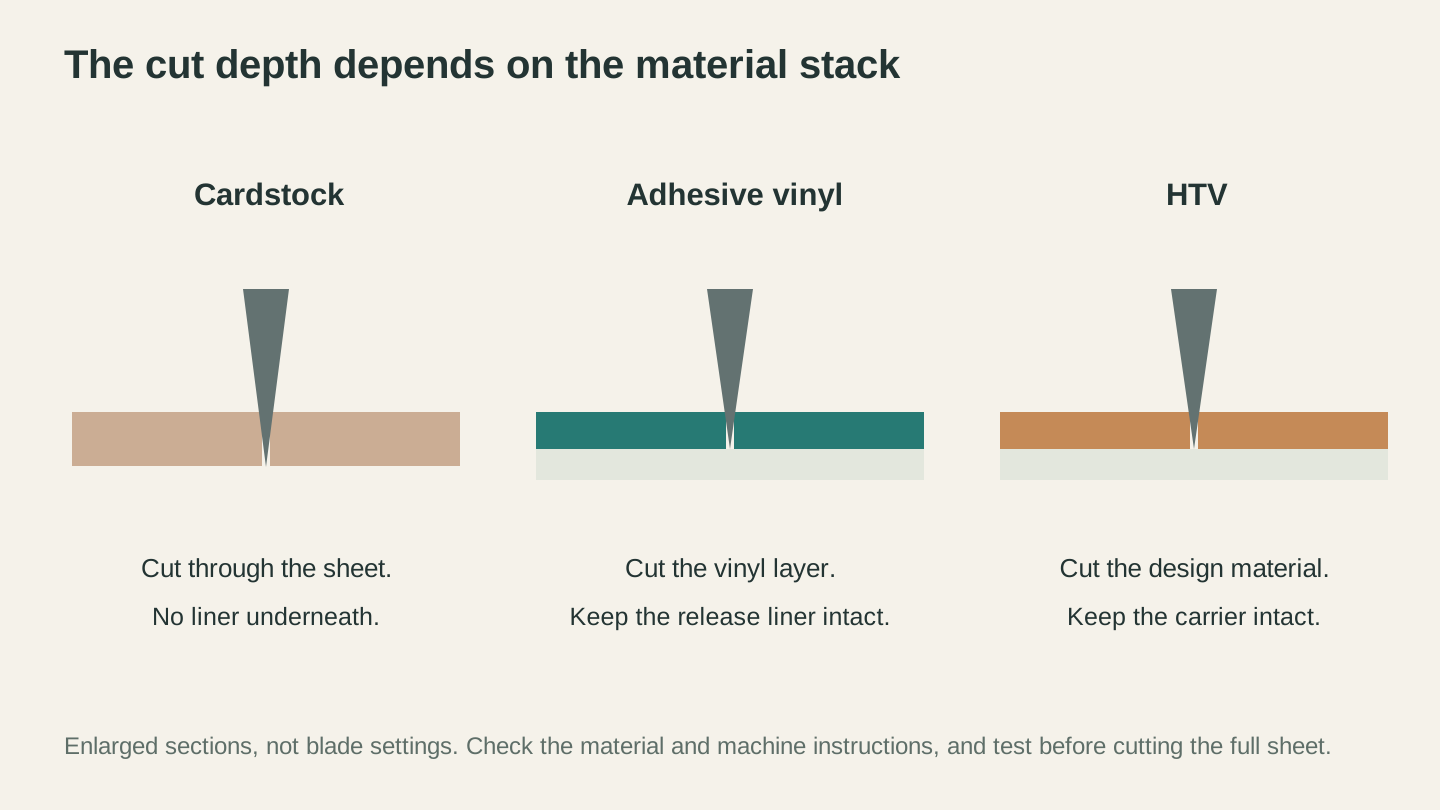
Cut depth depends on the full material stack. For vinyl and HTV, the support layer usually needs to remain intact during the design cut.
Sticker Paper
Sticker paper brings your cutting machine and your inkjet or laser printer together. The workflow is called print-then-cut, and it opens up a world of full-color custom stickers without any layering.
How it works: Design your sticker sheet in your cutting software. Print the sheet on your sticker paper using a regular printer. The software prints registration marks (small alignment markers) around the design. Load the printed sheet into your cutting machine. The machine reads the registration marks, aligns the blade, and cuts precisely around each sticker.
There are two types. Matte sticker paper gives a clean, non-reflective finish. Glossy sticker paper is shinier and more water-resistant. Both work with inkjet printers. For laser printers, make sure the sticker paper is rated for laser (inkjet sticker paper can melt in a laser printer).
Machine settings: Fine-point blade, light-grip or standard-grip mat. Use the "sticker paper" preset or start with copy paper settings and increase pressure slightly.
Warning
Print-then-cut has a maximum printable area that's smaller than a full sheet. On Cricut, it's roughly 6.75 x 9.25 inches. On Silhouette, it varies by model but is usually slightly larger. Don't design stickers that extend to the edges of the page or the registration marks won't have room.
Best for: Custom stickers for packaging, planner stickers, laptop stickers, labels, kids' sticker sheets, and small-business product labels.
Faux Leather
Faux leather is one of those materials that makes people say "your cutting machine can do that?" Yes. It can. And the results look great.
The most popular faux leather projects are earrings and hair bows. The material is cheap (a sheet costs a dollar or two), cuts quickly, and the finished products sell extremely well on Etsy and at craft fairs.
Blade requirements are the key. Standard fine-point blades can cut thin faux leather, but you'll get cleaner edges with a deep-cut blade. For Cricut, the fine-point blade works on thin faux leather, while the deep-point blade handles thicker varieties. For Silhouette, the deep-cut blade is recommended for most faux leather.
Machine settings: Deep-cut blade (recommended), strong-grip (purple) mat, high pressure, slow speed. Tape the faux leather to the mat with painter's tape on the edges if it shifts during cutting. This material is slippery and the standard mat grip doesn't always hold it.
A word on thickness. Faux leather ranges from paper-thin to quite thick. Start with thinner sheets (0.5 to 0.8mm). Once you know your machine handles that well, work up to thicker material. Anything over 1mm may require multiple passes or a Cricut Maker's knife blade.
Best for: Earrings, hair bows, bookmarks, key fobs, journal covers, and bag tags.
Felt
Felt is soft, fuzzy, and doesn't fray when cut, which makes it perfect for cutting machines. No finished edges needed. Cut it and it's done.
The catch is the blade. Standard fine-point blades don't cut felt cleanly. The fibers grab and pull instead of slicing. You need a rotary blade (Cricut Maker or Silhouette Cameo 4 with rotary blade accessory). The rotary blade spins like a tiny pizza cutter and slices through felt fibers smoothly.
Without a rotary blade, you can try the fine-point blade on very thin, stiff craft felt. It works sometimes. But it won't give you clean edges on thicker or softer felt.
Machine settings: Rotary blade, fabric grip (pink) mat or strong-grip mat. Medium to high pressure. Reduce speed for cleaner cuts.
Best for: Christmas ornaments, quiet books (activity books for toddlers), felt flowers, finger puppets, applique pieces, and holiday decorations.
Fabric (with Stabilizer)
Yes, cutting machines cut fabric. But there's a requirement that trips people up: fabric needs a stabilizer backing. You can't just throw a piece of cotton on the mat and hit go. The fabric will shift, bunch, and the blade will drag it around instead of cutting it.
Fabric stabilizer (also called fabric bonding) is an iron-on adhesive backing. You iron it onto the back of your fabric, which stiffens it and gives the mat something to grip. Think of it as giving your floppy fabric a cardstock spine.
Cricut sells pre-bonded fabric sheets, or you can use Heat n Bond Lite or Pellon Wonder-Under on your own fabric. Silhouette users generally use their own stabilizer. Either way, the stabilizer is mandatory for clean cuts.
Machine settings: Rotary blade (strongly recommended), fabric grip or strong-grip mat. Without a rotary blade, use the fine-point blade on bonded fabric with increased pressure, but expect less precise results on curves.
Best for: Quilting pieces (cut precise squares, triangles, and curves in a fraction of the time), applique shapes, fabric banners, and sewing pattern pieces.
Wood Veneer and Chipboard
Cutting machines aren't just for thin, flexible materials. With the right blade, they handle wood veneer and chipboard too. The results are surprisingly clean.
Wood veneer is real wood sliced extremely thin, usually 0.5 to 1mm. It comes in sheets backed with adhesive or plain. Cutting machines handle it well with a deep-cut blade, producing beautiful wood ornaments, gift tags, veneer inlays, and small decorative pieces.
Chipboard is thick, dense compressed cardboard (think cereal box material, but thicker). It ranges from thin (0.37mm) to heavy (2mm+). Thin chipboard works with a deep-cut blade. Thicker chipboard requires a Cricut Maker's knife blade or Silhouette's kraft blade, and it takes multiple passes.
Machine settings: Deep-cut blade or knife blade, strong-grip mat, maximum pressure, slowest speed. Multiple passes are usually needed. For the Cricut Maker's knife blade, the machine automatically makes multiple passes. For Silhouette, set 3 to 8 passes depending on thickness.
Info
Design files for cutting machines are typically SVG format. If you've downloaded a DXF file from a CNC or laser project, you can convert it to SVG using File Converter tool. Silhouette's software accepts DXF directly, but Cricut's software requires SVG. Our guide on how to convert SVG to DXF covers the full process and when you'd want each format. Downloading the converted file requires an active paid plan.
Best for: Ornaments, small signs, gift tags, scrapbook embellishments, jewelry components, and box structures (chipboard).
Acetate and Vellum
These two translucent materials round out the cutting machine material roster. Both are specialty materials, but they open up project categories that nothing else can.
Acetate is clear, rigid plastic sheeting. Think overhead projector sheets (if you're old enough to remember those). It cuts cleanly with a fine-point blade and is the key material for shaker cards, those greeting cards with a clear window filled with loose glitter or confetti.
Vellum is translucent paper with a smooth, slightly waxy feel. It's not fully transparent like acetate, but light passes through it softly. Vellum is popular for envelope liners, wedding invitation overlays, lanterns, and any project where you want a frosted, diffused look.
Machine settings for acetate: Fine-point blade, standard-grip mat, medium pressure. Acetate is slippery. If it shifts, tape the edges to the mat with painter's tape. Cut slower than normal for cleaner edges.
Machine settings for vellum: Fine-point blade, light-grip mat, low to medium pressure. Vellum tears easily if the mat is too sticky. A light-grip mat is essential. If you only have a standard-grip mat, stick it to your shirt a few times first to reduce the tack.
Best for: Shaker cards (acetate), envelope liners (vellum), window overlays, lanterns, gift wrap accents, and any project where translucency is the effect you're after.
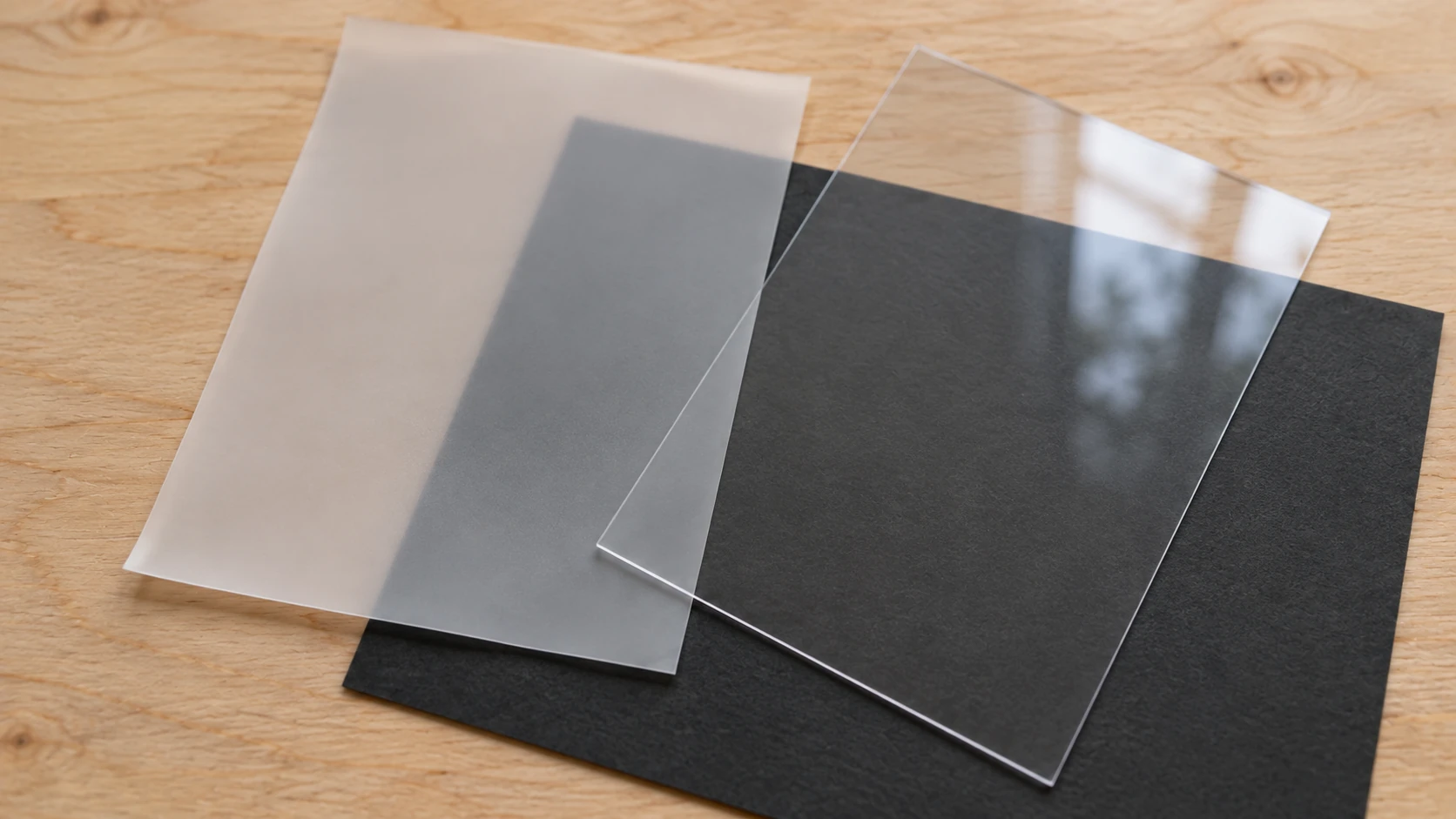
The same translucent samples over a dark backing make the difference easier to see: acetate remains clear, while vellum softens what is underneath.
Material Quick-Reference Table
| Material | Blade | Pressure | Mat | Best For |
|---|---|---|---|---|
| Adhesive Vinyl (Permanent) | Fine-point | Medium | Standard (green) | Tumblers, car decals, outdoor signs |
| Adhesive Vinyl (Removable) | Fine-point | Medium | Standard (green) | Wall decals, seasonal decor, labels |
| HTV / Iron-On | Fine-point | Medium | Standard (green) | T-shirts, tote bags, hats |
| Cardstock (65-80 lb) | Fine-point | Medium-High | Standard (green) | Invitations, cake toppers, paper flowers |
| Sticker Paper | Fine-point | Medium | Light/Standard | Custom stickers, product labels |
| Faux Leather | Deep-cut | High | Strong (purple) | Earrings, hair bows, bookmarks |
| Felt | Rotary | Medium-High | Fabric/Strong | Ornaments, quiet books, applique |
| Fabric (with stabilizer) | Rotary | Medium | Fabric/Strong | Quilting, applique, banners |
| Wood Veneer | Deep-cut/Knife | Maximum | Strong (purple) | Ornaments, gift tags, small signs |
| Chipboard | Knife/Deep-cut | Maximum | Strong (purple) | Box structures, thick embellishments |
| Acetate | Fine-point | Medium | Standard (green) | Shaker cards, clear windows |
| Vellum | Fine-point | Low-Medium | Light (blue) | Envelope liners, overlays, lanterns |
Start with Scraps
Here's the most practical advice anyone can give you about cutting machine materials: always test with a small scrap piece before committing to a full sheet of expensive material.
Every machine is slightly different. Blade sharpness, mat stickiness, and even room humidity can affect cut quality. What works perfectly on one person's machine might need a slight pressure adjustment on yours. A 2-inch test square takes thirty seconds and costs almost nothing. Cutting a full sheet of holographic vinyl only to find the pressure was too low costs you time, money, and a perfectly good piece of vinyl.
Start simple. Permanent vinyl and cardstock will carry you through your first dozen projects. As you get comfortable with your machine, branch out to HTV, faux leather, and specialty materials. Each new material is just a matter of learning the right blade, mat, and pressure combination.
Once you've got a design ready to cut, use File Converter to get your SVG into whatever format your machine's software expects. Downloading the converted file requires an active paid plan.
Happy making.
Related Tools
Ready to try these tools?
Sign up free, no credit card required. Free tools available immediately.
Start Free