

Getting Started with Cricut and Silhouette Cutting Machines
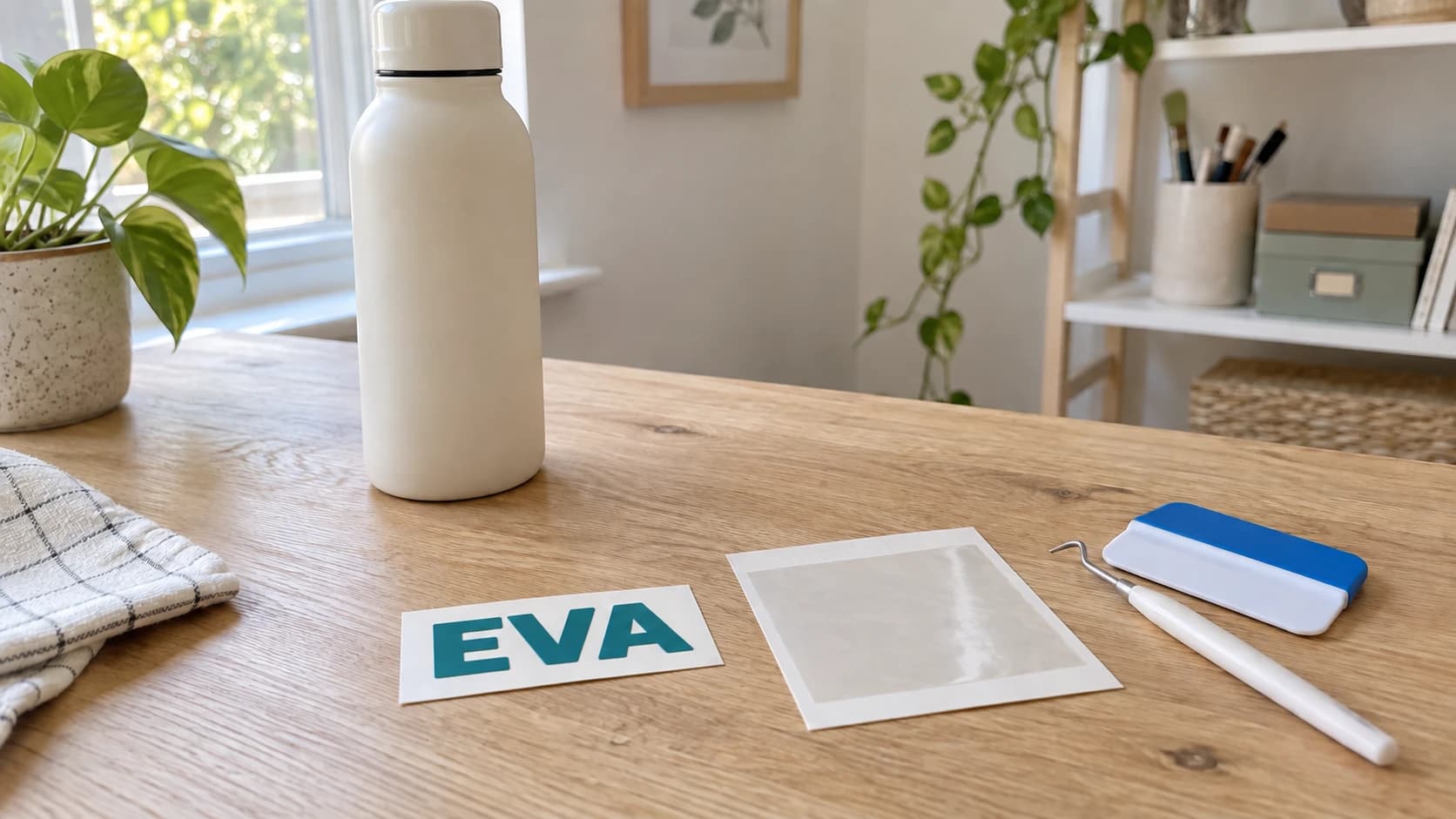
You just got a cutting machine. Maybe it's a Cricut. Maybe it's a Silhouette. Either way, it's sitting on your craft table and you're looking at it the way you'd look at a new appliance that's somehow both exciting and intimidating. There are mats, blades, transfer tape, and about seven different kinds of vinyl. The software has more options than you expected. And everyone on YouTube makes it look effortless.
It's not effortless. But it is straightforward once you understand the basics. Cutting machines are the most accessible digital fabrication tool there is. If you can use a computer, you can use a cutting machine. And unlike laser engravers or CNC routers (our guides for those are here and here), cutting machines are quiet, safe, and fit on a kitchen counter.
This guide gets you from unboxing to your first finished project. No fluff, just the practical stuff.
Cricut vs Silhouette: What's the Difference?
These are the two dominant ecosystems. Both make excellent machines. The hardware is comparable. The real difference is the software and business model.
| Feature | Cricut | Silhouette |
|---|---|---|
| Software | Design Space (cloud-based) | Silhouette Studio (desktop app) |
| File upload | SVG, PNG, JPG, BMP, GIF | SVG, DXF, PNG, JPG, BMP, and more |
| DXF import | No (SVG only) | Yes |
| Offline use | Limited (requires internet for most tasks) | Full offline capability |
| Design library | Cricut Access ($8/mo subscription) for fonts and designs | Free designs included, paid expansion optional |
| Blade types | Fine point, deep point, rotary, knife | Standard, deep cut, rotary, kraft, auto blade |
| Matless cutting | Maker 3 and Explore 3 only (Smart Materials) | Cameo 4 and newer (with select materials) |
| Price range | $150 - $400 | $200 - $400 |
Cricut's Strengths
Cricut Design Space is beginner-friendly with a clean interface. The Cricut Access subscription gives you tons of pre-made designs and fonts. If you don't want to create designs from scratch, Cricut makes it very easy to find and use existing designs. The Maker series is particularly versatile with support for the knife blade and rotary blade.
Silhouette's Strengths
Silhouette Studio is a more powerful design tool. It runs offline, accepts more file formats (including DXF), and gives you more control over cut settings. The learning curve is slightly steeper, but you get more flexibility. No subscription required for basic use.
Which Should You Choose?
If you want the easiest possible getting-started experience and don't mind a subscription, Cricut is excellent. If you want more design control, offline capability, and don't want to pay a subscription, Silhouette is the way to go. For the projects in this guide, either works great.
PRINT. CUT. CARVE.



- Multiple formats (SVG, DXF, PNG)
- Machine-tested designs
- Commercial licenses
Sponsored by PrintCutCarve.com
What Can Cutting Machines Cut?
More than you'd think. The tiny blade inside these machines is surprisingly versatile.
Common Materials
| Material | Blade Type | Difficulty | Popular Projects |
|---|---|---|---|
| Adhesive vinyl | Fine point | Easy | Decals, mugs, signs, car stickers |
| HTV (Heat Transfer Vinyl) | Fine point | Easy | Custom t-shirts, tote bags, hats |
| Cardstock | Fine point | Easy | Cards, cake toppers, paper crafts |
| Paper | Fine point | Easy | Invitations, scrapbooking, stencils |
| Sticker paper | Fine point | Easy | Custom stickers, labels |
| Thin wood/balsa | Deep point/knife | Medium | Ornaments, small signs, gift tags |
| Faux leather | Deep point | Medium | Earrings, bookmarks, tags |
| Fabric (bonded) | Rotary blade | Medium | Quilting pieces, appliques |
| Craft foam | Fine/deep point | Easy | Kids' projects, cosplay armor |
| Chipboard | Knife blade | Hard | Box structures, thick embellishments |
The Two Types of Vinyl
This trips up every beginner. There are two fundamentally different types of vinyl, and they are not interchangeable.
Adhesive vinyl has a sticky back (like a sticker). You cut it, peel off the backing, and stick it onto a surface. Used for mugs, signs, windows, laptops, and any smooth hard surface. Comes in permanent (outdoor, dishwasher-safe) and removable (wall decals, temporary applications) versions.
HTV (Heat Transfer Vinyl) has a heat-activated adhesive. You cut it, mirror the design (important!), place it face-down on fabric, and press it with a heat press or iron. Used for t-shirts, tote bags, hats, and any fabric item. The carrier sheet may require a hot, warm, or cold peel depending on the HTV and manufacturer; follow the package instructions.
Warning
When cutting HTV, you must mirror your design before cutting. The design is cut face-down because you peel the carrier sheet from the top. If you forget to mirror, your text will be backwards on the shirt. Every single cutting machine user has done this at least once. It's practically a rite of passage.
Understanding Cutting Mats
Cutting mats hold your material in place while the blade cuts. They're sticky on one side. Different colors indicate different grip levels:
Light grip (blue/light blue): For thin, delicate materials. Paper, vellum, thin cardstock. These materials tear if the mat is too sticky.
Standard grip (green): The one you'll use most. Works with adhesive vinyl, HTV, regular cardstock, and most common materials. This is the mat that comes with most machines.
Strong grip (purple/magenta): For thick or heavy materials. Chipboard, thick cardstock, fabric (with stabilizer), faux leather. These materials need stronger adhesion to stay put during cutting.
Fabric grip (pink, Cricut only): Specifically for bonded fabric. Has a different adhesive optimized for fabric fibers.
Tip
When your standard grip mat gets less sticky (they all do eventually), clean it with baby wipes or rubbing alcohol and let it dry. This removes debris and restores some stickiness. When it's truly worn out, replace it. A mat that doesn't hold your material causes shifting during cuts, which ruins the design.
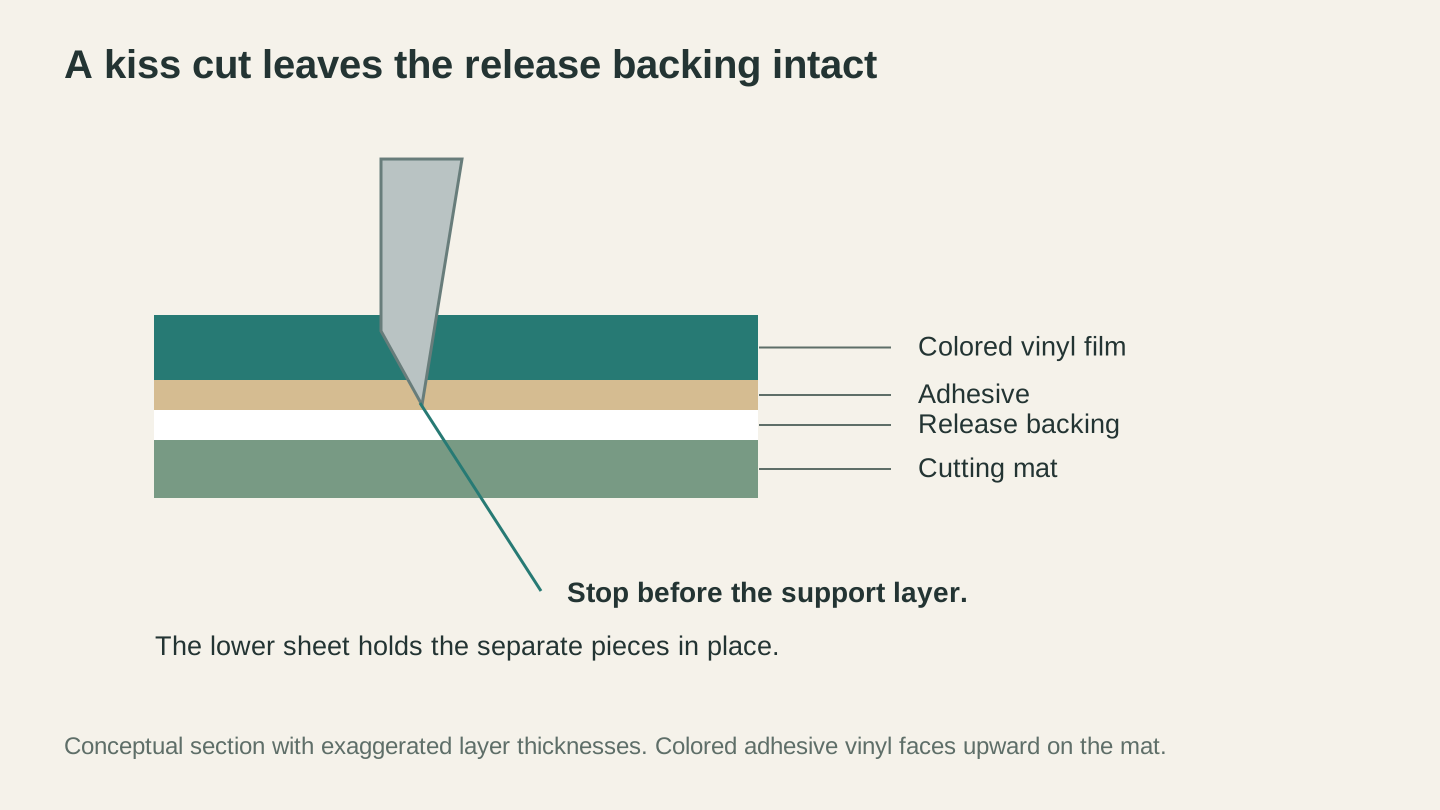
A kiss cut separates the vinyl without cutting through its release backing. Use a small test cut to check the result before cutting the full design.
File Formats: SVG is King
Cutting machines follow vector paths. The blade traces the outlines in your design file. The most common format is SVG (Scalable Vector Graphics), and it's what both Cricut and Silhouette accept.
Where to get SVG files:
- Design them yourself in your machine's software or any free vector design tool
- Free SVG sites like SVGCuts, Dreaming Tree, and various craft blogs
- Paid SVG marketplaces like Creative Fabrica, Design Bundles, and So Fontsy
- Convert from images using MonoTrace to turn any PNG or JPG into a clean SVG for free (our PNG to SVG guide covers the full process)
If you have a design in DXF format (common for CNC and laser users), Silhouette Studio opens DXF directly. For Cricut users, you'll need to convert DXF to SVG first. File Converter handles this without using tool credits. Downloading the converted file requires an active paid plan.
Your First Project: Custom Vinyl Decal
Let's make something. A custom vinyl decal is the perfect first project because it uses the most common material (adhesive vinyl), teaches the fundamental workflow, and produces a useful finished product.
What You Need
- Your cutting machine (Cricut or Silhouette) set up and connected
- One sheet of adhesive vinyl (any color)
- Transfer tape (sometimes called application tape)
- A weeding tool (the hook-like tool that came with your machine)
- A scraper or old credit card
- A smooth surface to apply the decal to (mug, water bottle, laptop, etc.)
Step 1: Create or Import Your Design
Open your software (Design Space or Silhouette Studio). For your first project, type some text. A name, a quote, a word. Use a bold font so the letters are easy to weed (we'll get to that). Avoid very thin, intricate fonts for your first try.
Size the design to fit your target surface. A 3-4" wide decal is a good starting size. You can always resize later once you're more comfortable.
Step 2: Set Up and Cut
Place your vinyl on the cutting mat, colored/patterned side up. The adhesive backing stays down on the mat. Smooth it flat with no bubbles or wrinkles.
Select "vinyl" (or your specific material) in the software. This sets the blade depth and pressure automatically. Load the mat into the machine and press the start button.
The machine cuts the design. You'll hear the blade zipping back and forth. For a simple text design, this takes 30-60 seconds.
Step 3: Weed the Design
Unload the mat. Now comes the satisfying part. "Weeding" means removing the vinyl you don't want (the negative space around your design). Use the weeding tool to peel away everything that isn't part of your text or design.
Start by peeling the large outer border. Then carefully pick out the small interior pieces (like the insides of letters A, B, D, O, P, Q, R, etc.). Take your time. This is the most tedious step, but it gets faster with practice.
When you're done, only your design should remain on the vinyl backing sheet.
Step 4: Apply Transfer Tape
Cut a piece of transfer tape slightly larger than your design. Peel the backing off the transfer tape and lay it sticky-side-down over your weeded design. Press firmly across the entire surface with a scraper or credit card. This transfers your vinyl from its original backing onto the transfer tape.
Now carefully peel the transfer tape up. Your vinyl design should lift off the backing and stick to the transfer tape. If a piece stays behind, lay the transfer tape back down, press harder over that area, and try again.
Step 5: Apply to Your Surface
Clean the target surface with rubbing alcohol. Position the transfer tape (with your design) where you want it. When you're happy with the placement, press it firmly from the center outward. Scrape across the entire surface with firm, even pressure.
Slowly peel the transfer tape away at a 45-degree angle. The vinyl should stay behind on the surface. If an edge lifts, lay the tape back down and press harder.
That's it. You just made your first vinyl decal.
Info
For mugs and water bottles that will be washed, use permanent outdoor adhesive vinyl. It's dishwasher-safe (top rack). Removable vinyl will peel off after a few washes. ORACAL 651 and Cricut Permanent vinyl are both good options.
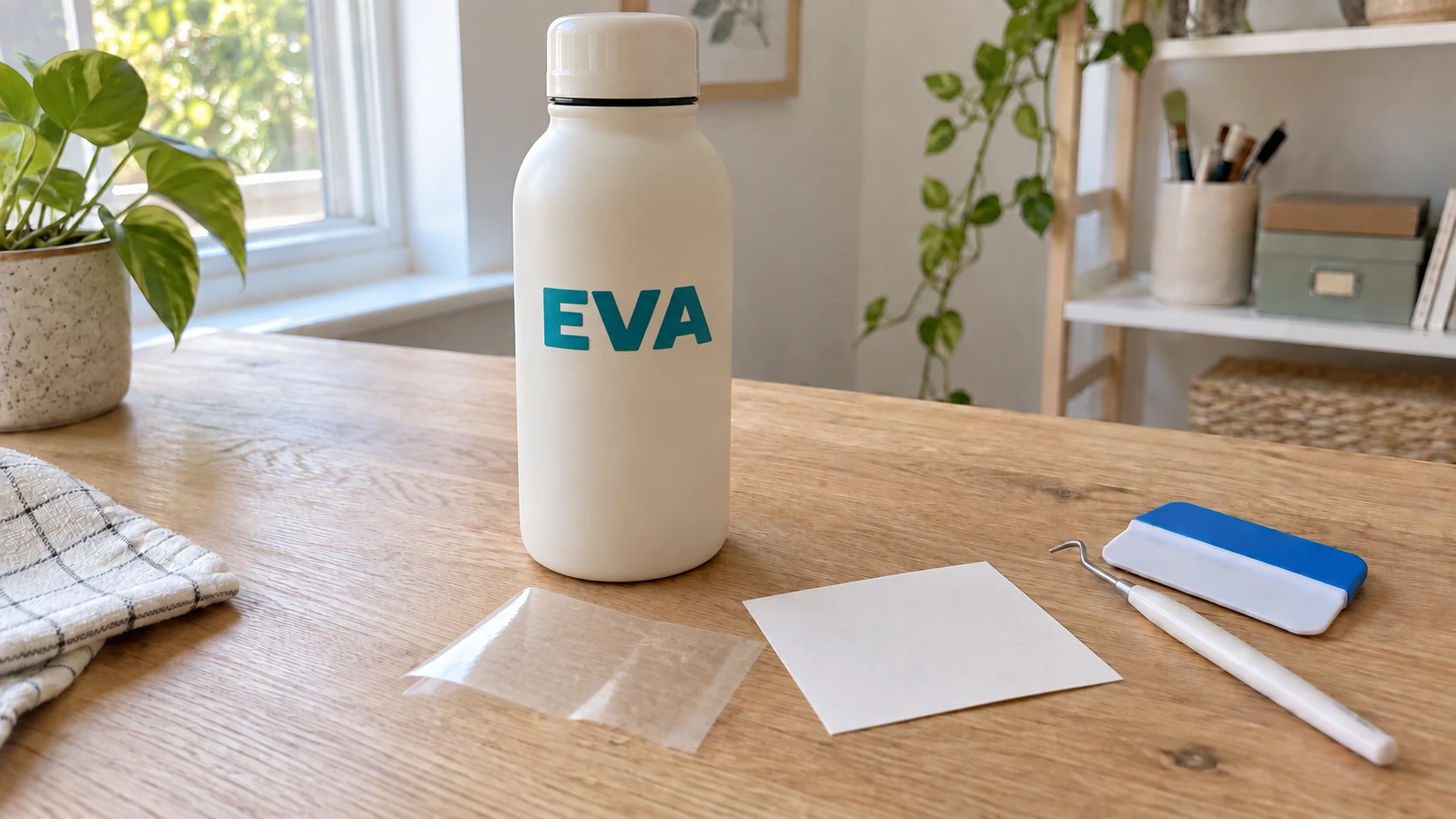
The same EVA decal after application to the bottle. The open center of the A reveals the bottle color underneath.
HTV on a T-Shirt (Your Second Project)
Once you've made a vinyl decal, the next project most people want is a custom shirt. The process is similar but with a few important differences.
-
Mirror your design. This is the step everyone forgets the first time. In your software, flip/mirror the design horizontally before cutting.
-
Cut with the shiny carrier side down on the mat. The HTV goes face-down because the blade cuts from the top.
-
Weed just like vinyl. Remove everything that isn't your design. This time you're working through the clear carrier sheet.
-
Heat press or iron. Place your weeded design face-down on the shirt. Cover with a pressing cloth or parchment paper. Apply heat at the temperature and time recommended for your specific HTV (usually 305-315°F for 10-15 seconds with firm pressure). A heat press gives the most consistent results, but a household iron works for occasional use.
-
Peel hot, warm, or cold as specified by the HTV manufacturer and package instructions.
Cutting Machine vs Laser: When to Use Each
If you have both a cutting machine and a laser (or you're deciding between them), here's how they compare:
| Capability | Cutting Machine | Laser |
|---|---|---|
| Vinyl | Excellent (designed for it) | Can't cut vinyl (fumes are toxic) |
| Paper/cardstock | Excellent | Good (can burn edges) |
| Fabric | Good (with rotary blade) | Excellent (sealed edges) |
| Wood | Thin veneer only (0.5-2mm) | Thick wood (10mm or more) |
| Acrylic | Very thin only | Excellent |
| Engraving | No (cuts only, no engraving) | Yes |
| Speed | Fast for thin materials | Fast for all materials |
| Safety | Very safe (small blade) | Requires ventilation, eye protection |
| Noise | Near silent | Moderate |
| Price | $150-400 | $300-3,000+ |
Cutting machines dominate for vinyl, HTV, and paper crafts. Lasers dominate for wood, acrylic, and anything that needs engraving. If you're deciding, pick the machine that matches what you want to make most. Many makers end up with both.
Troubleshooting Common Issues
Vinyl not cutting through: Increase the pressure setting or add a second cut pass. Make sure the blade isn't dull. Blades are consumable and need replacement every few months with regular use.
Vinyl tearing during weeding: The cut pressure is too high, scoring the backing. Reduce pressure slightly. Also, thin intricate designs tear more easily. Simplify the design or use thicker vinyl.
Design shifting during cut: Your mat isn't sticky enough. Clean or replace the mat. Also make sure you're smoothing the material completely flat before loading.
HTV peeling off after washing: The pressing temperature was too low, the time was too short, or the pressure was insufficient. Re-press the design with correct settings. Pre-wash the shirt before first application (fabric softener residue prevents adhesion).
Transfer tape won't pick up vinyl: Press harder with the scraper. Some vinyl types need more aggressive burnishing. You can also try warming the transfer tape slightly with a hair dryer, which softens the adhesive.
Small pieces of design cutting incorrectly: Your blade might be dull or the design might be too intricate for the material. Try a fresh blade, reduce cut speed, and avoid designs with features smaller than about 5mm for vinyl.
Where to Go Next
You've got the basics down. Here's how the hobby expands:
- Multi-layer vinyl: Stack multiple colors of vinyl for full-color designs. Each color is a separate cut, carefully aligned on top of each other.
- Print-then-cut: Print a full-color design on sticker paper or printable HTV, then have the cutting machine cut around the printed design. This gives you unlimited colors without layering.
- Specialty materials: Glitter vinyl, holographic vinyl, faux leather, balsa wood, chipboard. Each material expands what you can create.
- Selling products: Custom mugs, shirts, decals, and stickers are some of the most popular items on Etsy. Low material cost, high perceived value.
Tip
If you're making designs from logos or images, MonoTrace converts any PNG or JPG into a clean SVG that your cutting machine can use. It's free and takes about 30 seconds. Our PNG to SVG guide walks through the whole process.
Go Cut Something
Your machine is set up. Your first sheet of vinyl is on the mat. Pick a word, a name, or a simple shape. Cut it, weed it, transfer it, and stick it on something. The whole process takes about ten minutes for a simple design, and the result is a professional-looking custom product.
Then do it again with HTV on a shirt. Then try a more complex design. You'll find your comfort zone quickly, and from there the project ideas never stop.
Got a logo or photo you want to cut instead of typed text? MonoTrace turns it into a clean, cut-ready SVG for free. Working from a DXF file instead? File Converter gets it into a format your machine accepts. Downloading the converted file requires an active paid plan.
Happy making.
Related Tools
Ready to try these tools?
Sign up free, no credit card required. Free tools available immediately.
Start Free