

Best xTool Laser Engravers for Beginners (2026 Buyer's Guide)
xTool has become one of the most popular laser engraver brands for hobbyists and small businesses. They've built a reputation for machines that work out of the box, decent software, and customer support that actually responds.
But they also have a confusing product line. D1 Pro, S1, F1, M1, P2. Different laser types, different price points, different capabilities. If you're new to laser engraving and leaning toward xTool, it's hard to know which machine actually fits your needs.
This guide covers several xTool models commonly considered by beginners. No spec-sheet recitation. Just honest takes on which machine does what, who it's for, and where each one falls short.
The Models Covered Here at a Glance
Before we dig into details, here's the full picture:
| Model | Laser Type | Power | Work Area | Enclosure | Price Range |
|---|---|---|---|---|---|
| D1 Pro | Diode | 10W/20W | 432×406mm | Optional add-on | $500-$800 |
| S1 | Diode | 20W/40W | 498×319mm | Built-in | $1,200-$1,800 |
| F1 | Infrared + Diode | 2W infrared / 10W diode | 115×115mm | Built-in | Check current pricing |
| M1 | Diode | 10W | 385×300mm | Built-in | $1,000-$1,200 |
Prices are approximate and reflect typical retail pricing as of early 2026. Check xTool's current website for exact pricing.
PRINT. CUT. CARVE.



- Multiple formats (SVG, DXF, PNG)
- Machine-tested designs
- Commercial licenses
Sponsored by PrintCutCarve.com
xTool D1 Pro: The Entry Point
The D1 Pro is xTool's open-frame diode laser and the most affordable way into their ecosystem. It's available in 10W and 20W versions.
What it does well:
The D1 Pro handles wood engraving, cutting thin materials (3-4mm plywood, acrylic, leather), and general hobby laser work. The 20W version cuts thicker materials and engraves faster. The open frame means you can work with materials larger than the stated work area by repositioning (though you lose the convenience of a fixed origin).
Assembly takes about 30 minutes. It's straightforward, but it is assembly. You're bolting rails together, not unboxing and pressing start.
Limitations:
No built-in enclosure means you need ventilation and eye protection sorted out yourself. The open frame also means no fume extraction. Some users build or buy an enclosure separately, which adds $100-$300 to the total cost.
The 10W version struggles with cutting anything thicker than about 3mm, even with multiple passes. If cutting is important to you, the 20W is worth the upgrade.
Best for: Hobbyists who want to learn laser engraving without a huge investment. People who already have a workspace with ventilation. Makers who prioritize a large work area over convenience features.
xTool S1: The Enclosed Workhorse
The S1 is xTool's enclosed diode laser and the machine most beginners should probably buy if their budget allows it.
What it does well:
The built-in enclosure with exhaust is a huge quality-of-life upgrade. Connect the exhaust hose to a window or filtration unit and you can laser in a garage, workshop, or even a well-ventilated room without filling the space with smoke. The lid has an interlock that pauses the laser when opened.
Available in 20W and 40W, the S1 handles both engraving and cutting with confidence. The 40W version cuts 10mm acrylic and 8mm plywood in a single pass. That's CO2 territory from a diode laser.
The S1 uses pin-point positioning to define the processing area from measured points. The original S1 does not rely on a built-in camera for alignment. Record the material boundary, position the artwork within it, and check the job preview before processing.
Limitations:
The work area (498×319mm) is smaller than the D1 Pro's. If you regularly work with large pieces, this matters. The passthrough slot for longer materials helps, but it's not as flexible as an open frame.
The price is significantly higher than the D1 Pro. For a 20W S1, you're spending roughly twice what the 20W D1 Pro costs.
Best for: Beginners who want a complete, ready-to-use solution. Small business owners who need reliable production. Anyone who doesn't want to deal with building an enclosure and ventilation system separately.
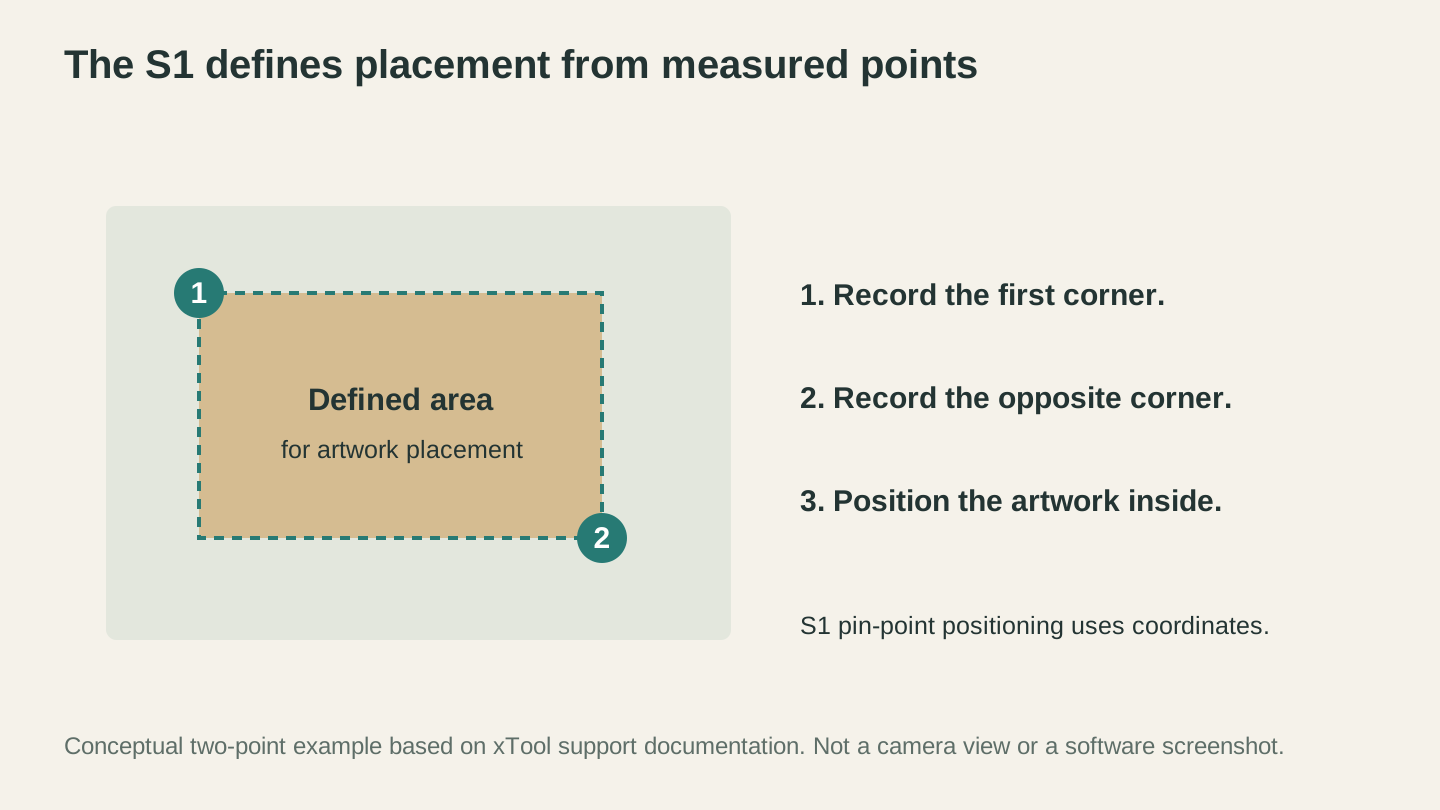
The S1 uses measured coordinates for pin-point positioning. This is a conceptual two-corner example based on xTool’s documentation, not a camera view.
xTool F1: The Speed Demon
The original xTool F1 combines a 2W 1064nm infrared laser and a 10W 455nm diode laser. Its galvo system moves the beam with mirrors, and its standard processing area is 115×115mm.
What it does well:
The compact work area suits small personalization projects. The infrared and diode sources support different materials, so check the exact blank against xTool’s guidance and run a sample before making a batch.
Limitations:
Do not confuse it with the F1 Ultra. The Ultra is a separate machine with a 20W fiber laser and a 20W diode laser. Its capabilities and settings do not transfer to the original F1.
The F1’s small work area limits larger signs and sheet projects. Compare current pricing, material support and accessory requirements against the specific products you want to make.
Best for: Makers considering compact personalization work who have checked that the original F1 supports their materials and project dimensions.
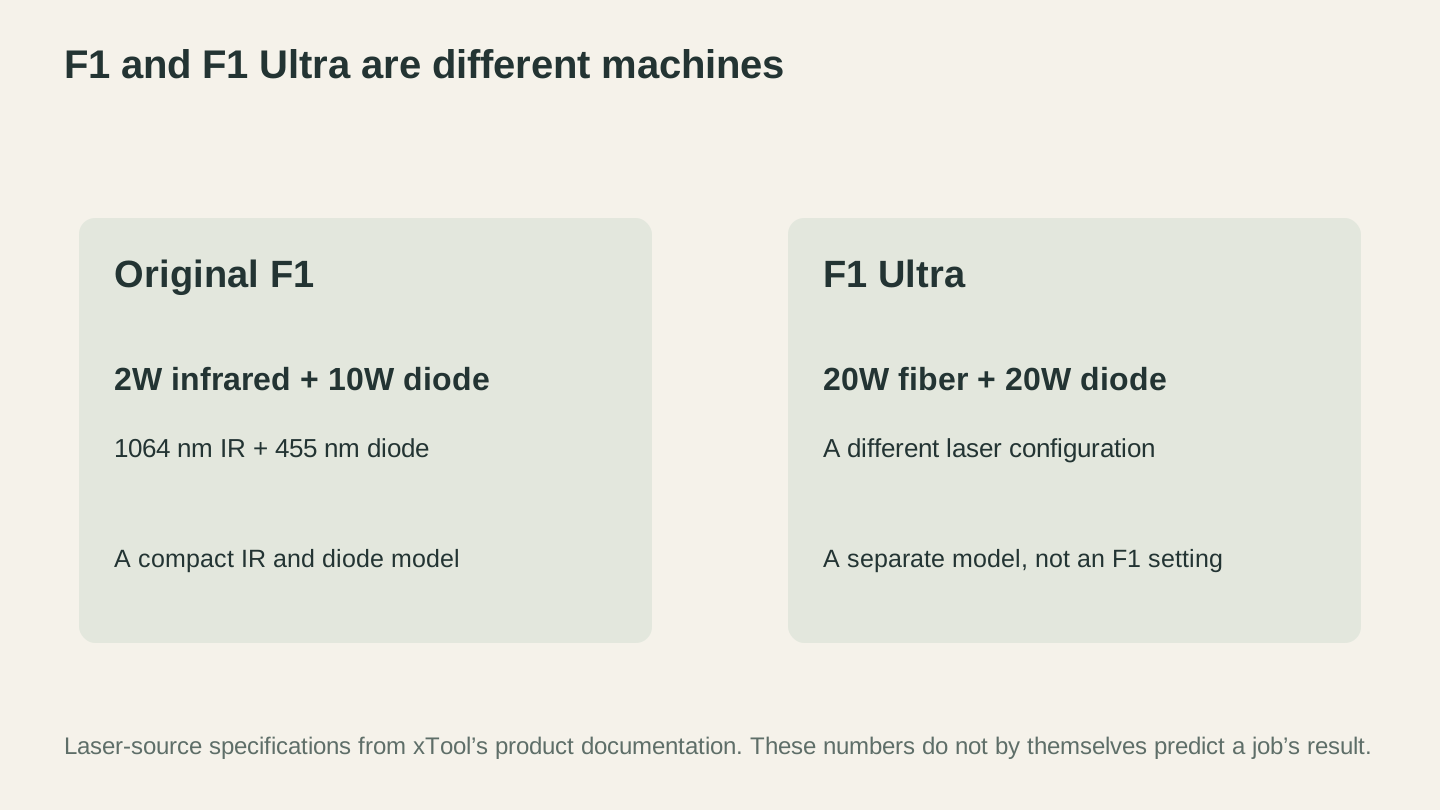
The original F1 and F1 Ultra have different laser configurations. Check the exact model before comparing settings or capabilities.
xTool M1: The Hybrid
The M1 combines laser engraving with a blade cutting function. Think of it as a laser engraver and a Cricut in one box.
What it does well:
The blade cutting module handles vinyl, fabric, cardstock, and other thin materials with the precision of a dedicated cutting machine. The laser handles engraving and cutting wood, acrylic, and leather. Having both in one machine saves desk space and lets you combine techniques (laser engrave a design, then blade-cut around it).
The M1 includes an enclosure and a camera; its positioning approach differs from the S1’s pin-point system.
Limitations:
The blade cutting isn't as refined as a dedicated Cricut or Silhouette for intricate vinyl work. The pressure control and material handling don't quite match machines that were designed exclusively for cutting.
The laser is 10W, which means cutting capability is limited compared to the S1's 20W/40W options. You'll struggle with materials thicker than about 4mm.
The "jack of all trades" positioning means it's good at two things but great at neither. If you're serious about either laser engraving or blade cutting, dedicated machines for each will outperform the M1 in their respective categories.
Best for: Makers with limited space who want both capabilities. People who do a mix of vinyl and laser work and want one machine for everything.
Which xTool Should You Buy?
Let's cut through the marketing and match machines to real scenarios.
"I'm brand new to laser engraving and want to learn without spending too much." Get the D1 Pro 20W. It's affordable, the community is huge (so troubleshooting help is easy to find), and the work area is generous. You'll need to sort out ventilation, but that's manageable with a window fan and some ductwork.
"I want something that works out of the box with minimal setup." Get the S1 20W. The enclosure, exhaust connection, and pin-point positioning simplify the setup. You'll spend less time on setup and more time actually making things.
"I'm starting a laser business and need production capability." Get the S1 40W for general laser work. If you're specifically doing metal engraving (tumblers, jewelry, dog tags), compare the original F1 infrared module with the separate F1 Ultra fiber model for your exact material and operation.
"I want to do both vinyl cutting and laser engraving." Consider the M1 if space is limited. Otherwise, a dedicated Cricut plus a D1 Pro or S1 gives you better results in both categories for a similar total investment.
xTool vs Other Brands
xTool isn't the only option. Here's how they compare to common alternatives:
Ortur offers similar diode lasers at lower prices. The Ortur Laser Master 3 competes with the D1 Pro. Ortur is generally cheaper but has less polished software and fewer accessories. If budget is the top priority, Ortur is worth considering.
Atomstack is another budget alternative. Good hardware, but the software and support trail behind xTool. Similar performance tier to Ortur.
OMTech focuses on CO2 lasers. If you know you want CO2 power (for thicker cutting and certain materials like clear acrylic), OMTech's K40-style machines are the budget entry point. Different category than xTool's diode machines.
For a broader comparison of laser engravers across brands, see our best laser engravers for beginners guide.
Design Prep for Any Machine
Whichever xTool you choose, you'll need designs to engrave and cut. The machine is only as good as the files you feed it.
MonoTrace converts any image to a clean SVG for free. Perfect for turning logos, photos, and graphics into machine-ready vector files.
Photo Converter transforms photos into optimized line art for photo engraving. If you want to engrave portraits or detailed photos onto wood, this handles the image preparation step.
Vector Studio generates custom SVG designs from text descriptions. Describe what you want, pick a style, and get a design ready to send to your xTool.
The Bottom Line
xTool makes good machines. Not perfect, not the cheapest, but reliable and well-supported. For most beginners, the decision comes down to budget:
- Under $800: D1 Pro 20W + DIY enclosure
- $1,200-$1,800: S1 (20W or 40W depending on cutting needs)
- Small personalization projects: Compare current F1 and F1 Ultra specifications and prices; they use different laser sources.
Pick the machine that fits your budget and your primary use case. Then spend your energy on learning settings, preparing great designs, and actually making things. The machine is just a tool. What you create with it is what matters.
For a detailed walkthrough of your first projects, check out our laser engraving beginner's guide.
Related Tools
Ready to try these tools?
Sign up free, no credit card required. Free tools available immediately.
Start Free