

Best Laser Engravers for Beginners (2026)
Buying your first laser engraver is a lot like buying your first car. You don't actually need the fastest one. You don't need the one with the most features. You need the one that fits your budget, does what you want, and won't leave you stranded in a parking lot wondering why you didn't read more reviews.
The laser engraver market in 2026 is enormous. There are dozens of machines across four or five price points, three major laser types, and enough conflicting YouTube reviews to give anyone decision paralysis. Some of those reviews are honest. Some are paid promotions dressed up as honest opinions. It's a mess.
This guide is different. We're going to walk through what actually matters when choosing a beginner laser, what the specs really mean (and which ones are marketing fluff), and then recommend specific machines at every budget. No affiliate links. No "use my code for 10% off." Just straightforward advice from people who've used these machines.
How to Think About Buying Your First Laser
Before you start comparing spec sheets, answer three questions. They'll narrow your search faster than anything else.
What do you want to make? If you're engraving photos and text on wood, leather, and slate, almost any diode laser will do the job. If you want to cut acrylic, thick plywood, or fabric, you need more power or a CO2 laser. If you want to mark metal directly, you need an infrared or fiber module.
Where will you use it? An open-frame diode laser in a bedroom is a bad idea (fumes, fire risk, noise). An enclosed machine in a well-ventilated workshop or garage is ideal. If space is tight, a compact desktop model beats a full-size machine you can't comfortably set up.
What's your actual budget? Not just the machine. Factor in the exhaust setup ($50-150), safety glasses if they're not included ($30-50), materials to practice on ($20-50), and software ($0-120). A $400 laser often turns into a $600 total investment once you have everything you need to actually use it.
Tip
If you've never used a laser before, don't spend $2,000 on your first machine. Start in the $300-800 range, learn the fundamentals, and upgrade when you actually know what features matter to you. The best laser for a beginner isn't the best laser. It's the one that teaches you the craft without emptying your savings account.
Once you've answered those three questions, you'll know roughly which category to shop in. Let's talk about what those categories actually are.
PRINT. CUT. CARVE.



- Multiple formats (SVG, DXF, PNG)
- Machine-tested designs
- Commercial licenses
Sponsored by PrintCutCarve.com
Diode vs CO2 vs Fiber: Which Type Is Right for You?
Every laser engraver falls into one of three categories based on the type of laser it uses. Each type has different strengths, and understanding the differences will save you from buying a machine that can't do what you want.
Diode Lasers
Diode lasers are where most beginners start, and for good reason. They're the most affordable, the most compact, and the easiest to set up. A diode laser uses semiconductor diodes (similar to what's in a laser pointer, but much more powerful) to produce a focused beam, typically in the blue-violet wavelength range around 445nm.
Strengths:
- Affordable ($200-1,500 depending on power and enclosure)
- Compact and lightweight
- Great for engraving wood, leather, painted/coated metals, and dark acrylic
- Many models are expandable with add-on modules (infrared for metal, risers for taller objects)
Weaknesses:
- Can't cut clear acrylic (the beam passes right through it)
- Slower cutting speeds compared to CO2
- Open-frame models require you to handle your own safety (enclosure, exhaust, eye protection)
- Maximum practical cutting power tops out lower than CO2
Best for: Hobbyists, small business starters, anyone who primarily works with wood, leather, and thin materials. If 80% of what you want to do is engrave designs on wood, a diode laser is your best bet.
CO2 Lasers
CO2 lasers use a gas-filled tube to produce a beam at 10,600nm (far infrared). This wavelength interacts with a much wider range of materials and delivers significantly more cutting power at any given wattage.
Strengths:
- Cuts acrylic cleanly and beautifully (this is the big one for many makers)
- Cuts thicker wood faster and more cleanly than diode lasers
- Engraves faster due to higher power
- Usually enclosed, which means better safety and fume containment
- Works on glass, fabric, rubber, and many other materials
Weaknesses:
- More expensive ($500-3,000+ for beginner-friendly models)
- Larger footprint
- CO2 tubes have a finite lifespan (typically 2,000-8,000 hours depending on quality)
- Requires water cooling (some have built-in chillers, cheaper ones need an external setup)
- Can't engrave bare metal (the beam reflects off it)
Best for: Makers who want to cut acrylic, work with a wide variety of materials, or plan to sell products where clean cuts and fast production matter. If your plan includes cutting acrylic signs, jewelry, ornaments, or fabric, a CO2 laser is worth the extra investment.
Fiber Lasers
Fiber lasers operate at 1064nm and are designed specifically for marking metals and hard plastics. They're extremely precise and fast for engraving, but they can't cut wood, acrylic, or most organic materials.
Strengths:
- Directly marks bare metals (stainless steel, aluminum, brass, titanium, gold)
- Extremely fast and precise
- Very long lifespan (25,000+ hours)
- Minimal maintenance
Weaknesses:
- Expensive ($2,000+ for entry-level standalone units)
- Can't cut or engrave wood, acrylic, leather, or most craft materials
- Very specialized, not a general-purpose tool
Best for: Jewelry makers, industrial marking, anyone whose primary material is metal. For most beginners, a fiber laser is not the right first machine. However, some newer diode laser systems (like the xTool S1 and Atomstack Kraft) offer optional infrared modules that give you basic metal marking capability without buying a separate fiber machine.
The Comparison Table
| Feature | Diode Laser | CO2 Laser | Fiber Laser |
|---|---|---|---|
| Typical price range | $200-$1,500 | $500-$3,000+ | $2,000-$5,000+ |
| Wavelength | ~445nm (blue) | 10,600nm (infrared) | 1,064nm (infrared) |
| Engraves wood | Yes | Yes (faster) | No |
| Cuts wood | Thin (up to ~10-18mm with high power) | Yes, thick stock easily | No |
| Engraves leather | Yes | Yes | No |
| Cuts acrylic | Dark/opaque only | Yes, clear and colored | No |
| Marks bare metal | No (coated/anodized only) | No | Yes |
| Typical enclosure | Open-frame or enclosed | Usually enclosed | Enclosed |
| Maintenance | Low | Moderate (tube, mirrors, water) | Very low |
Info
The "hybrid" trend: Several manufacturers now sell machines with swappable laser modules. The xTool S1, for example, accepts a 20W or 40W diode module and a 2W infrared module for metal marking. The Atomstack Kraft combines a 20W blue diode and 1.2W infrared laser in a single unit. These hybrid systems let you cover more materials without buying separate machines, though the infrared modules are less powerful than dedicated fiber lasers.
Specs That Actually Matter
Now let's talk about the numbers you'll see on every product listing. Some of them tell you a lot about what a machine can do. Others are mostly noise.
Optical Output Power (The Most Important Spec)
This is the wattage of the actual laser beam hitting your material. For diode lasers, it's the number you actually care about. A "10W optical power" diode laser will engrave and cut similarly to other "10W optical power" machines, regardless of brand.
For CO2 lasers, the wattage listed is usually the tube's actual output power (40W, 50W, 60W), and these numbers are generally straightforward and honest.
The relationship between optical power and practical capability looks roughly like this for diode lasers:
| Optical Power | Engraving | Cutting |
|---|---|---|
| 5W | Good for most materials | Very thin wood (3mm), multiple passes |
| 10W | Faster, deeper engrave | Cuts 5-8mm wood, dark acrylic |
| 20W | Fast, great contrast | Cuts 10-15mm wood in multiple passes |
| 33-40W | Very fast | Cuts up to 18mm wood, thick dark acrylic |
Work Area
How big of a piece can you engrave or cut? This ranges from about 200x200mm (8"x8") on compact machines to 600x600mm (24"x24") or larger on full-size open-frame models.
Think about what you'll actually make. If it's coasters, phone cases, and small signs, a 300x300mm area is plenty. If you want to engrave full cutting boards or large wall signs, you'll want 400x400mm or bigger.
Some machines offer passthrough slots or conveyor systems that let you feed longer material through, effectively extending one axis to unlimited length. That's great for engraving long boards, belts, or yardstick-length pieces.
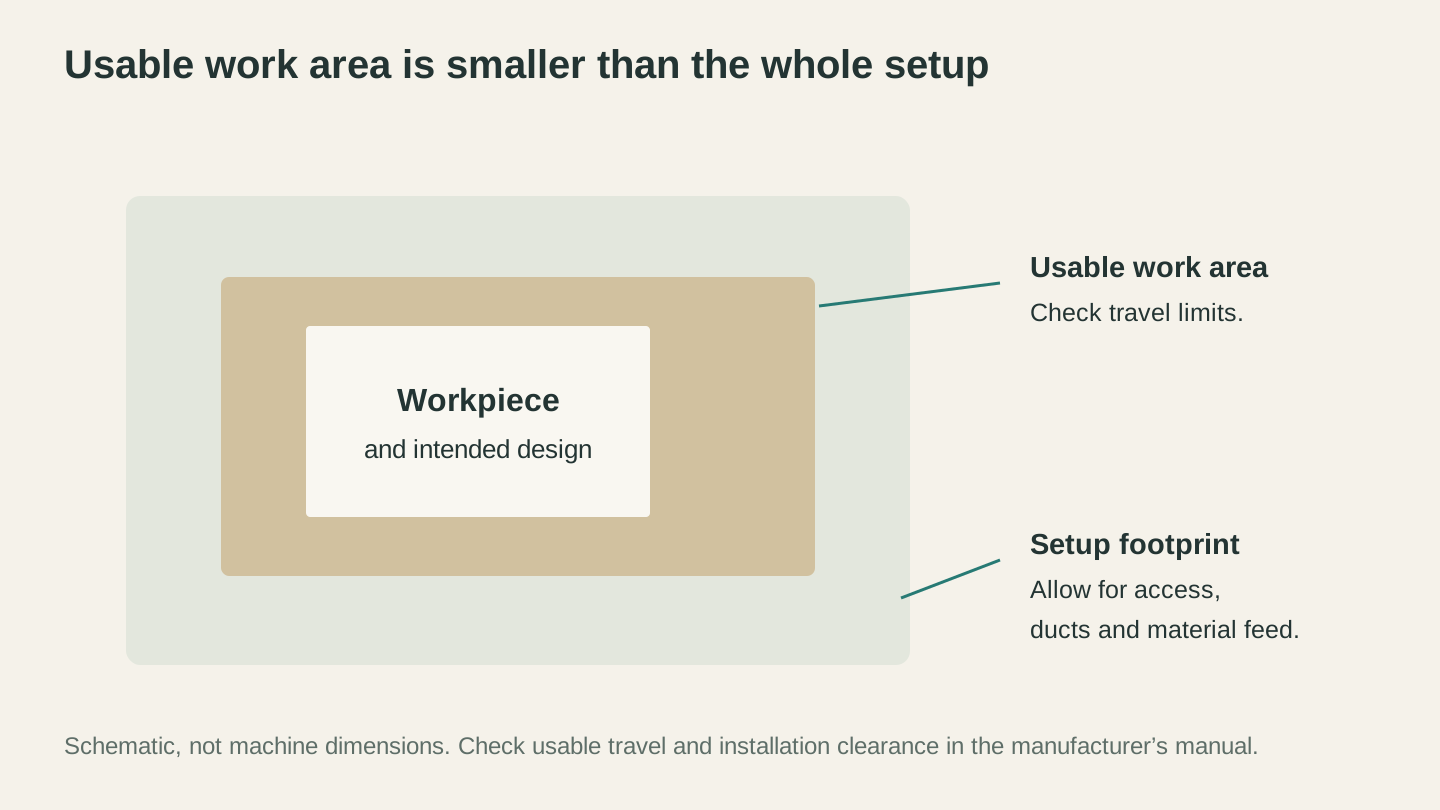
A machine’s working area and the space it occupies are different measurements. Leave the manufacturer’s required room for access, ducts and material feed.
Speed
Measured in mm/s (millimeters per second). Most modern diode lasers max out around 400-600mm/s. CO2 lasers run similar speeds or faster. Higher speed means faster engraving, which matters when you're doing large detailed images or running production batches.
For a beginner, any machine rated above 300mm/s will feel fast enough. Speed only becomes a real differentiator when you're producing volume.
Enclosure
Open-frame machines are cheaper and often have larger work areas, but they expose you to the laser beam, fumes, and fire risk. Enclosed machines contain all of that, often include built-in exhaust ports, and are generally safer. Some enclosed machines include cameras for alignment, air filtration, and automatic fire detection.
If you're working in a shared space, near kids or pets, or just want peace of mind, an enclosed machine is worth the premium. If you have a dedicated workshop with good ventilation and you'll always be present while the machine runs, an open-frame machine with proper safety glasses and external exhaust works fine.
Autofocus and Camera Systems
Nice to have, not essential. Autofocus saves you from manually adjusting the laser height for each material thickness. Built-in cameras let you see your workpiece on screen and position designs visually. Both save time and reduce mistakes, but plenty of excellent work gets done on machines without either feature.
Specs That Don't Matter as Much (Marketing Hype)
The laser industry has a marketing problem. Here are the specs that sound impressive but mislead beginners.
"Input Power" vs Optical Power
This is the biggest source of confusion. A laser module's input power is the electrical power consumed by the laser diode. The optical output power is what actually comes out as a laser beam. The ratio between them is called wall-plug efficiency, and for diode lasers, it's typically around 25-40%.
What this means in practice: a machine advertised as "40W" might only produce 10W of optical power. The other 30W becomes heat. When a manufacturer lists "40W" in giant font and "10W optical" in the fine print, they're being technically honest but strategically misleading.
Always look for the optical output power. If a listing only shows one wattage number and doesn't specify whether it's input or output, assume it's the bigger (input) number and be skeptical.
Warning
Watch out for wattage confusion. A "20W diode laser" and a "20W CO2 laser" are not comparable. The diode number might be optical power or input power (check carefully). The CO2 number is almost always actual tube output. A 40W CO2 laser is dramatically more powerful than a "40W" diode laser that actually outputs 10W optically. Always compare optical-to-optical.
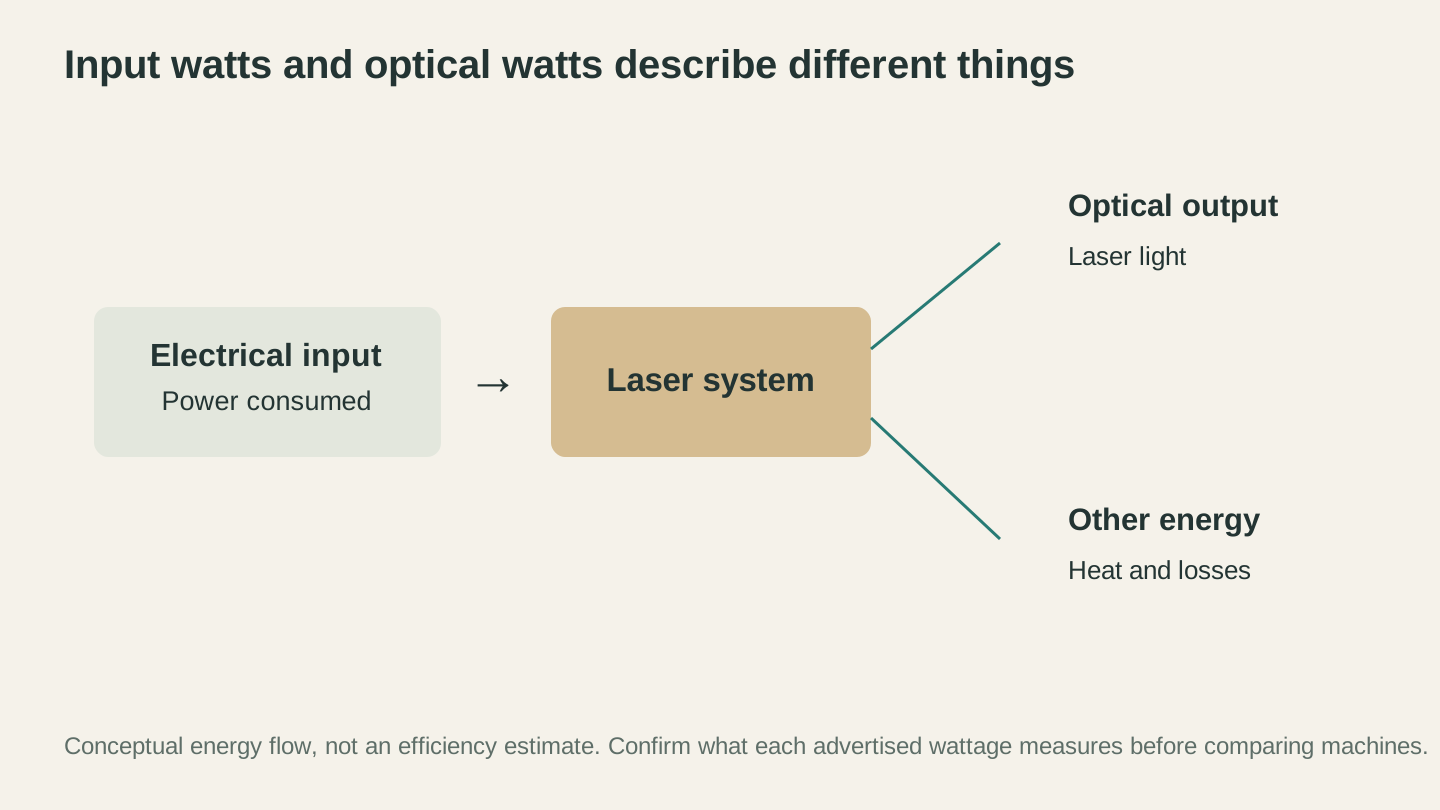
Compare the optical output specification with other optical output specifications. The diagram shows the distinction, not a universal conversion efficiency.
"Engraving Accuracy" of 0.01mm
Nearly every machine advertises accuracy figures like 0.01mm or 0.001mm. In reality, the practical engraving resolution depends on the beam spot size (which is usually 0.06-0.08mm for diode lasers), material response, vibration, and dozens of other factors. You'll never achieve 0.01mm precision on wood. These numbers describe stepper motor positioning resolution, not actual engraving detail.
"10,000mm/s Speed"
Some machines list acceleration-test speeds that the laser head can theoretically reach in a straight line. Your actual engraving speed will be much lower because the head constantly accelerates and decelerates around curves and direction changes. A machine rated at 10,000mm/s won't engrave a detailed image meaningfully faster than one rated at 600mm/s, because most of the time is spent on short movements where the head never reaches top speed.
Laser Module "Upgradability"
Some brands advertise that you can swap in higher-power modules later. That's true, but the modules are often expensive ($200-500+), and by the time you want more power, you'll probably want a better machine overall. Don't buy a low-power machine planning to upgrade the module. Buy the power level you need now.
Budget Tiers: What to Expect at Each Price Point
Under $300: Dipping Your Toes In
At this price, you're getting an open-frame diode laser with 5-10W of optical power, a work area around 400x400mm, and basic features. These machines engrave wood, leather, and coated metals just fine. Cutting is limited to thin materials.
Expect: Manual focus, no enclosure, basic software, decent community support. You'll need to buy safety glasses, set up your own exhaust, and learn from YouTube tutorials.
Don't expect: Thick cutting, acrylic cutting, or out-of-the-box perfection. Setup will take an evening, and you'll spend your first weekend calibrating and learning.
Good for: Total beginners who want to learn without a big financial commitment. Students and hobbyists who just want to try laser engraving.
$300-$800: The Sweet Spot for Most Beginners
This is where most beginners should land. You get 10-20W optical power diode lasers with features like air assist, autofocus, better build quality, and sometimes partial enclosures. Work areas range from compact desktop to large open-frame configurations.
Expect: Solid engraving on all standard materials, reasonable cutting on wood up to about 10mm, good software support, active user communities.
Don't expect: Clean acrylic cutting (still a diode laser limitation), or the premium build quality of $1,500+ machines.
Good for: Hobbyists who are reasonably sure they'll stick with the hobby, small business starters who need production capability, and anyone who wants good results without agonizing over setup.
$800-$1,500: Getting Serious
Here you're choosing between high-power diode lasers (20-40W optical) with premium features, entry-level enclosed diode machines, or basic CO2 lasers. Machines in this range have autofocus, camera systems, proper enclosures, air assist, and solid build quality.
Expect: Fast, high-quality engraving. Cutting thick wood. Metal marking with IR modules. Enclosed machines with exhaust ports. Software with advanced features.
Don't expect: Full CO2 performance from a diode machine, or the work area of a full-size CO2 laser.
Good for: Makers starting a side business, experienced hobbyists upgrading from a starter machine, or anyone who wants to skip the "starter" phase and invest in something that'll last.
$1,500+: Enthusiast and Small Business
This is full-size enclosed CO2 territory, or top-of-the-line enclosed diode systems. You get larger work areas, faster speeds, better software ecosystems, and machines designed for daily production use.
Expect: Professional-quality results, reliable daily use, comprehensive safety features, excellent software, and responsive customer support.
Good for: Small businesses, serious hobbyists who've outgrown their first machine, anyone who knows exactly what they need and is ready to invest.
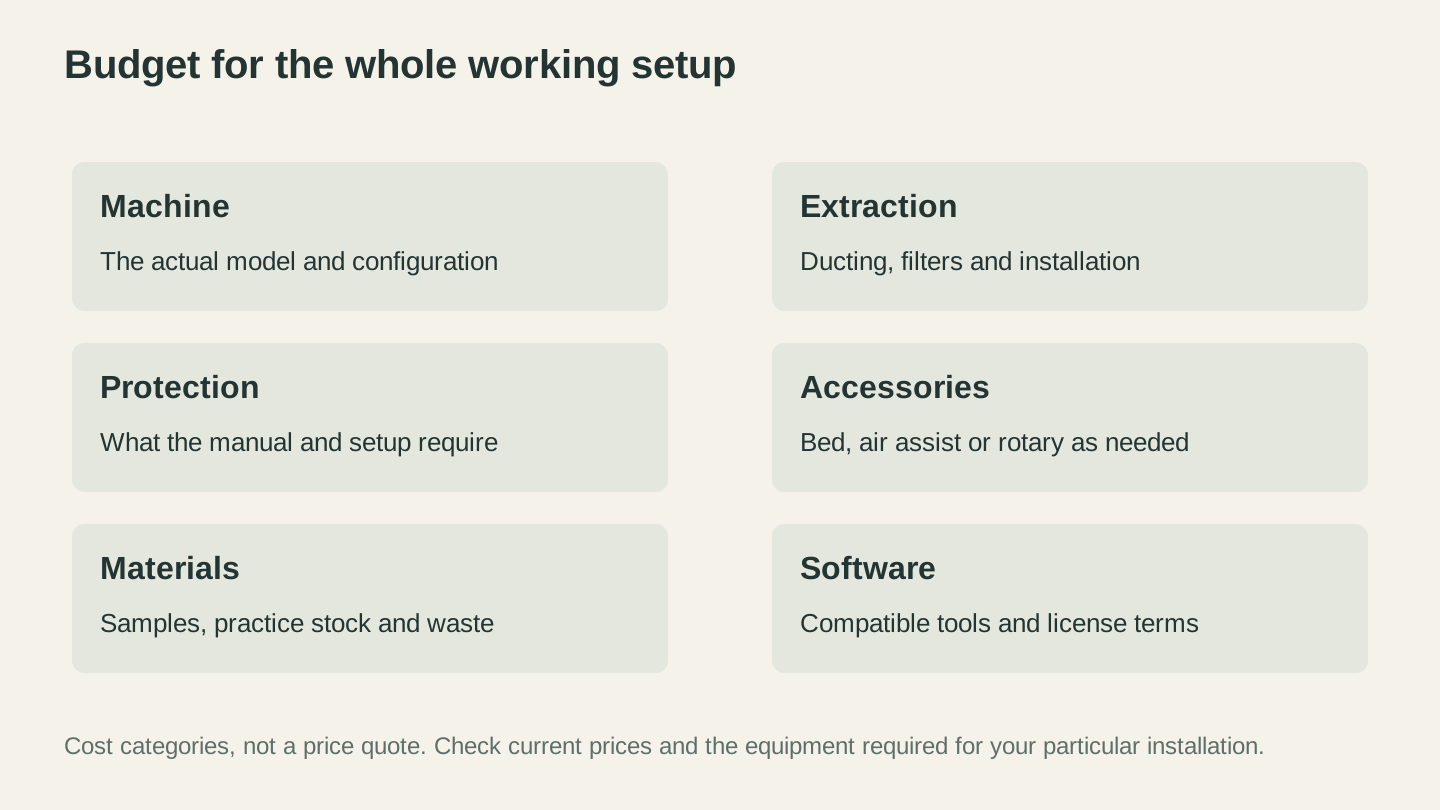
Budget for the complete working setup, including the equipment your installation requires. Use current prices rather than treating a machine’s sticker price as the total.
Best Open-Frame Diode Lasers for Beginners
Open-frame machines give you the most work area for your dollar, and they're the most popular category for beginners. The tradeoff is that you need to handle safety yourself: eye protection, fume extraction, and fire monitoring.
Sculpfun S30 Ultra Series
Sculpfun has quietly become one of the most reliable names in budget diode lasers, and the S30 Ultra series is their current flagship open-frame line.
Available configurations: 11W, 22W, and 33W optical power
Work area: 590 x 595mm (expandable to 935 x 905mm with the XY extension kit)
Why it's good for beginners: The S30 Ultra hits a sweet spot between price and capability. The 22W version gives you plenty of power for engraving and cutting without the premium price of the 33W model. Automatic air assist comes built in, which is critical for clean cuts and something cheaper machines make you add yourself. The frame is rigid and well-built for the price.
What to know: Open-frame design means you'll need safety glasses and an exhaust solution. The included software works but most serious users switch to dedicated laser software quickly. The extension kit is a genuinely useful add-on if you ever need to engrave large pieces.
Price range: Approximately $350-700 depending on the power level and accessories included.
AlgoLaser Alpha MK2
AlgoLaser has been gaining traction as a value-focused brand, and the Alpha MK2 is their most beginner-friendly open-frame offering.
Available configurations: 20W optical power
Work area: 400 x 400mm
Why it's good for beginners: The standout feature is the 3.5-inch touchscreen running AlgoOS, which lets you engrave directly from the machine without a connected computer. Load a design onto a USB drive or SD card, plug it in, and go. For makers who don't want to fiddle with laptop connections and software learning curves, this is a significant convenience.
What to know: The work area is slightly smaller than some competitors, which limits what you can fit. The 20W power is solid for most beginner projects. Build quality is good for the price, though it doesn't feel as premium as an xTool or the higher-end Sculpfun models.
Price range: Approximately $350-500.
Atomstack A-Series (A20 Pro / A24 Pro)
Atomstack has been in the diode laser game for years and offers a wide range of models. The A20 Pro and A24 Pro are their current mid-range open-frame options that balance power, features, and price.
Available configurations: The A-series spans from 5W up to a massive 70W (the A70 Pro). For beginners, the A20 Pro (20W) and A24 Pro (24W) are the sweet spot.
Work area: 400 x 400mm (expandable)
Why it's good for beginners: Atomstack machines have a large and active community, which means troubleshooting help is easy to find. The build quality has improved significantly over earlier generations. Air assist is integrated, and the machines work with popular third-party laser software out of the box.
What to know: Atomstack releases a lot of models, which can be confusing. Stick with the current-generation "Pro" or "Ace Pro V2" lines. Older models (A5, A10) are sometimes still sold at discount, but they lack features like air assist and updated safety systems that the newer models include.
Price range: Approximately $300-600 depending on the power level.
Creality Falcon CR / Falcon A1
Creality, best known for their 3D printers, entered the laser market with the Falcon series. These machines benefit from Creality's manufacturing scale and support infrastructure.
Available configurations: The Falcon CR comes in 5W and 10W options. The Falcon A1 comes in 10W.
Work area: 400 x 415mm (Falcon A1)
Why it's good for beginners: If you're on a tight budget and want a name brand with decent support, the Falcon CR is one of the cheapest entry points from a reputable manufacturer. The A1 steps up with better build quality and slightly more power. Creality's support and documentation are a cut above no-name Amazon brands.
What to know: These are entry-level machines. They work well for learning, but if you catch the laser bug, you'll outgrow them relatively quickly. The lower power models (5W) are fine for engraving but struggle with any meaningful cutting.
Price range: Approximately $200-400.
AlgoLaser Pixi
The Pixi deserves a mention as the ultracompact option. It's a small, portable diode laser designed for beginners who want to try laser engraving without dedicating a workbench to it.
Available configurations: 3W, 5W, and 10W
Work area: Small (roughly 200 x 200mm range)
Why it's good for beginners: It's the lowest barrier to entry for trying laser engraving. Small, affordable, and simple. The 10W version is surprisingly capable for its size. The compact design means you can store it in a closet when you're not using it.
What to know: The small work area limits what you can make. The lower power options (3W, 5W) are really only useful for light engraving on wood and leather. This is a "try it and see if you like it" machine, not a "build a business" machine.
Price range: Approximately $200-330.
Best Enclosed Diode Lasers for Beginners
Enclosed diode lasers are the fastest-growing segment because they solve the biggest complaints about open-frame machines: safety, fumes, and noise. You pay more, but you get a machine you can use in a wider range of environments without worrying about stray laser light or filling your workspace with smoke.
xTool S1
The xTool S1 is the machine that proved enclosed diode lasers could compete with CO2 lasers on cutting performance. It's the current benchmark for this category.
Available configurations: 20W and 40W diode modules, with an optional 2W infrared module for metal marking
Work area: 498 x 318mm (19.6" x 12.5")
Why it's good for beginners: Everything about this machine says "we designed this so you don't have to think too hard." The enclosure is fully sealed with an integrated exhaust port. Autofocus is automatic. The S1 uses pin-point positioning to define the processing area from measured points. The included software walks you through setup and basic projects. The 40W version can cut 18mm cherry wood in a single pass, which puts it in CO2 territory for organic materials.
What to know: The price is significantly higher than open-frame machines. You're paying for the enclosure, the safety systems, pin-point positioning, and the software workflow. The work area is smaller than open-frame machines at the same price, which is the fundamental tradeoff of enclosed designs. You'll also need the optional conveyor or riser for larger or taller objects.
The optional infrared module is a nice add-on for metal marking, though it's not as powerful as a dedicated fiber laser. Good enough for dog tags, jewelry blanks, and marking tools. Not powerful enough for deep metal engraving.
Price range: Approximately $1,200-2,000 depending on configuration and bundles.
Tip
The xTool S1 is frequently bundled with accessories like rotary attachments, risers, and material packs. If you're buying this machine, wait for a bundle deal. They run promotions regularly, and the savings on accessories can be significant.
Creality Falcon A1 Pro
Creality's answer to the enclosed diode laser demand is the Falcon A1 Pro. It combines their manufacturing expertise with an all-in-one enclosed design.
Available configurations: 20W diode
Work area: Approximately 400 x 400mm
Why it's good for beginners: The A1 Pro brings fully enclosed safety at a lower price point than the xTool S1. It includes a built-in HD camera for positioning, auto-focus, and smart features that simplify the workflow. If you want enclosed safety without paying $1,500+, this is worth considering.
What to know: The 20W power is solid but won't match the 40W xTool S1 for cutting thick materials. The software ecosystem is newer and less mature than xTool's, though Creality has been improving it rapidly. Check current reviews for software stability.
Price range: Approximately $800-1,100.
Atomstack Kraft
The Atomstack Kraft takes a different approach to the enclosed diode laser by being the first to ship a synchronized dual-laser system: a 20W blue diode for organic materials and a 1.2W infrared laser for metals and plastics, working from the same head.
Available configurations: 20W blue diode + 1.2W IR dual laser
Why it's good for beginners: If you want one machine that handles both organic materials and metal marking, the Kraft eliminates the need to buy separate modules or machines. It also includes a built-in fire suppression system, which is a genuinely useful safety feature that most competitors lack.
What to know: The IR laser at 1.2W is suitable for surface marking on metals, not deep engraving. The blue diode at 20W is solid but not at the top of the power range. The machine is a good generalist but doesn't excel in any single category the way the xTool S1 excels at cutting or a dedicated fiber laser excels at metal.
Price range: Approximately $800-1,200.
Best CO2 Lasers for Beginners
If you've decided you need a CO2 laser (usually because you want to cut acrylic, work with a wide variety of materials, or just want the most versatile machine possible), here are the best entry points.
OMTech K40+ (45W)
The K40+ is the modern version of the legendary K40 that started many makers' laser journeys. The original K40 was infamous for being cheap, capable, and requiring a lot of tinkering. The K40+ keeps the affordability while fixing many of the original's rough edges.
Power: 45W CO2 tube
Work area: 8" x 12" (200 x 305mm)
Why it's good for beginners: This is the cheapest way to get into CO2 laser territory. It cuts acrylic, engraves glass, handles leather and fabric, and teaches you how CO2 lasers work. The work area is small, but it's big enough for coasters, ornaments, small signs, and jewelry.
What to know: The work area is genuinely small. If you want to make anything bigger than about a sheet of paper, you'll feel the constraint immediately. The water cooling is basic (uses a small pump and bucket, not a real chiller). You'll want to check for compatibility with popular third-party laser software if it doesn't come pre-installed with a compatible controller. Build quality is "good enough" but not premium.
Despite the limitations, this is the machine that teaches more people CO2 laser fundamentals than any other. Think of it as your laser school tuition.
Price range: Approximately $400-600.
OMTech Polar 350 (50W)
The Polar 350 is OMTech's desktop CO2 offering that takes the K40 concept and adds everything beginners complained about missing: a real water chiller, a camera, air assist, and a larger work area.
Power: 50W CO2 tube
Work area: 20" x 12" (510 x 300mm)
Why it's good for beginners: The Polar 350 is the "I want a real CO2 laser but I don't have room for a full-size machine" option. The built-in water chiller eliminates the bucket-and-pump setup. Air assist comes integrated. It ships compatible with popular third-party laser software. The camera helps with alignment. It feels like a cohesive product rather than a collection of parts.
What to know: At around $2,000-2,500, this is a significant investment for a beginner. But if you're planning to sell products, particularly acrylic work, the Polar 350 pays for itself faster than a diode laser because it can actually cut acrylic cleanly and quickly. The desktop form factor means it fits on a sturdy table or workbench.
Price range: Approximately $2,000-2,500.
Monport 40W CO2
Monport is another strong contender in the budget CO2 space. Their 40W model is a direct competitor to the OMTech K40+ with a few different design choices.
Power: 40W CO2 tube
Work area: 8" x 12" (200 x 305mm)
Why it's good for beginners: Monport's 40W ships compatible with popular third-party laser software, includes a red dot pointer for alignment, and offers better documentation than many budget CO2 machines. The LED display panel makes it easy to monitor settings. They also offer a higher-spec "2.0" version with improved features.
What to know: Same small work area limitation as the K40+. Same need for external water cooling on the basic model. Monport's customer support has been generally well-reviewed, which matters when you're learning and things go wrong.
Price range: Approximately $400-600.
OMTech Mid-Range (50W-60W Standing Models)
If you have the space and budget, OMTech's standing cabinet-style CO2 lasers in the 50W-60W range offer the best beginner CO2 experience. These are the machines that serious crafters and small businesses typically start with.
Power: 50W-60W CO2 tube
Work area: 16" x 24" (400 x 600mm) or larger
Why it's good for beginners: Large work area, proper water cooling, full enclosure, and the capacity to handle real production work. These machines cut 6mm acrylic like it's cardboard. They engrave large panels in reasonable time. They're designed for the maker who's ready to sell.
What to know: They're big. You need a dedicated space. The price jumps to $1,500-3,000 depending on configuration. Setup takes more time than a desktop machine. But if you have the space and budget, starting here means you won't outgrow your machine any time soon.
Price range: Approximately $1,500-3,000.
Info
CO2 tube lifespan: CO2 laser tubes degrade over time. A quality tube lasts 2,000-8,000 hours of actual lasing time. At hobbyist usage (a few hours a week), that's years of use. Replacement tubes for K40-style machines cost $50-150. For larger machines, $100-400. This is a real ongoing cost, but it's not as scary as it sounds when you do the math on actual usage hours.
What About the xTool P3?
You might have seen the xTool P3 announced at CES 2026. It's an 80W CO2 laser with a massive 36" x 18" work area, and it looks impressive. As of this writing (early 2026), it hasn't shipped yet (expected Q2 2026). If it delivers on its promises and the price is competitive, it could become the CO2 machine to beat for small businesses.
Keep an eye on it, but don't wait for it if you need a machine now. The machines available today are excellent.
Accessories You Actually Need
The machine is only part of the equation. Here's what else you need, ranked by priority.
Must-Have (Buy Before You Start)
Exhaust/ventilation. If your machine isn't enclosed with built-in filtration, you need a way to move fumes outside. The simplest setup is a 4-inch inline duct fan ($30-60) connected to aluminum ducting ($10-20) running to a window. Don't use your machine indoors without ventilation. The fumes from even "safe" materials like wood are irritating and potentially harmful with repeated exposure.
Laser safety glasses. If you have an open-frame diode laser, you need OD5+ glasses rated for your laser's wavelength (typically 445nm for blue diode lasers). These cost $20-50. Do not use the cheap ones from random Amazon sellers. Buy from the laser manufacturer or a reputable safety equipment supplier. CO2 laser beams are invisible and absorbed by regular glass and plastic enclosures, so enclosed CO2 machines generally don't require separate glasses, but you still shouldn't look directly at the cutting point.
Fire extinguisher. A small ABC fire extinguisher near your machine. Not optional. Fires happen, especially when you're learning and your settings aren't dialed in yet. A laser cutter is literally a focused fire starter.
A honeycomb work bed. Many machines include one. If yours doesn't, get one. The honeycomb raises your material off the base, allows airflow underneath (critical for clean cuts), and prevents the laser from reflecting off a solid surface back into your material.
Should-Have (Buy Soon After)
Air assist. Blows a stream of air at the cutting point, which removes smoke from the beam path (cleaner cuts), pushes away flames (safety), and keeps your lens clean. Many modern machines include air assist. If yours doesn't, an air assist kit ($30-80) or a small compressor is a worthwhile addition.
A rotary attachment. Lets you engrave cylindrical objects like tumblers, bottles, and glasses. If you plan to make custom drinkware (one of the most popular laser products for selling), a rotary is essential. Most laser brands sell compatible rotaries for $100-300.
Material samples. Buy a variety pack of different woods, acrylic colors, and leather samples. Running test patterns on each material teaches you more in an afternoon than a week of YouTube tutorials.
Nice-to-Have (Buy When You're Ready)
Third-party laser software ($100-200 one-time). If your machine came with proprietary or basic software and you find yourself wanting more control, a dedicated third-party laser software license is the upgrade that makes the biggest difference in your workflow. It works with nearly every machine and gives you features that free software can't match.
An enclosure (for open-frame machines). If you started with an open-frame laser and want better safety and fume containment, you can either buy a compatible enclosure from the manufacturer ($100-400) or build one from acrylic panels and aluminum extrusion. Most open-frame brands sell enclosures for their own models.
A camera module (if not built in). Popular third-party laser software supports add-on cameras that let you see your workpiece on screen and position designs visually. Less useful if you're already good at manual positioning, very useful if you do a lot of alignment-critical work.
Software Compatibility: What to Look For
The software that controls your laser matters almost as much as the hardware. Here's the landscape.
Third-Party Laser Software
The most popular third-party laser software is an industry standard for a reason. It runs on Windows, Mac, and Linux. It works with almost every diode and CO2 laser that uses GRBL, Ruida, or Trocen controllers. It handles both vector and raster operations, has a powerful built-in editor, supports camera alignment, and has excellent community support.
Pricing typically runs $100-200 one-time depending on the tier: GRBL support (most diode lasers) at the low end, DSP and galvo support (needed for some CO2 and fiber lasers) at the high end. Licenses usually include a year of updates with optional renewal.
If your machine is compatible, buy it. Full stop. It's the best investment you'll make after the machine itself.
Manufacturer Software
Most brands ship their own free software. These are fine for getting started and often include features like material databases, project templates, and guided workflows that help beginners.
The downside is that manufacturer software often locks you into that brand's ecosystem and may lack advanced features. Most experienced users eventually move to dedicated third-party software. If you want to try one before paying for anything, Beam Bench is a free option worth a look.
Design Software
Your laser software controls the machine, but you still need design software to create your projects:
- A free vector editor for creating SVG cut files
- A professional (paid) vector editor for more advanced work
- A simple browser-based tool for text-heavy designs
- A free raster image editor for photo engraving prep
Tip
Getting images ready for laser engraving often means converting them to clean vector files. Craftgineer's MonoTrace converts photos and raster images to SVG vector files for free, giving you clean paths instead of raster dots. For more complex multi-color designs, MosaicFlow separates images into color layers for multi-material inlay work.
For a deeper dive on design software options, check out our guide to free design software for laser, CNC, and 3D printing.
Safety Considerations
We touched on safety earlier, but this topic deserves its own section because it's the thing most beginners underestimate.
Eye Safety
Diode laser beams at 445nm are visible blue light, but your blink reflex is not fast enough to protect you at this power level. A direct or reflected beam can cause permanent eye damage in milliseconds. Wear your safety glasses every single time you use an open-frame diode laser.
CO2 laser beams (10,600nm) are absorbed by glass and plastic, so an enclosed CO2 machine with its lid closed is generally safe for your eyes. But never bypass safety interlocks, and never look directly at the cutting point even through the window of an enclosed machine.
Fire Safety
Lasers start fires. That's literally what they do to cut materials. The difference between a clean cut and a fire is your settings, your air assist, and your attention.
Rules that will keep your workshop standing:
- Never leave a laser running unattended. Ever. Not even for "just a minute."
- Keep a fire extinguisher within arm's reach.
- Use air assist when cutting. It blows out small flames and keeps the cut clean.
- Don't cut materials you haven't identified. Unknown plastics can ignite aggressively or release toxic fumes.
- Clean your machine's lens and bed regularly. Buildup of resin and debris is fuel for fires.
Fume Safety
Every material produces fumes when lasered. Some are mild and just smell like a campfire (wood). Some are genuinely dangerous.
| Material | Fume Risk | Notes |
|---|---|---|
| Wood | Low-Moderate | Smoke and particulates. Ventilate. |
| Leather (genuine) | Low-Moderate | Smells strong but generally safe with ventilation |
| Acrylic | Low | Produces fumes but no toxic gases when properly ventilated |
| PVC / Vinyl | DANGEROUS | Releases hydrochloric acid gas. Never laser. |
| ABS plastic | DANGEROUS | Releases hydrogen cyanide. Never laser. |
| Polycarbonate | DANGEROUS | Catches fire easily, produces toxic fumes |
| Coated metals | Low | The coating burns, metal doesn't. Ventilate normally. |
Warning
The "never laser" list: PVC (including faux leather that contains PVC), vinyl, ABS, polycarbonate, fiberglass, and carbon fiber. If you're not sure what a material is made of, don't laser it. Check the material safety data sheet (MSDS) or contact the supplier. A $5 piece of mystery plastic is not worth a trip to the emergency room.
For a comprehensive walkthrough of common safety mistakes and how to avoid them, check out our laser engraving mistakes guide.
Electrical Safety
CO2 lasers run at high voltage (20,000-40,000V in the tube power supply). Don't open the electrical compartment of a CO2 laser unless you know what you're doing. The capacitors can hold a lethal charge even after the machine is unplugged.
Diode lasers run at much lower voltages and are generally not an electrical hazard, but basic precautions still apply: don't modify the wiring, keep water away from electronics, and use a grounded outlet.
What to Engrave First (And Where to Find Designs)
Once your machine is set up and you've run your first test, the question becomes: what do I actually make?
Start simple. Seriously. Your first project should not be the elaborate design you've been dreaming about for weeks. Start with something flat, forgiving, and cheap to redo if you mess up.
Great first projects:
- Engraved wooden coasters (flat, simple, useful)
- A personalized cutting board (just text on a flat surface)
- Leather keychain tags
- Ornaments from Baltic birch plywood (cut + engrave)
- A simple sign with your name or a short phrase
Once you're comfortable with basic engraving and cutting, you can move into more advanced projects. Our laser engraving beginner's guide walks through your first engrave step by step, and the wood settings guide covers dialing in your power and speed for different wood species.
For design files, you can find free SVGs on sites like SVG Repo, Freepik, and various maker communities. You can also create your own designs in a vector editor or convert photos to engrave-ready vectors. If you need to convert existing images to clean SVG files, MonoTrace handles that quickly without needing design skills.
Recommendation Summary by Use Case
Choosing a laser comes down to what you want to do with it. Here's the short version.
"I want to try laser engraving without spending much money"
Get an AlgoLaser Pixi (10W) or a Creality Falcon CR (10W). Spend under $350 total including accessories. Learn the basics. Decide if this is for you.
"I want a solid beginner machine that can grow with me"
Get a Sculpfun S30 Ultra (22W) or an Atomstack A20/A24 Pro. Spend $400-600 on the machine, add $100-150 for exhaust and safety gear. These machines engrave well, cut thin-to-medium wood, and have active communities for troubleshooting. You'll get months or years of use before you feel the need to upgrade.
"I want safety and convenience without a huge budget"
Get a Creality Falcon A1 Pro or the Atomstack Kraft. The enclosed design, built-in camera, and safety features make these machines much more approachable than open-frame alternatives. Great if your workspace is shared with family, or if you just don't want to deal with setting up external exhaust and enclosures.
"I want the best enclosed diode laser, period"
Get the xTool S1 (40W). It's the most refined enclosed diode laser available in 2026. The 40W module cuts like a CO2 laser on organic materials, the software is excellent, and the build quality is top-tier. It's expensive, but you get what you pay for.
"I need to cut acrylic"
Get a CO2 laser. Diode lasers can't cut clear acrylic, and even dark acrylic cutting on diode machines is limited. For budget CO2, the OMTech K40+ or Monport 40W gets you started around $500. For a proper setup, the OMTech Polar 350 is a better long-term investment around $2,000-2,500.
Check out our acrylic cutting guide once you have your CO2 machine set up.
"I want to start a laser engraving business"
Think about what you'll sell. Tumblers and drinkware? You need a machine with good rotary support (xTool S1 or a mid-range CO2 laser). Acrylic signs and earrings? CO2 is the right choice. Wooden signs and home decor? A high-power diode laser (20W+ optical) handles most of it.
For business use, prioritize reliability, speed, and the machine's ability to run production batches. The xTool S1 (40W) and OMTech 50-60W CO2 models are the two most popular starting points for small laser businesses.
Our workshop setup guide covers how to organize your space for production work, including ventilation, material storage, and workflow optimization.
Quick Reference Table
| Use Case | Recommended Type | Budget | Top Picks |
|---|---|---|---|
| Just trying it out | Open-frame diode | Under $350 | AlgoLaser Pixi, Creality Falcon CR |
| Hobbyist, wood/leather | Open-frame diode | $400-700 | Sculpfun S30 Ultra 22W, Atomstack A20 Pro |
| Safety-first, shared space | Enclosed diode | $800-2,000 | Creality Falcon A1 Pro, xTool S1 |
| Cutting acrylic | CO2 | $500-2,500 | OMTech K40+, OMTech Polar 350 |
| Small business | CO2 or 40W enclosed diode | $1,500-3,000 | xTool S1 40W, OMTech 50-60W |
| Metal marking | Hybrid diode + IR | $800-1,500 | xTool S1 + IR module, Atomstack Kraft |
Machines to Avoid (Or at Least Be Cautious About)
A few honest warnings:
Unbranded Amazon machines under $150. They exist, and some of them technically work. But you'll get minimal documentation, no customer support, questionable safety compliance, and replacement parts that are hard to source. The $50 you save isn't worth the frustration.
Machines with only proprietary software. If a laser only works with the manufacturer's own software and isn't compatible with any third-party laser software or controller, you're locked into their ecosystem. If they stop updating their software or go out of business, your machine becomes much harder to use.
High-wattage claims without optical power specs. If a listing says "40W laser engraver" and nowhere in the description does it mention "optical output power," that 40W is almost certainly input power. The actual cutting/engraving power is probably 8-12W. Not terrible, but not what you thought you were buying.
Machines marketed only on social media ads. A flashy TikTok ad showing a laser engraving a photo on a tumbler in 30 seconds doesn't mean much. Look for real reviews from established laser communities (Reddit r/lasercutting, Facebook laser groups, YouTube channels that do actual testing with power meters). If you can't find independent reviews of a machine, that's a red flag.
Final Thoughts
The best laser engraver for a beginner in 2026 is not one specific machine. It's the machine that matches your budget, your goals, and your willingness to learn. A $300 open-frame diode laser in the hands of someone who takes time to learn the software, test their settings, and understand their materials will produce better results than a $2,000 machine that sits mostly unused because the owner got overwhelmed.
Start with something you can afford to experiment with. Run test grids on scrap material until you understand how power, speed, and material type interact. Join a community (Reddit, Facebook groups, maker forums) where you can ask questions and share your work. And don't be afraid to make mistakes. Every burnt piece of wood is a lesson learned.
The machines available today are genuinely impressive. Even the budget options produce results that would have required a $10,000 industrial machine a decade ago. You're picking a great time to start.
Once your laser arrives, MonoTrace turns any photo or graphic into a clean vector outline ready for engraving, and MosaicFlow can turn an image into a multicolor inlay design. Uploads and previews do not charge credits. AI generation uses credits. Downloads require an active paid subscription or a current unlock for that design.
Now go make something.
Related Tools
Ready to try these tools?
Sign up free, no credit card required. Free tools available immediately.
Start Free