

Canva för lasergravering: går det faktiskt att använda?
Du känner redan till Canva. Du har använt det för grafik till sociala medier, födelsedagsinbjudningar och kanske en logotyp. Det är enkelt, (för det mesta) gratis och kräver inte att du lär dig Bézierkurvor. Så när du skaffar en lasergravör eller en Cricut är den naturliga frågan: kan jag helt enkelt använda Canva för mina designer?
Det ärliga svaret: delvis. Men förmodligen inte på det sätt du hoppas.
Canva skapades för grafik på skärm och i tryck. Laserskärare och skärmaskiner behöver vektorbanor med särskilda egenskaper som Canva egentligen inte har stöd för. Det betyder inte att Canva är oanvändbart för makers. Det betyder att du behöver förstå var det passar in i ditt arbetsflöde och när du behöver något annat.
Vad Canva gör bra för makers
Vi börjar med det som faktiskt fungerar.
SKRIV UT. SKÄR. FRÄS.



- Flera format (SVG, DXF, PNG)
- Maskintestade motiv
- Kommersiella licenser
Sponsrad av PrintCutCarve.com
Text och layout
Canva är bra på att ordna text och former till rena kompositioner. Om du designar en skylt med texten "Välkommen till familjen Johnson" och några dekorativa element runtom kan Canva göra en snygg layout av den. Typsnittsutbudet är utmärkt, verktygen för avstånd är intuitiva och mallarna ger dig ett försprång.
För rastergravering (där lasern bränner en bild pixel för pixel på trä eller akryl) fungerar designer från Canva bra. Exportera som en högupplöst PNG, läs in den i laserprogrammet och gravera. Om du behöver ett laserprogram är Beam Bench gratis. Lasern behöver inga vektorbanor för rastergravering. Den behöver bara en ren bild med hög kontrast.
Snabba förhandsvisningar
Canva är utmärkt för planering. Innan du lägger en dyr bit lövträ i lasern kan du göra en skiss av designen i Canva för att kontrollera proportioner, textplacering och helhetskomposition. Det går snabbare än att lära sig en komplett vektorredigerare bara för att se om "Lev, skratta, lasra" ser bra ut i det typsnittet.
Enkla former
Grundläggande geometriska former (cirklar, rektanglar, stjärnor och hjärtan) i Canva är tekniskt sett vektorelement. Om din design är uppbyggd helt av sådana grundformer kan SVG-exporten ge användbara skärbanor. Tonvikten ligger på "kan" och "enkla".
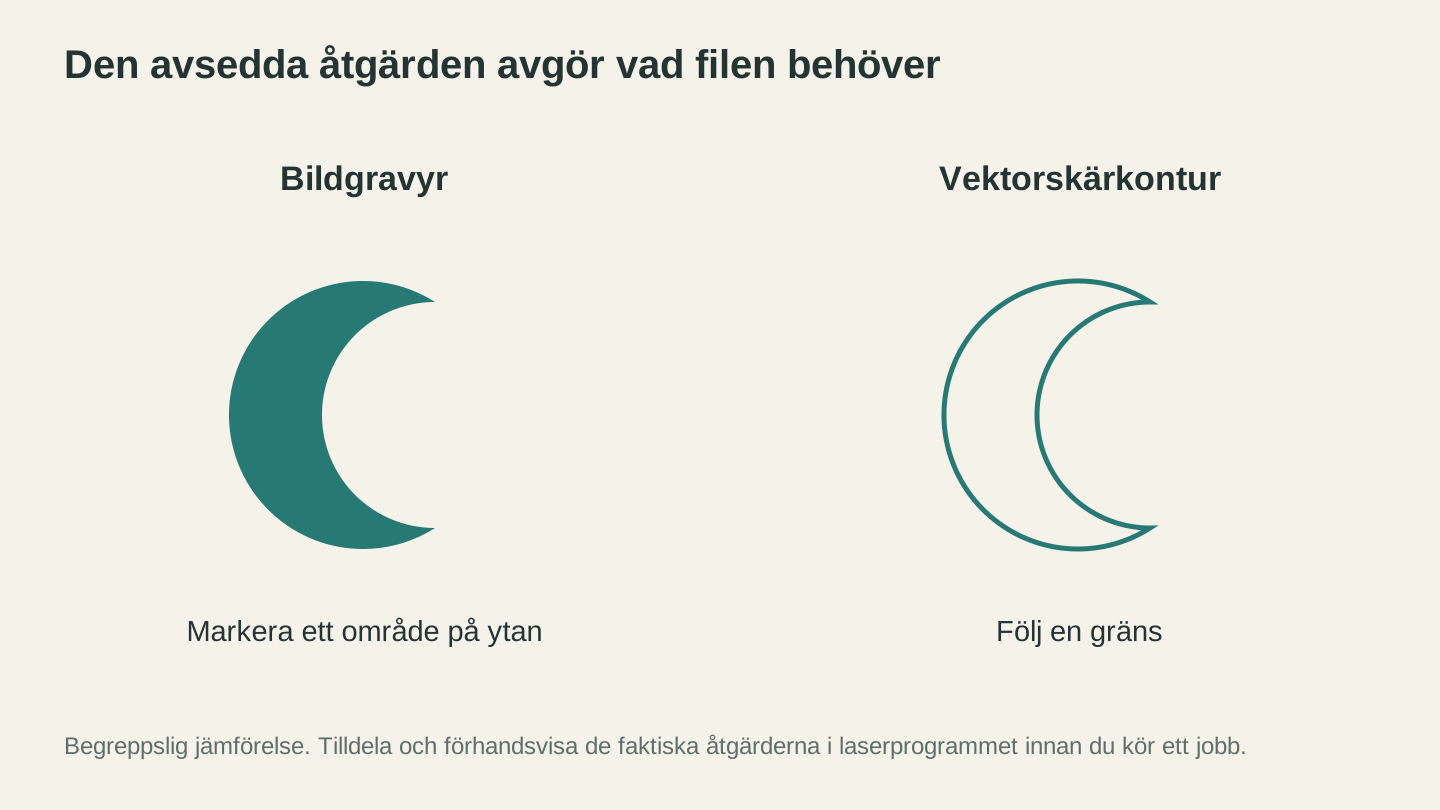
Bestäm vad maskinen ska göra med designen. En bild kan beskriva en ytmarkering, medan skärning kräver en gräns som maskinens programvara kan följa.
Där Canva inte räcker till för laser och skärning
Nu till problemen. Och det finns flera.
Problemet med SVG-exporten
Canva Pro ($13/månad) låter dig exportera designer som SVG. Canva Free gör det inte. Det är det första hindret.
Men även med Canva Pro är SVG-filerna som programmet skapar inte av samma typ som de från en dedikerad vektorredigerare. SVG-exporten från Canva innehåller ofta:
- Omvandlar text till individuella bokstavsformer i stället för rena konturer, ibland med märklig gruppering
- Bäddar in rasterbilder i SVG-filen för foton eller komplexa element
- Skapar röriga banor med onödiga ankarpunkter
- Stöder inte banor som endast består av linjer, vilket laserskärare behöver för vektorskärning
När ditt laser- eller CAM-program öppnar en SVG från Canva kanske det inte känner igen skärlinjerna korrekt. Fyllda former i stället för linjebanor. Grupperade element som inte går att separera. Inbäddade bitmappar där du förväntade dig vektorer.
Varning
Gratisversionen av Canva stöder inte SVG-export alls. Du kan bara ladda ned PNG, JPG eller PDF. Om du inte betalar för Canva Pro är SVG-utdata inte ett alternativ.
Ingen riktig vektorritning
Canva har inget pennverktyg eller någon nodredigerare. Du kan inte rita anpassade vektorbanor. Du kan inte justera ankarpunkter. Du kan inte skapa den typ av exakta konturer som skärmaskiner behöver.
Det spelar roll eftersom laserskärning och vinylskärning kräver exakta banor. En skärlinje måste vara ett enda sammanhängande streck med rena noder. Former som du drar och släpper i Canva är helt enkelt inte byggda för den kontrollnivån.
Inget DXF-stöd
Canva kan inte exportera DXF-filer. Om din programvara för CNC eller ditt laserprogram kräver DXF (och många gör det) kan Canva inte göra det direkt.
Ingen kerf-kompensation eller maskininställningar
Canva har ingen förståelse för fysisk tillverkning. Det finns inget begrepp för kerf-förskjutning, materialtjocklek eller lager för skärning kontra gravering. Detta hanteras i maskinprogramvaran, men det underlättar när designverktyget åtminstone stöder skillnaden mellan skärbanor och graveringsområden.
Arbetsflödet som kringgår begränsningarna
Om du har bestämt dig för att använda Canva (eftersom du känner verktyget och arbetar snabbt i det) kan du använda följande arbetsflöde:
- Designa i Canva med enkla former, text och rena element
- Exportera som PNG med högsta tillgängliga upplösning (Canva Free) eller SVG (Canva Pro)
- Vektorisera PNG-filen med MonoTrace för att få rena SVG-banor
- Konvertera vid behov med File Converter för att få DXF från SVG
- Importera i maskinprogramvaran (laserprogrammet eller appen för din skärmaskin)
Det fungerar för enkla designer med hög kontrast. Texttunga skyltar, enkla former och silhuetter. Kvaliteten beror på hur ren exporten från Canva är och hur väl vektoriseraren kan spåra den.
För komplexa designer med fina detaljer, tunna linjer eller intrikata mönster leder det här arbetsflödet till för stor kvalitetsförlust. Du kommer att lägga mer tid på att städa upp det vektoriserade resultatet än du skulle ha lagt på att helt enkelt lära dig Inkscape.
| Uppgift | Bara Canva? | Canva + lösning |
|---|---|---|
| Rastergravering (bränn en bild på trä) | Ja (exportera PNG) | Behövs inte |
| Enkla textskyltar för laserskärning | Nej (dålig SVG-export) | Ja (exportera PNG → MonoTrace) |
| Geometriska skärformer | Möjligt (SVG med Pro) | Ja (PNG → MonoTrace) |
| Detaljerade skärdesigner | Nej | Opålitligt |
| DXF för CNC | Nej | Ja (PNG → MonoTrace → File Converter) |
| Intrikata snirkelmönster | Nej | Nej |
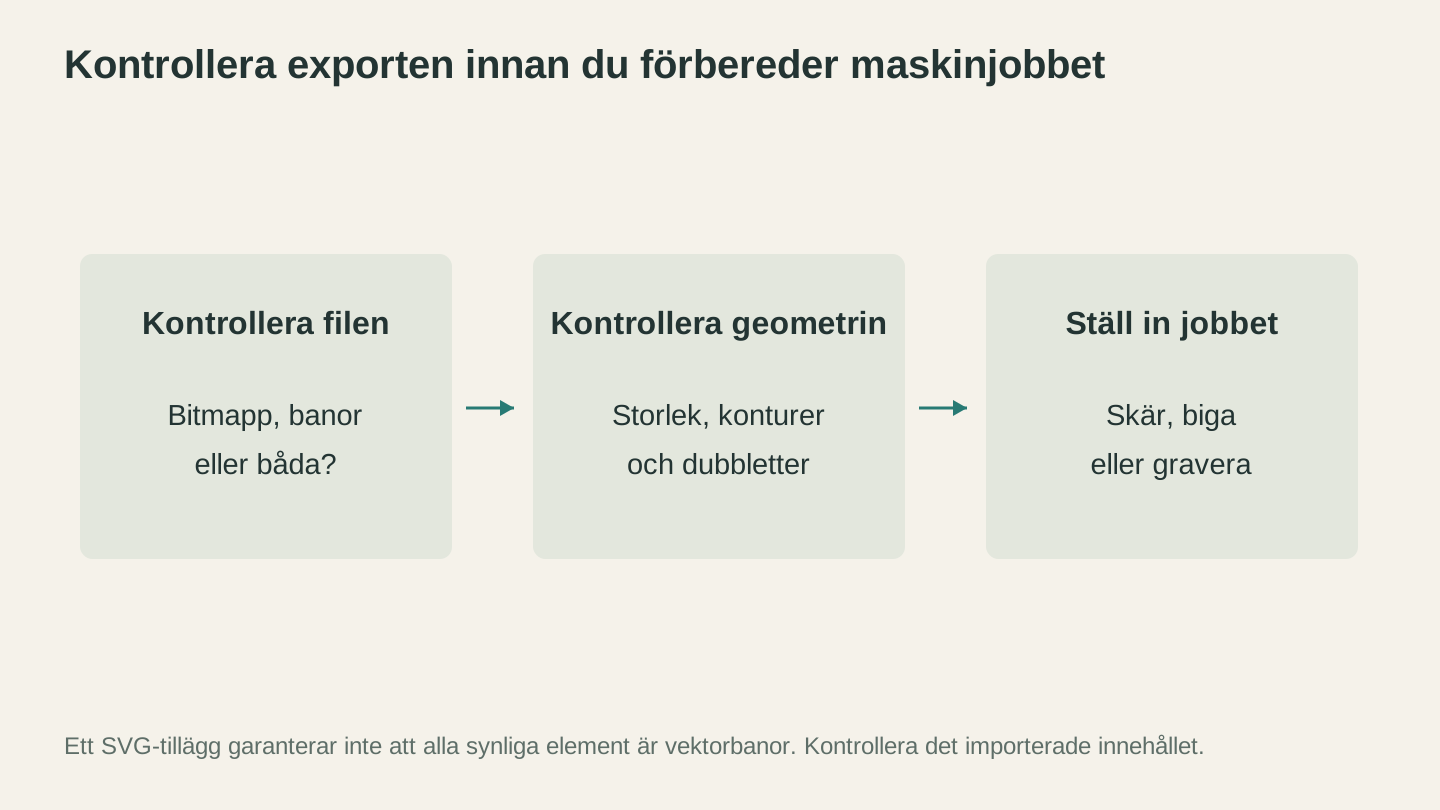
En SVG kan innehålla banor, inbäddade bilder eller båda. Kontrollera vad som faktiskt exporterades och bekräfta sedan de fysiska måtten och de planerade operationerna.
Vad du kan använda i stället
Om du lägger mer tid på att kämpa mot begränsningarna i Canva än på att faktiskt skapa saker finns här bättre alternativ, sorterade efter vad du försöker göra.
"Jag behöver en SVG-fil av en design jag redan har som bild"
MonoTrace konverterar PNG, JPG och andra rasterbilder till rena SVG-filer. Det är gratis och körs i webbläsaren. Ladda upp bilden, klicka på Vectorize och ladda ned SVG-filen. Ingen manuell kalkering och ingen efterbearbetning.
Om du redan har designen som en PNG-fil från Canva är det så här du får in den i maskinen.
"Jag behöver en design och vill inte rita den"
Vector Studio skapar maskinfärdiga SVG-filer från textbeskrivningar. Beskriv vad du vill ha ("en bergsscen med tallar, i enkel linjekonststil"), välj en stil och få en SVG-fil som du kan skära eller gravera. Det är som att ha en designer till hands.
"Jag har en SVG-fil men behöver en DXF-fil"
File Converter hanterar formatkonvertering utan att använda verktygskrediter. SVG till DXF, DXF till SVG samt konverteringar mellan bildformat. Ingen programvara behöver installeras. Nedladdning av den konverterade filen kräver en aktiv betalplan.
"Jag vill ha en riktig vektorredigerare som är gratis"
Inkscape är den kostnadsfria vektorredigeraren som är standard bland makers. Det tar tid att lära sig, men det finns utmärkta YouTube-videor som är särskilt inriktade på arbetsflöden för laser och CNC. Se vår jämförelse mellan Inkscape och Illustrator för en detaljerad genomgång, eller läs vår guide till gratis designprogram för fler alternativ.
När Canva faktiskt är rätt verktyg
Trots alla förbehåll har Canva en plats i vissa arbetsflöden för makers:
Planering och förhandsvisningar. Använd Canva för att experimentera med layouter, typsnitt och kompositioner innan du bestämmer dig för ett riktigt designverktyg.
Designer för rastergravering. Om du bränner bilder på trä, skiffer eller läder är PNG-exporten från Canva helt okej. Designa, exportera i hög upplösning och läs in filen i laserprogrammet.
Marknadsföring av din makerverksamhet. Canva är utmärkt för produktbilder, inlägg i sociala medier, bilder för Etsy-annonser och etiketter till förpackningar. Använd det till det det är bra på och använd verktyg som är anpassade för makers till resten.
Arbetsflödet från Canva till MonoTrace för enkla designer. Om du redan känner dig bekväm i Canva och dina designer har hög kontrast och rena former är arbetsflödet med export och vektorisering en rimlig genväg.
Slutsatsen
Canva är ett utmärkt designverktyg. Det är bara inte ett särskilt bra designverktyg för makers. Skillnaden mellan en "design som ser bra ut på skärmen" och en "fil som skärs rent i en maskin" är större än de flesta nybörjare förväntar sig.
För rastergravering fungerar Canva. För vektorskärning och fräsning med CNC behöver du riktiga vektorbanor som Canva inte kan skapa på ett tillförlitligt sätt. Använd det till det det är bra på, komplettera med MonoTrace och File Converter för konverteringssteget och lägg tid på att lära dig en riktig vektorredigerare när du är redo för mer kontroll.
Din maskin bryr sig inte om din design skapades i en app för $13/månad eller i en gratisapp. Den bryr sig bara om rena banor och korrekta filformat.
Relaterade verktyg
MonoTrace
Gör om foton och illustrationer till SVG-konturer gratis, med ett valfritt skissläge.
Vector Studio
Skapa SVG-grafik från en skriven beskrivning och en vald stil.
File Converter
Konvertera mellan de kombinationer av vektor-, dokument-, rasterbilds- och 3D-meshformat som stöds.
Abonnemang krävs för nedladdningar
Redo att prova de här verktygen?
Registrera dig gratis – inget kreditkort krävs. Gratisverktyg är tillgängliga direkt.
Kom igång gratis