

Best Free Design Software for Laser, CNC, and 3D Printing
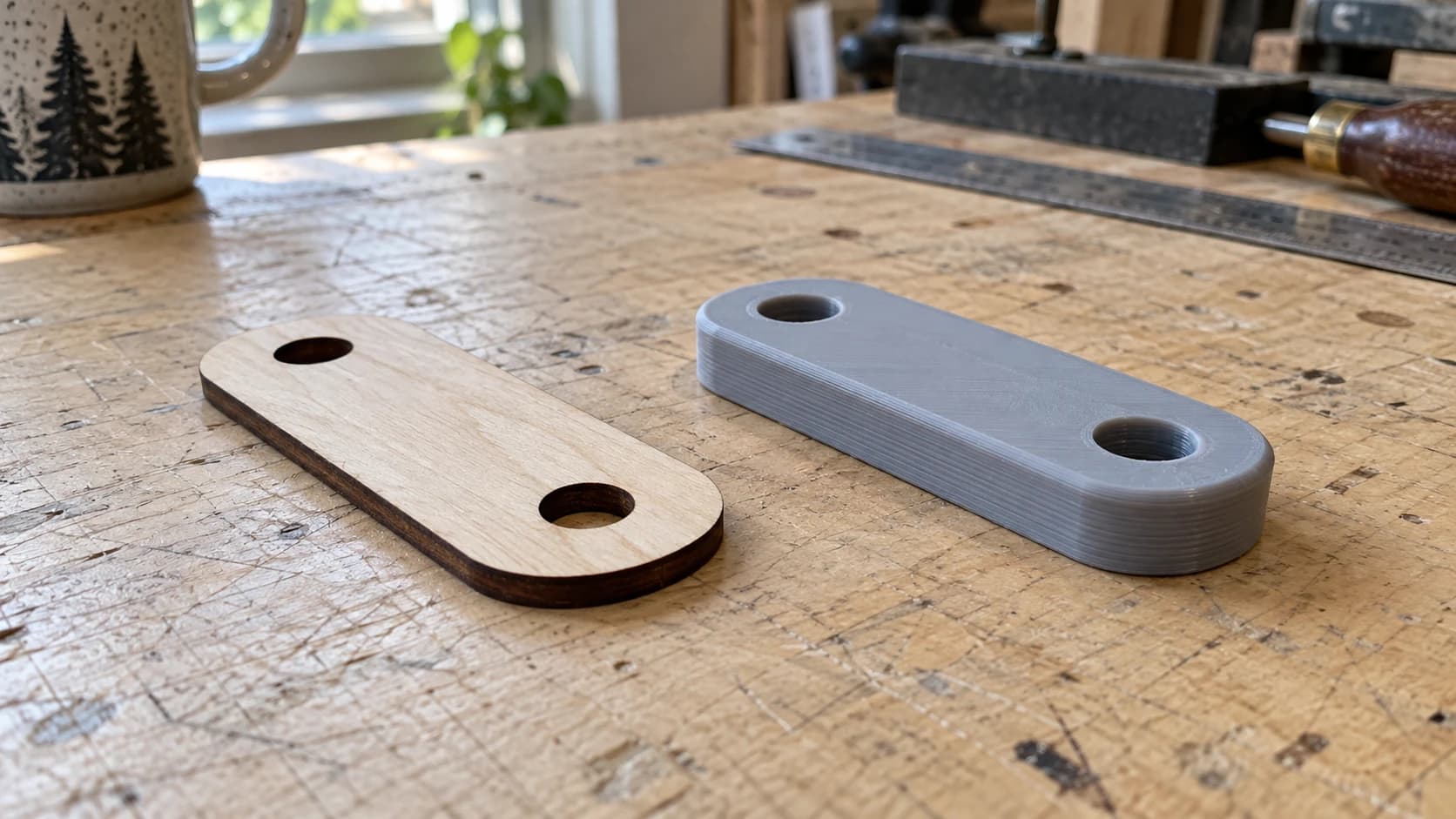
You don't need expensive software to make great things. That might sound like a motivational poster, but it happens to be true. The maker community has built (and benefits from) one of the best ecosystems of free design software in any field. Professional-grade 2D vector editors, parametric 3D CAD, sculpting tools, file converters. All free. All capable of producing files your laser, CNC router, 3D printer, or cutting machine will happily accept.
The catch? There are a lot of options, and they all do different things. Picking the wrong tool for your workflow means wasted hours learning software that doesn't solve your actual problem.
This is the definitive guide. We'll cover every major free design tool that matters for makers, what each one is best at, and which combination you should start with based on your machine.
2D Vector Design (for Laser, CNC, and Cutting Machines)
If you own a laser engraver, CNC router, or cutting machine, vector design software is where you'll spend most of your time. Vector files (SVG, DXF) contain the paths your machine follows to cut, score, and engrave. Getting comfortable with at least one vector editor is non-negotiable.
PRINT. CUT. CARVE.



- Multiple formats (SVG, DXF, PNG)
- Machine-tested designs
- Commercial licenses
Sponsored by PrintCutCarve.com
Inkscape (Free, Open Source)
Inkscape is the free alternative to Adobe Illustrator, and it's the most widely used design tool in the hobby laser and CNC community. If you ask for help in any maker forum and mention you're designing something, someone will say "use Inkscape." They're usually right.
The core strength is that Inkscape works natively with SVG. You're not exporting to SVG from some proprietary format. You're working directly in the file format your machine wants. Create a design, save it, and it's ready for your laser or cutting machine.
What you get: a full vector editor with path operations (union, difference, intersection), node editing, bezier curves, text tools, clones, layers, and a huge library of extensions. You can create complex designs from scratch or edit existing SVGs. Need to clean up a downloaded file? Remove an element from a design? Combine two SVGs into one? Inkscape handles all of it.
The learning curve is moderate. The interface looks dated compared to modern design tools (it still has that early-2000s toolbar energy), but the capability is there. Most makers get productive within a few days of casual use. There are hundreds of tutorials on YouTube specifically for maker workflows.
Available on: Windows, Mac, Linux Best for: Creating vector designs from scratch, editing SVGs, preparing cut and engrave files Native format: SVG
Tip
If your machine software needs DXF instead of SVG, you can convert between supported formats without using credits through File Converter. We cover the full workflow in our SVG to DXF guide. Downloading the converted file requires an active paid plan.
Craftgineer Canvas Pro (Free, Browser-Based)
Canvas Pro is a full image editor that runs in your browser. Layers, brushes, shapes, and text, with nothing to install.
Canvas Pro exports PNG, JPEG, and WebP. Those are raster formats, so when you need a path your laser can follow, send the exported PNG through MonoTrace to get an SVG. Both tools are free, and doing the cleanup in Canvas Pro first is what makes the trace come out clean.
It pairs naturally with MonoTrace (more on that below), so you can edit a raster image, export it, and vectorize it into clean paths without leaving the browser.
Canvas Pro won't replace Inkscape for complex path editing or advanced vector operations. But for combining images, adding text to designs, cleaning up artwork, and quick edits, it's faster because there's nothing to install. Open the browser, start working.
We wrote a full walkthrough of maker workflows in our Canvas Pro guide.
Best for: Quick edits, combining images, adding text to designs, preparing files when you don't want to open a full desktop app Runs in: Any modern browser
Craftgineer MonoTrace (Free, Browser-Based)
MonoTrace solves one specific problem, and it solves it well: converting raster images (PNG, JPG) into clean SVG vectors.
You have a logo, a piece of clip art, or a hand-drawn sketch you photographed. Your machine needs vector paths. MonoTrace traces the edges in your image and outputs smooth bezier curves as an SVG file. Upload, hit Vectorize, download. The whole process takes about 30 seconds.
This is genuinely one of the most common tasks in any maker workflow. You find an image you want to use, and it's a PNG. Now what? MonoTrace is the answer.
We covered the full process, including tips for getting the cleanest traces, in our PNG to SVG conversion guide.
Best for: Turning logos, clip art, sketches, and photos into machine-ready vector files Runs in: Any modern browser
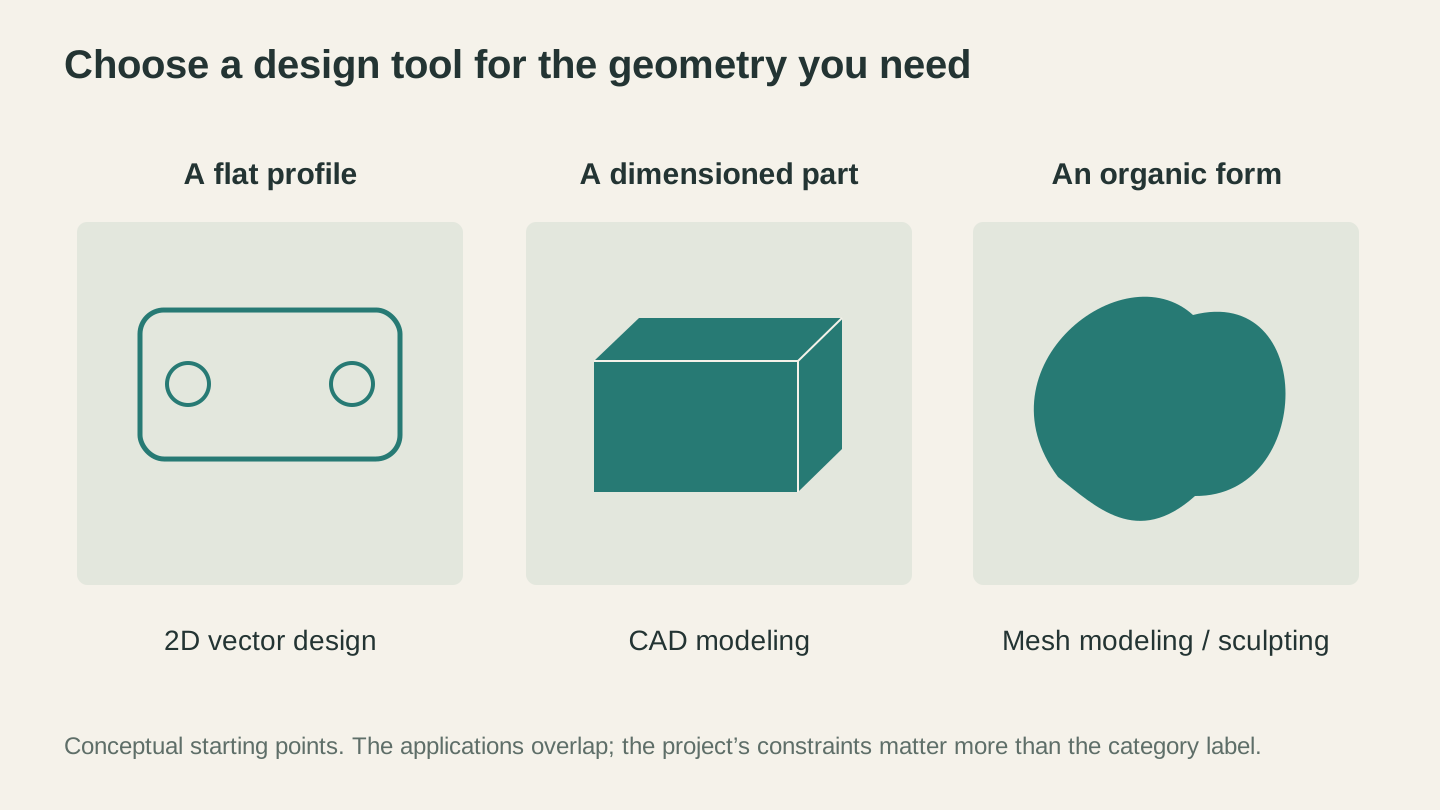
Start with the geometry you need to create. Flat cutting outlines, dimensioned parts and sculpted forms call for different editing tools.
3D CAD/CAM (for CNC and 3D Printing)
If you're doing CNC routing or 3D printing, you'll eventually need 3D modeling software. The 2D vector tools above handle flat designs. These handle objects with depth.
Fusion 360 (Free for Personal Use)
Fusion 360 is the gold standard for hobby CNC users, and for good reason. It's a professional-grade parametric CAD/CAM package from Autodesk, and the free personal use license gives you access to tools that cost thousands of dollars in any other package.
Parametric modeling means your design is driven by dimensions you can change after the fact. Sketch a bracket, extrude it, add holes and fillets. Later decide the bracket should be 2mm thicker? Change one number and the entire model updates. This is how engineers design things, and once you learn to think parametrically, you won't go back.
The CAM side is what really sets Fusion 360 apart for CNC users. You can go from 3D model to G-code toolpaths in the same software. Define your stock, choose your tools, set feeds and speeds, simulate the cut to check for collisions, and export the code your machine runs. No additional software needed.
The learning curve is steep. Fusion 360 is deep software with a lot of features, and the interface can be overwhelming at first. Budget a few weeks of regular practice to feel comfortable. But the investment pays off because you're learning one tool that handles modeling, assemblies, simulation, and toolpath generation.
Available on: Windows, Mac Best for: CNC toolpath generation, functional 3D prints, mechanical parts, anything that needs precise dimensions Free tier: Personal use license (limited assemblies and some advanced features locked)
FreeCAD (Free, Open Source)
FreeCAD is the fully open-source alternative to Fusion 360. No license restrictions, no cloud dependency, no worrying about Autodesk changing the terms of their free tier (which has happened before).
It offers parametric modeling, FEM analysis (stress simulation), and a growing ecosystem of workbenches for different tasks. The Path workbench handles CNC toolpath generation, similar to Fusion 360's CAM module.
The honest assessment: FreeCAD's UI is rougher than Fusion 360. The workflow is less polished, and some operations that are intuitive in Fusion require more manual steps in FreeCAD. The sketcher has improved dramatically in recent versions, but it still occasionally frustrates users coming from commercial software.
That said, FreeCAD is improving rapidly. The development community is active, and every major release brings noticeable improvements. If you value open source, want to avoid any licensing concerns, or prefer software that runs locally without cloud features, FreeCAD is a legitimate choice.
Available on: Windows, Mac, Linux Best for: Users who want full open source with no license restrictions, mechanical design, parametric modeling
TinkerCAD (Free, Browser-Based)
TinkerCAD is the gentlest on-ramp to 3D modeling that exists. If you've never created a 3D model before and the idea of parametric CAD makes your eyes glaze over, start here.
The concept is simple: drag primitive shapes (cubes, cylinders, spheres, cones) onto a workplane and combine them using boolean operations. Want a box with a hole in it? Place a box, place a cylinder, make the cylinder a "hole," group them together. Done. The interface is colorful, friendly, and hard to get lost in.
TinkerCAD won't handle complex mechanical parts or assemblies. You'll outgrow it if you get serious about design. But for your first dozen 3D prints, it's perfect. You can go from zero experience to a printable STL file in about fifteen minutes.
Available on: Any modern browser (Autodesk account required) Best for: Beginners, simple 3D prints, introducing kids to 3D modeling, quick prototyping of basic shapes
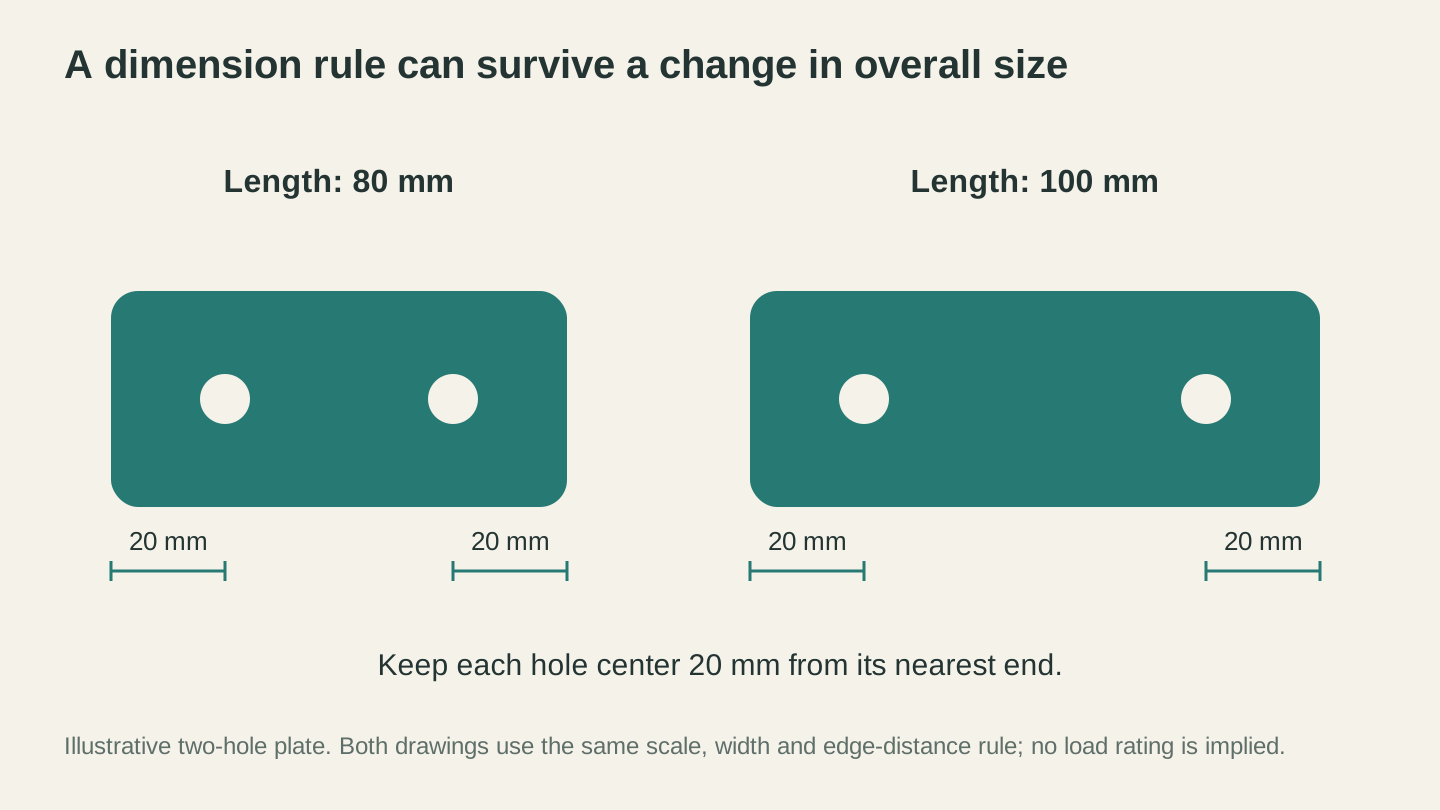
In this dimensioned example, changing the plate length moves the holes while preserving their distance from each end. It illustrates a modeling constraint, rather than a screenshot from a particular CAD app.
3D Modeling and Sculpting
These tools go beyond engineering-style CAD into artistic and code-driven 3D modeling. Different tools for different kinds of thinking.
Blender (Free, Open Source)
Blender is an absolute powerhouse. It's a professional 3D modeling, sculpting, animation, and rendering package used in film, game development, and visual effects. It also happens to be completely free.
For makers, Blender's sculpting tools are the standout feature. Want to create an organic, hand-sculpted 3D model for CNC carving or 3D printing? A dragon, a face, a decorative relief panel? Blender's sculpting mode lets you push, pull, and shape a mesh the way a potter shapes clay. The result can be exported as STL or OBJ for your machine.
Blender can also import SVG files and extrude them into 3D shapes, which is handy for converting 2D designs into 3D prints or CNC carvings.
Fair warning: the learning curve is very steep. Blender is packed with features, and the interface is dense. It's the kind of software where you'll spend your first hour figuring out how to navigate the viewport. But once you get past the initial learning wall, the creative possibilities are enormous. There's nothing else free that comes close for organic 3D modeling.
Available on: Windows, Mac, Linux Best for: Artistic and organic models, sculpted reliefs, decorative 3D prints, advanced users who want maximum creative control
OpenSCAD (Free, Open Source)
OpenSCAD takes a fundamentally different approach to 3D modeling: you write code. Instead of clicking and dragging shapes, you write a script that describes the geometry. A cylinder with a specific radius and height. A cube with a hole subtracted from it. An array of objects placed at calculated positions.
This sounds unusual if you're used to visual design tools, but it's incredibly powerful for certain kinds of work. Because the model is defined by code, it's parametric by nature. Change a variable at the top of your script and the entire model updates. Want to create a box that accepts different sizes? Write the script once with variables for width, height, and depth, then generate any size box by changing three numbers.
OpenSCAD is popular with programmers-turned-makers and anyone designing parametric parts: cases, brackets, enclosures, jigs, and fixtures. It's also the engine behind Thingiverse's Customizer feature, which lets users adjust parameters on shared designs.
Available on: Windows, Mac, Linux Best for: Parametric parts, customizable designs, programmers who think in code, jigs and fixtures
Info
OpenSCAD models export to STL, which is perfect for 3D printing. For CNC work, you'd typically design your 2D profiles in a vector editor and use 3D CAD/CAM software like Fusion 360 for toolpath generation.
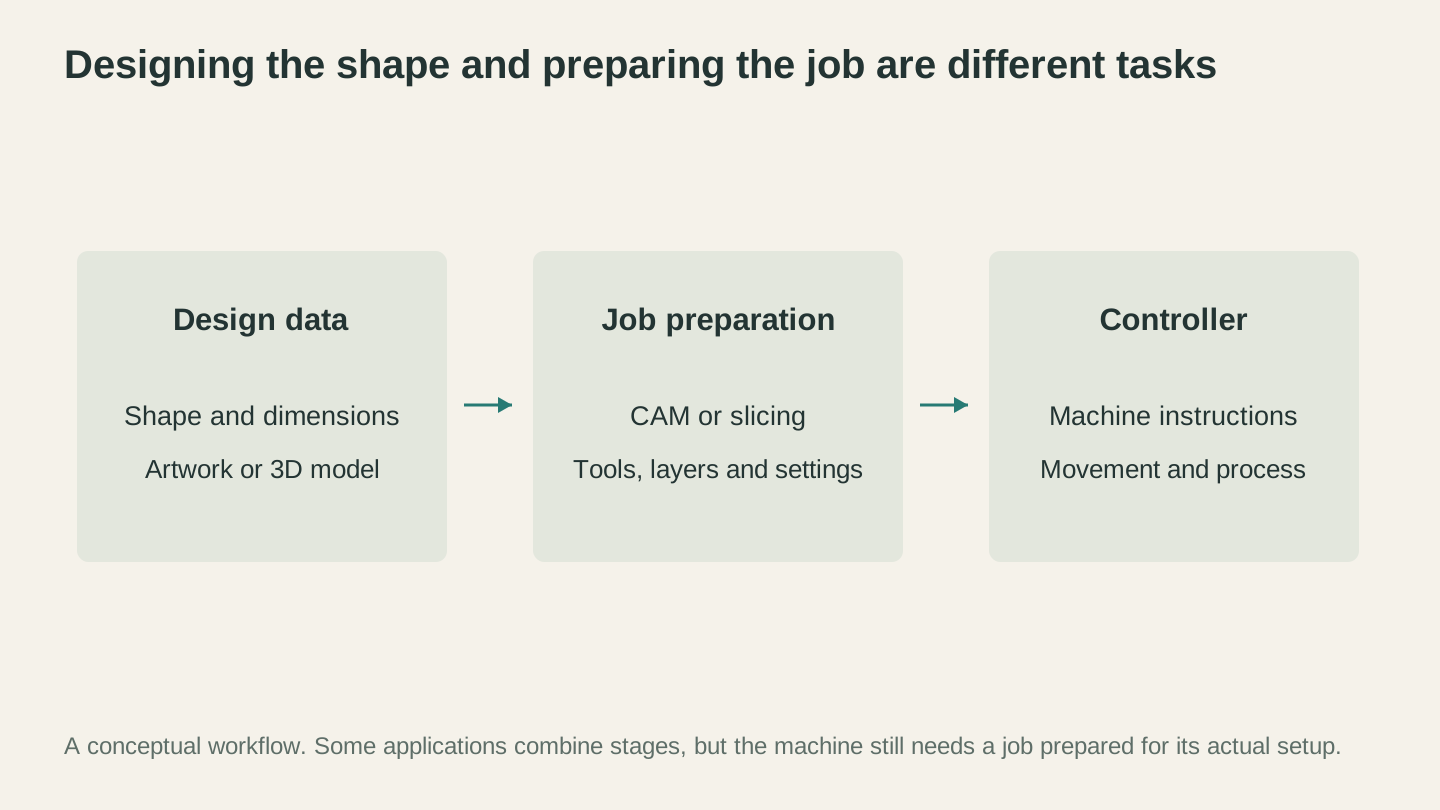
Designing the object and preparing its machine job are separate steps. Check how your tools pass geometry, dimensions and process settings between them.
File Conversion and Utility Tools
Having the right design tool is half the battle. The other half is getting your file into the format your machine actually wants. Different machines, different software, different format requirements. File conversion is an unavoidable part of maker life.
Craftgineer File Converter (No Credit Charge; Paid Downloads)
File Converter handles the format mismatches that constantly pop up in maker workflows:
- SVG to DXF for laser software that only accepts DXF (this is the most common conversion makers need)
- Image conversions between PNG, JPG, WebP, GIF, BMP, TIFF, and HEIC
- 3D model conversions between STL, OBJ, and 3MF
- PDF to SVG for extracting vector content from PDF files
Upload a file and choose one of the supported output formats. Conversion uses no tool credits, but downloading the result requires an active paid plan. File-size limits apply; processing runs on the server.
The SVG to DXF conversion alone makes this worth bookmarking. We wrote a detailed guide on how to convert SVG to DXF that covers when and why you'd need this conversion.
Best for: Converting between formats when your design software and machine software don't speak the same language
Other Craftgineer Free Tools
Beyond the core design and conversion tools, Craftgineer offers a few more free utilities:
Monogram Generator creates personalized split and classic monograms for laser engraving and CNC carving. Choose fonts, add decorative frames, download as SVG. Useful when a customer wants a monogram and you don't want to build one from scratch in Inkscape every time.
QR Code Generator builds customizable QR codes for URLs, contact cards, and WiFi credentials. Download as PNG for raster engraving or SVG for vector cutting.
And if you want to go beyond free tools, Vector Studio uses AI to generate custom SVG designs from text descriptions. Describe what you want, pick a style, and get a machine-ready vector file. It costs one credit per generation, but it's worth mentioning because it can produce designs in seconds that would take hours to draw manually. We covered it in detail in our AI SVG generator guide.
Comparison Table
Here's every tool mentioned in this guide, at a glance:
| Software | Type | Best For | Learning Curve | Platform |
|---|---|---|---|---|
| Inkscape | 2D Vector Editor | Vector design, SVG editing, cut files | Moderate | Win, Mac, Linux |
| Canvas Pro | Image Editor | Quick edits, combining images, text | Easy | Browser |
| MonoTrace | Image Vectorizer | Converting PNG/JPG to SVG | Very Easy | Browser |
| Fusion 360 | 3D CAD/CAM | CNC toolpaths, functional parts | Steep | Win, Mac |
| FreeCAD | 3D CAD | Open source parametric modeling | Steep | Win, Mac, Linux |
| TinkerCAD | 3D Modeler | Beginners, simple 3D prints | Very Easy | Browser |
| Blender | 3D Modeling/Sculpting | Organic models, artistic work | Very Steep | Win, Mac, Linux |
| OpenSCAD | Code-Based 3D | Parametric parts, programmers | Moderate | Win, Mac, Linux |
| File Converter | File Conversion | SVG to DXF, format conversion | Very Easy | Browser |
Tip
You don't need to learn all of these. Pick one or two based on your machine and the section below, then branch out as your projects demand it.
Which Should You Start With?
The "best" software depends entirely on what machine you have and what you're trying to do. Here are the recommended starting points:
Beginner laser or cutting machine user: Start with Inkscape for creating and editing vector designs, MonoTrace for converting images to SVG, and File Converter for handling DXF conversions when your software requires them. This combination covers 90% of what you'll need for flat cutting and engraving projects.
Beginner CNC user: Start with Fusion 360 for 3D modeling and toolpath generation, plus Inkscape for 2D design work. CNC routing often involves both 2D profiles (cut from flat stock) and 3D shapes (carved from thick stock), so having both a vector editor and a CAD/CAM package is important.
Beginner 3D printing user: Start with TinkerCAD to learn the basics of 3D modeling without drowning in features. Once you're comfortable thinking in three dimensions, move to Fusion 360 for mechanical/functional parts or Blender for artistic/organic models. Most people eventually land on one of those two depending on whether they're making practical parts or decorative objects.
The programmer maker: Start with OpenSCAD if you think in code and want parametric models you can generate programmatically. Combine with Inkscape for 2D work.
The beautiful thing about this list is that every single tool on it is free. You're not choosing between them based on budget. You're choosing based on what fits your brain and your workflow. Try a few. Keep the ones that click. Drop the ones that don't.
The Only Investment Is Your Time
The barrier to entry for digital fabrication has never been lower. Ten years ago, the software alone would have cost hundreds or thousands of dollars. Today, the tools are free, the tutorials are free, and the community knowledge is free.
The only investment is your time learning them. And honestly? That's the fun part. Every hour you spend getting better at Inkscape or Fusion 360 directly translates into better projects coming off your machine. The software isn't the bottleneck anymore. Your imagination is.
Now go make something.
Related Tools
MonoTrace
Turn photos and artwork into SVG outlines for free, with an optional sketch mode.
Canvas Pro
Edit images with layers, brushes, shapes, text, and selection tools. Export PNG, JPEG, or WebP.
File Converter
Convert supported combinations of vector, document, raster-image, and 3D-mesh formats.
Plan required for downloads
Ready to try these tools?
Sign up free, no credit card required. Free tools available immediately.
Start Free