

CNC Feeds and Speeds for Beginners (Wood, Acrylic, MDF)
Feeds and speeds. The two words that make CNC beginners break out in a cold sweat.
Every forum post says "get your feeds and speeds right." Every YouTube comment says "check your chip load." And every calculator spits out numbers that feel either too aggressive or too conservative, with zero explanation of why.
Here's the good news: feeds and speeds aren't complicated. There are exactly four numbers that matter, and once you understand what each one does, you can calculate settings for any material and any bit. If you've already read our CNC beginner's guide, you know the basics of how a CNC router works. This post fills in the details on the settings that make the difference between clean cuts and broken bits.
The Four Numbers That Control Everything
1. Spindle Speed (RPM)
How fast your bit spins. A trim router like the Makita RT0701C runs between 10,000 and 30,000 RPM. A proper spindle with VFD gives you more precise control.
Higher RPM = smoother finish but more heat. Lower RPM = rougher finish but cooler cuts.
Most hobbyist CNC work on wood happens between 16,000 and 24,000 RPM.
2. Feed Rate (mm/min or IPM)
How fast the machine moves the bit through the material. This is the speed of the X/Y axis movement during a cut.
Faster feed = each tooth takes a bigger bite = more aggressive cutting. Slower feed = each tooth takes a smaller bite = lighter cutting (but can cause heat buildup).
Yes, going too slow can actually be worse than going too fast. We'll get to why in a minute.
3. Depth of Cut (DOC)
How deep each pass goes. Also called "stepdown." If you're cutting a 12mm pocket, you might take 3mm passes (four total) instead of trying to hog it all out in one go.
Deeper passes = more force on the bit, more load on the machine. Shallower passes = less force, slower overall job time.
Your machine's rigidity determines how deep you can go. A beefy Onefinity handles 3-4mm passes in hardwood. A wobbly 3018 should stick to 0.5-1mm.
4. Stepover (for pocketing)
When you're clearing a pocket, the bit doesn't just do one pass. It makes multiple side-by-side passes. Stepover is the sideways distance between adjacent tool passes, often expressed as a percentage of bit diameter. A smaller stepover gives more overlap.
40-50% stepover is typical for roughing (fast material removal). 10-20% stepover is for finishing passes (smooth surface).
PRINT. CUT. CARVE.



- Multiple formats (SVG, DXF, PNG)
- Machine-tested designs
- Commercial licenses
Sponsored by PrintCutCarve.com
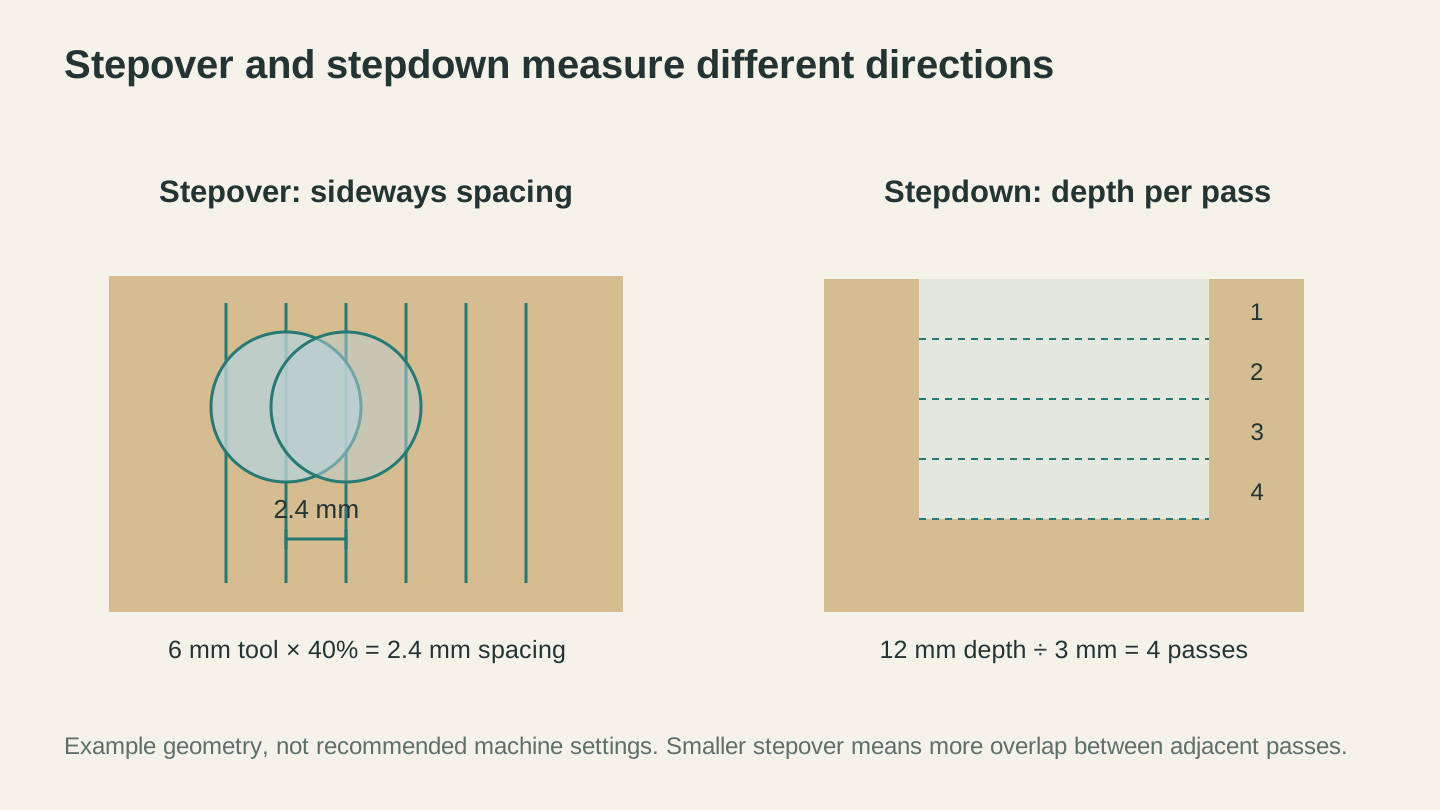
Stepover measures spacing between adjacent passes; stepdown measures depth added on each pass. These dimensions explain the terms rather than prescribe cutting settings.
Chip Load: The Number Behind the Numbers
Here's where it all comes together. Chip load is the thickness of material each cutting edge removes per revolution. It's measured in millimeters (or thousandths of an inch).
The formula is simple:
Chip Load = Feed Rate / (RPM x Number of Flutes)
So if you're running at 1500 mm/min with a 2-flute bit at 18,000 RPM:
1500 / (18,000 x 2) = 0.042mm chip load
That number tells you whether your cut is healthy or not.
What happens when chip load is wrong
Chip load too small (rubbing): The bit isn't cutting, it's rubbing. Friction generates heat. Heat dulls the bit faster, can burn the material, and in plastics, melts the material back onto the bit. This is why going too slow is sometimes worse than going too fast.
Chip load too large (overloading): The bit is taking bites that are too big. You get chattering, rough cuts, deflection, and eventually a snapped bit. Your machine groans and the cut looks terrible.
Chip load in the sweet spot: Clean chips come off the bit, the surface is smooth, the bit stays cool, and the cut sounds consistent. You'll know it when you hear it.
Info
The sound of your CNC is the best diagnostic tool you have. A good cut has a consistent, smooth hum. A bad cut chatters, screams, or makes inconsistent popping noises. Train your ears and they'll tell you when something is off before your eyes do.
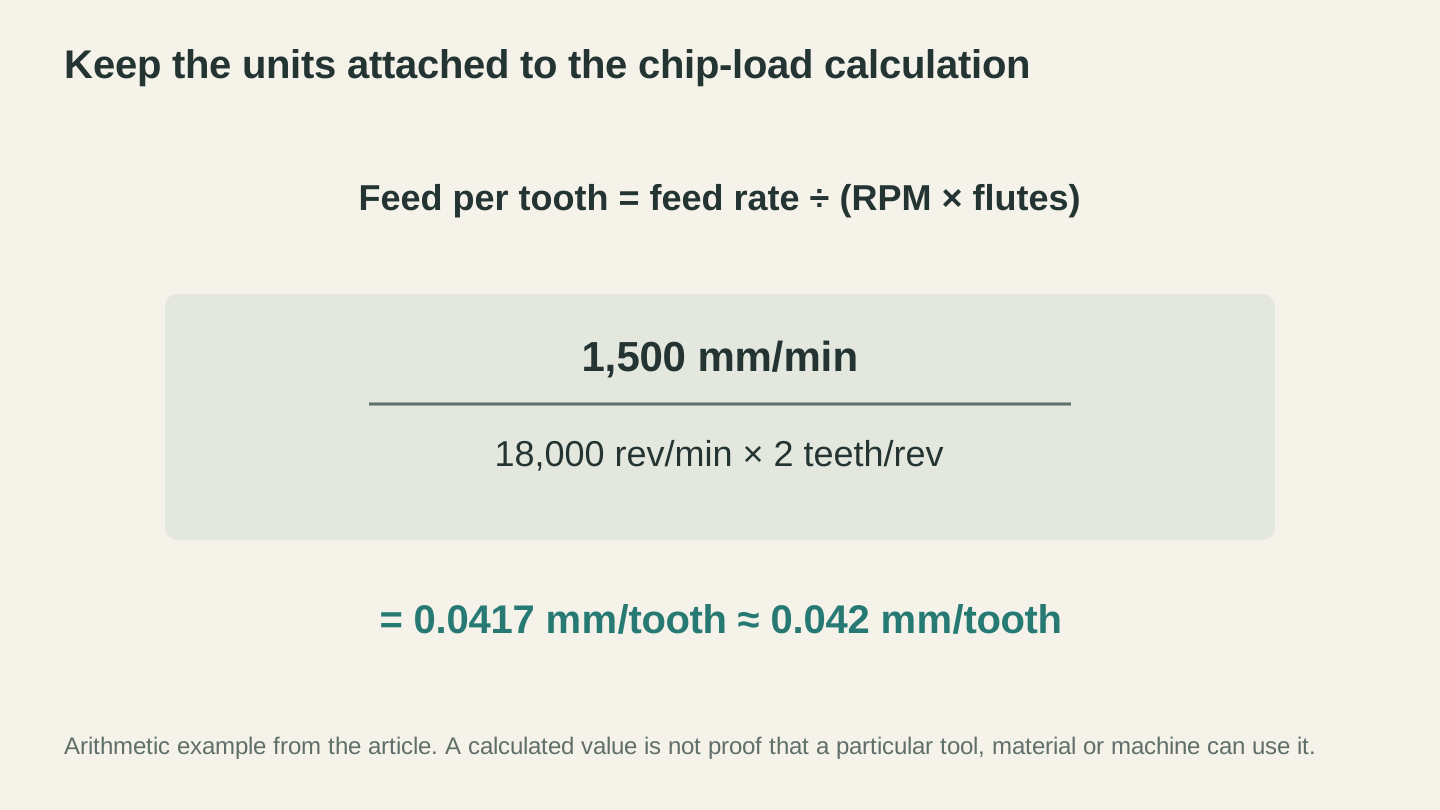
At 1,500 mm/min, 18,000 rpm and two flutes, the calculated chip load is about 0.042 mm per tooth. Check the tool and material guidance before choosing settings.
Recommended Chip Loads by Material
These are the target chip load values you're aiming for. Use them with the formula above to calculate your feed rate for any RPM.
Wood
| Material | Chip Load (mm) | Chip Load (inches) | Notes |
|---|---|---|---|
| Softwood (pine, cedar, basswood) | 0.04 - 0.06 | 0.0015 - 0.0025 | Forgiving, hard to mess up |
| Hardwood (maple, cherry, walnut) | 0.03 - 0.05 | 0.0012 - 0.0020 | More force needed, go moderate |
| Plywood (birch, baltic birch) | 0.03 - 0.05 | 0.0012 - 0.0020 | Glue layers are tough on bits |
| MDF | 0.03 - 0.05 | 0.0012 - 0.0020 | Dusty, consistent density |
| Bamboo | 0.03 - 0.04 | 0.0012 - 0.0015 | Hard, treat like a hardwood |
Plastics
| Material | Chip Load (mm) | Chip Load (inches) | Notes |
|---|---|---|---|
| Acrylic (cast) | 0.05 - 0.08 | 0.0020 - 0.0030 | Single flute recommended |
| Acrylic (extruded) | 0.04 - 0.06 | 0.0015 - 0.0025 | Melts easier than cast |
| HDPE | 0.06 - 0.10 | 0.0025 - 0.0040 | Very forgiving, cuts like butter |
| PVC foam board (Sintra) | 0.05 - 0.08 | 0.0020 - 0.0030 | Light, use single flute |
Aluminum (Hobby CNC)
| Material | Chip Load (mm) | Chip Load (inches) | Notes |
|---|---|---|---|
| 6061 Aluminum | 0.02 - 0.04 | 0.001 - 0.0015 | Use single flute, add lubricant |
Warning
Cutting aluminum on a hobby CNC is possible but demanding. Use a single-flute upcut bit, keep chip loads conservative, use cutting fluid (even WD-40 works in a pinch), and take shallow passes. If your machine is on the flexible side, wait until you've got experience with wood first.
Starter Settings Tables
Don't want to run the formula? Here are ready-to-use settings for the most common scenarios. These assume a mid-range hobby CNC (Shapeoko, X-Carve, LongMill class) with a trim router.
1/4" (6.35mm) Flat End Mill, 2 Flute
| Material | RPM | Feed Rate (mm/min) | DOC (mm) | Stepover (%) |
|---|---|---|---|---|
| Softwood | 18,000 | 2000 | 3.0 | 40% |
| Hardwood | 18,000 | 1500 | 2.0 | 40% |
| Plywood | 18,000 | 1500 | 2.5 | 40% |
| MDF | 18,000 | 1800 | 2.5 | 40% |
| Cast Acrylic | 16,000 | 1200 | 2.0 | 40% |
1/8" (3.175mm) Flat End Mill, 2 Flute
| Material | RPM | Feed Rate (mm/min) | DOC (mm) | Stepover (%) |
|---|---|---|---|---|
| Softwood | 20,000 | 1200 | 1.5 | 40% |
| Hardwood | 20,000 | 1000 | 1.0 | 40% |
| Plywood | 20,000 | 1000 | 1.0 | 40% |
| MDF | 20,000 | 1200 | 1.5 | 40% |
| Cast Acrylic | 18,000 | 800 | 1.0 | 40% |
60-Degree V-Bit
| Material | RPM | Feed Rate (mm/min) | Max DOC (mm) |
|---|---|---|---|
| Softwood | 18,000 | 1500 | 3.0 |
| Hardwood | 18,000 | 1200 | 2.5 |
| MDF | 18,000 | 1500 | 3.0 |
90-Degree V-Bit
| Material | RPM | Feed Rate (mm/min) | Max DOC (mm) |
|---|---|---|---|
| Softwood | 18,000 | 1800 | 4.0 |
| Hardwood | 18,000 | 1400 | 3.0 |
| MDF | 18,000 | 1800 | 4.0 |
Tip
When in doubt, start with the conservative end of these ranges and work up. It's much cheaper to make a slightly slow cut than to snap a bit because you were too aggressive. Increase feed rate by 10% at a time until the cut sounds and looks right.
How to Calculate Your Own Settings
Here's the step-by-step method to figure out feeds and speeds for any combination of bit and material:
Step 1: Find your target chip load from the tables above.
Step 2: Pick your RPM. For wood on a trim router, 18,000 RPM is a solid default. For plastics, try 16,000 RPM (lower heat).
Step 3: Calculate feed rate: Feed Rate = Chip Load x RPM x Number of Flutes
Example: Cutting hardwood with a 2-flute 1/4" end mill.
- Target chip load: 0.04mm
- RPM: 18,000
- Flutes: 2
- Feed Rate = 0.04 x 18,000 x 2 = 1,440 mm/min
Round to 1,400 or 1,500 mm/min. Done.
Step 4: Set your depth of cut. A safe starting rule: DOC should equal the bit diameter or less. For a 1/4" bit, start at 3mm (about half the diameter). For a 1/8" bit, start at 1-1.5mm.
Step 5: Run a test cut in scrap. Listen to the sound, check the chips, look at the cut quality. Adjust from there.
Reading Your Chips
The chips (or dust) coming off your bit tell you a lot about whether your settings are right.
Tiny dust particles: Chip load is too low. You're rubbing, not cutting. Increase feed rate or decrease RPM.
Nice, consistent small chips: You're in the zone. The bit is making proper cuts and clearing material efficiently.
Large, chunky chips or tear-out: Chip load might be too high, or you're taking too deep a cut. Slow down the feed rate or reduce depth of cut.
Melted or gummy chips (plastics): Too much heat. Decrease RPM, increase feed rate, or switch to a single-flute bit for better chip evacuation.
Flute Count: Why It Matters
The number of cutting edges (flutes) on your bit directly affects chip load and chip evacuation.
1 flute: Best for plastics and aluminum. Huge chip clearance channel. Less likely to re-cut chips and generate heat.
2 flute: The sweet spot for wood. Good balance between chip clearance and surface finish. This is your default for most CNC wood work.
3 flute: Better surface finish, but smaller chip channels. Works well at higher RPMs on harder materials. Not great for soft/gummy materials.
Upcut vs Downcut vs Compression
While we're talking about bits, this comes up constantly:
Upcut: Pulls chips up and out of the cut. Clean bottom surface, rougher top edge. Best for pocketing (chips need to evacuate).
Downcut: Pushes chips down into the cut. Clean top surface, rougher bottom. Good for surface engraving and through-cuts where the top face matters.
Compression: Upcut on the bottom portion, downcut on the top portion. Clean edges on both faces. Perfect for cutting through plywood and sheet goods, but only works when your depth of cut engages both the upcut and downcut sections of the flute.
Common Mistakes
Setting RPM too low. Hobby CNC routers are designed to run at high RPMs with low chip loads. Running at 8,000 RPM "because it seems safer" actually makes things worse because you need proportionally slower feed rates, which makes the job take forever and dulls your bit.
Not adjusting for bit size. A 1/8" bit cannot handle the same depth of cut as a 1/4" bit. It's half the diameter, so roughly half the rigidity. Reduce your DOC proportionally.
Ignoring your machine's limits. The formulas might say to feed at 3,000 mm/min, but your 3018 desktop CNC can't actually move that fast without losing steps. Know your machine's maximum feed rate and stay under it.
Using the same settings for different materials. Pine and maple are both "wood" but they behave very differently. Pine is soft and resinous. Maple is dense and hard. Don't use the same speeds for both.
Go Make Chips
Here's your action plan:
- Pick the closest settings from the tables above
- Grab a scrap piece of the material you want to cut
- Run a test cut
- Listen. Look at the chips. Check the surface quality
- Adjust by 10% increments until it sounds right
- Write down what worked
The numbers in this guide will get you started. Your ears and your test cuts will get you dialed in.
Got a design stuck in the wrong format for your CAM software? Convert your SVG to DXF with File Converter, without a tool-credit charge, so format headaches don't slow down your next cut. Downloading the converted file requires an active paid plan.
Happy making.
Related Tools
Ready to try these tools?
Sign up free, no credit card required. Free tools available immediately.
Start Free