

Getting Started with CNC Routing: A Complete Beginner's Guide
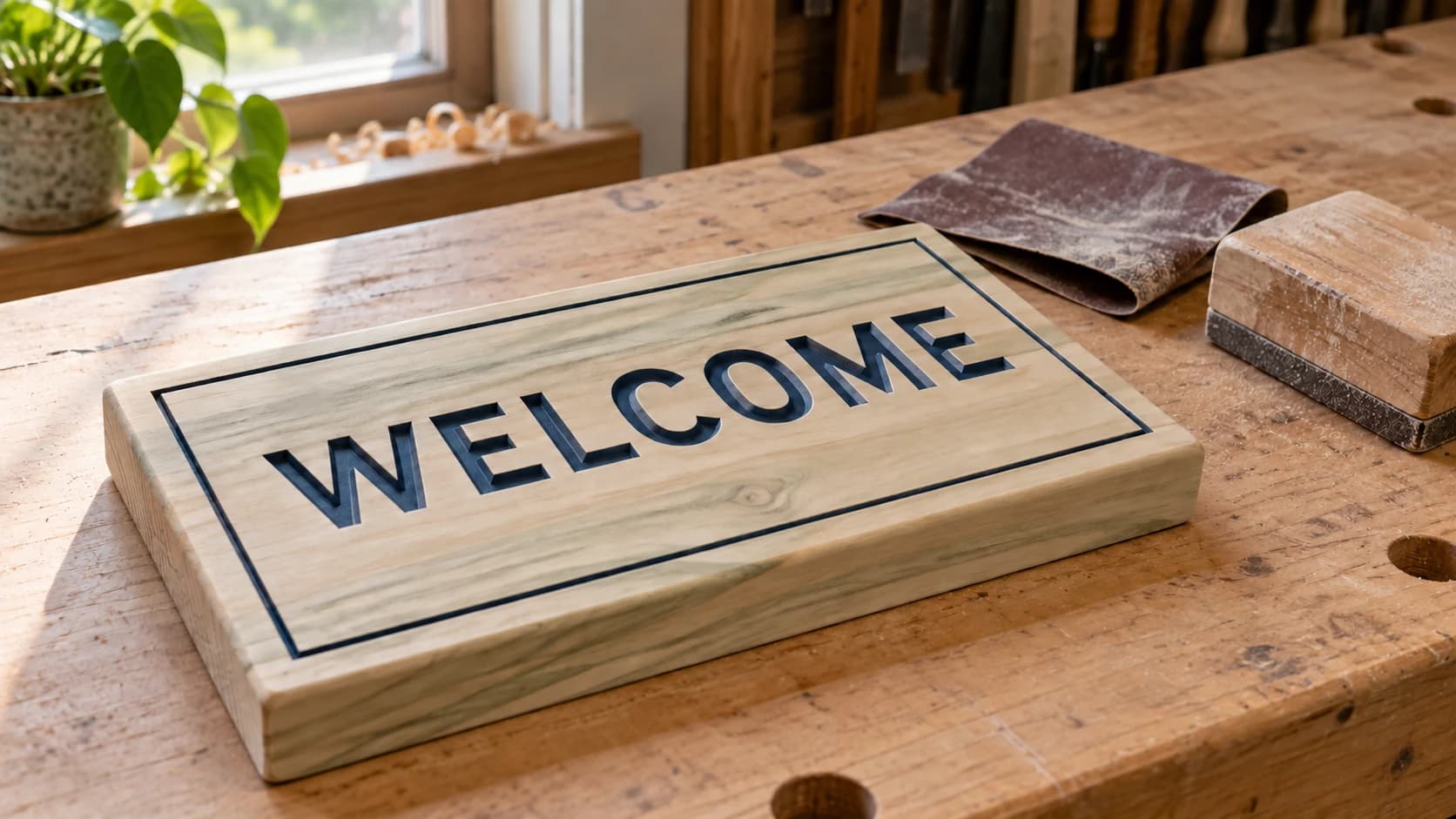
You just bought a CNC router. It arrived in a box that weighs more than your dog, and the assembly instructions assume you already know what "tramming the spindle" means. Welcome to the club. Every CNC owner has stood in their garage surrounded by aluminum extrusions and mystery bolts, wondering if they made a terrible financial decision.
They didn't. And neither did you.
This guide walks you through everything from setup to your first finished project. No jargon walls, no prerequisite engineering degree. If you've already gone through our laser engraving beginner's guide, you'll notice some familiar concepts here. The workflow is similar, but CNC routers have their own quirks, and a spinning bit is a very different beast than a laser beam.
Safety First (This One Can Physically Grab You)
A laser can burn you. A CNC router can grab your sleeve, throw a piece of wood across the room, or snap a bit and send fragments flying. This is a machine with a spinning cutter doing 10,000+ RPM. Respect it.
Here's your non-negotiable safety checklist:
-
Wear safety glasses. Every single time. Not sunglasses. Actual impact-rated safety glasses. Bits can break, chips can fly, and your eyes don't get replacements.
-
Wear hearing protection. CNC routers are loud. Like, "your spouse can hear it through two walls" loud. Earplugs or over-ear muffs. Your pick.
-
No loose clothing, jewelry, or long sleeves near the spindle. A spinning bit will grab a dangling hoodie string and things go bad very fast. Tie back long hair too.
-
Dust collection is not optional. CNC routing creates a shocking amount of dust. MDF dust in particular is nasty for your lungs (it contains formaldehyde). At minimum, use a shop vac connected to your router's dust shoe. Better yet, wear a dust mask even with collection running.
-
Never reach near the spindle while it's running. Sounds obvious. You'd be surprised how many people try to brush away chips while the machine is cutting.
-
Keep an emergency stop button accessible. Know where it is before you start cutting. Practice hitting it. You don't want your first time finding it to be during an actual emergency.
Warning
MDF dust contains urea-formaldehyde resin and is classified as a carcinogen with prolonged exposure. Always use dust collection and wear a proper dust mask (N95 minimum) when cutting MDF. Your lungs will thank you in 20 years.
PRINT. CUT. CARVE.



- Multiple formats (SVG, DXF, PNG)
- Machine-tested designs
- Commercial licenses
Sponsored by PrintCutCarve.com
What Kind of CNC Router Do You Have?
Most hobbyist CNC routers fall into two categories. Knowing which one you have sets your expectations for materials, speeds, and project size.
| Feature | Desktop CNC (e.g., 3018, Sainsmart) | Mid-Size CNC (e.g., Shapeoko, X-Carve, Onefinity) |
|---|---|---|
| Work area | 300x180mm (roughly 12"x7") | 400x400mm to 1300x1300mm |
| Spindle | Small DC motor, 100-300W | Trim router (Makita, DeWalt) or proper spindle, 500W-2.2kW |
| Rigidity | Flexible, limits depth and speed | Much stiffer, handles harder materials |
| Cuts aluminum? | Barely, very slowly | Yes, with the right feeds and speeds |
| Price range | $180 - $400 | $1,000 - $4,000+ |
| Best for | PCBs, small signs, soft wood, learning | Signs, furniture parts, cutting boards, small business |
Desktop CNCs (3018 Pro, Genmitsu, etc.) are great for learning the workflow. They're affordable and compact. But they flex under load, so you're limited to soft materials and shallow cuts. Don't try to cut aluminum on one of these until you really know what you're doing.
Mid-size CNCs (Shapeoko, X-Carve, Onefinity, Avid, LongMill) are where most serious hobbyists land. They handle hardwood, plywood, acrylic, and even aluminum. The investment is bigger, but so is what you can make.
Either way, the fundamental workflow is identical. You just adjust your speeds, depths, and expectations.
The CNC Workflow: CAD to CAM to G-code
This is the part that trips up most beginners. With a laser, you import an image and hit "go." With CNC, there's an extra step in the middle.
Design (CAD) → Toolpath (CAM) → G-code → Machine controller
Let me break that down:
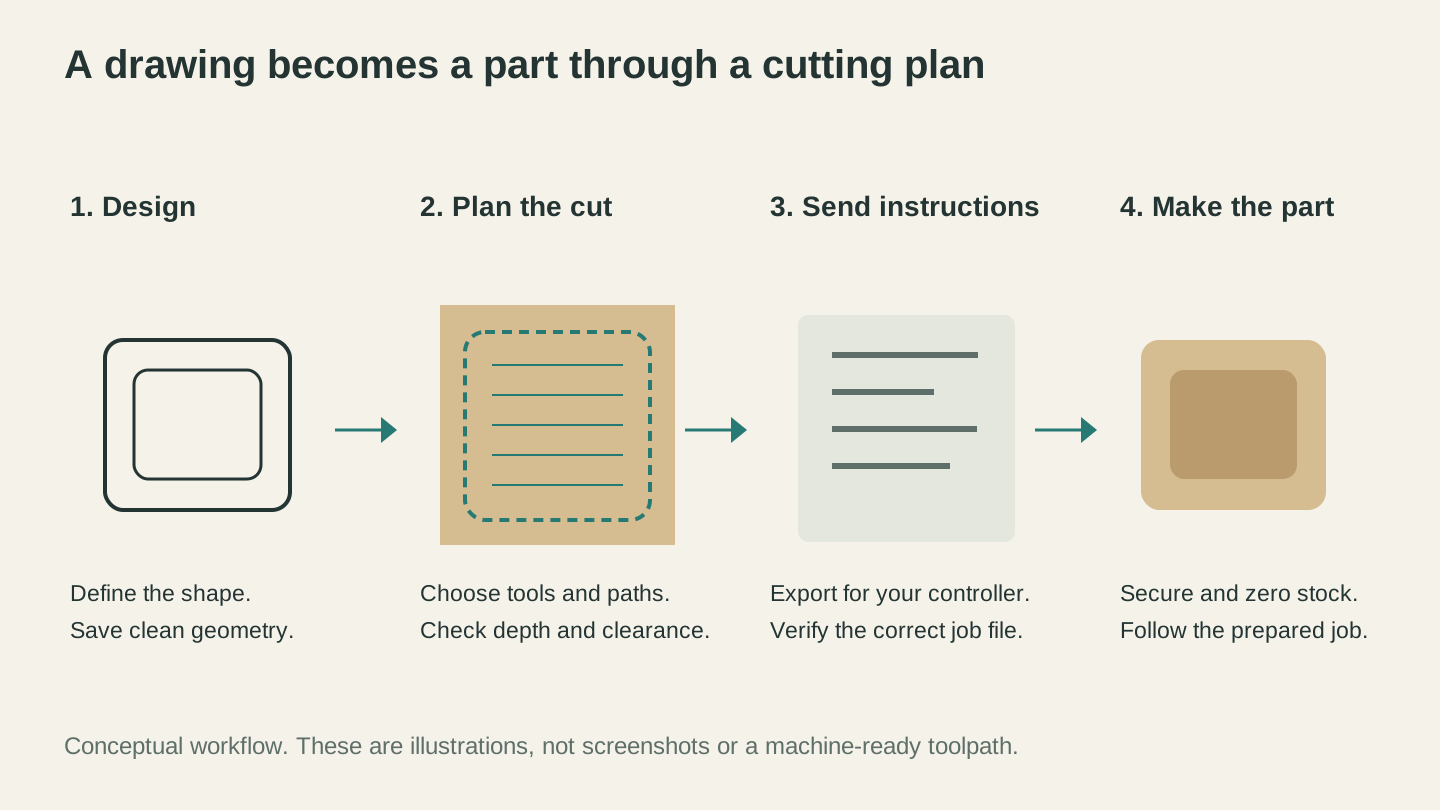
The drawing defines the shape. CAM adds the cutting plan, which is exported for the controller before the prepared stock is machined.
1. Design (CAD)
This is where you create or import your design. You need a 2D drawing (for cutting and V-carving) or a 3D model (for relief carving).
Popular options:
- A free machine-bundled CAD tool (free): Made for Shapeoko but works for any machine. Great starting point with a clean interface.
- A free web-based CAD tool (free): Made for X-Carve but works broadly. Very beginner-friendly.
- A dedicated CAD/CAM package ($350-700): The industry standard for hobbyist CNC. Powerful, handles 2D and 2.5D designs. Worth it once you're committed.
- A full 3D CAD/CAM suite (free for personal use): Steep learning curve, but incredibly powerful if you want to design 3D parts.
- A free vector editor (free): For importing and editing SVG vector files. Pairs well with any CAM tool.
Tip
If you've got a design as an SVG and need to convert it to DXF for your CAM software, File Converter handles that without using tool credits. Check out our SVG to DXF guide for the full walkthrough. Downloading the converted file requires an active paid plan.
2. Toolpath (CAM)
CAM software takes your design and generates the cutting instructions: what bit to use, how fast to move, how deep to cut per pass, and in what order. This is where you tell the machine how to make the thing, not just what the thing looks like.
Most beginner-friendly CAD tools include CAM built-in. Full 3D CAD/CAM suites have a full CAM workspace too.
Common toolpath types:
- Profile/Contour: Cuts along the outline of a shape. Used for cutting parts out of sheet material.
- Pocket: Clears out an area to a specific depth. Used for recesses, inlays, and trays.
- V-Carve: Uses a V-shaped bit to carve text and designs with variable depth. Wider areas get carved deeper. This is what makes those gorgeous carved signs.
- Drill: Plunges straight down to make holes. Simple but necessary.
3. G-code and Machine Control
CAM outputs a file called G-code. It's a list of instructions like "move to X10 Y20 at 1000mm/min while spinning at 18,000 RPM." Your machine controller reads this file and makes it happen.
Controllers you'll see:
- GRBL (free): Runs on most hobby CNCs. It's easy to set up and has extensive community documentation.
- Carbide Motion (free): Shapeoko's controller. Clean interface, built for their machines.
- CNCjs (free): Web-based GRBL sender. Nice interface, runs on a Raspberry Pi.
- Mach4 ($200): Full-featured, for bigger machines. Overkill for beginners.
Bit Selection: Your First Three Bits
Buying CNC bits is overwhelming. There are hundreds of options. You need three to start.
1. Flat End Mill (1/4" or 6mm, 2-flute)
This is your workhorse. Use it for cutting out shapes, pocketing, and general material removal. Two-flute is better for wood because it clears chips faster. Get upcut for clean bottoms, downcut for clean tops. If you only buy one, get an upcut.
2. V-Bit (60 or 90 degree)
For V-carving text and designs. A 60-degree bit gives finer detail. A 90-degree bit is more forgiving and works better for larger text. Start with a 90-degree.
3. Surfacing Bit (1" or 25mm)
Also called a spoilboard surfacing bit or fly cutter. This flattens your wasteboard and stock material. You'll need this more than you think, because a flat surface is the foundation of accurate CNC work.
Info
Cheap bits work fine when you're learning. A 10-pack of import carbide end mills for $15 is perfect for getting started. Once you snap a few (you will), you'll understand why the $12 single bits from Amana or Whiteside are worth the upgrade.
Workholding: Keeping Your Material Still
If your material moves during cutting, the job is ruined. Worse, a loose piece can become a projectile. Here are the most common methods:
- Blue painter's tape + CA glue: Tape on the wasteboard, tape on the bottom of your stock, glue them together. Surprisingly strong and leaves no marks. This is the most popular method for flat stock.
- Clamps: T-track clamps, cam clamps, or regular C-clamps. Quick and reliable, but you need to keep the bit away from them.
- Screws: Screw through the stock into the wasteboard, placing screws where the bit won't hit them (usually in waste areas or tabs). Fast and secure.
- Double-sided tape: Carpet tape works in a pinch for light cuts. Not great for heavy passes.
- Vacuum table: The pro setup. Sucks your material flat against the bed. Expensive and overkill for beginners, but amazing if you do production work later.
Your First Project: A Simple Carved Sign
Let's make something. A small wooden sign is the perfect first project because it uses V-carving (the most satisfying CNC operation) and it's forgiving of mistakes.
What You Need
- A piece of flat wood, roughly 8"x5"x3/4" (pine, poplar, or basswood)
- Your V-bit (60 or 90 degree)
- CAD/CAM software set up and connected
Steps
-
Design your sign. Open your CAM software and create a simple text design. Pick a bold font (anything too thin will be hard to read when V-carved). Type your name, "Welcome," or whatever you want. Keep it to one or two lines for your first attempt.
-
Create the toolpath. Select your text and create a V-carve toolpath. Set your V-bit details (angle, diameter). Set a max depth of about 3mm. The software will calculate the varying depths automatically based on the width of each letter.
-
Secure your stock. Use the tape-and-glue method or clamp your wood to the wasteboard. Make sure it's flat and won't shift.
-
Set your zero point. This tells the machine where "home" is. Most beginners set X/Y zero at the bottom-left corner of the stock, and Z zero at the top surface. Use a touch plate or the paper method (lower the bit until a piece of paper just barely drags underneath).
-
Run an air cut first (optional but smart). Some controllers let you raise the Z-axis a couple inches and run the program in the air. This lets you watch the toolpath without cutting anything. You can catch positioning problems before they waste material.
-
Cut it. Start the job. Watch the first few passes to make sure the depth looks right and the bit isn't chattering or making angry noises. If something sounds wrong, hit your emergency stop.
-
Finish it. Sand lightly with 220 grit. Apply a coat of oil or finish. If you want the letters to stand out, paint the carved areas, let it dry, then sand the surface to remove paint from the raised areas. The paint stays in the V-carved grooves.
Tip
The "paint and sand" trick is how you get those gorgeous two-tone carved signs. Use a foam brush to push paint into the carved letters, wait for it to dry completely, then sand the top surface with 220 grit. The paint stays in the grooves and the natural wood shows on the flat areas.
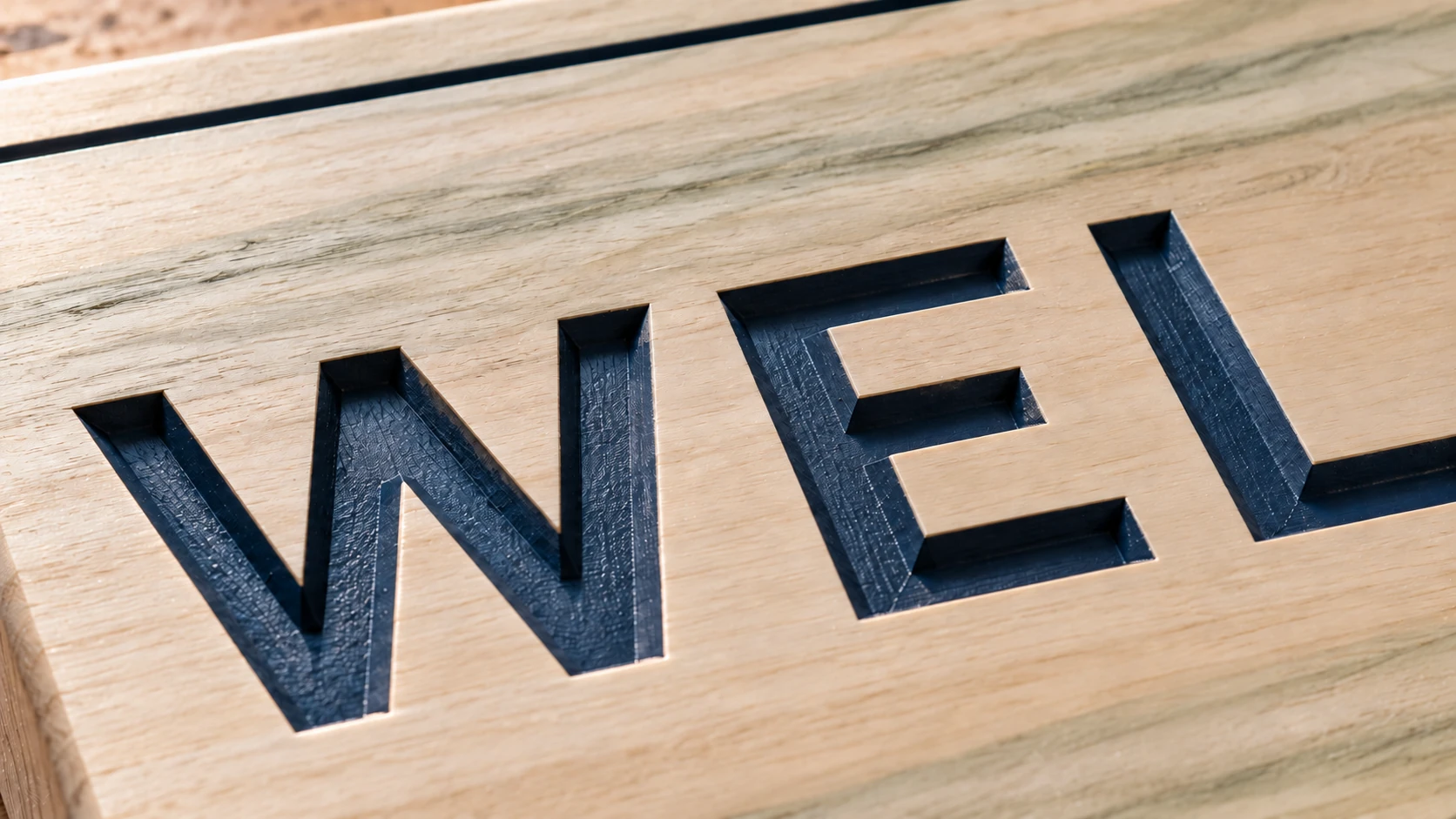
The same sign up close: paint remains in the recessed letters while the flat poplar face is sanded clean.
Common Beginner Questions
"My cuts aren't the right depth." Your Z-zero is off. Re-set it. The paper method works: lower the bit until a sheet of paper slides underneath with slight resistance. That's your zero.
"The machine is making a terrible chattering noise." You're cutting too deep per pass, moving too fast, or your bit is dull. Reduce depth of cut first, then slow your feed rate. If the bit is new and it's still chattering, you're probably trying to take too much material in one pass.
"My circles aren't round." Belt tension. Loose belts cause backlash, which shows up as sloppy geometry. Tighten your belts until they're snug with a slight twang when plucked. Also check your V-wheels or linear rails for play.
"The bit keeps breaking." You're cutting too deep, moving too fast, or your bit is too small for the job. A 1/8" bit can't take 3mm depth-of-cut passes in hardwood. Start with shallow passes (0.5-1mm) and work up once you know your machine's limits.
"My edges are fuzzy and have burrs." A dull bit. Carbide bits get dull faster than you'd expect, especially in plywood (the glue is abrasive). A fresh bit cuts cleanly. Also, try a downcut end mill for cleaner top edges.
What to Learn Next
You've got the basics. Here's where the hobby gets really fun:
- Feeds and speeds: Understanding the relationship between spindle RPM, feed rate, and chip load is what separates rough cuts from beautiful ones. We cover this in depth in a dedicated guide coming soon.
- V-carving: You just did a basic V-carve sign. Next, try importing complex vector designs (eagles, scrollwork, family crests) and V-carving those. The results are stunning.
- Inlays: Cut a pocket in one piece, cut a matching plug from a contrasting wood, and glue them together. CNC inlays are one of the most impressive things you can make.
- 3D carving: Move beyond flat designs into relief carving. A 3D scan or model gets carved with ball-nose bits to create dimensional artwork. This is the deep end of the pool, but it's amazing.
- Two-sided machining: Flip your stock and carve both sides. Used for making boxes, game pieces, and anything that needs detail on multiple faces.
Go Cut Something
Your machine is assembled. Your first bit is in the collet. Your sign design is ready. The wasteboard is surfaced (right? go do that first if you haven't).
Start with pine or poplar. They're cheap and forgiving. Make five signs. Give them to people. You'll learn more from those first five projects than from watching another twenty YouTube videos.
And when you inevitably snap your first bit (probably within the first week), just know that every CNC owner has a drawer full of broken bits. It's basically a rite of passage.
Got an SVG design but need DXF for your CAM software? File Converter handles that conversion without using tool credits. Downloading the converted file requires an active paid plan.
Happy making.
Related Tools
Ready to try these tools?
Sign up free, no credit card required. Free tools available immediately.
Start Free