

DXF vs SVG: Which File Format Should You Use?
You've got a design ready to cut. Your software asks for a file. Do you use DXF or SVG?
This question comes up in every laser cutting, CNC routing, and cutting machine forum. The answers are usually vague ("it depends") or tribal ("SVG is always better" / "real machinists use DXF"). Neither is helpful.
Here's the actual answer, explained clearly enough that you'll never wonder again.
What They Actually Are
SVG (Scalable Vector Graphics) is an open standard for 2D vector graphics. It was created for the web but works beautifully for fabrication. SVG files are human-readable XML text. Open one in a text editor and you'll see coordinates, path data, colors, and styling.
DXF (Drawing Exchange Format) was created by Autodesk in 1982 for exchanging data between AutoCAD and other CAD programs. It's the standard format for engineering drawings and CNC manufacturing. DXF files are also text-based but use a more rigid, section-based structure.
Both formats describe the same basic things: lines, arcs, circles, curves, and paths. They're different languages describing the same geometry.
PRINT. CUT. CARVE.



- Multiple formats (SVG, DXF, PNG)
- Machine-tested designs
- Commercial licenses
Sponsored by PrintCutCarve.com
The Key Differences
| Feature | SVG | DXF |
|---|---|---|
| Origin | Web (W3C, 1999) | CAD (Autodesk, 1982) |
| Primary use | Web, design, laser/vinyl | CAD, CNC, engineering |
| Color support | Full RGB/hex | Limited (layer colors) |
| Styling | CSS-like (fill, stroke, opacity) | Minimal |
| Text support | Full (fonts, sizing) | Basic |
| Layers | Groups and IDs | Named layers |
| Units | Pixels, mm, in, etc. | Typically mm or inches |
| File size | Compact | Larger for same geometry |
| Human readable | Yes (XML) | Yes (but verbose) |
| Browser viewable | Yes (native) | No |
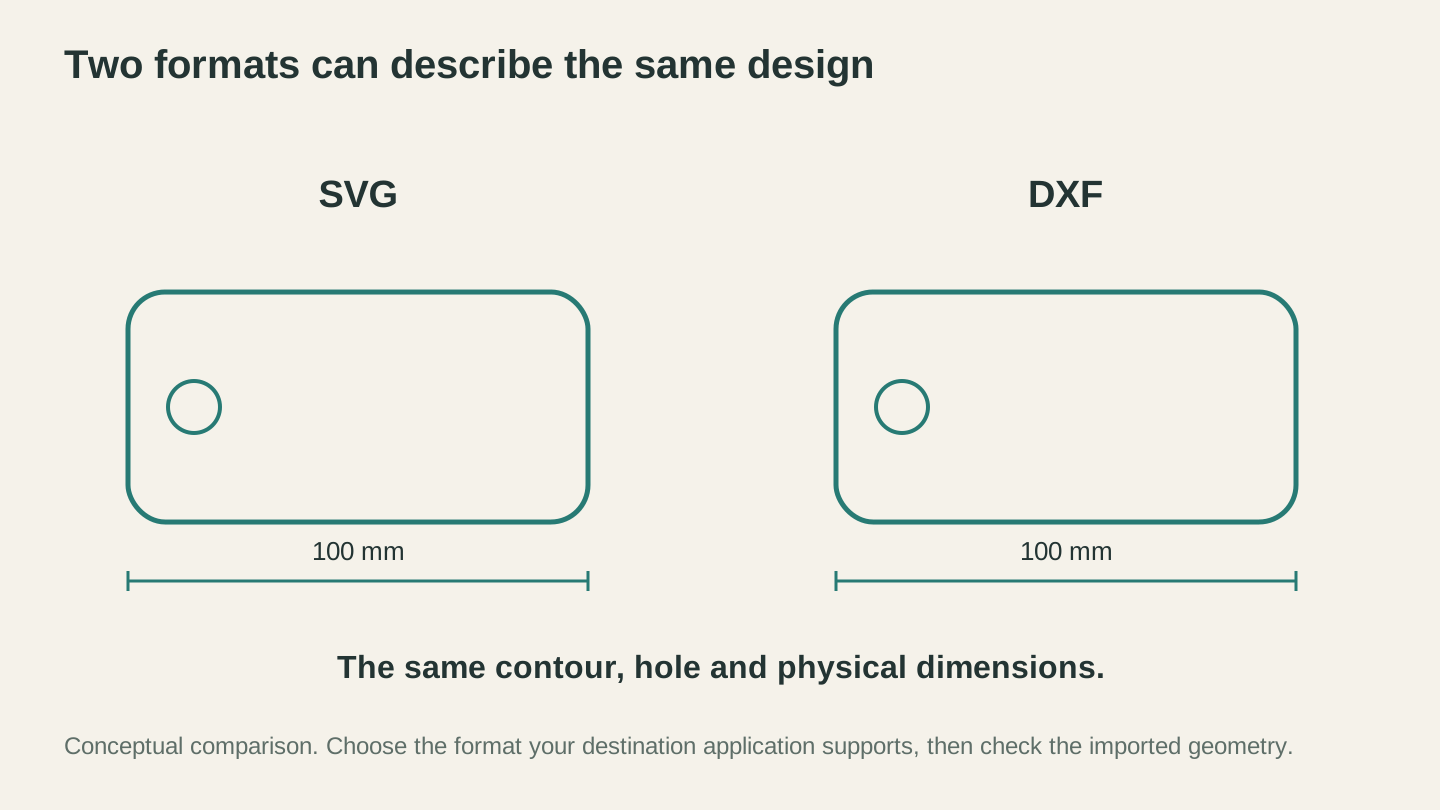
The formats can represent the same shape at the same physical size. Choose a supported import format and verify the result rather than judging by the extension alone.
When to Use SVG
SVG is the better choice in most maker scenarios:
Laser cutting software. Most modern laser software imports SVG natively. SVG preserves colors, which laser software can map to different operations (red = cut, blue = engrave, green = score). If you need laser software, Beam Bench is free.
Cutting machines. Most cutting machine software prefers SVG. The color and layer information in SVGs maps directly to the cut layers these programs use.
Web and sharing. SVGs display in any web browser. You can preview them, share them online, and embed them in websites without any special viewer. Try that with a DXF.
Design tools. Most vector design tools use SVG as a primary or native format. The ecosystem of tools that create and edit SVGs is enormous.
Color-coded workflows. If you use different colors to represent different operations (a common workflow in laser cutting), SVG handles this naturally. Each path can have its own stroke and fill color.
When to Use DXF
DXF is the right choice in these specific situations:
CNC CAM software. Most CNC CAM programs work natively with DXF. Some accept SVG too, but DXF is the expected format. The CAM toolpath generation is built around DXF conventions.
Precision engineering. When dimensions must be exact and your downstream software needs to know that a line is exactly 127.5mm long, DXF carries that precision reliably. SVG can too, but the CAD/CAM ecosystem trusts DXF more.
Legacy equipment. Older CNC controllers, industrial laser systems, and some plasma cutters only accept DXF (or even older formats like HPGL). If your machine's software is from 2010, DXF is probably your safest bet.
Exchanging with machinists or fabricators. If you're sending files to a machine shop, CNC service, or fabrication company, they expect DXF. It's the lingua franca of the manufacturing world. Sending an SVG to a machine shop is like sending a Word doc to someone who asked for a PDF. It might work, but it signals you don't speak their language.
Info
A simple rule of thumb: if your software is designed for design and laser/vinyl work, use SVG. If it's designed for CAD/CAM and CNC work, use DXF.
Common Conversion Problems
Converting between the two formats is straightforward in theory. In practice, a few things can go wrong:
Curves and Arcs
SVG uses cubic Bezier curves for smooth paths. DXF uses arcs, lines, and splines. When converting SVG curves to DXF, the converter must approximate the Bezier curves as a series of line segments (polylines) or convert them to DXF splines. Some converters do this poorly, resulting in faceted curves that should be smooth.
Scale and Units
SVG files can use various units (px, mm, in) or no units at all (just viewport coordinates). DXF files typically use real-world units (mm or inches). If the converter doesn't handle the unit mapping correctly, your design might import at the wrong scale. A 6-inch sign might show up as 6mm, or vice versa.
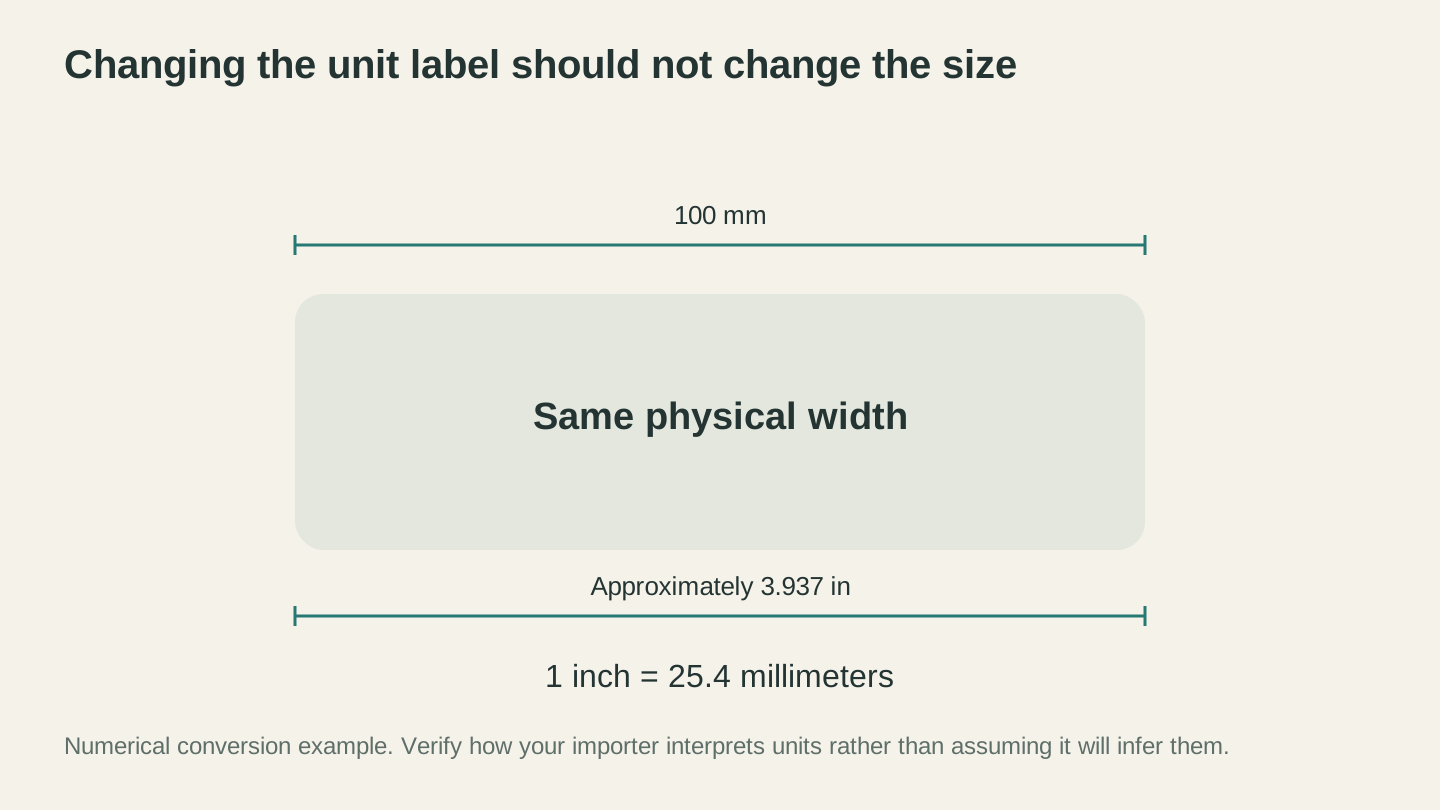
Converting units should preserve physical size. Check what the destination application assumes when a file leaves its units ambiguous.
Layer Information
SVG uses colors and groups to organize elements. DXF uses named layers with properties. Not all converters map these correctly. Your carefully color-coded SVG layers might all end up on a single DXF layer, losing the organizational structure.
Text
Both formats support text, but they handle it differently. SVG text references fonts by name. DXF text uses specific text styles and font references. When converting, text should ideally be converted to outlines/paths first to avoid font dependency issues.
Tip
Always convert text to outlines (paths) before converting between SVG and DXF. This eliminates font compatibility issues entirely. Most vector editors have a similar option, often called "object to path" or "convert to outlines."
How to Convert Between Them
SVG to DXF
This is the most common conversion for makers. You designed in your vector editor or downloaded an SVG, and now your CNC software needs a DXF.
Option 1: Craftgineer's File Converter File Converter handles SVG to DXF conversion without using tool credits. Upload your SVG, download a clean DXF. The converter handles curve approximation and unit mapping properly. No software to install. Downloading the converted file requires an active paid plan.
For a detailed walkthrough, see our SVG to DXF conversion guide.
Option 2: Your vector editor Many vector editors can save as DXF directly, usually somewhere under Save As or Export (look for "Desktop Cutting Plotter" or similar wording). The output quality varies and can be inconsistent with complex curves. Test the result in your CAM software before committing to a cut.
Option 3: Online converters Various online conversion services can convert SVG to DXF. Results vary. Some produce clean files, others produce garbage. If you find one that works for your workflow, bookmark it.
DXF to SVG
Less common, but needed when you download a DXF pattern and want to use it in laser software that prefers SVG.
File Converter handles DXF to SVG as well. Same deal: upload, convert, download.
Most vector editors also open DXF files directly. The import dialog has options for scaling that you may need to adjust.
What About Other Formats?
AI (Adobe Illustrator): Proprietary format. Convert to SVG for broad compatibility.
PDF: Can contain vector paths. Some laser software imports PDF directly. Quality depends on how the PDF was created.
EPS (Encapsulated PostScript): Legacy format. Still used in some print and sign-making workflows. Convert to SVG or DXF for machine use.
CDR (CorelDRAW): Proprietary. Common in the sign-making industry. Convert to DXF or SVG for broader compatibility.
3MF/STL/OBJ: 3D formats, not 2D vectors. Different category entirely. Used for 3D printing and three-dimensional CNC carving.
For a comprehensive overview of all maker file formats, check out our file format guide.
The Verdict
Use SVG for laser cutting, Cricut/Silhouette, web sharing, and design workflows. It's the more versatile format for most maker tasks.
Use DXF for CNC routing, CAM software, and when sending files to fabrication services. It's the standard in the manufacturing world.
Convert freely between them when needed. File Converter and MonoTrace handle the most common conversion scenarios without using tool credits. Downloading the converted file requires an active paid plan.
The format doesn't define your project. The geometry does. As long as your paths are clean and your dimensions are correct, both formats will get the job done. Pick whichever one your software prefers, convert when you need to, and focus on making things.
Related Tools
Ready to try these tools?
Sign up free, no credit card required. Free tools available immediately.
Start Free