

How to Convert Any File for Your Machine: The Complete File Format Guide
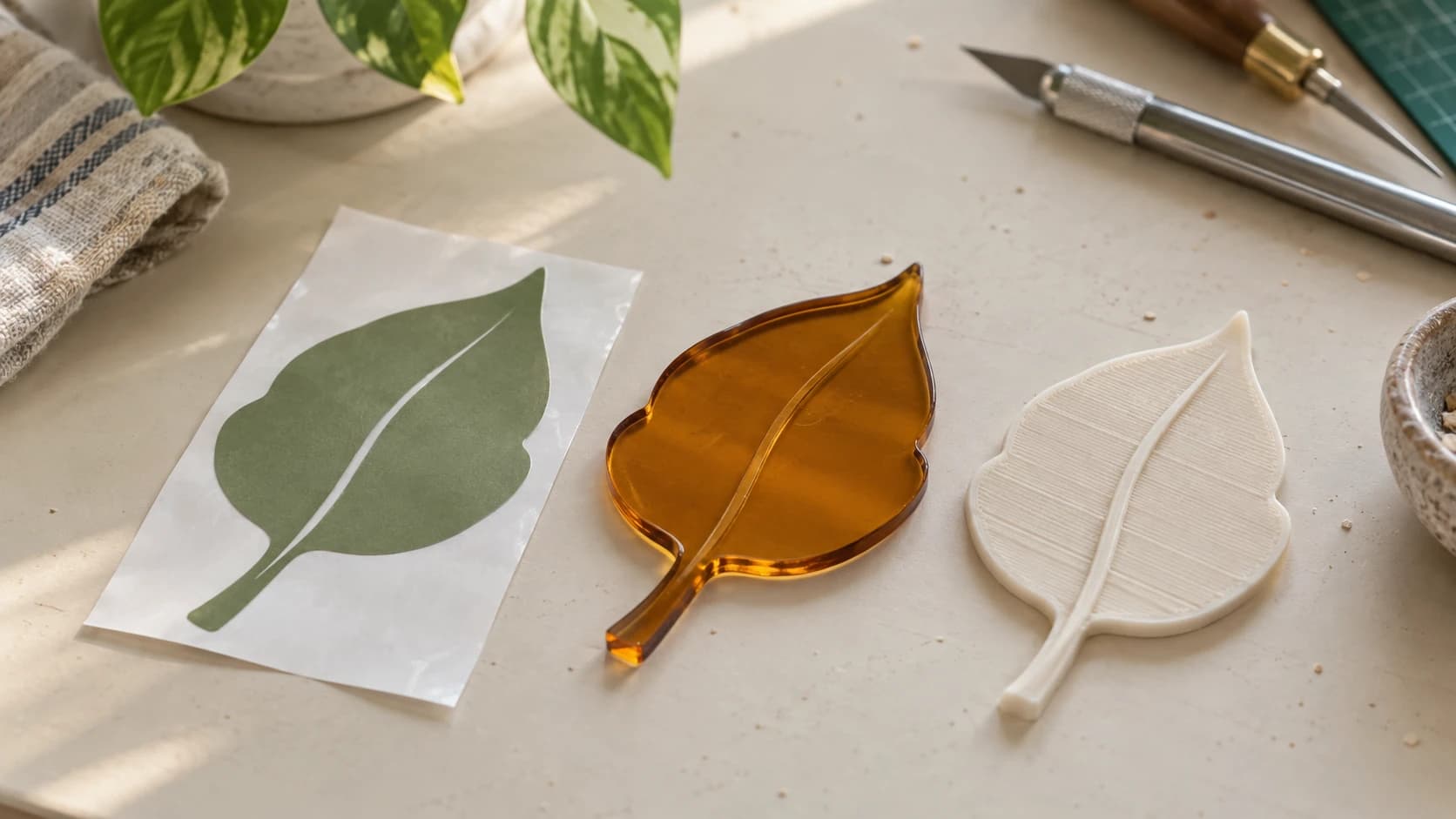
Every machine in your shop speaks a slightly different language. Your laser cutter wants DXF. Your slicer wants STL or 3MF. Your Cricut wants SVG. Your CNC software prefers DXF but will grudgingly accept SVG if you ask nicely. And that file someone sent you? It's a PDF. Of course it is.
File formats are the unsexy, unglamorous backbone of every maker project. Nobody gets into this hobby because they love converting files. But spending ten minutes understanding what each format actually does will save you hours of frustration, failed imports, and the special kind of rage that comes from a machine rejecting a perfectly good design because it's in the wrong wrapper.
This is the reference guide. Bookmark it. Come back when you're staring at a file you don't recognize.
Vector Formats: The Language of Cut Lines
Vector files store your design as mathematical paths, not pixels. A line is defined by its start point and end point. A curve is a mathematical equation. This means vectors scale to any size with zero quality loss, and your machine can follow the paths exactly.
If your project involves cutting, scoring, or vector engraving, you need a vector file.
PRINT. CUT. CARVE.



- Multiple formats (SVG, DXF, PNG)
- Machine-tested designs
- Commercial licenses
Sponsored by PrintCutCarve.com
SVG (Scalable Vector Graphics)
SVG is the web's vector format, and it's become the lingua franca of the maker world. It stores paths, shapes, text, colors, and even gradients. Every browser can display it. Most design tools export it. It's human-readable XML, which means you can open it in a text editor and (if you squint) actually read the geometry.
Which machines accept it: Cricut, Silhouette, most laser software, some CNC software, browser-based tools
Strengths: Universal, supports color/style info, easy to share and preview, works directly in web-based tools
Limitations: Some industrial laser controllers don't accept it. Embedded fonts can cause problems if the receiving software doesn't have them.
Tip
Always convert text to outlines (paths) before saving an SVG for your machine. If the receiving software doesn't have your font installed, the text renders in a default font or disappears entirely. Outlined text is just geometry, so it looks right everywhere.
DXF (Drawing Exchange Format)
DXF is the old guard. Autodesk created it in the 1980s for AutoCAD, and it's been the standard exchange format for CAD and manufacturing ever since. It describes pure geometry: lines, arcs, polylines, splines. No colors, no fills, no style information. Just the cut paths.
Which machines accept it: Most laser software, nearly all CNC CAM software, most Chinese laser controllers, Silhouette, many industrial machines
Strengths: The widest machine compatibility of any vector format. Clean, no-nonsense geometry. What you see is what gets cut.
Limitations: No color or style information (everything is just lines). Multiple DXF versions exist (R12, R14, 2000, 2007, etc.) and older machines may only accept older versions.
If your machine's import dialog shows DXF at the top of the supported file list, that's a hint. It prefers DXF. Give it what it wants.
For a deeper walkthrough of this conversion process, our SVG to DXF guide covers common pitfalls like jagged curves, double-cut paths, and unit mismatches.
AI (Adobe Illustrator)
Adobe Illustrator's native format. It's a proprietary vector format that stores everything Illustrator can do: layers, effects, transparency, gradients, the works. Some laser software (especially older Chinese controllers) accepts AI files alongside DXF.
Which machines accept it: Some laser controllers, workflows built around other proprietary design software
Strengths: Rich feature set if you're working within the Adobe ecosystem
Limitations: Requires Illustrator to create and edit. Not free. Not open. If you're not already paying for Illustrator, there's rarely a reason to use AI format. Convert to SVG or DXF instead.
EPS (Encapsulated PostScript)
EPS is a legacy vector format from the print industry. You'll encounter it when downloading designs from older clip art sites or receiving files from graphic designers who grew up in the '90s.
Which machines accept it: Very few directly. Most workflows involve opening EPS in a vector editor and re-exporting as SVG or DXF.
Strengths: Good for receiving files from designers
Limitations: Essentially obsolete for maker workflows. Convert it and move on.
PDF (Portable Document Format)
PDF can contain vector paths, raster images, text, or all three. It's the Swiss Army knife of document formats, which is both its strength and its problem. When someone sends you a "vector PDF," the paths might actually be vectors (great) or they might be a raster image embedded in a PDF container (not great).
Which machines accept it: Most laser software, some CNC software, Glowforge
Strengths: Nearly universal. Easy to share. Can preserve vector geometry.
Limitations: You never quite know what's inside until you open it. A PDF might contain clean vector paths or a JPEG in a trenchcoat. File Converter can extract the vector data from PDFs and convert to SVG.
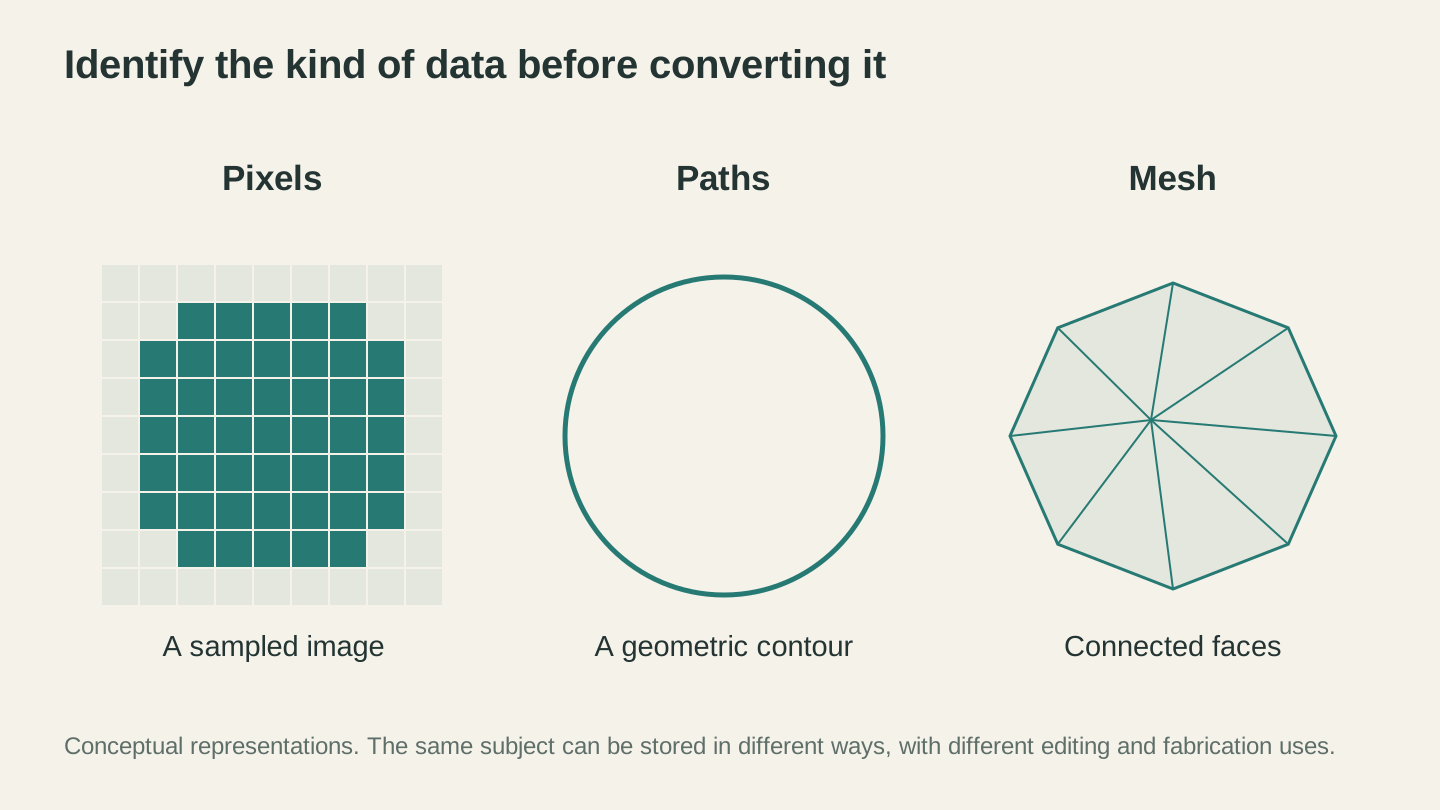
Raster images describe pixels, vector drawings describe geometry, and surface meshes describe three-dimensional form. These conceptual examples show why each format suits different work.
Raster/Image Formats: Pixels, Not Paths
Raster images are grids of colored pixels. They have a fixed resolution, and zooming in eventually shows you the individual squares. You can't cut along a raster image the way you can follow a vector path. But raster formats have their place in the maker world.
For a complete breakdown of when raster vs. vector matters, our PNG to SVG guide covers the fundamentals.
PNG (Portable Network Graphics)
The workhorse of raster images. PNG supports transparency, doesn't lose quality to compression (it's lossless), and handles everything from photographs to simple icons.
When makers use it: Laser engraving photos onto wood/leather/anodized aluminum, uploading to AI tools for vectorization, reference images
Resolution matters: For laser engraving, 300 DPI at your final size is the minimum. Going below that creates visible pixelation in the engrave. 600 DPI is better if your material and machine can handle the detail.
JPG/JPEG (Joint Photographic Experts Group)
JPG uses lossy compression, meaning it throws away some image data to make the file smaller. Fine for photos where your eye won't notice. Terrible for line art, logos, and designs with sharp edges, because the compression creates fuzzy artifacts around hard transitions.
When makers use it: Same scenarios as PNG (photo engraving, AI tool input), but PNG is almost always the better choice when you have the option. JPG artifacts can show up in laser engravings as smudgy halos around text and sharp lines.
Warning
If you're engraving a logo or text, always use PNG over JPG. JPEG compression creates visible artifacts around sharp edges, and those artifacts show up in the finished engrave as unwanted texture. For photos, either format works fine.
BMP (Bitmap)
The simplest raster format. No compression, no metadata, just raw pixel data. Some older laser controllers and engraving software require BMP specifically. If yours does, convert to BMP. Otherwise, there's no reason to prefer it over PNG.
TIFF (Tagged Image File Format)
A professional raster format that supports high bit depth, multiple layers, and lossless compression. Photographers and print shops love it. Makers rarely need it unless they're working with high-end scanning or print workflows.
WebP
Google's modern image format. Smaller files than PNG or JPG at comparable quality. You'll encounter it when downloading images from websites. Most maker software doesn't accept WebP directly, so convert to PNG first.
HEIC (High Efficiency Image Container)
Apple's default photo format on iPhones. If you take a photo with your phone and try to upload it to your laser software, this is the format that makes things complicated. Convert to PNG or JPG. File Converter handles this.
3D Model Formats: What Your Slicer Wants
If you own a 3D printer, you need to understand 3D model formats. Your slicer takes a 3D model file, slices it into layers, and generates the G-code your printer actually follows. But not all 3D formats carry the same information, and picking the right one matters.
For a broader introduction to 3D printing workflows, check out our 3D printing beginner's guide.
STL (Stereolithography)
STL is the original 3D printing file format, and it's still the most widely used. It represents 3D geometry as a mesh of triangles. That's it. No color, no material info, no units, no metadata. Just triangles.
Which slicers accept it: All of them, everything. STL is the universal baseline.
Strengths: Universal compatibility. Every 3D printing workflow in existence supports STL. If in doubt, use STL.
Limitations: No color or material information. No unit specification (the slicer guesses, and sometimes guesses wrong). Large files for complex models because it approximates curves with many small triangles.
OBJ (Wavefront Object)
OBJ is a step up from STL. It supports vertex colors, texture coordinates, and material definitions (via a companion .MTL file). It's common in 3D graphics, game development, and CNC workflows.
Which slicers accept it: Most modern slicers. Also widely accepted by CNC CAM software for 3D carving paths.
Strengths: Supports color and texture data. Better for multi-color 3D printing workflows or CNC 3D carving. More precise geometry than STL in some cases.
Limitations: The companion MTL file can get separated from the OBJ, losing material data. Slightly less universal than STL in the 3D printing world.
3MF (3D Manufacturing Format)
3MF is the modern replacement for STL, and it's genuinely better in every way. It stores geometry, colors, materials, print settings, and metadata in a single compressed file. It's an open standard backed by Microsoft, HP, Autodesk, and others.
Which slicers accept it: Most modern slicers.
Strengths: Smaller files than STL. Stores colors and materials. Can include print settings. Includes unit information so your model doesn't import at the wrong scale. Single file (no companion files to lose).
Limitations: Older slicers and some niche tools don't support it yet. The format is relatively new, so STL still has wider third-party compatibility.
Tip
If your slicer and design tool both support 3MF, prefer it over STL. The file is smaller, the geometry is more precise, and you won't run into the "is this in millimeters or inches?" problem that plagues STL files. Most modern slicers handle 3MF beautifully.
STEP (Standard for the Exchange of Product Data)
STEP is a CAD interchange format that stores true parametric geometry: not triangulated meshes, but actual curves, surfaces, and solids. It's the format engineers use when exchanging parts between different CAD systems.
Which tools accept it: Most parametric CAD tools. Most slicers do not accept STEP directly, so you'll need to export as STL or 3MF from your CAD tool before slicing.
Strengths: Mathematically perfect geometry. Editable in CAD. The best format for collaboration between designers.
Limitations: Not directly usable by slicers or most maker tools. Think of STEP as the source file format and STL/3MF as export/interchange formats for your slicer.
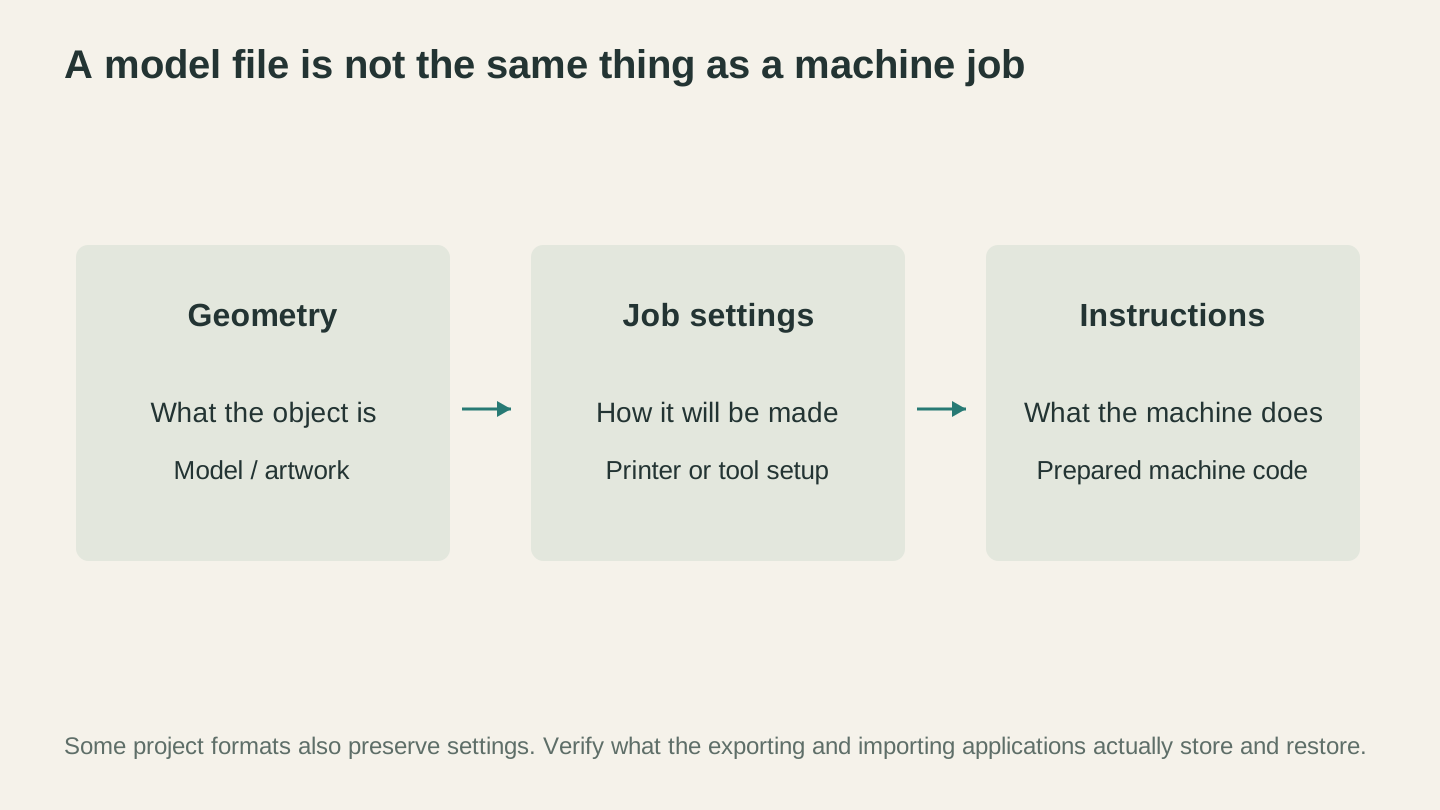
Keep the editable design as well as the prepared machine job. Geometry alone does not describe every tool, material and process decision needed to make the part.
The Decision Matrix: "I Have X, I Need Y"
This is the table you'll actually use. Find what you have on the left, what your machine needs across the top, and the conversion path in the cell.
Vector to Vector
| I Have | I Need SVG | I Need DXF | I Need PDF |
|---|---|---|---|
| SVG | Already done | File Converter | File Converter |
| DXF | File Converter | Already done | File Converter |
| File Converter | PDF to SVG, then SVG to DXF | Already done | |
| AI/EPS | Open in your vector editor, save as SVG | Open in your vector editor, save as DXF | Open in your vector editor, export PDF |
Raster to Vector
| I Have | I Need SVG | I Need DXF |
|---|---|---|
| PNG/JPG | MonoTrace (free) | MonoTrace to SVG, then File Converter to DXF; converted-file download requires a paid plan |
| Photo | Photo Converter for line art, then MonoTrace | Photo Converter, then MonoTrace, then File Converter |
| WebP/HEIC/BMP | Convert to PNG first (File Converter), then MonoTrace | Convert to PNG, then MonoTrace, then File Converter |
Raster to Raster
| I Have | I Need PNG | I Need JPG | I Need BMP |
|---|---|---|---|
| Any raster format | File Converter | File Converter | File Converter |
3D Model Conversions
| I Have | I Need STL | I Need OBJ | I Need 3MF |
|---|---|---|---|
| STL | Already done | File Converter | File Converter |
| OBJ | File Converter | Already done | File Converter |
| 3MF | File Converter | File Converter | Already done |
| STEP | Export from CAD software | Export from CAD software | Export from CAD software |
Using File Converter
File Converter handles most of the conversions in the matrix above. It does not charge tool credits and works from your browser, with conversion performed on our server. There's no software to install or command line to use. Downloading the converted file requires an active paid plan.
Supported conversions:
- Vector: SVG to DXF, DXF to SVG, SVG to PDF, DXF to PDF, PDF to SVG
- Images: PNG, JPG, WebP, GIF, BMP, TIFF, HEIC (any to any)
- 3D Models: STL to OBJ, OBJ to STL, STL to 3MF, 3MF to STL, OBJ to 3MF, 3MF to OBJ
The process is always the same: upload your file, pick the output format, click convert, download. Takes about fifteen seconds for most files.
For conversions it doesn't handle (like STEP to STL), you'll need a CAD program. Free CAD software is available and handles STEP files well.
When to Convert vs. When to Redesign
Not every conversion is a good idea. Sometimes the smarter move is to create a new file in the right format from scratch. Here's how to know.
Convert when:
- The geometry is simple. Logos, outlines, basic shapes. These convert cleanly between formats.
- You just need a format swap. SVG to DXF, STL to OBJ, PNG to JPG. The content doesn't need to change, just the container.
- The file is already machine-ready. If someone gave you a clean DXF and your machine wants SVG, convert it. The geometry will survive the trip.
Redesign when:
- You're going from raster to vector and the image is complex. A photograph doesn't vectorize into a clean cut file. You get a mess of a thousand paths that no machine can cut efficiently. For photo-based projects, consider using Photo Converter to create line art first, or laser engrave the photo directly as a raster image.
- The source file has problems. Overlapping paths, open contours, missing geometry. Converting a bad file into a different format just gives you a bad file in a new wrapper.
- You need to change dimensions or add features. Scaling a design by 3x and adding mounting holes isn't conversion. That's redesign. Open it in a proper design tool.
- You're crossing from 2D to 3D (or vice versa). Converting a flat SVG into an STL isn't a format conversion. It's an extrusion operation that requires a 3D modeling tool. Converting an STL into an SVG means projecting 3D geometry onto a flat plane, which rarely gives useful results.
Warning
Beware of "converting" a raster image (PNG/JPG) to a vector format (SVG/DXF) through services that just embed the raster pixels inside a vector container. The file extension says SVG, but there are no actual vector paths inside. Your machine can't cut along pixels. If the output SVG file is roughly the same size as the input PNG, it's probably a fake conversion.
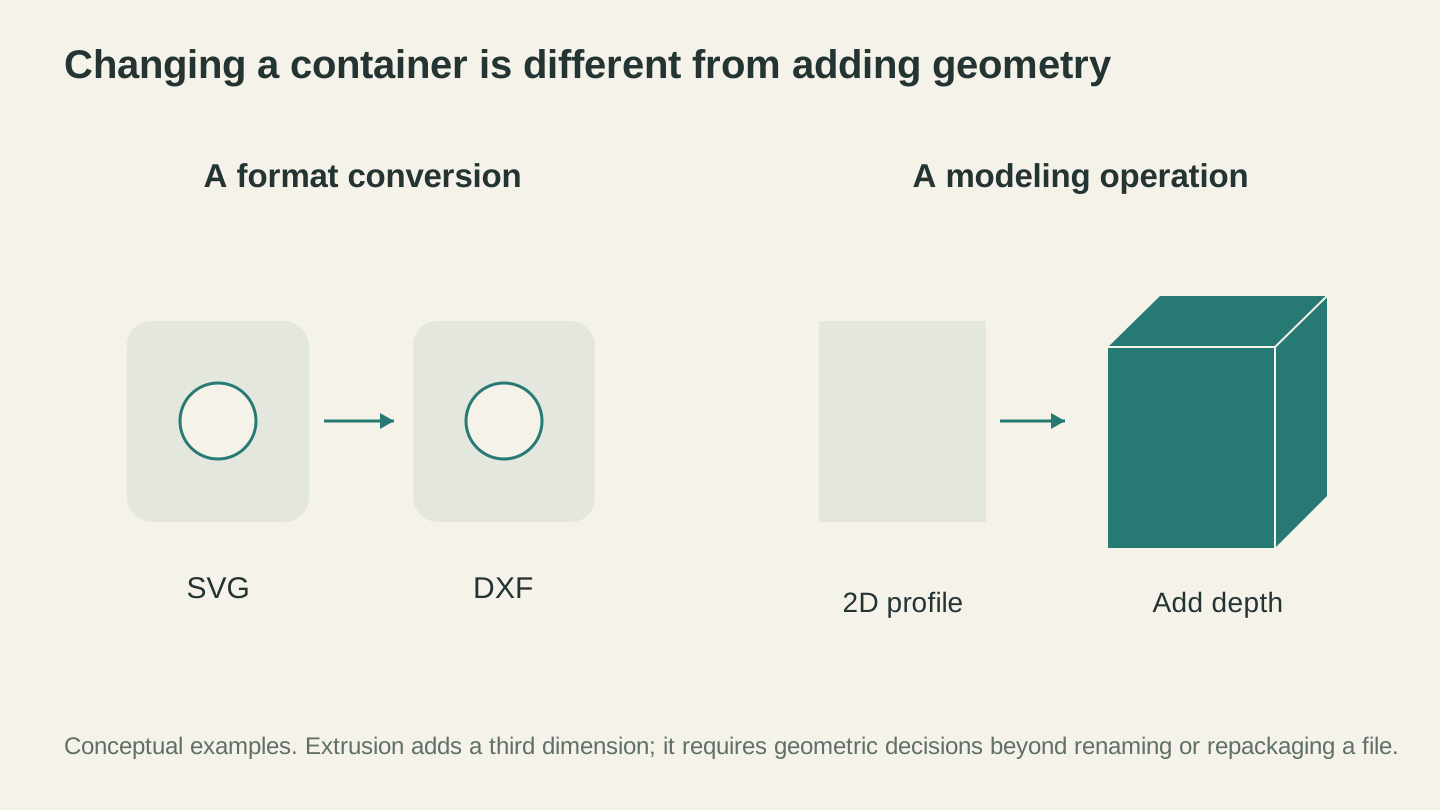
Changing a file container can preserve the same shape. Adding depth is a modeling operation that requires new geometric decisions.
The Supporting Cast: Other Tools That Help
File conversion isn't always a one-step process. Sometimes you need to transform the content before or after the format change.
MonoTrace (Free Vectorizer)
MonoTrace converts raster images (PNG, JPG, BMP) into real SVG vector paths. Not the fake embed-pixels-in-an-SVG trick. Actual traced paths with bezier curves. It's free, with no credit cost.
Use it when you have a logo, silhouette, or line art image that needs to become a cut file. Upload the image, hit Vectorize, download the SVG. Full walkthrough in our PNG to SVG guide.
Canvas Pro (Image Editor)
Canvas Pro is a full browser-based image editor with layers, brushes, shapes, and text, exporting PNG, JPEG, and WebP. Use it to clean up images before vectorizing, combine elements, or create designs from scratch, then run the PNG through MonoTrace when you need vectors.
It's the tool for when your source image needs work before it's ready for conversion. Crop the background, increase contrast, remove artifacts, then pass the cleaned-up image to MonoTrace or your machine's raster engraving mode.
Quick Reference: Which Format for Which Machine
If you just want to know what format to send to your specific machine, here's the cheat sheet:
| Machine Type | Best Format | Also Accepts | Notes |
|---|---|---|---|
| Laser cutter (LightBurn) | SVG or DXF | AI, PDF, PNG (engrave) | DXF for complex geometry, SVG for color-layered jobs |
| Laser cutter (Chinese controller) | DXF | AI | Check your specific controller's docs |
| Glowforge | SVG | PDF, PNG (engrave) | SVG is the native format |
| CNC router (VCarve) | DXF | SVG, EPS | DXF for cleanest import |
| CNC router (Carbide Create) | SVG | DXF | SVG is preferred |
| CNC router (Fusion 360) | DXF or STEP | SVG, STL | STEP for 3D machining |
| Cricut | SVG | PNG (Print Then Cut) | SVG is the only vector option |
| Silhouette | SVG or DXF | PNG | Studio format is native but SVG works |
| 3D printer (any slicer) | 3MF | STL, OBJ | 3MF preferred, STL most compatible |
Stop Fighting Formats, Start Making Things
File formats are a means to an end. The end is your finished project. The less time you spend wrestling with file types, the more time you spend actually running your machine.
File Converter handles the most common format swaps without using tool credits. MonoTrace bridges the gap from raster images to vector cut files. And Canvas Pro gives you a full image editor when your source material needs cleanup before any of that. Downloading the converted file requires an active paid plan.
Between those three free tools and this guide, you should be able to get any file into any format your machine needs. And when you hit an edge case this guide doesn't cover, you probably need a full design tool, not a converter. Our free design software guide will point you to the right one.
Now go make something.
Related Tools
File Converter
Convert supported combinations of vector, document, raster-image, and 3D-mesh formats.
Plan required for downloads
MonoTrace
Turn photos and artwork into SVG outlines for free, with an optional sketch mode.
Canvas Pro
Edit images with layers, brushes, shapes, text, and selection tools. Export PNG, JPEG, or WebP.
Ready to try these tools?
Sign up free, no credit card required. Free tools available immediately.
Start Free