

How to Laser Engrave Photos on Wood That Actually Look Good
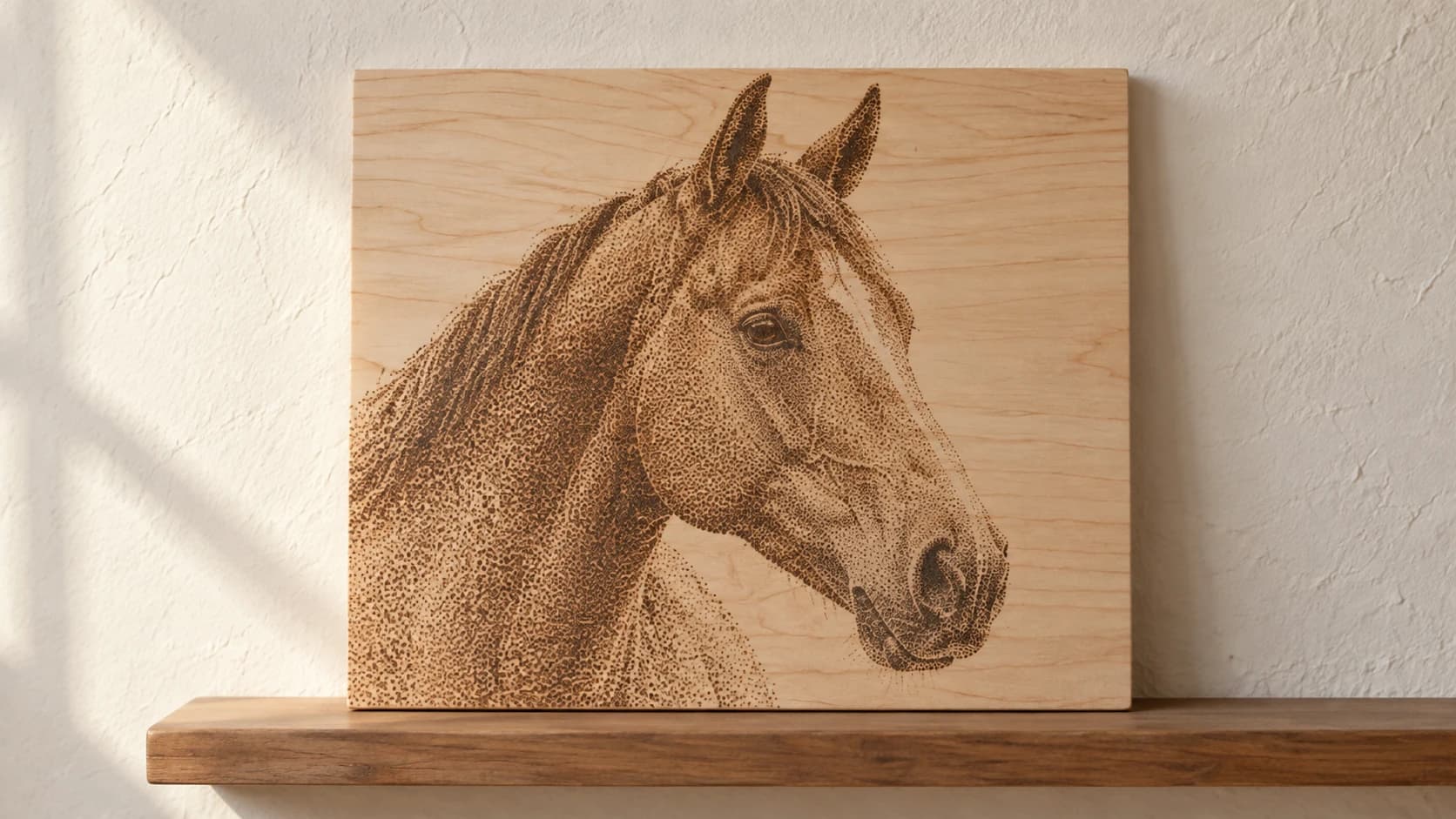
Most laser-engraved photos on wood look terrible. Muddy, washed out, weirdly dark, or just a vague blob that might be a face if you squint hard enough. It's the number one disappointment for new laser owners: you load up a photo of your dog, hit start, and get something that looks like your dog viewed through a dirty window during a rainstorm.
The machine isn't broken. The technology works. But photo engraving on wood is one of the most technique-dependent things you can do with a laser. Get the image prep, wood choice, and settings right, and the results are genuinely impressive. Get any of them wrong, and you're burning expensive hardwood for nothing.
Here's how to get it right.
Why Photos Are Harder Than Everything Else
When you vector-engrave text or cut shapes, your laser follows precise paths. The results are binary: it either cuts the line or it doesn't. Easy.
Photo engraving is fundamentally different. You're trying to reproduce continuous tones (the smooth gradients in a photograph) using a tool that has essentially two states: on and off. The laser fires or it doesn't. There's no "half power" in the way a pixel on a screen can be any shade of gray.
To simulate shades of gray, your laser software uses dithering: patterns of dots that, when viewed from a normal distance, create the illusion of varying brightness. Dense dots look dark. Sparse dots look light. The quality of your engraved photo depends almost entirely on how well this illusion works.
And that depends on three things: the image, the wood, and the settings.
Step 1: Choose the Right Wood
This is the single biggest factor most people ignore. They grab whatever scrap is lying around and wonder why the photo looks bad.
PRINT. CUT. CARVE.



- Multiple formats (SVG, DXF, PNG)
- Machine-tested designs
- Commercial licenses
Sponsored by PrintCutCarve.com
Best woods for photo engraving:
Maple is the gold standard. Light color provides maximum contrast with laser burns. Tight, consistent grain doesn't interfere with the image. Hard enough to hold fine detail. If you're serious about photo engraving, start with maple.
Cherry is another excellent choice. Slightly warmer base tone than maple, which gives photos a vintage feel. Burns to a rich dark brown. Grain is tight and predictable.
Alder is softer and more affordable than maple. Burns well with good contrast. Slightly less detail in very fine areas due to the softer wood fibers, but very forgiving for beginners.
Birch plywood (Baltic birch specifically) is a budget-friendly option. Consistent face veneer, light color, and available in large sheets. The cross-grain in plywood eliminates wood movement. Great for practice and production pieces.
Woods to avoid for photos:
Pine has resin pockets that burn unpredictably. The grain is prominent and will show through your image as diagonal streaks. Soft areas burn faster than hard areas, creating uneven tones.
Oak has an open, porous grain that dominates the image. The texture of the wood overpowers the dithered dot pattern.
Walnut is too dark. There's not enough contrast between the unburned wood and the laser-burned areas. Dark photos on dark wood equals mud.
| Wood | Contrast | Grain | Detail | Cost | Verdict |
|---|---|---|---|---|---|
| Maple | Excellent | Very tight | Excellent | $$ | Best choice |
| Cherry | Very good | Tight | Very good | $$ | Great, warm tone |
| Alder | Good | Moderate | Good | $ | Budget-friendly |
| Baltic birch ply | Good | Minimal | Good | $ | Best for practice |
| Pine | Poor | Prominent | Poor | $ | Avoid for photos |
| Oak | Fair | Very open | Fair | $$ | Avoid for photos |
| Walnut | Poor | Moderate | Good | $$$ | Too dark |
Tip
Sand your wood to at least 220 grit before engraving. A smooth surface produces cleaner dots. Any roughness or raised grain will interfere with the dithering pattern.
Step 2: Prepare the Image
This is where good photo engravings are made or lost. The image preparation matters more than any machine setting.
Crop Tight
Remove unnecessary background. The more of the frame your subject fills, the more detail you'll get in the engraving. A portrait should be face and shoulders, not a full-length shot where the face is 50 pixels tall.
Convert to Grayscale
Your laser doesn't use color. Convert the image to grayscale before sending it to your laser software. This lets you see exactly what the laser will work with and make adjustments without color distracting you.
Boost Contrast
Photos straight from your phone look great on screen but lack the contrast needed for laser engraving. The dithering process compresses the tonal range, so you need to start with more contrast than feels natural.
In any image editor (including Canvas Pro):
- Increase contrast by 20-40%
- Increase brightness slightly (5-15%)
- Push the blacks deeper and the whites brighter
- The image should look slightly harsh on screen. That's normal.
Sharpen
Laser engraving slightly softens edges. Counteract this by sharpening the image before sending it to your laser software. Use Unsharp Mask or a similar sharpening filter. Don't go overboard. You want crisp edges, not halos.
Remove the Background
For portraits, remove the background entirely and replace it with white. A clean white background becomes unburned wood, which looks much better than a busy background rendered as gray mush.
Resize to Final Dimensions
Set your image to the exact size you'll engrave at, at a resolution that matches your laser's LPI (lines per inch) setting. If you're engraving at 300 LPI on a 6-inch wide piece, your image should be 1800 pixels wide (6 × 300). Sending a 500-pixel image and scaling it up in your laser software will produce blurry results.
Step 3: Choose the Right Dithering Mode
Your laser software converts the grayscale image into a pattern of dots using a dithering algorithm. Different algorithms produce different visual effects.
Jarvis produces smooth, photorealistic results with a newspaper-like quality. It distributes the error across a wide area, creating gentle transitions. Best for portraits and images with smooth gradients. This is the default recommendation for most photo engravings.
Floyd-Steinberg creates a tighter, slightly grainier pattern than Jarvis. Good for images with sharper details and less gradient. Some people prefer it for its slightly crisper look.
Stucki is similar to Jarvis but with a slightly different error distribution. Worth trying if Jarvis doesn't give you the results you want. The differences are subtle.
Ordered (halftone) creates a regular grid of dots at varying sizes. Looks distinctly different from error-diffusion methods. Can look great on some images (especially graphics and stylized portraits) but less photorealistic than Jarvis/Floyd-Steinberg.
Atkinson retains more white space, creating a lighter, higher-contrast result. Good for simple images with strong contrast. Can lose detail in midtones.
Info
There's no universally "best" dithering mode. The right choice depends on your image, your wood, and your personal preference. Try Jarvis first. If it looks too soft, try Floyd-Steinberg. If it looks too busy, try Stucki. A test grid with different modes on scrap wood is the fastest way to find your preference.
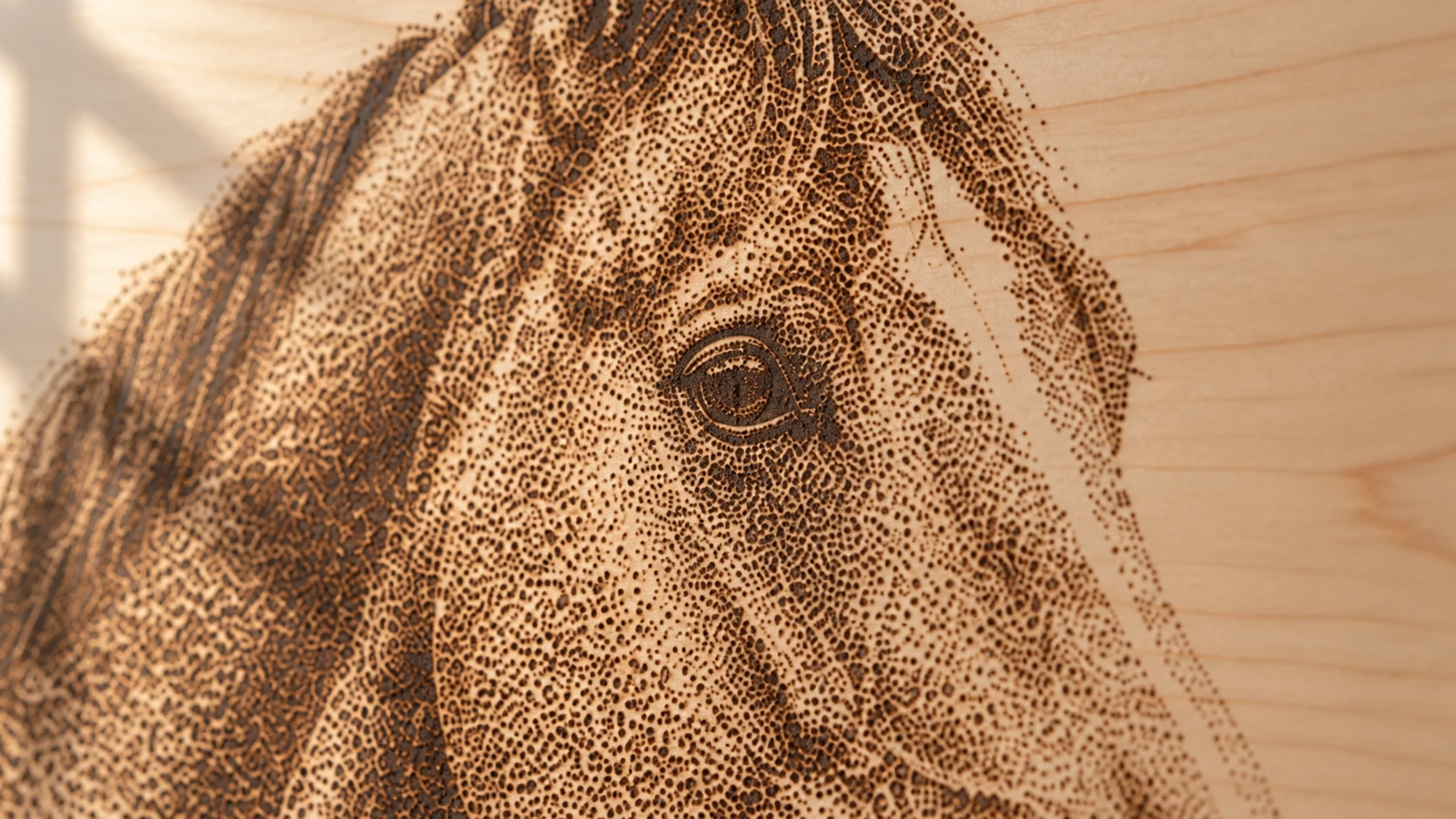
The portrait’s shading comes from the spacing and density of the marks. Open wood between dots supplies the lighter tones.
Step 4: Dial In Your Settings
Settings vary by machine, but here are the principles:
LPI (Lines Per Inch)
LPI controls the resolution of your engraving. Higher LPI means more lines, more detail, and longer engrave time.
- 150-200 LPI: Good for large engravings viewed from a distance. Fast.
- 254 LPI: The sweet spot for most photo engravings. Good detail without excessive time.
- 300-318 LPI: High detail for smaller pieces and close-up viewing. Noticeably slower.
Going above 318 LPI on a diode laser rarely improves visible quality. The laser spot size is the limiting factor. You'll burn longer without gaining detail.
Speed and Power
These work together. Too much power and you over-burn, losing detail in the dark areas (everything becomes uniformly black). Too little power and the light tones don't show.
Start conservative. Low power, moderate speed. You can always increase power. You can't undo an over-burned area.
For a 10W diode laser on maple, a reasonable starting point:
- Speed: 3000-4000 mm/min
- Power: 40-60%
- LPI: 254
For a 20W diode laser:
- Speed: 5000-6000 mm/min
- Power: 25-45%
- LPI: 254
These are starting points, not gospel. Every machine, every piece of wood, and every image requires adjustment. Which brings us to the most important step.
Test Grids
Create a small test image (a cropped portion of your actual photo, about 1-2 inches square) and engrave it at multiple speed/power combinations. A 3×3 or 4×4 grid with different settings lets you identify the best combination before committing to the full piece.
This takes 15-20 minutes and saves you from wasting a piece of hardwood. Do it every time you change wood species, wood source, or machine settings.
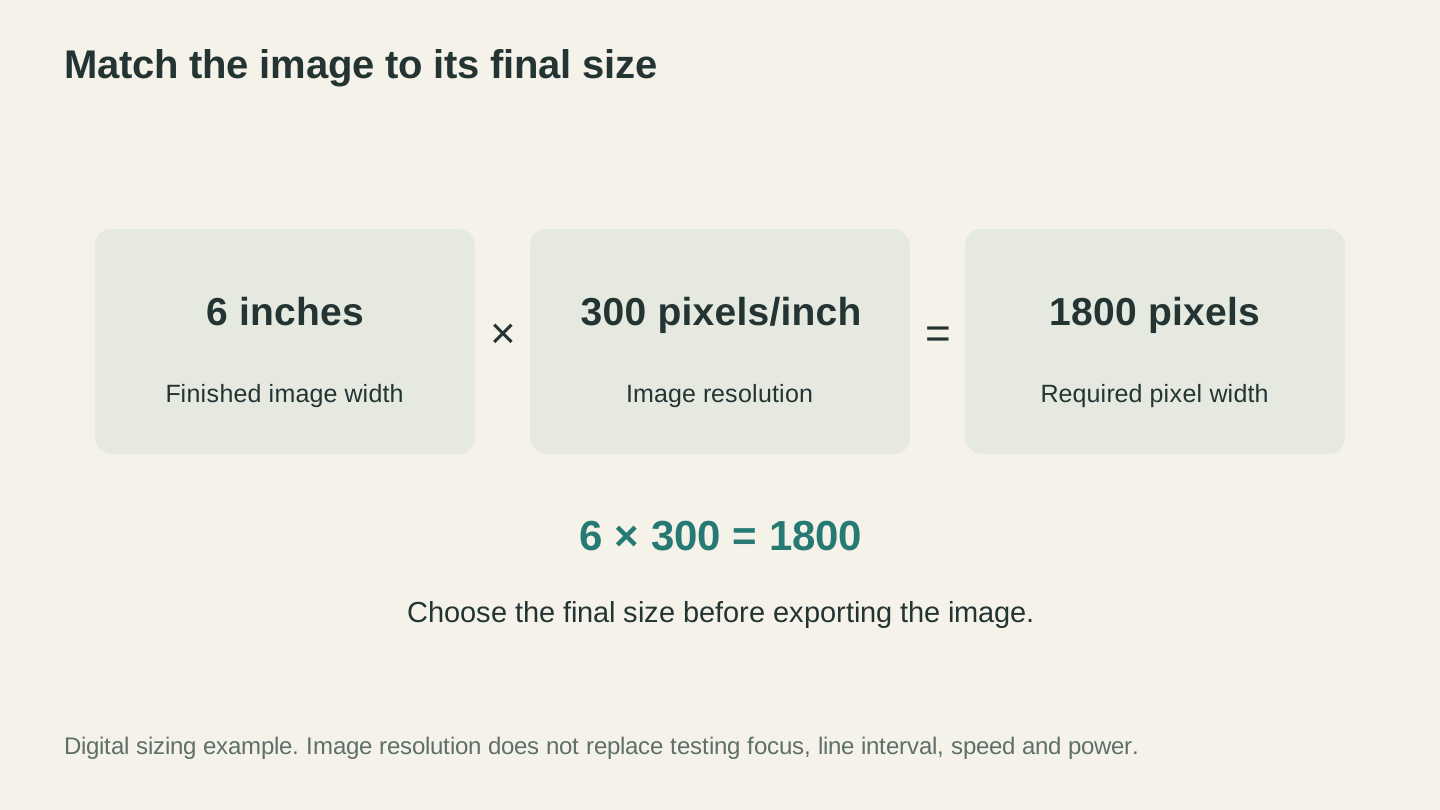
At 6 inches wide and 300 pixels per inch, the source needs 1,800 pixels across. Set the final dimensions before export and avoid an extra resizing step.
Step 5: The Engraving
With your image prepped, wood sanded, and settings tested, the actual engraving is the easy part.
- Secure the workpiece. Any movement during engraving ruins the image. Use clamps, tape, or hold-down pins.
- Focus precisely. Photo engraving is more sensitive to focus than vector work. Use a focus gauge or auto-focus if your machine has it.
- Run a frame test to verify the position on your material. Make sure the image fits where you want it.
- Start the engrave. Don't touch the machine. Don't bump the table. Let it finish.
- Don't clean immediately. Let the wood cool for a few minutes. Then gently brush off char residue with a soft brush. For a cleaner finish, lightly wipe with denatured alcohol.
The Line Art Alternative
If traditional dithered photo engraving isn't giving you the results you want, there's another approach: convert the photo to line art first.
Photo Converter transforms photos into pen-and-ink style line drawings optimized for laser engraving. Instead of trying to reproduce photographic tones with dithering, you get clean black lines on white background. The result looks like a hand-drawn illustration rather than a photograph.
This approach works on a wider range of woods (including pine and oak), forgives imperfect settings, and produces consistent results. It's especially effective for portraits, pets, and recognizable subjects where the character comes through in the lines rather than the tones.
Two modes available:
- Standard: Black lines on white (for light woods)
- Inverted: White lines on black (for dark materials like slate or painted surfaces)
After the Burn: Finishing
A finished photo engraving looks better and lasts longer with proper finishing:
Sanding: Don't sand the engraved surface. You'll remove fine detail. If the surrounding wood needs sanding, mask the engraved area first.
Sealing: A coat of polyurethane or lacquer protects the engraving from UV fading and handling. Spray-on satin poly works well. Apply light coats and let each dry fully.
Contrast boost: If your engraving is too light, a thin wash of dark stain or India ink over the entire surface can darken the burned areas. Wipe the excess off the unburned wood before it dries. The burned areas absorb more stain than the raw wood, increasing contrast.
For a deeper dive into finishing techniques, check out our guide to finishing laser and CNC projects. For settings specific to different wood species, see our laser engraving settings guide.
The Real Secret
Photo engraving on wood is 20% machine settings and 80% preparation. The image prep, wood selection, and test grids determine your results. The actual engraving is just the machine following instructions.
Take the time to prepare the image properly. Choose the right wood. Run test grids. The difference between a muddy blob and a stunning portrait isn't a better laser. It's better preparation.
Get your image ready before it ever hits the laser. Crop, convert to grayscale, and boost contrast in Canvas Pro, or try Photo Converter for a line-art alternative that skips dithering altogether.
Related Tools
Ready to try these tools?
Sign up free, no credit card required. Free tools available immediately.
Start Free