

10 Common Laser Engraving Mistakes and How to Fix Them
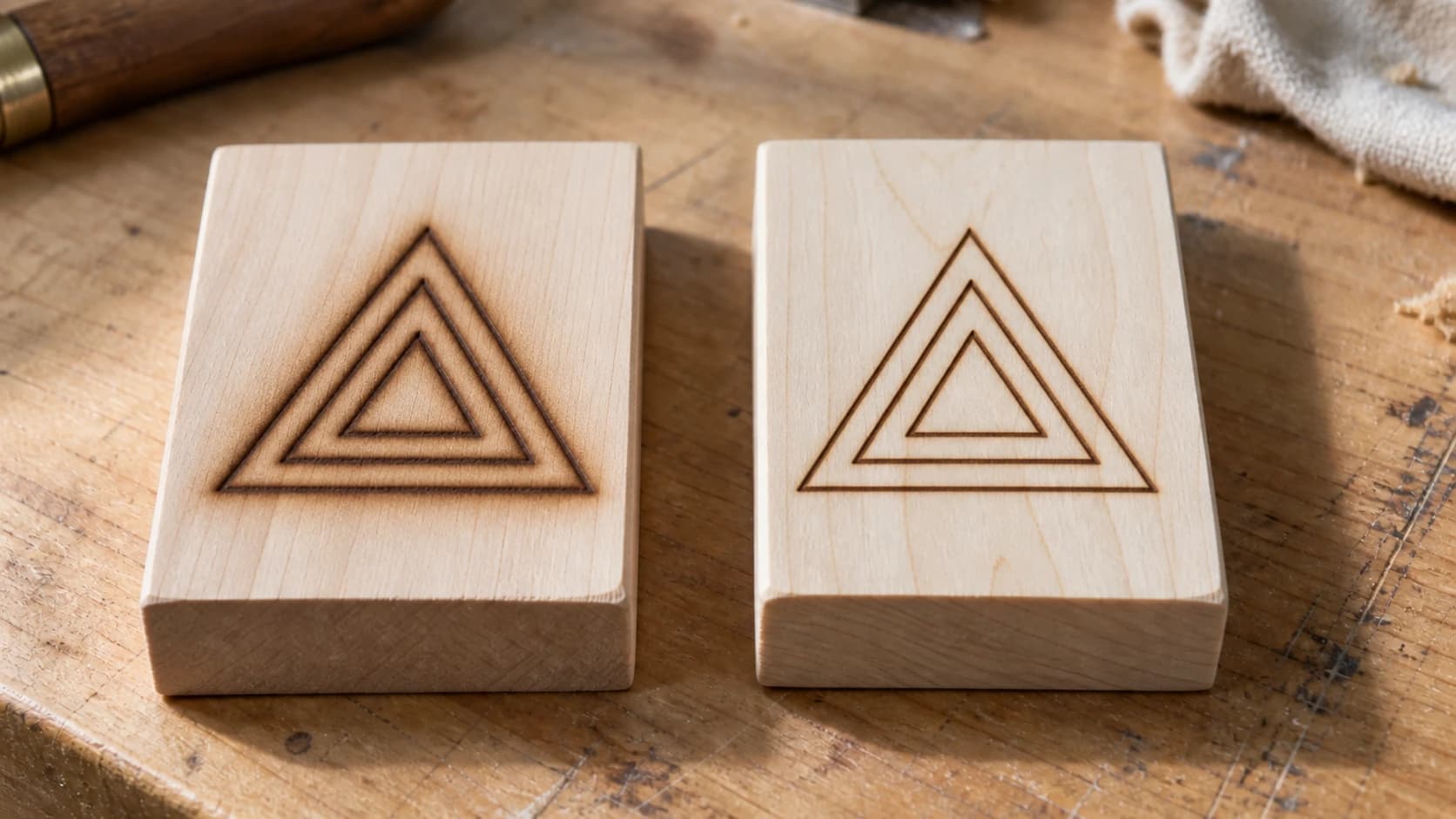
Every laser engraver owner has a drawer of shame. It's where the "learning experiences" go. The coasters that came out looking like abstract art. The cutting board with your client's name mirrored backwards. The piece of acrylic that melted into a puddle.
If you've already read our laser engraving beginner's guide, you know the fundamentals. This post is about the things that still go wrong after you've learned the basics. These are the ten mistakes that catch almost everyone at some point, and the fixes are usually simpler than you'd expect.
1. Wrong Focus Distance
What it looks like
Blurry, fuzzy engraving. Lines look fat and soft instead of sharp and crisp. Cuts that don't go all the way through even at full power.
Why it happens
The laser beam converges to a tiny point at a specific distance from the lens. That's your focal point. If the material surface isn't at that exact distance, the beam spreads out and you lose power density. It's like trying to start a fire with a magnifying glass held at the wrong height.
How to fix it
Use the focus tool that came with your machine. Every time. Before every job. Different material thicknesses mean different focus heights, so switching from 3mm plywood to a thick cutting board means refocusing.
If your machine has auto-focus, use it. If it uses a manual spacer block, place it between the laser module and the material surface. The block should sit flat, not at an angle. If the spacer seems too short or tall for your material, you may have the wrong spacer for your lens (some machines ship with multiple options).
Tip
If your engravings are consistently blurry even after focusing, your lens might be dirty. A tiny speck of resin or smoke residue on the lens scatters the beam. Clean it gently with a lens wipe and isopropyl alcohol. Don't use paper towels or tissue, they scratch.
PRINT. CUT. CARVE.



- Multiple formats (SVG, DXF, PNG)
- Machine-tested designs
- Commercial licenses
Sponsored by PrintCutCarve.com
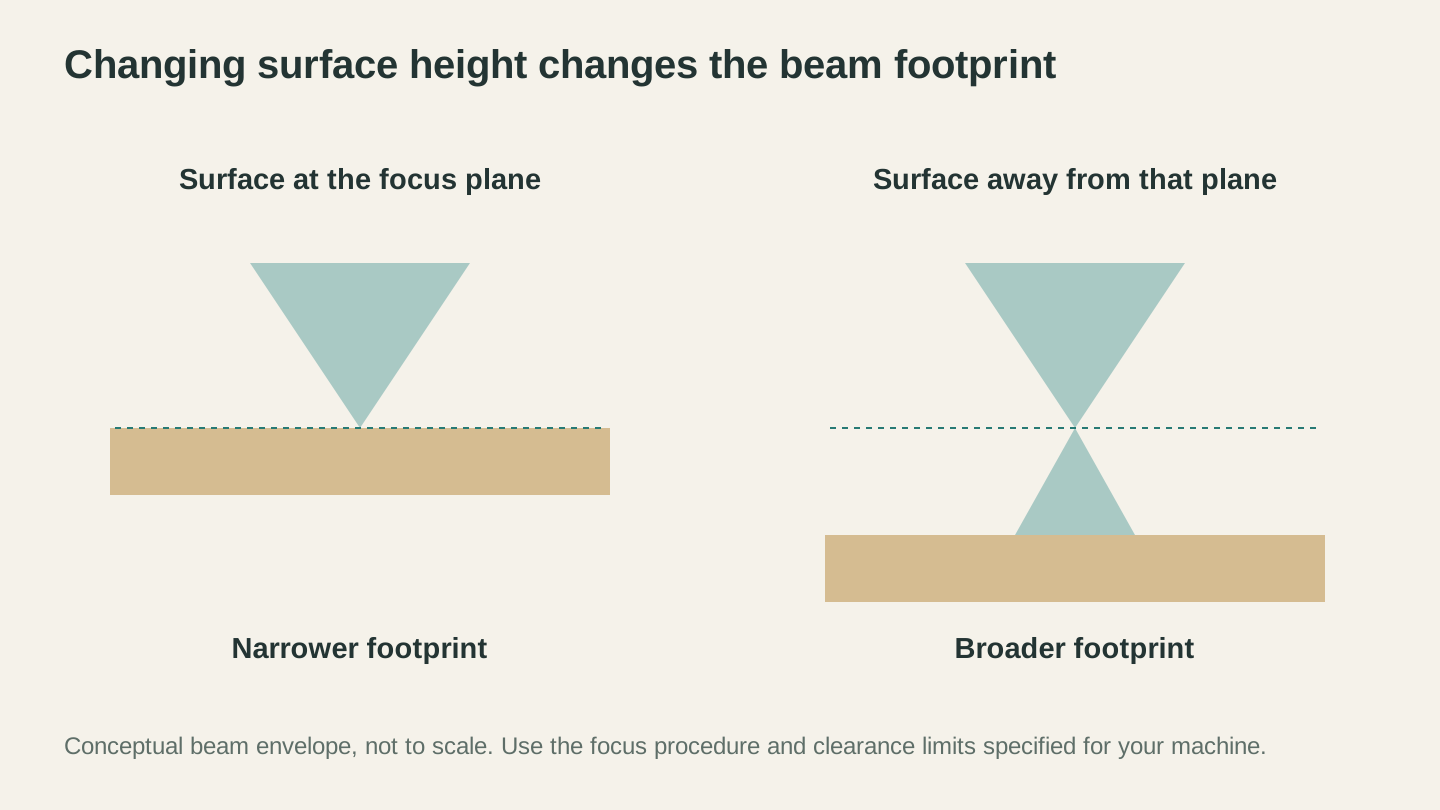
Changing the material’s height changes where it meets the beam. Follow your machine’s focus procedure instead of copying a distance from another setup.
2. Too Much Power (or Too Slow)
What it looks like
Dark, charred engraving with scorch marks spreading beyond the design lines. Deep grooves when you wanted a surface mark. Blackened edges on cuts with heavy char residue.
Why it happens
Too much energy is hitting the material. Either the power is set too high, the speed is too low, or both. Beginners often crank power to 100% "just to make sure it works," and the result is basically a controlled fire.
How to fix it
Drop your power by 10-20% and try again. If you've already checked our wood settings cheat sheet, use those as starting points and adjust from there.
A quick rule: if you can smell strong burning and see visible smoke lingering on the surface after the laser passes, you've got too much energy. Back off. For engraving, you want a light tan to medium brown mark on wood, not a black crater.
Air assist helps too. A stream of air blowing on the cut point clears smoke and reduces char. Many machines have built-in air assist. If yours doesn't, even a small aquarium pump with tubing aimed at the work area helps.
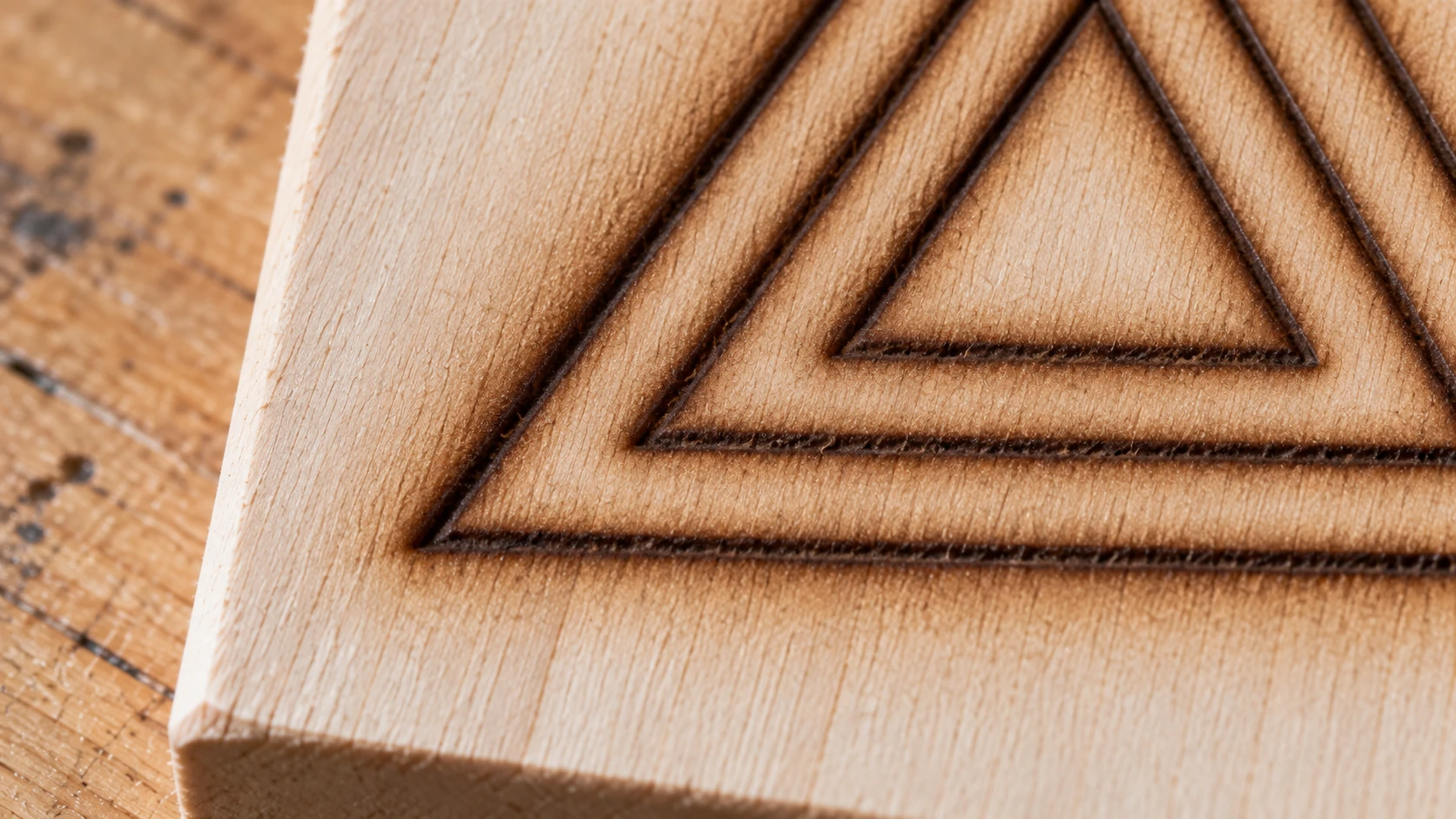
The rougher practice sample at closer range. These are illustrative surface symptoms; focus, settings, material and smoke management can all affect the result.
3. Not Masking the Material
What it looks like
Hazy brown staining around the engraved area. The design looks good, but the surrounding wood has a dirty, smoky discoloration that won't sand off easily.
Why it happens
When the laser burns material, it creates smoke and tiny particles. These settle on the surface around the engraving area and bake into the wood from the heat. The result is a "smoke shadow" that makes the whole piece look messy.
How to fix it
Apply painter's tape (blue masking tape) over the entire surface before engraving. The laser burns through the tape in the engraved areas but protects the surrounding surface from smoke residue. Peel the tape off after engraving and you get crisp, clean edges with zero haze.
For irregular surfaces or large pieces, transfer tape (the kind used for vinyl) works even better because it comes in wider rolls and conforms to slight curves.
One note: masking adds a step to your workflow, but once you see the difference, you'll never skip it again.
4. Wrong DPI for the Job
What it looks like
Too low DPI: Visible horizontal lines in the engraving. The image looks stripey, like a low-resolution printout. Individual scan lines are visible to the naked eye.
Too high DPI: The job takes forever, and the results don't actually look better. On some materials, excessive DPI creates so much heat buildup that the surface warps or chars.
Why it happens
DPI (dots per inch) controls how many lines the laser draws per inch of height. Too few lines and you can see the gaps between them. Too many and you're wasting time with no visible improvement in quality.
How to fix it
For most wood engraving, 254 DPI is the sweet spot. It's fast enough to be efficient and dense enough that you can't see individual lines at normal viewing distance.
For photo engraving where you want maximum detail, bump to 300-318 DPI. Going above 350 DPI on wood rarely produces visible improvement and can cause over-burn issues.
For fast draft engraving or large items you'll view from a distance (like big signs), 150-200 DPI is perfectly fine and cuts your job time significantly.
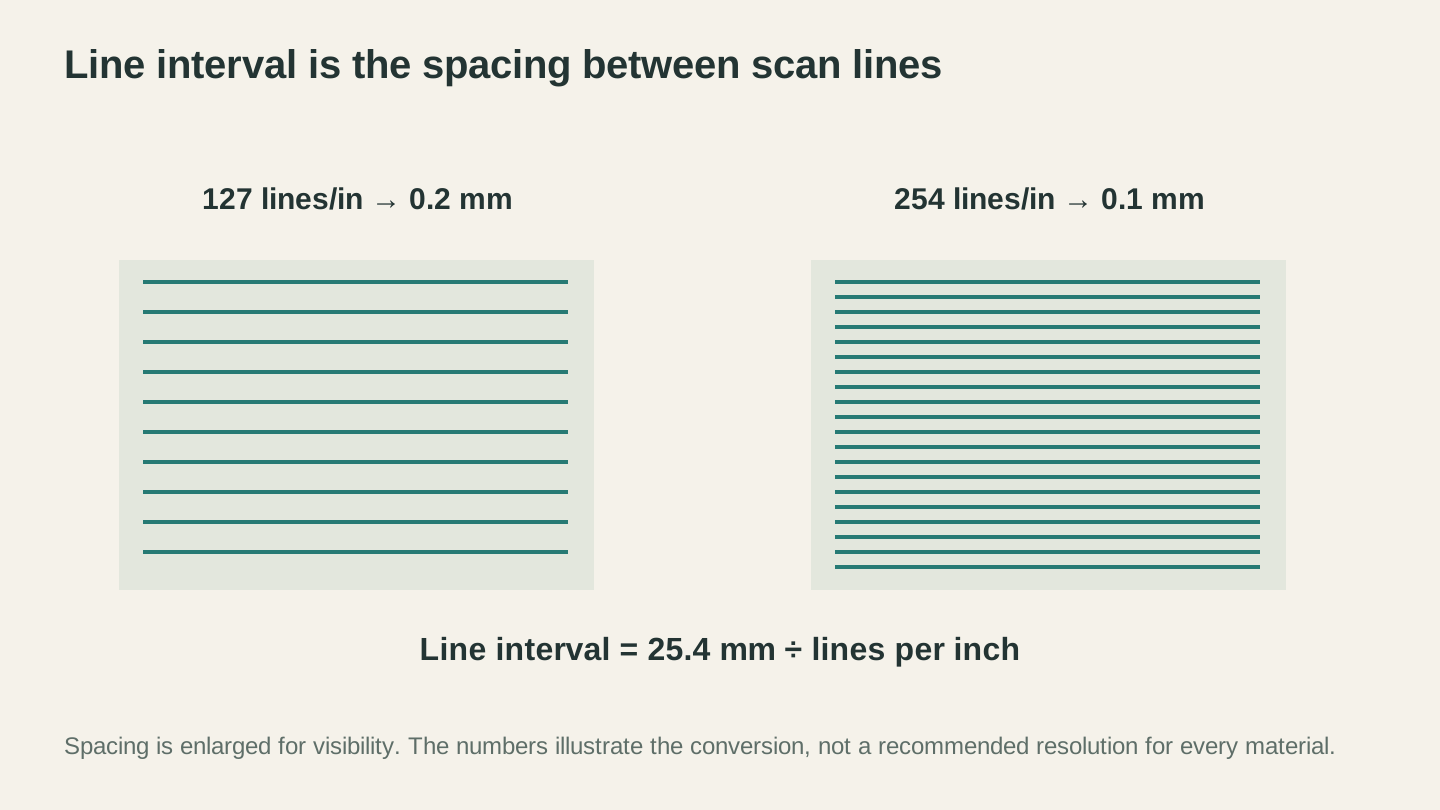
Line interval is spacing: 254 lines per inch corresponds to 0.1 mm, while 127 corresponds to 0.2 mm. The illustration enlarges that spacing so the distinction is visible.
5. Engraving on the Wrong Side
What it looks like
A perfect mirror image of your design. Everything is backwards. You don't notice until you flip the piece over (or worse, hand it to a customer).
Why it happens
This one is pure human error, but it happens to everyone at least once. Some materials look the same on both sides, and you place the "good" side face down. On acrylic, you might intentionally engrave the back side for a certain look but forget to mirror the design first.
How to fix it
For acrylic back-engraving, always mirror your design in the software before sending it to the laser. Most laser software has a "Mirror" or "Flip Horizontal" button.
For wood, pick the side you want to engrave and put a small pencil mark on it. Simple, but effective. On the "wrong side" mistakes, the pencil mark saves you every time.
Before starting any job, run a "Frame" preview. The laser traces the boundary of your design without firing. Look at where it's framing and make sure the design will land where you want it, on the right side, in the right orientation.
6. Not Securing the Material
What it looks like
The design shifts partway through the job. Half the engraving is perfect, then it suddenly jumps to the side. On cuts, the piece moves after being freed and the final edges don't line up.
Why it happens
The laser head creates vibration as it rapidly accelerates and decelerates. If the material isn't held down, it creeps. Cut pieces are even worse because once a section is freed from the surrounding material, there's nothing holding it in place. One bump from the air assist nozzle and it flips up into the beam.
How to fix it
Tape, pins, magnets, or honeycomb holddown pins. Use whatever method works for your setup, but use something.
For sheet materials on a honeycomb bed, small neodymium magnets at the corners work great. For items on a flat bed, double-sided tape or a few dabs of hot glue (which peels off cleanly later) are simple solutions.
For cutting, use tabs in your design. Small bridges that keep the cut pieces attached to the surrounding material until you're done. Snap them apart afterwards and sand the tiny nubs.
7. Ignoring Ventilation
What it looks like
This one doesn't show on your project. It shows in your lungs. Headaches, irritated eyes, a persistent cough, and a workshop that smells like a campfire for days.
Why it happens
Laser engraving vaporizes material. Wood produces smoke and fine particulates. Acrylic produces chemical fumes. Leather smells like, well, burning leather. None of this is stuff you want to breathe.
How to fix it
At minimum, use the exhaust fan built into your laser's enclosure. Point the exhaust hose out a window.
Better: add an inline booster fan (4" or 6" inline duct fan) to increase airflow. The built-in fans on most hobby lasers are undersized.
Best: use both exhaust ventilation AND an air purifier with activated carbon filters in your workspace. The carbon filters catch the chemical compounds that simple HEPA filters miss.
If you're using an open-frame diode laser without an enclosure, ventilation is even more critical. Consider building or buying a simple enclosure, or at minimum, work in a well-ventilated area like a garage with the door open.
Warning
Some materials produce genuinely dangerous fumes. PVC and vinyl release hydrochloric acid gas. Polycarbonate releases bisphenol A. Coated or painted metals can release toxic compounds. Always know what your material is made of before you laser it. If you can't identify it, don't laser it.
8. Skipping Test Grids
What it looks like
Wasted material. You run your design on a nice piece of walnut with settings you found online, and it comes out too dark, too light, or barely visible. Now that walnut piece is scrap.
Why it happens
Optimism and impatience. You found settings on a forum that someone says work great, so why bother testing? Because your machine, your material, your lens cleanliness, and even your room temperature are all different from theirs.
How to fix it
Run a test grid every time you use a new material. It takes 10-15 minutes. Use a small scrap from the same batch of material you plan to engrave.
Our wood settings cheat sheet gives you starting ranges, but those are for getting into the ballpark. Your test grid gets you to the bullseye.
Keep your test grids. Label them with the material, date, and settings. Hang them on the wall or keep a binder. Within a few months you'll have a personal reference library that makes dialing in new jobs instant.
9. Wrong File Format
What it looks like
Blurry engraving when you expected crisp lines. Thick outlines when you wanted thin. The design looks different on screen than what the laser produces. Or the software rejects the file entirely.
Why it happens
Using a raster image (PNG, JPG) when you should be using a vector (SVG, DXF). Raster images are grids of pixels. When the laser software scales them up or converts them for engraving, the pixels get fuzzy. Vectors are mathematical paths that scale perfectly to any size.
How to fix it
For anything with clean lines, text, logos, or geometric designs, use vector files. SVG is the most common format. If your software needs DXF, you can convert with File Converter without using tool credits. Downloading the converted file requires an active paid plan.
For photo engraving, raster files (PNG, JPG) are correct. But use the highest resolution image you have. Upscaling a tiny 200px web thumbnail won't give good results no matter what settings you use.
If you have a PNG of a logo or design and need it as a vector, MonoTrace will vectorize it for free. Clean vector paths engrave significantly sharper than raster images.
Info
A quick way to tell if your file is raster or vector: zoom in to 500% in your design software. If the edges get pixelated and jaggy, it's a raster. If the edges stay perfectly smooth no matter how far you zoom, it's a vector.
10. Cutting Unsafe Materials
What it looks like
The material melts, smokes, or changes color. Acrid chemical smell. Green or yellow-tinted flames. Damage to your laser's lens, rails, or electronics from corrosive fumes.
Why it happens
Not all materials that look laser-friendly actually are. The worst offender is PVC (polyvinyl chloride), which is found in some "faux leather," vinyl stickers, certain foam boards, and many plastics. When lasered, PVC releases corrosive, toxic hydrogen chloride that eats the metal components inside your machine and is genuinely bad to breathe.
How to fix it
Common laser materials (verify the exact stock and machine compatibility):
- Wood (all natural species)
- Plywood (interior grade / laser grade)
- MDF (with proper dust collection and ventilation)
- Leather (vegetable-tanned, genuine)
- Acrylic (cast acrylic is best)
- Paper and cardboard
- Anodized aluminum (diode lasers only, marks the coating)
- Glass (CO2 lasers, marks the surface)
- Ceramic tile (marks glazed surface)
- Fabric (cotton, felt, denim)
Dangerous materials (never laser):
- PVC and vinyl
- ABS plastic
- Polycarbonate (Lexan)
- Fiberglass
- Carbon fiber
- Coated metals (unknown coatings)
- Foam with unknown composition
- Artificial/faux leather (often contains PVC)
If the material is unidentified, leave it out of the laser. Obtain its composition and laser-processing guidance from the supplier or manufacturer; a home flame test cannot establish that a material is safe. Trotec’s material guidance explains why some plastics, coatings and additives must be excluded.
The 30-Second Pre-Job Checklist
Tape this to your laser:
- Material identified and confirmed safe
- Laser focused for this material thickness
- Material secured (taped, pinned, or clamped)
- Surface masked (painter's tape applied)
- Ventilation running
- Correct file format (vector for lines, raster for photos)
- Frame preview checked (right position, right orientation)
- Settings tested on scrap first
Skip any one of these and you're rolling the dice. Follow all eight and your success rate goes way up.
Go Make Something (Without the Mistakes)
Everyone makes these mistakes. The drawer of shame is a universal experience. But now you know what to watch for, and more importantly, you know the fixes.
Grab a scrap piece, run a test grid, mask the surface, check your focus, and make something great. And when you inevitably mess something up anyway (because you will, we all do), just add it to the drawer and try again. That's how this hobby works.
When you are ready to prep a clean photo for engraving, Photo Converter turns it into laser-ready line art in one pass, so muddy photos stop being one of those mistakes.
Happy making.
Related Tools
Photo Converter
Convert a photo into engraving-oriented line art with standard or inverted output.
File Converter
Convert supported combinations of vector, document, raster-image, and 3D-mesh formats.
Plan required for downloads
MonoTrace
Turn photos and artwork into SVG outlines for free, with an optional sketch mode.
Ready to try these tools?
Sign up free, no credit card required. Free tools available immediately.
Start Free