

How to Turn Photos into Laser Engravings (Line Art Conversion)
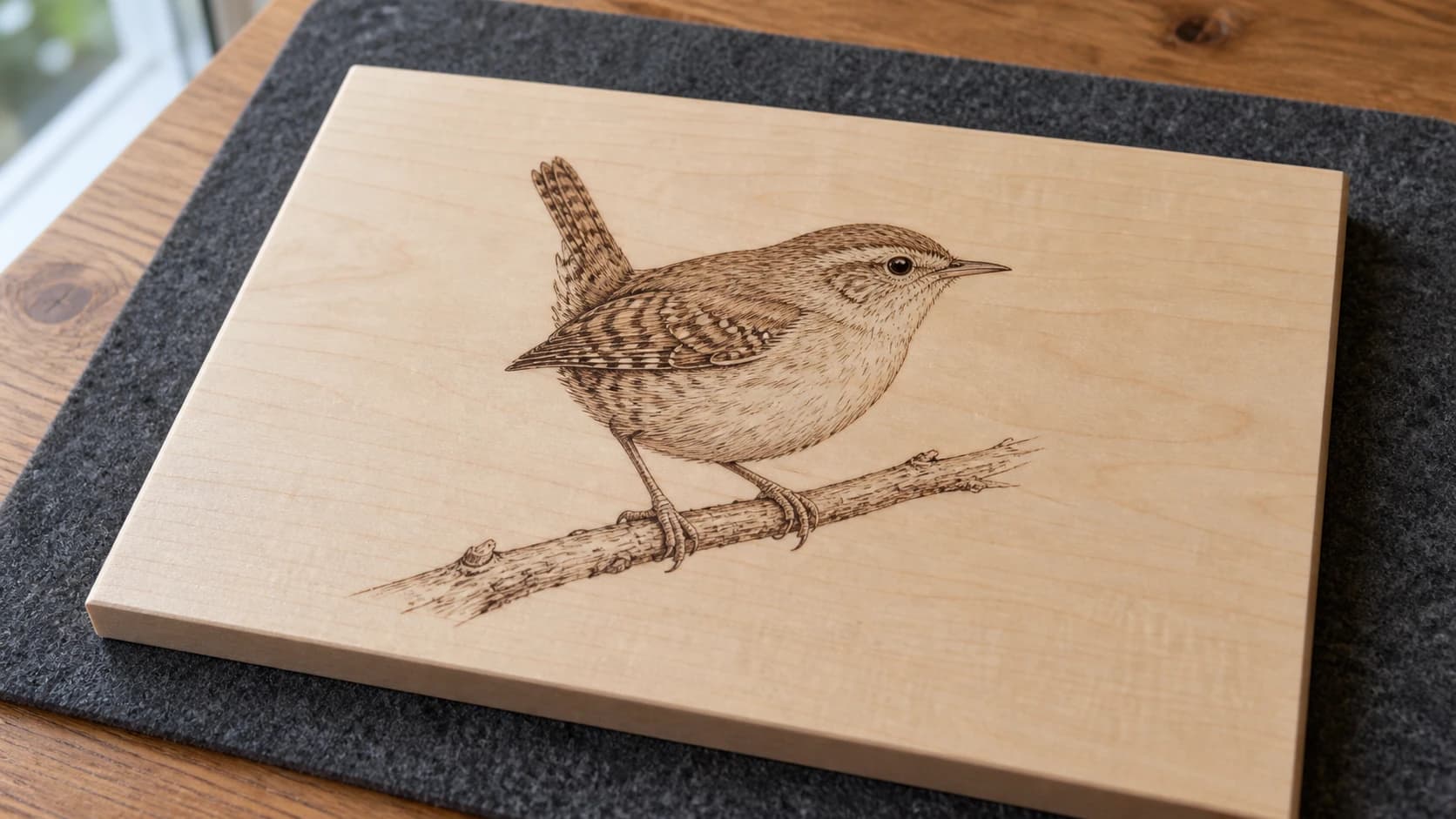
Someone hands you a photo and says "can you laser engrave this?" You say sure, load the JPG into your laser software, and hit start. Twenty minutes later you've got a blurry, muddy mess burned into a perfectly good piece of maple. The gradients turned to mush, the shadows became one giant dark blob, and the fine details disappeared entirely.
Photos don't engrave well as-is. Your laser doesn't understand gradients the way a screen does. It can either burn or not burn. On or off. To get a photograph onto wood, metal, or acrylic in a way that actually looks good, you need to convert it to a format that works with how lasers actually operate.
That's what this guide covers: turning photographs into clean, engraveable artwork using line art conversion. The results look like professional pen-and-ink illustrations, and they engrave beautifully on nearly any material.
Why Photos Don't Laser Engrave Well (Directly)
A photograph is millions of pixels in continuous tones. Smooth gradients from light to dark, subtle shadow variations, color blending. Your computer screen can display all of this because each pixel can be any of 16 million colors.
Your laser has two options: burn or don't burn. Some lasers with grayscale capability can vary their power to simulate tones, but even then, the results on most materials are inconsistent. Wood grain absorbs laser energy unevenly, so what should be a smooth gradient becomes a patchy, unpredictable mess.
PRINT. CUT. CARVE.



- Multiple formats (SVG, DXF, PNG)
- Machine-tested designs
- Commercial licenses
Sponsored by PrintCutCarve.com
There are two approaches to getting photos onto material:
Dithered raster engraving: The software converts your photo into a pattern of tiny dots (like newspaper printing). More dots = darker areas, fewer dots = lighter. This can work for some images but requires very specific speed/power/DPI settings and certain materials. Results vary wildly.
Line art conversion: The photo is converted to clean black-and-white line art that captures the contours and important features of the image. Think of a skilled artist drawing the scene with a fine pen. The laser follows these lines, and the result is a clean, consistent engraving that works on virtually any material. This is the approach we focus on here.
Using Photo Converter
Photo Converter is built specifically for this job. Upload a photo, and the AI converts it to pen-and-ink style line art optimized for laser engraving. It costs one credit per conversion.
Step 1: Upload Your Photo
Head to Photo Converter and upload your image. JPG, PNG, or WebP all work fine. The AI analyzes the image and generates a line art version.
You'll see the converted result in a few seconds. The output is a clean black-and-white image where the important features of the photo (faces, edges, textures, key details) are represented as crisp lines.
Step 2: Choose Standard or Inverted
Photo Converter offers two output modes:
Standard mode: Black lines on a white background. This is what you want for engraving on light-colored materials like maple, birch, or basswood. The laser burns the dark lines, leaving the light areas untouched.
Inverted mode: White lines on a black background. Use this when engraving on dark materials like slate, anodized aluminum, dark-stained wood, or painted tiles. The laser removes the dark coating to reveal lighter material underneath, so the "lines" appear as the un-engraved areas.
Step 3: Download and Engrave
Download the line art image and import it into your laser software as a raster engrave. If you need laser software, Beam Bench is free. Since the image is already pure black and white with no gradients, the laser settings are straightforward. No dithering needed. No grayscale fussing. Just clean lines.
Tip
For the sharpest results, engrave at 300-500 DPI. Higher DPI takes longer but captures more line detail. For most projects, 300 DPI is the sweet spot between quality and speed.
Image Preparation Tips
The quality of your line art conversion depends heavily on the quality of your input photo. A few minutes of prep work makes a huge difference.
Start with a Good Photo
The AI does its best work with clear, well-lit photos where the subject is distinct from the background. Blurry photos, low-resolution images, and heavily compressed JPGs all produce muddier line art.
What works best:
- High resolution (at least 1000px on the longest side)
- Good lighting with clear shadows
- Subject that stands out from the background
- Sharp focus on the important features
Crop Before Converting
Don't upload a full landscape photo when you only want the person in the center. Crop to the subject first. This lets the AI focus its detail on what matters and produces cleaner results. Most phones and computers have a built-in crop tool that takes seconds.
Increase Contrast
If your photo looks flat or washed out, bump up the contrast before converting. The more distinct the difference between light and dark areas, the better the line art will capture the important features. Most image editors (even phone apps) have a contrast slider.
Consider the Background
Busy backgrounds create busy line art. If there's a tree, a bookshelf, and a dog behind your subject, all of that gets converted to lines too. Either crop tightly around the subject or use a background removal tool first.
Best Materials for Photo Line Art Engraving
Not all materials show line art equally well. Here's what works best:
Light Woods (Best Overall)
| Wood | Result Quality | Notes |
|---|---|---|
| Maple | Excellent | Fine grain, high contrast, the gold standard for photo engraving |
| Basswood | Excellent | Very consistent burn, affordable, great for beginners |
| Birch plywood | Very good | Baltic birch (BB grade) is smooth and consistent |
| Poplar | Good | Budget-friendly, slightly greenish tone |
| Cherry | Good | Darkens beautifully with burn, but grain can interfere with fine lines |
Light-colored, fine-grained woods give the most contrast and sharpest detail. Avoid open-grained woods like oak and ash for detailed photo work. Their porous grain absorbs the laser unevenly and breaks up fine lines.
For detailed settings on each wood species, check our laser engraving settings for wood cheat sheet.
Dark Materials (Use Inverted Mode)
Slate tiles: Gorgeous results. The laser turns the dark surface white where it hits. High contrast, very durable.
Anodized aluminum: The laser removes the colored anodization to reveal silver metal underneath. Popular for pet tags, nameplates, and industrial-looking plaques.
Painted or coated surfaces: Paint a light color on wood, let it dry, then engrave through the paint to reveal the wood underneath. (Or paint dark, engrave to reveal light.) This is the inverted mode use case.
Acrylic
Clear acrylic engraves with a white frosted appearance. The lines show up well but there's less contrast than wood. Works best for edge-lit LED signs where the engraved lines catch light.
When to Use Line Art vs Other Approaches
Line art conversion isn't the only way to get images onto material. Here's when to use each approach:
Line art (Photo Converter): Best for portraits, pet photos, landscapes, and any image you want to look like a hand-drawn illustration. Works on virtually any material. Consistent, predictable results.
Dithered raster engraving: Better for images where you want tonal variation (dark shadows, light highlights) rather than line work. Requires very specific speed/power/DPI settings that vary by material. Results are great when dialed in but take more experimentation. Most laser software has built-in dithering options.
Vector outlines (MonoTrace): If you want clean vector paths rather than raster line art, MonoTrace converts images to SVG vectors for free. Better for cutting outlines or when you want to scale the design to any size without quality loss. Our PNG to SVG guide covers this workflow. Note: vectors trace shape outlines, not photo detail. A vector of a face is its silhouette, not its features.
Multicolor inlays (MosaicFlow): For color-separated designs where each color becomes a separate piece (wood inlay, multi-layer acrylic), MosaicFlow splits images into color layers. Completely different from photo engraving but worth mentioning since people sometimes want "color" from their laser.
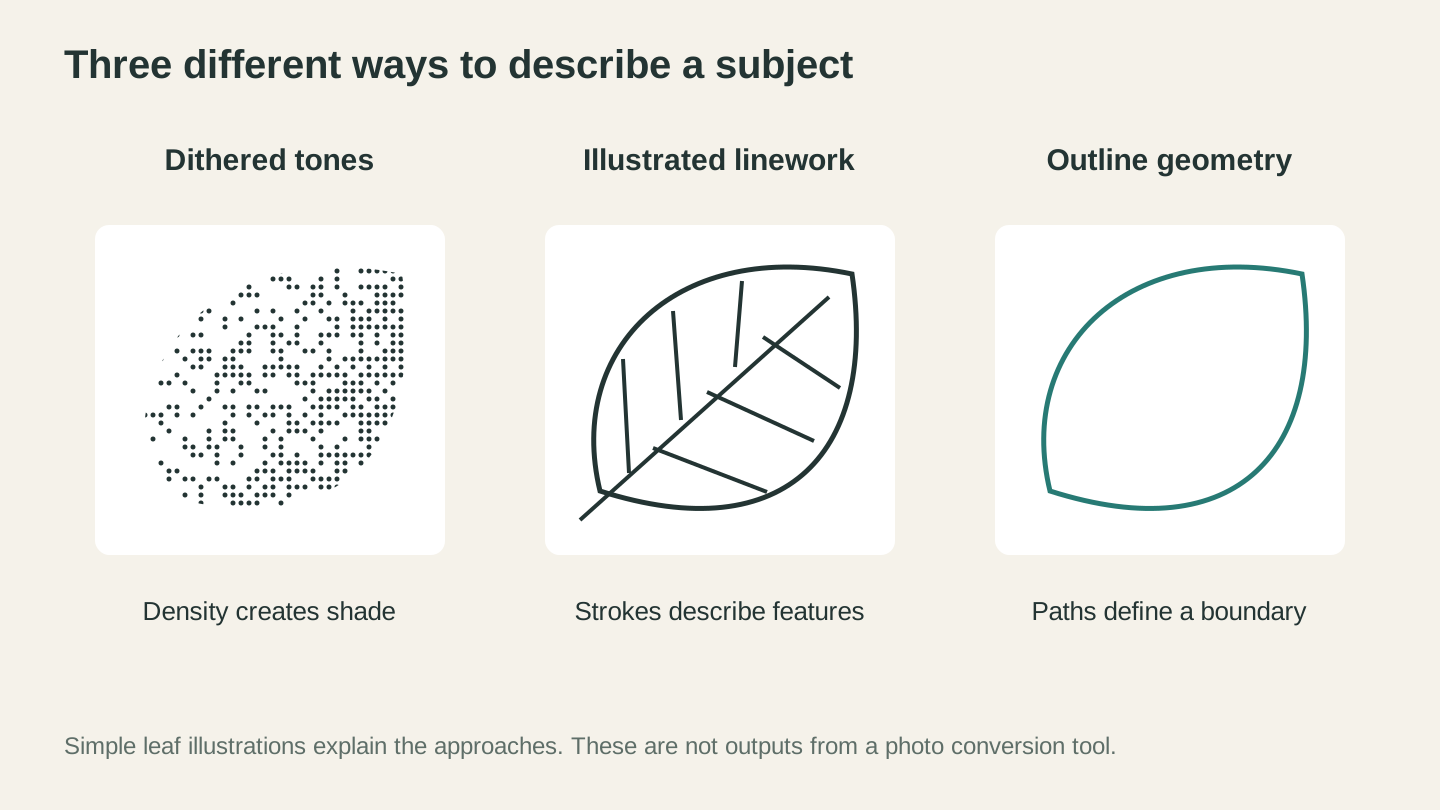
Dots describe tone, linework describes features, and an outline defines a boundary. These simplified examples explain the different kinds of artwork; they are not conversion results.
Project Ideas
Now that you know the workflow, here are some popular projects that use photo-to-line-art conversion:
Pet portraits on wood plaques. Take a good photo of someone's dog or cat, convert to line art, engrave on a 6x6" piece of maple. These make incredible gifts and sell extremely well if you're into that.
Family photo ornaments. Convert a family photo to line art, engrave on a thin round wood piece, drill a hole at the top, add a ribbon. Holiday gift done.
Memorial plaques. Photo of a loved one converted to line art and engraved on a nice piece of hardwood with their name and dates. Tasteful and personal.
Landscape coasters. Take a scenic photo, convert to line art, engrave on a set of 4" square pieces. A set of local landmarks makes a great souvenir product.
Custom phone cases. Many makers engrave line art onto wood or leather phone cases. The Photo Converter output works perfectly for this.
Info
If you're making products to sell, our laser engraving beginner's guide covers the full machine setup, and the common laser mistakes guide will help you avoid costly errors on customer orders.
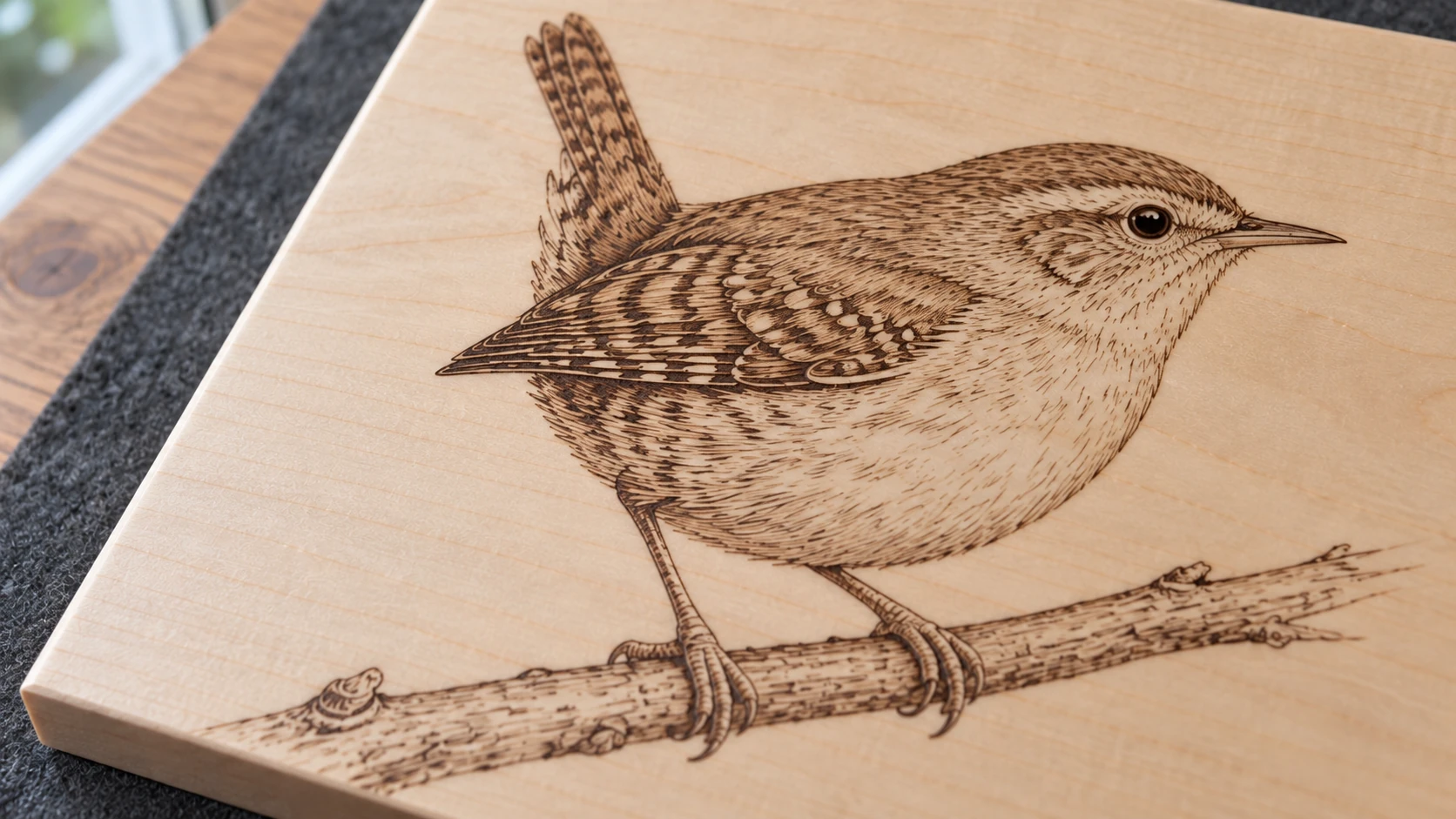
The fine strokes describe feathers, feet and the branch while leaving the maple visible between them. Keep the source lines crisp at the final engraving size.
Troubleshooting
Line art looks too busy/cluttered: Your source photo probably has too much background detail. Crop tighter to the subject, or increase contrast in the source photo so the AI can distinguish the important features more easily.
Engraving is too faint: Line art uses a single tested line setting rather than grayscale power modulation. Increase power or reduce speed only within a range already verified as safe for your exact machine and material, and confirm the change on scrap before engraving the final piece.
Engraving is too dark/scorched: You're going too slow or too powerful. Speed up or reduce power slightly. The goal is clean, crisp lines, not deep trenches.
Fine lines are disappearing: Your DPI might be too low. Increase to at least 300 DPI. Also check that your laser's focus is properly dialed in. An out-of-focus laser produces fatter, less detailed lines.
Lines look jagged or pixelated: The source image resolution was too low. Start with a higher resolution photo (at least 1000px on the longest side) and re-convert.
Go Convert a Photo
Find that photo you've been wanting to engrave. The one of the dog, the mountain view, or grandma's portrait. Head to Photo Converter, upload it, and see how it looks as line art. The conversion takes seconds, and you'll immediately see whether the image will make a good engraving.
Then load it into your laser software, put a piece of maple on the bed, and hit start. This time, the result will actually look like the photo.
Happy making.
Related Tools
Ready to try these tools?
Sign up free, no credit card required. Free tools available immediately.
Start Free