

Product Photography Tips for Makers (Smartphone Edition)
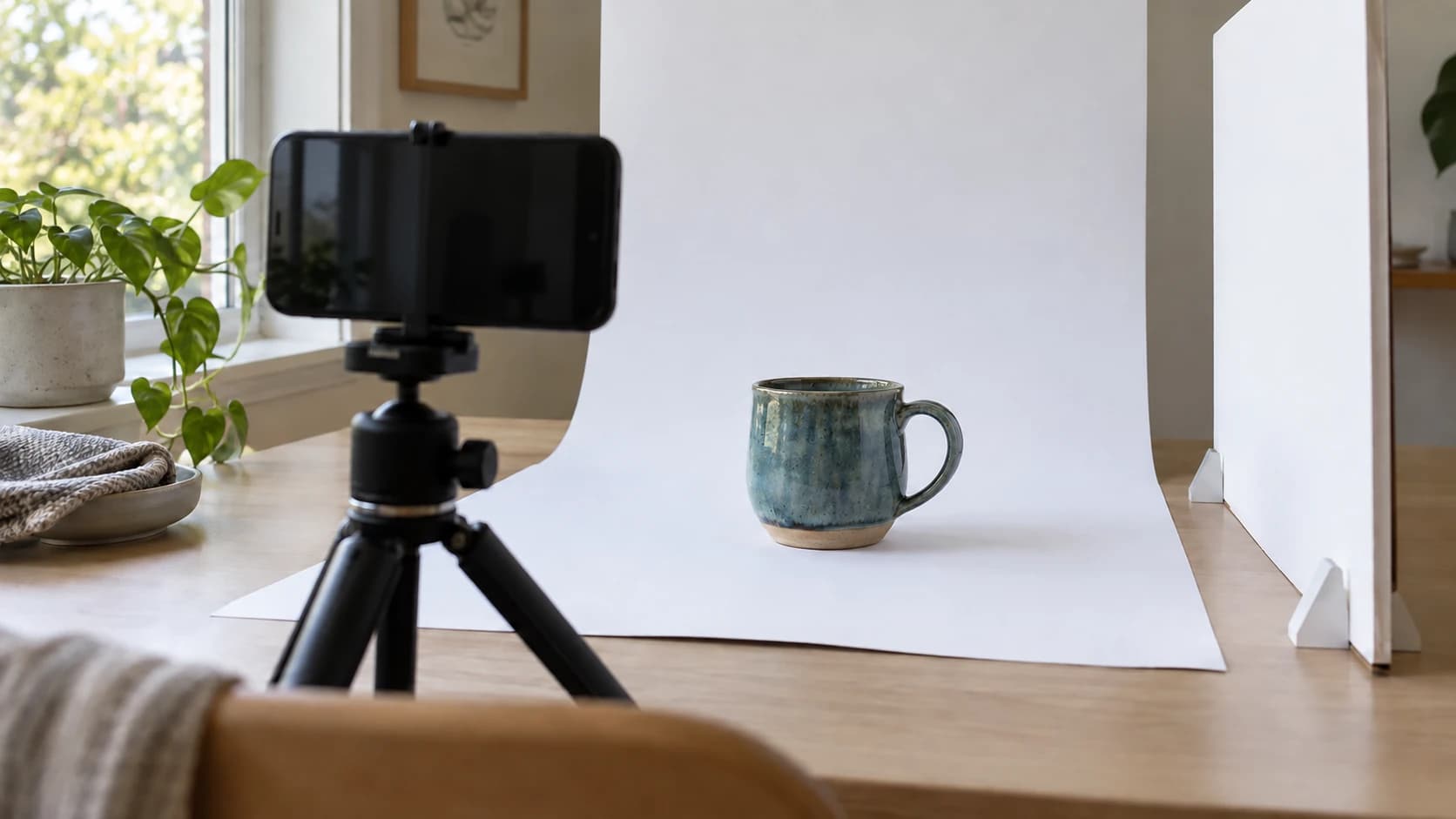
Your product is great. You spent hours designing it, dialing in the settings, choosing the right material. It looks fantastic in person. Then you take a photo with your phone on the kitchen table under the overhead light, and suddenly your beautiful hand-crafted cutting board looks like something from a 2006 Craigslist listing.
This is the gap that kills maker businesses. Not the product quality. Not the pricing. Not the platform. The photos. A stunning product photographed poorly will sit unsold while a mediocre product photographed well sells all day long.
The good news: you don't need a $2,000 camera, a studio, or a photography degree. You need your smartphone, some cheap lighting, a clean background, and about 30 minutes of reading this guide. That's it.
Why Photos Are Your Most Important Sales Tool
Etsy, Amazon Handmade, Shopify, craft fairs, social media. Every selling channel is visual first. A buyer scrolling through search results makes their click decision in less than two seconds, and they're making that decision based entirely on your thumbnail image.
Here's the reality of how online selling works. Buyers don't read your title first. They don't check your reviews first. They look at photos. If your main image looks professional, they click. If it looks amateur, they scroll past. It doesn't matter that your product is better than the competitor three rows up. If their photo is better, they get the click.
Etsy's own data backs this up. Listings with professional-quality photos get 2 to 5 times more clicks than listings with poor photos. That translates directly to more sales, better search ranking (because Etsy rewards listings that get clicks), and a virtuous cycle of visibility.
The photography section in our Etsy selling guide covered the basics. This post goes much deeper. We're talking specific lighting setups with dollar amounts, detailed techniques for different product types, editing workflows, and batch shooting strategies that save you hours every week.
What "Professional" Actually Means
Professional product photos aren't about artistic creativity. They're about clarity, consistency, and trust. A professional product photo has:
- Even, soft lighting with no harsh shadows or blown-out highlights
- A clean background that doesn't compete with the product
- Sharp focus on the product itself
- Accurate color representation so the buyer gets what they expect
- Consistent style across all your listings
That's it. You don't need dramatic angles or moody lighting. You need the buyer to see your product clearly and think, "That looks like a legit business." Because it is.
PRINT. CUT. CARVE.



- Multiple formats (SVG, DXF, PNG)
- Machine-tested designs
- Commercial licenses
Sponsored by PrintCutCarve.com
Smartphone vs. Camera: Why Your Phone Is Probably Better
If you're debating whether to buy a DSLR or mirrorless camera for product photography, save your money. Modern smartphones have closed the gap significantly for product photography, and in some ways they're actually easier to use.
Your phone's camera has several advantages:
Computational photography is absurdly good. Your iPhone or Android phone takes multiple exposures instantly and merges them using AI. The resulting image has better dynamic range (detail in both shadows and highlights) than most entry-level cameras shooting a single exposure.
The screen is your viewfinder. You see exactly what the final image looks like while shooting. No squinting through a tiny optical viewfinder. No wondering if the exposure was right until you check the back screen.
Editing is immediate. Shoot, edit, and upload from the same device. No memory cards, no file transfers, no separate editing software to learn.
Portrait mode handles depth. For lifestyle shots where you want a blurred background, portrait mode on modern phones does a surprisingly good job.
Info
The main advantage a dedicated camera still has is interchangeable lenses and manual control over depth of field. For flat products like stickers and decals, this doesn't matter at all. For large 3D products like carved signs, a phone does fine. The only scenario where a camera clearly wins is when you need precise bokeh control for lifestyle shots with very specific background blur.
Phone Settings That Matter
Before you start shooting, adjust these settings:
- Turn off flash. Always. The built-in flash creates harsh, flat light with ugly shadows directly behind the product. You'll use external lighting instead.
- Lock focus and exposure. On most phones, tap and hold on the product to lock both. This prevents the camera from re-focusing between shots.
- Use the rear camera. Always. The front-facing camera is lower quality and introduces distortion.
- Shoot at 1x zoom. Digital zoom degrades quality. If you need to get closer, physically move closer. The 1x lens on most phones is the highest quality.
- Turn on grid lines. Use the rule of thirds grid to center your product and keep horizons straight.
- Clean your lens. Seriously. Your phone lives in your pocket. There's a fingerprint on the lens right now. Wipe it with a microfiber cloth before every shoot.
DIY Lighting Setups: Three Budgets, Three Options
Lighting is the single biggest factor in photo quality. Great lighting makes a smartphone photo look professional. Bad lighting makes a $5,000 camera photo look terrible. Here are three setups at three price points.
Setup 1: Natural Window Light (Free)
This is the simplest setup and it produces beautiful results. All you need is a window and a piece of white paper or foam board.
How to set it up:
- Find a window that gets indirect light. North-facing windows are ideal because they never get direct sun. East or west-facing windows work great when the sun is on the other side of the house.
- Place a table or surface right next to the window.
- Set your background on the table (more on backgrounds below).
- Place a piece of white foam board or a white sheet of paper on the opposite side of the product from the window. This acts as a reflector, bouncing light back onto the shadow side and creating even illumination.
- Shoot with the window to one side of the product (not behind you, not behind the product).
Best for: Wood products, engraved items, anything where you want warm, natural tones.
Limitations: Only works during daylight hours. Inconsistent between cloudy and sunny days. You need to reshoot if lighting conditions change mid-session. Direct sunlight creates hard shadows and is unusable without a sheer curtain to diffuse it.
Tip
Overcast days are a product photographer's best friend. Clouds act as a giant diffuser, creating the soft, even light that makes products look great. If you have a choice, shoot on a cloudy day near a large window for the most forgiving natural light.
The reflector trick explained: Without a reflector, the side of your product facing away from the window falls into shadow. That shadow looks unprofessional in photos. The white foam board bounces window light back onto the dark side, filling in the shadow. You can buy a sheet of white foam board at any dollar store for $1, or use a large piece of white paper. Some photographers use a small mirror for an even stronger fill, but white foam board produces softer, more natural results.
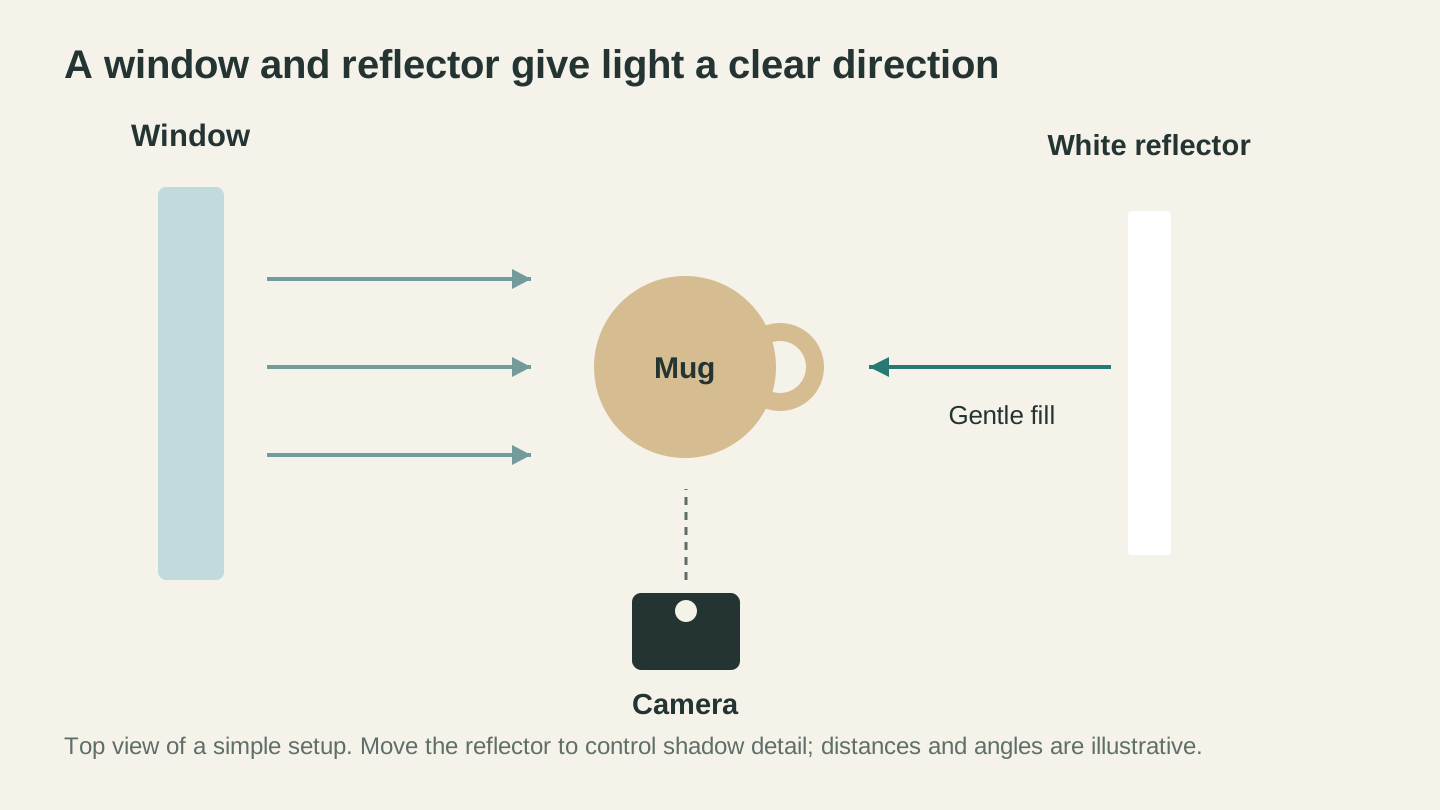
The window supplies the main light; the white board returns some of it to the shadow side. Adjust the distances while watching the actual product.
Setup 2: Two-Light Desktop Setup ($25 to $40)
When natural light isn't available or consistent enough, two simple LED lights solve the problem. This is the setup most serious maker-sellers use, and it works day or night.
What you need:
- 2 LED desk lamps or clip-on LED lights ($10 to $15 each). Look for daylight-balanced (5000K to 5500K) LEDs. Avoid warm/yellow bulbs.
- White tissue paper or parchment paper for diffusion ($1 to $3)
- Optional: a small white foam board for background ($1)
How to set it up:
- Place one light at a 45-degree angle to the left of the product, slightly above the product's height.
- Place the second light at a 45-degree angle to the right, at the same height.
- Tape a sheet of white tissue paper or parchment paper over each light. This diffuses the light, softening the shadows. Without diffusion, the LED lights create harsh, sharp-edged shadows.
- Position both lights about 18 to 24 inches from the product.
- Adjust the angle so the light falls evenly across the front of the product.
Best for: Evening and weekend shooting sessions, consistent results regardless of weather, any product type.
Why two lights? A single light source creates a strong shadow on one side of the product. Two lights from opposing angles cancel out each other's shadows, producing even, professional illumination. If one light is stronger than the other, you get a subtle shadow that adds dimensionality without looking harsh.
| Setup | Cost | Pros | Cons |
|---|---|---|---|
| Window light | Free | Beautiful, natural warmth. No equipment needed. | Daylight only. Weather dependent. Inconsistent. |
| Two-light setup | $25 to $40 | Consistent anytime. Easy to control. Portable. | Requires diffusion. May need adjustment for reflective products. |
| Lightbox | $80 to $120 | Most consistent. Best for small products. Professional results with zero skill. | Limited product size. Can look flat without additional lighting. |
Setup 3: Lightbox Setup ($80 to $120)
A lightbox (also called a light tent or photo box) is a semi-transparent cube with built-in LED lights. You place your product inside, and the box provides even, diffused light from multiple angles with a clean backdrop built in.
What you need:
- A photo lightbox, 20 to 24 inches for most maker products ($60 to $80 on Amazon). Brands like Neewer, PULUZ, or Emart all make solid options.
- The box usually comes with multiple backdrop colors (white, black, sometimes gray or orange).
- Optional: an additional small LED light to add directional light from above ($15 to $20)
How to use it:
- Set up the lightbox on a table. Most fold flat for storage.
- Turn on the built-in lights.
- Choose your backdrop. White is the default for most product photography. Black works well for metallic or shiny products.
- Place your product in the center of the box.
- Shoot through the front opening using your smartphone.
Best for: Small to medium products (under 18 inches). Jewelry, keychains, coasters, ornaments, small signs, tumblers, 3D printed items. Products you sell in high volume where consistency matters.
Limitations: Products larger than the box won't fit. The lighting can look flat because it comes from every direction equally. For products where you want to show texture (wood grain, engraving depth), add a small directional light from above or one side to create subtle shadows that reveal surface detail.
Info
Lightboxes are the best investment for makers who sell small, repeatable products. If you sell 20 different coaster designs, a lightbox lets you photograph all 20 in under an hour with perfectly consistent lighting and background. The consistency across your shop makes you look like a professional operation, not a hobby seller.
Background Options: White, Wood, and Lifestyle
Your background matters almost as much as your lighting. The wrong background distracts from your product, sends the wrong vibe, or makes your listing look amateur.
Solid White Background
White is the standard for product photography. It's clean, professional, and puts all the visual focus on the product. Most Etsy top sellers use white backgrounds for their main listing photo.
How to create it cheaply:
- Foam board sweep: Tape a 20x30 inch white foam board to a wall so it curves gently onto the table surface. This creates a "seamless" background with no visible edge or horizon line. Cost: about $1.
- White poster board: Same idea, slightly thinner material. Works fine for lighter products. Tends to wrinkle over time.
- White fabric: A white bedsheet or piece of white fabric draped over a surface. Smooths out with an iron. Good for larger products that don't fit on foam board.
When white doesn't work: Very light-colored or white products disappear against a white background. For white or cream-colored products, use a light gray background instead. A piece of gray cardstock or posterboard works perfectly.
Wood or Natural Surface Background
Wood backgrounds communicate "handmade" and "craft" immediately. They work particularly well for rustic, farmhouse, or natural aesthetic products.
Options:
- A wooden cutting board or serving tray you already own. Flip it to the unfinished side if you want a more rustic look.
- Peel-and-stick vinyl wood planks from a hardware store. Stick them to a piece of cardboard for a flat, wood-look surface. About $10 for enough to make a 2x3 foot background.
- A piece of scrap wood from your shop. Sand it smooth, maybe add a light coat of stain. Free if you have scraps.
When to use wood: Laser engraved items, CNC carved pieces, natural material products, anything with a rustic or farmhouse vibe.
When to avoid wood: Colorful products like vinyl decals or t-shirts. The wood grain competes visually with the design. White is better here.
Lifestyle Backgrounds
Lifestyle photos show the product in its intended environment. They're powerful selling tools because they help buyers imagine owning and using the product.
Rules for lifestyle backgrounds:
- Keep it relevant. A laser engraved cutting board on a kitchen counter with fresh bread. A custom sign on a living room wall. A tumbler on a desk next to a laptop. The setting should make sense for the product.
- Keep it minimal. Two or three supporting props maximum. A cutting board, a knife, and some rosemary. That's it. Don't add twelve items to the scene.
- Keep it clean. No clutter, no mess, no photobombs from kids or pets (as charming as that might be).
- The product is the star. Props support the product. They don't compete with it. If a prop draws more attention than the product, remove it.
Lifestyle photos typically go in positions 2 through 5 in your Etsy listing, not as the main thumbnail. Your main photo should be clean and clear on a simple background. Lifestyle shots sell the dream after the buyer clicks through.
Shooting Different Product Types
Every product material has its own photography quirks. What works for a wood cutting board doesn't work for a metallic tumbler. Here's how to handle each major maker product category.
Wood Items: Cutting Boards, Signs, Coasters
Wood products are the bread and butter of the maker world, and they photograph beautifully when you do it right.
The challenge: Capturing the wood grain and any engraving detail without washing out the surface or making it look flat.
Lighting approach: Side lighting works best for wood. Position your main light source (window or LED) at a 30 to 45-degree angle to the product surface. This creates subtle shadows in the wood grain and engraving that show depth and texture. Front-on lighting flattens everything.
For engraved items specifically: The contrast between the engraved area and the surrounding wood is what makes the product look good. If your engraving is hard to see in photos, your light angle is wrong. Lower the light angle (more to the side) until the engraving pops. The shadows inside the engraved grooves create natural contrast.
Color accuracy: Wood tones shift dramatically under different light temperatures. A walnut cutting board looks rich and dark under warm light but muddy and gray under cool fluorescent light. Daylight-balanced (5000K to 5500K) light produces the most accurate wood tones. If your photos look too warm or too cool, check your light source.
Finishing and prep: Wipe down the product with a microfiber cloth before shooting. Fingerprints and dust show up in photos even when you can't see them in person. For cutting boards, a thin coat of mineral oil before photographing makes the grain pop and gives the surface a subtle sheen.
Metal and Acrylic Items: Tumblers, Keychains, Ornaments
Reflective surfaces are the hardest products to photograph. They act like mirrors, reflecting your lights, your phone, your face, and whatever's behind you.
The challenge: Eliminating visible reflections while still showing the product clearly.
Lighting approach: Diffused light is absolutely critical for reflective products. Direct LED light will create a bright hot spot on the surface. Use a lightbox (which diffuses light from all sides) or wrap tissue paper around your LED lights to soften them.
For tumblers: Stand them upright and slightly angled (maybe 10 to 15 degrees tilted toward the camera). This shows both the front design and hints at the cylindrical shape. Use a light-colored background to avoid dark reflections in the metallic surface.
For acrylic keychains and ornaments: These are often transparent or translucent, which adds complexity. Photograph them on a white background with backlighting (place a light behind the product) to make the acrylic glow. Alternatively, photograph them at a slight angle so the light catches the edge of the acrylic and creates a subtle outline.
Dealing with fingerprints: Wear cotton gloves or use a microfiber cloth to handle metallic and acrylic products. Even tiny fingerprints show up as obvious smudges in close-up photos.
Pro trick for tumblers: Fill them with something. An empty tumbler looks lifeless. Add a fake ice cube or two and some colored liquid (water with food coloring works). Suddenly the product looks like it's being used, which connects emotionally with buyers.
Fabric and Vinyl Items: T-Shirts, Tote Bags, Decals
Flat, flexible products need structure. A t-shirt lying in a crumpled heap looks terrible in photos, no matter how great the design is.
The challenge: Making flat products look three-dimensional and appealing.
For t-shirts:
- Flat lay: Lay the shirt flat on a clean background, smooth out all wrinkles, and shoot directly from above. This is the simplest approach and works well for showing the design. Use painter's tape on the back of the shirt to keep it flat and positioned.
- On a model: The best approach for showing how the shirt actually looks. Ask a friend or family member to wear it. If you can't get a model, use a mannequin or stuff the shirt with tissue paper to give it shape.
- Folded display: Fold the shirt neatly with the design visible and photograph at a slight angle. This gives a retail store feel.
For tote bags: Stuff them with tissue paper or a pillow to give them shape. Hang them from a hook or have someone hold them. Flat, empty tote bags look like limp rectangles.
For vinyl decals: Photograph them applied to the intended surface. A car decal on a car window. A laptop sticker on a laptop. Buyers need to see what it looks like in context, not just a flat piece of vinyl on a table. If you can't apply it, photograph it on a piece of the intended material (a piece of glass for window decals, for example).
Color accuracy for fabric: Fabric colors are notoriously hard to capture accurately. White balance is critical here. Take a reference shot with a white piece of paper next to the fabric, then adjust your white balance in editing until the paper looks truly white. The fabric color will then be accurate.
3D Printed Items
3D printed products have unique challenges: visible layer lines, matte surfaces that absorb light, and often complex geometry with lots of angles and overhangs.
The challenge: Making 3D prints look clean and professional, minimizing visible layer lines while showing the design clearly.
Lighting approach: Slightly diffused side lighting works well for 3D prints. Direct front lighting flattens the geometry and makes the object look like a 2D image. Side lighting reveals the three-dimensional form and adds visual interest.
Layer lines: Here's an honest truth. High-quality photos will show layer lines if they exist. The solution isn't photography tricks. The solution is post-processing your prints (sanding, priming, painting) before photographing them for sale. If you're selling raw prints, be upfront about it. Buyers who've ordered 3D printed products before know what to expect.
Showing scale: 3D prints are often small, and buyers have no idea how big they are. Always include a scale reference. A hand holding the item, the product next to a coin, or next to a common household object. This eliminates the "it was smaller than I expected" returns.
Multiple colors and materials: If your product uses multiple filament colors or materials, make sure the photo accurately represents each color. Different PLA colors reflect light differently. White PLA can look blue under cool lights. Photograph multi-color prints under daylight-balanced light for the most accurate representation.
The Five Essential Angles
Every product listing should have at least five photos from different angles. Each photo serves a specific purpose in converting a browser into a buyer.
1. The Hero Shot
This is your main listing photo, the one that appears in search results. It's the most important photo in your entire listing.
Requirements:
- Full product visible, nothing cropped off
- Clean, simple background (white or light gray)
- Even, professional lighting
- Product centered or positioned using the rule of thirds
- Sharp focus on the entire product
Common mistakes: Shooting too close and cropping off edges. Using a cluttered background. Relying on room lighting instead of intentional photography lighting. Angling the product too dramatically so buyers can't tell what it is at thumbnail size.
Test your hero shot: Shrink the photo to thumbnail size (about 1 inch square on your screen). Can you still clearly identify what the product is? Can you read any text on it? If not, simplify the composition or get closer.
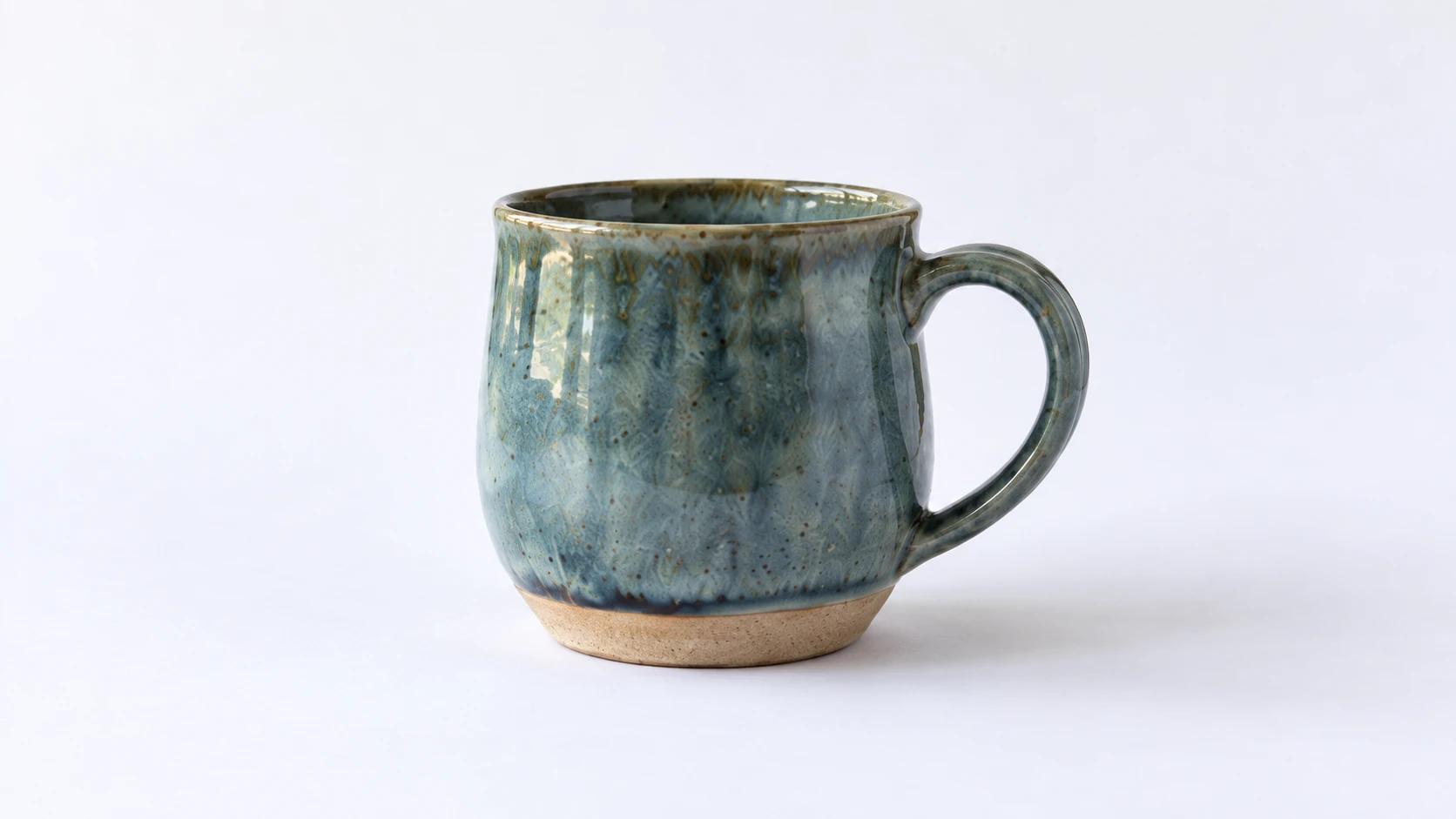
A clean product view uses the same mug and paper sweep as the setup above. Frame tightly enough that the lighting equipment stays outside the picture.
2. The Detail Shot
Close-up photos of the details that make your product worth buying. These build confidence in your craftsmanship.
What to photograph:
- Engraving quality and precision
- Wood grain character
- Material texture
- Joints, edges, and finishing quality
- Small design elements that don't show in the hero shot
- The personalization on a personalized product
How to get sharp close-ups with a phone: Most modern phones can focus as close as 4 to 6 inches. Get close, tap to focus on the specific detail you want sharp, and hold steady. If you have a phone with a macro lens (many newer models do), use it. If you're still getting blurry close-ups, prop your phone against something solid to eliminate hand shake.
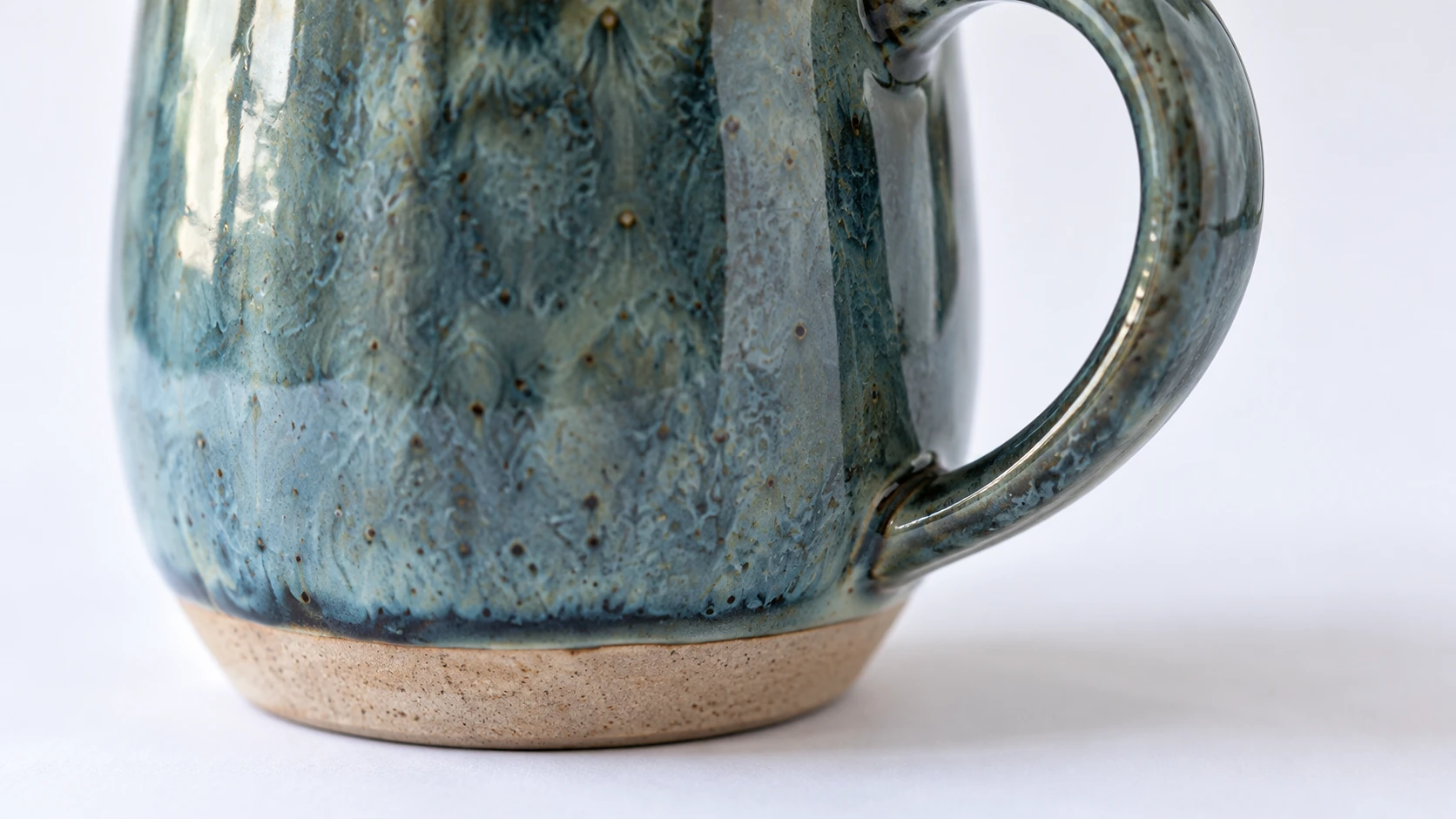
A closer view helps a buyer judge glaze texture, construction and finish. Keep the color and lighting consistent with the main product view.
3. The Scale Shot
Buyers need to understand the size of your product. Dimensions in the listing description are abstract. A photo with a size reference is immediate.
Effective scale references:
- A hand holding or touching the product
- The product next to a coffee mug, pencil, or coin
- The product next to a ruler (simple but effective)
- The product next to an everyday object that's a similar size
The hand rule: A human hand in the photo adds both scale and warmth. It implies the product is tangible, real, and ready to be held. It also looks more natural than a product sitting next to a random object.
4. The Lifestyle Shot
This photo shows the product in use, in its intended environment. It sells the experience of owning the product.
Category-specific ideas:
| Product Type | Lifestyle Setting |
|---|---|
| Cutting board | Kitchen counter with bread, herbs, cheese |
| Wall sign | Hung on a wall in a living room or entryway |
| Coasters | On a coffee table next to a drink |
| Tumbler | Held by a person, on a desk, at the beach |
| Ornament | Hanging on a tree, in a gift box |
| T-shirt | Worn by a person in a relevant setting |
| Keychain | On a set of keys, in a hand |
| 3D printed planter | With a small plant, on a windowsill |
Keep it aspirational but realistic. The lifestyle setting should be clean and attractive, but not so styled that it looks like a magazine shoot. Makers sell to real people. A kitchen counter with a few items looks authentic. A kitchen staged by a professional interior designer looks corporate.
5. The Flat Lay (Bonus)
Flat lays show multiple products or variations from directly above. They're excellent for:
- Showing all color options for a product
- Displaying a collection (a set of four coasters, for example)
- Giving an overview of what's included in a bundle
- Social media posts (flat lays perform very well on Instagram)
How to shoot: Position your phone directly above the products, looking straight down. Most phones have a level indicator in the camera app to help you get perfectly perpendicular. Arrange products in a grid or artistic layout on a clean background. Ensure lighting is even across the entire flat lay area, which may require adjusting your lights.
Basic Phone Editing: The Essential Adjustments
Shooting is half the work. Editing is the other half. Fortunately, your phone has all the editing tools you need built right in.
The goal of editing is not to make your photos look dramatically different. It's to correct minor exposure and color issues so the photo accurately represents your product. Over-editing (cranking up saturation, adding heavy filters) actually hurts sales because the product arrives looking different from the photo, which leads to returns and bad reviews.
The Six Adjustments You Actually Need
1. Brightness / Exposure. If the photo is slightly dark (common with smartphone cameras), bump the brightness up. Products should be well-lit and clearly visible. A slightly bright photo sells better than a slightly dark one.
2. Contrast. Add a small amount of contrast to make the product pop against the background. Too much contrast creates unnatural-looking shadows. Start at +10 to +15 and see how it looks.
3. White Balance / Warmth. If your product looks too yellow or too blue, adjust the white balance. Compare the photo to the actual product. The goal is for the color on screen to match the color in your hand.
4. Shadows. If the shadow side of your product is too dark, lift the shadows slider. This reveals detail in the darker areas without affecting the bright areas. Very useful for wood products where grain detail gets lost in shadows.
5. Crop and Straighten. Crop out any distracting elements at the edges. Straighten the horizon or surface line if it's slightly tilted. A crooked photo looks careless. Use the grid overlay to align with the product edges.
6. Sharpening. Apply light sharpening to enhance edge detail. This makes engraving look crisper, wood grain look more defined, and text more readable. Don't overdo it. Over-sharpened photos have an unnatural, gritty look.
Warning
Do not use Instagram filters or preset filters for product photos. Filters change colors, add tints, and modify contrast in ways that misrepresent your product. A buyer who receives a product that doesn't match the filtered photo will leave a negative review. Edit for accuracy, not aesthetics.
Editing Apps Worth Using
Your phone's built-in photo editor handles the basics. For more control, these free apps are popular among product photographers:
- Snapseed (free, iOS and Android): Google's photo editor. Excellent selective editing (adjust only part of the image). Great for fixing shadows on one side of a product without affecting the whole photo.
- Lightroom Mobile (free tier, iOS and Android): Professional-grade editing. The color grading and white balance tools are more precise than most built-in editors. The free tier is plenty for product photos.
- VSCO (free tier, iOS and Android): Good for subtle adjustments. The free tools are solid. Avoid the artistic filters for product photos.
Editing Workflow
Process every product photo the same way to maintain consistency across your shop:
- Import the photo into your editing app
- Straighten and crop
- Adjust brightness to properly expose the product
- Adjust white balance until colors match reality
- Lift shadows slightly to reveal detail
- Add a touch of contrast (+10 to +15)
- Apply light sharpening
- Export at full resolution
This process takes about 60 to 90 seconds per photo once you're used to it. For a five-photo listing, that's under eight minutes of editing.
Using Canvas Pro for Touch-Ups
Sometimes your product photos need more than basic exposure and color adjustments. Maybe you need to remove a background distraction. Maybe you want to add your logo as a watermark. Maybe you need to combine multiple product images into a single comparison graphic.
Canvas Pro is a free browser-based image editor that handles these tasks with nothing to install. It exports PNG, JPEG, and WebP, which covers shop banners, listing images, and social posts.
Common product photo touch-ups in Canvas Pro:
Remove or clean up backgrounds. Import your product photo, use the eraser to remove distracting background elements, or paint over scuffs on your backdrop.
Add text overlays. Create "before and after" comparison images, add size dimensions to the photo, or overlay your brand name. This is useful for social media graphics where you want text on the image.
Combine multiple images. Use layers to arrange several product views into a single collage image. This works well for Etsy listings where you want to show multiple angles or colors in one photo.
Create branded graphics. Design shop banners, sale announcements, or social media post templates using your product photos as a base.
Color adjustments. Invert colors, adjust layers independently, and use the brush tools for targeted touch-ups. If you need to clean up a small area without affecting the rest of the image, Canvas Pro's layer system makes it straightforward.
For a deeper walkthrough of Canvas Pro's features, check out the full Canvas Pro guide.
Using ListingLab for AI Product Photos
Here's where things get interesting for makers who want professional-looking lifestyle and styled product photos without the setup time.
ListingLab includes an AI product photo generator that takes your basic product image and places it in professionally styled scenes. Upload a clean photo of your product, choose a style (lifestyle, seasonal, holiday, studio, and more), and ListingLab generates a new image with your product in that setting. Each AI-generated photo costs 1 credit.
Why this matters: Remember those lifestyle shots we talked about earlier? The cutting board on a kitchen counter with bread and herbs? The ornament hanging on a tree? Setting up those scenes physically takes time, props, and space. ListingLab can generate them from your existing product photo.
What ListingLab's photo generator does well:
- Seasonal photos without seasonal props. Need a Christmas-themed photo of your ornament in July for early-bird listings? Generate it without buying and storing a Christmas tree.
- Multiple lifestyle settings. Generate your product in a kitchen, a living room, a gift box, and an outdoor setting. That's four lifestyle photos from one basic product image.
- Consistent styling. All generated photos have a consistent, professional look that makes your shop feel cohesive.
What to keep in mind: AI-generated product photos are getting better rapidly, but they work best when your source image is clean and well-lit. A poorly lit, blurry source image won't magically become a beautiful lifestyle shot. Take a solid basic photo first using the techniques in this guide, then use ListingLab to expand your visual content.
ListingLab also generates optimized titles, descriptions, SEO keywords, and social media captions for your listings. The text generation uses chatbot messages rather than credits, so you can generate listing copy without additional cost beyond your plan's monthly message allocation.
Recommended workflow:
- Take your basic product photos using the techniques in this guide
- Edit them on your phone for accurate exposure and color
- Upload your best hero shot to ListingLab
- Generate 2 to 3 AI lifestyle photos in different settings
- Use the AI-generated listing text as a starting point, then personalize it
Batch Shooting: The Efficiency Multiplier
Photographing each product individually as you list it is the slowest possible workflow. You set up lighting, take five photos, edit them, tear down, and then do it all over again next week for the next product. All that setup and teardown time adds up fast.
Batch shooting means photographing multiple products in a single session while your setup is already in place. It's dramatically more efficient.
The Batch Workflow
1. Prepare all products in advance. Before you set up any lighting, gather every product you need to photograph. Clean them, arrange them, have props ready if you're doing lifestyle shots. Nothing kills momentum like stopping mid-session to go find a product in your workshop.
2. Set up your lighting once. Get your lights, background, and phone position dialed in perfectly for the first product. Take test shots and make adjustments until you're happy.
3. Lock your settings. Once your lighting and composition look good, don't touch the lights again. Keep your phone's focus and exposure locked. This guarantees consistency across all products.
4. Shoot all hero shots first. Go through every product and take the main hero photo. Same background, same angle, same lighting. Then move to detail shots for all products. Then lifestyle shots. Batching by shot type is faster than completing all shots for one product before moving to the next.
5. Edit in batch. Using Lightroom Mobile or Snapseed, edit the first photo to your satisfaction. Then apply the same adjustments to all other photos from the session. In Lightroom Mobile, this is a "copy settings" and "paste settings" function. It takes seconds per photo instead of minutes.
How Many Products Per Session?
For a typical maker with a two-light setup, a batch session of 10 to 15 products takes about 60 to 90 minutes including editing. That's 50 to 75 photos if you're taking 5 per product. Compare that to photographing products one at a time, where each product might take 20 to 30 minutes between setup, shooting, and editing.
Schedule a photography day. Block out a Saturday morning for photography. Accumulate products throughout the week. Shoot them all in one session. This turns photography from a daily chore into a once-a-week (or less) batch task.
Naming and Organizing Files
After editing, organize your photos immediately. Create a folder for each product using your SKU or product name. Name files descriptively:
walnut-cutting-board-hero.jpgwalnut-cutting-board-detail-engraving.jpgwalnut-cutting-board-scale-hand.jpgwalnut-cutting-board-lifestyle-kitchen.jpg
This saves enormous time when creating listings. You can find any photo instantly instead of scrolling through hundreds of unnamed images in your camera roll.
Common Mistakes (And How to Fix Them)
Even with good equipment and technique, certain mistakes show up repeatedly in maker product photos. Here's what to watch for.
Yellow or Orange Color Cast
Cause: Shooting under warm household lighting (standard incandescent or warm LED bulbs). Your eyes adjust to warm light automatically, but the camera records the yellow cast.
Fix: Switch to daylight-balanced bulbs (5000K to 5500K). If you're using natural light, avoid shooting near warm-toned walls (orange, yellow, or red walls bounce colored light onto your product). In editing, slide the white balance toward the cooler/blue end until colors look neutral.
Harsh Shadows
Cause: A single, undiffused light source (bare bulb, direct sunlight, camera flash).
Fix: Diffuse your light with tissue paper, parchment paper, or a sheer white curtain. Add a second light or a white reflector on the shadow side. Never use the built-in flash.
Blurry Photos
Cause: Camera shake from hand-holding the phone at low shutter speeds (especially in dim lighting).
Fix: Improve your lighting (more light = faster shutter speed = less blur). Rest your phone against a solid object or use a cheap phone tripod ($10 to $15 on Amazon). Use the timer function so you're not touching the phone when it takes the photo.
Product Looks Flat or Lifeless
Cause: Flat, front-on lighting with no dimensionality. The product looks like a sticker rather than a three-dimensional object.
Fix: Move your key light to the side (30 to 45 degrees) to create gentle shadows that reveal form and texture. For wood products, raking light from a low angle dramatically enhances grain visibility.
Background Distractions
Cause: Shooting on a kitchen table with stuff in the background, using a wrinkled sheet, or having visible background edges.
Fix: Use a seamless foam board sweep. Clean up the area around your shooting surface. If you're doing lifestyle shots, intentionally style the background rather than just shooting wherever the product happens to be sitting.
Inconsistent Photos Across Listings
Cause: Photographing products at different times under different lighting conditions with different backgrounds.
Fix: Batch shoot. Use the same lighting setup, same background, and same editing settings for all products. Your shop should look like one person photographed everything in the same place, because they did.
Quick Reference: Product Photo Checklist
Before uploading any product photo to a listing, run through this checklist:
- Lighting is even with no harsh shadows
- Product is the clear focal point
- Background is clean and non-distracting
- Colors are accurate (compare to the physical product)
- Image is sharp and in focus
- Photo is straightened and properly cropped
- No fingerprints, dust, or debris visible on the product
- File resolution is high enough (at least 2000px on the longest side for Etsy)
- Hero shot clearly shows the full product
- You have at least 5 photos from different angles
Putting It All Together
Product photography is a skill, and like any maker skill, it improves with practice. Your first batch of photos won't be as good as your twentieth. That's fine. The difference between "amateur snapshots" and "professional product photos" is mostly about lighting and backgrounds, both of which cost almost nothing to set up correctly.
Start with the free window-light setup and a white foam board. Take photos of a few products, edit them on your phone, and compare them to top-selling listings in your category. You'll immediately see where your photos measure up and where they need work.
If you're selling regularly, invest the $30 to $40 in a two-light setup. The consistency alone is worth it. If you sell small products in volume, the lightbox is the most efficient path to professional results.
Use ListingLab to expand your basic product photos into lifestyle and seasonal scenes without the physical setup time. Use Canvas Pro for any image editing that goes beyond your phone's built-in tools. Both are designed with makers in mind.
For the full picture on getting your products listed and selling, check out the Etsy selling guide. And once you have great product photos, put them to work with a solid social media strategy that drives traffic back to your listings.
Your products deserve to look as good online as they do in person. Now go take some photos.
Related Tools
Ready to try these tools?
Sign up free, no credit card required. Free tools available immediately.
Start Free