

Getting Started with 3D Printing: A Complete Beginner's Guide
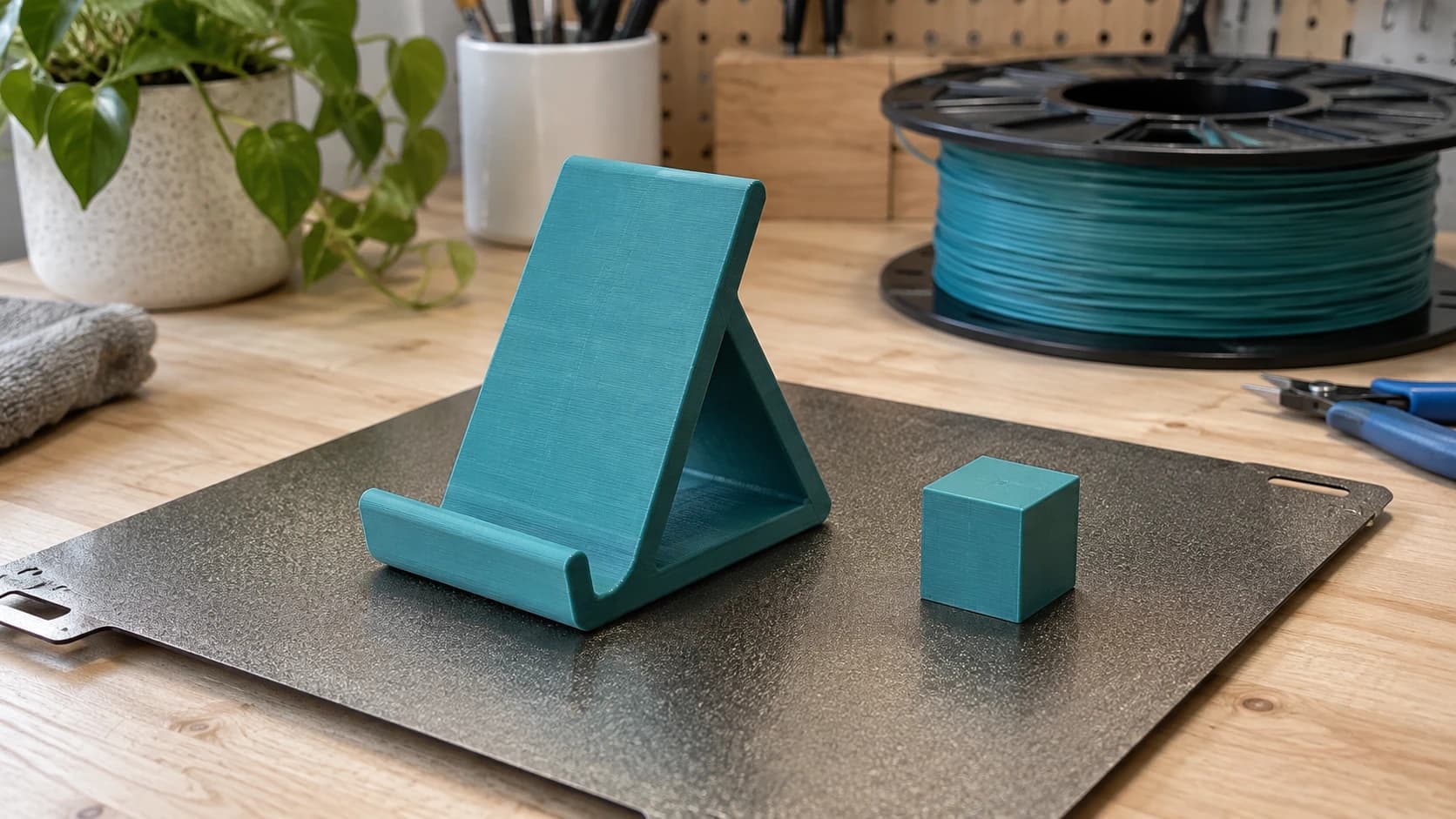
You just bought a 3D printer. It's either already assembled (lucky you) or sitting in a box with a hundred tiny screws and a manual that reads like furniture instructions written by a robot. Either way, you're about to join the club of people who casually say "I'll just print one" when they need a specific bracket, hook, or replacement part.
3D printing is the most addictive maker hobby there is. Within a week, you'll be printing phone stands and calibration cubes. Within a month, you'll be designing custom parts for problems nobody else has. Within a year, you'll own at least one more printer than you planned. This guide gets you from unboxing to your first successful print with as little frustration as possible.
If you've already read our laser engraving beginner's guide or CNC routing beginner's guide, the format here will feel familiar. Same practical approach, different machine.
FDM vs Resin: Pick Your Poison
There are two main types of consumer 3D printers, and they work in completely different ways.
FDM (Fused Deposition Modeling)
FDM printers melt plastic filament and lay it down in thin layers, line by line, building your object from the bottom up. Think of a very precise hot glue gun mounted on a robot arm.
Pros: Affordable, large print volumes, tons of material options, low ongoing cost, relatively safe to operate
Cons: Visible layer lines, slower for detailed parts, limited resolution compared to resin
Best for: Functional parts, brackets, enclosures, large decorative items, prototypes, toys, household items
Resin (SLA/MSLA)
Resin printers use UV light to cure liquid photopolymer resin one layer at a time. An LCD screen or laser draws each layer pattern into a vat of liquid resin, which hardens on contact with UV light.
Pros: Incredible detail, smooth surfaces, fast for small objects, great for miniatures
Cons: Messy (liquid resin is sticky and smells), requires post-processing (washing and curing), smaller build volume, resin is toxic before curing, more safety precautions needed
Best for: Miniatures, jewelry models, dental/medical models, anything requiring fine detail
Which Should You Start With?
If you're new to 3D printing and want the most versatile, forgiving experience, start with FDM. It's cheaper, safer, and the learning curve is gentler. You can always add a resin printer later when you want ultra-fine detail.
This guide focuses primarily on FDM printing since that's where most beginners start.
PRINT. CUT. CARVE.



- Multiple formats (SVG, DXF, PNG)
- Machine-tested designs
- Commercial licenses
Sponsored by PrintCutCarve.com
Choosing Your First FDM Printer
The market has exploded. You can get a capable 3D printer for under $200. Here's how the major categories break down:
| Category | Price Range | Examples | Build Volume | Best For |
|---|---|---|---|---|
| Budget | $150 - $250 | Ender-3 V3, Elegoo Neptune 4, Anycubic Kobra 3 | 220x220x250mm | Learning, hobby projects |
| Mid-Range | $300 - $600 | Bambu Lab A1, Prusa MK4S, Creality K1C | 256x256x256mm | Reliable daily use, multi-material |
| Enclosed | $500 - $1,200 | Bambu Lab P1S, Creality K1 Max | 256x256x256mm+ | ABS/ASA printing, consistent results |
| Multi-Color | $600 - $1,500 | Bambu Lab A1 + AMS, Prusa XL | Varies | Multi-material and multi-color prints |
Tip
If budget allows, the Bambu Lab A1 or P1S are the closest thing to a "just works" 3D printer. They auto-level, auto-calibrate, and print well out of the box. The Prusa MK4S is another excellent option with strong community support. For the tightest budget, the Ender-3 V3 SE gets the job done and has the largest user community for troubleshooting.
The Filament Guide
Filament is the plastic wire that feeds into your FDM printer. It comes on spools, typically 1kg each. The two standard diameters are 1.75mm (most common) and 2.85mm (less common, check your printer). Here are the materials you'll actually use:
| Material | Print Temp | Bed Temp | Difficulty | Strength | Flexibility | Best For |
|---|---|---|---|---|---|---|
| PLA | 190-220°C | 50-60°C | Easy | Moderate | Brittle | General purpose, decorative, prototypes |
| PETG | 220-250°C | 70-80°C | Easy-Medium | Good | Slight flex | Functional parts, outdoor items, durable containers |
| ABS | 230-260°C | 90-110°C | Hard | Very good | Slight flex | Mechanical parts, automotive, heat-resistant items |
| TPU | 210-230°C | 40-60°C | Medium | Low | Very flexible | Phone cases, gaskets, grips, vibration dampeners |
Start with PLA
PLA (Polylactic Acid) is derived from corn starch and is the easiest filament to print. It doesn't warp much, sticks to the bed reliably, prints at lower temperatures, and comes in every color imaginable. It's not the strongest or most heat-resistant plastic, but for 80% of what you'll print, PLA is perfect.
When to Move to PETG
PETG is the practical upgrade from PLA. It handles heat better (PLA softens in a hot car; PETG doesn't) and is more impact-resistant. Food contact cannot be inferred from PETG or a stainless steel nozzle alone: the exact filament must be certified for the intended contact, the printer must use clean compatible hardware, and the part's design, cleaning, and use conditions must follow the manufacturer's guidance. PETG strings a bit more than PLA, but it's still very manageable. Use it for functional parts that need to last.
ABS: Only If You Need It
ABS requires an enclosed printer (it warps badly in open air), produces fumes you shouldn't breathe, and is generally fussier. But it's strong, heat-resistant, and machines well with acetone smoothing. If you're making parts that need to survive under a car hood or in a dishwasher, ABS is your material. Otherwise, skip it until you're comfortable with PLA and PETG.
TPU: The Flexible One
TPU prints like squeezing toothpaste through a nozzle. It's slow, requires a direct-drive extruder (not Bowden tube), and can be finicky. But the results are genuinely useful: phone cases, vibration mounts, gaskets, flexible hinges. Fun to experiment with once you've mastered rigid filaments.
Info
Store your filament in a dry place. PLA and especially PETG absorb moisture from the air, which causes popping, stringing, and poor layer adhesion. A sealed container with silica gel packets works well. If filament sounds crackly while printing, it's probably wet. You can dry it in a food dehydrator or a filament dryer box.
Slicer Software: Where the Magic Happens
Your 3D printer doesn't understand STL or 3MF model files directly. You need a slicer to convert your 3D model into G-code: the layer-by-layer instructions your printer follows.
Popular Slicers
Cura (free): The most popular slicer. Made by Ultimaker, works with almost every printer. Massive preset library and plugin ecosystem. Great for beginners because there are presets for nearly every printer/filament combination.
PrusaSlicer (free): Excellent slicer from Prusa. Clean interface, great defaults, and slightly more advanced features than Cura. Works with any printer despite the name.
Bambu Studio (free): If you have a Bambu Lab printer, this is purpose-built for it. Based on PrusaSlicer with Bambu-specific optimizations.
OrcaSlicer (free): A fork of Bambu Studio that works with all printers. Gaining popularity fast. Great multi-material support and calibration tools.
Key Slicer Settings
These are the settings that matter most when you're starting out:
Layer height: The thickness of each printed layer. Standard is 0.2mm. Use 0.12mm for fine detail, 0.28mm for fast drafts. Smaller layers = smoother surfaces but longer print times.
Infill: The internal fill pattern and density. 15-20% is fine for most prints. Use 100% for maximum strength. Common patterns: grid, gyroid (strongest for weight), and lightning (fast, uses minimal material).
Print speed: How fast the print head moves. Start with your slicer's default (usually 50-80mm/s for PLA). Faster isn't always better. Quality degrades at high speeds unless your printer is designed for it.
Supports: Temporary structures that prop up overhanging parts of your model. The slicer adds them automatically when needed. You break them off after printing. Tree supports are easier to remove than grid supports.
Bed adhesion: A brim (thin ring around the base) helps parts stick to the bed. Use it for tall, narrow prints or anything with a small footprint. A raft (thick platform underneath) is for when nothing else works, but it wastes material.
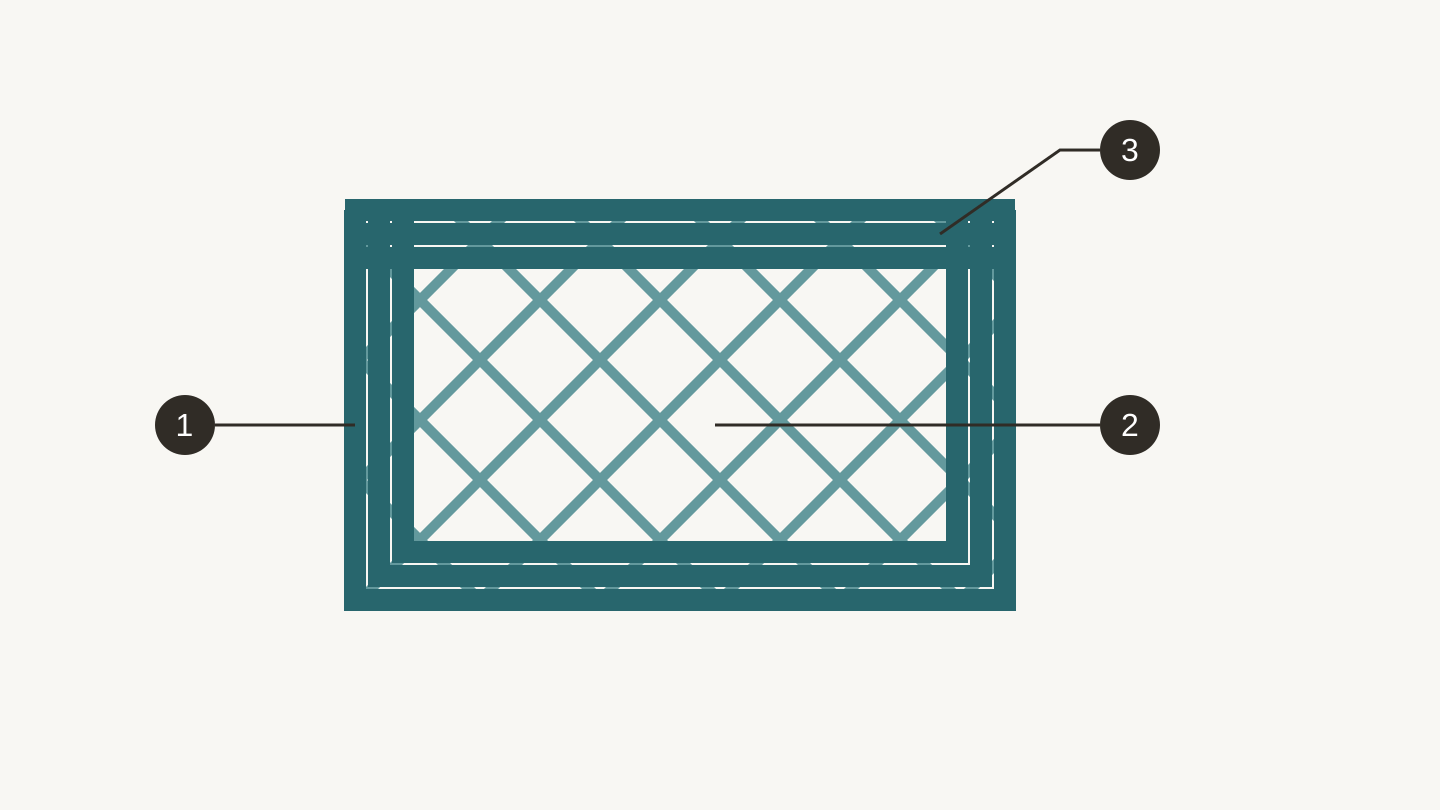
Inside a print, shown schematically: 1, outer walls; 2, infill; 3, solid top layers. These are separate slicer settings, so changing one does not change all three.
Your First Print: Calibration Cube, Then Something Useful
Step 1: Level Your Bed
Some printers auto-level. If yours doesn't, you'll need to manually adjust the bed so the nozzle is the same distance from it at all four corners and the center. Most printers use a paper-drag method: slide a piece of regular paper between the nozzle and bed, adjust until there's slight resistance. Not dragging, not free-floating. Just a gentle tug.
This step is critical. If your bed isn't level, your first layer won't stick properly, and the entire print fails.
Step 2: Print a Calibration Cube
Download a 20mm calibration cube from any 3D model site (Printables, Thingiverse, or MakerWorld all have them). Slice it with default PLA settings. Print it.
This cube tells you if your printer is dimensionally accurate. Measure it with calipers. Each side should be 20.00mm. If it's off by more than 0.2mm, your steps-per-mm setting needs adjustment (your printer's firmware menu usually has this).
Step 3: Print Something Useful
Now make something you'll actually use. Good first-real-project ideas:
- Phone stand: Simple geometry, practical, takes 1-2 hours
- Cable clip/organizer: Small, fast, solves a real annoyance
- Drawer organizer: Box shapes are forgiving and immediately useful
- Plant pot: Vase mode prints are surprisingly satisfying (single-wall spiral)
Search Printables.com or Thingiverse for ready-made models. Most slicer software can import STL and 3MF files directly. No designing required for your first prints.
Tip
Vase mode (also called "spiral mode" or "spiralize outer contour") prints objects with a single continuous wall and no infill. It's fast, uses minimal filament, and creates beautiful smooth-walled objects. Perfect for pots, vases, lampshades, and decorative containers. Find the setting in your slicer under "Special Modes" or similar.
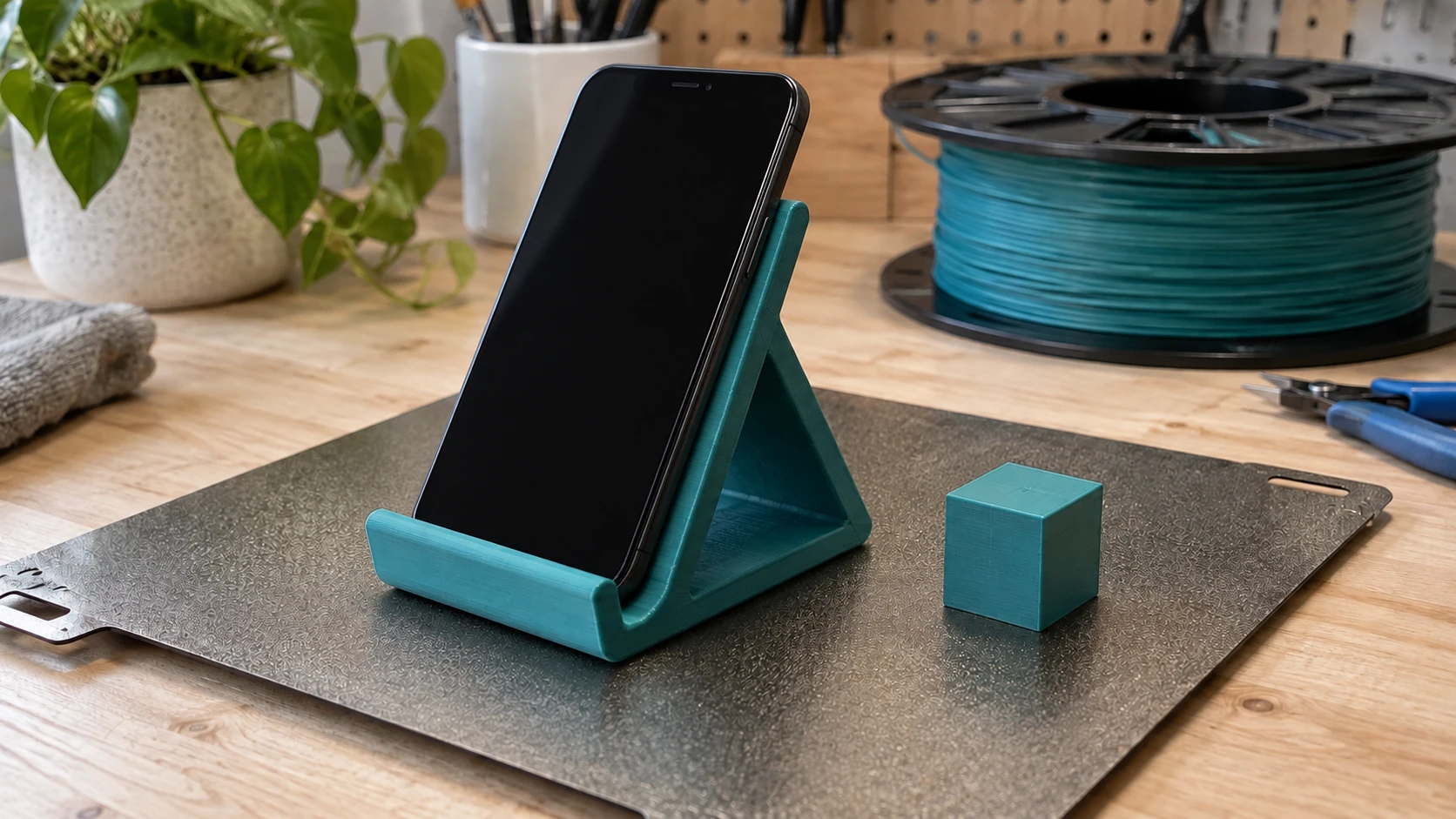
A useful first project gives you an immediate fit check: the phone rests on the ledge and leans securely against the back.
Common Problems and Fixes
Every 3D printer owner hits these issues. Here's the quick fix for each:
First Layer Won't Stick
Causes: Bed too far from nozzle, bed not clean, bed too cold.
Fixes: Re-level the bed (closer). Clean the build plate with isopropyl alcohol. Increase bed temperature by 5°C. Add a brim in your slicer. For glass beds, a thin layer of glue stick works wonders.
Stringing (Thin Whiskers Between Parts)
Causes: Retraction settings too low, temperature too high, wet filament.
Fixes: Increase retraction distance (start at 1mm for direct drive, 5mm for Bowden). Drop nozzle temperature by 5°C increments. Dry your filament.
Warping (Corners Lifting Off the Bed)
Causes: Bed cooling unevenly, ambient temperature too cold, no enclosure for ABS.
Fixes: Use a brim. Increase bed temperature. For materials that require an enclosure, use a purpose-built or manufacturer-approved enclosure with suitable ventilation and fire precautions; never improvise with combustible covers such as cardboard. Use PLA instead of ABS/PETG if possible. Make sure no drafts are hitting the printer.
Layer Shifts (Layers Suddenly Offset)
Causes: Loose belts, print head hitting the model, stepper motors overheating.
Fixes: Tighten belts. Reduce print speed. Make sure nothing is physically blocking the print head's movement. Check that stepper motor drivers aren't overheating (add cooling if needed).
Under-Extrusion (Gaps, Thin Walls, Missing Layers)
Causes: Partial clog, filament grinding, temperature too low.
Fixes: Do a cold pull (heat nozzle, push filament through, cool it, pull it out to clear debris). Check the extruder gear for filament shavings. Increase nozzle temperature by 5-10°C. Make sure the filament path is clear and the spool can unwind freely.
Where to Find 3D Models
You don't need to design everything from scratch. These sites have millions of free, ready-to-print models:
Printables (printables.com): Run by Prusa. Excellent quality control, active community, great search. This is where most experienced makers share their designs.
Thingiverse (thingiverse.com): The original. Massive library but the search is slow and many designs are outdated. Still worth checking for specific items.
MakerWorld (makerworld.com): Bambu Lab's platform. Growing fast with high-quality models. Many include pre-configured slicer profiles.
Thangs (thangs.com): Good search engine that indexes multiple platforms at once.
Designing Your Own
When you're ready to create custom parts:
Tinkercad (free, browser-based): Drag-and-drop 3D modeling. Perfect for simple functional parts. Surprisingly capable despite looking like a kids' tool.
Fusion 360 (free for personal use): Professional-grade CAD. Steep learning curve but infinitely powerful. This is what you graduate to when Tinkercad isn't enough.
OpenSCAD (free): Code-based 3D modeling. You write scripts that define shapes. Weird concept, but programmers love it, and it's amazing for parametric designs where you want to change dimensions easily.
Info
If you have an image or logo you want to turn into a 3D print, MonoTrace can convert it to an SVG vector file for free. From there, you can extrude the SVG into a 3D model in most CAD software. Our PNG to SVG guide walks through the full process.
Maintaining Your Printer
A little maintenance keeps your printer running smoothly and prevents most print failures:
Clean the build plate before every print. Fingerprints leave oils that prevent adhesion. A quick wipe with isopropyl alcohol takes five seconds and prevents a lot of failed first layers.
Check belt tension monthly. Belts stretch over time. They should be snug with a slight twang when plucked, like a guitar string. Too loose causes dimensional inaccuracy. Too tight causes premature wear on bearings.
Lubricate linear rails or rods every few months. A drop of machine oil on each rod keeps things moving smoothly. Don't use WD-40 (it's a solvent, not a lubricant).
Replace the nozzle when print quality degrades. Brass nozzles wear out, especially if you print abrasive filaments (wood fill, carbon fiber, glow-in-the-dark). A fresh nozzle costs $1-3 and takes two minutes to swap. Keep spares on hand.
Update firmware when your manufacturer releases updates. They often include print quality improvements, new features, and bug fixes.
What to Learn Next
You've got the fundamentals. Here's where the hobby gets deeper:
- Multi-color printing: AMS (Automatic Material System) units or multi-extruder setups let you print in multiple colors and materials in a single job. The results are stunning.
- Functional design: Learn Fusion 360 and start designing parts that solve real problems. Custom brackets, tool holders, replacement parts for appliances.
- Resin printing: When you want miniature-quality detail, add a resin printer to your setup. The learning curve is separate from FDM but shorter.
- Post-processing: Sanding, priming, painting, and acetone smoothing (ABS only) can make 3D prints look like injection-molded parts.
- Multi-color inlays: Tools like MosaicFlow and StackLab can generate layered designs from images, perfect for creating colorful 3D printed art or wooden inlays.
Go Print Something
Your printer is set up. Your first spool of PLA is loaded. The calibration cube measured within tolerance (close enough counts).
Start with something practical. A phone stand, a cable organizer, a hook for the thing that keeps falling off the wall. Then do another one. And another. You'll learn more from your first ten prints than from watching another fifty YouTube videos.
And when your first print inevitably fails halfway through (it will), just scrape it off the bed and try again. Every maker's recycling bin has a pile of failed prints. It's basically a membership badge.
Once you've got a few prints under your belt, try turning a photo or logo into a printable design with MosaicFlow or StackLab. Both generate layered, machine-ready files from an image in minutes.
Happy making.
Related Tools
MonoTrace
Turn photos and artwork into SVG outlines for free, with an optional sketch mode.
MosaicFlow
Turn uploaded or AI-generated artwork into separate color regions for inlays, with optional 3D exports.
Downloads require a plan or a design unlock
StackLab
Separate uploaded or AI-generated artwork into stacked layers, with adjustable layer order and optional 3D models.
Downloads require a plan or a design unlock
Ready to try these tools?
Sign up free, no credit card required. Free tools available immediately.
Start Free