

3D Printing Troubleshooting: 15 Common Problems and How to Fix Them
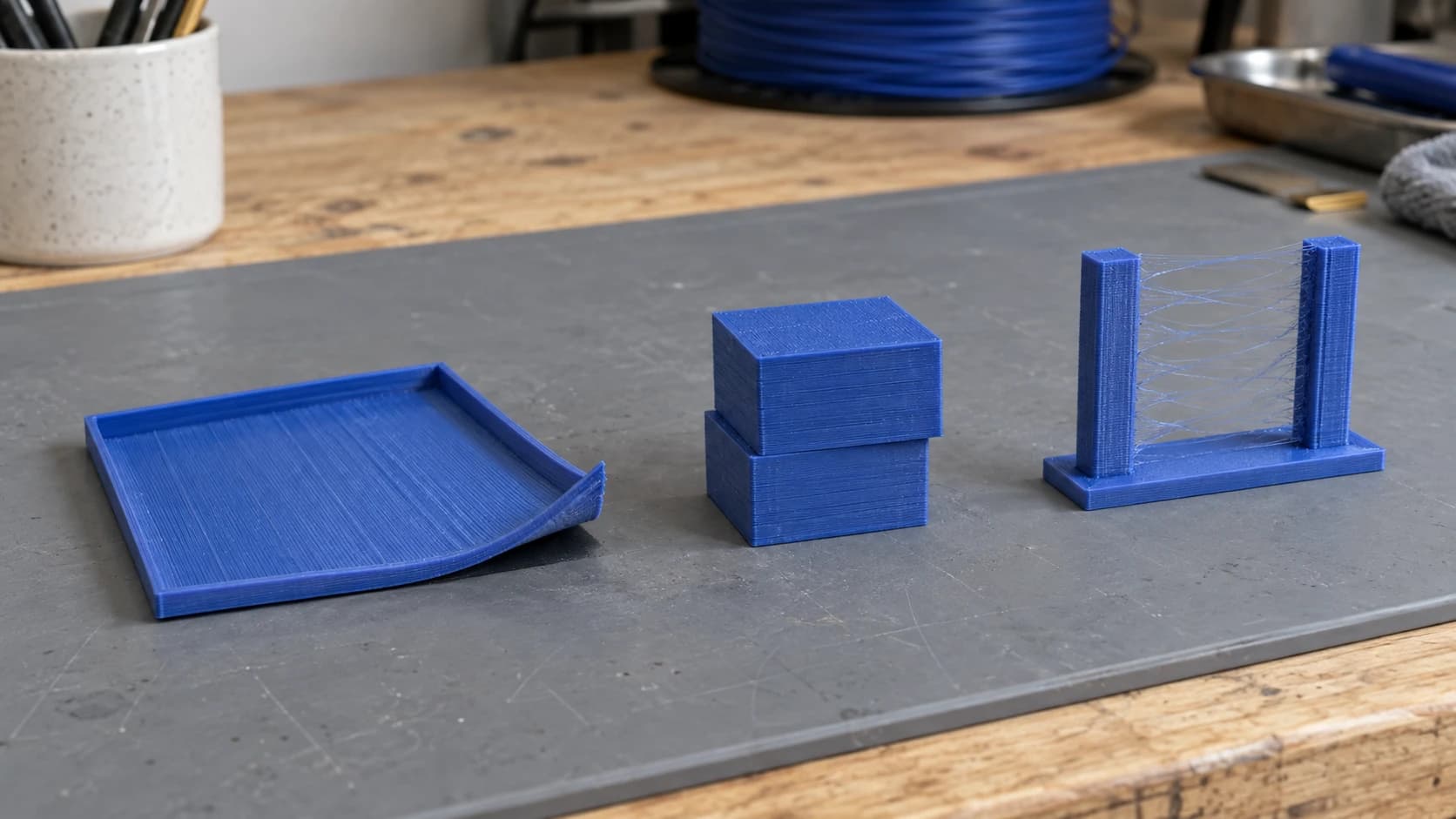
Every 3D printer owner has met the spaghetti monster. You walk away from a print, come back an hour later, and your printer is enthusiastically dragging a tangled nest of filament through the air while the print sits detached on the bed, completely ignored. It's a rite of passage.
If you've read our 3D printing beginner's guide, you know how to get a printer running. This post is for when things go wrong after that. These are the fifteen problems that catch almost every FDM printer owner, roughly ordered from most common to most frustrating. The fixes are usually simpler than you'd expect.
1. Bed Adhesion Failure
What it looks like
The print pops off the bed partway through. You come back to find your model on its side, stuck to the nozzle, or launched across the build plate trailing filament behind it.
Why it happens
The first layer isn't bonding strongly enough to the build surface. Common causes: bed not level, nozzle too far from bed, bed temperature too low, or a dirty/worn build surface. Printing without a brim on a model with a small footprint is asking for trouble.
How to fix it
Start with bed leveling. Use the paper test: slide a sheet of paper between the nozzle and bed at each corner. You should feel slight resistance when pulling it. Re-level if the paper slides freely or won't move at all.
Clean your build surface with isopropyl alcohol before every print. Oils from your fingers reduce adhesion more than you'd think. If you're using a PEI sheet, give it a light scuff with fine sandpaper (800 grit) every few weeks.
For stubborn adhesion issues, add a brim (5 to 10mm) in your slicer. Increase bed temperature by 5 °C. Glue stick on glass beds works wonders too.
Tip
If your prints stick fine for the first few layers but pop off later, the problem is usually warping (see #2), not adhesion. The fix is different.
PRINT. CUT. CARVE.



- Multiple formats (SVG, DXF, PNG)
- Machine-tested designs
- Commercial licenses
Sponsored by PrintCutCarve.com
2. Warping
What it looks like
Corners and edges of the print curl upward off the bed. The bottom of the print looks like a potato chip. On tall prints, the warping can get severe enough to collide with the nozzle.
Why it happens
Plastic shrinks as it cools. The bottom layers cool and contract while new hot layers are still being deposited on top. This uneven cooling creates internal stress that pulls the corners upward. ABS is the worst offender, but even PLA warps on large, flat prints.
How to fix it
Use a purpose-built or manufacturer-approved enclosure if you're printing ABS or ASA, with suitable ventilation and fire precautions. Never improvise with combustible covers such as cardboard. For PLA, make sure the part cooling fan isn't blasting at 100% on the first few layers. Most slicers let you set fan speed to 0% for the first 3 to 4 layers, then ramp up.
Add a brim in your slicer. Increase bed temperature by 5 to 10 °C. If your room has a draft or AC vent blowing on the printer, that's likely the culprit. Move the printer or block the airflow.
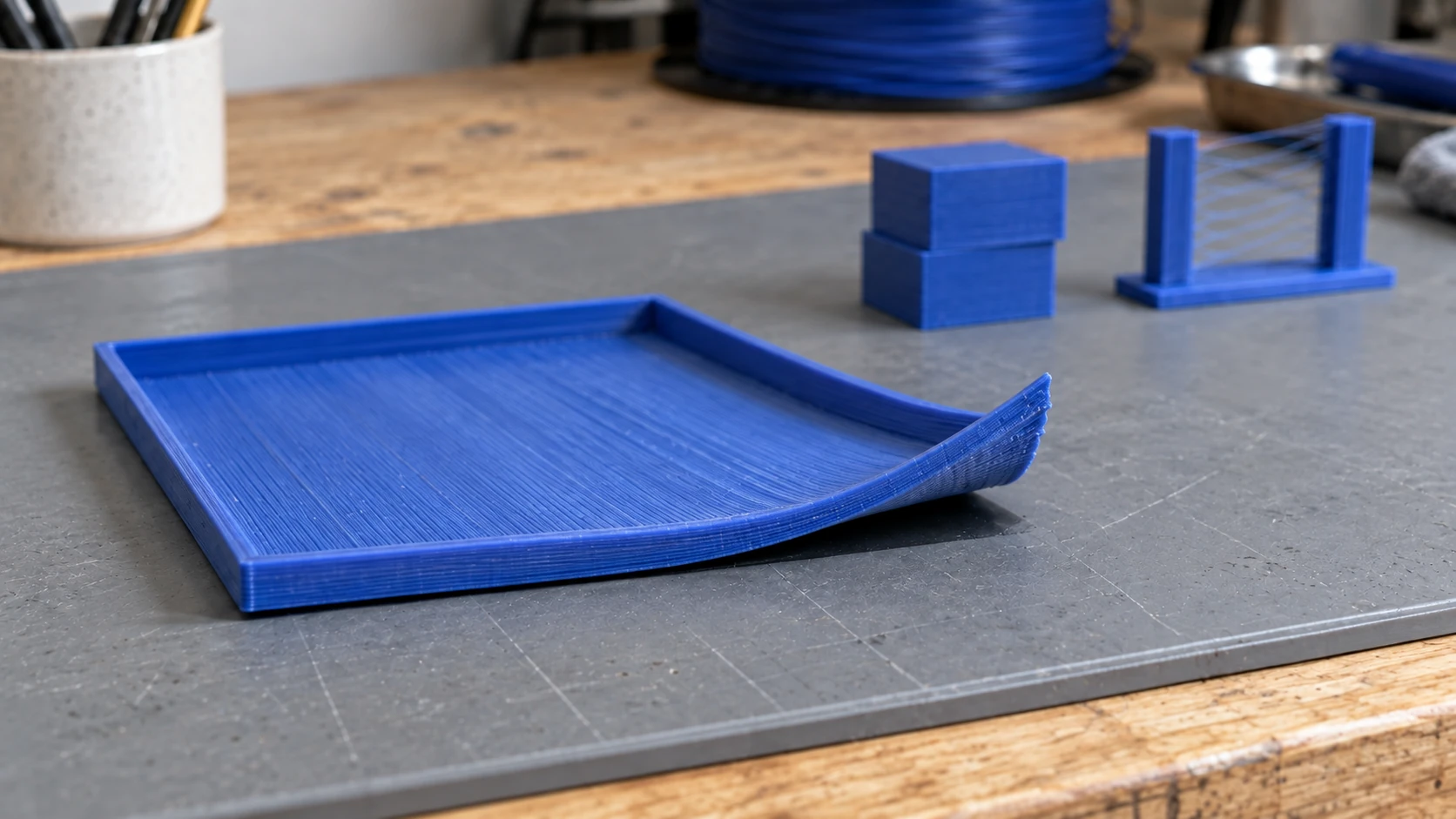
Look for the gap beneath the corner. This example shows the shape of warping; the photo alone cannot identify what caused it.
3. Stringing / Oozing
What it looks like
Thin wisps of filament stretching between separate parts of the print, like spider webs. The print itself looks fine, but there are hair-thin threads everywhere the nozzle traveled between features.
Why it happens
When the nozzle moves between two points without printing (a travel move), melted filament drips out. The molten plastic in the nozzle is under pressure, and without retraction to pull it back, it oozes during travel.
How to fix it
Increase retraction distance (start at 5mm for Bowden setups, 1 to 2mm for direct drive). Increase retraction speed to 40 to 60mm/s. Lower your hotend temperature by 5 to 10 °C, staying within the filament's recommended range.
Enable "Combing" or "Avoid crossing perimeters" in your slicer. This routes travel moves through the interior of the model instead of jumping across open air. Also enable "Wipe" if your slicer supports it.
Tip
A quick stringing test: download a stringing test tower model (two pillars with a gap between them). Print it, adjust retraction settings, print again. You can dial in perfect retraction in 3 to 4 test prints.
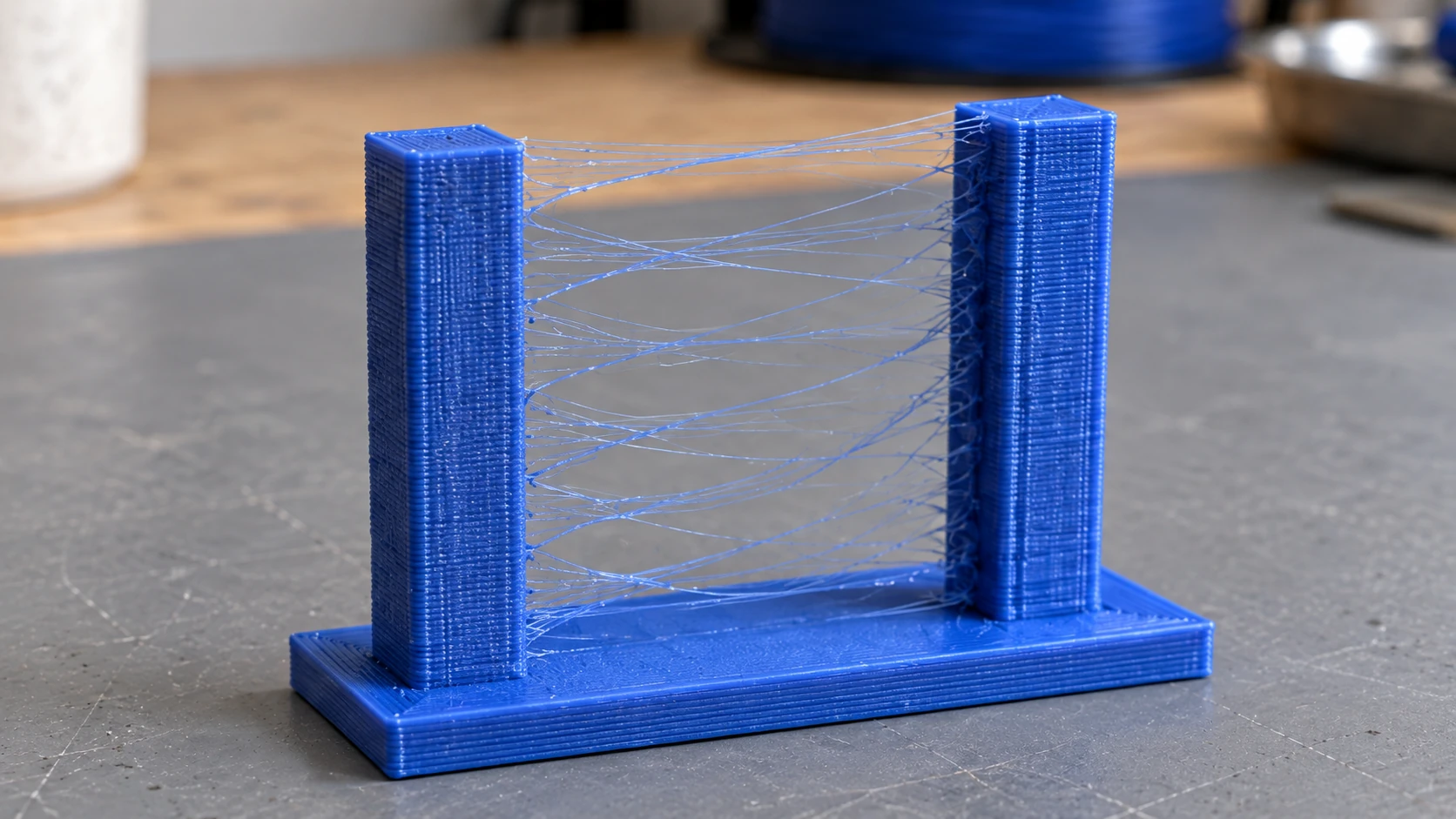
Stringing leaves thin strands between separate features. The towers remain intact, unlike a collapsed print covered in loose filament.
4. Layer Shifting
What it looks like
The print suddenly shifts horizontally partway through. Layers are offset to one side, making the model look like it was sliced and pushed sideways. Sometimes it shifts once and keeps printing offset. Sometimes it shifts multiple times.
Why it happens
The printer lost track of its position. The stepper motors skipped steps, meaning they tried to move but couldn't. Causes include: belts too loose (or too tight), the print head hitting the model, stepper motor current too low, or the print head catching on a curled-up edge of the print.
How to fix it
Check belt tension first. Press the belt with your finger. It should be taut with a slight give, like a guitar string. If it's floppy, tighten it. If you can't pluck it at all, it's too tight and the motor is fighting the friction.
Make sure nothing is physically obstructing the print head's movement. Loose cables catching on the frame are a common culprit. Check that your stepper motor drivers aren't overheating. If the motors are skipping only on long prints, heat is likely the issue. Add a small fan pointed at the electronics board.
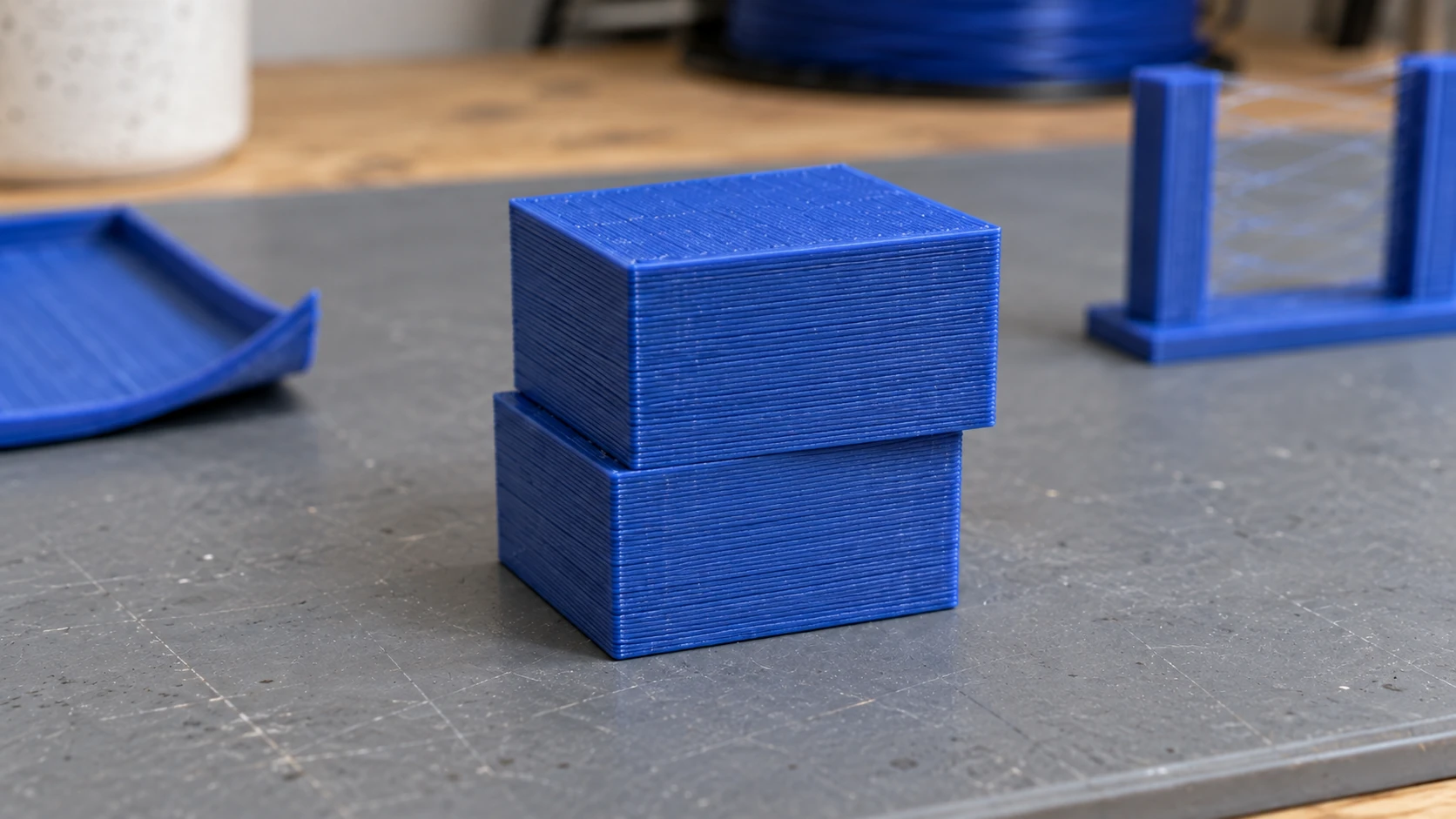
The sudden step is the clue: the upper layers continue in the shifted position instead of gradually bending.
5. Under-Extrusion
What it looks like
Gaps in the walls. Thin, weak layers. Missing sections where plastic should be. Top surfaces have visible gaps between the infill lines. The print feels fragile and you can see through the walls.
Why it happens
Not enough plastic is coming out of the nozzle. Either the extruder is slipping on the filament, the nozzle is partially clogged, the temperature is too low for the filament to flow properly, or the flow rate in your slicer is set too low.
How to fix it
Check the extruder gear. If there's plastic dust around it, the gear is grinding the filament instead of gripping it. Tighten the tension arm. Clean the teeth of the drive gear with a small brush.
Increase hotend temperature by 5 °C. Make sure your flow rate (or "extrusion multiplier") is at 100%. Run an extruder calibration: tell the printer to extrude 100mm of filament and measure how much actually comes out. If it's under 95mm, your e-steps need adjusting.
6. Over-Extrusion
What it looks like
Blobby, rough surfaces. Excess plastic oozing out at the seams. Dimensions are larger than the model. The surface feels bumpy and the print looks "swollen." Strings of excess filament droop from overhangs.
Why it happens
Too much plastic is being pushed through the nozzle. The flow rate is set too high, the nozzle temperature is too hot (making the filament too runny), or the e-steps are over-calibrated.
How to fix it
Lower your flow rate by 2 to 5% and test. Reduce hotend temperature by 5 °C. If you've recently calibrated e-steps, double-check the math. Over-extrusion is also common when switching between filament brands, since diameter varies slightly. Measure your filament with calipers and enter the actual diameter in your slicer (1.75mm filament is often 1.72 or 1.78).
7. Elephant Foot
What it looks like
The first layer or two are wider than the rest of the print. The bottom of the model flares out slightly, like it was stepped on. Parts that should fit together don't, because the bottom is oversized.
Why it happens
The nozzle is slightly too close to the bed, squishing the first layer wider than intended. High bed temperature can also soften the first few layers enough that the weight of the print above compresses them outward.
How to fix it
Raise your Z-offset by 0.02 to 0.05mm. Lower bed temperature by 5 °C. Most slicers have an "Elephant Foot Compensation" or "Initial Layer Horizontal Expansion" setting. Set it to -0.1 to -0.2mm and the slicer will slightly shrink the first layer to compensate.
8. Z-Banding / Z-Wobble
What it looks like
Horizontal lines or ridges running around the print at regular intervals. The surface has a ribbed texture instead of being smooth. The lines are evenly spaced and repeat at a consistent height.
Why it happens
Something in the Z-axis is introducing periodic movement. On printers with lead screws, a bent or misaligned lead screw causes the bed (or gantry) to wobble slightly with each rotation. The spacing of the lines matches the pitch of the lead screw.
How to fix it
Check that your Z-axis lead screw is straight. Roll it on a flat surface. If it rocks, it's bent. Replacement lead screws are cheap. Make sure the lead screw coupler is properly aligned. The coupler should have slight flex to absorb minor misalignment. A rigid coupler on a slightly bent lead screw makes the wobble worse.
Also check for inconsistent extrusion. If the lines aren't perfectly evenly spaced, the problem might be fluctuating filament diameter or a partially clogged nozzle rather than a mechanical Z issue.
9. Ghosting / Ringing
What it looks like
Ripple-like echoes on the surface near sharp corners or edges. If you print a cube, you'll see faint wavy lines radiating outward from each corner along the flat faces.
Why it happens
Vibration. When the print head makes a sharp direction change at a corner, the sudden deceleration causes the frame to vibrate. Those vibrations show up as ripples in the printed surface. Heavier print heads and faster speeds make it worse.
How to fix it
Reduce print speed by 10 to 20%. Lower acceleration and jerk settings in your slicer or firmware. Tighten any loose bolts on the printer frame. If your printer sits on a wobbly table, that amplifies the vibration. Put the printer on a heavy, stable surface, or place a concrete paver under it.
Tip
Input shaping (available in Klipper firmware) can nearly eliminate ghosting by measuring your printer's resonance frequencies and compensating in software. If you're running Klipper, it's worth setting up.
10. Clogged Nozzle
What it looks like
No filament coming out at all, or inconsistent, thin extrusion. The extruder gear clicks or skips. Filament curls up around the nozzle instead of laying down on the bed. You can hear the extruder motor straining.
Why it happens
A partial or full blockage inside the nozzle. Causes include: burnt filament buildup from printing too hot, a particle of dust or debris, heat creep (see #14), or switching between filament types without purging (mixing PLA and PETG remnants is a classic clog recipe).
How to fix it
Try a cold pull first. Heat the nozzle to printing temperature, push filament through manually, then let it cool to about 90 °C and pull the filament out firmly. It should come out with a cone-shaped tip that brings debris with it. Repeat 2 to 3 times.
If a cold pull doesn't clear it, use an acupuncture needle or the cleaning needle that came with your printer. Insert it into the hot nozzle from below and work it up and down.
Last resort: replace the nozzle. Brass nozzles cost a couple dollars and are meant to be consumable. Keep spares on hand.
11. Poor Bridging
What it looks like
Droopy, saggy filament hanging down between two points where there's no support underneath. The bridged section looks like a melted hammock. Stringy strands dangle from the unsupported span.
Why it happens
When the printer has to lay filament across open air (bridging), the plastic sags under gravity before it solidifies. Too high a temperature, too slow a speed, or too little cooling all make it worse.
How to fix it
Increase the part cooling fan to 100% for bridges. Most slicers have a specific "Bridge Fan Speed" setting. Increase bridge speed (counterintuitively, faster bridging works better because the filament is stretched taut like a tightrope rather than drooping). Lower temperature by 5 to 10 °C for the bridging layers.
If the span is longer than about 50mm, bridging alone won't work well. Add supports in your slicer or redesign the part to avoid long unsupported spans.
12. Support Removal Damage
What it looks like
Rough, scarred surfaces where supports were attached. Divots, pockmarks, or layer tears on the bottom of overhangs. The supported surface looks nothing like the clean top surface.
Why it happens
Supports bond to the model surface. When you remove them, some of the model's surface comes with them. Dense supports with small Z-gaps bond more strongly and leave worse marks. The wrong support interface pattern makes it worse.
How to fix it
Increase the "Support Z Distance" (the gap between the support top and the model bottom) by 0.05 to 0.1mm. This makes supports easier to remove but slightly reduces overhang quality. It's a trade-off.
Use a support interface with a lower density (50 to 75% instead of 100%). Enable "Support Interface" or "Support Roof" in your slicer with 2 to 3 interface layers. Tree supports (available in most modern slicers) often produce cleaner contact surfaces than standard grid supports.
Tip
If you're printing in PLA with a dual-extruder printer, PVA (water-soluble) support material dissolves in water, leaving perfect overhang surfaces with zero scarring.
13. First Layer Problems
What it looks like
The first layer doesn't look right. Lines aren't touching each other (gaps). Lines are transparent and thin. Or the opposite: lines are squished into a smeared, rough mess. The filament balls up and sticks to the nozzle instead of the bed.
Why it happens
Z-offset is wrong. If the nozzle is too far from the bed, filament doesn't get pressed down enough to bond. If it's too close, the filament gets squished flat and can't flow properly, causing it to back up around the nozzle.
How to fix it
Adjust your Z-offset in small increments (0.02mm at a time). A good first layer has lines that are slightly flattened and touching each other without gaps, but not so squished that they're transparent or rough.
Slow down the first layer speed to 15 to 25mm/s. Increase first layer temperature by 5 °C. Increase first layer line width to 120 to 150% in your slicer. This wider extrusion gives the first layer more surface area for adhesion.
For more on getting your printer dialed in from the start, our 3D printing beginner's guide covers bed leveling in detail.
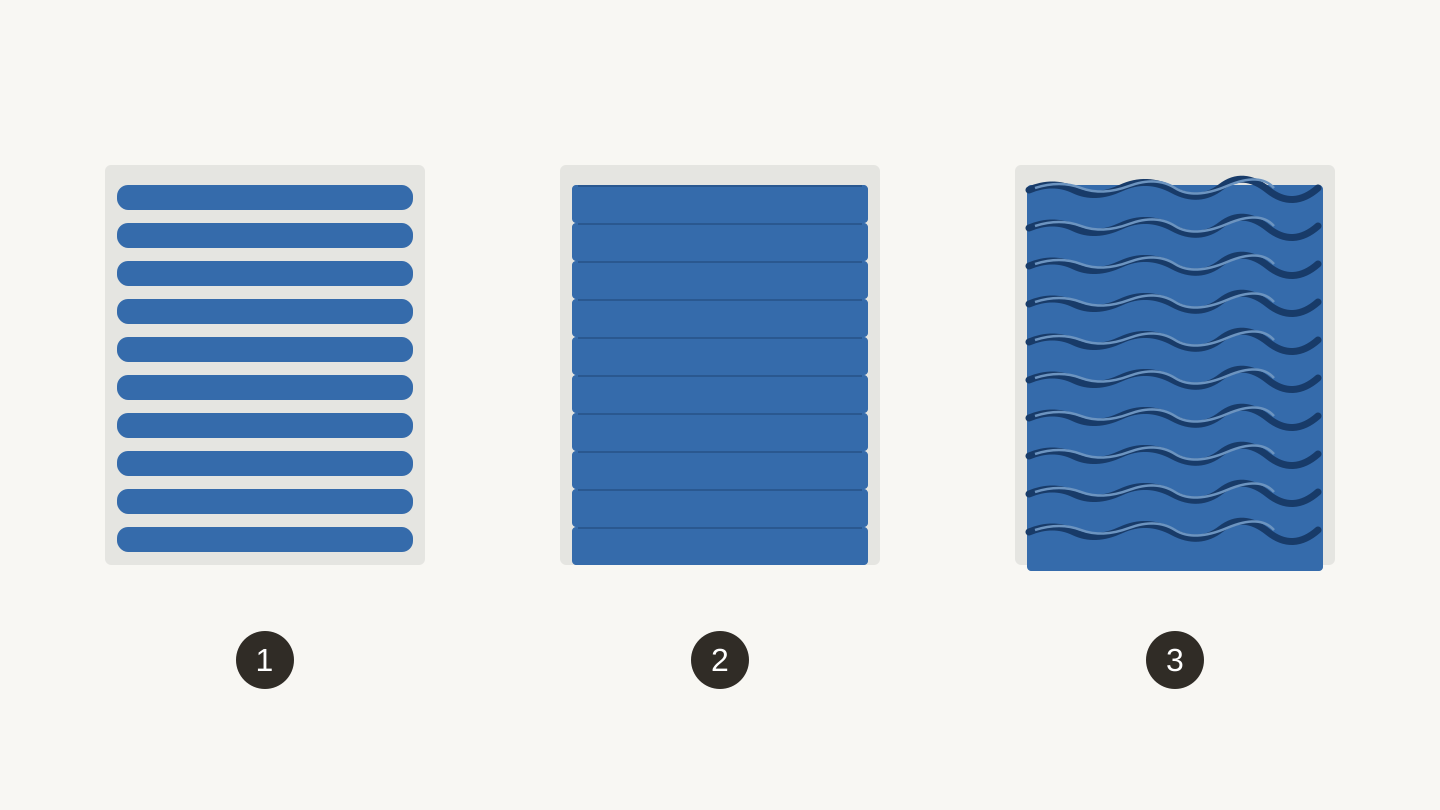
First-layer contact, shown schematically: 1, gaps between lines; 2, even lines touching; 3, excess squish and raised ridges. Compare the pattern, not the illustrated scale.
14. Heat Creep
What it looks like
The printer works fine for the first 20 to 30 minutes, then starts clogging. Under-extrusion appears gradually, and eventually the nozzle clogs completely. After you clear the clog and restart, it happens again at roughly the same point in the print.
Why it happens
Heat is traveling up from the hot end into the cold end (the heat break zone), softening filament too early. The filament swells above the melt zone and jams. This happens when the heat sink fan is failing, clogged with dust, or running at reduced speed. Printing slow, low-temperature materials (like PLA) at high temperatures accelerates the problem.
How to fix it
Check your heat sink fan (not the part cooling fan, the one blowing on the heat sink fins). It should be running at 100% whenever the hot end is heated. Clean dust off the heat sink fins with compressed air.
Lower your printing temperature. PLA doesn't need 220 °C. Try 195 to 205 °C. If you're using an all-metal hot end, apply a thin layer of thermal compound to the heat break threads. Make sure retraction distance isn't too high, as pulling softened filament up into the cold zone repeatedly causes jams. For Bowden setups, keep retraction under 6mm.
15. Spaghetti Print
What it looks like
A tangled mess of filament in the air. The print has detached from the bed (or a section collapsed) and the printer keeps extruding, piling up plastic spaghetti on top of nothing. You come back to find a bird's nest on your build plate.
Why it happens
A spaghetti print is the final stage of another problem. The print detached (adhesion failure), a section broke off (weak support), or the model tipped over (small contact area, no brim). The printer doesn't know anything went wrong, so it keeps going. Ten layers of spaghetti later, you've got modern art.
How to fix it
Spaghetti is a symptom, not a root cause. Identify what went wrong first. Was it adhesion failure (#1)? Warping (#2)? A failed support? Fix the underlying problem and the spaghetti goes away.
For prevention, use a webcam with time-lapse or failure detection software (Obico, The Spaghetti Detective). These tools use AI to detect spaghetti patterns and can pause or stop the print automatically, saving filament and time.
Warning
A spaghetti print near the hot end can wrap around the nozzle and heat block, creating a "blob of death." If this happens, heat the nozzle to printing temperature and carefully remove the blob with pliers. Don't try to pull it off cold or you risk damaging the thermistor wires.
The Quick Diagnosis Table
Not sure which problem you're dealing with? Start here:
| Symptom | Likely Problem | Jump to |
|---|---|---|
| Print fell off the bed | Bed adhesion failure | #1 |
| Corners lifting | Warping | #2 |
| Spider web strings | Stringing | #3 |
| Layers shifted sideways | Layer shifting | #4 |
| Gaps in walls | Under-extrusion | #5 |
| Blobby, rough surface | Over-extrusion | #6 |
| Bottom layer too wide | Elephant foot | #7 |
| Horizontal lines on surface | Z-banding | #8 |
| Ripples near corners | Ghosting | #9 |
| No filament coming out | Clogged nozzle | #10 |
| Saggy bridges | Poor bridging | #11 |
| Scarred overhangs | Support damage | #12 |
| Bad first layer | First layer issues | #13 |
| Clogs after 30 minutes | Heat creep | #14 |
| Total mess, plastic spaghetti | Spaghetti print | #15 |
Go Print Something (Successfully This Time)
Most 3D printing problems come down to a handful of root causes: bed leveling, temperature, retraction settings, and mechanical tightness. Fix those four fundamentals and you'll eliminate 90% of the issues on this list.
If you're still dialing in your printer, our 3D printing beginner's guide covers the essential setup steps. For project ideas once you've got reliable prints, check out 3D printed lithophanes for an impressive first project, or browse free design software to start making your own models.
Keep spare nozzles on hand, clean your bed regularly, and remember: every maker's first few prints are terrible. The difference between a beginner and an experienced printer is just a taller stack of failed prints in the recycling bin.
Stuck on a print that doesn't match anything on this list? Describe what you're seeing, or upload a photo, to Craft Chat and get help narrowing down the cause.
Happy printing.
Ready to try these tools?
Sign up free, no credit card required. Free tools available immediately.
Start Free