

How to Use AI to Troubleshoot Your Machine (CNC, Laser, 3D Printer)
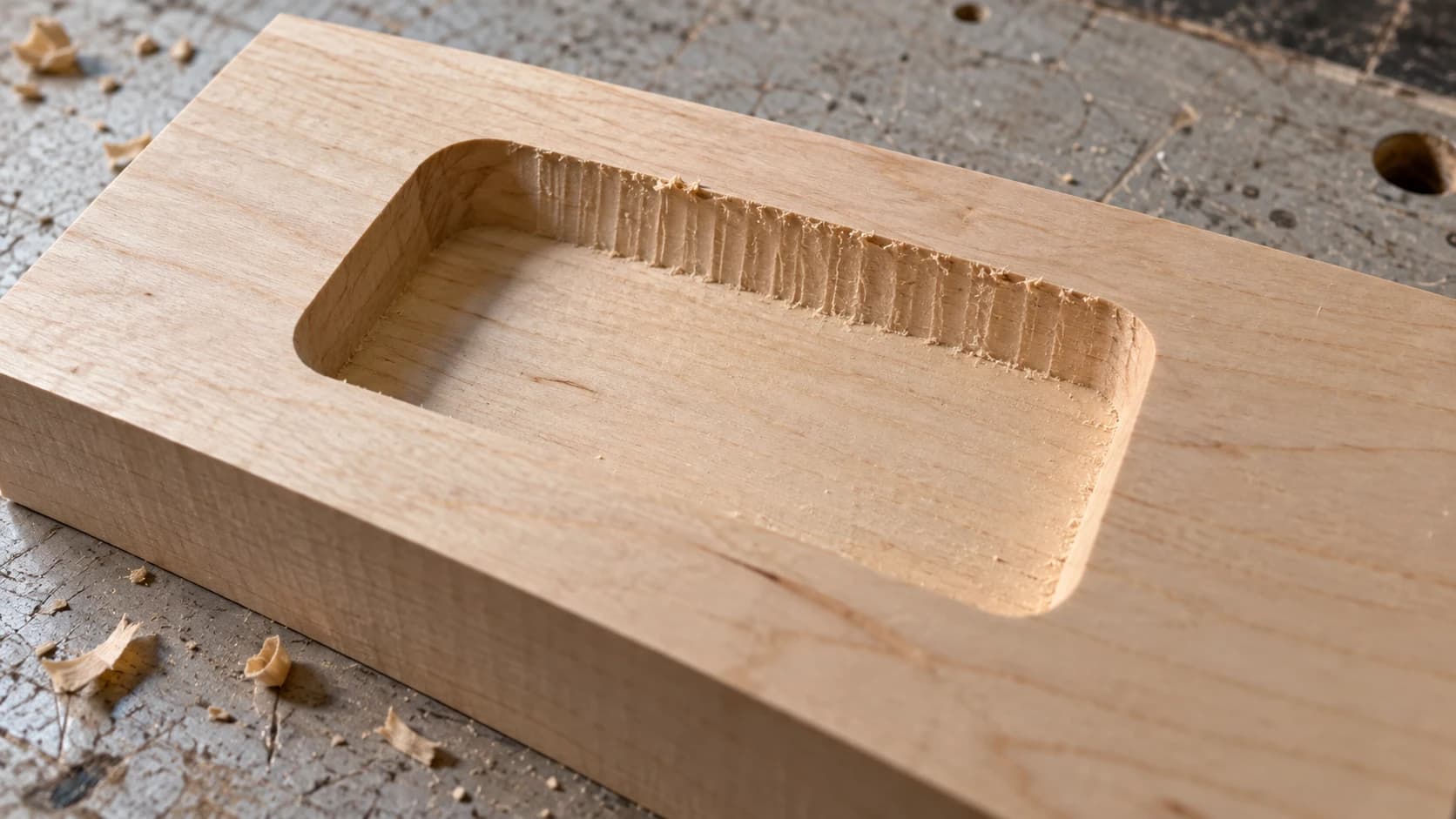
Your CNC router just plunged straight through the workpiece and broke a $30 bit. Your laser engraver is producing engravings that look like they were done by a drunk Etch A Sketch. Your 3D printer created a beautiful nest of spaghetti instead of the benchy you sliced three times already.
Something is wrong, and you need to figure out what. Right now. Preferably before you waste another piece of material or break something expensive.
So you do what everyone does. You Google it. You find a forum thread from 2019 where someone had a similar problem. The first reply says "check your settings." The second reply is a 4,000-word argument about feed rates that never actually answers the question. The original poster never came back to say whether they fixed it.
This is the troubleshooting experience for most makers. It's slow. It's frustrating. And it hasn't changed much in twenty years.
There Has to Be a Better Way
Manuals are written for people who already know what they're doing. Forum threads meander into debates about which brand is best. YouTube videos are helpful when you can find the right one, but "CNC bit breaking" returns about 300 results, and you have to watch the first five minutes of each to figure out if it's relevant to your specific machine and material.
What you actually want is to describe your problem to someone who knows about your machine, ask follow-up questions, and get specific advice you can try right now.
That's where AI troubleshooting comes in. Not as a replacement for experienced human help, but as a first responder. The friend in your shop who has seen a thousand problems and can usually point you in the right direction within seconds.
PRINT. CUT. CARVE.



- Multiple formats (SVG, DXF, PNG)
- Machine-tested designs
- Commercial licenses
Sponsored by PrintCutCarve.com
What Is Craft Chat?
Craft Chat is Craftgineer's built-in AI assistant. It's tuned specifically for makers who work with CNC routers, laser engravers, 3D printers, and cutting machines. It knows about feeds and speeds, material properties, common failure modes, firmware quirks, and all the little details that make troubleshooting these machines so particular.
It uses your monthly chatbot messages (not credits). Every tier gets messages included:
| Tier | Monthly Chat Messages | Price |
|---|---|---|
| Free | 10 | $0 |
| Starter | 100 | $4.99/mo |
| Maker | 500 | $9.99/mo |
| Engineer | 5,000 | $29.99/mo |
You can also upload photos directly into the chat. Took a picture of your failed print? Your chattered surface finish? Your misaligned laser burn? Upload it, describe what you were trying to do, and Craft Chat can analyze the image and help identify the problem.
Info
Craft Chat uses your chatbot message allowance, not credits. Credits are for AI-powered tools like Vector Studio and MosaicFlow. Chat messages reset monthly with your subscription.
How to Ask Good Troubleshooting Questions
AI is only as helpful as the information you give it. A vague question gets a vague answer. A specific question gets a specific, actionable answer.
Here's the difference.
Bad Question
"My CNC keeps breaking bits. Help."
This gives the AI almost nothing to work with. It doesn't know what machine you have, what bit you're using, what material you're cutting, or what your settings are. You'll get a generic answer about common causes of bit breakage, which you could have found on Google.
Good Question
"I'm running a Shapeoko 4 with a 1/4 inch two-flute upcut endmill in 3/4 inch red oak. Feed rate is 60 ipm, plunge rate 30 ipm, depth per pass 0.125 inches, spindle speed 16,000 RPM. The bit broke about 20 minutes into a pocket operation. This is the second time it's happened with the same project. The first 15 minutes cut fine."
Now the AI can analyze your chip load, check whether your depth of cut is reasonable for that endmill, consider whether the bit is getting dull over time, and ask targeted follow-up questions about things like chip evacuation and workholding.
The Troubleshooting Info Checklist
Every time you ask Craft Chat for troubleshooting help, try to include:
- Your machine (brand, model)
- The material (type, thickness, source)
- Your settings (speed, power, temperature, feed rate, whatever applies)
- The tool/nozzle/lens (size, type, condition)
- When the problem happens (immediately? After 10 minutes? On certain shapes?)
- What you've already tried (so the AI doesn't suggest things you've ruled out)
- A photo (if possible, this is worth a thousand words of description)
You don't need all seven every time. But the more you include, the better the answer.
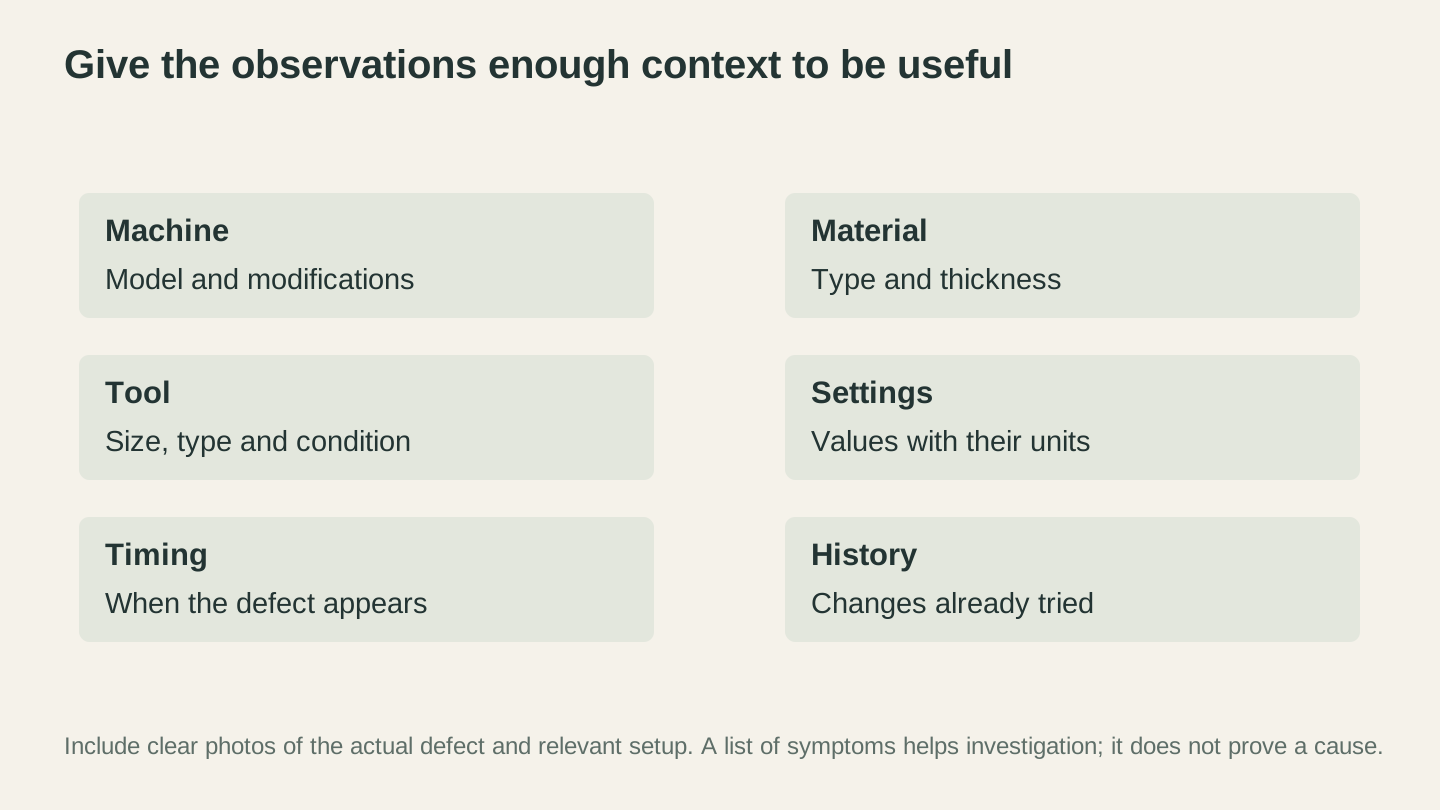
Pair the photograph with the setup and values that produced it. Include units and what you have already checked so the next question can be specific.
CNC Router Troubleshooting with AI
CNC routers are mechanical beasts with a lot of variables. The spindle, the bit, the material, the workholding, the feeds and speeds, the dust collection, the rigidity of the machine itself. When something goes wrong, it could be any combination of these factors.
Here's how to use Craft Chat to diagnose the most common CNC problems.
Bit Breakage
Broken bits are expensive and demoralizing. They also sometimes launch sharp pieces of carbide across your shop, which is a safety concern on top of a financial one.
What to tell Craft Chat:
"I broke a 1/8 inch single-flute upcut bit cutting 1/2 inch Baltic birch plywood on my X-Carve. Settings were 40 ipm feed rate, 10 ipm plunge, 0.06 inch depth per pass, 12,000 RPM. The bit snapped about halfway through a profile cut. The workpiece was clamped with four hold-down clamps."
Craft Chat will likely check your chip load calculation first. At 40 ipm with a single flute at 12,000 RPM, your chip load is 0.0033 inches per tooth. That's on the low side for a 1/8 inch bit, which means the bit might be rubbing instead of cutting. Rubbing generates heat, heat dulls the bit, and a dull bit deflects until it snaps.
The AI might suggest increasing your feed rate to 60 to 80 ipm to get a proper chip load, checking whether the collet is tightened properly (a bit that slips even slightly during cutting will break), or examining whether the plywood had a hidden knot or void at the breakage point.
Tip
When troubleshooting bit breakage, save the broken bit and take a close-up photo. The fracture pattern tells a story. A clean snap near the shank usually means excessive side loading or deflection. A shattered tip often points to hitting something hard (a knot, a clamp, or the wasteboard).
Poor Surface Finish
You expected smooth walls and got something that looks like it was chewed by a beaver. Chatter marks, fuzz, tearout, or rough, ridged surfaces.
What to tell Craft Chat:
"I'm getting really rough surface finish on the walls of a pocket cut in hard maple. Using a 1/4 inch two-flute downcut bit, 80 ipm, 18,000 RPM, 0.1 inch depth per pass on my Onefinity Woodworker. The bottom of the pocket is smooth but the walls are terrible. Photo attached."
The AI will consider several possibilities here. A downcut bit is great for clean tops but can pack chips into the pocket, causing re-cutting and heat buildup on the walls. It might suggest switching to a compression bit for pockets deeper than the bit's compression zone, reducing depth per pass, or adding a finishing pass with a small stepover.
Hard maple is also notoriously unforgiving. It's dense enough that incorrect speeds can cause burning, and its interlocked grain tears out easily if the bit is even slightly dull. Craft Chat might ask how many hours are on the bit, because carbide in hard maple dulls faster than you'd think.
Losing Steps
The machine cuts fine for a while, then the toolpath shifts. Lines don't connect where they should. The final pass doesn't line up with the first one. You're losing steps.
What to tell Craft Chat:
"My Shapeoko Pro is losing steps in the X axis during long carves. I'm cutting a 24 inch sign in MDF with a 1/4 inch bit. After about 45 minutes, the toolpath shifts about 1/16 inch to the right. It gets worse as the carve continues. Settings are 100 ipm, 18,000 RPM, 0.08 inch depth per pass."
Step loss is almost always mechanical. Craft Chat will likely ask about belt tension, whether your stepper motors are getting hot, and whether you hear any clicking or grinding during the cut. On belt-driven machines like the Shapeoko, belts stretch over time and need periodic re-tensioning. The AI might also flag that 100 ipm is aggressive for a long carve and suggest reducing feed rate to see if the problem goes away, which would confirm that the motors are being pushed past their torque limits.
Inconsistent Depth of Cut
Some areas are deeper than others. The design looks right from above but runs your finger across it and you feel high and low spots.
What to tell Craft Chat:
"My V-carve letters are deeper on the left side of the workpiece than the right. Using a 60 degree V-bit on pine. The difference is maybe 1/32 inch across a 12 inch sign. I surfaced my wasteboard last month."
This is almost always a tramming or leveling issue. The spindle isn't perfectly perpendicular to the work surface, or the wasteboard isn't perfectly level anymore. Craft Chat will probably suggest checking the tram with a dial indicator, re-surfacing the wasteboard, and verifying that the workpiece itself is flat (pine boards can cup or twist, especially if they've been sitting in a humid shop).
Laser Engraver Troubleshooting with AI
Laser problems tend to be more visual. You can usually see exactly what went wrong, which makes them great candidates for photo-based troubleshooting.
Blurry Engraving
The engraving looks soft and fuzzy instead of crisp. Text is hard to read. Fine details are lost.
What to tell Craft Chat:
"My engravings on basswood are coming out blurry. I'm using a 10W diode laser (Atomstack X20 Pro) at 80% power and 3000 mm/min. I focused using the fixed-focus block that came with the machine. The blur seems consistent across the whole work area. Photo attached."
Nine times out of ten, blurry engraving is a focus problem. But "I used the focus block" narrows the diagnosis. Craft Chat might ask whether the material surface is truly flat (warped wood throws off focus across the piece), whether the focus block is set for the correct focal length (some machines ship with the wrong spacer), or whether the laser module's lens is dirty. A single fingerprint on the lens can diffuse the beam enough to lose fine detail.
If focus checks out, the AI will look at your speed setting next. At 3000 mm/min, the laser might be moving too fast for the engraving to develop cleanly, especially at 80% power. It might suggest slowing down to 2000 mm/min or increasing power to see if the marks sharpen up.
Inconsistent Cuts
The laser cuts through in some spots but not others. You have to make multiple passes in some areas while other areas over-cut.
What to tell Craft Chat:
"I'm trying to cut 3mm Baltic birch plywood with my OMTech 40W CO2 laser. Using 10mm/s at 70% power. The left side of the material cuts through cleanly but the right side doesn't cut through at all. I have to push the pieces out on the right side. The mirror alignment was done when I first set up the machine six months ago."
Inconsistent cutting across the work area on a CO2 laser is a classic mirror alignment issue. The laser beam bounces off multiple mirrors before reaching the lens, and if any mirror is even slightly off, the beam doesn't hit the same spot on the lens across the entire work area. Six months is plenty of time for vibration and thermal cycling to shift things.
Craft Chat will walk you through checking your beam alignment by firing test pulses on tape at each mirror. It might also flag that 70% power at 10mm/s should be plenty for 3mm ply on a 40W tube, so if alignment checks out, the tube itself might be losing power (CO2 tubes degrade over time).
Material Burning or Scorching
Instead of a clean engrave, you're getting charred edges, flames, or melted material.
What to tell Craft Chat:
"I'm engraving a design on 1/8 inch acrylic with my 50W CO2 laser. Using 20% power at 200 mm/s for raster engraving. The acrylic is melting and bubbling instead of getting a frosted engrave. Some areas have brown scorch marks."
Acrylic engraving on CO2 lasers is usually straightforward, so scorching points to a few specific issues. Craft Chat might identify that 20% of 50W is still 10W concentrated on a small spot, which is plenty to melt acrylic if the speed is too low or the focus is too tight. It could suggest defocusing the laser slightly (raising the head 1 to 2mm above the focal point) to spread the beam and create a broader, gentler mark instead of a concentrated burn.
The AI will also consider whether you're using cast acrylic or extruded acrylic. Cast acrylic engraves beautifully with a frosted white mark. Extruded acrylic tends to melt and gum up instead of frosting cleanly, no matter what settings you use. This is one of those "material, not settings" situations that saves you hours of frustration once you know about it.
Warning
If your laser produces flames during cutting (not just tiny sparks), stop the job immediately. Sustained flames can damage the lens, ignite the material, and start a fire. Make sure you have proper air assist running and an exhaust system pulling fumes away from the cut area. Never leave a laser running unattended.
Alignment Issues
The design doesn't land where you expected. The engraving is rotated slightly. Multi-pass operations don't line up with each other.
What to tell Craft Chat:
"I'm doing a two-pass engrave on a cutting board. First pass is the outline at high power, second pass is the fill at lower power. The fill is shifted about 2mm to the right compared to the outline. I didn't move the material between passes. Using my laser software with a Ruida controller."
This is often a backlash issue or a loose belt on the X-axis gantry. When the laser head reverses direction, a tiny amount of mechanical play causes the starting position to shift. Craft Chat might suggest checking the belt tension on the X axis, looking for play in the linear bearings, or adjusting the backlash compensation in the Ruida controller settings.
It could also be a software issue. Some laser software has a known issue with scanning offset at certain speeds. The AI might suggest running a scanning offset calibration (usually found in your machine settings) to compensate for the delay between the controller sending the fire command and the laser actually firing.
For a deeper dive into laser troubleshooting fundamentals, check out our laser engraving beginner's guide.
3D Printer Troubleshooting with AI
3D printing has arguably the most variables of any maker machine. Layer height, print speed, temperature, retraction, cooling, bed level, filament moisture, ambient temperature. When a print fails, it could be any of fifty things.
We have a dedicated 3D printing troubleshooting guide that covers fifteen common problems in detail. Here, we'll focus on how AI troubleshooting adds value on top of those guides, especially for the tricky problems that don't fit neatly into a single category.
Layer Adhesion Problems
Layers aren't bonding to each other properly. The print feels weak. You can pull layers apart with your fingers. Or entire sections delaminate during printing.
What to tell Craft Chat:
"I'm printing PLA on an Ender 3 V3 SE at 200 °C nozzle, 60 °C bed. Layer height 0.2mm, speed 60 mm/s. The print looks fine while printing but layers separate easily when I handle the finished part. It's happening consistently across different models. Using Hatchbox PLA that I've had for about three months."
Weak layer adhesion in PLA almost always comes down to temperature or moisture. Craft Chat will probably focus on two things. First, 200 °C might be on the low end for your specific filament brand. PLA printing temperatures can range from 195 to 225 °C depending on the formula, and going 5 to 10 °C hotter can dramatically improve inter-layer bonding.
Second, and this is the one people miss: three months of unsealed filament absorbs moisture. Even PLA, which is less hygroscopic than nylon or PETG, degrades noticeably after sitting out in humid conditions. The AI might suggest drying the filament (4 hours at 45 °C in a food dehydrator or filament dryer) and testing again. The difference between dry and wet PLA is often dramatic.
Stringing Between Parts
Your benchy looks great, but there are thin threads of filament connecting every travel move. The print is covered in spider webs.
What to tell Craft Chat:
"Getting terrible stringing on my Bambu Lab P1S printing PETG at 240 °C. Retraction is set to 0.8mm at 30 mm/s (it's a direct drive). I've tried lowering temp to 230 °C but then I get poor layer adhesion. Using the generic PETG profile in my slicer."
PETG is a stringing magnet. It's gooey by nature, and the settings window for clean prints is narrower than PLA. Craft Chat knows this and won't suggest the typical "just increase retraction" advice that works for PLA but tops out quickly on direct drive systems.
Instead, it might recommend increasing retraction speed rather than distance (since direct drive extruders are limited to about 1 to 2mm of retraction before causing clogs). It could also suggest enabling pressure advance / linear advance if your firmware supports it (Bambu firmware handles this differently than Klipper). Or it might point to travel speed. If your travel moves are slow, the nozzle spends more time dripping over open air. Bumping travel speed from 150 to 250 mm/s can reduce stringing without touching retraction at all.
Warping on Large Prints
Smaller prints come out fine, but anything larger than about 100mm in any dimension starts warping off the bed.
What to tell Craft Chat:
"I'm printing large flat panels (200mm x 150mm x 3mm) in PLA on my Prusa MK4. Bed at 60 °C, nozzle at 215 °C. Using a textured PEI sheet. I've tried brims, glue stick, higher bed temp. The corners still curl up after about 10 layers. My printer is in my garage."
The garage detail is the key here, and a good AI will catch it. Garages have temperature swings and drafts. Even if the bed is perfectly heated, cool air moving across the print creates uneven cooling that causes differential shrinkage. This is the same physics that causes warping in any material, just amplified by the environment.
Craft Chat might suggest using a purpose-built or manufacturer-approved enclosure with suitable ventilation and fire precautions, reducing the part cooling fan speed for the first 10 to 15 layers, or printing with a raft instead of directly on the bed. It should not recommend combustible improvised covers. It might also point out that 3mm thick panels are a particularly challenging geometry because the surface-area-to-height ratio is extreme, concentrating all the shrinkage stress at the bed interface.
Under-Extrusion Mid-Print
The print starts perfectly, but partway through, the extrusion gets thin, gappy, or stops entirely. Then it might recover and print fine again.
What to tell Craft Chat:
"My Prusa Mini+ starts prints fine but around layer 50 to 60 (about 10mm up), the extrusion gets inconsistent. Gaps in the walls, thin spots. It recovers after a few layers then does it again. Happens with different filaments. Nozzle is one month old, I've done cold pulls and they come out clean."
Intermittent under-extrusion that comes and goes is one of the harder problems to diagnose. Craft Chat will probably explore heat creep first. Heat creep happens when heat travels up the heatbreak beyond the melt zone, softening filament before it reaches the nozzle. The softened filament expands and creates a partial blockage that comes and goes as the fan and heater cycle.
The AI might ask about your hotend cooling fan. Is it running at full speed? Is the heatsink clear of dust? On the Prusa Mini+, the small hotend fan is critical. If it's partially blocked or running slow, heat creep is almost guaranteed on longer prints. It might also suggest checking your extruder tension and the PTFE tube connection at the heatbreak, since a gap between the tube and the nozzle creates a spot where filament can pool and intermittently block flow.
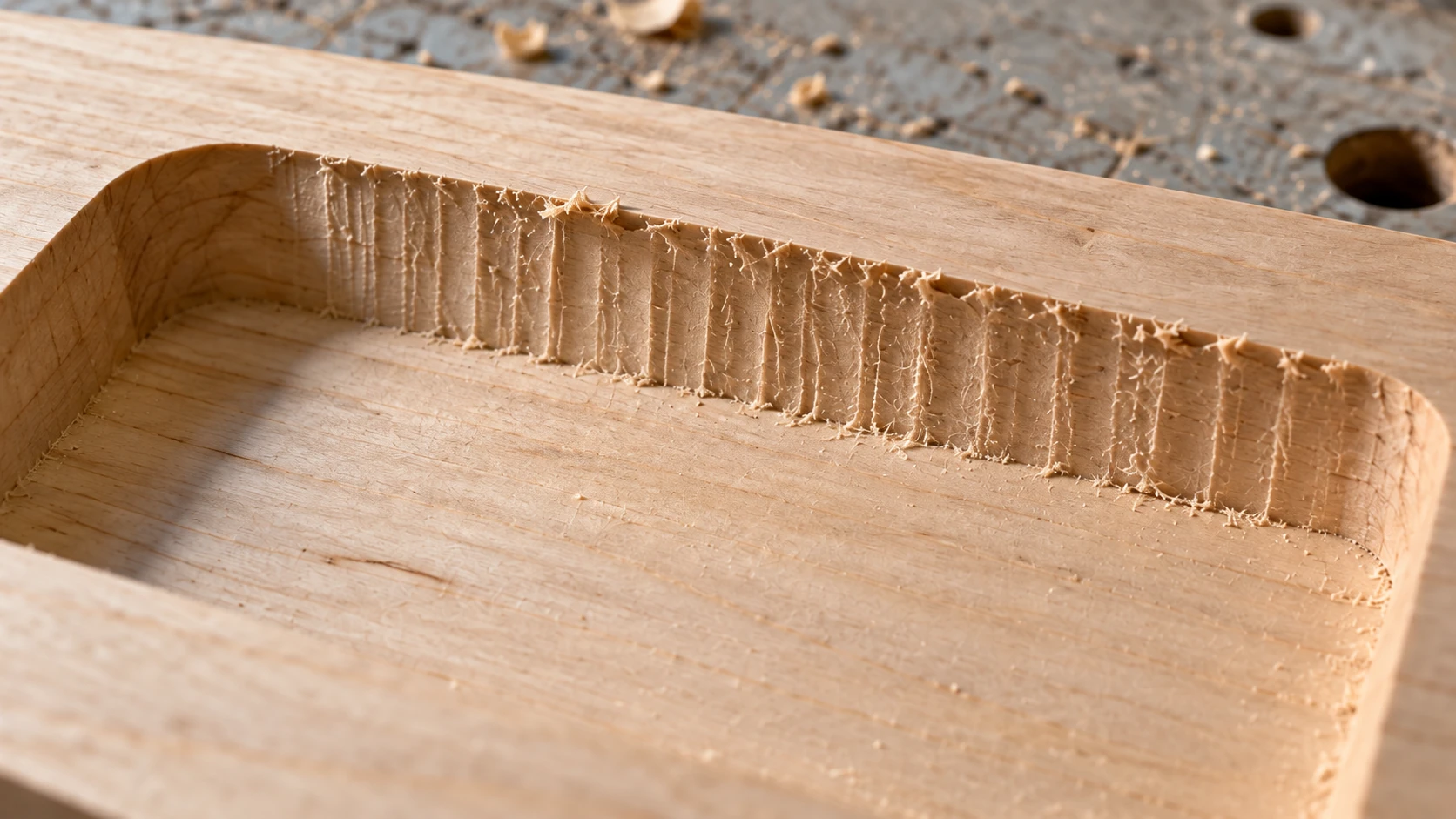
The closer view makes the wall texture and torn fibers easier to see. This is an illustrative defect, not evidence that a particular setting or AI diagnosis caused it.
Using Photos for Better Troubleshooting
One of the most powerful features of Craft Chat is the ability to upload photos directly into the conversation. This isn't a gimmick. For troubleshooting, it's often the difference between a correct diagnosis and a wrong one.
What Makes a Good Troubleshooting Photo
Not all photos are equally useful. Here's how to take photos that actually help with diagnosis.
Get close. A photo of your entire 3D printer with a failed print somewhere on the bed doesn't help much. Get within six inches of the problem area. Show the texture, the layer lines, the burn marks, the tool marks.
Use good lighting. Harsh overhead lighting washes out details. Side lighting (holding your phone flashlight at an angle to the surface) reveals texture, chatter marks, layer inconsistencies, and surface defects that straight-on lighting hides.
Show context when relevant. If the problem is "the engraving is misaligned," show the full workpiece so the AI can see where the design landed relative to where it should be. If the problem is "rough surface finish," zoom in tight on the affected area.
Take multiple photos. Upload a close-up and a wider shot. Show the top surface and the bottom surface. Show the area where it went wrong and a nearby area where it went right. Comparison helps immensely.
Example: Diagnosing a Print Failure from a Photo
Imagine you upload a photo of a 3D print with obvious horizontal lines at regular intervals. Instead of trying to describe "the print has lines," you just share the image.
Craft Chat can see the pattern, estimate the spacing of the lines, and recognize it as Z-banding. From there, it can ask targeted questions: "Do the lines appear at consistent intervals? That spacing looks like it matches a T8 lead screw pitch. Have you checked your Z-axis coupler for play?"
That's a much faster path to the answer than typing paragraphs describing what the lines look like.
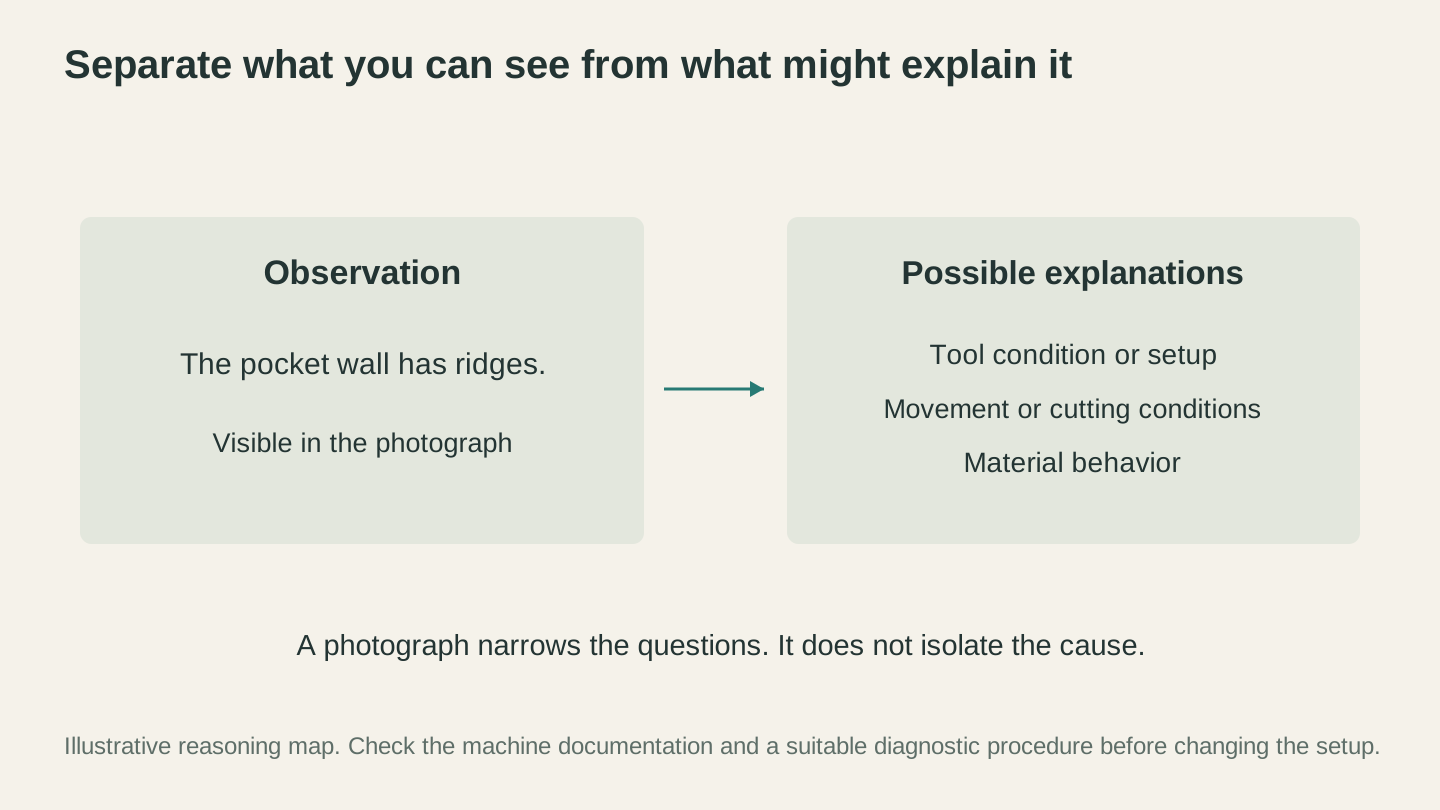
Describe what the image shows before deciding why it happened. Similar-looking defects can have different causes that need further checks.
AI Troubleshooting vs. Traditional Methods
How does AI troubleshooting compare to other options? Here's a quick comparison.
| Method | Speed | Accuracy | Cost | Best For |
|---|---|---|---|---|
| Google search | Medium | Low to Medium | Free | Known, common problems |
| Forum post | Very slow (hours to days) | Medium to High | Free | Unusual problems, community opinions |
| YouTube video | Medium | Medium | Free | Visual/mechanical procedures |
| Manufacturer support | Slow (days) | High for that machine | Free with warranty | Hardware defects, warranty claims |
| AI (Craft Chat) | Instant | Medium to High | Free tier available | Quick diagnosis, settings optimization |
| Local makerspace / mentor | Varies | Very High | Varies | Complex mechanical issues, hands-on help |
AI excels at speed and breadth. It can consider dozens of possible causes in seconds and narrow down based on the details you provide. It's available at 2 AM on a Sunday when you're trying to finish a project for Monday morning.
Traditional methods excel at depth and hands-on diagnosis. A veteran CNC operator can feel the difference between a dull bit and a loose collet by touching the machine. A forum expert with the same machine as you might have encountered your exact issue and found a fix that no AI would suggest.
The best approach is to use AI as your first line of investigation, then escalate to human experts for problems that resist AI diagnosis.
When AI Works Great
AI troubleshooting shines in several scenarios.
Settings optimization. "What feed rate should I use for this bit in this material?" is a math problem with well-understood parameters. AI can calculate chip loads, suggest starting speeds, and help you dial in settings faster than trial and error.
Identifying common problems. The twenty most common failures for each machine type are well-documented, and AI has seen them all. Stringing, warping, bit breakage, blurry engraving. These have known causes and known fixes, and AI can match your symptoms to the right diagnosis quickly.
Material compatibility questions. "Can I laser-engrave anodized aluminum?" or "What temperature should I print nylon at?" are factual questions with clear answers. AI handles these well.
Interpreting error codes. Your controller is throwing ALARM:9 or your 3D printer firmware shows THERMAL RUNAWAY. AI can decode error messages across dozens of machine brands and tell you what triggered it and what to check.
Providing step-by-step procedures. "How do I calibrate e-steps on my Ender 3?" or "How do I align the mirrors on my CO2 laser?" are procedural tasks where AI can walk you through each step interactively, answering questions as they come up.
When You Need a Human
AI has real limitations, and knowing them saves you from going in circles.
Mechanical feel and sound. If your CNC makes a new noise, AI can suggest what might cause clicking vs. grinding vs. squealing. But it can't hear it. A human standing next to the machine might immediately say "that's a bearing going bad" based on a sound they've heard before.
Rare or machine-specific firmware bugs. If your specific controller revision has a bug that causes lost steps under certain conditions, that might not be in any AI's training data. This is where niche forums and manufacturer support shine.
Electrical problems. If your stepper motor is getting intermittent voltage, your heating element has a failing connection, or your power supply is on its way out, these are hands-on diagnostic tasks. AI can suggest "check the wiring," but it can't wiggle each connector for you.
Safety-critical situations. If your machine is sparking, smoking, making electrical burning smells, or behaving erratically in ways that seem dangerous, turn it off and consult a qualified human. AI is not a substitute for a professional when safety is on the line.
Heavily modified machines. If you've swapped the spindle, replaced the controller, upgraded the Z axis, and modified the firmware, the baseline assumptions that AI uses for troubleshooting your machine model no longer apply. You'll get better help from communities of people who've done similar modifications.
Warning
If your machine is producing smoke, sparks, or electrical burning smells, power it off immediately and unplug it. These are safety issues, not troubleshooting exercises. Consult the manufacturer or a qualified electrician before using the machine again.
Advanced AI Troubleshooting Techniques
Once you're comfortable with basic AI troubleshooting, there are some techniques that get even more value out of the conversation.
The Elimination Method
Instead of asking "what's wrong?" start by telling the AI what you've already ruled out.
"My laser engraving is inconsistent on plywood. I've already checked and confirmed: focus is correct (measured with calipers, not the focus block), the material is flat (checked with a straightedge), the lens is clean, and mirror alignment passes the tape test at all four corners. Power supply reads correct voltage. What else should I check?"
By eliminating the obvious causes upfront, you push the AI past the generic suggestions and into more nuanced territory. It might suggest checking for fluctuating wall voltage with a multimeter, examining the air assist pressure consistency, or looking at whether the plywood itself has variable density across the sheet (common with cheap plywood where the core material isn't uniform).
The Comparison Test
Describe two scenarios: one that works and one that doesn't. The difference between them narrows the diagnosis dramatically.
"Same CNC machine, same bit, same g-code. When I cut MDF, the surface finish is great. When I cut poplar, the walls are rough with visible chatter. All settings identical. What's different about poplar that would cause this?"
Now the AI can focus specifically on the material difference. Poplar has grain direction that MDF doesn't. The AI might explain that climb cutting works well in MDF (which has no grain) but causes tearout in poplar along the grain. It might suggest conventional cutting for the poplar, or reducing depth of cut so the tool forces don't tear the fibers.
The Progressive Narrowing Technique
Start broad, then narrow based on each answer. Treat the chat like a diagnostic conversation, not a single question.
Message 1: "My 3D prints are failing about 60% of the time. Different models, same printer. What are the most likely systemic causes?"
Message 2: (After AI lists possibilities) "It's a direct drive extruder, I print at 210C, and the failures happen at various heights. But they always involve under-extrusion, not adhesion or warping."
Message 3: "I just checked and the extruder gear has a flat spot where the teeth are worn down. Could that cause intermittent under-extrusion?"
Each message gives the AI more information, and its answers get progressively more targeted. By the third exchange, you've identified a hardware problem that a single question would never have caught.
Documenting What Works
Once you fix a problem with AI help, save the conversation. Most troubleshooting problems come back eventually, or a friend asks you about the same issue. Having a record of "here's what was wrong and here's exactly what fixed it" is worth its weight in gold.
You can also share what you learned in maker communities. The forums that frustrate you when you're searching for answers still benefit enormously from people posting their solutions. And "I asked AI, it suggested X, I tried it, and it worked" is a perfectly valid forum post.
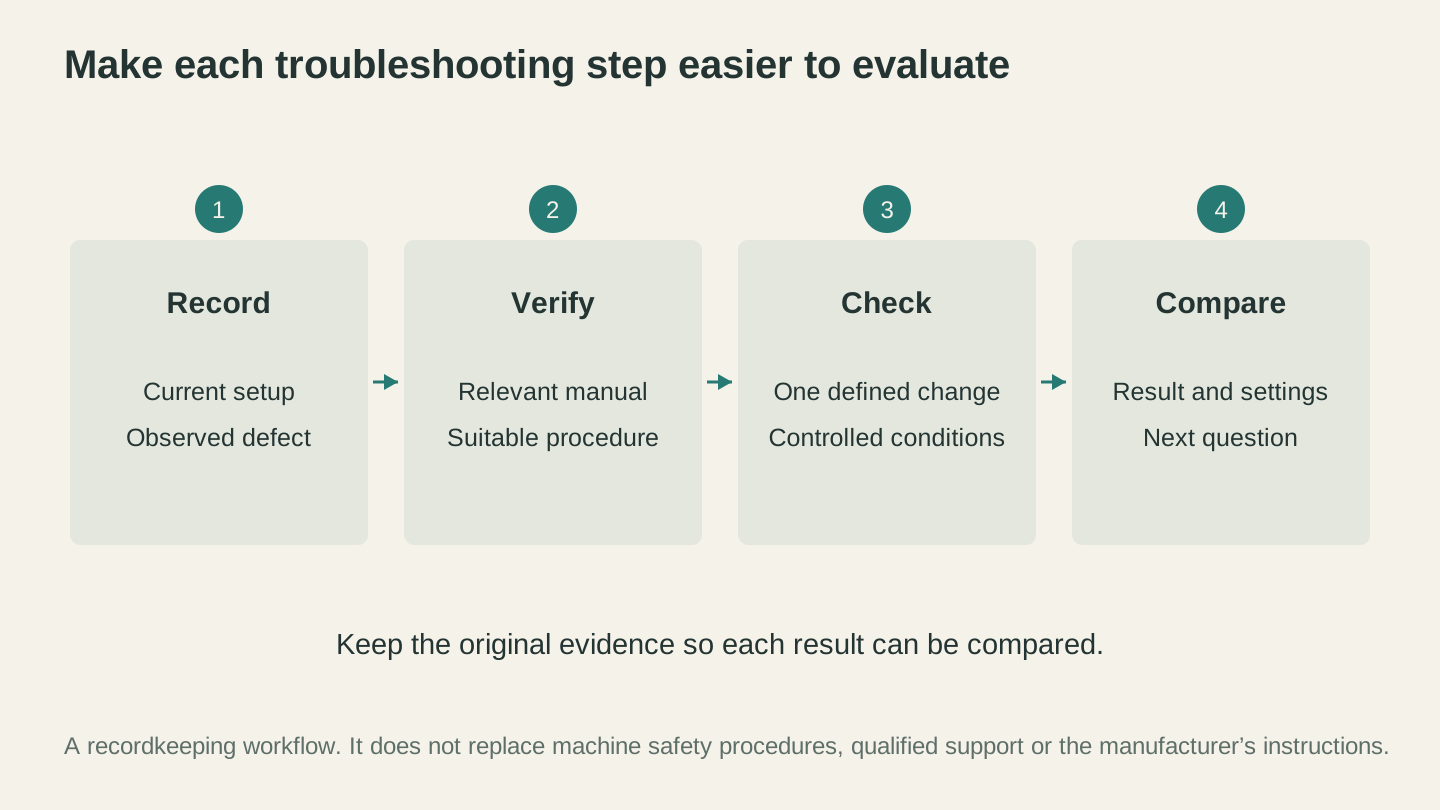
Keep a record of each check and its result. Verify the procedure against the machine documentation before changing the setup.
Real-World Troubleshooting Workflow
Here's how an effective AI troubleshooting session looks in practice, from problem to solution.
Step 1: Notice the Problem
Your laser engraving of a detailed mandala design on maple has blotchy, inconsistent darkness. Some sections are crisp and dark, others are faded and barely visible.
Step 2: Gather Information
Before opening Craft Chat, gather your details:
- Machine: xTool D1 Pro 20W
- Material: 1/4 inch hard maple, sanded to 220 grit
- Settings: 90% power, 2500 mm/min, 254 DPI
- File: SVG converted to raster in laser software
- Focus: Set with included focus module
- Air assist: On, low flow
Step 3: Take Photos
Take a close-up of an area that engraved well and an area that didn't. Get side lighting to show the difference in depth and darkness.
Step 4: Start the Conversation
Open Craft Chat and provide all your details along with the photos. Ask specifically: "Why would the same design, same settings, produce darker engraving in some areas and lighter engraving in others?"
Step 5: Follow the Diagnostic Path
The AI might identify several possibilities:
- Grain direction causes different absorption rates (end grain vs. face grain)
- The focus changes across the work area if the material isn't perfectly flat
- The maple has variations in density (sapwood vs. heartwood sections)
- The air assist is blowing debris back onto some areas, blocking the laser
Step 6: Test and Report Back
Try the AI's top suggestion first. If it works, great. If not, report back what you tried and what happened. The AI refines its diagnosis with each round of feedback.
This iterative approach mirrors how any good troubleshooting works. You hypothesize, test, observe, and refine. The AI just speeds up the hypothesis generation.
CNC Troubleshooting Quick Reference
When chatting about CNC problems, these are the key parameters to include.
| Problem | Key Info to Provide |
|---|---|
| Bit breakage | Bit size, flutes, material, feeds/speeds, depth per pass, workholding method |
| Poor surface finish | Bit type, material, feeds/speeds, climb vs conventional, bit hours |
| Lost steps | Axis affected, belt type, motor temps, how far into the cut, cut aggressiveness |
| Inconsistent depth | Surface prep, wasteboard condition, tram angle, material flatness |
| Burning/smoking | Material, feeds/speeds, bit condition, dust collection status |
| Chatter marks | Bit stick-out length, spindle speed, feed rate, material hardness |
For CNC basics and setup, see our CNC routing beginner's guide.
Laser Troubleshooting Quick Reference
Key details for laser troubleshooting conversations.
| Problem | Key Info to Provide |
|---|---|
| Blurry engraving | Focus method, material flatness, lens condition, speed/power |
| Inconsistent cuts | Work area position, mirror alignment age, tube hours, material consistency |
| Burning/scorching | Material type (cast vs extruded acrylic, wood species), power level, focus distance |
| Misalignment | Multi-pass consistency, belt tension, backlash, software version |
| Fading engraving | Power supply stability, tube age, lens contamination |
| Flame/fire | Material type, air assist status, exhaust airflow, focus height |
3D Printing Troubleshooting Quick Reference
Essential details for 3D printing troubleshooting conversations.
| Problem | Key Info to Provide |
|---|---|
| Layer adhesion | Nozzle temp, layer height, print speed, filament age/storage |
| Stringing | Retraction settings, temp, travel speed, direct drive vs Bowden |
| Warping | Bed temp, enclosure, fan settings, room conditions, print geometry |
| Under-extrusion | Extruder type, nozzle condition, temp, filament diameter |
| Layer shifting | Axis affected, belt tension, motor temps, print speed |
| Blobbing/zits | Retraction, coast/wipe settings, seam position, temp |
For detailed fixes to each of these problems, check out our complete 3D printing troubleshooting guide.
Making AI Part of Your Troubleshooting Toolkit
AI troubleshooting isn't magic, and it won't replace the experience you build over time working with your machines. What it does is compress the "figuring out what to try next" step from minutes or hours down to seconds.
Think of it like having a knowledgeable friend in your shop. They might not always be right on the first guess, but they can suggest five things to check in the time it takes you to describe the problem. And unlike a forum post, they're available right now, at any hour, and they'll answer follow-up questions without disappearing for three days.
The makers who get the most out of AI troubleshooting are the ones who:
- Provide good information. Machine, material, settings, photos. The more context, the better the answer.
- Follow up. Don't just take the first suggestion and give up if it doesn't work. Tell the AI what you tried and what happened. The conversation gets smarter with each exchange.
- Verify before acting. AI is confident even when it's wrong. If a suggestion seems off, ask "are you sure about that?" or look it up. Trust but verify.
- Learn from the process. Each troubleshooting conversation teaches you something about your machine. Over time, you'll start recognizing problems yourself before needing to ask.
Get Started with Craft Chat
Ready to try it? Craft Chat is free to start with. You get 10 messages per month on the free tier, which is enough to troubleshoot a couple of problems.
Next time your machine acts up, instead of scrolling through forum threads or watching a 20-minute YouTube video that might not apply to your situation, open Craft Chat, describe the problem with as much detail as you can, and upload a photo if you have one. You'll have a diagnostic direction within seconds instead of hours.
Your machines will still break. That's part of the hobby. But fixing them doesn't have to take all weekend anymore.
Ready to try these tools?
Sign up free, no credit card required. Free tools available immediately.
Start Free