

Fixing Broken SVG Paths Before You Cut
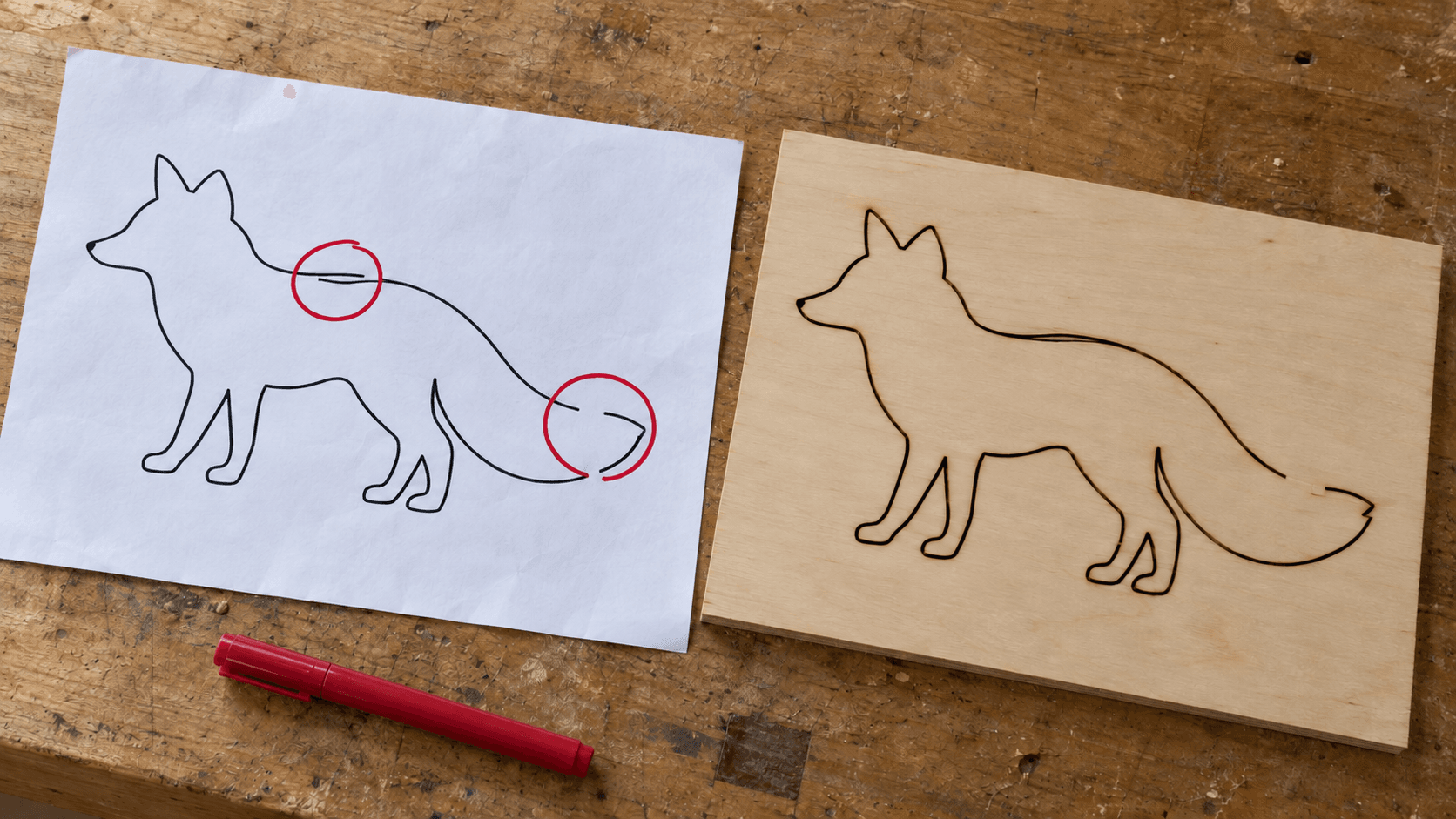
The design looked perfect on screen. Then the laser cut the fox's back twice, burned a dark groove into it, and left the tail still attached to the sheet because the outline never quite closed.
Neither of those was a machine problem. They were file problems, and they're some of the most common ones in downloaded or traced SVGs. The machine does exactly what the file says, so a file that's subtly broken gives you a cut that's very obviously broken.
The Usual Suspects
| Symptom at the machine | Likely file problem |
|---|---|
| Part won't drop out; a small gap remains | Open path (outline not closed) |
| Dark, overburned line; cut runs twice | Duplicate overlapping paths |
| Fill or engrave area won't work | Open path, or a stroke instead of a shape |
| Text missing or in the wrong font | Text not converted to paths |
| Pieces cut separately that should be one | Overlapping shapes not united |
| Jittery, slow, ragged curves | Far too many nodes |
| Everything the wrong size | Units or scale mismatch |
Open Paths
An outline that looks closed may have a tiny gap where its start and end don't meet. A laser cutting around it leaves a little uncut bridge. A CNC can't decide what's inside versus outside, and fill or engrave operations may refuse to work at all.
In NodeCraft, our free in-browser vector editor, select the open path and use Close Path. When a shape is made of several separate segments that should be one outline, Auto-Join connects them.
Duplicate Lines
Downloaded files often contain two identical paths stacked on top of each other. You can't see it on screen, but the machine cuts both, doubling the burn. Click a line and drag it slightly. If another copy stays behind, delete the extra.
Tip
A quick test: count the cuts. If your laser software shows twice as many shapes as you expected, you probably have duplicates.
Text That Isn't a Path
Text in an SVG is often stored as "use this font here," not as actual shapes. If the next program doesn't have that font, it substitutes another one or drops the text. Select the text and use Convert to Path so the letters become ordinary shapes that look the same everywhere.
For lettering that should cut out as one connected piece, NodeCraft also has a Weld text option, and our fonts for laser and Cricut post covers choosing fonts that connect well.
Overlapping Shapes
Two overlapping circles meant to be one shape will cut as two separate circles, slicing through the middle. Select them and use Union to merge them into one outline. NodeCraft's boolean tools also subtract and intersect shapes. Our NodeCraft introduction shows them in action.
Too Many Nodes
Traced images can end up with thousands of tiny points. Machines handle them, but slowly, and the edges can look ragged. When you trace, use cleaner input and settings that produce smoother outlines. Our cleaning up traced images post covers this. In NodeCraft, you can edit nodes directly and use Smooth Node on corners that should be curves.
Units and Scale
An SVG made at 96 pixels per inch can import at a different size in software that assumes 72. If everything comes in at the wrong size, check the document units and rescale by the exact ratio, not by eye. Measure a known dimension after import.
Warning
Don't fix the size by dragging handles on the screen. Type the exact width you want. A design that's 2% off won't fit the slot, the frame, or the clock movement you designed it around.
Converting Formats
Sometimes the fix is simply a different format. Many CNC and laser programs prefer DXF. File Converter converts SVG to DXF and back; converting is free, and downloading the converted file needs a paid plan. Our DXF vs SVG guide explains when each is better.
A Pre-Cut Checklist
Before sending any SVG to a machine:
- All cut outlines closed
- No duplicate lines
- Text converted to paths
- Overlapping shapes united where they should be
- Size checked against a real measurement
Open your next download in NodeCraft and run through the checklist. Two minutes in the editor beats a ruined sheet every time.
Keep reading
Related Tools
NodeCraft
Edit vector designs with shapes, nodes, layers, and artboards. Export SVG artwork or layered PDF.
File Converter
Convert supported combinations of vector, document, raster-image, and 3D-mesh formats.
Plan required for downloads
MonoTrace
Turn photos and artwork into SVG outlines for free, with an optional sketch mode.
Ready to try these tools?
Sign up free, no credit card required. Free tools available immediately.
Start Free