

How to Laser Engrave Photos on Slate (The Inverted Mode Secret)
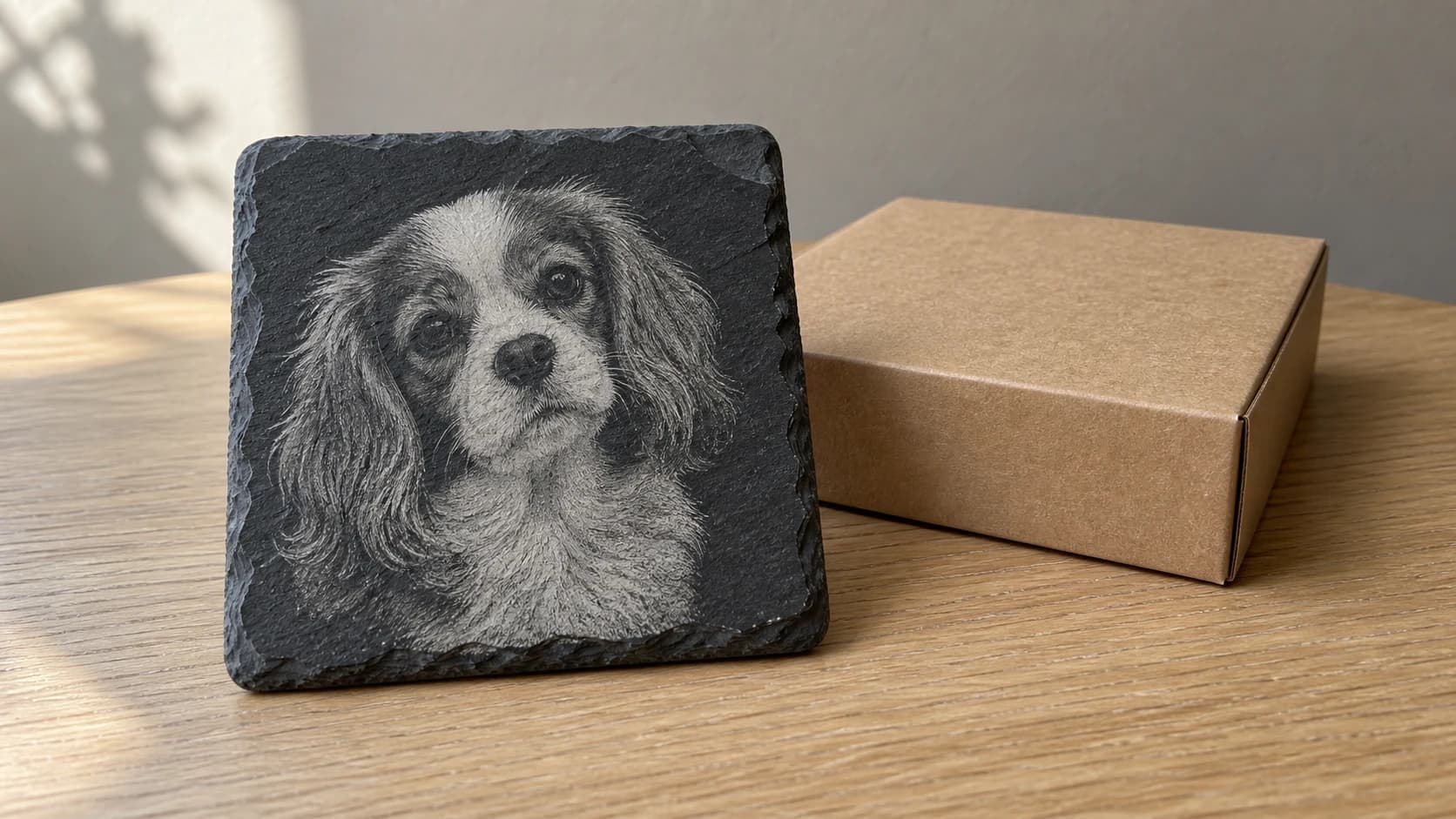
You ran a photo on slate with the same settings that worked perfectly on maple. Hit start, waited twenty minutes, pulled the piece out, and... barely anything. A faint ghost of an image that disappears when you tilt it. Maybe some muddy blotches where the darkest areas should be. The dog you were engraving looks more like a Rorschach test.
This is the most common frustration with slate engraving, and it has nothing to do with your laser, your focus, or your power settings. The problem is your image.
Why Standard Photo Engraving Fails on Dark Materials
On light wood like maple, the physics work in your favor. Your laser burns dark marks onto a light surface. Dark dots on a light background create contrast. Your brain reads the dot patterns as an image. Simple.
Slate flips that equation. The surface is already dark. When a laser hits slate, it doesn't burn darker. It removes a thin layer of material, revealing a lighter color underneath. The laser lightens the surface instead of darkening it.
Think of it like chalk on a blackboard versus ink on paper. They're opposite processes. If you hand someone a piece of chalk and tell them to recreate a standard black-and-white photo (black lines on white), they'd need to draw the white parts, not the black parts. That's exactly what your laser needs to do on slate.
A standard photo conversion gives you dark line art on a white background. On wood, the laser traces the dark lines. On slate, the laser traces those same dark areas, lightening them. But since the "image" information is in the dark lines (which become light marks on dark slate), the contrast is reversed. Highlights become shadows. Shadows become highlights. The whole thing looks wrong, washed out, or invisible.
PRINT. CUT. CARVE.



- Multiple formats (SVG, DXF, PNG)
- Machine-tested designs
- Commercial licenses
Sponsored by PrintCutCarve.com
Photo Converter's Inverted Mode
Photo Converter has two output modes. Standard mode produces black line art on a white background, designed for light materials. Inverted mode produces white line art on a black background, designed specifically for dark materials like slate.
Inverted mode does more than flip the colors. It generates the line art with dark-material physics in mind. The white areas represent where the laser will fire, removing surface material to reveal the lighter substrate. The black areas stay untouched, keeping the natural dark slate color. The result is a photo that reads correctly when engraved on a dark surface, as shown in the preview.
Before you run a full engrave, confirm the file you actually import into your laser software still shows white line art on a black background, the same pattern you saw in the preview. If the downloaded file looks different, invert it in your image viewer or laser software first. Running the wrong polarity means the laser fires on the background instead of the subject.
One credit, one click generates the line art. No manual sketching or photo-editing work required to create it.
Tip
Photo Converter's output is already optimized for laser engraving. Don't apply additional dithering in your laser software. Import the image as-is and set your software to "pass-through" or "threshold" mode rather than any dithering algorithm. Double-dithering destroys detail.
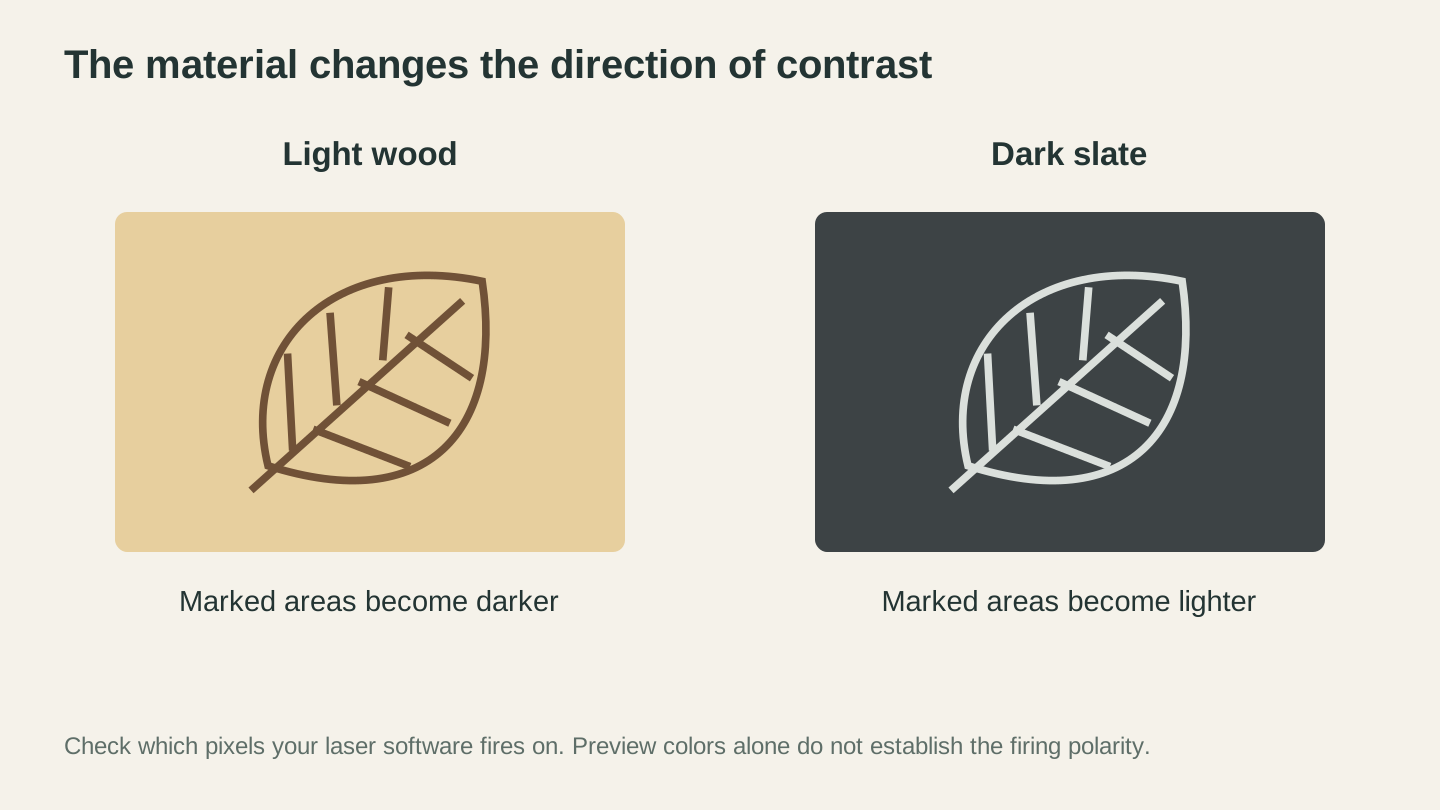
Wood and slate create contrast in opposite directions. Separately check which pixels your software will fire on, rather than assuming the preview’s colors establish the correct setting.
Step-by-Step: Photo to Slate Coaster
Here's the full workflow from photo selection to finished slate piece.
1. Choose the Right Photo
Not every photo translates well to line art on slate. The best candidates have:
- Strong contrast between subject and background
- Clear facial features or recognizable shapes
- Simple backgrounds that won't compete with the subject
- Good lighting with defined shadows
Portraits, pet photos, and simple landscapes work well. Group shots where faces are small, low-contrast scenes, and photos with busy backgrounds tend to produce muddy results regardless of your conversion settings.
2. Upload to Photo Converter
Go to Photo Converter and upload your photo. Select Inverted mode. You'll see a preview with white lines on a black background.
3. The Keep Background Toggle
This setting matters more than you might think.
Background ON keeps the entire scene. Good for landscapes, architectural shots, and images where the background is part of the story. The laser engraves the full frame.
Background OFF isolates the subject and removes the surrounding area. Good for portraits, pet photos, and product images where you want the subject floating on raw slate.
Try both. The preview updates instantly. For slate coasters, background off usually looks cleaner since the coaster is small and busy backgrounds lose detail at that scale.
4. Download the Image
Download the PNG version of the inverted image. Open the downloaded file itself, not just the on-screen preview, and confirm it still shows white line art on a black background before you import it.
5. Prep the Slate
Before engraving:
- Clean the surface with isopropyl alcohol and a lint-free cloth. Oils from handling interfere with consistent engraving.
- Check for flatness. Natural slate varies in thickness. If your piece rocks on a flat surface, shim it or use a vacuum table.
- Mask if desired. Some engravers apply painter's tape over the surface to reduce cleanup. This is optional for slate since there's less residue than wood.
6. Import and Configure Laser Software
Import the downloaded image into your laser software. Set the image processing mode to pass-through or threshold, and do not apply dithering.
Check which pixels your software is set to fire on before running anything. Most laser software defaults to firing on dark pixels, so an inverted image (white lines on black) may need an invert or negative option enabled so the laser fires on the white lines instead of the black background.
Position and size the image to fit your slate piece. Run a frame test on scrap material first to confirm the laser engraves the subject, not the background, before committing to your final piece.
7. Laser Settings
Slate settings vary by machine type. Start with these and adjust based on test results:
| Setting | CO2 Laser (40-60W) | Diode Laser (10W+) |
|---|---|---|
| Power | 60-90% | 100% |
| Speed | 100-250 mm/s | 200-600 mm/min |
| Resolution | 300 DPI | 300 DPI |
| Passes | 1 | 1 |
| Air Assist | On (low pressure) | On if available |
Info
These are starting points. Every slate batch varies in hardness and composition. Always run a small test corner on a spare piece before committing to your final engrave.
8. Post-Processing
After engraving:
- Let it cool. Slate holds heat. Give it a few minutes.
- Brush off dust with a soft brush or compressed air. Slate dust is fine and gets everywhere.
- Optional: apply mineral oil. A thin coat of mineral oil deepens the contrast between engraved and unengraved areas. Wipe on, let it sit for a minute, buff off excess. This also gives the slate a richer, darker appearance overall.
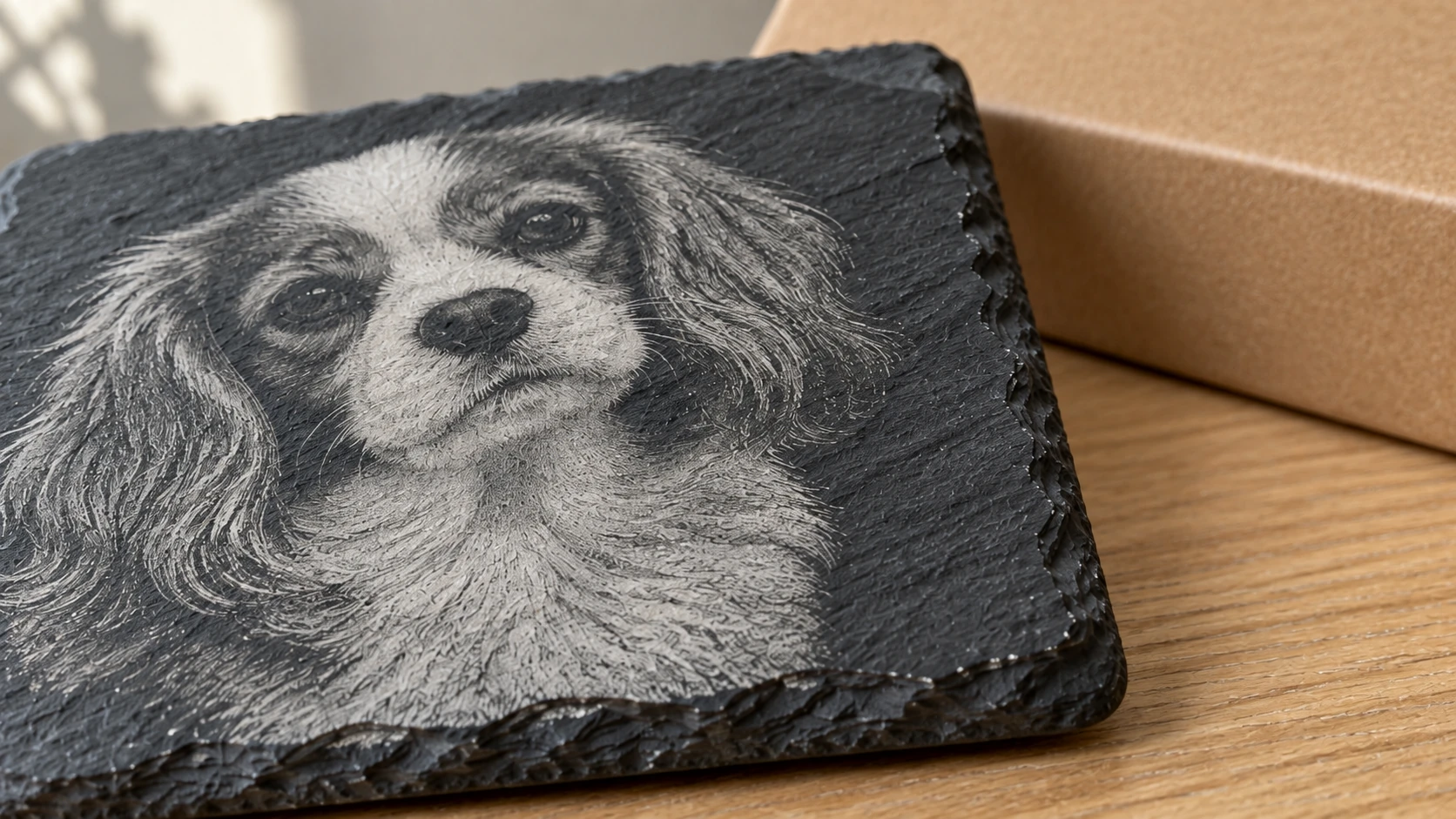
The light marks follow the stone’s existing surface texture. The unmarked dark areas supply the portrait’s shadows.
Beyond Slate: Other Dark Materials
Inverted mode isn't only for slate. Any material where the laser reveals a lighter color underneath benefits from the same approach:
Black acrylic engraves to a bright white or gray underneath. Inverted images produce striking high-contrast results. Popular for signs and award plaques.
Anodized aluminum has a colored oxide layer that the laser removes, revealing bare silver aluminum. Works beautifully with inverted photo engravings. Dog tags, luggage tags, and equipment labels are common applications.
Dark-stained wood can work if the stain is thick enough to provide consistent coverage. Results are less predictable than slate or anodized aluminum because the laser burns through the stain and into the wood, which adds its own color variation.
Coated metals (powder-coated, painted, or Cermark-treated) follow the same principle. The laser removes the coating to reveal the metal underneath.
For a deeper look at engraving on glass, tile, and stone materials, check out our guide to laser engraving glass, tile, and stone.
Slate Coaster Product Ideas
Slate coasters are one of the most profitable items you can make with a laser. Material cost is low ($1-2 per coaster when bought in bulk), engraving time is short (5-10 minutes each), and retail prices of $6-10 per coaster are standard. Margins are excellent.
Popular sellers:
- Pet portraits. The single most requested custom coaster. People love their pets on everything. Background off, close crop of the face.
- Family photos. Wedding photos, anniversary portraits, new baby announcements. Background off works best for faces.
- Wedding favors. Bulk orders of 50-200 coasters with the couple's photo or monogram. High volume, simple repeat production.
- Memorial pieces. Photos of loved ones, including pets. Handle these orders with care and attention to detail. People value these deeply.
- Business logos. Restaurants, bars, and breweries order branded coasters. These are typically vector work rather than photo engraving, but Photo Converter handles logos well too.
- Landscape scenes. Mountain views, beach sunsets, city skylines. Keep background on for these. Work best on larger tiles rather than small coasters.
Tip
Sell coasters in sets of 4 or 6. A single coaster feels like a novelty item. A set feels like a real product. Price a set of 4 at $25-35 for custom photo coasters.
For more product ideas and pricing strategies, see our guide to the best things to sell with a laser engraver and our personalized gifts guide.
Troubleshooting
Engraving is barely visible. Power too low or speed too fast. Slate needs more energy than wood to ablate the surface. Increase power by 10% or decrease speed by 20% and retest.
Image looks muddy or blotchy. Usually caused by applying dithering in the laser software on top of Photo Converter's already-processed output. Set your laser software to pass-through/threshold mode. If you're already in pass-through mode, the source photo might lack sufficient contrast. Try a different photo with stronger lighting.
Inconsistent depth across the piece. Slate isn't perfectly flat. If the engraving is deeper on one side, your focus distance varies across the surface. Use a level or shim the low corners. Some engravers surface their slate on a flat belt sander before engraving for consistent results.
Slate cracked during engraving. Too much power concentrated in one area, or the slate had an existing stress fracture. Lower power and increase speed. Inspect pieces before engraving and reject any with visible cracks or thin spots.
White hazing around engraved areas. Normal for slate. This is fine dust settling on the surface. Brush off with a soft brush after engraving. The mineral oil treatment in the post-processing step eliminates this completely.
Get Started
Photo engraving on slate doesn't have to be a guessing game. The physics are simple: dark materials need inverted images. Photo Converter's inverted mode handles the conversion in one step, giving you a laser-ready image optimized for slate and other dark surfaces.
Upload a photo, select inverted, and run your first slate coaster. The results speak for themselves.
For the standard wood workflow (non-inverted), check out our guide on how to laser engrave photos on wood. And for the general intro to photo conversion, see photo to laser engraving: how it works.
Related Tools
Ready to try these tools?
Sign up free, no credit card required. Free tools available immediately.
Start Free