

How to Create Multicolor 3D Prints from Any Image
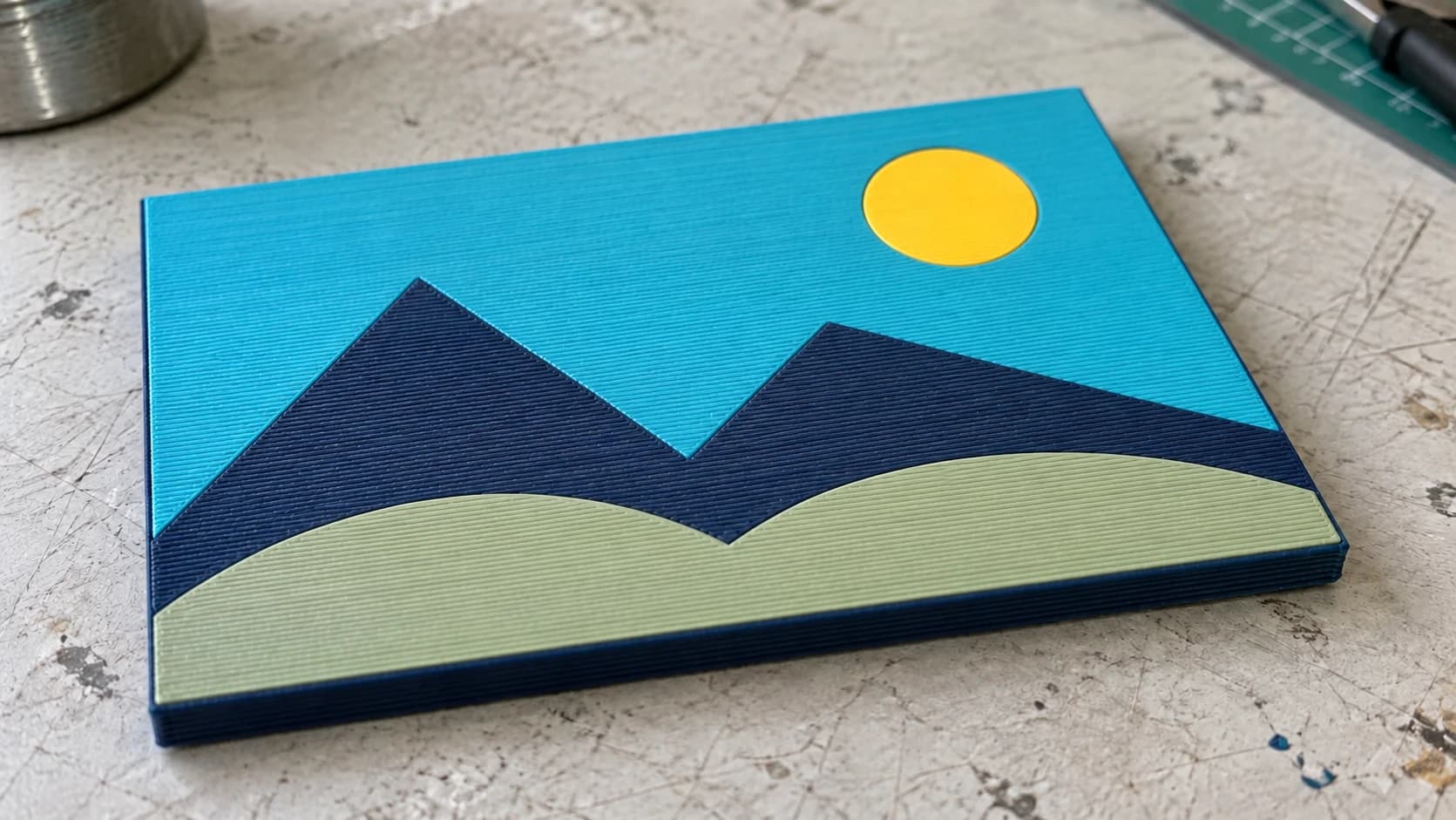
You have an image. A logo, a character, a design. You want it as a multicolor 3D print. Flat on a plate, multiple filament colors, each color in the right place.
The traditional way to do this is painful. You'd open the image in a vector editor, manually trace each color region, export separate SVGs, convert each to an STL, import them into your slicer one at a time, align them on the build plate, and assign filaments to each body. For a design with six colors, that's hours of tedious work before you even start printing.
MosaicFlow does the entire thing automatically. Upload an image, the AI separates the colors, you tweak the palette, and download a 3MF file that opens in your slicer with every color already assigned. The whole process takes about two minutes.
Why 3MF Changes Everything
The key is the file format. A regular STL file is just geometry. It has no concept of color. If you want multiple colors, you need multiple STL files and you have to manually assign each one to a filament in your slicer.
A 3MF file carries color information inside it. When you open a MosaicFlow 3MF in your slicer, each color region is already a separate object with its own material assignment. You just map each material to an AMS slot or extruder, and you're ready to slice.
No painting. No splitting. No alignment headaches.
PRINT. CUT. CARVE.



- Multiple formats (SVG, DXF, PNG)
- Machine-tested designs
- Commercial licenses
Sponsored by PrintCutCarve.com
Step-by-Step: Image to Multicolor Print
Here's the complete workflow from image file to printed object.
Step 1: Choose Your Image
The best source images have distinct, flat color regions. Think logos, cartoon characters, pixel art, team emblems, stylized illustrations. Images where you can clearly see "this area is red, this area is blue, this area is white."
What works well:
- Logos and emblems with solid color fills
- Cartoon and comic-style illustrations
- Pixel art and retro game sprites
- National flags and sports team graphics
- Simplified nature illustrations (flat color style)
What doesn't work as well:
- Photographs with smooth gradients (the AI has to quantize thousands of colors down to a handful, which means arbitrary color boundaries)
- Watercolor or soft-edge artwork
- Images where adjacent colors are very similar
Tip
If your image has a complex background you don't need, crop or remove it before uploading. A transparent PNG works perfectly. The fewer irrelevant colors MosaicFlow has to process, the cleaner your result.

A simple illustration gives each color a clear region. This example uses the same landscape as the printed panel; it is source artwork, not a screenshot of an app export.
Step 2: Upload to MosaicFlow
Head to MosaicFlow and upload your PNG or JPG. The tool groups the image into color regions. Uploading and previewing do not charge credits; optional AI image generation does.
You'll see a preview of the separated colors as a bubble palette, where each bubble represents a detected color group. The size of each bubble roughly indicates how much of the image that color covers.
Step 3: Adjust the Color Count
MosaicFlow auto-detects and suggests an optimal color count (between 4 and 16). You can adjust this with the slider.
This is where your hardware matters. Count how many filaments your printer can handle in a single print:
| Printer Setup | Available Filament Slots |
|---|---|
| Bambu AMS (single) | 4 |
| Bambu AMS (dual) | 8 |
| Bambu AMS Lite | 4 |
| Prusa MMU2S / MMU3 | 5 |
| Palette 3 / Palette 3 Pro | 4-8 (depending on model) |
| Manual filament swap | Unlimited (but each swap takes time) |
Set your MosaicFlow color count to match your available slots. If you have a single Bambu AMS with 4 slots, keep it to 4 colors. If you've got dual AMS units giving you 8 slots, you can go higher.
Step 4: Merge and Exclude Colors
Fine-tune your palette using the bubble controls:
Merge colors: If the AI detected two similar shades of blue as separate colors, merge them into one. This frees up a filament slot for a more distinct color. Drag one bubble onto another to combine them.
Exclude colors: Remove colors you don't want printed. The most common use is excluding the background color. If your logo has a white background that shouldn't be part of the print, exclude it.
Info
You want your final color count to match the number of filament slots you have available. If your printer has 4 AMS slots, your final palette should have exactly 4 colors (after merging and excluding). Every color in the final palette needs its own filament.
Step 5: Use the Despeckle Slider
The despeckle slider removes tiny color islands that are too small to print cleanly. Small specks of color surrounded by a different color are common in compressed images or photographs.
Crank it up if you see lots of tiny dots scattered through the preview. These would print as isolated blobs that look messy and might not adhere well to the surrounding material.
Step 6: Switch to the 3D Tab
Click the 3D tab to see a preview of your model. Here you configure the physical dimensions:
Model size: Set the width or height of the final print (50-500mm). The aspect ratio matches your original image.
Base thickness: The flat base under all the colors (default 2.0mm). This gives the print structural integrity. You can set it from 0.4mm to 10mm.
Per-color layer thickness: Each color layer sits on top of the base. The default is fine for most prints, but you can adjust individual layer thicknesses (0.4-10mm each) if you want some colors to stand proud of others.
The 3D preview lets you rotate and zoom the model before downloading. This preview is free.
Step 7: Download the 3MF
Click download to get your files. Uploads and previews do not charge credits. AI generation uses credits. Downloads require an active paid subscription or a current unlock for that design.
MosaicFlow gives you a ZIP containing:
- 3MF file (checked by default): The multicolor model with all color assignments baked in. This is what you want for multi-material printing.
- Individual STL files (optional): One STL per color, for manual workflows or single-extruder printers.
- OBJ with vertex colors (optional): For rendering or other 3D applications.
- GLB preview: Always included for reference.
For multicolor printing, the 3MF is what matters. Leave it checked (it's on by default) and download.
Step 8: Import into Your Slicer
Open the 3MF in your slicer. The model imports with each color as a separate object, ready to assign to a filament slot.
If your printer has an AMS or MMU, go to the filament settings and assign each color to the correct slot; most slicers show a color preview so you can verify the mapping before slicing. On a single-extruder setup, assign each object to your one extruder and rely on the individual STL files for manual color swaps instead.
Step 9: Slice and Print
Slice with your normal settings. A few things to keep in mind:
Purge/transition tower: Multi-material prints need a purge tower (or purge into infill) to clean the nozzle between color changes. This uses extra filament. The more colors and the more frequent the color changes, the larger the purge waste.
Print time: Multicolor prints take longer than single-color prints due to filament changes. A 4-color design might take 50-100% longer than the same geometry in one color. Most of the extra time is spent on purging and swapping.
Bed adhesion: Flat multicolor prints (like the ones MosaicFlow produces) have great bed adhesion since they're essentially flat plates. Use your normal first-layer settings.
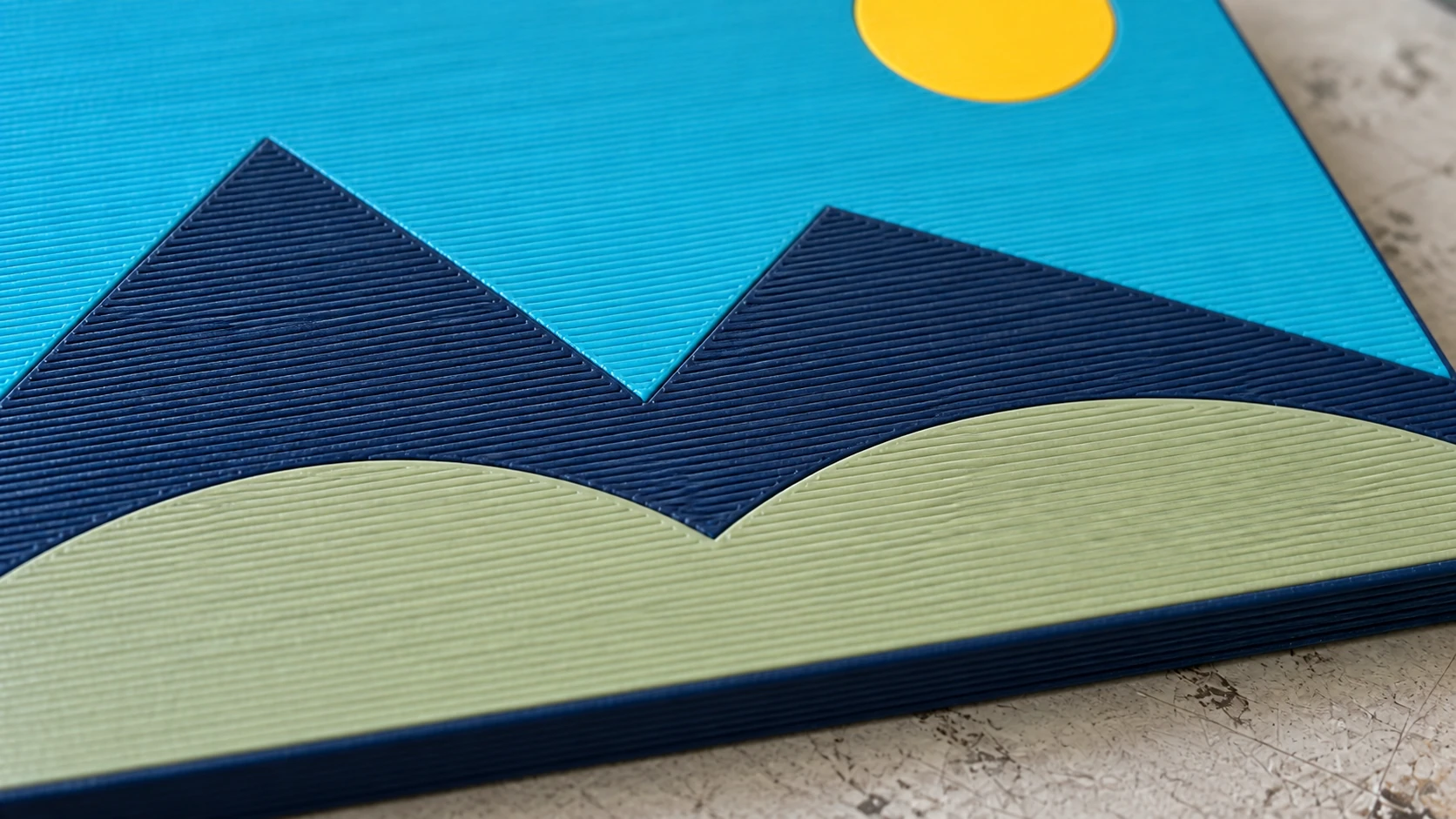
The color boundaries meet within the same surface. The close view shows individual extrusion paths and the small seams between regions.
Choosing a Slicer
Any modern slicer that supports 3MF with embedded color data will handle a MosaicFlow export correctly. The right one for you usually comes down to what your printer's ecosystem expects. See our slicer comparison for a deeper look at the differences.
Tips for Better Multicolor Prints
Match filament colors to your design. Before you finalize the palette in MosaicFlow, look at the actual filaments you have loaded. If your design has a bright red but you only have maroon, the result won't match your expectations. Adjust the MosaicFlow palette to work with the colors you actually own.
Use a raft or brim. Multicolor flat prints can warp at the edges because color transitions create slight stress. A brim helps keep things flat.
Print a test at small scale first. Scale the model down to 50% and do a quick test print. You'll catch color mapping errors, adhesion issues, and filament compatibility problems before committing to a full-size print that takes hours.
Simple designs print faster. A design with large color regions (few transitions per layer) prints much faster than one with lots of color interleaving. If print speed matters, favor designs with big, bold color blocks over intricate color mixing.
PLA works best for multicolor. PLA has the least stringing during filament swaps and the most consistent purge behavior. PETG and TPU are possible but significantly more finicky with multi-material setups.
For more on filament selection, check our filament guide.
What About Single-Extruder Printers?
You don't need a multi-material setup. You have two options:
Manual filament swap: Slice the 3MF normally but tell the slicer to pause at each color change. When it pauses, unload the current filament, load the next color, and resume. This works on any printer but requires you to babysit the print. Each layer gets one color at a time.
Print individual layers separately: Download the individual STL files (one per color) from MosaicFlow instead of the 3MF. Print each color as a separate flat piece, then glue them together. This is essentially the same concept as a multicolor wood inlay but with 3D printing filament instead of wood.
More 3D Printing Resources
If you're newer to 3D printing, our beginner's guide covers the fundamentals. For turning photos into 3D relief models (a different kind of image-to-print workflow), see our lithophane guide.
Go Print Something Colorful
Find an image with bold, distinct colors. A logo, a game character, a flag. Upload it to MosaicFlow, dial in your palette to match your available filaments, and download the 3MF. Open it in your slicer, map the colors, and hit print.
The first time you peel a multicolor print off the bed and see all those filament colors forming a clean image, you'll wonder why you ever considered doing it manually.
Happy making.
Related Tools
Ready to try these tools?
Sign up free, no credit card required. Free tools available immediately.
Start Free