

How to Convert PNG to SVG for Cricut
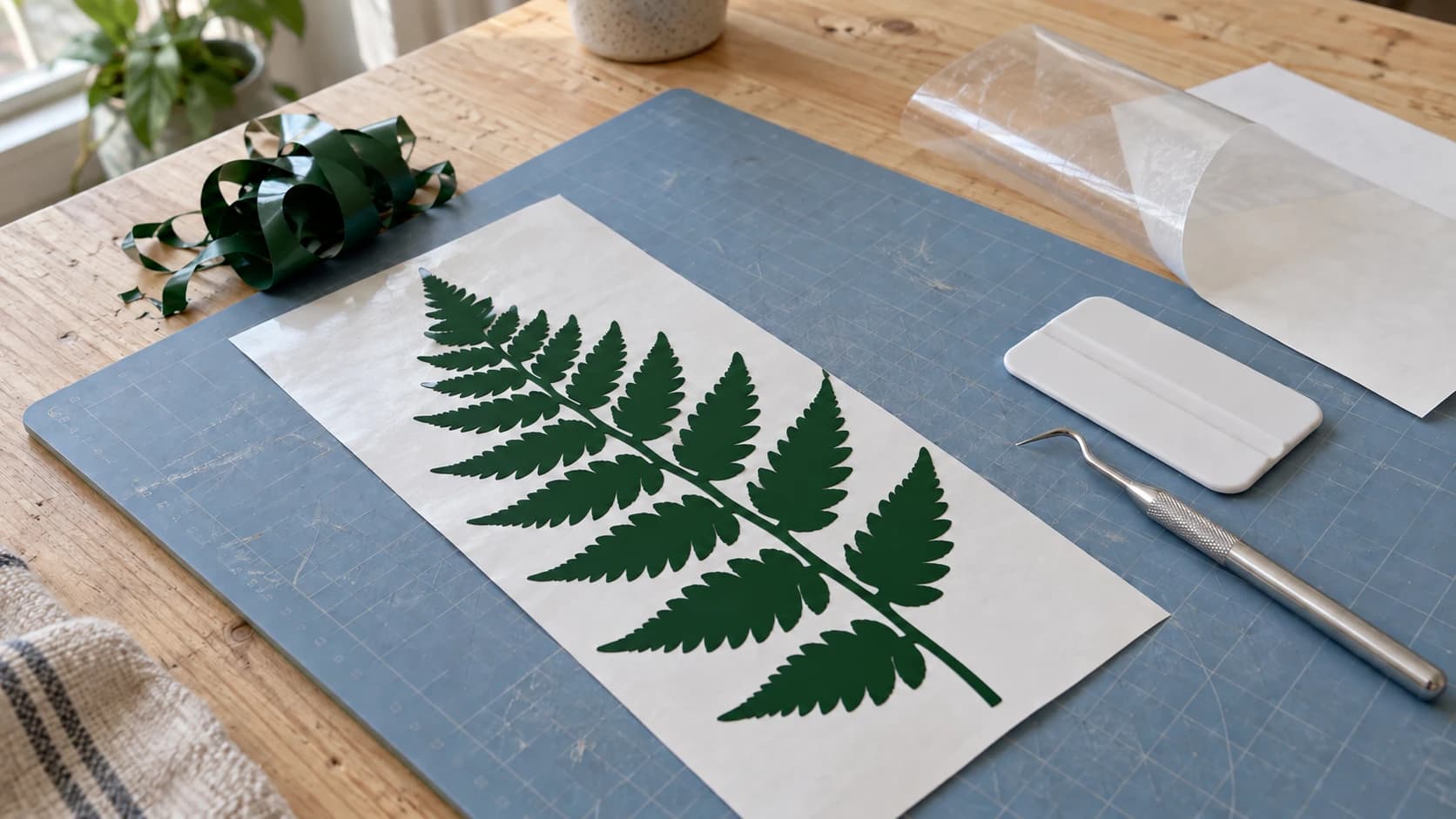
A PNG stores pixels; an SVG can store editable paths. Both can be useful for Cricut projects. The choice depends on whether you need a cut shape, separate material colors, or a printed image with a cut outline.
This guide explains an external PNG-to-SVG workflow, plus the upload checks that help you avoid unwanted backgrounds, missing pieces and incorrect sizing. See our general PNG-to-SVG guide for the broader tracing process.
Choose the Workflow Before Converting
Design Space can turn a cleaned-up PNG into a single-color cut shape. You can also upload it as a full-color graphic for Print Then Cut. SVG is useful when you want to prepare and edit the paths before importing. Desktop Design Space also accepts DXF; the mobile apps do not. Cricut’s upload guide
| Starting point | Intended result | What to inspect |
|---|---|---|
| PNG uploaded as a single layer | A cut silhouette | Background removal and internal openings |
| PNG uploaded as a flat graphic | A printed image with a cut outline | Printed appearance and outer boundary |
| SVG with path geometry | Predefined cut shapes or layers | Dimensions, geometry and operation assignments |
If the preview shows a rectangle around your design, inspect the retained background and chosen operation before assuming the file format is the problem. Cricut’s single-layer preview can reveal unwanted areas before you save the upload. Cricut’s cut-only guidance
PRINT. CUT. CARVE.



- Multiple formats (SVG, DXF, PNG)
- Machine-tested designs
- Commercial licenses
Sponsored by PrintCutCarve.com
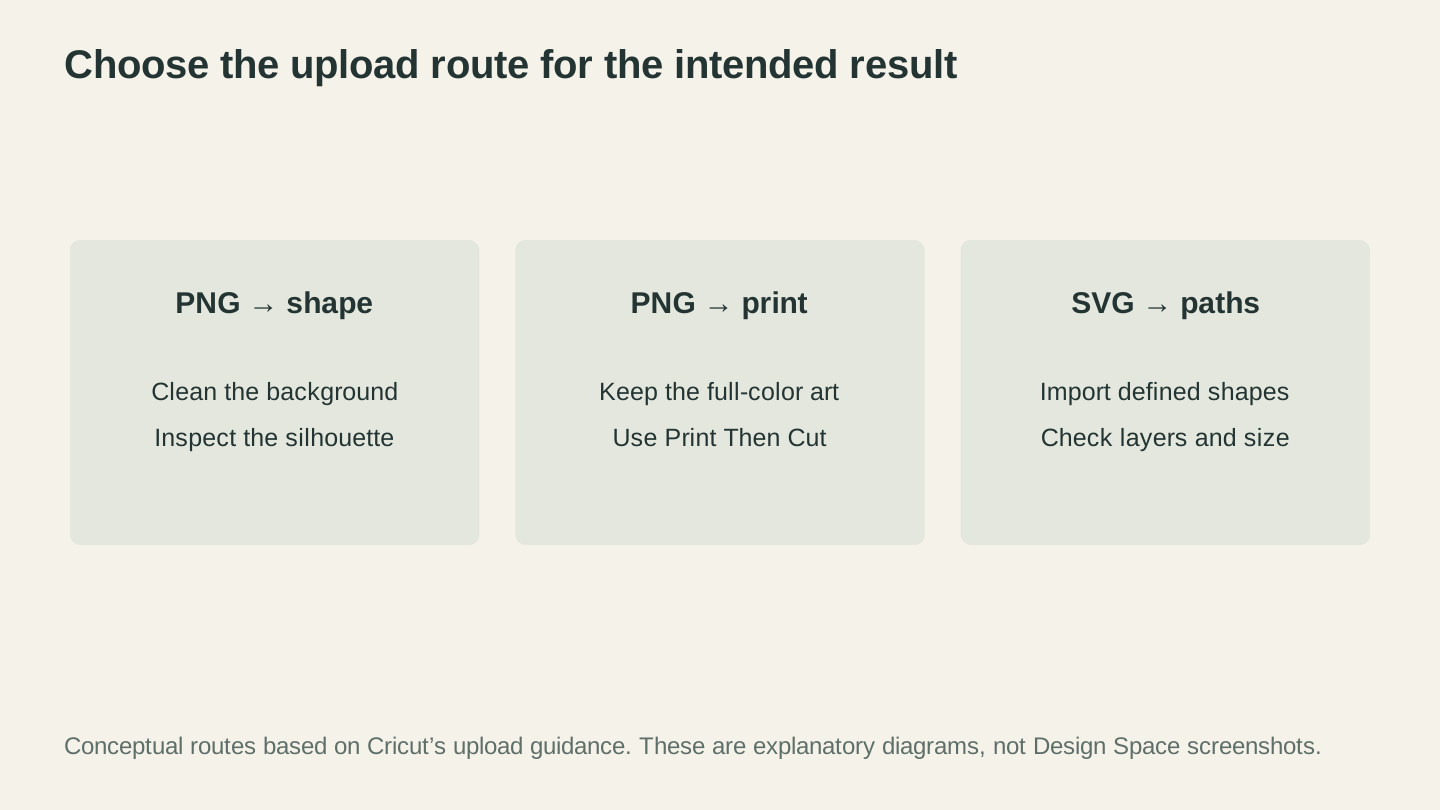
Choose the route for the intended result: a cut silhouette, a printed graphic or predefined paths. See Cricut’s current upload instructions for the app controls.
What Makes a "Cricut-Compatible" SVG
Not all SVGs are created equal. Some work perfectly in Design Space. Others import as a jumbled mess, import at the wrong size, or lose details entirely. Here's what a well-made Cricut SVG looks like.
Clean, Closed Paths
Every shape in your SVG should be a closed path (the start point connects back to the end point). Open paths can cause cutting errors. The blade starts cutting, reaches the end of an open path, and lifts. If the path was supposed to be a complete shape, you'll get a partial cut that doesn't weed cleanly.
Paths, Not Strokes
Cricut Design Space handles filled paths well but can be unpredictable with stroked paths (lines with a thickness applied to them rather than filled shapes). If your SVG uses thick strokes to create visual weight, convert those strokes to filled paths before uploading. In your vector editor, select the path and convert the stroke to a filled path.
No Embedded Raster Images
Some "SVG" files are actually PNG images wrapped in an SVG container. These are useless for cutting. The file extension says SVG, but the contents are just pixels. Design Space will treat it like a PNG upload and route you to Print Then Cut. If your SVG file is suspiciously large (several megabytes for a simple design), it probably contains an embedded raster image.
Reasonable Path Complexity
Cricut Design Space has limits on how complex an SVG can be. Files with tens of thousands of nodes (path points) will load slowly, lag the interface, or fail to upload entirely. Simple designs with clean paths load and cut better than over-detailed traces with thousands of unnecessary nodes.
Proper Sizing
SVGs are technically scalable to any size, but they do carry a default size from whatever software created them. Design Space reads this default and uses it as the initial import size. An SVG created on a 10x10 inch canvas will import at 10x10 inches. One created on a 1000x1000 pixel canvas might import at a strange size that needs manual adjustment.
Tip
After uploading an SVG to Design Space, always check the dimensions on the canvas before cutting. Click the design, look at the width and height in the top toolbar, and resize if needed. Lock the aspect ratio (the lock icon between W and H) so the design scales proportionally.
Text Converted to Outlines
If your SVG contains text, convert it to outlines (also called "paths" or "curves") before uploading. Design Space has limited font support, and if it doesn't recognize the font in your SVG, the text will either render in a default font or disappear entirely. Outlined text is just geometry, so it looks right everywhere.
Using MonoTrace to Convert PNG to SVG for Cricut
MonoTrace is a free image-to-SVG vectorizer on Craftgineer. It traces the edges in your PNG and generates clean bezier curves, producing actual vector paths that Cricut can follow. No credits required. Sign in, upload, download. The output is a proper SVG with filled paths and clean geometry, exactly what Design Space wants.
Here's the step-by-step process.
Step 1: Prepare Your PNG
Before you upload, take thirty seconds to set your PNG up for success.
Resolution matters. A 1000px wide PNG will trace far better than a 200px thumbnail you grabbed off Google Images. If you have multiple versions of the image, use the largest one. More pixels means more detail for the tracer to work with.
Clean backgrounds are ideal. A black design on a white background traces cleanly. A design on a textured, multi-colored, or photographic background will produce messy results with stray paths everywhere. If your PNG has a busy background, crop or erase it first in any basic image editor.
High contrast produces the best results. The tracer works by detecting the boundary between dark and light areas. Faint, washed-out images produce rough, uncertain traces. If the design is light, bump up the contrast before uploading.
Info
If you need to do quick image cleanup before tracing (erasing backgrounds, adjusting contrast, cropping), Canvas Pro is a free browser-based image editor built into Craftgineer. Open your PNG, erase the background, and download the cleaned-up version, then upload that to MonoTrace.
Step 2: Upload to MonoTrace
Head to MonoTrace and drop your PNG onto the upload area. You can also drag and drop JPG, WebP, or GIF files. The image preview appears immediately.
Step 3: Turn On Sketch Mode If It Applies
MonoTrace keeps its controls short on purpose. There is one option: a Sketch mode checkbox.
Switch it on when your source is a photographed pencil or ink drawing. It evens out paper tone and the uneven lighting you get from photographing a page, which otherwise traces as a grey haze around your linework.
Leave it off for clean digital art, logos, and anything already on a solid white background.
Step 4: Vectorize and Read the Node Count
Hit Vectorize. Alongside the traced preview you get the path node count and the processing time.
Treat the node count as your cleanliness gauge. A tidy silhouette lands low. A count in the thousands means the tracer found noise, soft edges, or speckle in your source, and a cutting machine has to work through every one of those points.
If the number looks alarming or the preview has stray specks, fix the image rather than the trace. Raise the contrast, erase the background, and crop tight, then run it again. Simpler paths cut better on a Cricut, since the blade follows smooth curves more cleanly than jagged hyper-detailed ones.
Step 5: Download Your SVG
Click the download button. You now have a clean SVG file ready for Cricut Design Space. The entire process takes about thirty seconds.
The SVG you get from MonoTrace is a single-color, single-layer file with filled paths. This is perfect for:
- Vinyl decals (adhesive or HTV)
- Cardstock cutouts
- Single-color designs on any material
If you need multi-layer files for multi-color projects, keep reading. We cover that workflow later in this guide.
Uploading SVG to Cricut Design Space
Getting the SVG onto your Cricut canvas is straightforward, but Design Space has some quirks worth knowing about.
The Upload Process
- Open Cricut Design Space (desktop or mobile app)
- Start a new project or open an existing one
- Click Upload in the left sidebar
- Click Upload Image
- Browse to your SVG file and select it
- Design Space will show a preview with detected layers
- Name your image and add tags if you want (optional but helpful for finding it later)
- Click Upload
- Find it in your Recently Uploaded Images section
- Click the image, then click Add to Canvas
Your SVG is now on the canvas, ready to resize, position, and cut.
What to Check After Upload
Size. Click the design on the canvas and check the dimensions in the top toolbar. SVGs import at their default size, which may not match your project. Resize as needed. Make sure the lock icon between width and height is engaged so the design scales proportionally.
Layer panel. Look at the layers panel on the right side. Each color in your SVG should appear as a separate layer. For single-color MonoTrace exports, you'll see one layer. For multi-color SVGs, each color gets its own layer.
Cut vs Draw vs Score. Click each layer and check the operation type in the top toolbar. By default, imported paths are set to "Basic Cut." If you want certain paths to be drawn (using the Cricut pen) or scored (for folding), change the operation type before sending to the machine.
Warning
Design Space requires an internet connection for most operations, including uploading files and sending projects to the machine. If you're working offline or have a spotty connection, uploads may fail silently or hang. Make sure you're connected before starting.
Design Space Upload Limits
Cricut currently limits SVG uploads to 5,000 paths. Inspect complexity and unsupported content before retrying a failed import. Platform support and upload behavior can change; check the current upload documentation.
Single-Layer Cut Files (Simple Designs)
The simplest Cricut projects use a single-color SVG. One layer, one material, one color. Think vinyl decals, cardstock silhouettes, single-color HTV designs, and stencils.
The Workflow
- Convert your PNG to SVG using MonoTrace
- Upload the SVG to Design Space
- Resize to fit your material and project
- Select the design and choose your operation (Cut, Draw, or Score)
- Click Make It
- Set your material type in the machine dialog
- Load your material on the cutting mat
- Press the flashing button on your Cricut
For vinyl and HTV projects, the blade cuts through the top vinyl layer without cutting through the backing. This is called "kiss cutting." You then peel away the excess vinyl (weeding) and transfer the design.
Design Tips for Single-Layer Cuts
Minimum detail size. Keep lines and gaps at least 1/16 inch (about 1.5mm) apart. Anything thinner is nearly impossible to weed from vinyl and tends to tear during transfer. If your MonoTrace output has very fine details, clean up the source image before tracing or scale the design up.
Keep the intended pieces on the liner. Separate adhesive-vinyl shapes can retain their arrangement with transfer tape. Weed the negative spaces, such as the center of an outlined letter O. Bridges are a different design choice for reusable stencils or rigid cutouts that must remain connected.
Test cuts save material. Use a small sample design to check the chosen material setting before committing the full sheet. For adhesive vinyl, inspect whether the vinyl weeds cleanly while the release liner remains intact.
For more on vinyl decal projects, our complete vinyl decal guide covers the full cut-weed-transfer workflow.
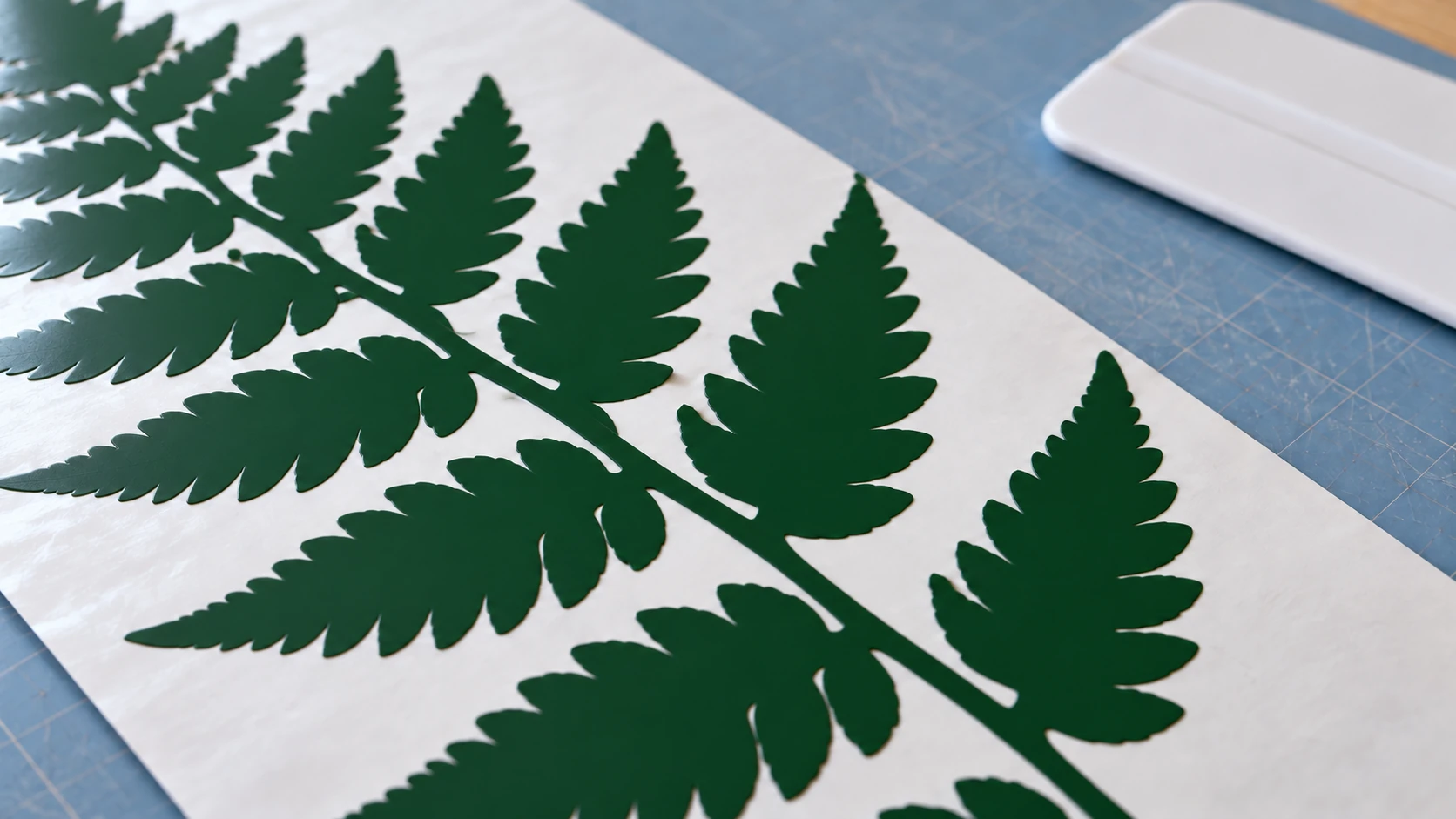
The remaining fern lies flat on the liner, with the unwanted vinyl removed around its branches. Check the small edges before transfer.
Multi-Layer SVG Files for Multi-Color Projects
This is where Cricut projects get interesting. Multi-layer SVGs let you create designs with multiple colors, where each color is a separate layer cut from a different material. Stack and align the layers and you get a multi-color design without any printing.
How Multi-Layer SVGs Work
A multi-layer SVG file contains multiple groups of paths, each assigned a different color. When Design Space imports the file, it reads these colors and creates a separate layer for each one. Each layer appears in the layers panel, and each one gets its own cutting mat during the "Make It" step.
For example, a three-color design of a sunset might have:
- An orange circle (sun) on one layer
- A dark blue mountain silhouette on another layer
- A teal water shape on a third layer
You cut each layer from a different color of vinyl or cardstock, then stack them together for the final design.
Creating Multi-Layer Files from a PNG
MonoTrace produces single-color output, which is perfect for single-layer cuts. For multi-layer designs, you have two approaches.
Option 1: Trace each color separately. If your PNG has distinct colors with good contrast, you can trace each color individually. Open the PNG in an image editor, isolate one color (make everything else white), save that as a separate PNG, and trace it in MonoTrace. Repeat for each color. This is tedious but gives you full control.
Option 2: Use MosaicFlow for automatic multi-color vectorization. MosaicFlow is designed specifically for this. Upload your PNG, and MosaicFlow analyzes the colors, groups similar shades, and produces a layered SVG with each color as a separate group. You can merge colors, exclude background colors, and adjust the color count. The result is a multi-layer SVG that Design Space will split into the correct layers automatically.
Uploads and previews do not charge credits. AI generation uses credits. Downloads require an active paid subscription or a current unlock for that design. If you're doing multi-color vinyl, cardstock, or HTV layering projects, it saves an enormous amount of time compared to manual color separation.
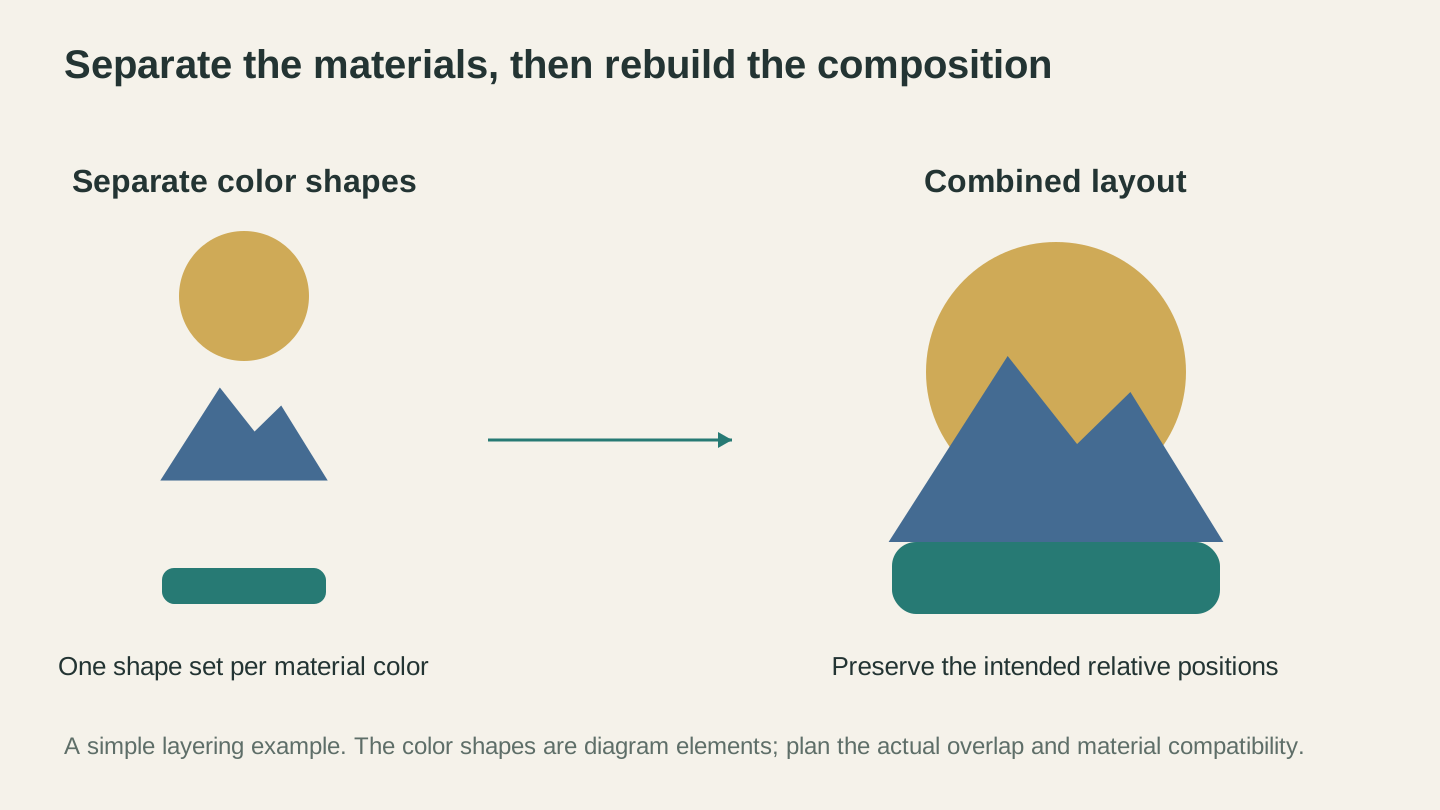
Plan each material color separately, then check how the shapes meet in the finished composition. These are explanatory shapes, not an app screenshot.
Aligning Multi-Layer Cuts in Design Space
This is the step that frustrates most beginners. You've cut three layers from three colors of vinyl. Now you need to stack them precisely so the design lines up. A few tips.
Use Attach, not Group. When you want multiple elements to maintain their position relative to each other on the cutting mat, select them and click Attach in the bottom of the layers panel. Attach locks the spatial relationship during cutting. Group just keeps them selected together in the design view but doesn't affect mat placement.
Registration marks help. For complex multi-layer designs, add small alignment marks (crosshairs or corner brackets) to each layer. Cut these marks along with the design, then use them to align the layers during assembly. Remove the marks after assembly.
Start from the bottom layer. When stacking, apply the largest (background) layer first, then layer smaller pieces on top. Each subsequent layer should be positioned relative to what's already down.
Transfer tape for vinyl layers. Apply each vinyl layer using transfer tape so you can position the entire layer at once instead of placing individual pieces. See our vinyl decal guide for the full transfer tape technique.
Attach vs Weld vs Flatten vs Group
These four operations confuse every Cricut user. Here's the distinction.
| Operation | What It Does | When to Use It |
|---|---|---|
| Group | Keeps objects selected together. No effect on cutting. | Organizing your canvas. Moving multiple objects as one unit. |
| Attach | Locks spatial position on the cutting mat. Objects cut in their relative positions. | Multi-piece designs where position matters (layered projects, text with images). |
| Weld | Permanently merges overlapping shapes into one shape. Removes internal cut lines. | Connecting cursive letters, merging shapes into one cut path. |
| Flatten | Converts the selected layers into a single Print Then Cut layer. | When you want to print a multi-color design instead of cutting each color separately. |
Warning
Weld is permanent and cannot be undone with the undo button if you save and close the project. Always duplicate your design before welding so you have a backup of the original layers. To duplicate, select the design, right-click, and choose Duplicate.
Welding Text for Clean Cuts
Cursive and script fonts often produce individual letters that don't connect. When you cut this as-is, each letter is a separate piece that falls apart during weeding. The fix is welding.
- Type your text using a script font
- Reduce the letter spacing until letters visually overlap
- Select all the letters
- Click Weld in the layers panel
Now the overlapping letters merge into one continuous shape that cuts as a single piece. The blade traces the outer edge of the connected letters instead of cutting around each letter individually.
This is essential for any script or cursive text project, whether it's a name on a mug, a phrase on a sign, or initials on a gift.
Print Then Cut: When PNG is Fine
Not every project needs SVG. Cricut's Print Then Cut (PTC) workflow lets you print a full-color image on your home printer, then use the Cricut to cut around it. The machine reads registration marks printed around the image to align the blade.
When to Use Print Then Cut
- Full-color stickers (the most common use case)
- Printed iron-on transfers (using printable HTV)
- Cardstock cake toppers with printed details
- Labels and tags with photos or complex graphics
- Any design where you want photographic or gradient color, not solid vinyl colors
When NOT to Use Print Then Cut
- Ordinary non-printable adhesive vinyl; use material explicitly made for your printer when printing
- Regular HTV (use printable HTV instead)
- Any project where the design needs to be a solid material color
- Designs that exceed the current usable area for your machine, selected page and layout
The Print Then Cut Workflow
- Upload your PNG and choose the flat-graphic option for Print Then Cut
- Use the background removal tool to clean up the edges if needed
- Resize the design (remember the size limits)
- Click Make It
- Design Space sends the image to your printer with registration marks around the edges
- Print the sheet and place it on your cutting mat
- Load the mat into the Cricut
- The machine's sensor reads the registration marks, then cuts around the image
Print Then Cut Size Limits
The usable area depends on the compatible machine, paper selection and design layout. Check the warning and size controls in your installed app and Cricut’s current size guide before printing; the older 6.75-by-9.25-inch limit is not a universal rule.
Tip
For best PTC results, use a white or very light background on your design. Dark backgrounds waste ink and don't work well on white sticker paper. If your PNG has a dark background, remove it before uploading to Design Space or crop it out in an image editor first.
Bleed Settings
When you select a PTC project, Design Space adds a "bleed" option. Bleed extends the printed area slightly beyond the cut line, so you don't get white edges on your sticker if the cut is slightly off-register. Leave bleed on for stickers. Turn it off for projects where you want the cut to align exactly with the printed edge.
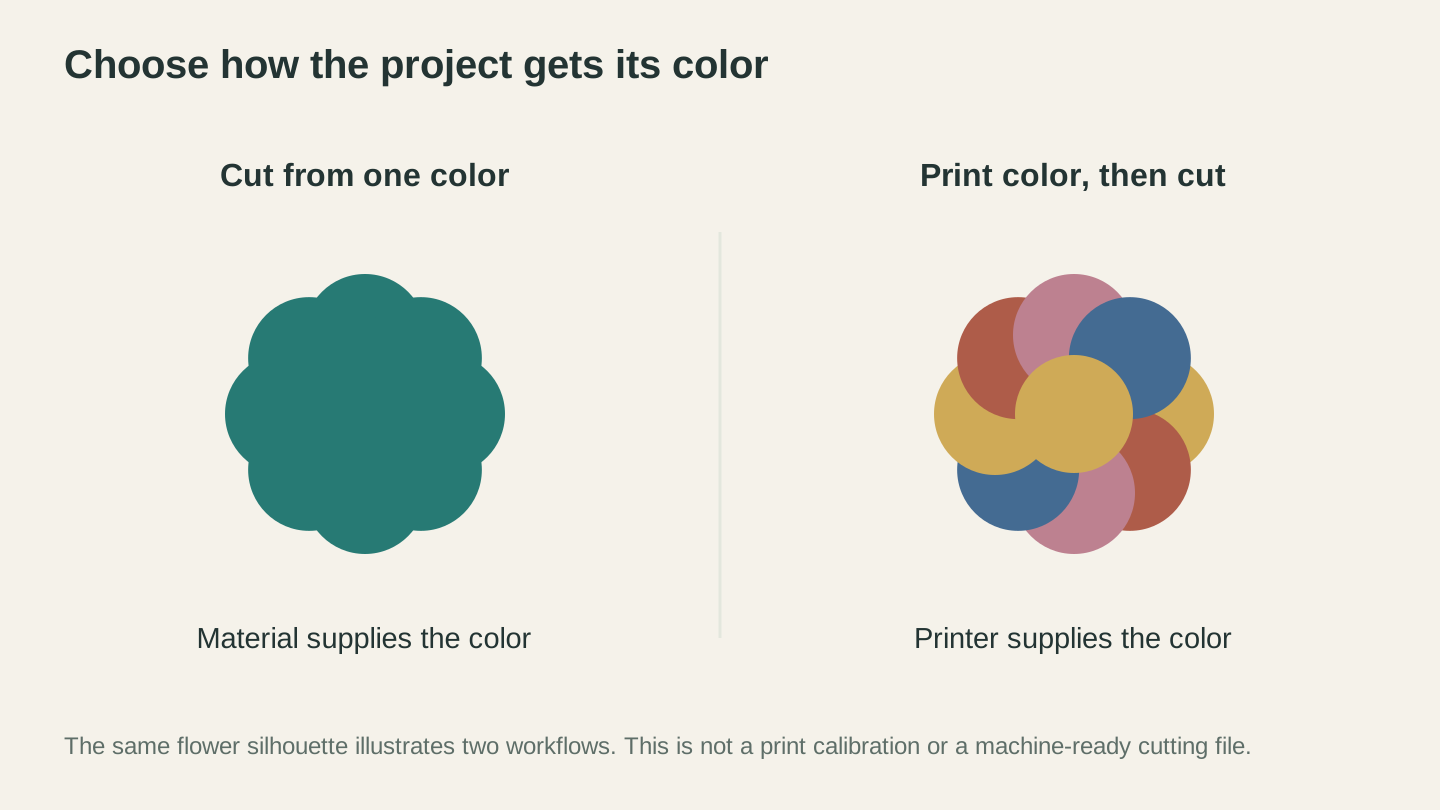
Solid-color material supplies the color in a cut-only design. A printer supplies the color in the printed version before the machine cuts its outline.
Common Cricut SVG Problems and Fixes
SVG files that work perfectly in other software sometimes behave strangely in Design Space. Here are the most common issues and how to fix them.
Problem: Design Imports as a Single Grouped Object
Symptom: You upload a multi-layer SVG but Design Space shows it as one layer. You can't separate the colors or edit individual elements.
Cause: The SVG has all paths grouped into a single group element. Design Space reads the top-level structure. If everything is inside one group, it's one layer.
Fix: Open the SVG in your vector editor. Select all objects and ungroup them. Repeat until every path is separated instead of grouped. Then regroup by color: select all objects of one color, group them, then repeat for each color. Save and re-upload.
Problem: Design Imports at the Wrong Size
Symptom: Your design imports at a strange size, either tiny or enormous.
Cause: The SVG was created with units that Design Space interprets differently. SVGs can specify dimensions in pixels, inches, millimeters, or points. Design Space reads the viewBox and width/height attributes to determine size, but different SVG editors set these differently.
Fix: After uploading, simply resize on the canvas. Click the design, check the lock icon is engaged, then type your desired width or height. The design scales cleanly because it's vector. If this keeps happening with files from a specific source, open the SVG in your vector editor, set the document size to your desired dimensions, scale the design to fit, and re-save.
Problem: Paths Have Too Many Nodes (Sluggish Canvas)
Symptom: After uploading, the Design Space canvas becomes laggy. Scrolling, zooming, and resizing are slow. The "Make It" screen takes forever to load.
Cause: The SVG has too many nodes (path points). This typically happens with overly detailed traces, especially high-detail traces of complex images. Design Space renders every node in real time, and thousands of nodes slow it down.
Fix: Simplify the paths before uploading. In MonoTrace, clean up the source image (raise contrast, erase background noise, crop tight) and re-run Vectorize, checking the path node count in the result panel. In your vector editor, use the path simplify tool. Apply it a few times until the paths look smooth without losing the overall shape.
Problem: Missing Pieces After Upload
Symptom: Parts of your design are missing in Design Space. Shapes that were visible in the SVG preview don't appear on the canvas.
Cause: Several possible reasons. The shapes might use clipping masks or CSS styles that Design Space doesn't support. They might have zero opacity. Or they might be white shapes on a white canvas background (they're there, you just can't see them).
Fix: Open the SVG in your vector editor and check for hidden elements (eye icons in the layers panel), clipping masks (look for dashed lines around objects), and white-colored shapes. Select all objects and give them a visible fill color to see what's there. Remove any clipping masks. Re-save.
Problem: Text Looks Wrong
Symptom: Text in the SVG appears in the wrong font or is missing entirely.
Cause: The SVG uses live text with a font reference. If Design Space doesn't have that font, it substitutes a default or drops the text.
Fix: Convert text to outlines before uploading. In your vector editor, convert the text object to a path (often labeled "object to path" or "create outlines"). The text becomes vector shapes that look identical regardless of installed fonts.
Problem: Duplicate Cut Lines (Double Cuts)
Symptom: The Cricut cuts certain lines twice, following the same path in both directions. This can tear thin materials or create uneven edges.
Cause: The SVG contains overlapping duplicate paths, or paths that share the exact same edge. This is common in SVGs created by joining two shapes where they share a boundary.
Fix: Open in your vector editor. Select overlapping shapes. If they're separate paths that share an edge, weld them with a union/merge tool. If that changes the design in unwanted ways, manually delete the duplicate path. Zoom in close to identify the overlapping lines.
Cricut Design Space Quirks You Should Know
Design Space is the only software that runs your Cricut. There are no alternatives. That means working within its limitations, and there are a few that catch people off guard.
Internet Connection Required
Design Space needs an internet connection for most tasks. Uploading images, accessing projects, using fonts, and sending cuts to the machine all require connectivity. There is a limited offline mode that lets you work with previously loaded projects, but anything new requires internet access. Plan accordingly if you're crafting somewhere with spotty WiFi.
Canvas vs Mat Size
The Design Space canvas is a design workspace. It can be quite large. But the cutting mat your Cricut actually uses is 12" x 12" or 12" x 24". When you click "Make It," Design Space maps your canvas design onto physical mats. If your design is larger than one mat, it splits across multiple mats.
For most projects, work within a 11.5" x 11.5" area on the canvas to ensure everything fits on a standard mat with a bit of margin.
The Mirror Toggle
When cutting HTV (heat transfer vinyl), you must enable the Mirror toggle on the mat preview screen. HTV is applied face-down and pressed with heat, so the design needs to be reversed. If you forget to mirror, your text reads backwards on the shirt.
Design Space does NOT auto-mirror for HTV. You have to toggle it manually for each mat. Every Cricut user has printed backwards text on a shirt at least once. Consider it a rite of passage. Our materials guide has more on HTV settings and techniques.
Layer Colors and Material Assignment
When you import a multi-color SVG, Design Space assigns each color to a separate mat during the "Make It" step. You can then assign specific material settings to each mat/layer. This is how you cut different colors of vinyl for a layered design, each layer gets its own mat with its own material.
If you want to change which color represents which layer, click the color swatch next to each layer in the layers panel and pick a new color. This is purely cosmetic in the design view but helps you keep track of which physical material each layer represents.
The Scoring Wheel vs Scoring Stylus
If your project includes fold lines (common for boxes, cards, and 3D paper projects), Design Space can set paths to Score instead of Cut. The Scoring Stylus fits in the accessory clamp and presses a crease into the material without cutting through it. The Scoring Wheel (Maker only) does the same thing but with a more consistent result.
When you change a path's operation to Score, it shows as a dashed line on the canvas. These lines won't cut. They'll just press a crease for clean folding.
Tips for Clean SVG Cuts on Cricut
Getting the file right is half the battle. The other half is getting the physical cut right.
Use the Right Mat
| Material | Mat Grip | Mat Color |
|---|---|---|
| Vinyl (adhesive/HTV) | Standard | Green |
| Cardstock (65-80 lb) | Standard | Green |
| Thin paper / vellum | Light | Blue |
| Faux leather / thick cardstock | Strong | Purple |
| Fabric | Fabric | Pink |
Using the wrong mat grip causes problems. A light-grip mat won't hold vinyl firmly enough, leading to shifting mid-cut. A strong-grip mat will rip thin paper when you try to remove the finished piece.
Blade Maintenance
A dull blade tears material instead of cutting it cleanly. If your cuts look ragged or the blade isn't cutting all the way through, try these in order:
- Increase pressure in the material settings (use "More" pressure)
- Check the blade for debris. A ball of vinyl or paper wrapped around the blade housing will cause uneven cuts. Remove the blade, clean the housing.
- Replace the blade. Fine-point blades are consumable. A fresh blade makes a dramatic difference. Most users get about 2-4 months of regular use from a blade, depending on material.
The Burnish-and-Flip Test
After cutting, don't unload the mat immediately. First, run your scraper (or an old credit card) across the surface of the material on the mat. This presses the cut pieces back down flat. Then gently peel one corner of the material up from the mat and check that all lines cut through completely. If any lines are only partially cut, reload the mat without moving the material and run the cut again with slightly more pressure.
Weeding Tips for Complex Designs
Weeding is the process of removing the excess material around your cut design, leaving just the design on the backing. For simple designs, it's easy. For complex designs with lots of small details, it's the most tedious part of the entire workflow.
- Use a bright weeding light or lightbox behind the material so you can see the cut lines clearly
- Start weeding from the outside edges and work inward
- Use a fine-tip weeding hook for small interior pieces
- Warm the vinyl slightly with a heat gun or hair dryer on low to make it more pliable and easier to peel
- If tiny pieces keep lifting with the waste, press them back down with the flat end of your weeding tool, then carefully weed around them
Speed vs Pressure for Different Materials
Design Space lets you adjust speed, pressure, and number of passes for each material. As a general rule:
- More speed = faster cut, but less accurate on curves and details
- More pressure = cuts deeper, needed for thicker materials
- Multiple passes = cleaner cuts on thick materials without increasing pressure so much that you cut through the backing
For intricate SVG designs with lots of curves and small details, slow the speed down. The blade tracks curves more accurately at lower speeds. For simple shapes with long straight lines, speed up.
Preparing PNGs for the Best Possible Trace
The quality of your SVG depends entirely on the quality of your source PNG. Garbage in, garbage out. Here are specific preparation steps that make a real difference for Cricut projects.
Remove the Background
The number one way to improve your trace is to give MonoTrace a clean background to work with. A PNG of a cat silhouette on a white background traces into one clean shape. The same cat on a photographic background of a living room traces into a mess of shapes, furniture outlines, and wall textures.
Use any image editor to erase or remove the background. Even the basic background removal tools in smartphone photo editors work. You want a solid white (or solid color) background with only your design in the foreground.
Increase Image Size When Possible
Larger images trace better. If you have a 300x300 pixel PNG, the tracer has very few pixels to work with and the resulting paths will be rough and blocky. If you have a 3000x3000 pixel version of the same image, the paths will be smooth and accurate.
When possible, go back to the original source of the image and get the highest resolution version available. If you're working from a screenshot, take a new one at a higher resolution. If you're working from clip art, look for the large version.
Clean Up Anti-Aliasing
Anti-aliasing creates semi-transparent pixels along the edges of shapes to make them look smooth on screen. These fuzzy edge pixels can cause the tracer to create rough or doubled paths, especially on smaller images. If your source image is small (under 500px), consider sharpening the edges in an image editor before tracing. This gives the tracer cleaner boundaries to follow.
Remove Unwanted Elements
If your PNG has a watermark, copyright notice, border decoration, or any element you don't want in the final cut file, remove it before tracing. It's much easier to erase unwanted elements from a PNG than to delete unwanted paths from an SVG after tracing.
Free vs Paid SVG Files: What to Look For
You don't always have to create your own SVGs from PNGs. There's a massive market of pre-made SVG files designed specifically for Cricut and Silhouette. But the quality varies wildly.
Where to Find SVG Files
Free sources:
- Creative Fabrica (free daily downloads)
- Design Bundles (free design section)
- So Fontsy (free SVGs with account)
- Google search "free SVG for Cricut" (quality varies enormously)
Paid sources:
- Etsy (largest marketplace, quality varies, read reviews)
- Creative Fabrica (subscription model, large library)
- Design Bundles (individual purchase or subscription)
- So Fontsy (individual purchase, Cricut-focused)
Make your own:
- Trace PNGs with MonoTrace (free)
- Generate designs with Vector Studio (1 credit, describe what you want and get an SVG)
- Create multi-color SVGs from images with MosaicFlow (1 credit)
What to Check Before Buying
Layer count. The listing should tell you how many layers (colors) the design has. More layers means more cutting and more assembly, but also a more impressive final result. Make sure you have enough colors of material.
Commercial license. If you plan to sell finished products made with the SVG (mugs, shirts, signs), you need a commercial license. Many SVG sellers offer both personal and commercial licenses at different prices. Read the terms carefully. "Personal use only" means you can make things for yourself and gifts, but not for sale.
File formats included. Good SVG sellers include multiple formats: SVG, DXF, PNG, and sometimes EPS or PDF. The SVG is what you need for Cricut, but having the PNG is useful for Print Then Cut mockups.
Test with a simple design first. If you're buying from a new seller, start with a single inexpensive or free file. Upload it to Design Space. Check that the layers separate correctly, the paths are clean, and the sizing is reasonable. Some sellers produce excellent files. Others produce SVGs with thousands of unnecessary nodes, ungrouped elements, and embedded raster images. A quick test saves you from buying a bundle of unusable files.
Tip
If you find a PNG image you love but can't find it as an SVG, just trace it yourself. MonoTrace is free and produces Cricut-ready SVGs in seconds. It's faster than searching for a matching SVG file and guarantees you get clean paths that work in Design Space.
Cricut Design Space vs Silhouette Studio
If you're reading this because you're choosing between the two platforms, here's how the file import experience compares. For a full Cricut vs Silhouette comparison, our cutting machine beginner's guide covers the hardware and software differences in detail.
| Feature | Cricut Design Space | Silhouette Studio |
|---|---|---|
| SVG import | Yes | Yes |
| DXF import | Windows/Mac; not iOS/Android | Yes |
| PNG trace quality | Basic (limited settings) | Better (more controls) |
| Offline use | Requires internet for most tasks | Full offline capability |
| Built-in trace | Limited auto-trace on PNG upload | Advanced trace with detailed controls |
| Path editing | Limited (no node editing) | Full node editing |
| Layer management | Color-based automatic layers | Manual layer assignment |
The biggest practical difference for PNG-to-SVG workflows: Silhouette Studio has a more capable built-in trace function. You can adjust trace settings in detail, manually select which parts of the image to trace, and refine the results within the software.
Design Space's built-in trace is far more limited. You get a basic auto-detect with minimal control. For anything beyond the simplest images, tracing outside of Design Space (using MonoTrace or a dedicated vector editor) and importing the result as SVG produces better results.
Both platforms accept SVG files, so the MonoTrace workflow described in this guide works identically for both. Trace in MonoTrace, export SVG, upload to your software of choice.
Troubleshooting Guide
Quick reference for the most common PNG-to-SVG-to-Cricut issues.
"My SVG won't upload to Design Space"
Check complexity and unsupported content. Inspect the path count, linked images, text and effects. Use Cricut’s current upload requirements rather than guessing from file size alone.
Check the file format. Make sure the file extension is actually .svg and not .svgz (compressed SVG) or .svg.png (someone named a PNG with an SVG extension). Open the file in a text editor. If it starts with <svg or <?xml, it's a real SVG. If it starts with binary data, it's not.
Check the installed app. Restart or update Design Space using Cricut’s current troubleshooting instructions, then retry a small known-good file.
"The cut doesn't match the preview"
Check for hidden paths. Zoom into different areas of the canvas. There may be tiny, nearly invisible paths that the blade is trying to cut. Select All (Ctrl+A) and look at the layer count. If there are more layers than expected, delete the extras.
Check operation types. Make sure all layers are set to the correct operation (Cut, Score, or Draw). A path set to Draw won't cut, and vice versa.
Check the mirror setting. If the design is backwards, you forgot to un-mirror (for non-HTV materials) or forgot to mirror (for HTV).
"My vinyl tears during weeding"
Blade might be dull. Replace it. A fresh blade makes a dramatic difference.
Pressure too high. The blade is cutting through the backing paper, not just the vinyl. Reduce pressure.
Details too small. If tiny elements keep tearing, the design has details smaller than the material can handle. Scale up the design or simplify the SVG paths to remove the finest details.
Try warm weeding. Gently warm the vinyl with a hair dryer on low heat. Warm vinyl is more pliable and peels more cleanly.
"Colors are on the wrong layers"
Re-color in Design Space. Click each layer in the layers panel and change its color to match the physical material you plan to use. This doesn't affect the cut paths, just the visual representation and the material assignment during the "Make It" step.
Re-assign at cut time. During the "Make It" step, each color/layer gets its own mat. You can change the material type for each mat independently. So even if the colors look wrong on the canvas, you can assign the correct material at cut time.
"Print Then Cut registration marks won't read"
Lighting matters. The Cricut's sensor reads the registration marks optically. Bright overhead lights, direct sunlight, or reflective material surfaces can confuse the sensor. Cut in even, indirect lighting.
Mat must be clean. Smudges, old adhesive residue, or debris on the mat near the registration marks area can cause read failures. Clean the mat.
Paper must be flat. Curled or wrinkled paper causes the sensor to misread marks. If the paper curled during printing, flatten it under a book for a minute before loading.
Use white or light paper. The sensor works by detecting black registration marks on a light background. Dark-colored or heavily inked paper confuses it.
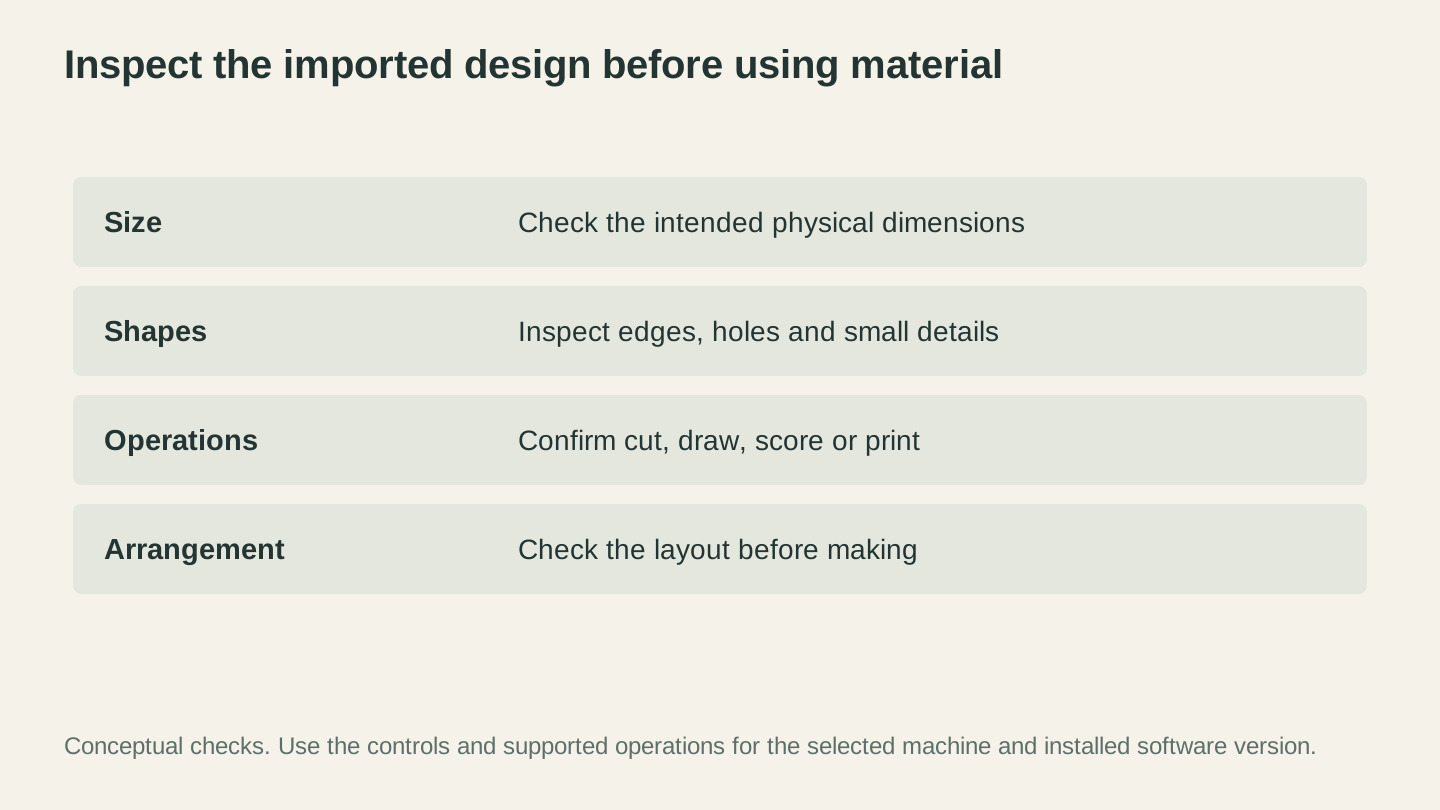
Inspect the actual import before using material. Check dimensions, openings and small details, then confirm the operations and layout.
The Complete PNG-to-Cricut Pipeline
Here's the full workflow from PNG to finished Cricut project, summarized.
-
Find or create your PNG. Highest resolution available, clean background, good contrast.
-
Clean up if needed. Remove background, erase unwanted elements, increase contrast. Canvas Pro works for basic image editing.
-
Vectorize with MonoTrace. Upload to MonoTrace, use Sketch mode if it is a photographed drawing, download the SVG. For multi-color designs, use MosaicFlow instead.
-
Edit SVG if needed. Open in your vector editor for path cleanup, node reduction, welding text, or splitting layers.
-
Upload to Design Space. Import SVG, check dimensions, verify layers.
-
Set operations. Assign Cut, Score, or Draw to each layer. Set material types.
-
Make It. Mirror if using HTV. Assign materials to each mat. Load and cut.
-
Weed, transfer, and apply. Remove excess material, transfer with transfer tape (for vinyl), apply to your surface.
The whole process from PNG to finished project takes minutes, not hours. The vectorization step in MonoTrace is about 30 seconds. Even with SVG cleanup and Design Space setup, you're looking at 5 to 10 minutes before you're cutting.
Wrapping Up
Choose an upload route that matches the project. External vectorization is useful when you want editable paths and control over the geometry; a PNG can also supply a cut silhouette or a Print Then Cut image.
The key points to remember:
- Choose the intended result first. A silhouette, layered material design and printed graphic need different checks.
- Clean source PNGs trace better. High resolution, clean background, good contrast.
- MonoTrace is free. No credits required. Sign in, upload, download.
- Keep source images clean. Simpler traced paths cut cleaner than dense, over-detailed ones.
- Always check size and layers after upload. Design Space doesn't always get the defaults right.
- Learn Attach vs Weld vs Flatten vs Group. These four operations solve 90% of Design Space confusion.
- Test cut before committing material. Especially on a new design or unfamiliar material.
Your PNG doesn't have to stay a PNG. Convert it, upload it, and let the blade do its thing.
Ready to trace one? MonoTrace turns your image into a clean cut-ready SVG for free, no credits required.
If you're just getting started with your Cricut, our cutting machine beginner's guide covers everything from unboxing to your first project. For material recommendations, the best materials for Cricut and Silhouette guide has blade settings and mat recommendations for every common material. And if you're ready to start selling what you make, our Etsy seller's guide walks through pricing, listings, and shipping.
Happy making.
Related Tools
MonoTrace
Turn photos and artwork into SVG outlines for free, with an optional sketch mode.
Canvas Pro
Edit images with layers, brushes, shapes, text, and selection tools. Export PNG, JPEG, or WebP.
File Converter
Convert supported combinations of vector, document, raster-image, and 3D-mesh formats.
Plan required for downloads
MosaicFlow
Turn uploaded or AI-generated artwork into separate color regions for inlays, with optional 3D exports.
Downloads require a plan or a design unlock
Vector Studio
Generate SVG artwork from a written prompt and selected style.
Ready to try these tools?
Sign up free, no credit card required. Free tools available immediately.
Start Free