

How to Use AI Chat to Learn New Maker Skills
You're standing in your workshop at 10 PM on a Tuesday. Your CNC router just made a noise that sounded expensive, there are chatter marks all over your profile cut, and the bit you bought last week already looks dull. You need an answer, and you need it now.
Your options? Post on a forum and wait three days for someone to ask you a question you already answered in your post. Search YouTube and sit through a 22-minute video where the answer you need is buried at minute 17, right after the third sponsor break. Text your maker buddy, who is asleep because normal people don't CNC at 10 PM on a Tuesday.
Or you could just ask Craft Chat.
That's what this guide is about. Not replacing the community, the mentors, or the hands-on experience that makes this hobby great. It's about adding a tool to your learning toolkit that happens to be available at 10 PM, doesn't judge you for asking "dumb" questions, and already knows more about feeds and speeds than most forum threads will ever cover.
What Is Craft Chat?
Craft Chat is the AI assistant built into Craftgineer. It's trained on maker knowledge across CNC routing, laser engraving, 3D printing, cutting machines, woodworking, metalworking, and more. Think of it as a knowledgeable shop buddy who never gets tired of explaining the same concept in twelve different ways until it clicks.
Here's what makes it different from a general-purpose AI chatbot like the one on your phone:
It knows maker stuff. Ask a generic AI about feeds and speeds for walnut on a Shapeoko, and you'll get a vague paragraph that could apply to any material on any machine. Ask Craft Chat, and you'll get specific RPM ranges, feed rates, depth-of-cut recommendations, and the reasoning behind each number.
It uses chatbot messages, not credits. This is important. Craft Chat runs on its own message allowance, separate from the credits you use for tools like MosaicFlow or Vector Studio. The free tier gives you 10 messages per month. Starter gets 100, Maker gets 500, and Engineer gets 5,000.
You can upload photos. Snap a picture of your failed 3D print, your uneven laser engrave, or your mysterious chatter marks, and Craft Chat can analyze what it sees and suggest fixes. More on this later.
Info
Craft Chat messages reset monthly and don't roll over. If you're on the free tier and want to save your 10 messages for when you really need them, browse the blog first for common questions. Guides like our laser engraving beginner's guide and CNC routing beginner's guide cover the fundamentals without using any messages.
PRINT. CUT. CARVE.



- Multiple formats (SVG, DXF, PNG)
- Machine-tested designs
- Commercial licenses
Sponsored by PrintCutCarve.com
The Problem with Traditional Learning Resources
Before we get into how to use Craft Chat effectively, let's acknowledge why you might need it in the first place. The existing learning landscape for makers has some real gaps.
Forums: Great Knowledge, Terrible Speed
Maker forums are goldmines of information. The collective knowledge in places like the Shapeoko community, r/lasercutting, or the Prusa forums is genuinely impressive. But they have problems.
Response times are unpredictable. You might get an answer in an hour, or you might wait three days. If your question is oddly specific (and maker questions almost always are), it might never get answered at all.
Context gets lost. You post a question about chatter on profile cuts. Someone asks what bit you're using. You reply. Then someone else asks about your feeds and speeds. You reply again. Then the first person goes silent for two days. By the time you get a useful answer, you've forgotten what you were working on.
Search is hit-or-miss. The answer to your exact question might exist in a thread from 2019, but it's buried in page 7 of a 12-page discussion about something tangentially related. Good luck finding it.
YouTube: Excellent for Some Things, Terrible for Others
YouTube is fantastic for visual processes. Watching someone set up a CNC job, calibrate a 3D printer, or align a laser is genuinely helpful in a way that text can't match.
But YouTube has its own problems. Videos are linear. If you need to know one specific thing, you have to scrub through the whole video to find it. And creators have incentives to make videos longer, not shorter. That 22-minute video about fixing first-layer adhesion could have been a 3-minute answer.
Outdated information sticks around too. A video from 2022 recommending specific slicer settings might be completely wrong for the current version of the software, but it's still getting views and there's no correction mechanism.
Manuals: Written by Engineers, Not Users
Machine manuals are written by people who already know how to use the machine. That's like having a French dictionary written entirely in French. It's technically comprehensive and practically useless for the people who need it most.
"Adjust the Z-offset to compensate for thermal expansion of the build plate" is accurate. It's also meaningless to someone who just unboxed their first 3D printer and doesn't know what a Z-offset is.
Paid Courses: Good but Rigid
Online courses can be excellent. Some of the Udemy and Skillshare courses on CNC and 3D printing are well-structured and thorough. But they follow a fixed curriculum at a fixed pace. If you already know the basics and just need help with one advanced technique, you still have to sit through the intro modules. And they can't answer questions you have about your specific machine, your specific material, or your specific problem.
How to Ask Good Questions (This Matters More Than You Think)
The single biggest factor in getting useful answers from Craft Chat is asking good questions. This isn't unique to AI. It's the same skill that gets you better answers on forums, from mentors, and from tech support. But with AI, the quality of your question directly correlates with the quality of your answer in a way that's almost mathematical.
Here's the difference between a bad question and a good one.
Bad question: "My laser engravings look bad. Why?"
Good question: "I'm engraving on 3mm basswood plywood with a 10W diode laser (xTool D1 Pro). Running at 70% power, 3000mm/min, 254 DPI. The engraving looks washed out and uneven. Some areas are much darker than others, even in flat-fill sections. I've focused the laser using the included spacer. What could cause the uneven darkness?"
See the difference? The first question could have a hundred possible answers. The second one narrows it down to maybe three or four: uneven material surface, inconsistent focus across the work area, a belt tension issue, or a power supply problem.
The Five Things to Include in Every Question
-
Your machine. Model, power rating, any modifications. "My CNC" is useless. "My Shapeoko 4 with the Makita RT0701C router" is useful.
-
Your material. Type, thickness, brand if you know it. "Wood" tells the AI almost nothing. "3/4-inch walnut, kiln-dried" tells it a lot.
-
Your current settings. Feed rate, speed, power percentage, depth of cut, number of passes. Whatever is relevant to the question.
-
What you expected to happen. This establishes the baseline. "I expected a clean profile cut with smooth edges."
-
What actually happened. And be specific. "The edges are rough" is less helpful than "The edges have visible ridges every 2-3mm, almost like a washboard pattern."
Tip
You don't need to memorize this list. Just imagine you're texting a friend who owns the same machine. What would they need to know to help you? Include that.
Follow-Up Questions Are Free (Well, They Cost One Message Each)
One of the best things about Craft Chat is that you can have a conversation. If the first answer isn't quite right, or if it raises a new question, just keep going. The AI remembers the context of your conversation, so you don't have to repeat your machine details every time.
"I tried that, but now I'm getting a different problem. The edges are smooth but there's a slight step where each pass meets the previous one."
That kind of follow-up is natural and expected. The conversation builds on itself, just like talking to a real person.
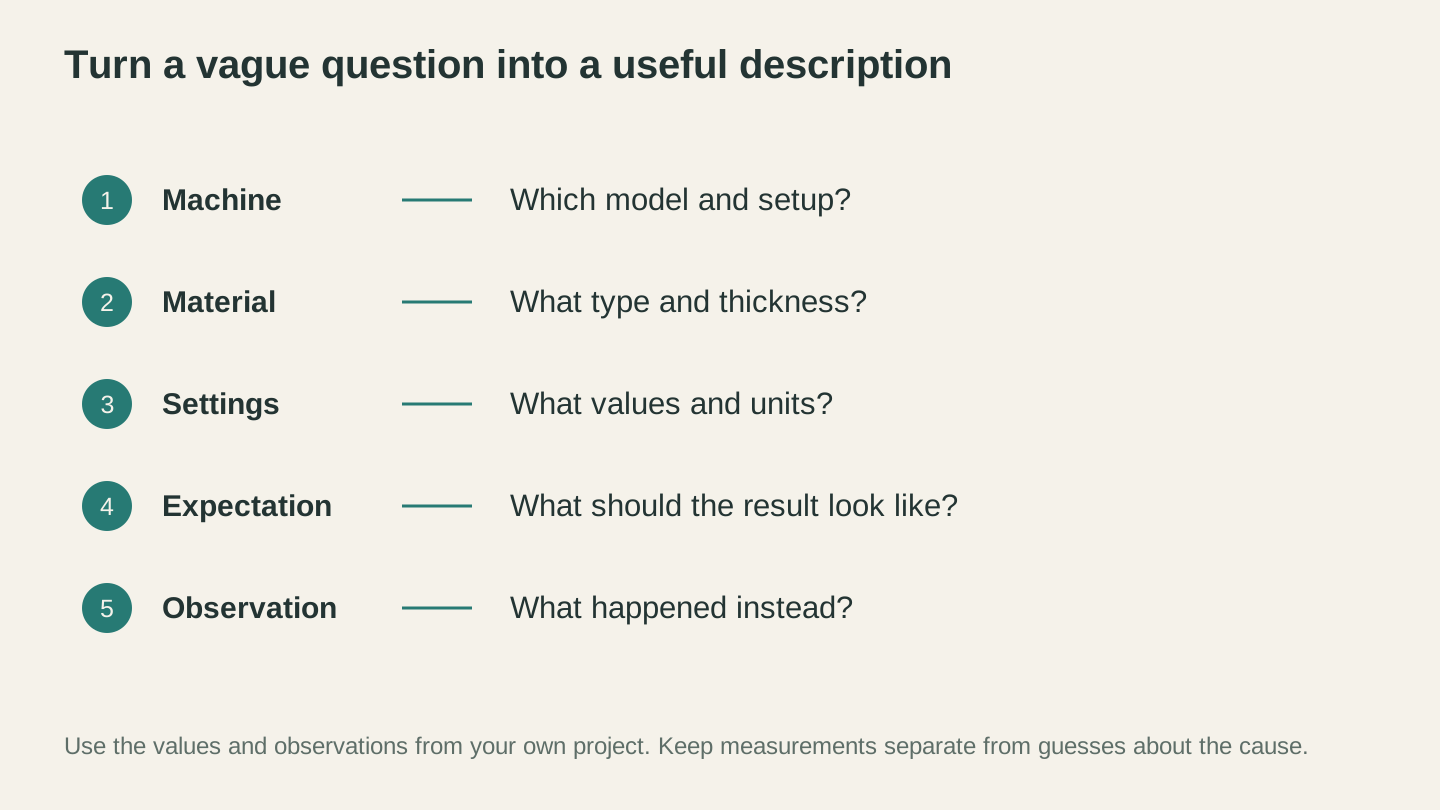
Explain what you expected and what you observed, together with the relevant machine, material and settings. That context helps someone understand the question.
Learning Scenarios by Skill Level
Different skill levels need different kinds of help. Here's how Craft Chat can meet you where you are.
Complete Beginner: "I Just Unboxed My Machine"
You've got a brand-new laser engraver, CNC router, or 3D printer sitting on your workbench. The manual is confusing. The YouTube setup video is for a different model. You don't even know what questions to ask yet.
This is actually where Craft Chat shines brightest. Here are the kinds of questions that work great at this stage:
"I just got a [machine model]. What should I do first before I try to make anything?"
Craft Chat will walk you through the initial setup: assembly checks, squaring the frame, leveling the bed, installing software, connecting your computer, and running a test job. It'll tell you what tools you need and what order to do things in.
"What's the safest first project for a brand-new [machine type]?"
This is a much better question than "what's the coolest thing I can make?" A good first project teaches you the workflow without risking expensive material or requiring advanced skills. For a laser, that's usually a simple text engrave on scrap wood. For CNC, it's a shallow pocket cut. For a 3D printer, it's a calibration cube.
"I keep seeing the term [X] and I don't understand what it means."
No shame in this. Every hobby has its jargon, and maker hobbies are worse than most. "What does 'tramming the spindle' mean and do I need to do it?" is a perfectly valid question. So is "What's the difference between climb and conventional milling?" or "Why does everyone talk about bed adhesion like it's the most important thing in the world?"
"What materials should I buy to practice with?"
This is a great question because the answer saves you money. Practicing on expensive hardwood or specialty filament is a waste. Craft Chat will point you toward affordable practice materials for your specific machine.
If you're just getting started with laser engraving, our complete beginner's guide pairs perfectly with Craft Chat. Read the guide for the structured walkthrough, then use Craft Chat for the specific questions that come up along the way.
Intermediate: "I Can Make Things, but I Want to Make Them Better"
You've done a few projects. You know the basic workflow. But you're hitting walls. Your engraves look okay but not great. Your CNC cuts are functional but the finish isn't as clean as what you see other people posting online. Your 3D prints work but you keep getting stringing or layer adhesion issues.
This is the stage where most people plateau, because the answers become machine-specific and material-specific. Generic advice stops being helpful.
"How do I set up feeds and speeds for walnut on my CNC? I have a Shapeoko 4 with a 1/4-inch upcut end mill."
This is where Craft Chat really earns its keep. It'll give you starting parameters: spindle speed, feed rate, depth per pass, stepover percentage. But more importantly, it'll explain the reasoning. Why walnut needs different speeds than pine. Why depth per pass matters more than feed rate for hard woods. What chip load is and why it determines your finish quality.
For a deep dive on this specific topic, check out our CNC feeds and speeds guide. It covers the math and theory behind the numbers Craft Chat gives you.
"I'm getting stringing between parts on my Ender 3. I've already tried increasing retraction to 6mm. What else can I try?"
Notice how this question includes what you've already tried? That's key at the intermediate level. You don't need the basic troubleshooting steps. You need the next-level fixes. Craft Chat will move past the obvious suggestions and get into things like retraction speed, travel speed, coasting settings, and temperature tweaks.
Our 3D printing troubleshooting guide covers the most common issues in detail, and Craft Chat can help you with the specific combination of variables that applies to your situation.
"What's the best approach for engraving a photo on a dark piece of slate?"
Material-specific questions like this are hard to Google. There are hundreds of materials, and each one behaves differently. Slate, for example, marks white when lasered (opposite of wood). This changes everything about how you prepare the image. Craft Chat knows these nuances and will walk you through image preparation, power settings, and speed recommendations.
Advanced: "I Know What I'm Doing, I Just Need a Second Opinion"
Advanced users typically don't need explanations. They need troubleshooting help, optimization suggestions, and a sounding board for unusual projects.
"I'm getting chatter marks on profile cuts in maple. 18,000 RPM, 60 IPM, 0.05-inch DOC, 1/4-inch downcut. The marks are evenly spaced. What's the most likely cause?"
At this level, the conversation gets technical. Craft Chat will discuss harmonics, chip load calculations, tool deflection, and whether your stepdown is creating resonance at that specific combination of RPM and feed rate. It might suggest changing your RPM to move the harmonic frequency, or adjusting your DOC to change the cutting force profile.
"I want to do a two-sided CNC carving. What's the best workflow for registration between sides?"
This is the kind of question that would get a great answer on a forum. In three days. Craft Chat will walk you through dowel pin registration, flip jig design, datum point setup in your CAM software, and the specific steps for your machine and controller.
"I'm designing a lithophane lamp. What wall thickness gives the best contrast on an Ender 3 with white PLA?"
Specialized questions like this have specific, testable answers. Craft Chat will give you a starting thickness (usually 0.8mm minimum to 3.2mm maximum), explain how the thickness range affects contrast, and suggest print settings optimized for lithophane quality. For a complete guide on this topic, see our 3D printed lithophanes guide.
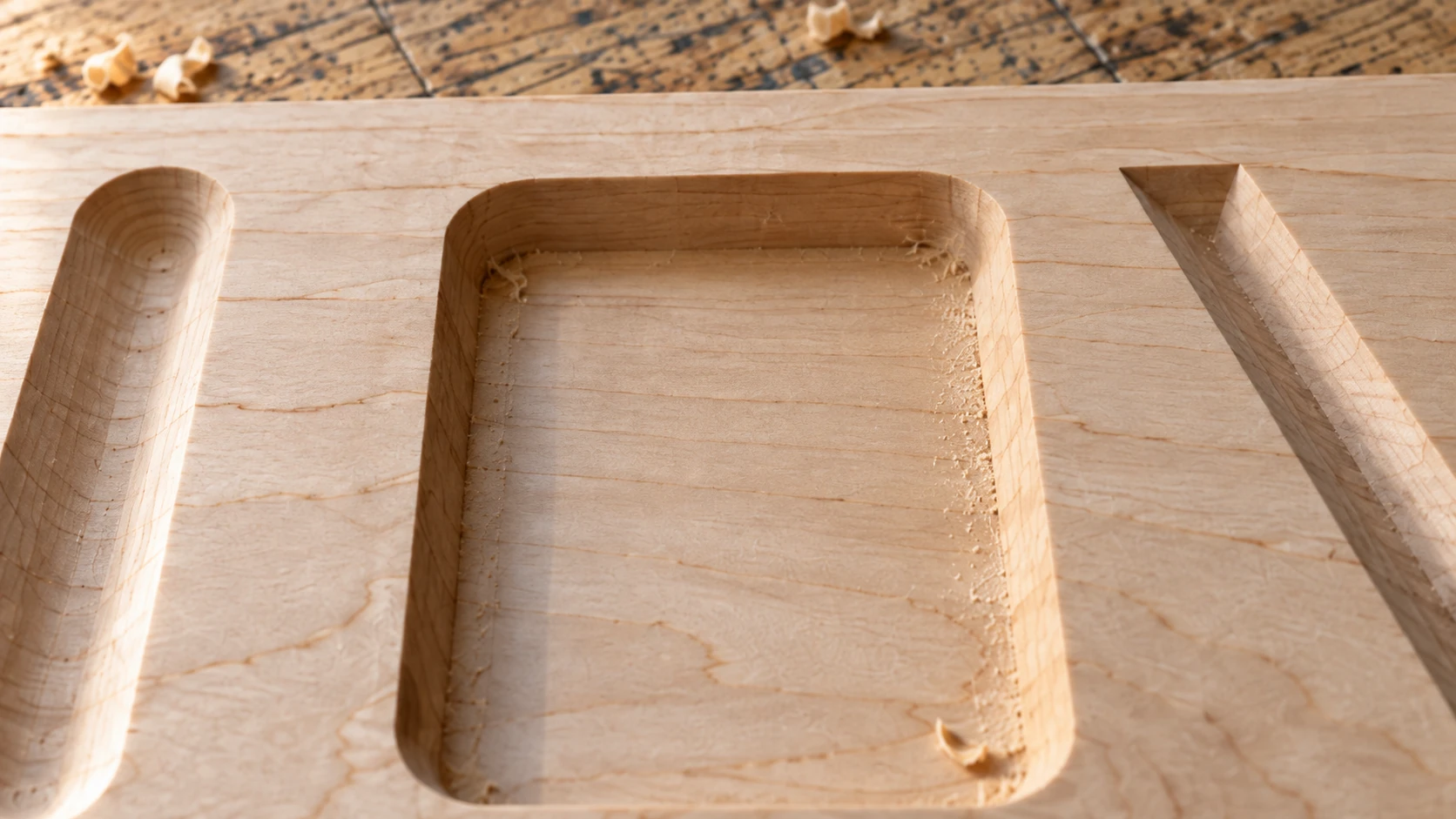
A close view lets you inspect the pocket floor, inside corners and rim. Use photographs like this alongside notes about the actual setup and settings.
Uploading Photos for Visual Questions
Some problems are hard to describe in words. "My print has a weird surface defect" could mean a hundred different things. But a photo narrows it down immediately.
Craft Chat accepts image uploads, and this is one of its most useful features for troubleshooting. Here's how to get the most out of it.
What to Photograph
Close-ups of the problem area. Not a wide shot of your entire workpiece from across the room. Get close enough that the defect is clearly visible. If your laser engrave has uneven darkness, photograph a section that shows the contrast between good and bad areas.
The setup, not just the result. If your CNC job went wrong, a photo of how the material was clamped, where the bit entered, and what the overall setup looked like can reveal issues that the finished piece can't.
Before and after. If you made a settings change and something got better (or worse), showing both results helps Craft Chat understand the direction of the problem.
Your screen. If the issue might be in your software settings, screenshot your CAM parameters, slicer settings, or laser software configuration. Sometimes the problem isn't in the workshop. It's in the settings dialog box.
How to Ask Photo Questions
Pair the photo with a text question. Don't just upload an image and say "what's wrong?" That's like walking into a mechanic's shop, pointing at your car, and leaving.
Instead: "Here's a photo of my latest CNC pocket cut in cherry. See the ridges along the bottom of the pocket? I'm using a 1/4-inch flat end mill, 18,000 RPM, 40 IPM, 0.1-inch stepdown. The ridges follow the direction of the stepover, not the feed direction. What's causing this?"
That gives Craft Chat everything it needs: the visual evidence, the machine parameters, and a specific observation about the pattern of the defect.
Tip
Good lighting makes a huge difference in photo quality. Natural daylight or a bright shop light at an angle that highlights the texture works best. Avoid flash, which tends to wash out surface details. Hold a ruler or coin next to the defect for scale when possible.
Building a Learning Curriculum with AI
Here's something most people don't think to do: ask Craft Chat to create a learning plan. Instead of jumping around between random projects and YouTube tutorials, you can ask for a structured progression that builds skills in a logical order.
Ask for a Skill Progression Plan
"I'm new to CNC routing on a Shapeoko 4. Can you create a week-by-week learning plan that takes me from basic cuts to V-carving in 6 weeks? I have about 4 hours per weekend to practice."
Craft Chat will create a structured plan with specific projects for each week, the skills each project teaches, materials you'll need, and settings to start with. Each week builds on the previous one, so you're not jumping from zero to complex inlays in week two.
Ask for Project Suggestions at Your Level
"I've been laser engraving for about 3 months. I'm comfortable with basic text and vector engraving on wood. What's a good next project to learn photo engraving?"
Rather than scrolling through hundreds of project ideas on Pinterest, this gives you a recommendation calibrated to your current skill level with guidance on what new techniques you'll learn.
Create Material Reference Sheets
"Give me a reference table of laser settings for common materials on a 10W diode laser: basswood, birch plywood, bamboo, leather, and anodized aluminum. Include engrave and cut settings where applicable."
You can build up a personal reference library by asking Craft Chat for settings tables organized by material and operation type. Copy these into a notebook or spreadsheet and you'll have a custom settings guide for your specific machine.
Practice Failure Analysis
This one is underrated. Ask Craft Chat to describe what specific defects look like and what causes them, before you encounter them. This trains your eye to diagnose problems.
"What are the five most common 3D printing defects a beginner will see in their first month, and what does each one look like?"
Now when you see elephant's foot on your first print, you'll recognize it instantly instead of spending 20 minutes googling "why is the bottom of my 3D print wider than the rest."
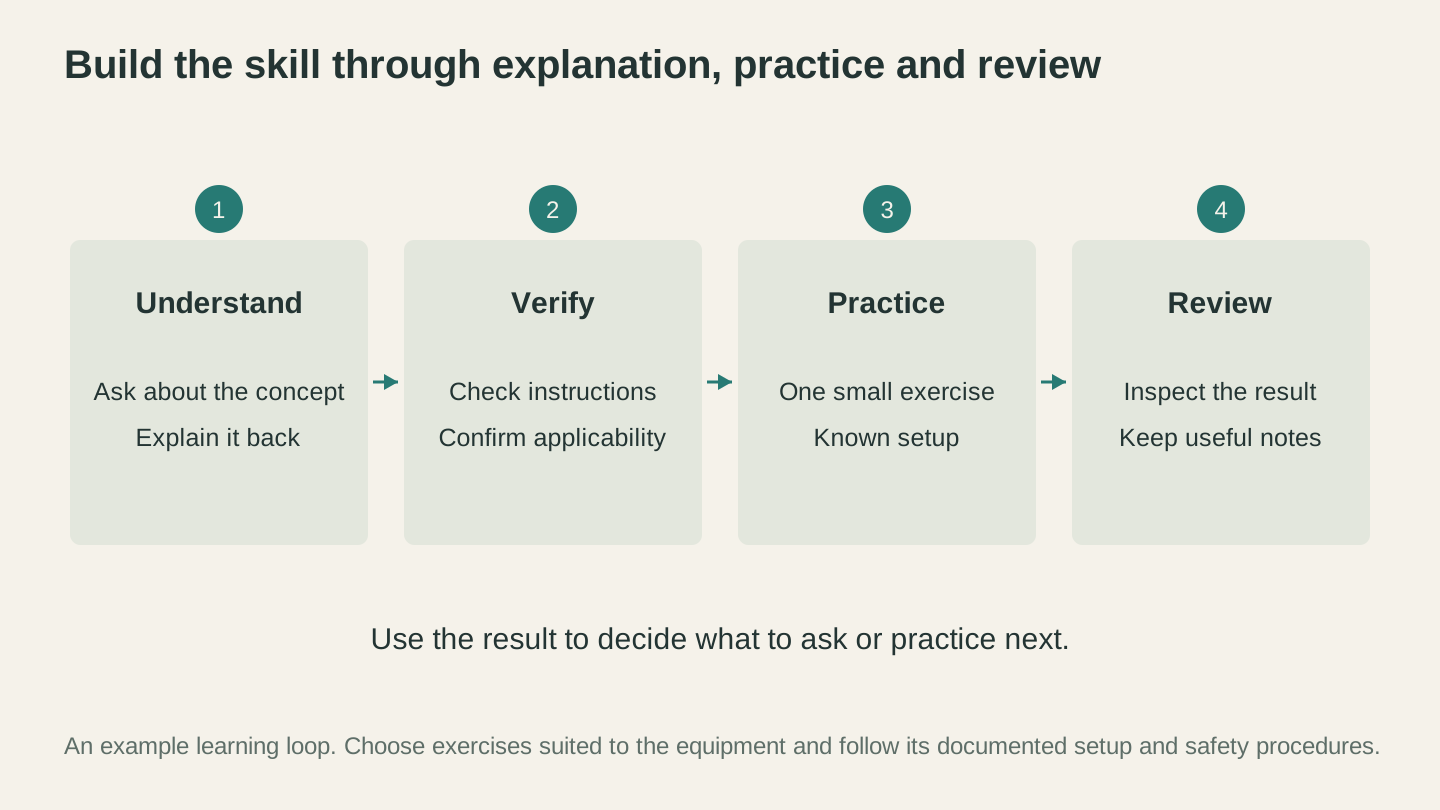
Use an explanation to plan a suitable exercise, verify the instructions, then inspect the result. Let what you learn guide the next question.
AI Chat vs. Other Learning Methods
No single learning method is perfect. Each one has strengths and weaknesses. Here's an honest comparison.
| Method | Response Time | Specificity | Cost | Depth | Available |
|---|---|---|---|---|---|
| Craft Chat | Instant | Very high (tailored to your machine/material) | Free tier: 10 msgs/mo. Paid: 100-5,000/mo | Good for targeted Q&A, less for hands-on technique | 24/7 |
| Maker Forums | Hours to days | Variable (depends on who replies) | Free | Excellent (collective experience) | When someone's online |
| YouTube | Instant (if video exists) | Low to medium (generic advice) | Free | Great for visual processes | 24/7 |
| Paid Courses | Instant (pre-recorded) | Low (fixed curriculum) | $20-$200 | Excellent (structured) | 24/7 |
| Local Mentor | Minutes to hours | Very high (hands-on, your machine) | Free to expensive | Best possible | When they're available |
| Makerspaces | During hours | High (hands-on guidance) | $50-$200/mo membership | Very good | Limited hours |
When Craft Chat Is the Best Option
At odd hours. Nobody's answering forum posts at midnight. Craft Chat doesn't sleep.
For "dumb" questions. There are no dumb questions, but people still feel embarrassed asking them in public. You'll never feel judged asking Craft Chat something basic.
For highly specific questions. "What feed rate should I use for 6061 aluminum with a 3-flute 1/8-inch carbide end mill on a machine with a 0.8kW spindle?" is too specific for most forums but perfectly normal for Craft Chat.
For iterative troubleshooting. When you need to go back and forth with five follow-up questions, a conversation with Craft Chat is faster and more coherent than a forum thread.
For quick confirmations. Sometimes you know the answer but want a second opinion before you cut into an expensive piece of wood. "Does this sound right?" is a perfectly valid use of a message.
When Other Methods Are Better
For hands-on technique. No amount of text can teach you how much pressure to apply when feeding wood into a table saw, or what a properly tuned belt tension feels like under your fingers. For physical skills, there's no substitute for in-person guidance. Makerspaces and local mentors win here.
For watching complex processes. Seeing someone set up a two-sided CNC job from start to finish, in real time, with all the fumbles and adjustments, teaches things that text simply cannot. YouTube is genuinely irreplaceable for this.
For community and motivation. Forums and maker groups give you something AI never can: the feeling of being part of a community. Showing off your projects, getting encouragement after a failure, and seeing what other people are building. That's human stuff.
For cutting-edge techniques. If someone just invented a new approach to multi-material 3D printing last week, Craft Chat might not know about it yet. Forums and YouTube creators are often faster at sharing bleeding-edge techniques.
The Best Approach: Use Everything
The smartest makers use all of these resources together. Read the manual (okay, skim it). Watch a YouTube video to see the process visually. Ask Craft Chat for your specific machine and material settings. Post your results on a forum for feedback from the community.
Each resource fills a gap the others can't. Craft Chat is the fastest at answering specific technical questions. YouTube is the best for visual learning. Forums are the best for community knowledge and edge cases. Use them all.
Having a Productive Conversation
Talking to Craft Chat isn't quite like talking to a person, and it isn't quite like using a search engine. It's somewhere in between. Here are some techniques that get you better results.
Start Broad, Then Narrow Down
If you're not sure what's causing a problem, start with a general description and let Craft Chat ask you narrowing questions. Or provide your own context progressively.
First message: "My laser engraving results look inconsistent. Some areas are darker than others on the same piece of wood."
Based on the response, follow up: "The dark spots seem to correspond to the grain pattern. The end grain areas are always darker. Is that normal?"
Then: "Is there a way to compensate for grain density differences, or do I just need to pick more consistent wood?"
Each message narrows the scope until you get a practical answer.
Be Honest About What You Don't Know
There's no benefit to pretending you understand something you don't. If Craft Chat uses a term you don't recognize, ask about it. If it suggests adjusting a setting you've never heard of, ask where to find it in your software.
"You mentioned adjusting the acceleration setting in my slicer. Where is that in my slicer's menu? I've never changed it before."
This gets you the answer you actually need, not the answer Craft Chat assumes you need.
Ask "Why" Not Just "What"
"What feed rate should I use for birch plywood?" gets you a number. "Why is the recommended feed rate for birch plywood different from pine, and how does the difference in density affect chip formation?" gets you understanding.
The "what" answer helps you today. The "why" answer helps you figure out settings for materials you haven't tried yet. Over time, the "why" answers compound and you stop needing to ask "what" questions at all.
Ask for Verification Steps
Good advice includes a way to verify it's working. Ask Craft Chat not just what to do, but how to confirm it worked.
"How do I know if my bed is actually level? What does a good first layer look like compared to a bad one?"
This teaches you to evaluate your own work, which is the real skill.
The Photo Upload Workflow in Practice
Let's walk through a realistic photo troubleshooting session to show how this works in practice.
Scenario: Bad 3D Print Surface
You've printed a simple box and the top surface looks terrible. There are gaps between the top layer lines and the surface is rough and uneven.
Step 1: Take a close-up photo of the top surface. Make sure the gaps and rough areas are visible. Good lighting. Slight angle so the texture shows.
Step 2: Upload the photo to Craft Chat with this message: "Here's the top surface of a box I printed on my Ender 3 V2. PLA, 200 °C, 60mm/s, 0.2mm layer height, 4 top layers. The surface has gaps between lines and feels rough. What's causing this?"
Step 3: Craft Chat will likely identify under-extrusion on the top layers and suggest several possible causes: not enough top layers, flow rate too low, or the infill percentage below the top layers not providing enough support.
Step 4: Follow up based on the diagnosis. "I'm using 15% infill. Would increasing that help? Or should I add more top layers?"
Step 5: Apply the suggestion (probably increasing infill to 20% and adding 2 more top layers) and print again. If it's better but not perfect, take another photo and continue the conversation.
This iterative approach is much faster than posting on a forum and waiting for responses between each attempt.
Scenario: Mystery Burn Marks on Laser Engrave
Your laser-engraved cutting board has dark burn marks along the edges of the engraved area that shouldn't be there. The engraving itself looks fine.
Step 1: Photograph the burn marks at the edges. Include a wider shot showing the overall piece for context.
Step 2: "I'm engraving a design on maple with my 10W diode laser. 60% power, 2500mm/min, 254 DPI. The engraving looks good but there are dark burn marks at the edges of the engraved area. See the photo. The burns are only on the starting edge of each pass."
Step 3: Craft Chat will likely identify this as overscan (or lack thereof). When the laser head decelerates at the end of each pass, it spends more time on those edge pixels, causing over-burning. The fix is to enable overscanning in your software so the laser starts and stops outside the engraving area.
Without the photo and the detail about which edge has the burns, this would be much harder to diagnose.
Common Beginner Questions to Ask Right Away
If you're new to Craft Chat and not sure where to start, here are some high-value first questions for each type of machine. These will save you hours of frustration.
For New Laser Owners
- "What safety equipment do I absolutely need before I start using my [model] laser?"
- "What materials can I safely laser, and which ones should I never laser?"
- "Walk me through focusing my laser properly. I have a [model]."
- "What are good starting settings for engraving on pine with my [wattage] diode laser?"
- "How do I set up an air assist, and do I really need one?"
For New CNC Owners
- "I just assembled my [model]. How do I check if the frame is square and the spindle is trammed?"
- "What three bits should I buy first for general-purpose work in wood?"
- "Explain chip load to me like I've never heard the term before."
- "What's the difference between climb and conventional milling, and when does it matter?"
- "How do I create my first toolpath in [software]? Walk me through the steps."
For more on getting started with CNC, our complete beginner's guide covers the fundamentals in depth.
For New 3D Printer Owners
- "I just set up my [model]. Walk me through bed leveling step by step."
- "What's a good first print to test that everything is working correctly?"
- "My first layer isn't sticking. The filament curls up and sticks to the nozzle. What do I check?"
- "What slicer settings should I start with for PLA on my [model]?"
- "What's the difference between all these infill patterns, and which one should I use?"
For Cutting Machine Owners
- "I just got a Cricut [model]. What's the first thing I should make to learn the software?"
- "What blade should I use for [material]?"
- "How do I set up a print-then-cut workflow?"
- "What's the best transfer tape for permanent vinyl on tumblers?"
- "How do I design something in my cutting machine's software that has multiple layers for different colors?"
Advanced Techniques: Getting More from Your Conversations
Once you're comfortable with basic Q&A, here are some more sophisticated ways to use Craft Chat.
Comparison Requests
"Compare climb milling vs. conventional milling for profiling hardwood on a hobby CNC. When should I use each one?"
Comparison questions force structured, balanced answers. They're great for understanding trade-offs rather than just getting a single recommendation.
Scenario Planning
"I want to make a cutting board from walnut and maple. Walk me through the entire workflow from selecting lumber to applying finish. What could go wrong at each step?"
End-to-end workflow questions with failure points highlighted are like getting a mentor to walk you through a project before you start. You'll avoid mistakes you didn't know existed.
Settings Calculation
"I have a 2-flute 1/4-inch end mill in my Shapeoko 4. The recommended chip load for walnut is 0.002 inches. My spindle maxes out at 30,000 RPM. Calculate the ideal feed rate and suggest an appropriate RPM and depth of cut."
Craft Chat can do the math and explain it. Chip load x flutes x RPM = feed rate. But it'll also tell you whether the result is practical for your machine and suggest adjustments if not.
Design Review
"I'm designing a CNC-cut box joint. The fingers are 1/4-inch wide and the material is 1/2-inch plywood. I plan to use a 1/8-inch straight bit with a 0.001-inch offset for fit. Does this sound right, or should I adjust anything?"
Before you commit material to the machine, run your plan by Craft Chat. It can catch issues with tolerances, bit deflection, corner radii, and other details that might not be obvious in your CAD model.
Troubleshooting Decision Trees
"Give me a step-by-step troubleshooting checklist for when my 3D prints have poor layer adhesion. Start with the most likely cause and work down to the less common ones."
This gives you a systematic approach to diagnosing problems, rather than randomly trying fixes and hoping one works.
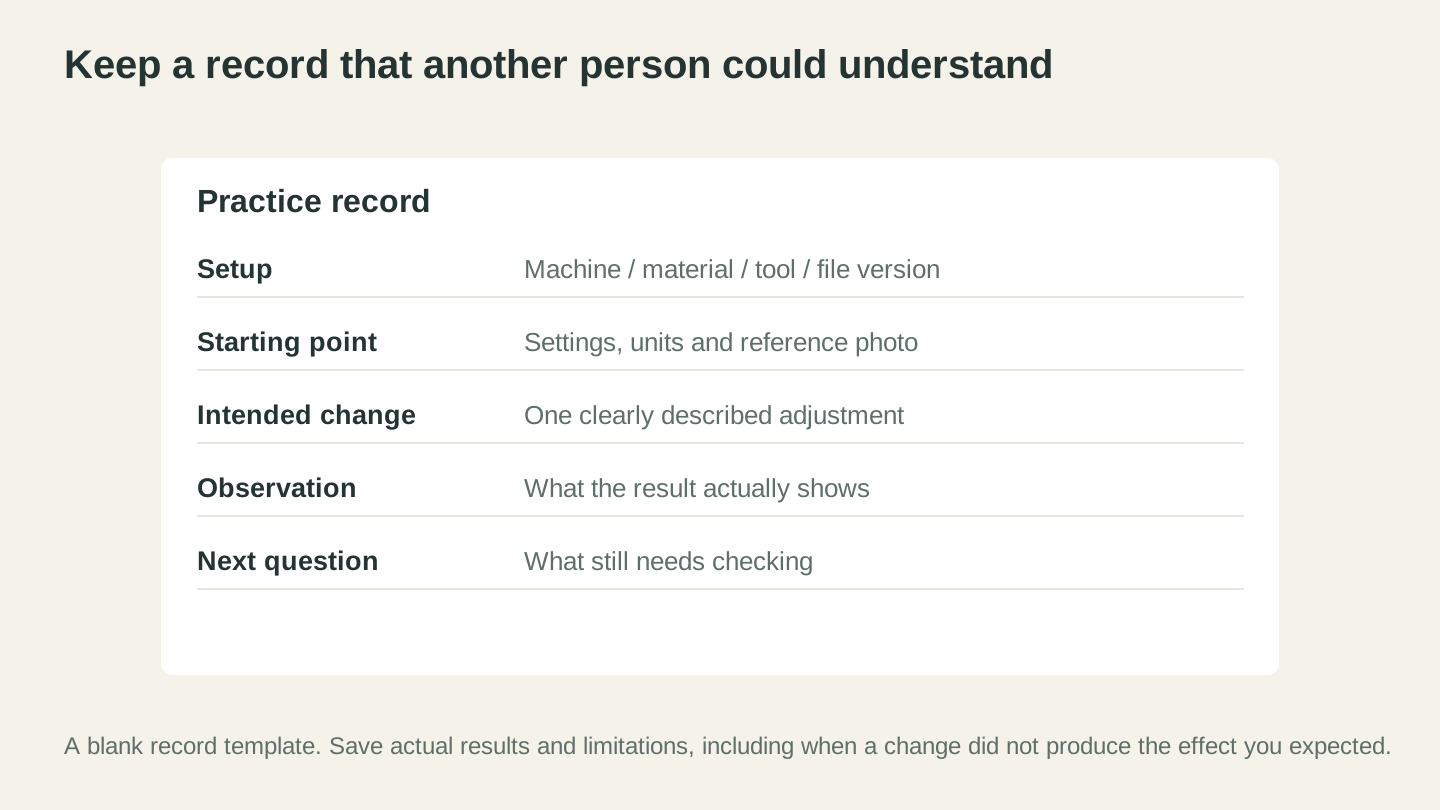
Save enough detail to repeat and compare the exercise. Record unexpected results too; they can be more useful than a note that only says it worked.
What Craft Chat Can't Do (And What to Watch Out For)
Honesty time. AI chat is a tool, not an oracle. It has real limitations, and pretending otherwise would be irresponsible.
It Can Be Wrong
AI models occasionally generate incorrect information with complete confidence. This is less common with well-established topics (like basic laser safety or common 3D printing settings), but it happens more with niche questions, unusual material combinations, or very new machines.
Always verify critical settings on scrap material first. If Craft Chat tells you to run your laser at 90% power and 500mm/min on a new material, test it on a scrap piece before you engrave your client's custom cutting board. This is good practice regardless of where you got the settings.
Warning
Never take AI-suggested settings as gospel. Always test on scrap material first, especially for unfamiliar materials or operations. The AI might be close, but "close" on a CNC router can mean the difference between a clean cut and a broken bit or worse.
It Can't Feel Your Machine
A lot of maker knowledge is tactile. The sound of a router cutting too aggressively. The feel of a properly tensioned belt. The smell of a material that shouldn't be lasered. Craft Chat can describe these sensory cues, but it can't experience them. It can tell you what chatter sounds like ("a high-pitched vibration or ringing"), but it can't listen to your machine and confirm that's what you're hearing.
It Doesn't Know Your Specific Machine's Condition
Craft Chat knows what a Shapeoko 4 should be capable of. It doesn't know that your specific Shapeoko has a worn V-wheel on the Y-axis that's introducing play, or that your spindle bearings are getting noisy. Machine-specific wear and damage can make generic advice misleading.
If troubleshooting suggestions aren't solving your problem, the issue might be mechanical rather than settings-related. That's when a local makerspace, a machine-specific forum, or a service call is the right next step.
It's Not a Substitute for Safety Training
Craft Chat will absolutely tell you to wear safety glasses, use dust collection, and never laser PVC. But reading about safety and internalizing safety habits are different things. If you can take an in-person safety class at a makerspace or community college, do it. Some lessons need to be taught by a person standing next to you, pointing at the emergency stop button and making you practice hitting it.
It Has a Knowledge Cutoff
AI models are trained on information up to a certain date. The very latest machines, the newest version of a slicer, or a technique that was published last month might not be in Craft Chat's knowledge base yet. For bleeding-edge questions, forums and YouTube creators who cover new releases are your best bet.
Making the Most of Your Free Messages
If you're on the free tier with 10 messages per month, you want to make each one count. Here's how to maximize their value.
Do Your Homework First
Before using a message, check if the answer is in one of the Craftgineer blog posts. We've got guides covering laser engraving settings for wood, CNC feeds and speeds, 3D printing troubleshooting, and many more. Save your messages for questions these guides don't cover.
Combine Related Questions
Instead of asking one question per message, group related questions together. "I'm setting up my first CNC job in walnut. What feed rate, RPM, and depth per pass should I use for a 1/4-inch flat end mill? Also, should I use climb or conventional milling for a profile cut? And what type of workholding do you recommend for a 12x12-inch piece?"
That's three questions in one message. Craft Chat will answer all of them.
Save Messages for Troubleshooting
Your messages are most valuable when you hit a problem you can't solve with Google or blog posts. Basic setup questions usually have answers in guides and manuals. Specific troubleshooting questions, where you need to describe your exact situation and get tailored advice, are where Craft Chat adds the most value.
Upgrade When You're Ready
If you find yourself running out of messages regularly, the Starter plan at $4.99/month gives you 100 messages plus 40 monthly credits for AI-powered tools. That's usually more than enough for active learners. The Maker plan ($9.99/month) bumps it to 500 messages, which is plenty for daily use.
Real Learning, Faster
The best makers never stop learning. They experiment with new materials. They push their machines into new territory. They fail, figure out why, and try again. That cycle of attempt, fail, diagnose, improve is how every skill gets built.
Craft Chat doesn't replace that cycle. It accelerates it. Instead of spending three days waiting for a forum reply before you can try again, you get an answer in seconds. Instead of guessing why something went wrong, you get a diagnosis you can verify immediately. Instead of watching six videos to find the one with the answer you need, you describe your situation and get a targeted response.
The machines in your workshop are incredibly capable. The gap between "machine owner" and "skilled maker" isn't the equipment. It's the knowledge. And that knowledge has never been more accessible than it is right now.
Open Craft Chat, type your question, and start building the skills that turn raw materials into finished projects. Your workshop is ready. Your machine is ready. Now you've got a knowledgeable shop buddy who's ready too.
Ready to try these tools?
Sign up free, no credit card required. Free tools available immediately.
Start Free