

Setting Up Your First Maker Workshop: Tools, Layout, and Organization
You bought a laser engraver, a CNC router, or a 3D printer. Maybe all three, because you have no impulse control (welcome to the club). Now you need somewhere to put them that isn't the dining room table.
Setting up a workshop seems straightforward until you're three weeks in, running two machines off the same power strip, inhaling fumes, and wondering why the breaker keeps tripping. A little planning upfront saves a lot of headaches, and potentially a visit from the fire department. This guide covers space selection, ventilation, power, layout, fire safety, storage, and organization.
Choosing Your Space
Not every space is created equal. Here's how the common options stack up.
Garage is the most popular choice. Concrete floors handle vibration and spills, overhead doors help with ventilation, and there's room for full sheet goods. The downside: temperature swings mess with print quality and material behavior. If it freezes in winter, add a space heater before expecting consistent results.
Basement gives you temperature stability and square footage. The challenge is ventilation, since you'll need ducting to a window or dryer vent for laser fumes and CNC dust. Moisture can also be a problem, so run a dehumidifier if your basement is damp.
Spare bedroom works for quieter machines like 3D printers or cutting machines. A CNC router in a spare bedroom is a fast way to make enemies of everyone in the house. You'll want an enclosed laser and a strong exhaust fan venting out the window.
Shed or outbuilding gives you full separation from the house. Great for noise, dust, and fumes. You'll need proper electrical service run to it (a real electrician, not an extension cord across the yard) and insulation for temperature control.
Tip
Minimum space recommendations: Budget at least 4x4 feet per major machine, plus 3 feet of clearance on all sides for access and airflow. A two-machine shop works comfortably in a 10x12 space. If you're running a CNC router with full sheet capacity (4x8 feet), plan for at least 12x16 feet.
PRINT. CUT. CARVE.



- Multiple formats (SVG, DXF, PNG)
- Machine-tested designs
- Commercial licenses
Sponsored by PrintCutCarve.com
Ventilation: The Thing Everyone Underestimates
Ventilation isn't optional. Different machines produce different hazards, and getting this wrong has real health consequences.
Laser Engravers and Cutters
This is the big one. Laser cutting produces VOCs and fine particulates. Acrylic fumes are relatively mild. MDF produces formaldehyde. PVC and vinyl release chlorine gas. None of these are things you want to breathe. Our laser engraving beginner's guide touches on this, but for a permanent workshop, ventilation deserves real planning.
Minimum setup: An inline fan pulling air from the laser enclosure through 4-inch ducting to the outside. Aim for 200+ CFM. A 4-inch inline duct fan in the 190 to 250 CFM range handles most hobby lasers. For larger CO2 machines (60W+), step up to a 6-inch fan rated at 400+ CFM.
Better setup: Add an inline carbon filter for odor control, seal all duct joints with foil tape (not duct tape, which deteriorates from heat), and use a blast gate to close the duct when idle.
Warning
Never run a laser engraver without active ventilation. "Opening a window" is not ventilation. You need forced air extraction pulling fumes away from you and out of the building. Even "safe" materials like wood produce carbon monoxide and fine particulate matter when lasered.
CNC Routers
CNC routers don't produce fumes (usually), but they produce enormous amounts of dust. Fine wood dust is a serious respiratory hazard, and MDF dust is particularly bad for your lungs. It's also combustible.
Minimum setup: A shop vacuum with a dust shoe on your CNC spindle. A standard shop vac pulls 100 to 150 CFM, which works for desktop CNCs.
Better setup: A dedicated dust collector (1 to 2 HP) pulling 600 to 1200 CFM, with a cyclone separator to extend filter life. Even with a dust shoe, fine dust escapes. An ambient air filtration unit hung from the ceiling catches the rest. For more on CNC setup, see our CNC routing beginner's guide.
3D Printers (FDM)
PLA produces minimal fumes, and most people print it in living spaces without issues. But "minimal" isn't "zero," so prolonged printing in an unventilated room isn't ideal.
ABS and ASA emit styrene fumes that cause headaches and irritation. Print these in an enclosed printer or a well-ventilated room. This is one reason enclosed printers like the Bambu Lab P1S are popular. Our 3D printing beginner's guide covers materials in detail.
Resin printers require serious ventilation. Uncured resin is toxic and the fumes are harsh. Always wear nitrile gloves when handling uncured resin. Don't put a resin printer in a bedroom. Just don't.
Cutting Machines (Cricut, Silhouette)
Good news: cutting machines produce almost no fumes. Vinyl and paper don't off-gas significantly when cut mechanically. These are the most apartment-friendly machines in the maker world. No special ventilation needed.
Power Requirements
Tripping breakers and damaged equipment are the rewards for ignoring electrical planning.
Dedicated Circuits
Your laser and CNC should each have their own dedicated circuit. When a CNC spindle spins up, it draws a surge that can cause voltage drops on shared circuits, affecting a laser mid-engrave or causing a 3D print to fail.
15A circuits handle most hobby lasers, 3D printers, and cutting machines individually. A typical diode laser draws 3 to 5 amps. A 3D printer draws 4 to 7 amps.
20A circuits are better for CNC routers (especially with a router-style spindle like a Makita or DeWalt trim router, which draw 6 to 7 amps) and larger CO2 lasers. If you're wiring a new workshop, ask your electrician to run 20A circuits to each machine location. The cost difference is minimal during initial wiring.
Warning
Never daisy-chain power strips. One power strip plugged into another is a fire hazard, full stop. If you need more outlets, install additional wall receptacles. Use surge protectors (not cheap power strips) for individual machines.
UPS for 3D Printers
A power outage during a 3D print means a ruined print. A UPS rated at 600VA or higher gives you enough buffer to ride out short outages and time to pause during longer ones. Also smart for your design workstation, since nothing ruins a morning like losing an hour of CAD work to a 2-second power blip.
Circuit Mapping
Label your breaker panel. Know which outlets are on which circuits. Plan machine placement around your electrical layout, not the other way around. It's cheaper to rearrange machines than rewire circuits.
Workbench Layout and Workflow
Think about how work flows through your space so you're not carrying material back and forth.
The Four-Zone Model
- Design station: Computer and monitor, away from dust. A CNC and a laptop on the same bench is a recipe for a dust-filled keyboard.
- Machine zone: CNC near dust collection, laser near exhaust vent, 3D printer on a stable surface away from drafts.
- Finishing area: Sanding, painting, staining. Separate surface keeps finishing chemicals away from machines.
- Material storage: Wood, filament, vinyl, acrylic (details below).
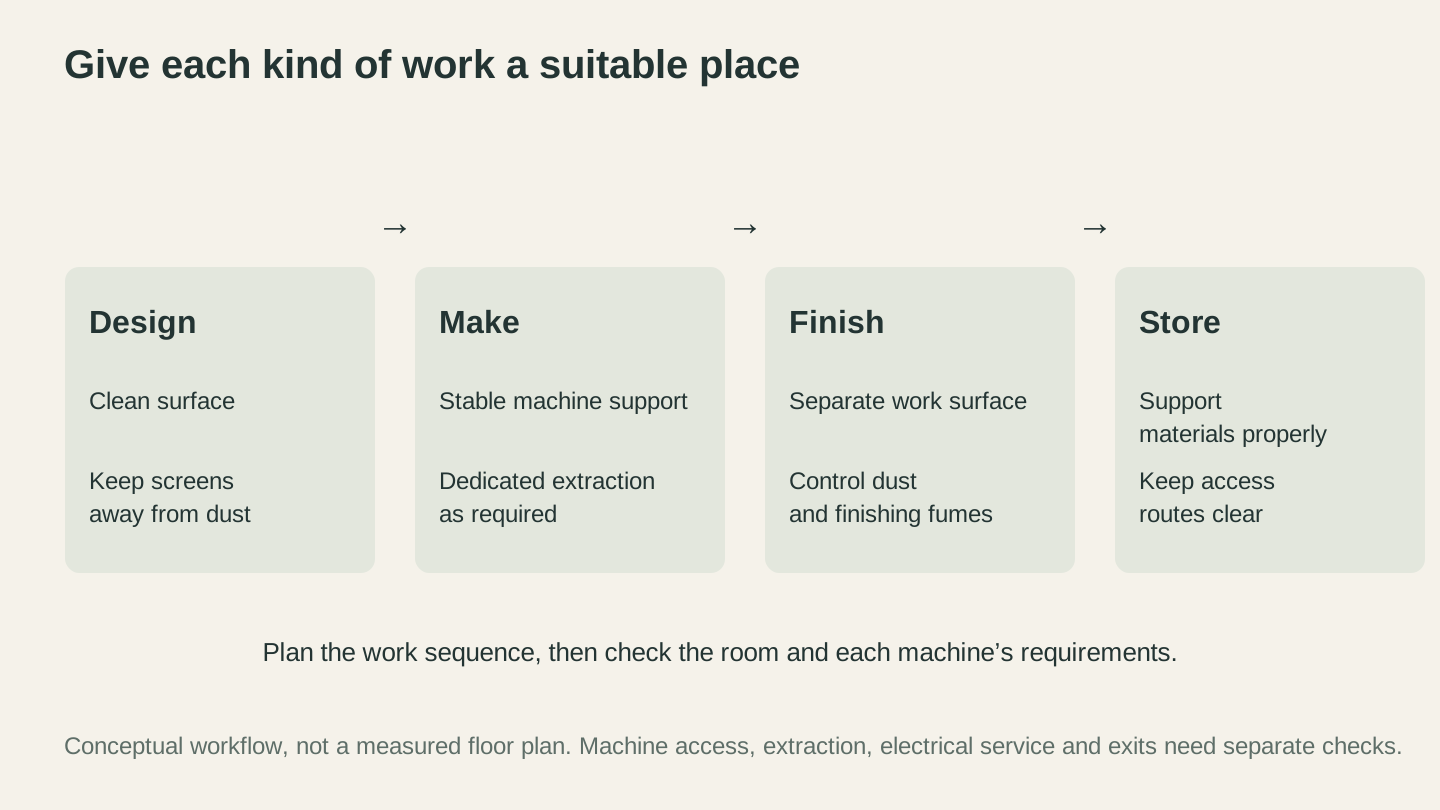
Think through the sequence of work before placing equipment. This is a workflow sketch, so check actual clearances, access, extraction and electrical requirements separately.
Machine Placement Tips
CNC router: Close to your dust collector. Shorter duct runs mean stronger suction. Allow clearance for feeding longer stock, and don't put it on the same table as other machines (vibration). See our CNC routing mistakes guide for setup-related errors.
Laser engraver: Near an exterior wall or window for short exhaust duct runs. Keep the area behind the machine clear for heat dissipation.
3D printer: Level, stable surface away from CNC vibration. A wall-mounted shelf or separate table works well.
Cutting machine: Compact, no special requirements. Just leave clearance behind for mat feed-through.
Tip
If you're running a CNC router with 4x8 sheet capacity, you need clearance on the infeed side to slide full sheets onto the bed. Plan this before you fill the wall with shelving.
Fire Safety
Heat, electricity, and combustible materials in close proximity. Set up fire safety before you turn on your first machine.
Laser-Specific
Lasers start fires. This is not hypothetical. Residue on the honeycomb bed ignites. Knots in wood flare up. Pieces lift during cutting and catch the beam. Never leave a laser running unattended. Keep a fire extinguisher within arm's reach. CO2 extinguishers are ideal (no residue on your machine). Clean your honeycomb bed regularly. Our laser engraving mistakes post covers fire-related issues in depth.
CNC and Wood Dust
Fine wood dust is combustible. A spark from a router motor or static discharge can ignite accumulated sawdust. Empty your dust collector regularly, keep the floor around the machine clear, and ground your dust collection hoses to prevent static buildup.
General Workshop Fire Safety
- Smoke detector in the workshop, tested monthly
- Fire extinguisher you know how to use before you need it
- Clear paths to exits, not blocked by material storage
- Never store oily rags in a closed container (they self-combust). Lay them flat to dry outside, or use a metal container with a tight-fitting lid designed for that purpose
- First aid kit within reach
Warning
Oily rags are the most common cause of workshop fires. Rags soaked with linseed oil, tung oil, or Danish oil generate heat as they dry through oxidation. Crumple one up in a trash can and it can spontaneously ignite within hours. Hang them flat outside to dry completely before disposal.
Material Storage
Good storage saves money (materials last longer) and time (you can find what you need).
Wood and Sheet Goods
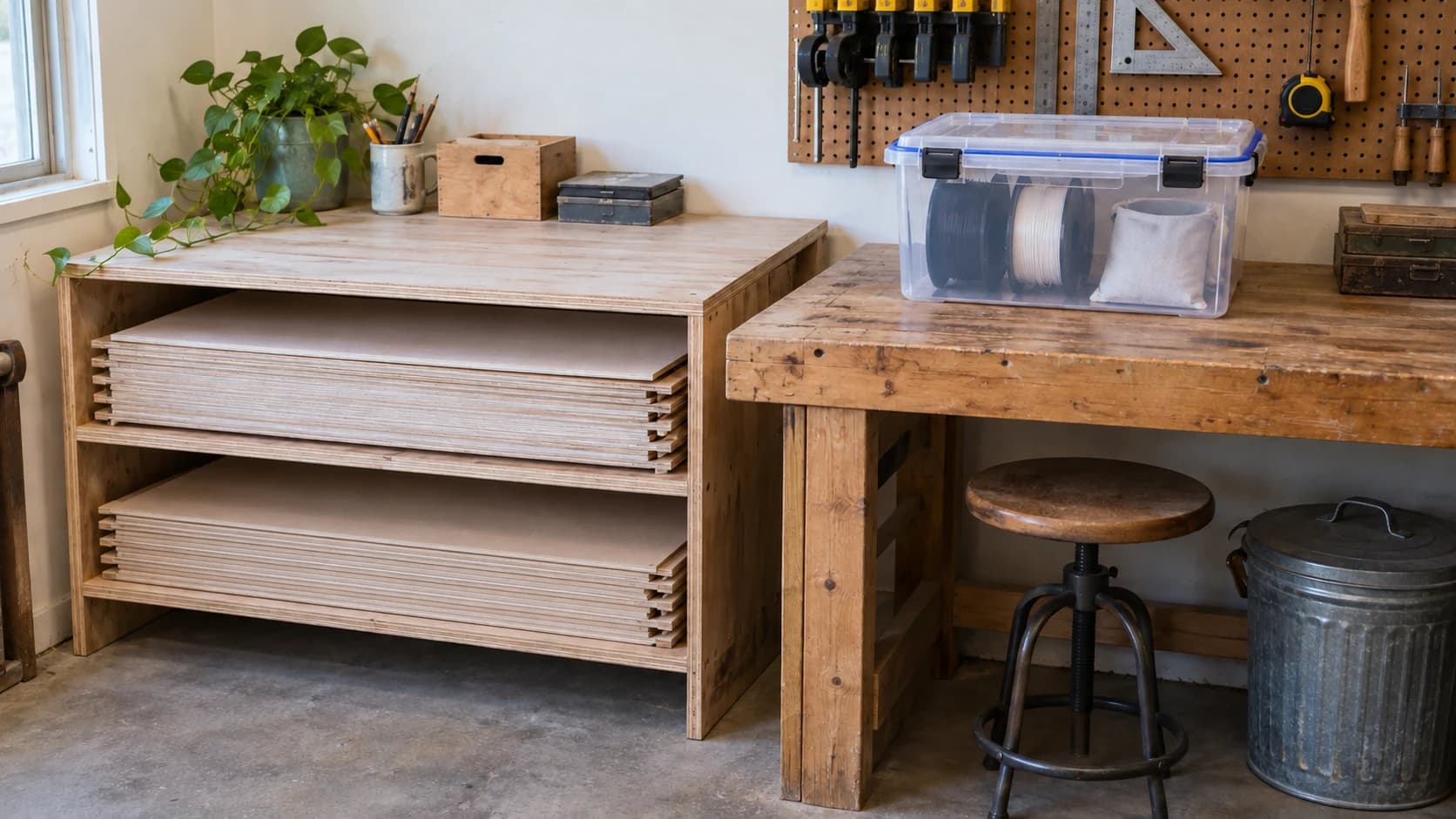
Store plywood and MDF flat on a rack with stickers (thin strips between sheets for airflow). Vertical storage works if you build a proper rack that prevents bowing. Keep wood off concrete floors. Concrete wicks moisture and wood absorbs it. Even 2x4 spacers on the floor make a difference.
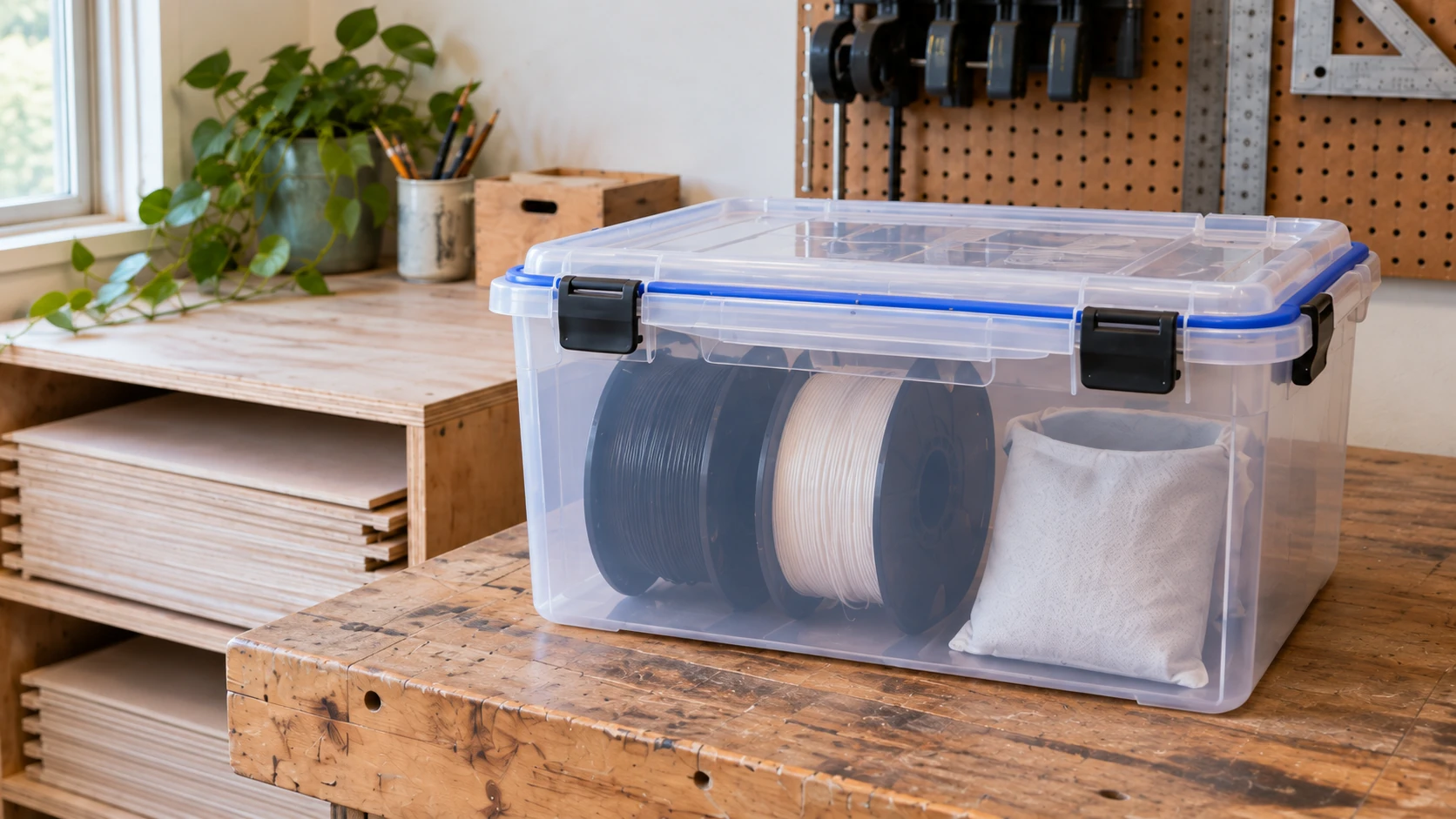
The same storage corner at closer range shows the box seal and latches. Check the filament maker’s storage and drying guidance; a box alone does not establish that a spool is dry.
3D Printer Filament
Humidity is the enemy. PLA absorbs moisture, leading to stringing and popping. PETG and nylon are even worse. Store opened spools in a dry box with silica gel desiccant. A cheap hygrometer inside tells you when the desiccant needs refreshing. Our best filaments guide covers material-specific storage.
Tip
If a filament spool has been sitting out for weeks and you're getting unexplained stringing or popping during prints, dry it before blaming your settings. A food dehydrator at 45 to 50 degrees Celsius for 4 to 6 hours fixes most moisture issues. Dedicated filament dryers (like the Sunlu S2 or eSun eBOX) work too.
Vinyl Rolls
Store vinyl rolls vertically, like wine bottles. Flat storage causes flat spots and creasing. Keep them away from heat, which activates adhesive prematurely. Our vinyl decals guide covers working with vinyl and HTV.
Acrylic
Leave the protective masking on until you're ready to cut. Store sheets flat and stacked, since acrylic warps if vertical or unevenly supported. Keep it away from direct sunlight (yellowing). For laser cutting tips, check our acrylic guide.
Noise Management
Nobody talks about noise until the neighbors do.
CNC routers are the loudest at 90 to 100 dB. That's lawn mower territory. Laser engravers are moderate (50 to 65 dB). 3D printers vary: older models run 45 to 55 dB, modern ones with silent stepper drivers hit 35 to 40 dB. Cutting machines are generally quiet.
Solutions
Schedule noisy work. Don't run the CNC at 10 PM. Most municipalities have noise ordinances starting between 9 and 10 PM. Being a good neighbor means your hobby stays sustainable.
Insulate the space. Acoustic panels, weatherstripping, and even moving blankets on shared walls knock 10 to 15 dB off the peak. You're not soundproofing a studio, just making it tolerable.
Enclose machines when possible. A CNC enclosure reduces noise and helps with dust containment. Two-for-one win.
Organization Tips
A messy workshop is a slow workshop. Here are the systems that actually stick.
Label everything. Future you will not remember which drawer has the M3 screws versus the M4 screws. A $25 label maker pays for itself the first time you don't spend 20 minutes hunting for an Allen key.
Pegboard. A 4x4 sheet behind your workbench holds frequently used tools in plain sight. Outline tools with a marker so you know what's missing and where it goes.
Small parts storage. Multi-drawer organizer cabinets (Stanley, Akro-Mils) are perfect for screws, bolts, and bits. Buy more drawers than you think you need.
Use vertical space. Walls are free real estate. Mount shelves above machines. Ceiling racks in a garage hold material not in active use.
Keep the floor clear. Everything on the floor eventually gets kicked, tripped over, or run into with a rolling chair.
Tip
Once a month, spend 30 minutes putting everything back where it belongs. Workshop entropy is real. Things migrate, scraps accumulate, and surfaces disappear under tools. A short reset session keeps the chaos manageable.
Getting Started
You don't need the perfect workshop before you start making things. Get the safety essentials in place: ventilation, dust collection, fire extinguisher, dedicated circuits. Then start making. Your layout will evolve. The material rack will move three times. That's normal.
If you're just getting into a specific machine, our beginner's guides for laser engraving, CNC routing, 3D printing, and cutting machines will get you up and running. This guide makes sure the space around it is ready too.
Happy building. Try not to fill the entire garage on the first weekend. (You will anyway.)
Ready to try these tools?
Sign up free, no credit card required. Free tools available immediately.
Start Free