

How to Make CNC Inlays (Step by Step)
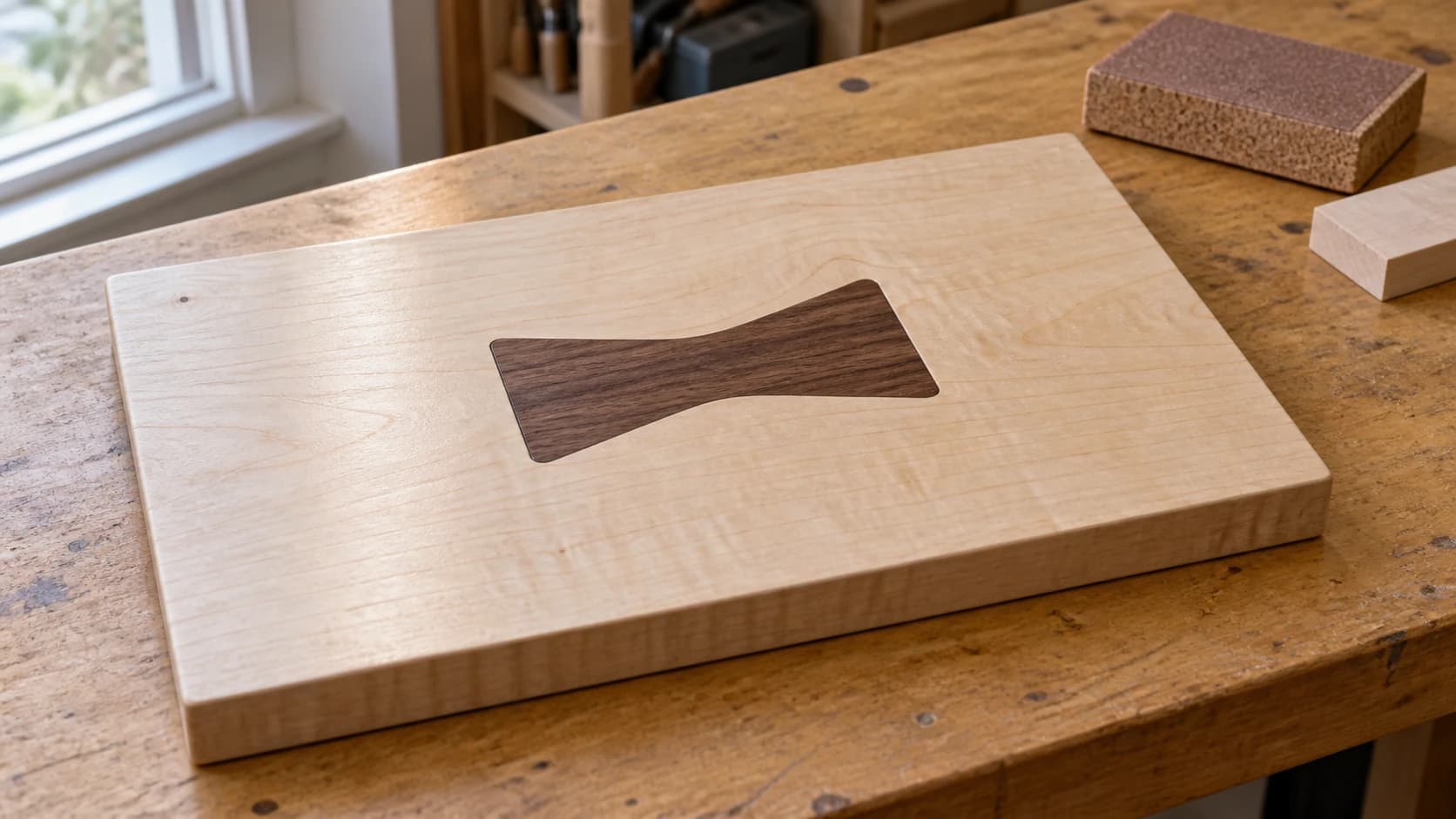
There's something deeply satisfying about an inlay. Two pieces of wood that fit together so precisely you can barely see the seam. A contrasting species set into a tabletop that catches the light differently than everything around it. A company logo embedded into a cutting board so cleanly it looks like the wood grew that way.
Inlays are one of those projects that separate "person who owns a CNC" from "person who makes things that look like they cost $400 at a craft fair." And the good news is they're not nearly as difficult as they look. The bad news is there are about six different ways to do them, each with its own quirks, and nobody explains which technique to use when.
This guide fixes that. We'll walk through every major CNC inlay technique: V-carve inlays (the most popular), pocket inlays, epoxy fills, and flat puzzle-style multicolor inlays. For each one, you'll get the actual toolpath setup, the glue-up process, and the specific numbers that make the difference between "fits perfectly" and "has gaps you could park a toothpick in."
If you're new to CNC in general, start with our beginner's guide first. This post assumes you know how to set up a toolpath and run your machine. We're going deep on the inlay-specific technique here.
What Are CNC Inlays?
An inlay is any decorative element set into a surface so it's flush (or nearly flush) with the surrounding material. The contrast between the inlay material and the base material creates the design. Dark walnut text set into light maple. A cherry logo embedded in a white oak tabletop. Colored epoxy filling a carved pattern.
Inlays have been a staple of fine woodworking for centuries. Traditional woodworkers cut them by hand with chisels and scroll saws. The CNC just makes the process faster and far more repeatable, and it puts the technique within reach to people who don't have decades of chisel experience. The principles are identical. The execution is different.
Four Types of CNC Inlays
Before we dive into the step-by-step, here's a quick overview of the four main approaches.
| Type | How It Works | Best For | Difficulty |
|---|---|---|---|
| V-Carve Inlay | V-bit carves pocket and matching plug; glue and trim flush | Text, logos, detailed designs | Medium |
| Pocket Inlay | Flat pocket carved with end mill; matching piece cut to fit | Large geometric shapes, borders | Easy-Medium |
| Epoxy Inlay | Pocket carved, filled with colored resin | Rivers, abstract fills, color effects | Easy |
| Flat Puzzle-Style | Each color cut as separate piece, assembled on backer | Multicolor images, complex art | Medium-Hard |
Each technique has its sweet spot. V-carve inlays handle fine detail beautifully because the V-bit can cut to a sharp point. Pocket inlays are simpler but limited to shapes with radiused corners. Epoxy fills are the easiest to execute but only give you color, not wood grain contrast. And flat puzzle-style inlays let you create multicolor artwork with as many species as you want.
Let's start with the most popular technique.
PRINT. CUT. CARVE.



- Multiple formats (SVG, DXF, PNG)
- Machine-tested designs
- Commercial licenses
Sponsored by PrintCutCarve.com
V-Carve Inlays: The Complete Walkthrough
V-carve inlays are what most people picture when they think "CNC inlay." They produce crisp, detailed results with tight joints, and they work for everything from single letters to intricate logos. Once you understand the mechanics, you can inlay just about anything.
How V-Carve Inlays Work
The concept is elegantly simple. You carve a pocket into your base piece using a V-bit. Then you carve a matching plug (the inlay piece) from a contrasting wood, also with a V-bit, but inverted. The angled walls of the V-bit create a male piece that wedges perfectly into the female pocket.
Think of it like a pyramid fitting into a pyramid-shaped hole. The angled sides self-center the piece and create a tight joint along the entire visible surface. The deeper you push the plug into the pocket, the tighter the fit gets. This is the genius of V-carve inlays: the geometry does the fitting for you.
Here's the critical concept: the plug is carved upside-down relative to the pocket. Where the pocket goes down into the base, the plug sticks up from its workpiece. When you flip the plug over and press it into the pocket, the angles match.
The top surface of the plug (which was the bottom during carving) ends up proud of the base surface. After the glue dries, you trim or sand it flush. What remains is a perfectly fitted inlay with no visible gaps at the surface.
Choosing Your V-Bit Angle: 60 vs 90 Degrees
The angle of your V-bit determines two things: how wide the inlay can be at the surface, and how deep the pocket goes.
| V-Bit Angle | Pocket Depth | Detail Level | Best For |
|---|---|---|---|
| 60 degree | Deeper for same width | Higher (sharper point) | Fine text, detailed logos, thin lines |
| 90 degree | Shallower for same width | Lower (wider point) | Bold text, large shapes, easier glue-up |
A 60-degree bit cuts deeper for the same surface width. That means thinner lines, sharper detail, and more surface area on the angled walls (stronger glue joint). The trade-off is that the deeper pocket requires more material thickness in both the base and the plug piece, and deeper cuts take longer.
A 90-degree bit cuts wider and shallower. The detail isn't as fine, but the shallower pocket means you can use thinner stock, the cuts are faster, and the glue-up is more forgiving. For text larger than about 1" tall or bold designs, a 90-degree bit works great and is easier to manage.
Which should you start with? If this is your first V-carve inlay, use a 90-degree bit. The shallower pocket is more forgiving for glue-up and trimming. Once you've done a couple successfully, try a 60-degree for finer detail work.
Tip
Some CNC owners keep both angles on hand and use a 60-degree bit for small, detailed inlays (monograms, fine logos) and a 90-degree bit for large text and bold shapes. There's no rule saying you have to pick one.
The Start Depth / Flat Depth Trick
This is the single most important concept in V-carve inlays, and it's where beginners get confused.
A pure V-carve has no flat bottom. The V-bit plunges to whatever depth is needed to make the walls reach the edge of the design. For narrow lines, that's shallow. For wide areas, that's deep. Very wide areas get very deep. A large letter "O" that's 2 inches wide would need a pocket over an inch deep with a 60-degree bit. That's a lot of material to remove, and it means your stock needs to be thick.
The solution is flat depth (also called "flat bottom" or "flat area"). You tell the software to stop the V-bit at a certain depth, and if the design needs to be wider than the V-bit can cut at that depth, a flat-bottom end mill clears the rest. The V-bit still cuts the angled walls and fine details. The end mill just removes the bulk material in the middle of wide areas.
For the pocket (the hole in your base piece), flat depth controls how deep the pocket goes.
For the plug (the inlay piece), flat depth must match the pocket's flat depth exactly, so the V-bit angles line up when the plug is pressed in. Flat depth is not where the glue allowance comes from, that's a separate setting covered next.
Typical flat depth settings:
| Part | Flat Depth | Why |
|---|---|---|
| 0.1" to 0.15" (2.5mm to 3.8mm) | Controls maximum pocket depth; keeps cut manageable | |
| Plug | Same as pocket flat depth | Must match for the angles to align |
Start depth on the plug is what creates the glue allowance, the extra material that sticks up above what would be a perfect fit. This extra height is what gets trimmed off after glue-up. Without it, the plug would seat perfectly flush with zero clamping pressure, and you'd have no room for glue. Set start depth to 0.03" to 0.06" (0.8mm to 1.5mm). Too little and you don't have enough material to sand flush. Too much and you waste material and sanding time.
Warning
The flat depth on your pocket and plug MUST match. If the pocket has a flat depth of 0.125" and the plug has 0.100", the angles won't align and you'll get gaps. Double-check this number before running both toolpaths.
Step 1: Design Your Inlay
Start with a vector design. Text, logos, and simple shapes all work. Your design needs to be a closed vector path (no open lines). Most CAM software will flag open vectors before you get to toolpathing.
A few design guidelines for V-carve inlays:
- Minimum feature size depends on your V-bit. A 60-degree bit can handle features down to about 0.02" (0.5mm) wide. A 90-degree bit bottoms out at about 0.03" (0.8mm). Below these sizes, the V-bit can't physically reach.
- Avoid extremely thin lines that run for long distances. They'll be fragile in the plug piece and prone to breaking during glue-up.
- Inside corners will always have a small radius matching the tip of your V-bit. For text, this is rarely noticeable. For geometric designs, be aware of it.
- Serif fonts tend to look better than sans-serif for inlaid text. The serifs give the letters more surface contact and visual weight.
If you're making a sign, design the text in your CAM software directly. If you're inlaying a logo, import it as an SVG. Tools like Vector Studio can generate clean SVGs from text descriptions if you need a custom design.
Step 2: Set Up the Pocket Toolpath
The pocket is the hole that goes into your base piece. Here's how to set it up.
In VCarve Pro / Aspire:
- Select your design vectors
- Choose Toolpath > V-Carve / Engrave
- Set the V-bit (60 or 90 degree)
- Set a flat-bottom clearance tool (1/8" or 1/4" end mill)
- Set Flat Depth to your target (start with 0.125" / 3.2mm)
- Start Depth = 0.0" (cutting from the surface)
- Leave "Use Flat Area Clearance Tool" checked if you have wide areas
In Carbide Create:
- Select vectors
- Create a V-Carve toolpath
- Choose your V-bit
- Set Max Depth (this is your flat depth)
- Optionally add a pocket clearing tool
In Fusion 360:
- Create a 2D pocket operation
- Select your V-bit (create custom tool if needed)
- Set the bottom height (this controls flat depth)
- For the clearing tool, create a second operation with an end mill targeting the same geometry
Regardless of software, the result is the same: a pocket with angled V-carved walls and a flat bottom in any areas wider than the V-bit can reach at the specified depth.
Feeds and speeds for the V-bit: V-bits are more fragile than end mills, especially the sharp tip on a 60-degree bit. Start conservative. For hardwood, try 80-100 IPM feed rate at 18,000 RPM. For softwood, you can push to 120 IPM. Depth per pass should be 0.05" to 0.08" (1.3mm to 2mm). For more on dialing in your speeds, see our feeds and speeds guide.
Step 3: Set Up the Plug Toolpath
The plug is the contrasting piece that gets glued into the pocket. This is where it gets interesting.
The plug toolpath uses the same design vectors as the pocket, but with two critical differences:
-
The cut is inverted. In VCarve Pro, check "Invert" or use the dedicated "Male Inlay" option. In other software, you may need to mirror the design and set it up as a pocket that carves around the design, leaving the inlay shape standing proud.
-
Start depth adds the glue allowance. Set the start depth to something like 0.04" to 0.06". This extra height ensures the plug sits proud of the surface after insertion, giving you material to trim flush.
In VCarve Pro / Aspire (easiest):
VCarve Pro has a built-in inlay toolpath that handles all of this automatically.
- Select the same vectors you used for the pocket
- Choose Toolpath > V-Carve Inlay (or use the male/female inlay option)
- Select the same V-bit
- Set Allowance to 0.04" to 0.06" (this is the glue allowance / start depth)
- Flat Depth should match the pocket's flat depth
- Generate the plug toolpath
In Carbide Create / Fusion 360:
These require a bit more manual setup since they don't have a dedicated inlay toolpath.
- Mirror (flip) the design horizontally
- Create a V-carve toolpath on the mirrored design
- Set Start Depth to your glue allowance (0.04" to 0.06")
- Set Max Depth (flat depth) to match the pocket
- Some users create a surrounding profile cut to free the plug from the stock
Info
Why flip the design? The plug gets inserted upside down. If you're inlaying the letter "R," the plug needs to be a mirrored "R" so that when you flip it over into the pocket, it reads correctly. VCarve Pro handles this automatically with its inlay toolpath. Other software requires you to mirror manually.
Step 4: Cut the Pocket and Plug
Now it's time to actually cut. A few practical notes:
Material thickness: Both the base piece and the plug piece need to be thick enough for the V-bit to do its work. For a 90-degree bit with 0.125" flat depth and 0.05" glue allowance, you need at least 0.25" (6mm) thickness. For a 60-degree bit with deeper cuts, 0.5" (12mm) is safer. Thicker stock means you have more room for error.
Workholding: This is critical for inlay work because even small shifts ruin the fit. Use clamps, double-sided tape (the carpet variety works well), or a vacuum table. If your piece moves during the cut, the pocket and plug won't match, and you'll start over.
Dust collection: Run it. V-bits cut fine chips that love to pile up in the pocket and cause subsequent passes to rub instead of cut. A clean cut is a good cut. This applies to all CNC work, but inlays punish poor chip clearing more because precision matters more.
Cut the pocket first. If something goes wrong with the pocket (bit breaks, stock moves, wrong depth), you haven't wasted the contrasting wood yet. The pocket is the "cheaper" piece to scrap.
Step 5: Test Fit (Dry Fit)
Before any glue touches anything, do a dry fit. Place the plug into the pocket and check a few things:
- Does it seat? The plug should start to enter the pocket and tighten as you press it down. If it won't enter at all, something went wrong with the toolpath (check that you used the same V-bit angle and flat depth for both).
- How much is proud? The plug should sit about 0.04" to 0.06" above the surface. If it's way more than that, your start depth was too large. If it's flush or below the surface, your start depth was too small (or wasn't set at all).
- Any visible gaps? Look at the edges where the plug meets the pocket walls. Small gaps (hairline or less) are normal and will close when you apply clamping pressure. Larger gaps indicate a mismatch between the pocket and plug toolpaths.
Tip
Take a photo during the dry fit. Once glue is involved, things get messy fast and you won't be able to see the joint as clearly. The dry fit photo helps you diagnose any issues after the fact.
Step 6: Glue-Up
This is where your inlay goes from two pieces to one. The glue-up is straightforward but unforgiving. Once that plug is in and the glue sets, you're committed.
Glue choice: Standard wood glue (Titebond II or III) works perfectly for wood-to-wood inlays. CA glue (super glue) works for small inlays where you want instant hold and don't need repositioning time. For exotic woods with high oil content (like cocobolo or ipe), use epoxy instead. The oils in oily exotics prevent wood glue from bonding properly.
The process:
-
Apply a thin, even coat of glue to the inside walls of the pocket. Don't flood it. You want coverage, not puddles. Excess glue has nowhere to go except squeeze out the top (which you'll have to clean up) or pool at the bottom (which prevents the plug from seating fully).
-
Apply a thin coat to the angled surfaces of the plug as well.
-
Press the plug into the pocket. It should start to seat as the angles align. Press firmly and evenly. Use a clamp, a caul (flat block of wood), and your bench vise or bar clamps to apply even downward pressure.
-
Wipe off squeeze-out immediately with a damp cloth. This is easier now than after it dries. Dried wood glue that gets into the grain around your inlay creates blotchy spots that won't take stain evenly. This is the number one cosmetic issue with inlays and it's 100% preventable.
-
Let it cure. Titebond needs 30-60 minutes of clamping time and 24 hours for full cure. CA glue sets in seconds but reaches full strength in an hour or so. Don't rush this. A partially cured glue joint that fails during trimming is a very bad day.
Clamping pressure: Firm and even, but not crushing. You want to push the plug fully into the pocket, not squeeze all the glue out of the joint. If you're using a caul, make sure it's flat and covers the entire inlay. Uneven pressure = uneven seating = gaps on one side.
Step 7: Trim and Sand Flush
After the glue is fully cured, you need to remove the extra material (the glue allowance) so the inlay is flush with the surrounding surface.
Option 1: CNC surfacing pass. Set up a surfacing toolpath that skims the entire workpiece. Use a large-diameter flat-bottom bit (3/4" to 1" surfacing bit or a fly cutter). Take light passes (0.01" to 0.02" per pass) until the plug material is flush with the base. This is the most precise method and leaves a machine-perfect surface.
Option 2: Bandsaw or hand plane. If the plug is significantly proud (more than 1/16"), rough it down with a bandsaw (carefully) or a hand plane before sanding. A belt sander also works but be careful not to sand through the inlay.
Option 3: Sanding. Start with 80-grit on an orbital sander to remove bulk material, then work through 120, 180, and 220. Keep the sander flat and moving. Don't linger in one spot or you'll create a depression.
After trimming flush, you should see the inlay material meeting the base material with a clean, tight joint. Apply finish according to your project needs. Our finishing guide covers staining, sealing, and clear-coating techniques for CNC projects.
Pocket Inlays: The Simple Approach
Pocket inlays are conceptually simpler than V-carve inlays. You carve a flat-bottomed pocket in the base piece and cut a matching piece to fit inside it. No V-bits, no angle matching, no flipping. Just a pocket and a piece that fits in it.
The trade-off is precision. Pocket inlays rely on the fit between vertical walls, and CNC routers always leave a small radius in inside corners (equal to the radius of the end mill). This means your inlay piece needs to either match those corner radii or be designed without sharp inside corners.
Designing Pocket and Inlay Piece
For a pocket inlay, both the pocket and the inlay piece use the same geometry, but the pocket is cut slightly larger than the inlay piece. How much larger is the critical question.
Tolerance (the air gap):
- Tight fit (press fit): Cut the inlay piece 0.002" to 0.005" smaller than the pocket (per side). The piece should require gentle pressure or a rubber mallet to seat. This gives the tightest appearance but leaves minimal room for glue.
- Glue fit: Cut the inlay piece 0.005" to 0.010" smaller (per side). Enough room for a thin glue film. This is the most practical tolerance for most projects.
- Loose fit: Anything over 0.010" starts looking like a gap. At 0.015" per side, you can see daylight between the inlay and the pocket. Wood glue filled gaps will show.
Most CAM software lets you add an offset to your toolpath. For the pocket, cut on the line or add 0.002" to 0.003" offset outward. For the inlay piece, cut the profile 0.003" to 0.005" inside the line.
Info
A useful trick: cut the pocket at the exact design size, then cut the inlay piece with a 0.005" inward offset. If it's too tight, increase to 0.007". If it's too loose, decrease to 0.003". It's easier to adjust one toolpath than two.
The Corner Radius Problem
This is the most common surprise with pocket inlays. Your design has sharp 90-degree inside corners, but your end mill is round. A 1/4" (6.35mm) end mill leaves a 1/8" (3.175mm) radius in every inside corner of the pocket. Your inlay piece, cut with a profile pass, has sharp outside corners that can't fit into those radiused pocket corners.
Solutions:
-
Dog-bone corners. Your CAM software adds small circular cuts at inside corners so the corner extends just past the radius. This allows a square piece to fit into the pocket. The dog-bone shape is slightly visible but functional. VCarve Pro, Fusion 360, and Carbide Create all support this.
-
Round the inlay piece corners. Add the same radius to the outside corners of your inlay piece that your end mill creates in the pocket. If you're using a 1/4" end mill, add a 1/8" fillet to every outside corner of the inlay. The fit will be perfect.
-
Use a smaller end mill. A 1/16" (1.6mm) end mill leaves only a 0.8mm corner radius, which is barely visible. But small bits are fragile, slow, and have a shorter reach. Use them only for the finish pass if you go this route, with a larger bit for roughing.
-
Design without sharp inside corners. Circles, ovals, and rounded rectangles avoid the problem entirely. If you're choosing a design for a pocket inlay, rounded shapes are your friend.
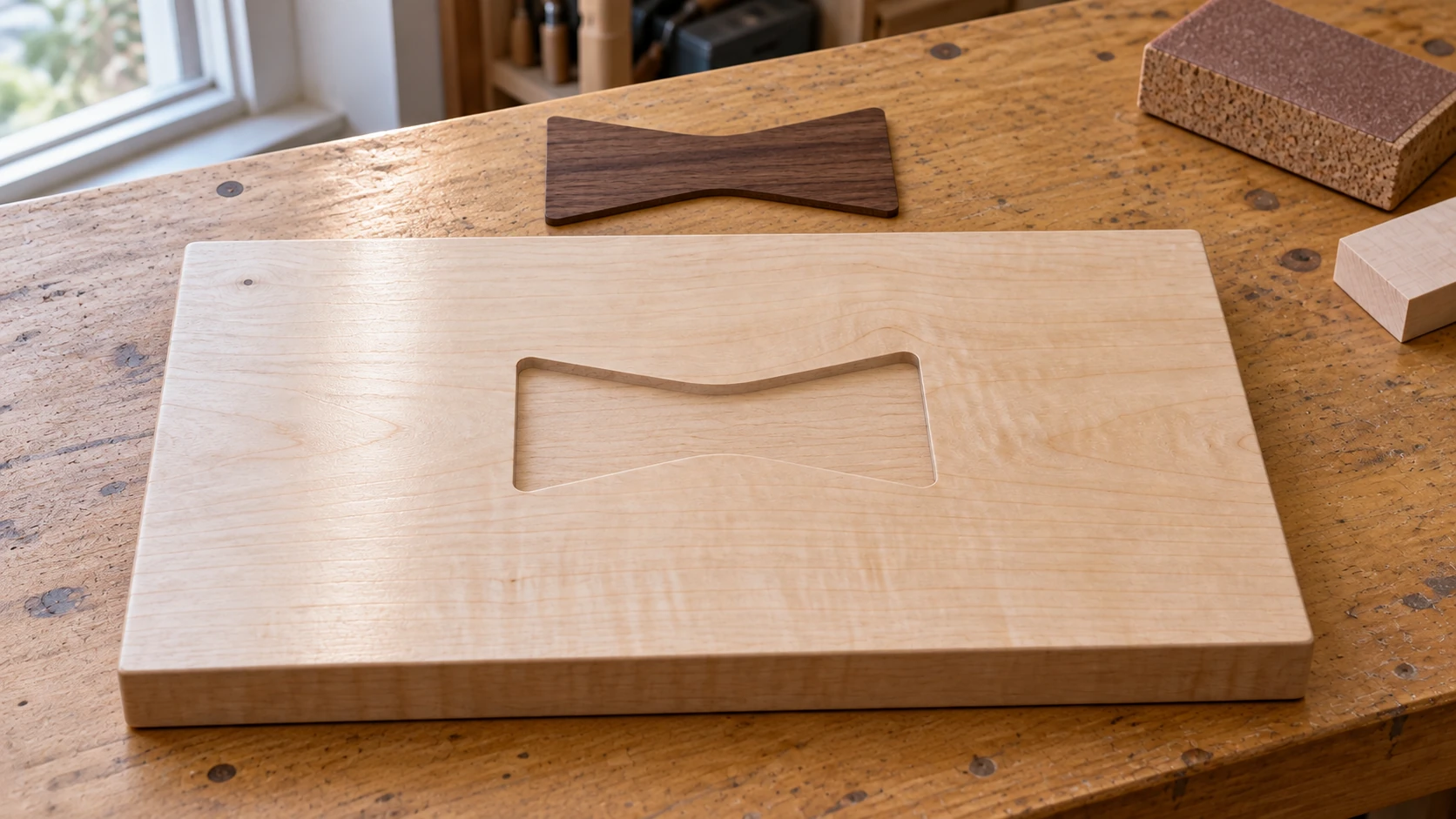
A pocket inlay before assembly: the separate insert follows the pocket outline, including the rounded corners left by the router bit.
Cutting and Assembly
The pocket:
- Use a flat-bottom end mill (1/8" for small inlays, 1/4" for larger ones)
- Set the depth based on your inlay material thickness. If your inlay piece is 1/4" thick, cut the pocket 1/4" deep (or 0.01" to 0.02" deeper if you want the inlay to sit slightly recessed for sanding flush)
- Use a profile pass for the pocket walls, then a pocket clearing pass for the interior
The inlay piece:
- Use the same end mill or one size smaller
- Cut a profile pass around the outside of the shape
- Add tabs to keep the piece from flying loose during the final profile cut (you'll snap them off later and sand the nubs)
- Apply the offset for your desired tolerance
Glue-up follows the same principles as V-carve inlays: thin, even coat in the pocket, press the piece in, clamp flat, clean up squeeze-out, let it cure fully before sanding.
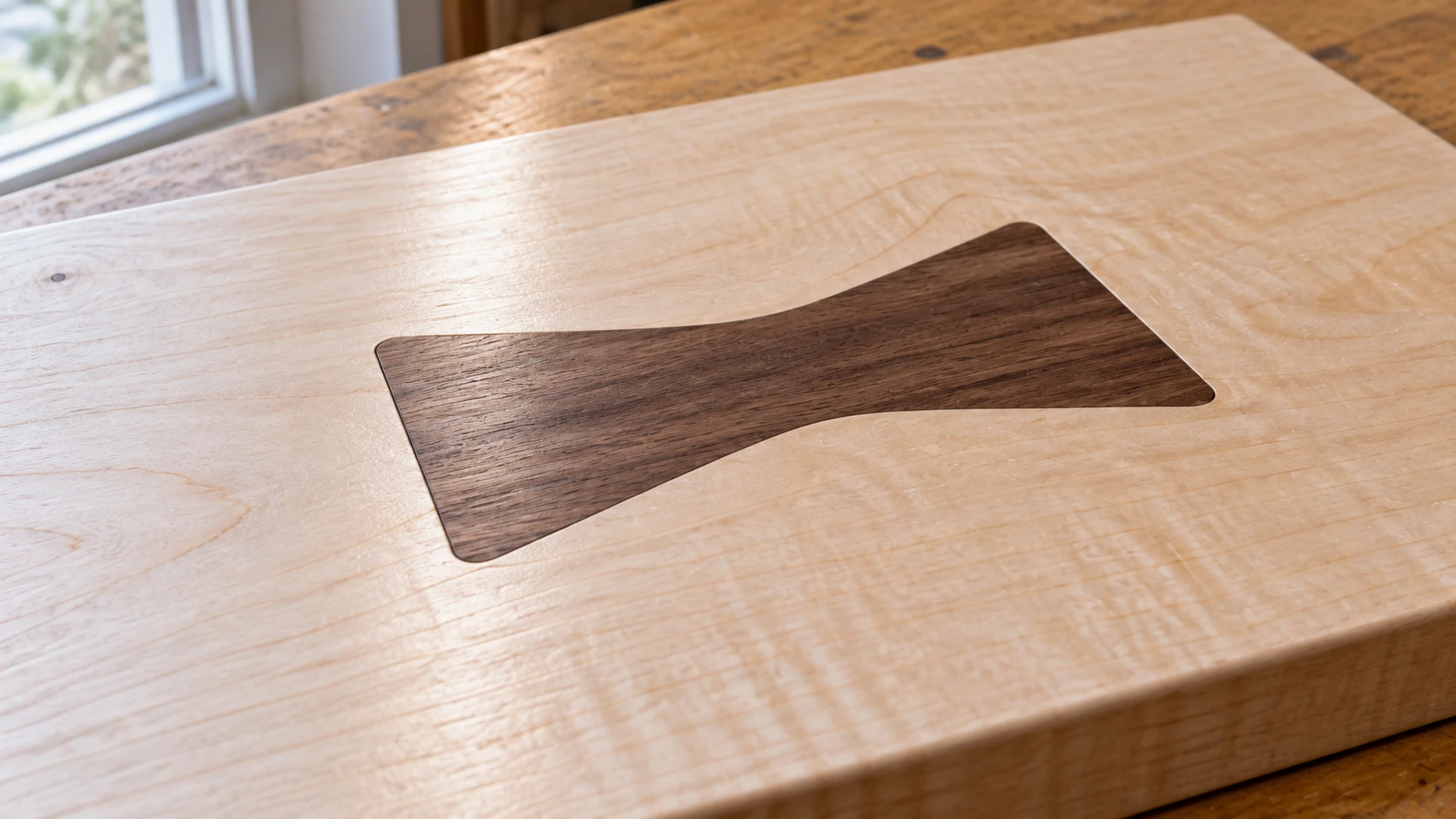
After glue-up and sanding, the insert and surrounding board meet at the same height. A close view makes gaps and raised edges easier to spot.
Epoxy Inlays: Easy Color, No Second Piece
Epoxy inlays are the most beginner-friendly type. You carve a design into wood, pour colored epoxy resin into the carved area, let it cure, and sand it flush. No matching pieces, no tight tolerances, no glue-up stress.
The results look different from wood-on-wood inlays. You get solid color fills instead of wood grain contrast. This makes epoxy inlays ideal for bold designs, river-table-style accents, and any project where you want a pop of color that wood can't provide.
Carving the Pocket
Any carving technique works for epoxy. V-carve for detailed text and logos, flat-bottom pocket for simple shapes, or even a ball-nose bit for 3D relief carvings.
A few epoxy-specific considerations:
- Depth matters for color intensity. Deeper pockets produce richer, more vibrant color because there's more epoxy. Shallow pockets (under 1mm) can look washed out, especially with lighter pigments. Aim for at least 1.5mm to 2mm depth for solid color impact.
- Seal the wood first. Raw wood is porous, and thin epoxy will wick into the grain around your carving. This creates fuzzy edges. Apply a coat of sanding sealer or thin CA glue to the entire surface before pouring. The sealer prevents epoxy migration without affecting the final appearance. Alternatively, do a thin seal coat of clear epoxy first, let it gel, then pour the pigmented epoxy.
- Undercuts help retention. Unlike wood inlays where the piece is glued to walls, epoxy bonds to whatever surface it touches. Slightly angled or textured walls help the cured epoxy grip the pocket. A V-carved pocket naturally has angled walls, which is ideal.
Mixing and Pouring Epoxy
Use a clear, low-viscosity casting epoxy. Table-top epoxies work but are thicker and trap more bubbles. Casting epoxies are thinner, self-level better, and let bubbles rise out.
Pigments and effects:
| Pigment Type | Effect | Notes |
|---|---|---|
| Mica powder | Metallic shimmer | Mix thoroughly; mica settles if too thin |
| Alcohol ink | Transparent color | Swirl effects, color layering possible |
| Epoxy dye (liquid) | Solid, uniform color | Most predictable results |
| Glow powder (phosphorescent) | Glows in dark | Mix heavy; powder is dense and settles fast |
| Crushed stone / turquoise | Natural stone look | Lay into pocket before pouring clear epoxy |
Pouring process:
-
Mix epoxy according to manufacturer's instructions. Ratio matters. Under or over-catalyzed epoxy either won't cure or cures brittle. Measure by weight if possible (more accurate than volume).
-
Add pigment to the mixed epoxy and stir thoroughly. Under-mixed pigment creates streaks (which might be a feature if that's the look you want).
-
Pour slowly into the pocket. Slightly overfill so the epoxy is proud of the surface. It will shrink slightly as it cures, and being proud gives you sanding room.
-
Pop the bubbles. Use a heat gun (quick passes, don't scorch the wood) or a butane torch (even quicker passes, very effective, slightly terrifying the first time). Bubbles trapped in cured epoxy look like defects, not features.
-
Let it cure fully. Most casting epoxies need 24 to 72 hours for full cure. Don't sand it early. Partially cured epoxy is gummy and will clog sandpaper instantly.
Sanding Flush
Start with 120-grit and work up to 400-grit or higher. Epoxy sands easily but generates heat, which can cause it to gum up. Use a random orbital sander, keep it moving, and let the sandpaper do the work.
If you want a glossy surface on the epoxy (instead of matte sanded), continue through 800, 1500, and 2000-grit wet sanding, then buff with polishing compound. Or just apply a glossy clear coat over the entire piece.
Tip
Epoxy and wood don't sand at the same rate. Epoxy is softer than most hardwoods and will dish out slightly, leaving it recessed relative to the wood surface. To prevent this, use a flat sanding block or a surfacing pass on the CNC. Orbital sanders without a block tend to follow the epoxy down.
Flat Puzzle-Style Inlays (Multicolor)
This technique is fundamentally different from the others. Instead of setting one material into another, you cut multiple pieces from different materials and assemble them edge-to-edge on a backer board, like a jigsaw puzzle. The result is a flat surface with multiple wood species (or acrylic colors) forming an image.
The design challenge is significant: you need every color in your image converted to a separate cut file, and every piece needs to fit together with no gaps. Doing this by hand in vector software is tedious. This is exactly the problem MosaicFlow solves.
Using MosaicFlow to Generate Layers
MosaicFlow takes an image and automatically separates it into color regions with clean vector boundaries. Each color becomes a cuttable SVG layer. Here's the workflow:
- Upload your image to MosaicFlow. The AI analyzes the colors and groups them into distinct regions.
- Adjust color count. Start with 4 to 6 colors for your first project. More colors means more pieces to cut and assemble.
- Merge and exclude colors. Combine similar shades and remove background colors you don't need.
- Use the despeckle slider to eliminate tiny fragments that would be impossible to cut and place.
- Download the SVG. Each color is a separate layer.
For a detailed walkthrough of the MosaicFlow workflow, including tips for image selection and color optimization, see our multicolor inlay guide.
Cutting Each Color
Each SVG layer gets cut from a different material. This is where the species selection matters most. You want woods that contrast with each other enough that the color boundaries are clearly visible.
Cutting tips for puzzle-style inlays:
- Use the same thickness for all pieces. 1/8" (3mm) or 1/4" (6mm) plywood or solid wood works well. If pieces vary in thickness, you'll see steps at the joints after assembly.
- Cut all pieces from the same batch of material where possible. Even within the same species, different boards can vary in color and thickness.
- Use tabs on every piece. Small pieces will fly loose during the final profile cut. Tabs hold them in place. You'll trim the tabs later.
- Cut slightly outside the line (0.002" to 0.003" outward offset) so pieces fit snugly rather than loosely. You can always sand a tight fit. You can't add material to a loose one.
- Number your pieces. With 40 or 50 pieces from a complex design, you will lose track of what goes where. Label the back of each piece with its color group number before removing it from the sheet.
Assembly on Backer Board
-
Lay out all pieces on a flat surface to verify fit before gluing. This is your last chance to sand any tight joints or identify missing pieces.
-
Cut a backer board from 1/4" or 1/2" plywood. It should be slightly larger than the assembled design. You'll trim it to final size later.
-
Apply wood glue to the backer board and place pieces one at a time, starting from one corner or edge and working across. Some people prefer to glue pieces to each other as well as to the backer, but gluing to the backer only is fine for most projects.
-
Use a flat caul and clamps to press everything flat. Weight also works, just make sure the surface stays flat. A bag of sand distributed over a sheet of wax paper makes a surprisingly good clamping setup.
-
After the glue cures, sand the face flat. If all pieces were the same thickness, minimal sanding is needed. If there's any variation, a light surfacing pass on the CNC or careful sanding with a flat block evens everything out.
Wood Species for Inlays: Contrast Is Everything
The whole point of a wood-on-wood inlay is contrast. If your inlay and base are similar in color, nobody will see it from more than a foot away. Here are proven combinations.
High-Contrast Pairings
| Base (Light) | Inlay (Dark) | Contrast Level | Notes |
|---|---|---|---|
| Hard Maple | Walnut | Excellent | The classic. Cream vs dark brown. Works every time. |
| Maple | Padauk | Striking | Cream vs reddish-orange. Padauk darkens over time to brown. |
| Ash | Wenge | Excellent | Pale vs near-black. Wenge is tough on bits but gorgeous. |
| Holly | Ebony | Maximum | White vs black. Holly is expensive and yellows with age. |
| Birch | Walnut | Very Good | Similar to maple/walnut but slightly warmer tone. More affordable. |
Medium-Contrast Pairings
| Base | Inlay | Contrast Level | Notes |
|---|---|---|---|
| Cherry | Maple | Medium | Warm reddish vs pale. Cherry darkens significantly over months. |
| White Oak | Walnut | Good | Both have visible grain, adds texture contrast too. |
| Maple | Purpleheart | Good-Excellent | Cream vs vivid purple. Purpleheart fades to brown over years unless UV-protected. |
Tips for Species Selection
- Grain direction matters. Cross-grain inlays (inlay grain perpendicular to base grain) create interesting visual effects but can cause cracking over wide areas as the wood moves seasonally. For structural stability, match grain directions.
- Hardness should be similar. A very soft inlay in a very hard base (or vice versa) will sand unevenly. Softwood species also dent more easily in the finished piece.
- Oily exotics need epoxy. Species like cocobolo, ipe, and teak have natural oils that prevent standard wood glue from bonding. Use epoxy for these.
- Plywood works for puzzle-style inlays. Baltic birch plywood is consistent, affordable, and cuts cleanly. The edge grain of plywood is visible, but for backer-mounted puzzle inlays, only the face shows.
Toolpath Setup: Software-Specific Details
Let's get into the specific software settings for V-carve inlays, since that's the technique with the most toolpath nuance. If you're still choosing CAM software, our guide on free design software for makers covers the options.
VCarve Pro / Aspire
VCarve Pro is the most popular choice for inlay work because it has a dedicated inlay toolpath that handles the math for you.
Pocket toolpath:
- Select your design vectors
- Toolpath menu > V-Carve / Engrave
- Tool: select your V-bit (60 or 90 degree)
- Flat Depth: 0.125" (start here, adjust based on design width)
- Check "Use Flat Area Clearance Tool" and select a 1/8" or 1/4" flat end mill
- Start Depth: 0.0"
- Calculate
Plug (male inlay) toolpath:
- Select the same vectors
- Toolpath menu > V-Carve Inlay (if available) or V-Carve with "Invert" checked
- Same V-bit as the pocket
- Flat Depth: same as pocket (0.125")
- Start Depth (Allowance): 0.04" to 0.06"
- If using the inlay toolpath, it automatically mirrors and inverts
- Calculate
VCarve Pro versions 11.5 and later have a streamlined inlay toolpath that generates both pocket and plug in one step. If you have an older version, the manual method (setting invert and start depth) works identically.
Carbide Create
Carbide Create doesn't have a dedicated inlay toolpath, but you can set one up manually.
Pocket:
- Select vectors
- Create V-Carve toolpath
- Select V-bit
- Set Max Depth to your flat depth (0.125")
- Optionally add a pocket clearing toolpath with an end mill at the same depth
Plug:
- Mirror the design (Edit > Mirror Horizontal)
- Create a V-Carve toolpath on the mirrored design
- Same V-bit
- Set Max Depth to flat depth (0.125")
- Manually add a Start Depth value (some versions support this in advanced settings; if not, you may need to adjust the Z-zero on the machine by the glue allowance amount)
Info
If your version of Carbide Create doesn't support start depth in the V-carve toolpath, you can achieve the same result by raising your material Z-zero by the glue allowance amount. If your glue allowance is 0.05", set Z-zero 0.05" above the actual surface when cutting the plug. The machine thinks it's starting at the surface but it's actually starting 0.05" into the air, which creates the extra height on the plug.
Fusion 360
Fusion 360 is the most powerful option but requires the most setup for inlay work. There's no inlay wizard, so everything is manual.
Pocket:
- Create a 2D Contour or Pocket operation
- Select the design geometry
- Choose your V-bit (create a custom tool: set the angle, tip diameter, and shaft)
- Set bottom height for your flat depth
- Create a second operation with a flat end mill for clearing wide areas
Plug:
- Mirror the design body or sketch
- Create a 2D operation on the mirrored geometry
- Use the same V-bit
- Set the top of stock offset (this is your glue allowance)
- Set bottom height to match the pocket's flat depth
Fusion 360 gives you the most control over stepover, lead-in/lead-out, and rest machining, but the setup takes longer. For straightforward inlay work, VCarve Pro is faster. Fusion shines when you need 3D pockets, complex multi-axis work, or tight integration with your 3D model.
Common Problems and Fixes
Every inlay project has at least one moment where you question your life choices. Here are the most common issues and how to fix them. For general CNC troubleshooting beyond inlays, our common CNC mistakes guide covers the broader problems.
Gaps in the Inlay
What it looks like: Visible space between the inlay and the pocket walls. Might be consistent all around, or worse on one side.
Causes and fixes:
| Cause | Fix |
|---|---|
| Flat depth mismatch between pocket and plug | Verify both toolpaths use identical flat depth values |
| Different V-bit angles used for pocket vs plug | Always use the same V-bit (exact same angle and tip width) |
| Stock moved during cutting | Improve workholding (double-sided tape + clamps) |
| V-bit tip is worn or chipped | Inspect the tip under magnification; replace if damaged |
| Plug not fully seated | Apply more clamping pressure during glue-up (the plug should bottom out) |
| Offset applied incorrectly | Check if your pocket has an outward offset that wasn't matched on the plug |
The most common cause, by far, is a flat depth mismatch. If the pocket's flat depth is 0.125" and the plug's is 0.100", the angles won't meet at the right height and you'll see gaps at the surface. Always verify this number in both toolpaths before cutting.
Inlay Sitting Proud (Not Flush)
What it looks like: The inlay sticks up above the surrounding surface after glue-up.
This is expected. The glue allowance (start depth on the plug) intentionally makes the plug proud. If it's proud by roughly the amount you set as your start depth (typically 0.04" to 0.06"), everything is correct. Sand or surface it flush as described in the trimming section.
If it's significantly more proud than expected, the plug may not have seated fully. Check that no dried glue or debris is in the bottom of the pocket preventing full seating.
Inlay Below the Surface (Recessed)
What it looks like: The inlay sits lower than the surrounding wood after trimming.
Causes:
- No start depth (glue allowance) was set on the plug toolpath. Without that extra height, the plug seats perfectly flush and there's nothing to sand. When you surface the piece, you sand through the inlay material.
- Over-sanding. You sanded past the glue allowance and into the inlay. Go slower with finer grits as you approach flush.
- Plug wasn't fully seated before glue dried. One side might be flush while the other is recessed.
Glue Squeeze-Out Stains
What it looks like: Dark or light blotchy areas around the inlay, visible after staining or finishing. The glue residue seals the wood pores and prevents stain from absorbing.
Prevention is the only real fix:
- Apply glue sparingly. A thin, even coat on both surfaces. No puddles.
- Wipe squeeze-out immediately with a damp (not dripping) cloth.
- For critical appearance pieces, apply a pre-stain conditioner or sanding sealer before glue-up. This evens out the stain absorption around the joint.
- If you've already glued and the stain is blotchy, sand the affected area down to bare wood (below the glue penetration) and re-stain. Sometimes this fixes it, sometimes the glue has penetrated too deep.
Chipped Edges on the Inlay
What it looks like: Small chips or tearout along the edges of the inlay, especially on the surface where the plug meets the base.
Causes and fixes:
- Dull V-bit. V-bits dull faster than end mills because the tip is fragile and does most of the work. Replace or sharpen the bit. Carbide V-bits last longer than HSS.
- Wrong feed rate. Too fast causes tearout. Too slow causes heat buildup and burning (which weakens the edge). Check our feeds and speeds guide for starting points.
- Climb vs conventional milling. For clean edges on inlays, conventional milling (bit rotation opposes feed direction) generally produces cleaner results on the visible edges. Some CAM software lets you choose this per operation.
- Grain direction. Cutting across end grain on certain species (especially oak and ash) tends to chip more. Orient your design so the most visible edges align with the grain where possible.
- Sanding damage. Aggressive sanding (below 120-grit) on the inlay edge can chip thin sections. Start at 120 or finer near the inlay joint.
Inlay Cracking After Weeks or Months
What it looks like: Hairline cracks appear in the inlay or the base wood along the inlay boundaries, weeks or months after the project was completed.
Cause: Wood movement. Wood expands and contracts with humidity changes, and it moves more across the grain than along it. If your inlay has a different grain direction than the base, seasonal wood movement creates stress at the joint. Wide inlays are more susceptible than narrow ones.
Prevention:
- Match grain direction between the inlay and base when possible
- Keep inlay widths reasonable (under 2" across the grain for solid wood)
- Apply a good finish to slow moisture exchange. Our finishing guide covers options
- For wide inlays or humid environments, consider using plywood for the inlay (plywood doesn't move seasonally)
- Avoid placing inlays near edges where the wood is most prone to movement
Tips for Production Runs
Once you've nailed the technique on one-off projects, you might want to make multiples. Maybe you're selling personalized cutting boards on Etsy. Maybe a customer ordered 20 branded coasters. Here's how to scale up.
Batch Your Operations
Cut all the pockets first, then all the plugs. This saves you from changing bits back and forth. If you have multiple inlay designs, group by bit type:
- Mount the V-bit. Run all V-carve pocket toolpaths.
- Change to the flat end mill. Run all clearing toolpaths.
- Change stock to the contrasting wood. Mount the V-bit again. Run all plug toolpaths.
Use Templates and Jigs
If you're making the same inlay in different base pieces (like a logo in every cutting board), create a registration jig. A simple MDF frame with corner stops lets you place each board in the same position, which means you can use the same toolpath without re-zeroing X and Y every time. You only need to re-zero Z for each new board.
Dial In Your Settings Once
Your first two or three inlays should be test pieces in scrap wood of the same species you'll use for production. Get the flat depth, glue allowance, and feeds and speeds dialed in on scrap before committing production material. Write down the settings that work. Tape them to your CNC.
Pre-Cut Plug Stock
For V-carve inlays, the plug only uses material where the design is. The rest of the contrasting stock is waste. To minimize expensive wood waste, cut small blanks just slightly larger than your design footprint. If your inlay design fits in a 4" x 2" area, cut 4.5" x 2.5" blanks from your walnut board. No need to waste a full 12" x 12" sheet for each plug.
Assembly Line the Glue-Up
Glue-up is the bottleneck in production. Set up a dedicated station with:
- Pre-cut cauls (flat blocks for clamping)
- Damp rags for squeeze-out
- A row of clamps ready to go
- Wax paper between the caul and the inlay (prevents the caul from bonding to squeeze-out)
Time your glue open time. Titebond II gives you about 5 to 7 minutes of open time. If you're doing multiple inlays, don't try to glue them all at once. Work in batches of 3 to 5 pieces, depending on how fast you can apply glue and clamp.
Plan for Finishing
If you're applying stain or finish, test it on a scrap inlay piece first. Different species absorb stain differently, and what looks great on maple alone might look terrible when walnut is right next to it. Oil finishes (Danish oil, tung oil) tend to be more forgiving than stains because they enhance the natural color difference rather than adding a new color on top. See our finishing guide for the full breakdown.
Quick Reference: Inlay Method Decision Guide
Not sure which technique to use? This flowchart might help.
Is the inlay a single color/material?
- Yes > Is the design detailed (thin lines, small text)?
- Yes > Use a V-carve inlay (best detail, tight joints)
- No > Is the shape simple with no sharp inside corners?
- Yes > Use a pocket inlay (simpler setup, fewer variables)
- No > Use a V-carve inlay (handles corners better)
- No > Multiple colors from different materials?
- Yes > Use flat puzzle-style with MosaicFlow
- Just want color, not wood grain?
- Yes > Use an epoxy inlay (easiest execution, unlimited color options)
Wrapping Up
CNC inlays look complex, but every technique follows the same basic pattern: cut a hole, cut a matching piece, put the piece in the hole. The details vary, but the concept doesn't.
Start with one technique. If you have a V-bit, try a V-carve inlay of your initials in a piece of scrap. If you don't have a V-bit, try a simple pocket inlay with a contrasting wood circle. If you want instant gratification, try an epoxy fill in a V-carved design.
Once you've done one successfully, the second one is twice as fast. By the fifth, you'll be eyeing your dining table and wondering if it needs a walnut inlay border.
It probably does.
Ready for multicolor puzzle-style inlays? MosaicFlow turns any image into cut-ready color layers in minutes. Need custom vector art for a V-carve inlay first? Vector Studio can generate one from a text description.
Related Tools
Ready to try these tools?
Sign up free, no credit card required. Free tools available immediately.
Start Free