

10 AI Tools Every Maker Should Know About in 2026
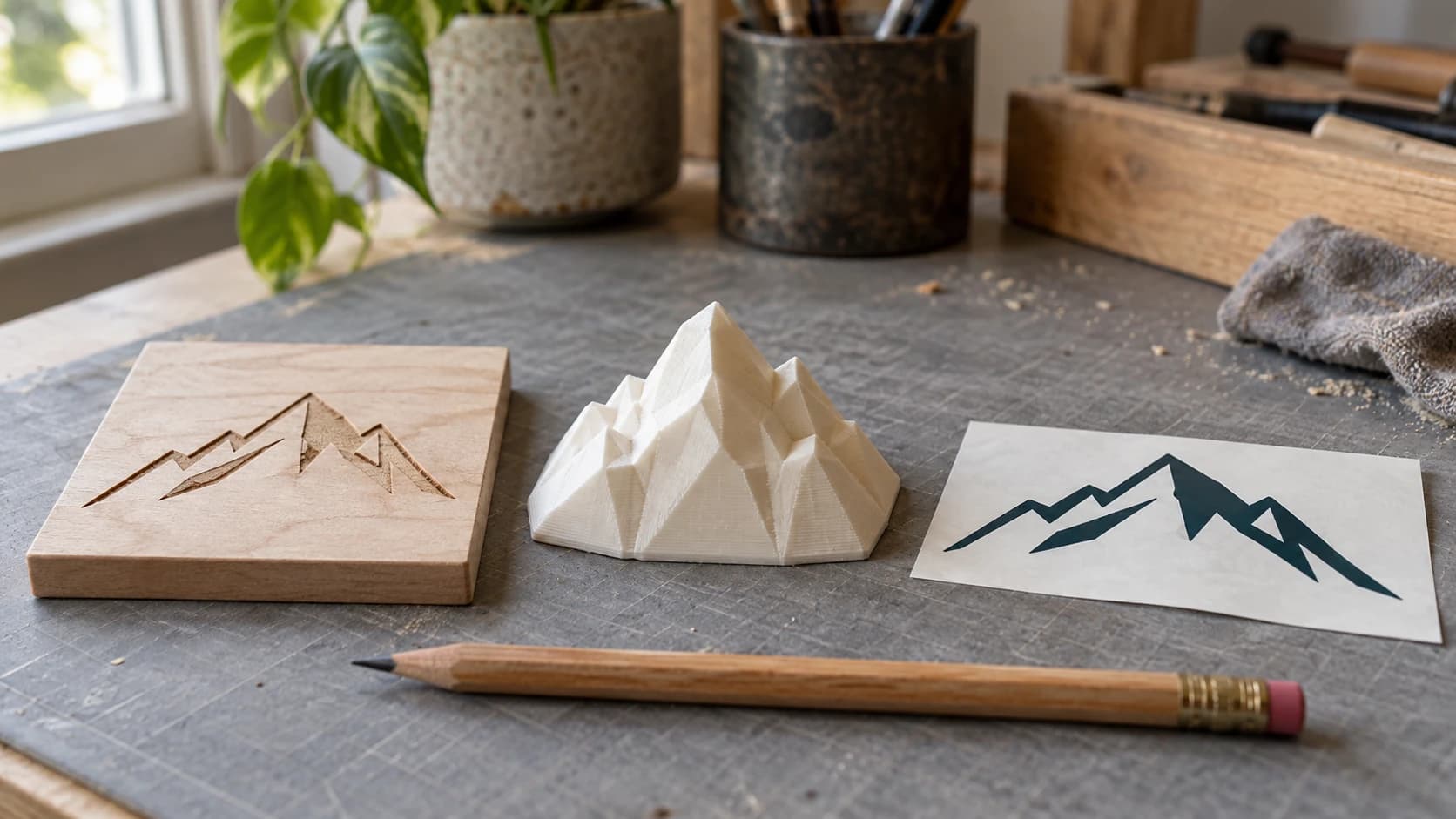
AI tools are everywhere right now. Every app, every platform, every startup wants you to know they've sprinkled some artificial intelligence into their product. Most of it is marketing nonsense. Some of it is genuinely useful. And a small number of tools have quietly become the kind of thing you'll wonder how you ever worked without.
This guide covers ten AI tools that actually matter for makers in 2026. Not theoretical tools. Not "coming soon" promises. Real tools you can use today for CNC routing, laser engraving, 3D printing, cutting machines, and selling the stuff you make. Some are built into Craftgineer. Some are external tools you've probably heard of. A couple are newer entries that are worth keeping an eye on even if they're not fully mature yet.
For each one, I'll tell you what it does, what it costs, when it's useful, and when it's not. No hype. Just honest assessments from someone who spends way too much time making things with machines.
Quick note on how this list is organized: the first six tools are Craftgineer tools built specifically for makers. They output machine-ready files or provide maker-specific knowledge. The last four are external or emerging tools that are useful in different ways. Both categories matter. The distinction is mainly about how directly the output connects to your machine workflow.
1. Vector Studio: AI Text-to-Vector Design
What it is: You describe a design in plain English, pick a style, and get a machine-ready SVG back. That's it. No drawing skills required.
Platform: Vector Studio on Craftgineer Cost: 1 credit per generation
Vector Studio uses Google's Gemini image model to generate SVG designs from text prompts. You type something like "Celtic knot border, symmetrical, clean lines" and it produces an actual vector file you can send straight to your laser cutter or CNC router. Not a PNG that you then have to trace. Not a concept image you need to recreate in a vector editor. A real SVG with real paths.
How makers use it
The sweet spot is decorative elements and design starting points. Need a floral border for a cutting board? A geometric pattern for an acrylic panel? A logo concept for a custom sign? Type it, pick your style (line art, silhouette, geometric, vintage, and a bunch more), and you've got something usable in about ten seconds.
It's also great for the "I know what I want but I can't draw it" problem. Most makers aren't illustrators. We're good with machines, not necessarily with bezier curves. Vector Studio bridges that gap.
Practical example
Say you're making a personalized wedding sign on your laser engraver. You need a floral frame design to surround the couple's names. Previously, you'd browse stock vector sites for an hour, buy something that's close enough, then spend another hour in a vector editor modifying it. With Vector Studio, you type "elegant floral frame with roses and leaves, symmetrical, line art style" and you've got a custom design in seconds. Drop it into your layout software, add the text, done.
Prompt tips that actually help
The quality of your output depends a lot on how you describe what you want. A few things I've learned:
Be specific about the visual style. "Flower" gets you something generic. "Single-stem rose with thorns, botanical illustration style, clean outlines" gets you something you can actually use. Include words about the visual treatment (silhouette, line art, geometric, vintage) and the level of detail (simple, detailed, intricate).
Mention symmetry if you need it. Decorative borders, frames, and patterns usually look better symmetrical, and specifying that in your prompt makes a difference.
Tell it what the design is for. "Celtic knot for laser engraving on a cutting board" produces different results than just "Celtic knot." The AI adjusts the complexity and line weight when it understands the manufacturing context.
Strengths
- Outputs actual SVG files, not raster images
- Multiple style options tuned for maker use cases
- Fast iteration: don't like the result, tweak your prompt and regenerate
- Works for decorative elements, borders, patterns, logos, and icons
Limitations
- Complex mechanical or technical designs are beyond what it handles well
- Sometimes needs prompt refinement to get exactly what you want
- Not a replacement for detailed custom artwork (but a great starting point)
- Occasional geometric inconsistencies in highly detailed designs
We covered Vector Studio in depth in our AI SVG generator guide, including prompt tips and style comparisons.
PRINT. CUT. CARVE.



- Multiple formats (SVG, DXF, PNG)
- Machine-tested designs
- Commercial licenses
Sponsored by PrintCutCarve.com
2. Craft Chat: AI Troubleshooting and Learning Assistant
What it is: An AI chatbot trained specifically on maker knowledge. Ask it about CNC feeds and speeds, laser settings for different materials, 3D printer troubleshooting, or cutting machine techniques. It actually knows what it's talking about.
Platform: Craft Chat on Craftgineer Cost: Free (uses chatbot messages, not credits. 10 messages/month on free tier, up to 5,000 on Engineer tier)
How makers use it
Craft Chat is the shop assistant who's read every manual, every forum thread, and every troubleshooting guide. Instead of spending twenty minutes searching Reddit for why your laser is leaving scorch marks on maple, you ask Craft Chat. Instead of guessing at feeds and speeds for a new bit, you describe your setup and get specific recommendations.
It uses RAG (Retrieval-Augmented Generation) to pull from a curated knowledge base of maker-specific content. This means it doesn't just generate plausible-sounding answers from general training data. It retrieves actual relevant information and uses that to form its response. The difference matters. Generic AI chatbots will confidently tell you nonsense about laser settings. Craft Chat is working from real maker documentation.
Practical example
You just switched from engraving on birch plywood to walnut, and your settings that worked perfectly on birch are burning too deep. You could run a dozen test pieces at different power and speed combinations. Or you could ask Craft Chat: "I'm using a 10W diode laser. What power and speed should I use for engraving on walnut? I was running 80% power at 3000mm/min on birch plywood."
You'll get specific starting points, an explanation of why walnut behaves differently (it's denser, darker, absorbs more energy), and tips for getting clean results. You'll still want to run a small test, but you'll start much closer to the right settings instead of guessing.
Strengths
- Trained on maker-specific knowledge, not just general internet content
- Covers CNC, laser, 3D printing, and cutting machines
- Great for troubleshooting specific problems
- You can upload photos and ask "what went wrong?"
Limitations
- Not a replacement for understanding your own machine's quirks
- Message limits vary by subscription tier
- Complex multi-step problems might need follow-up questions
- Answers are recommendations, not guarantees. Always test on scrap material first.
RAG vs. generic AI: why it matters
The technical difference between Craft Chat and asking the same question to ChatGPT is worth understanding. Generic chatbots generate responses from their training data, which includes a massive amount of internet text, some of it accurate and some of it wrong. They can sound confident while giving you settings that would ruin your workpiece.
Craft Chat uses Retrieval-Augmented Generation. Before answering your question, it searches a curated knowledge base of verified maker content and pulls relevant information into context. The AI then generates its response based on that specific, vetted information rather than its general training data. This doesn't make it infallible, but it significantly reduces the "confidently wrong" problem.
Think of it like the difference between asking a random person on the street about CNC feeds and speeds versus asking someone who has the relevant reference manual open in front of them. Both might give you an answer. One is much more likely to be correct.
Tip
Craft Chat gets better results when you include specifics. Instead of "my prints are failing," try "my PLA prints are lifting off the bed on the first layer, using a textured PEI sheet at 60C bed temp." The more context you give, the more useful the answer.
For a deeper look at how AI troubleshooting works for makers, see our guide on using AI to troubleshoot your machine.
3. ListingLab: AI Product Listings and Photos
What it is: Upload a photo of something you made. Get Etsy-optimized titles, descriptions, SEO keywords, and AI-generated product photos in various styles. Built specifically for maker sellers.
Platform: ListingLab on Craftgineer Cost: Text generation uses chatbot messages (free tier gets 10/month). AI product photos cost 1 credit each.
How makers use it
Writing product listings is the part of selling handmade goods that nobody enjoys. You made a beautiful walnut cutting board with a custom laser engraving. Now you need to write three title variations optimized for Etsy search, a description that sells, a list of key features, 13 SEO keywords, and social media posts. That's an hour of work you'd rather spend in the shop.
ListingLab handles all of it. Upload your product photo, tell it a few basics (what it is, what material, dimensions), and it generates everything. Three title options, three descriptions, feature lists, keywords, and social posts ready to copy and paste.
The AI product photo feature is the newer addition and honestly the more interesting one. It takes your product photo and generates it in 35+ styles: lifestyle settings, seasonal themes, holiday backgrounds, flat lays, and more. Your cutting board sitting on your workbench becomes your cutting board styled on a marble kitchen counter with fresh herbs and olive oil nearby. That's the kind of product photography that sells, and normally it requires a whole photo setup.
Practical example
You've made a batch of laser-engraved leather keychains. You snap a photo on your desk. ListingLab generates titles like "Personalized Leather Keychain, Custom Engraved Gift, Handmade Accessories" (with Etsy keyword research baked in), a description covering the leather type, personalization options, and care instructions, plus keywords that match current search trends. Then you generate a few product photos: one lifestyle shot with keys on a rustic table, one gift-themed shot with wrapping paper nearby, one clean white background shot.
Total time: about five minutes. Total cost for a complete listing with styled photos: a few chatbot messages and a handful of credits.
Strengths
- Etsy SEO optimization built in (titles, tags, keywords)
- Multiple title and description variations to choose from
- AI product photos save the cost and hassle of professional photography
- 35+ photo styles for different seasons and settings
Limitations
- AI product photos are good but not always perfect. Check them before posting.
- Works best when you give it accurate product details
- Text generation quality depends on how much context you provide
The real value proposition
Here's the math that convinced me ListingLab is worth it. A professional product photographer charges $25-50 per styled photo. A copywriter who knows Etsy SEO charges $50-100 per listing. Even if you DIY both, you're spending at least an hour per product on listing creation. ListingLab compresses that to about five minutes per product for the text, plus 1 credit per AI photo. If you have a booth of 30 products, that's the difference between a full weekend of listing work and an evening.
For more on AI product photography, check out our guide on creating AI product photos for Etsy.
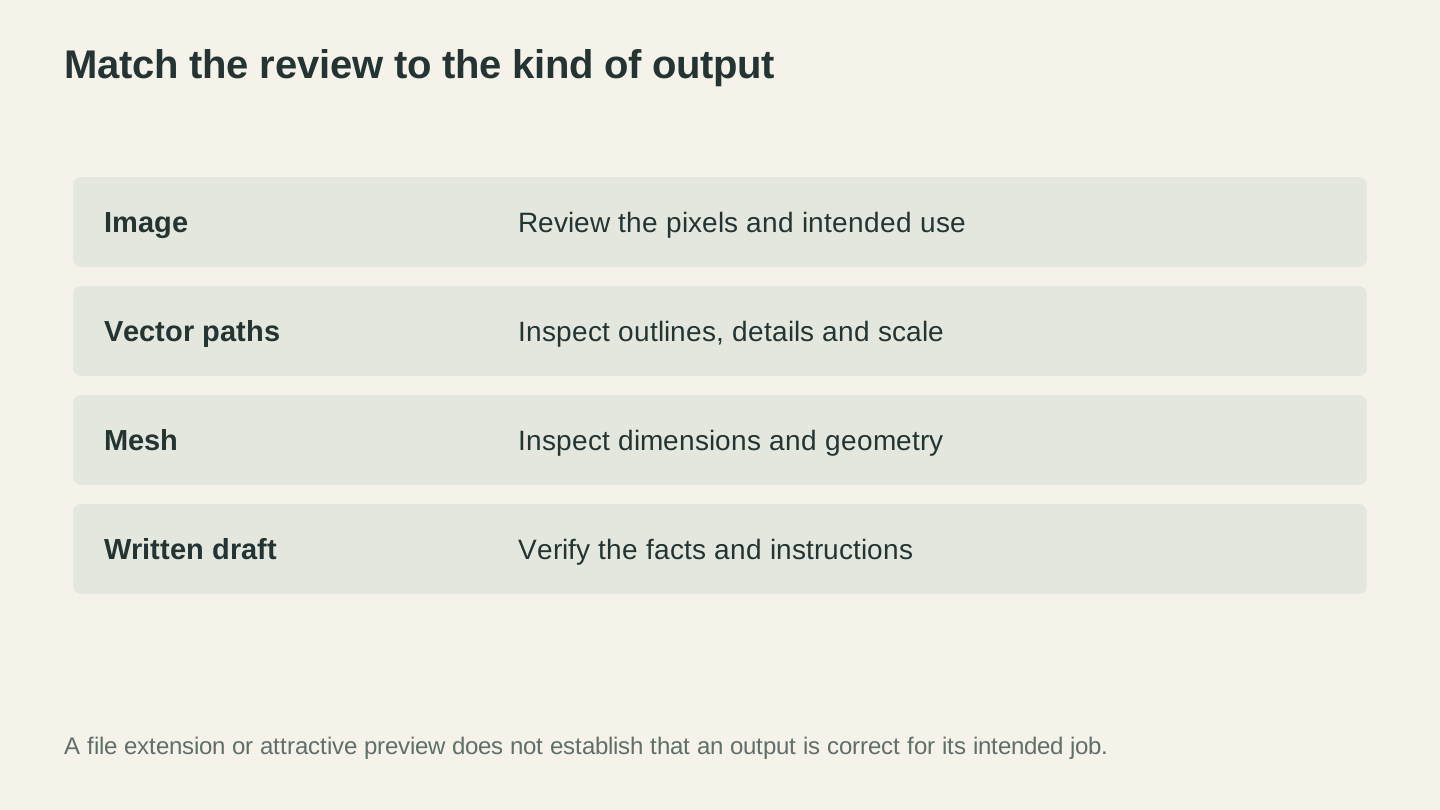
Match the review to the output. An attractive preview does not establish correct dimensions, workable geometry or accurate instructions.
4. Canvas Pro: Free Browser-Based Image Editor
What it is: A full-featured image editor that runs in your browser. Layers, brushes, shapes, text, and selection tools. Nothing to install, no subscription.
Platform: Canvas Pro on Craftgineer Cost: Free
How makers use it
Canvas Pro fills the gap between "I need to make a quick edit to an image" and "I'm not paying for a full desktop photo editor." That gap is enormous for makers. You need to remove a background from a logo. You need to add text to a design. You need to combine elements from three different images into one file. You need to clean up a scan before vectorizing it.
Previously your options were a full-featured photo editor (powerful but overwhelming), a general design tool built for social graphics rather than machine-ready files, or just suffering through it in whatever software your machine came with. Canvas Pro gives you a proper layer-based editor with the tools makers actually need, and it hands off cleanly to MonoTrace when a design has to become a vector.
Practical example
You downloaded a clipart pack of farm animals for a kids' sign project. You need to combine a chicken, a cow, and a pig into one design, add "Welcome to Our Farm" in an arc above them, and get it to your laser cutter. In Canvas Pro, you import each animal on its own layer, arrange them, add a text layer with your message, adjust sizing, and export a PNG. Run that through MonoTrace, also free, and you have the SVG. The whole thing happens in your browser.
The specialty brushes (chalk, calligraphy, vintage, pattern) are also worth mentioning for adding hand-drawn touches to designs. The calligraphy brush in particular produces nice script lettering that converts well to vector paths.
Strengths
- Truly free, no feature gatekeeping
- Exports PNG, JPEG, and WebP, and pairs with MonoTrace for machine-ready vectors
- Layer system with opacity and visibility controls
- Specialty brushes designed for decorative work
- Runs in any modern browser, nothing to install
Limitations
- Not as full-featured as dedicated desktop photo editors (but that's not the target)
- Very large images may run slower in the browser
- Complex photo editing (color correction, healing brush) is not its focus
We did a full walkthrough of Canvas Pro's maker workflows if you want the deep dive.
5. Photo Converter: Photo to Line Art
What it is: Takes a photograph and converts it into pen-and-ink style line art. Specifically designed for laser engraving photos onto wood, slate, and other materials.
Platform: Photo Converter on Craftgineer Cost: 1 credit per conversion
How makers use it
Engraving photographs directly onto materials is tricky. Laser engravers work by varying power to create different shades, and the results depend heavily on the material, the image, and your settings. Get it wrong and you either barely mark the surface or burn a dark rectangle. The sweet spot between "too light" and "charcoal" is frustratingly narrow on many materials.
Many makers prefer to convert photos to line art first because the result is more predictable, more stylized, and often just looks better on materials like wood and slate. Line art uses only black and white (or line and no-line), so your engraving settings are straightforward: one power, one speed, binary output.
Photo Converter uses Google's Gemini AI to analyze your photo and render it as line art. Not a simple edge detection filter (those look terrible). Actual artistic interpretation that preserves the important details and creates clean, engravable lines.
Two modes are available:
- Standard: Black lines on white background. The default for most materials.
- Inverted: White lines on dark background. Perfect for dark materials like slate, anodized aluminum, or dark-stained wood where the laser reveals a lighter layer underneath.
Practical example
A customer wants a portrait of their dog laser engraved on a wooden plaque. You've got a nice photo from the customer, but engraving it directly as a raster image would require dialing in halftone settings and doing test burns to get the shading right. Instead, you run it through Photo Converter, get a clean line art version in about three seconds, and engrave that. The result looks intentionally artistic rather than "I tried to print a photo on wood."
For more detail on the full photo-to-engrave workflow, our photo to laser engraving guide covers the entire process.
Strengths
- AI-powered line art (not just edge detection)
- Inverted mode for dark materials
- Fast processing (under 5 seconds)
- Results are immediately usable, minimal cleanup needed
Limitations
- Highly detailed photos with busy backgrounds need cropping first
- Very dark or low-contrast photos may need brightness adjustment before converting
- Results are artistic interpretations, not photographic reproductions (that's the point, but worth noting)
6. MosaicFlow: Image to Multicolor Inlay
What it is: Upload an image and it separates the colors into individual layers for multicolor inlay work. Each color becomes its own vector file, ready for CNC cutting, laser cutting, or multi-material 3D printing.
Platform: MosaicFlow on Craftgineer Cost: 1 credit per image
How makers use it
Multicolor inlays are one of the most impressive things you can make on a CNC or laser, but the design prep is tedious. You need to separate each color into its own cut file, ensure the pieces fit together precisely, and handle the order of assembly. MosaicFlow automates all of that.
Upload a logo, artwork, or design. MosaicFlow's AI analyzes the colors and separates them into 4-16 distinct groups. You can adjust the color count, merge similar shades, exclude the background, and use the despeckle slider to clean up small artifacts. The output is a layered SVG where each color is its own cut path.
The 3D preview is particularly useful. Before you cut anything, you can see exactly how the finished inlay will look with all the pieces assembled.
Practical example
You want to make a multicolor logo inlay for a client. The logo has five colors plus a background. Normally, you'd manually trace each color area in a vector editor, creating separate cut paths for each one. With MosaicFlow, you upload the logo file, adjust the color detection to five colors, exclude the background, and download the layered SVG. Each color maps to a different material (walnut, maple, cherry, padauk, and purpleheart, for instance).
For the full technique, our multicolor wood inlay guide covers material selection, cutting order, and assembly.
Strengths
- AI color separation is fast and accurate
- Bubble palette makes merging/excluding colors intuitive
- 3D preview before you commit to cutting
- Despeckle slider eliminates small artifacts without manual cleanup
Limitations
- Works best with images that have distinct, solid color areas
- Photographs with gradients need simplification first
- Very fine details may be lost at small inlay sizes
Info
MosaicFlow creates puzzle-piece style inlays where each color is an independent piece. If you want stacking-layer designs where each layer builds on the ones above it (popular for layered wood wall art), check out StackLab instead. Same upload process, different output concept. We covered the technique in our stacked layer art guide.
7. ChatGPT and Claude: General-Purpose AI Assistants
What they are: The big general-purpose AI chatbots. You know them. Everyone knows them. But specifically for makers, they're useful tools beyond just answering trivia questions.
Platforms: ChatGPT (OpenAI), Claude (Anthropic) Cost: Free tiers available. ChatGPT Plus is $20/month. Claude Pro is $20/month. Both have free versions with usage limits.
How makers use them
General AI chatbots are the Swiss army knives of the AI world. They're not specialized for maker work (that's where tools like Craft Chat have an advantage), but they're incredibly versatile. For tasks that aren't machine-specific, they're often the best option because their breadth of knowledge is unmatched. Here's where they shine:
Ideation and brainstorming. "Give me 20 gift ideas I can make on a laser engraver for under $5 in materials." "What would look good as a 3D printed desk organizer for someone who likes minimalist design?" These models are surprisingly good at creative brainstorming when you give them constraints.
Writing product descriptions. If you sell on Etsy, Amazon Handmade, or your own site, these tools can draft product descriptions, titles, and marketing copy. They're not as Etsy-optimized as ListingLab, but for general writing they're solid.
Code and G-code help. Need to write a simple macro for your CNC controller? Want to understand what a specific G-code command does? Both ChatGPT and Claude handle code-related questions well.
Research and comparison. "What's the difference between POM and Delrin for CNC machining?" "Compare PLA, PETG, and ASA for outdoor use." Getting a quick comparison table beats reading through ten forum threads.
Practical example
You're starting a small business selling laser-engraved products at craft fairs. You need a business plan, pricing strategy, booth layout ideas, and a list of bestselling product categories. A general AI chatbot can help you think through all of this. You won't get the specialized Etsy SEO optimization that ListingLab provides, but you'll get broad business guidance that's pretty useful for getting started.
Strengths
- Extremely versatile. Good at almost everything, great at some things.
- Free tiers are genuinely useful
- Can analyze images, write code, brainstorm, research, and explain concepts
- Constantly improving with regular model updates
Limitations
- Not specialized for maker topics. May give generic or slightly wrong advice about machine-specific settings.
- Can hallucinate facts, especially about niche technical topics
- Free tiers have usage limits and may use older models
- Product listings aren't optimized for any specific marketplace
Warning
Always verify machine settings, feeds and speeds, and material compatibility from AI chatbots before using them on a real project. General AI tools can sound very confident about settings that would damage your material or machine. Use them for starting points, not as authoritative references. For maker-specific questions, Craft Chat uses a curated knowledge base that reduces this risk.
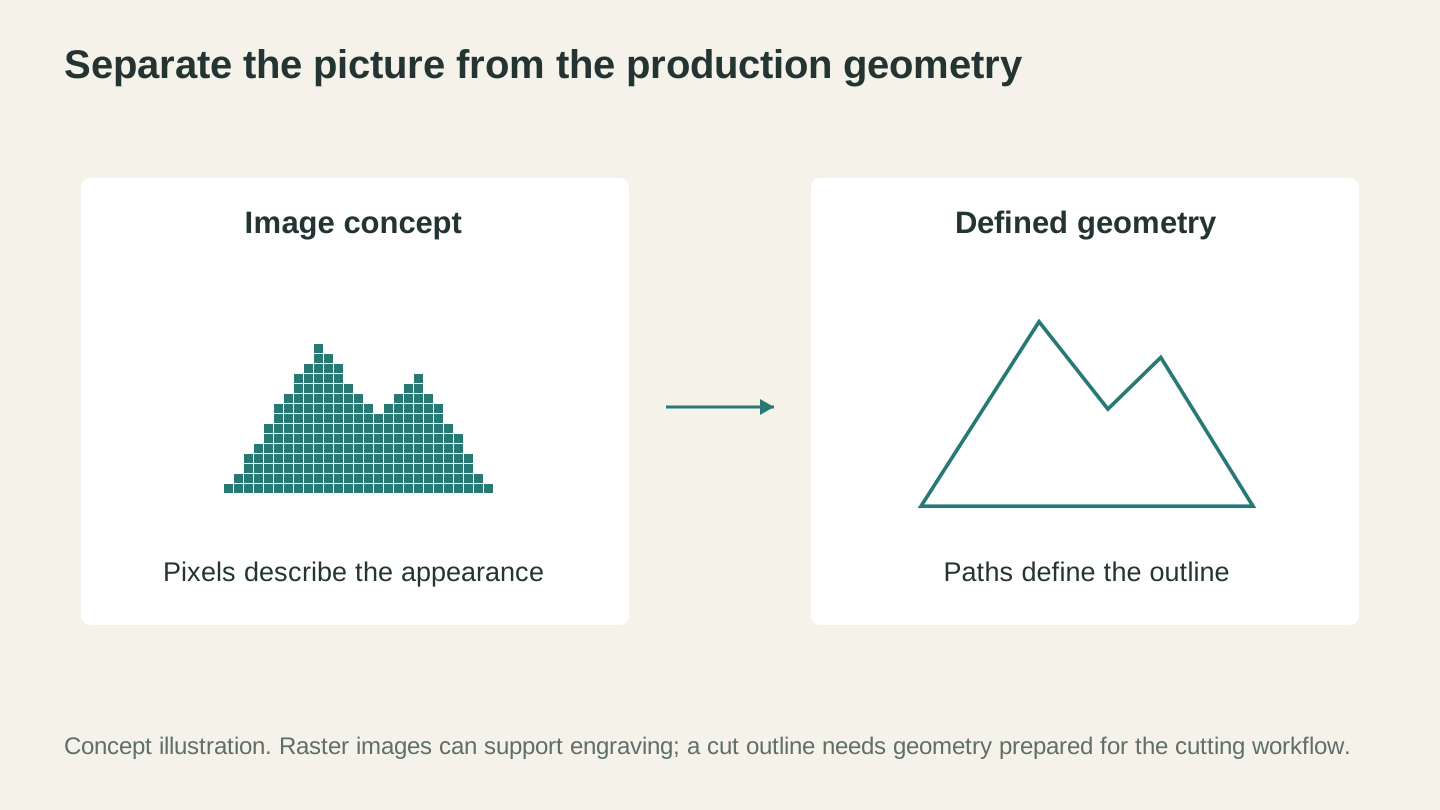
A picture describes appearance; defined geometry describes an outline. Prepare the kind of file your intended operation needs.
8. Midjourney and DALL-E: AI Image Generation
What they are: AI image generators that create images from text descriptions. Midjourney produces highly stylized, often photorealistic images. DALL-E (part of ChatGPT) is more accessible and integrated into OpenAI's ecosystem.
Platforms: Midjourney (Discord-based, web interface available), DALL-E (via ChatGPT) Cost: Midjourney starts at $10/month. DALL-E is included with ChatGPT Plus ($20/month) or available with limited free usage.
How makers use them
AI image generators are design inspiration machines. They're not direct production tools for most maker workflows (they output raster images, not vectors or machine-ready files), but they're incredibly useful as the first step in a design process.
Concept visualization. Before you spend hours designing a detailed piece, generate a quick AI image of the concept. "Art deco clock face with geometric sunburst pattern, black and gold, symmetrical." You'll get a visual reference in seconds that helps you decide if the idea is worth pursuing.
Reference images for manual design. Generate an image of what you want, then use it as a reference while you create the actual vector or 3D design in your CAD or drawing software. This is faster than searching stock photo sites and gives you something tailored to your exact vision.
Product mockups. Generate lifestyle images of products in settings. A cutting board in a kitchen. A 3D printed planter on a windowsill. These aren't replacements for photographing your actual product (customers want to see the real thing), but they're useful for social media content and early-stage marketing before you've manufactured the product.
Pattern and texture generation. Need a seamless pattern for a laser engraving project? AI generators can produce tileable patterns, textures, and decorative elements that you can then vectorize for machine use.
Practical example
You're designing a set of coasters with nature themes for a craft fair. You're not sure what designs will look best. Before committing to any design, you generate twenty concepts in Midjourney: mountain scenes, forest silhouettes, ocean waves, desert cacti, northern lights. The AI gives you visual options in minutes. You pick the three best concepts and use them as reference images while you create the actual machine-ready vector files in your design software (or in Vector Studio if you want AI-generated vectors directly).
Strengths
- Incredible at generating visual concepts and inspiration
- Midjourney's aesthetic quality is genuinely impressive
- DALL-E's integration with ChatGPT makes it convenient for iterative design
- Good for pattern and texture generation
Limitations
- Outputs are raster images, not machine-ready files. This is the big one. You can't send a Midjourney image to your laser cutter. You'd need to vectorize it first (using something like MonoTrace or tracing it by hand in a vector editor). We covered the full vectorization process in our PNG to SVG converter guide.
- Generated images often have small errors, weird artifacts, or inconsistencies that need cleanup
- Fine detail control is limited. You can describe what you want but can't precisely control line weights, dimensions, or mechanical tolerances.
- Symmetry is still inconsistent. If you need a perfectly symmetrical design, plan on manual cleanup.
- Copyright and usage rights vary by platform and plan. Check the terms.
The vectorization gap
This is worth emphasizing because it trips up a lot of makers. AI image generators produce beautiful images. But beautiful images aren't the same as machine-ready files. A gorgeous Midjourney render of a Celtic knot pattern needs to be vectorized, cleaned up, and possibly redrawn before your laser or CNC can use it. That's not a dealbreaker, but it's an extra step.
By contrast, tools like Vector Studio skip that gap entirely by generating SVG vectors from the start. The aesthetic quality isn't at Midjourney's level (Midjourney is genuinely best-in-class for image generation), but the output is immediately usable.
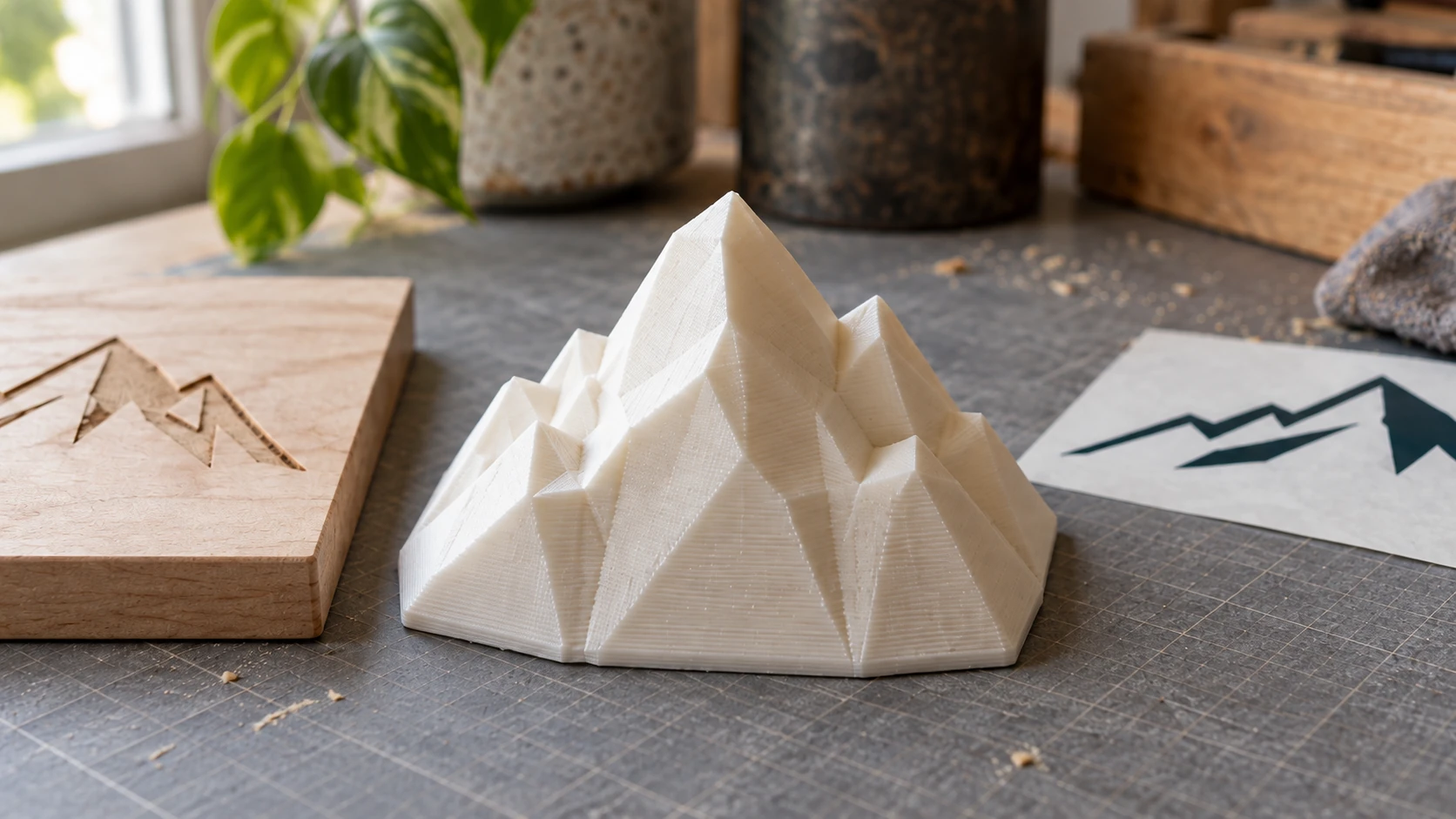
A close view reveals the print’s surfaces, edges and base. This is an illustrative object, not a documented output from any tool in the roundup.
9. 3D Model AI Tools: Meshy, Rodin, and Friends
What they are: A new generation of AI tools that generate 3D models from text descriptions or images. You describe what you want (or upload a reference image) and get a 3D model back.
Platforms: Meshy, Rodin by HyperHuman, Tripo, and others Cost: Meshy has a free tier (limited generations). Paid plans start around $10-20/month. Others vary.
How makers use them
3D model generation is where AI tools are still maturing fastest. A year ago, the outputs were mostly unusable blobs. In 2026, the best tools are producing models that are genuinely printable, though they still need work for most CNC applications.
3D printing figurines and decorative objects. This is where AI 3D tools work best right now. You describe a character, creature, or decorative object, and the AI generates a mesh that you can print. The quality varies, but the best results from tools like Meshy are surprisingly detailed.
Quick prototyping and concept models. Need to see what a product concept looks like in 3D before committing to a proper CAD design? AI generation is faster than modeling from scratch for organic shapes.
Converting 2D art to 3D. Upload a drawing, logo, or reference image and get a 3D interpretation. This is particularly interesting for turning flat artwork into relief carvings or 3D printed wall art.
Practical example
You want to 3D print a set of fantasy chess pieces. Modeling 32 unique chess pieces from scratch in 3D modeling software would take days, even for an experienced modeler. With an AI 3D tool, you generate each piece: "medieval knight chess piece, detailed armor, standing pose, printable geometry." The AI gives you a starting point that you can then clean up and scale. Some pieces will be usable with minimal fixes. Others might need significant rework. But your starting point is much further along than a blank canvas.
Strengths
- Dramatically faster than manual 3D modeling for organic shapes
- Quality has improved significantly in the last year
- Text-to-3D and image-to-3D both work reasonably well
- Free tiers let you experiment before paying
Limitations
- Geometry is often not mechanically precise. Great for decorative and artistic pieces. Not great for functional parts with specific dimensions and tolerances.
- Meshes frequently need cleanup. Non-manifold geometry, internal faces, and floating vertices are common.
- Fine detail control is limited. You can't specify exact dimensions, wall thicknesses, or thread pitches.
- CNC compatibility is generally poor. The meshes aren't designed for subtractive manufacturing workflows.
- Still evolving rapidly. What's true about these tools today may be outdated in six months.
The mesh cleanup reality
This deserves its own callout because it's the part nobody tells you about in the "AI generates a 3D model in 30 seconds!" demos. The model comes out, it looks great on screen, and then you import it into your slicer and get 47 errors. Non-manifold edges. Self-intersecting faces. Internal geometry that shouldn't exist.
For 3D printing, you can often fix these with your slicer's built-in mesh repair or a dedicated mesh-repair tool. Budget an extra 10-30 minutes of cleanup per model, depending on complexity. For CNC work, the mesh quality issues are more problematic because CAM software is less forgiving about geometry errors than a slicer.
The tools are getting better at producing clean geometry. But if someone tells you AI-generated 3D models go straight from generation to machine, they're either very lucky or very optimistic.
Info
For converting photos into 3D relief carvings (the kind you cut on a CNC router), ReliefMaker on Craftgineer takes a different approach. Instead of generating a full 3D model from scratch, it creates a depth map from your photo that directly maps to carving depths. The result is a proper relief model optimized for CNC carving and 3D printed lithophanes, not a freestanding 3D object.
10. AI CAM and Toolpath Tools: The Next Frontier
What they are: AI integrated into CAM (Computer-Aided Manufacturing) software to automatically generate toolpaths, select cutting strategies, and optimize machining parameters. Think AI-assisted feeds and speeds, automatic fixture planning, and intelligent toolpath generation.
Platforms: Various. Autodesk Fusion (AI features rolling out), Siemens NX, SolidCAM, and several startups. Cost: Mostly bundled with existing CAM software subscriptions. Fusion 360 Personal Use is free (with limitations). Commercial CAM licenses range from hundreds to thousands of dollars per year.
How makers use them (or will soon)
I'm including this category because it's where the most interesting AI development is happening in the maker space, even though most of it isn't fully production-ready for hobbyists yet.
Automatic toolpath generation. You load a 3D model, the AI analyzes the geometry, and it suggests appropriate machining strategies. Roughing passes, finishing passes, rest machining, all generated automatically with appropriate settings. Fusion 360 has been rolling out some of these features, and they work reasonably well for straightforward parts.
Feeds and speeds optimization. Instead of looking up speeds in a chart or guessing based on experience, AI can analyze your specific combination of material, tool, machine rigidity, and geometry to recommend optimized parameters. Some CAM packages are starting to build this in.
Collision avoidance and simulation. AI can predict and prevent tool collisions before you run a job, catching potential crashes that traditional simulation might miss.
Where things stand in 2026
Honestly? Still early for most hobbyist makers. The AI CAM features in professional software are promising, and if you're using Fusion 360 you've probably noticed some AI-assisted suggestions creeping into the interface. But for most CNC hobbyists, the traditional approach of learning feeds and speeds, understanding toolpath strategies, and building experience over time is still the primary workflow.
That said, this category is moving fast. If you're buying into a CAM ecosystem now, it's worth checking what AI features are on the roadmap. The tools that are investing in AI toolpath optimization today will be significantly ahead in a couple of years.
Strengths
- Potential to dramatically reduce CAM programming time
- Can help beginners avoid dangerous machining mistakes
- Optimization that accounts for factors humans might miss (tool deflection, harmonics)
- Getting better with each software update
Limitations
- Most advanced features are in expensive professional software
- Hobbyist-accessible AI CAM features are still basic
- Requires trust in the AI's recommendations (experienced machinists are rightfully cautious)
- Not yet reliable enough to run without human review
- 3D printing and laser slicers have simpler toolpath needs, so the impact is mainly for CNC routing and milling
What to watch for
If you're a CNC user, pay attention to how quickly the AI features in your CAM software are evolving. Fusion 360 updates are worth tracking even if you're on the free personal use license. The AI-assisted features that start in the commercial tier often trickle down to personal use eventually.
For 3D printer users, the slicer side of AI is moving faster than you might expect. Automatic support generation, print failure prediction, and quality optimization are all areas where AI is being integrated. Tools like Bambu Studio and OrcaSlicer are adding intelligent features with each release.
Laser and cutting machine users have less to gain from AI toolpath tools specifically, since their toolpaths are simpler (follow this path, cut or engrave). The AI value for these machines is more on the design side, which is why tools like Vector Studio and Photo Converter have more immediate impact.
The Comparison Table
Here's everything side by side.
| Tool | Type | Best For | Cost | Machine-Ready Output? | Learning Curve |
|---|---|---|---|---|---|
| Vector Studio | AI design generation | Custom SVG designs from text | 1 credit | Yes (SVG) | Low |
| Craft Chat | AI assistant | Troubleshooting, learning | Free (message limits) | N/A | Low |
| ListingLab | AI listings + photos | Selling on Etsy/online | Messages + 1 credit/photo | N/A | Low |
| Canvas Pro | Image editor | Design editing, combining | Free | Yes (PNG, JPEG, WebP) | Medium |
| Photo Converter | Photo to line art | Laser engraving photos | 1 credit | Yes (PNG) | Low |
| MosaicFlow | Color separation | Multicolor inlays | 1 credit | Yes (SVG layers) | Low |
| ChatGPT / Claude | General AI | Ideation, writing, research | Free / $20 month | No | Low |
| Midjourney / DALL-E | Image generation | Design inspiration, concepts | $10-20/month | No (raster only) | Medium |
| 3D AI tools (Meshy, etc.) | 3D model generation | Decorative 3D prints | Free tier / $10-20 month | Partially (needs cleanup) | Medium |
| AI CAM tools | Toolpath optimization | CNC toolpath generation | Bundled with CAM software | Yes (with review) | High |
A few things jump out from this comparison. The Craftgineer tools are the only ones specifically designed for the maker-to-machine workflow, which means they output files your machines can actually use. The external tools are more powerful in their specific domains (Midjourney produces better images than any maker-focused tool, ChatGPT knows more about general topics than any specialized chatbot) but they require extra steps to get from "AI output" to "machine-ready file."
How to Tell If an AI Tool Is Actually Useful
Every new tool claims AI will revolutionize your workflow. Most of them won't. Here's a quick framework for evaluating whether an AI tool is worth your time and money.
The output test
Ask one question: does this tool produce output I can actually use, or does it produce output I need to significantly rework?
A tool that generates a machine-ready SVG is immediately useful. A tool that generates a concept image you need to manually redraw as a vector is useful too, but it's useful as inspiration, not as a production tool. Both have value. But the first one saves you an hour. The second one saves you ten minutes. Price them accordingly.
The "faster than the alternative" test
How long does the AI approach take compared to doing it manually? Include all the steps, not just the AI part.
If an AI image generator takes 30 seconds to create an image but you then spend 45 minutes tracing it into a vector, the total time is 46 minutes. If manually drawing the vector takes 30 minutes, the AI approach is actually slower. This isn't hypothetical. It happens constantly when people try to use general AI image generators for machine-ready designs.
The consistency test
Can you get reliably good results, or is it a slot machine? Tools that produce great results 20% of the time and garbage 80% of the time are frustrating to use in practice. You end up regenerating over and over, which eats credits or subscription allowance and wastes time.
The best AI tools for makers are the ones where you can learn the input patterns (prompting, settings, image requirements) and consistently get usable output. Vector Studio, for example, gets more consistent when you learn which style options work best for different design types. That consistency is learnable, which makes the tool reliably useful.
The cost test
Add up the actual cost over a month of typical use. $10/month for a tool you use three times might be fine if each use saves you an hour of work. $10/month for a tool you tried once and forgot about is $120 a year wasted. Free tools with usage limits are often the best deal because you can use them enough to know if they're valuable before spending anything.
The "does it improve with experience" test
The best AI tools reward learning. When you figure out how to write better prompts, understand which settings work for which situations, or discover the ideal input format, your results get noticeably better. That's a sign the tool has genuine depth.
By contrast, tools where you hit a quality ceiling immediately, where no amount of skill improvement changes the output, tend to be thin wrappers around a single API call. They're useful for simple tasks, but they don't grow with you.
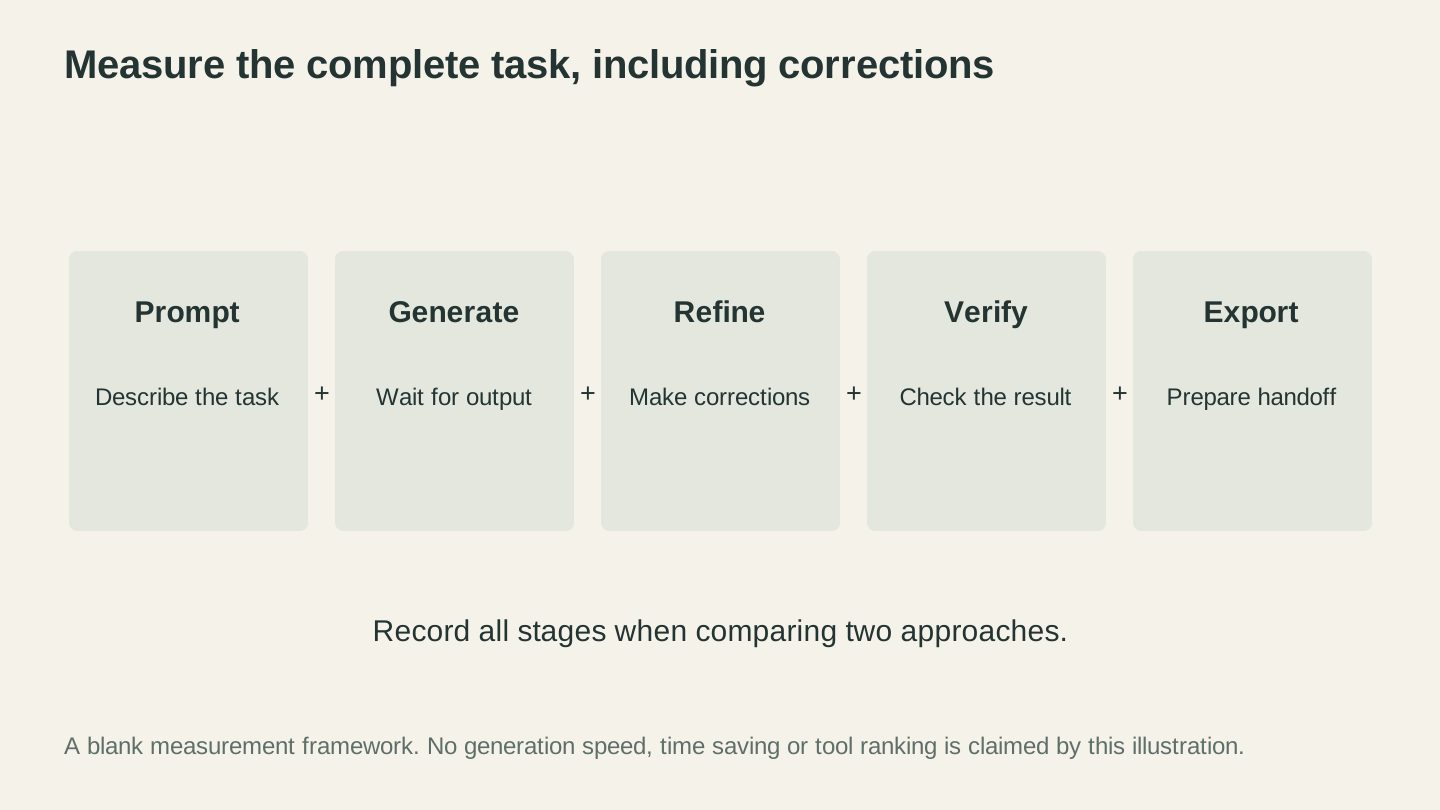
Measure the complete job when comparing approaches. Include corrections and verification, as well as the time spent generating the first result.
Building an AI-Ready Workflow
The makers getting the most value from AI tools aren't using one tool in isolation. They're connecting tools into workflows where AI handles the parts it's good at and human judgment handles the rest.
Here's what an AI-assisted workflow looks like in practice:
Design phase: Start with AI brainstorming (ChatGPT/Claude for ideas, Midjourney for visual concepts) or jump straight to Vector Studio if you know what you want as a vector. Use Canvas Pro to combine, edit, and finalize designs.
Preparation phase: Convert photos with Photo Converter for engraving projects. Separate colors with MosaicFlow for inlay projects. Convert file formats with File Converter as needed.
Troubleshooting phase: When something goes wrong (and it will), use Craft Chat for quick diagnosis and setting recommendations.
Selling phase: Photograph finished products, run them through ListingLab for optimized listings and styled product photos.
The key insight is that AI is best at specific, well-defined tasks within a larger workflow. It's not good at replacing your entire design process end to end. But it's excellent at accelerating individual steps that used to be bottlenecks.
Sample workflow: Custom sign project
Here's a concrete example of how these tools chain together on a real project.
A customer wants a custom family name sign with a decorative border, engraved on walnut. They send you a Pinterest screenshot of roughly what they want.
- Brainstorm (ChatGPT/Claude): "What decorative border styles work well on walnut signs for rustic home decor?" Get options: vine borders, geometric frames, scrollwork, farmhouse style.
- Generate design (Vector Studio): Create the decorative border as an SVG. "Farmhouse style decorative border with wheat sheaves and simple vine, rectangular, line art." One credit, ten seconds.
- Edit and compose (Canvas Pro): Import the border SVG, add the family name in the right font, adjust sizing and spacing. Free.
- Check settings (Craft Chat): "What laser settings should I use for engraving a decorative border on 1/4 inch walnut? My machine is a 10W diode laser." Free.
- Engrave the sign. Machine time.
- Photograph and list (ListingLab): Take a photo of the finished sign, generate an optimized Etsy listing with AI product photos showing the sign in a home setting.
Total AI cost: 1 credit for the border design, a few chatbot messages for settings advice, a credit or two for product photos. Total time on design prep: maybe 15 minutes instead of an hour or two of manual design work.
What AI can't replace
Your eye for quality. Your understanding of what works on specific materials. Your ability to hold a finished piece and know whether it's good enough to sell or give as a gift. Your knowledge of how your specific machine behaves, its quirks and sweet spots. The satisfaction of solving a tricky clamping problem or nailing a perfect finish.
AI handles the repetitive digital work and some of the technically demanding parts of the workflow. You handle the craft. That's not a compromise. That's playing to each side's strengths. The best makers using AI tools aren't making worse things faster. They're making more things at the same quality, or better things because they can iterate on designs quickly.
What's Coming Next
The pace of improvement in AI tools for makers is worth paying attention to. Here's what's on the near horizon.
Better 3D generation. The gap between AI-generated 3D models and models usable for CNC machining is closing. Within the next year, expect to see tools that can generate 3D relief models optimized for specific manufacturing methods, not just generic meshes. ReliefMaker is already doing this for depth-map-based relief carving.
Smarter CAM assistance. As AI CAM tools mature, expect more hobbyist-friendly versions. Imagine loading a 3D model and getting a complete machining strategy with tool selection, speeds, feeds, and toolpaths generated automatically. We're not there yet, but the trajectory is clear.
Material-specific optimization. AI that knows not just "how to engrave wood" but "how to engrave this specific piece of walnut based on its grain direction and moisture content." This is further out, but it's the kind of specialization that will make AI tools genuinely indispensable.
Integrated workflows. Right now, most AI tools are standalone. The future is tighter integration where your design tool, your AI assistant, your CAM software, and your machine controller all share context. Some of this is already happening in professional manufacturing. It'll filter down to hobbyist tools.
AI-assisted material libraries. Imagine scanning a piece of material with your phone camera and having AI identify the wood species, estimate density, and suggest optimal machine settings. The individual pieces of this exist (image recognition, material databases, settings calculators). Combining them into a seamless workflow is the next step.
For a broader look at how AI is reshaping the maker space, our article on how AI is changing the maker space in 2026 covers the trends beyond individual tools.
The Bottom Line
Ten tools, ranging from immediately useful to "keep an eye on this." Here's the short version:
Use these now:
- Vector Studio if you need custom SVG designs and don't want to draw them manually
- Craft Chat for troubleshooting and learning (it's free, just try it)
- Canvas Pro if you need an image editor that understands maker workflows
- Photo Converter if you laser engrave photos
- MosaicFlow if you make multicolor inlays
- ListingLab if you sell what you make
- ChatGPT or Claude for general brainstorming, writing, and research
Use these for inspiration:
- Midjourney or DALL-E for visual concept generation (but remember the vectorization gap)
Watch these:
- AI 3D model generators (getting better fast, especially for 3D printing)
- AI CAM tools (promising but still early for hobbyists)
The best AI tool is the one that saves you time on the parts of making that you don't enjoy, so you can spend more time on the parts you do. For most makers, that means less time hunting for designs, less time troubleshooting settings, less time writing product listings, and more time actually making things.
That's a trade worth making.
If you want to go deeper on how AI is changing the broader maker landscape beyond specific tools, our article on how AI is changing the maker space in 2026 covers the larger trends. And if you're interested in learning new maker skills with AI assistance, check out using AI chat to learn maker skills.
Tip
New to Craftgineer? Sign up for a free account to try Vector Studio, Craft Chat, Canvas Pro, and more. Free accounts include 5 signup credits and 10 chatbot messages per month to get you started. No credit card required.
Related Tools
Vector Studio
Generate SVG artwork from a written prompt and selected style.
Canvas Pro
Edit images with layers, brushes, shapes, text, and selection tools. Export PNG, JPEG, or WebP.
ListingLab
Create listing text and styled product photos from a product image.
Text uses chat allowance; photos use credits
Ready to try these tools?
Sign up free, no credit card required. Free tools available immediately.
Start Free