

How AI Is Changing the Maker Space in 2026
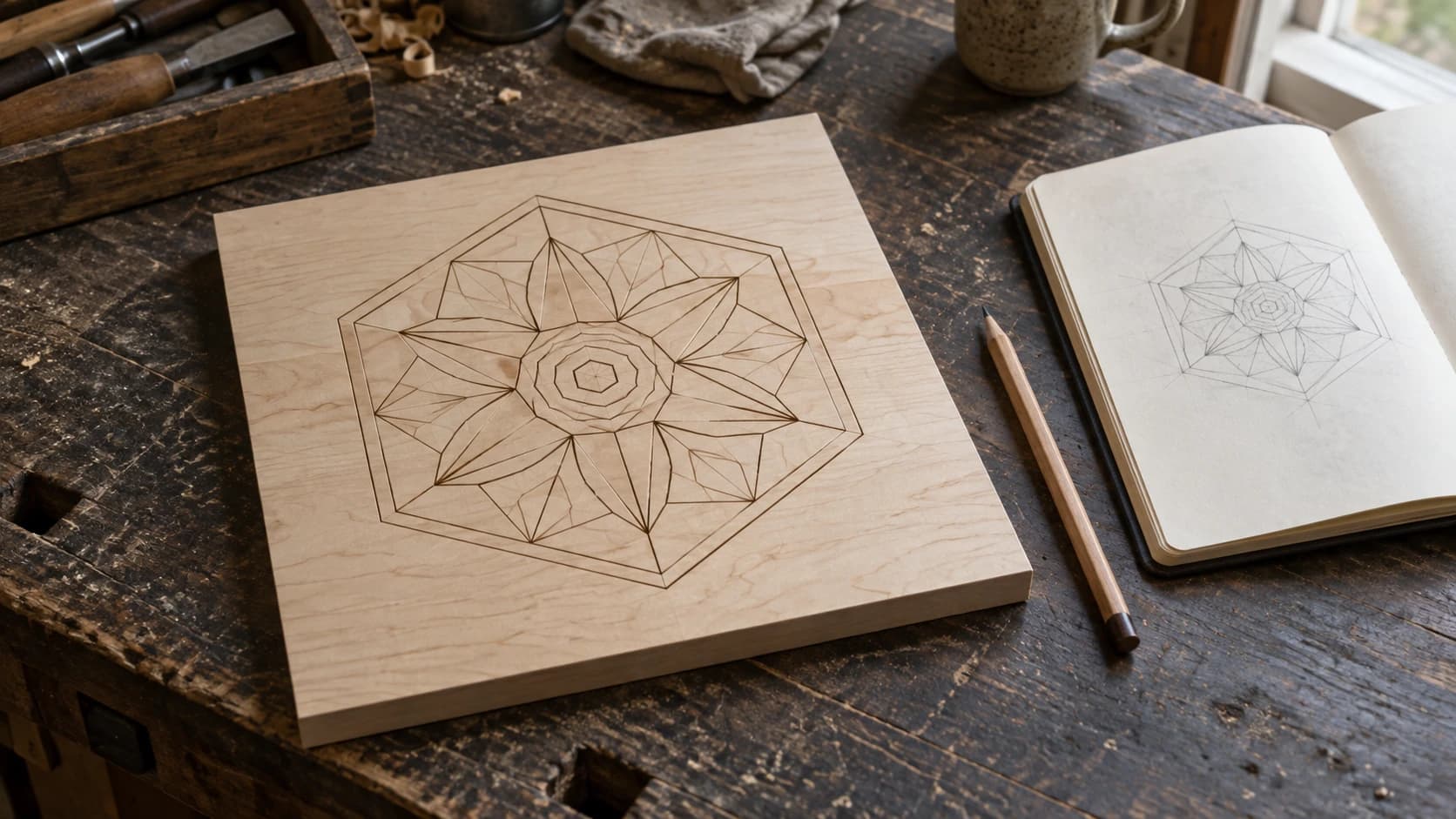
Two years ago, "AI for makers" meant running a photo through a janky online filter and pretending the output was usable. The text-to-image generators produced blurry messes with six-fingered hands. The vector tools drew shapes that looked like they were designed by a toddler holding a mouse with oven mitts. And every other article about AI and crafting was either breathlessly hyped or completely dismissive.
Things have changed. Not in the "robots will replace all human creativity" way the tech blogs predicted. Not in the "AI is just a fad" way the skeptics hoped. What actually happened is quieter and more practical: AI tools got good enough to be genuinely useful for specific parts of the maker workflow, while remaining completely useless for others.
This is the honest state of AI in the maker space in 2026. What works, what doesn't, what's overhyped, and where the real advantages are for people who actually build things with their hands.
The Reality Check: What AI Actually Does for Makers Right Now
The maker community has always been early adopters of useful technology and ruthless rejectors of technology that doesn't work. CNC routers replaced hand-routing for certain tasks because they genuinely produce more consistent results at scale. 3D printers caught on because they solve real prototyping problems. Laser engravers exploded in popularity because they let you put detailed images on materials that would take hours to engrave by hand.
AI tools are going through the same filter right now. Some are passing. Many are failing. The ones that are passing share a common trait: they solve a specific, annoying bottleneck in the workflow rather than trying to replace the entire creative process.
Here's where things stand across the three areas that matter most to makers: designing, troubleshooting, and selling.
PRINT. CUT. CARVE.



- Multiple formats (SVG, DXF, PNG)
- Machine-tested designs
- Commercial licenses
Sponsored by PrintCutCarve.com
AI for Design: From Blank Canvas to Machine-Ready File
The design phase is where most makers lose the most time. Not the actual making. The part where you need an SVG of a mountain scene for a sign, or you want to turn a customer's photo into something a laser can engrave, or you need a depth map to CNC carve a portrait in relief.
Before AI, your options were: learn a vector editor (steep learning curve), pay a designer (expensive for one-offs), or dig through free SVG sites hoping someone uploaded exactly what you need (unlikely). All of those options still work. But AI has added some genuinely faster paths for specific design tasks.
Text-to-Vector: Describing What You Want
The most straightforward AI design tool is text-to-vector generation. You type a description, and the AI creates an SVG from it.
Vector Studio is this exact concept. Type "celtic knot border pattern" or "mountain landscape silhouette with pine trees" and you get back a clean, single-color SVG that's ready for your laser cutter or CNC. One credit per generation. If the first result isn't right, adjust your description and try again.
Is it perfect every time? No. About 70% of generations produce something immediately usable. The other 30% need either a better prompt or a quick cleanup in your vector editor. But compare that to the alternative of drawing a celtic knot from scratch in a vector editor, and the time savings are enormous even when you account for the occasional miss.
The key insight with text-to-vector tools is understanding what they're good at and what they're not.
Where AI vector generation excels:
- Silhouettes and solid shapes (animals, trees, landscapes)
- Geometric patterns (celtic knots, mandalas, tessellations)
- Decorative borders and frames
- Simple logos and emblems
- Ornamental designs (scrollwork, filigree)
Where it struggles:
- Precise mechanical drawings with exact dimensions
- Text-heavy designs where font choice matters
- Designs that need to match an existing brand exactly
- Highly detailed photorealistic vectors
Tip
When using text-to-vector tools, specificity wins. "Dog" gives you a generic dog. "Golden retriever silhouette sitting, facing left, detailed fur outline" gives you something you can actually use. Treat your prompt like a design brief, not a keyword search. Our AI SVG generator guide covers prompt strategies in detail.
Photo to Line Art: Making Photos Machine-Ready
One of the most common tasks for laser engraver owners is converting a photograph into something the machine can engrave. A photo is a raster image with millions of colors and continuous tones. A laser engraver needs high-contrast artwork with clear lines.
Photo Converter uses AI to transform photos into pen-and-ink style line art. Upload a portrait or a landscape, and the AI generates a clean line drawing that looks like it was sketched by an illustrator. Standard mode gives you black lines on white (for engraving on light materials like wood or leather). Inverted mode gives you white lines on black (for dark materials like slate or anodized aluminum).
This is one of those tools where AI genuinely outperforms the non-AI alternatives for most users. The traditional approach is to open the photo in a photo editor, apply a series of filters (threshold, edge detection, gaussian blur, more threshold), then spend 20 minutes cleaning up the artifacts. The AI approach takes about 10 seconds and usually produces cleaner results.
The reason is straightforward. Traditional filters work on pixel math. They find edges by looking at contrast changes. AI models understand what they're looking at. They know that a face has eyes, a nose, and a mouth, and they draw lines that follow the actual features rather than just following contrast gradients. The difference is especially noticeable on low-contrast photos, shadows, and hair.
For a detailed walkthrough of converting photos for laser work, check out our photo to laser engraving guide.
Image Vectorization: Tracing Pixels into Paths
Not every image needs AI to be converted. If you have a clean logo, a simple graphic, or a piece of clip art, traditional bitmap tracing does the job perfectly well. This is where tools like MonoTrace come in.
MonoTrace isn't an AI tool. It uses algorithmic bitmap tracing (the same approach as Potrace, which powers the trace function in many vector editors) to convert raster images to SVG vectors. It's free, it's fast, and for the right inputs, it produces excellent results.
The distinction between AI-powered conversion and algorithmic tracing matters because each handles different inputs better.
| Task | Best Tool | Why |
|---|---|---|
| Clean logo/graphic to SVG | MonoTrace | High contrast inputs trace cleanly with algorithms |
| Complex photo to SVG | MonoTrace with pre-processing | Clean up contrast before tracing for best results |
| Photo to artistic line drawing | Photo Converter | AI understands subjects and creates stylized art |
| Design from scratch (no source image) | Vector Studio | AI generates original designs from text descriptions |
| Photo to 3D carving model | ReliefMaker | AI generates depth maps for CNC relief carving |
The practical takeaway: you don't need AI for every conversion job. A clean PNG with solid black shapes on a white background will trace beautifully with MonoTrace, no AI needed, and no credits spent. Save the AI tools for the tasks where they genuinely add something: generating original designs, converting complex photos, and creating 3D depth maps.
Our PNG to SVG conversion guide walks through the full process of choosing the right tool for the right input.
Depth Maps and 3D Relief: Where AI Gets Impressive
If there's one area where AI has made something genuinely new possible for hobby makers, it's depth map generation for 3D relief carving.
Before AI, creating a depth map for CNC relief work required either a 3D modeling program (Blender, ZBrush, Carveco) with a significant learning curve, or purchasing pre-made 3D models from design marketplaces. The gap between "I have a photo" and "I have a carveable 3D model" was wide and intimidating.
ReliefMaker closes that gap. Upload a photo, and the AI generates a depth map where every pixel's brightness represents its height. Bright areas are raised, dark areas are recessed. The tool then converts that depth map into a 3D model you can preview, adjust, and export as STL or OBJ for your CNC or 3D printer.
The free mode uses a local AI model (Depth Anything V2) that runs in about two seconds. The quality mode uses a cloud-based model for more detail and costs one credit. Either way, you go from a photo to a carve-ready 3D model in under a minute.
This is also where lithophane makers benefit. A lithophane is a thin 3D-printed panel that reveals an image when backlit. The thicker areas block more light, creating darker tones. The thinner areas let light through, creating highlights. ReliefMaker generates the depth data you need and exports it as a 3D model ready for slicing.
Info
ReliefMaker's local AI mode costs no credits. It still needs a signed-in account, and there are upload-size and rate limits like any hosted tool. The cloud-based quality mode costs one credit per generation. For most photos, the free mode produces depth maps that are perfectly good for CNC carving and lithophanes. Try the free mode first. If you need more detail in subtle areas like facial features, use the quality mode. See our photo to 3D relief guide for detailed comparisons.
Decorative Pattern Generation
A niche but incredibly useful AI application for makers is generating decorative fill patterns. If you've ever needed to fill a shape with ornate scrollwork for a sign, a jewelry box, or a decorative panel, you know how time-consuming it is to draw those patterns by hand.
DecoFill takes any shape outline and fills it with AI-generated decorative patterns. Upload a circle, a state outline, a monogram frame, or any custom shape. Pick from 65 scrollwork styles (Victorian, Celtic, Japanese, Art Deco, Norse, and dozens more), set a complexity level, choose optional symmetry, and the AI fills your shape with intricate patterns that are ready for laser engraving or CNC carving.
This is another case where AI isn't replacing skill. It's making something accessible that previously required either years of decorative art training or hours of painstaking copy-paste-adjust work in a vector editor. A professional ornamental designer will still produce better custom scrollwork than any AI. But for makers who need "really nice looking scrollwork on this sign by Thursday," AI gets the job done.
For style examples and technique details, our scrollwork patterns guide covers the full range.
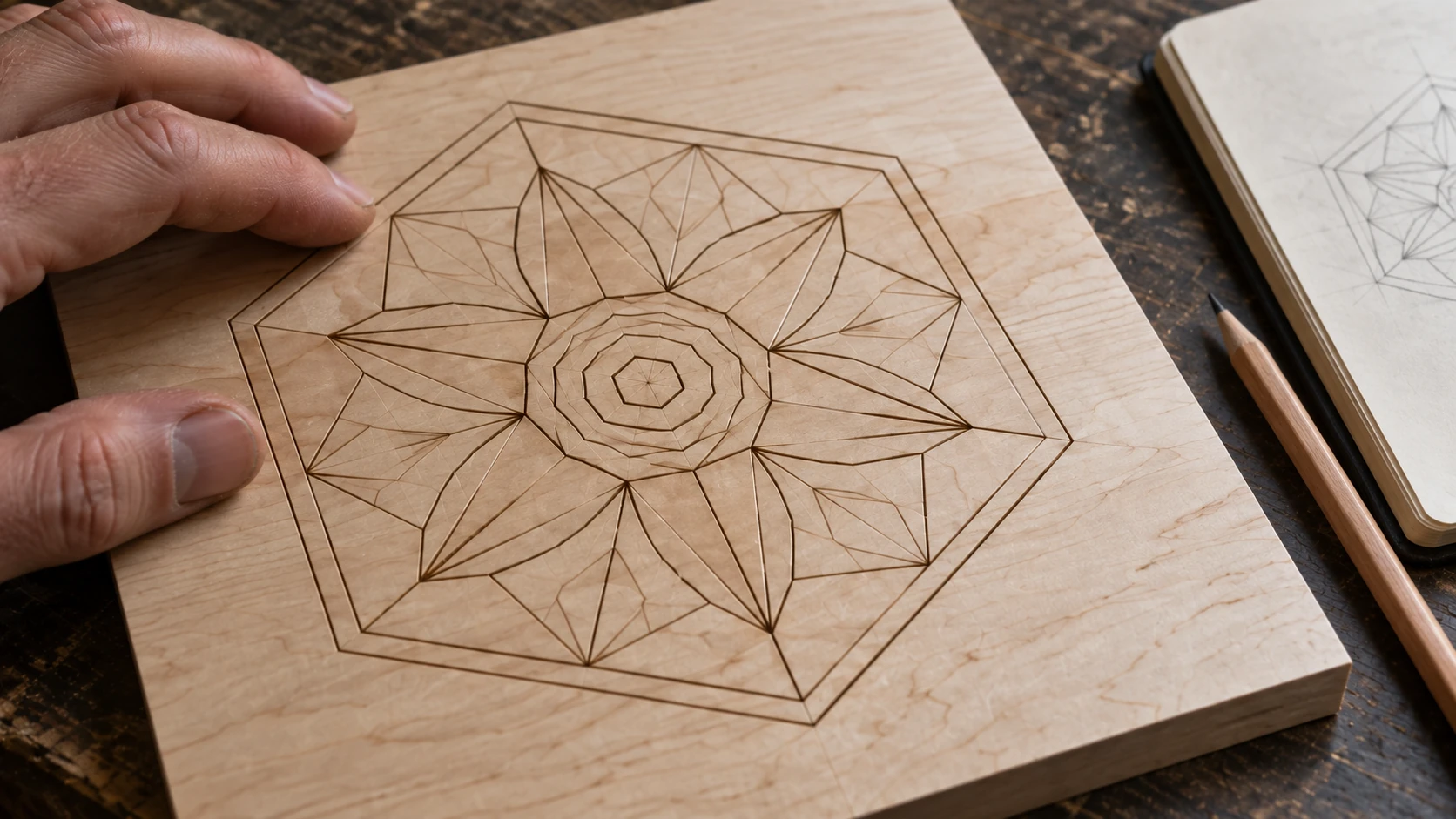
The lines mark the surface of one continuous panel. This example shows an engraved design; the spaces between the lines are intact wood.
Multicolor Inlays and Stacked Layer Art
Two more AI-powered design tools worth mentioning are MosaicFlow and StackLab. Both solve the same fundamental problem: turning a full-color image into layers that can be cut from different materials and assembled.
MosaicFlow creates puzzle-piece inlay patterns. Upload an image, and the AI analyzes the colors, groups them, and generates SVG layers where each color becomes a separate cut path. Cut each layer from a different material (different wood species, different acrylic colors), assemble them like a jigsaw, and you've got a multicolor inlay.
StackLab creates stacking layers instead of puzzle pieces. Each layer builds on the ones above it, creating a 3D stacked effect. Think topographic map art, or those layered wood wall pieces you see on Etsy.
Both tools use AI for the color analysis and grouping step. The vectorization is algorithmic. It's a good example of AI being used for the part where it adds value (understanding which colors belong together and what the image represents) while traditional algorithms handle the rest.
Our multicolor wood inlay guide and stacked layer art guide cover these workflows in full detail.
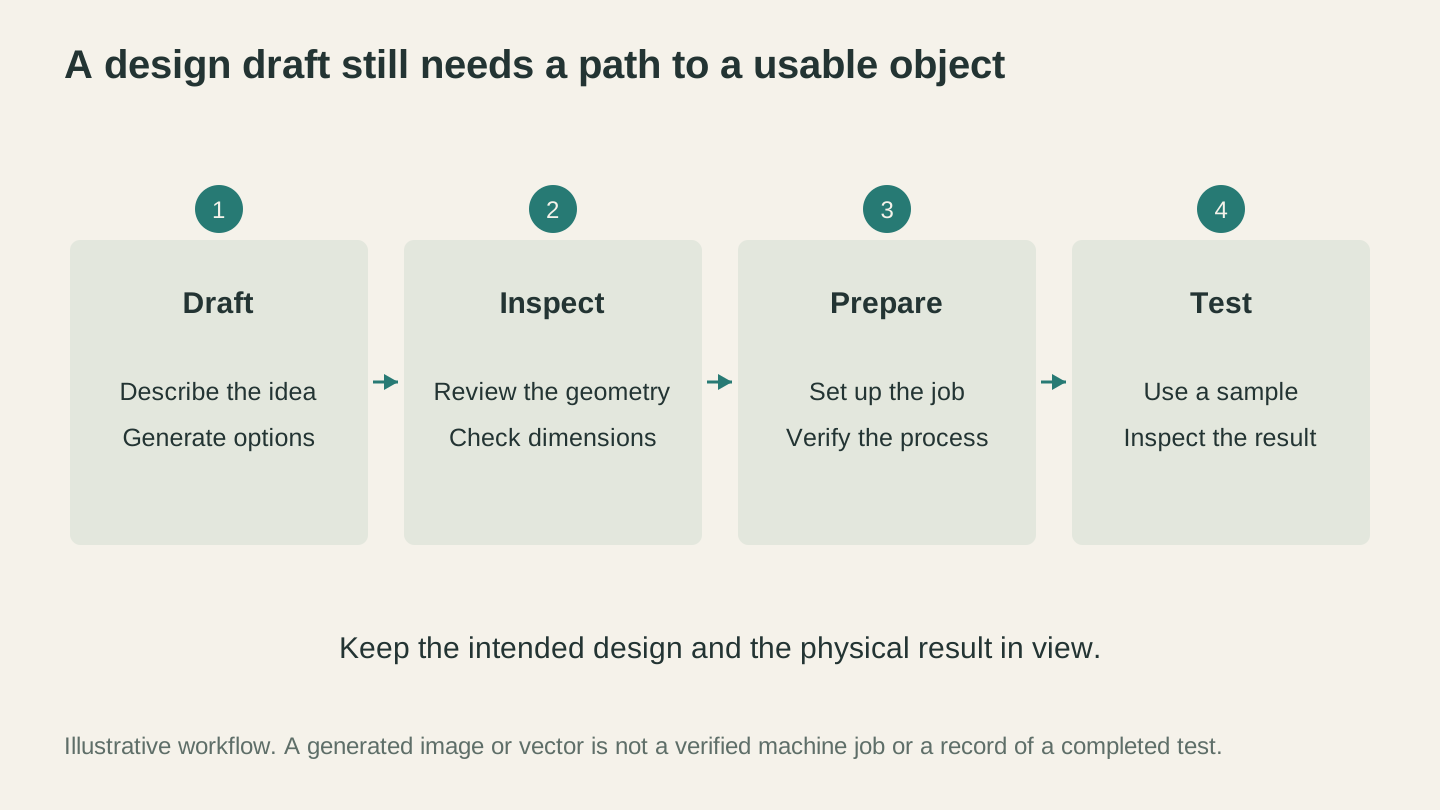
A useful draft still needs inspection, setup and a material test. Review the result at each step before committing a finished workpiece.
AI for Troubleshooting and Learning: Your Always-Available Shop Buddy
Design tools get the most attention, but the AI application that arguably saves makers the most frustration is troubleshooting assistance. Machines break. Settings need adjusting. Materials behave differently than expected. And the answers are usually buried somewhere in a 400-page forum thread from 2021.
The Troubleshooting Problem
Every maker has experienced this cycle:
- Something goes wrong with a project
- Google the symptoms
- Find a forum thread where someone had a similar issue
- Read twelve replies, three of which are helpful, four of which are arguments about brands, and five of which are "did you check the basics?"
- The original poster never reported back on what actually fixed it
- Try something. Hope it works.
The problem isn't that the information doesn't exist. It usually does, somewhere. The problem is finding it, extracting the relevant parts, and applying it to your specific situation. This is exactly the kind of task AI handles well.
Chat-Based Machine Troubleshooting
Craft Chat is built specifically for this. It's an AI assistant trained on maker knowledge, powered by a RAG (Retrieval-Augmented Generation) system that pulls from a curated knowledge base of CNC, laser, 3D printing, and cutting machine information.
Here's what that means in practice. You type "my laser engraver is leaving shadow lines between passes on a photo engrave" and Craft Chat knows what shadow lines are, knows they're typically caused by backlash or scanning offset issues, and can walk you through the specific settings to check and adjust. It understands your machine type, your material, and your specific symptoms.
Compare that to Googling the same question. You'd get results about general laser alignment, unrelated cutting problems, and maybe one Reddit thread where someone had the same issue but on a different machine model.
Tip
The more specific you are with Craft Chat, the better the answers. "My CNC is making bad cuts" is vague. "My CNC is leaving a rough finish on the pocket floor when routing maple at 18,000 RPM with a 1/4 inch downcut bit" gives the AI enough context to provide actually useful advice. Include your machine, your material, your settings, and what the problem looks like. For more troubleshooting strategies, read our AI troubleshooting guide.
Learning New Skills with AI
Beyond troubleshooting, AI chat tools are genuinely useful for learning new skills. The traditional path to learning CNC feeds and speeds, or laser power and speed settings for a new material, or 3D printing bridge settings, involves watching multiple YouTube videos, reading forum posts, and doing a lot of trial-and-error with material you'd rather not waste.
AI can compress that learning cycle. Not eliminate it (you still need to do test cuts and builds), but reduce the amount of time you spend searching for baseline settings and understanding why certain approaches work.
For example, if you're switching from engraving wood to engraving anodized aluminum for the first time, you can ask Craft Chat for starting settings, common mistakes to avoid, and what a good result should look like. That gets you to your first test piece faster, and your first test piece is more likely to be close to correct because you started from reasonable settings instead of guessing.
Our learning maker skills with AI guide covers this in depth, with real conversation examples and tips for getting the most out of AI-assisted learning.
RAG: Why Maker-Specific AI Beats General AI
A quick technical note that explains why a maker-focused AI chat is different from asking ChatGPT or Claude directly.
General-purpose AI models know a lot about a lot of things. But their maker knowledge is broad and shallow. Ask a general AI about feeds and speeds for a specific bit diameter in a specific material on a specific machine class, and you'll often get vague or generic advice. The model might know the general concept, but it doesn't have the specific, detailed, up-to-date information that comes from curated maker documentation.
RAG (Retrieval-Augmented Generation) solves this by giving the AI access to a curated knowledge base. When you ask a question, the system first searches its database of maker-specific documentation, guides, and technical data, then feeds the relevant information to the AI along with your question. The AI doesn't just know the general concept. It has specific data to reference.
This is why Craft Chat can give you actual RPM recommendations for walnut on a particular class of CNC router, while a general AI gives you a paragraph about how "speeds vary depending on the material and machine." The underlying AI model might be similar. The knowledge it has access to is not.
AI for Selling: From Workshop to Marketplace
Making great products is half the battle. The other half is getting those products in front of people who want to buy them. And for most makers, the "selling" part is the one they enjoy least and do worst.
AI is making this part significantly less painful. Not because it replaces the need for good products, good photos, and good customer service. But because it handles the tedious, repetitive parts of creating listings and marketing materials that most makers would rather skip entirely.
Product Listing Generation
Writing Etsy listings is nobody's favorite activity. You need a title that's optimized for search. A description that sells the product. A list of features. Keywords that match what buyers actually search for. And you need all of this for every single product and variant in your shop.
ListingLab automates the worst parts of this process. Upload a photo of your product and tell it what it is. The AI generates multiple title options, descriptions, feature lists, SEO keywords, and even social media post copy. All optimized for Etsy's search algorithm.
Here's the important nuance: ListingLab uses chatbot messages, not credits. This matters for pricing, because it means you can generate listings without burning through your design tool credits. The free tier includes 10 chatbot messages per month, which is enough to try it out. Starter and above get significantly more.
The generated listings aren't perfect copy-paste-and-forget output. You should always customize them. Add your brand voice. Correct anything that doesn't match your actual product. But the AI gives you a solid draft in seconds instead of the 20 to 30 minutes it takes to write a good listing from scratch. Multiply that by 50 products in your shop, and the time savings are substantial.
A typical workflow looks like this: upload a photo of your latest laser-engraved cutting board, add a brief description ("personalized maple cutting board, laser engraved family name, 12x18 inches"), and ListingLab returns three title variations, three description drafts, a feature bullet list, 13 SEO keywords, and social media post copy. You pick the best title, tweak the description to match your voice, maybe swap a keyword or two, and your listing is done. Total time: about five minutes instead of thirty.
The SEO keyword generation is particularly valuable if you're not experienced with marketplace search optimization. Etsy's algorithm heavily rewards listings that use the right keywords in the right places. Most makers either stuff random words into their tags or leave half the keyword slots empty. AI-generated keywords are based on what buyers actually search for, which means your listings surface for the right queries from day one.
Our Etsy selling guide covers the full strategy for creating listings that convert, including how to use AI-generated content as a starting point.
AI Product Photography
This is an area where AI has gotten genuinely impressive and slightly controversial. ListingLab can generate AI product photos. Upload a photo of your product against a simple background, choose a style (lifestyle, seasonal, holiday, outdoor, etc.), and the AI places your product in a realistic scene.
The results are often good enough that you can't immediately tell they're AI-generated. Your laser-engraved cutting board appears on a marble countertop in a sun-drenched kitchen. Your CNC-carved sign hangs on a shiplap wall in a cozy living room. Your 3D-printed planter sits on a window sill with soft morning light.
Should you use AI product photos? It depends on the platform and your comfort level.
The case for AI photos:
- Faster and cheaper than staging physical scenes
- Consistent quality across your entire product line
- Seasonal scenes (Christmas, Valentine's, summer) without buying props
- Great for social media marketing and ads
The case for real photos:
- Buyers appreciate authenticity
- AI photos can misrepresent scale or finish
- Some platforms may eventually require disclosure
- Your actual product in your actual hands builds more trust
The smart approach is probably a mix. Use real photos for your main listing images (they show the actual product a customer will receive). Use AI photos for supplementary lifestyle images that show the product in context. Always make sure the AI photo accurately represents your product. If the AI adds a warm glow that makes your walnut cutting board look like cherry, that's going to cause returns.
For a deep look at product photography technique (both traditional and AI), see our product photography guide and our AI product photos for Etsy guide.
| Photography Approach | Cost | Time | Best For |
|---|---|---|---|
| Smartphone + natural light | Free | 15-30 min per product | Main listing images, authenticity |
| Simple lightbox setup | $30-50 one-time | 10-15 min per product | Consistent backgrounds, small items |
| AI-generated lifestyle scenes | 1 credit per image | 30 seconds per image | Social media, secondary listing images |
| Professional photographer | $50-200 per session | 2-4 hours | Launch photos, brand building |
Social Media Content
ListingLab also generates social media post copy along with your product listings. This is one of those small features that saves a surprising amount of time. Writing Instagram captions, Facebook marketplace descriptions, and Pinterest titles for every product gets old fast. Having AI draft versions that you can edit and post cuts the per-product social media time from 15 minutes to about 3.
Our social media marketing guide goes deeper on platform strategy.
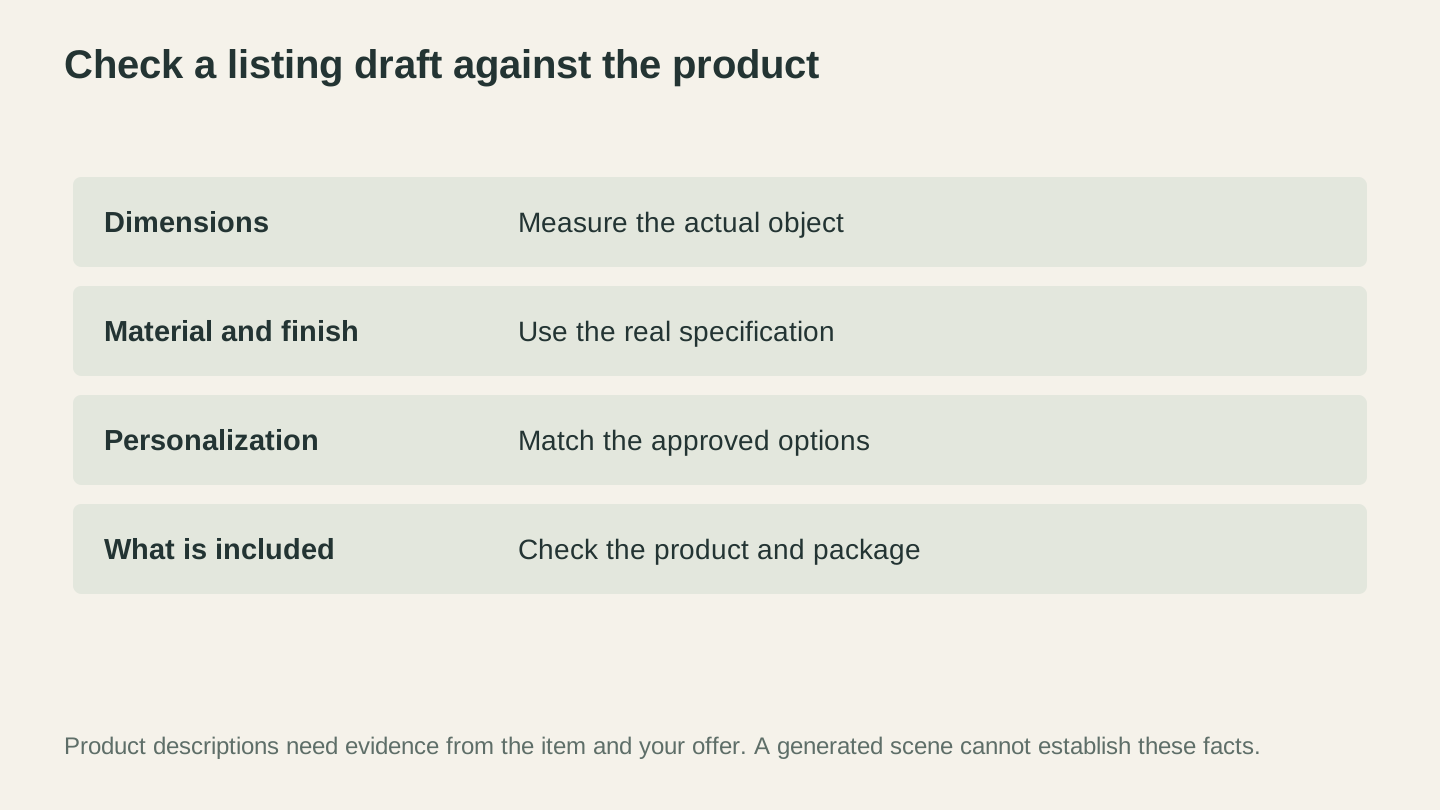
Check dimensions, material, finish, personalization and included items against the real product and offer. A generated photograph cannot establish those facts.
What AI Can't Do (Yet)
Here's where the hype check gets important. For every genuinely useful AI application, there are three things AI can't do that some people seem to think it can. Being honest about these limitations saves you from wasting time and credits on the wrong approach.
Physical Skills and Material Feel
AI can tell you that cherry wood engraves at 300mm/min at 60% power on a 10W diode laser. It cannot tell you what the char smells like when you're going too hot, how the grain feels when you run your thumb across a properly sanded engrave, or whether the finish on your piece will feel premium to a customer holding it in their hands.
Making things is fundamentally physical. The skills that separate a good maker from a great one are almost all tactile, spatial, and experiential. Knowing when a CNC bit sounds wrong. Feeling when a 3D print's first layer is too squished. Seeing when a laser engrave's contrast needs just a tiny bit more power.
AI has no access to any of this. It operates entirely in the digital space: generating images, processing files, answering text questions. The moment the work involves hands, eyes, ears, and material, you're on your own. And that's where the real craft lives.
Creative Judgment and Taste
AI can generate a hundred variations of a mountain silhouette. It cannot tell you which one has the right feel for the rustic sign you're making for a client's lake house. It can generate fifteen color palette options for a multicolor inlay. It cannot tell you which combination of walnut, maple, and cherry will look best together in person.
Creative judgment requires taste, and taste requires experience. You develop it by making hundreds of things, seeing what works, noticing what catches your eye versus what falls flat. AI has no taste. It has statistical patterns. Those patterns can produce aesthetically pleasing output, but the decision about which output is right for a specific project, a specific client, a specific context, that's yours to make.
This isn't a limitation that will be "solved" with better models. It's a fundamental difference between generating options and choosing between them. AI is good at the first part. The second part is what makes you a maker, not just an operator.
Complex Multi-Step Problem Solving
AI is excellent at answering specific questions. "What RPM for a 1/4 inch endmill in walnut?" gets a great answer. But real workshop problems are rarely that clean.
"I'm getting chatter on the final pass of a 3D contour toolpath in maple, but only on the climb-milling side, and only when the stepover is below 30%, and it started happening after I changed my spindle bearings last month." That's a complex problem with multiple interacting variables. AI can offer hypotheses, and those hypotheses are often worth investigating. But it can't systematically diagnose a problem that requires testing one variable at a time while observing physical results.
The best use of AI for complex problems is as a brainstorming partner. It generates hypotheses. You test them. You report back. It refines. This iterative process works well, but it's collaborative, not autonomous. The AI doesn't solve the problem for you. It helps you think through it faster.
Replacing Your Eye for Quality
Nobody who has been making things for more than a year needs AI to tell them when something looks wrong. You know. You might not be able to articulate exactly what's off about that engrave, that carve, that print, but you can see it. That instant recognition of quality, or the lack of it, comes from experience, and it's something AI simply doesn't have.
AI can check dimensions. It can verify that paths are closed and layers are properly ordered. But the qualitative assessment, "does this look good?", remains entirely human.
The Right Philosophy: AI as Assistant, Not Replacement
The makers who get the most out of AI tools share a common mindset: they treat AI as a shop assistant, not a replacement for their skills.
A good shop assistant speeds up the boring parts. They prep materials. They look up information. They do the repetitive tasks that eat your time but don't require your expertise. That's exactly what AI does well.
A shop assistant doesn't make your design decisions. They don't choose your materials. They don't know when a project is "done." And they definitely don't have the years of experience that let you look at a piece of wood and know which way the grain will tear if you route against it.
Here's what the AI-as-assistant workflow actually looks like in practice:
You decide what to make and how it should look. AI helps generate initial design files faster. You refine the output with your judgment and skills. AI handles the tedious conversion, formatting, and optimization steps. You do the actual making, with all the physical skill that involves. AI assists with listing, marketing, and documentation when you're ready to sell.
This workflow is faster than doing everything manually. It's also vastly better than trying to automate the entire process and ending up with generic, soulless output that looks like every other AI-generated product on the market.
Warning
The makers who struggle most with AI tools are the ones who try to use AI for everything, including the parts where human judgment matters most. If you're using AI to generate a design and then sending it straight to your machine without looking at it carefully, you're going to get mediocre results. The output needs your eye before it goes to the machine. Every time.
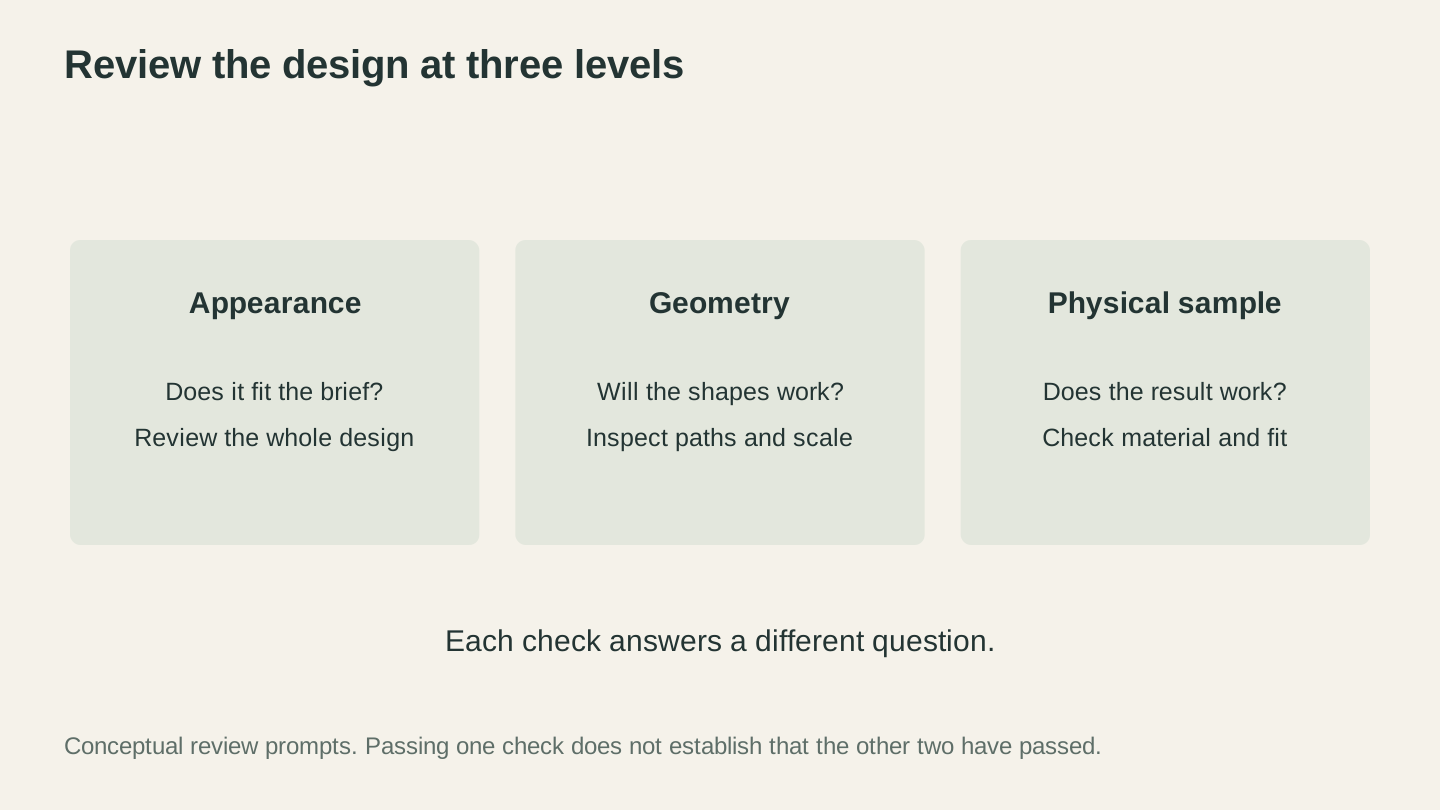
Review whether the design fits the brief, whether the geometry works and whether the physical result meets the need. These are different checks.
Traditional Skills + AI Tools: The Winning Combination
There's a tension in the maker community between traditional skills and new technology. It's the same tension that existed when CNC routers first appeared ("that's not real woodworking"), when laser engravers got affordable ("that's cheating"), and when 3D printers hit the consumer market ("that's just pressing a button").
Every time, the makers who thrived were the ones who added the new tool to their existing skill set rather than replacing one with the other. The best CNC work is done by people who understand wood. The best laser engravings come from people who understand design principles. The best 3D prints are made by people who understand mechanical engineering or art fundamentals.
AI follows the same pattern. The makers producing the best AI-assisted work are the ones who already have strong foundational skills and use AI to accelerate specific parts of their process.
Here's a concrete example. Two makers both want to create a custom relief carving of a customer's pet from a photo.
Maker A has 10 years of CNC experience. They use ReliefMaker to generate an initial depth map from the photo. They examine the output, notice the AI didn't capture the texture of the fur quite right, and manually adjust the depth map in their 3D software. They choose the right wood, set up their machine with the proper bit and feeds, and produce a beautiful carving that captures the pet's personality.
Maker B just got a CNC last month. They use ReliefMaker to generate the same depth map. They export it and send it straight to their machine without adjustment. They use default settings for the wood. The result is technically a relief carving, but it lacks depth, the fur looks flat, and there are tool marks in the transitions.
Both used the same AI tool. The difference is everything that came before and after the AI step. Traditional skills amplify AI tools. AI tools amplify traditional skills. Neither works as well alone.
Here's another example from the selling side. Two makers both use ListingLab to generate Etsy listings for a laser-engraved ornament.
Maker A has been selling on Etsy for three years. They know that ornament buyers search for specific occasions ("first Christmas together ornament," "new baby ornament 2026"). They take the AI-generated listing, adjust the keywords to target those specific buyer intents, rewrite the description to emphasize gift-readiness and packaging quality, and add dimensions in both inches and centimeters because international buyers get confused. The listing converts at 4%.
Maker B copies and pastes the AI-generated listing without changes. The generic keywords compete with thousands of similar listings. The description is accurate but doesn't address what the buyer is actually worried about (will it arrive on time, is it gift-wrapped, what does personalization look like). The listing converts at 0.8%.
Same AI tool. Same starting point. The difference is experience, market knowledge, and attention to what customers actually care about. AI accelerated Maker A's existing advantage. For Maker B, it saved time on writing but didn't compensate for the knowledge gap.
Privacy and Ownership: What Happens to Your Designs
This is a legitimate concern that doesn't get enough attention. When you upload an image to an AI tool, what happens to it? Does the AI company keep it? Use it for training? Own the output?
These questions matter especially for makers who are creating custom work for clients, developing original product designs, or building a brand around their unique aesthetic.
Here are the questions you should ask about any AI tool you use:
Data retention: Is your uploaded image stored after processing? For how long? Can you delete it?
Training use: Does the platform use your uploads to train their AI models? This is the big one. If you upload a custom design and the AI learns from it, your unique work potentially becomes part of the model's general knowledge, available to influence outputs for other users.
Output ownership: Who owns the design the AI generates? Most platforms grant you full commercial rights to the output, but read the terms carefully.
Processing location: Is your data processed on the platform's servers, on third-party AI provider servers, or locally on your device?
For Craftgineer's tools specifically: you own the output for commercial use. Processing happens on our servers, and some tools cache your upload and generated files temporarily, generally for no more than a couple of days, so you can re-download or re-process without starting over, before the cache clears automatically. Our privacy policy and terms are the authoritative statement on how data is handled, and they are worth reading rather than taking a blog post's word for it.
This varies widely across platforms. Some free AI tools explicitly state in their terms of service that uploaded content can be used for training. If you're uploading client work or original designs, read those terms before you click "upload."
Where AI Maker Tools Are Heading Next
Predicting the future of AI is a fool's errand. Anyone who tells you exactly what AI will do for makers in 2027 is guessing. But based on the trajectory of current tools and the problems they're solving, some directions seem likely.
Better Integration with Machine Software
Right now, most AI tools exist as standalone web apps. You generate a design in one place, download it, import it into your machine's software, set up the toolpath, and then cut/engrave/print. Each step involves a different interface and a manual handoff.
The logical next step is tighter integration. Imagine generating a vector design and having it automatically appear in your laser software with suggested settings for your specific machine and material. Or generating a depth map that comes with a recommended toolpath strategy for your CNC. Some of this is already happening in commercial CAM software, and it will likely expand.
Real-Time Feedback During Making
Current AI tools all work on the "before" part of the process: design, planning, and preparation. Future tools will likely extend into the "during" part. Machine vision systems that watch your CNC router cutting and flag potential problems in real time. Sensors that monitor your 3D printer's first layer and adjust settings on the fly. Laser engravers that preview the burn pattern on the material before committing.
Some of this technology exists in industrial settings. Bringing it to hobby-level machines is primarily a cost problem, not a technology problem.
More Specialized, Less General
The trend in AI tools is toward specialization. General-purpose AI image generators have their place, but the tools that are actually useful for makers are the ones built specifically for maker workflows. Text-to-vector for machine-ready SVGs. Photo-to-depth-map for CNC relief. Color analysis for inlay patterns.
Expect more tools that solve narrower problems better, rather than one tool that claims to do everything.
Material and Settings Databases
One area ripe for AI improvement is material settings databases. Right now, finding the right laser power and speed for a specific brand of plywood, or the right feeds and speeds for a particular type of hardwood on your specific CNC router, involves a lot of searching and testing.
AI-powered settings databases that learn from community data (anonymized and aggregated) could dramatically reduce the time spent on test cuts and calibration pieces. Upload a photo of your test result, and the AI suggests adjustments. Report that a setting worked perfectly, and it gets added to the database for others with similar machines.
Collaborative Design
AI that helps multiple makers collaborate on designs is another likely direction. Imagine a project where one maker designs the vector outlines, another generates the decorative fill patterns, and a third sets up the toolpaths, with AI handling the handoffs and ensuring compatibility between each contributor's work.
Smarter File Preparation
One of the most tedious parts of using any maker machine is file preparation. Cleaning up SVG paths, setting proper cut order, adjusting kerf compensation, nesting parts to minimize material waste, checking for open paths that will cause your laser to do unexpected things. These tasks are mechanical and rule-based, which makes them good candidates for AI automation.
We're already seeing the early stages of this with tools that automatically detect and close open paths, or optimize cut order to minimize heat buildup. The next step is AI that understands your specific machine's quirks and adjusts files accordingly. Your laser always overshoots on tight corners? The AI adds a tiny lead-in. Your CNC leaves a witness mark where it plunges? The AI moves the plunge point to a less visible location.
This kind of machine-specific intelligence is less flashy than generating art from text prompts, but it might save more frustration in daily use.
The Bottom Line: Use What Works, Ignore What Doesn't
The maker space has always been pragmatic. Tools get adopted when they solve real problems and ignored when they don't, regardless of how much hype surrounds them.
AI tools in 2026 solve real problems in specific areas:
- Design generation is faster with AI for certain types of projects
- Photo conversion produces cleaner results with less effort
- Depth maps for relief carving went from expert-only to accessible
- Troubleshooting is faster with AI that understands your specific context
- Listing creation takes minutes instead of hours
- Pattern generation opened up decorative work to non-artists
AI tools in 2026 do not solve:
- The need for hands-on skill and experience
- Creative judgment and taste
- Material knowledge that comes from years of working with wood, metal, and plastic
- Quality assessment that requires seeing and touching the actual piece
- Complex, multi-variable debugging that requires physical testing
The makers who benefit most from AI are the ones who use it for the first list and do the second list themselves. If that sounds like you, the tools are ready. The learning curve is short. And the time savings on the tasks AI handles well are significant enough to be worth the effort.
Start with the free tools. MonoTrace for vectorization, ReliefMaker in free mode for depth maps, and Craft Chat on the free tier for troubleshooting. Once you see how they fit into your workflow, the paid tools become an easy decision based on how much time they actually save you. For a full rundown of every AI tool available for makers right now, see our AI tools for makers in 2026 guide.
The future of making isn't AI replacing craftsmanship. It's craftsmanship, powered by better tools. That's always been the story of the maker space, and AI is just the latest chapter.
Related Tools
Vector Studio
Generate SVG artwork from a written prompt and selected style.
Photo Converter
Convert a photo into engraving-oriented line art with standard or inverted output.
MonoTrace
Turn photos and artwork into SVG outlines for free, with an optional sketch mode.
ReliefMaker
Create depth maps from images or AI generation and build relief meshes for carving or printing.
Downloads require a plan or a design unlock
DecoFill
Generate decorative artwork inside an uploaded outline, then prepare PNG or traced SVG output.
MosaicFlow
Turn uploaded or AI-generated artwork into separate color regions for inlays, with optional 3D exports.
Downloads require a plan or a design unlock
StackLab
Separate uploaded or AI-generated artwork into stacked layers, with adjustable layer order and optional 3D models.
Downloads require a plan or a design unlock
ListingLab
Create listing text and styled product photos from a product image.
Text uses chat allowance; photos use credits
Ready to try these tools?
Sign up free, no credit card required. Free tools available immediately.
Start Free