

How to Prepare Files for Laser Cutting
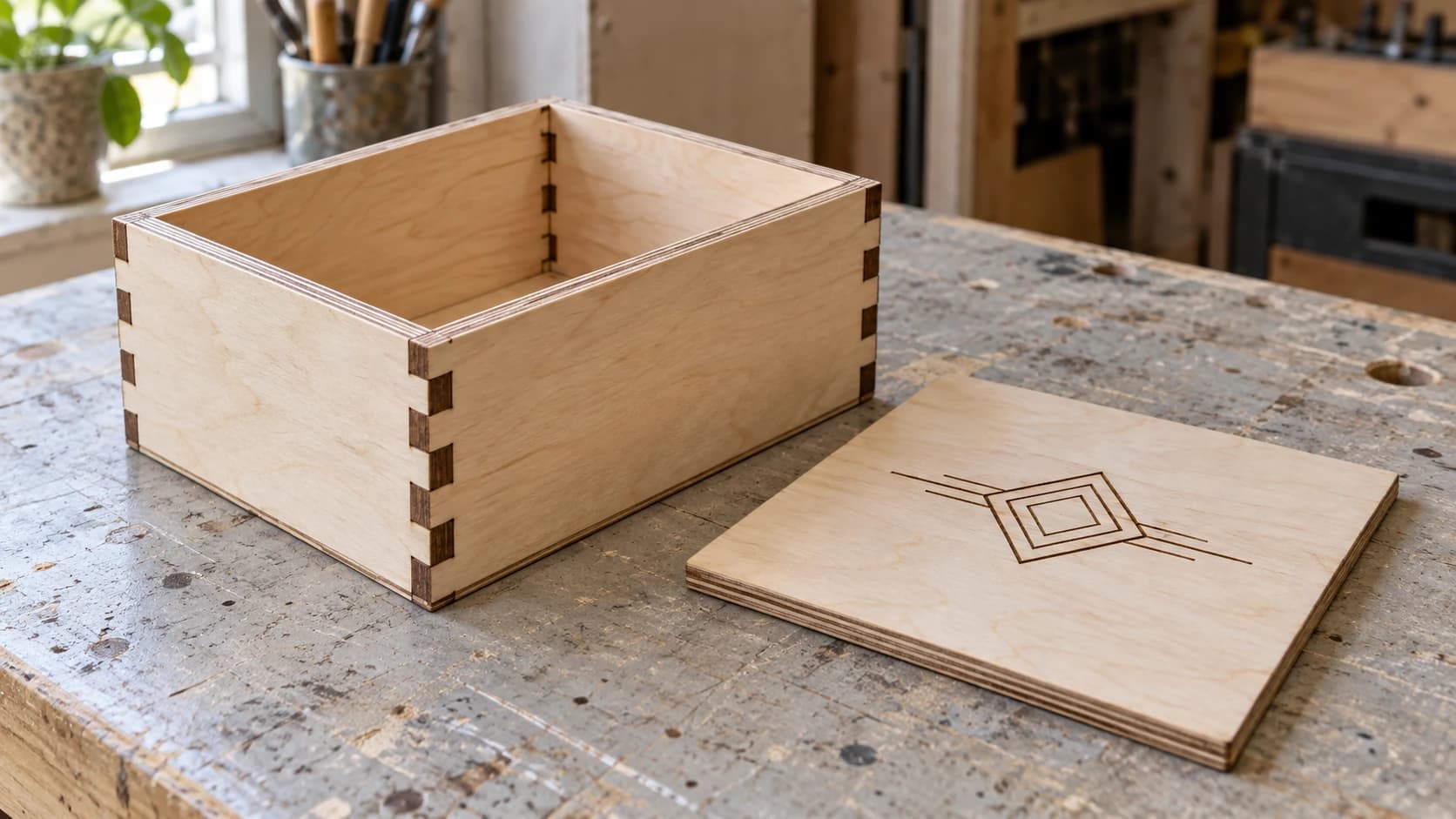
You've designed something beautiful. Maybe it's a box with finger joints, a decorative panel for a friend's wedding, or a prototype enclosure for that electronics project you've been putting off. You export the file, load it into your laser software, and hit start. The machine cuts right through your tabs. The pieces don't fit together. The engraving is blurry. And the whole thing is 3mm too small because nobody told you about kerf.
File preparation is the unglamorous bridge between "I designed a thing" and "this thing actually works." Many avoidable laser cutting failures start in the file: wrong format, missing layers, overlapping paths, no kerf compensation, or text that isn't outlined. Machine setup, material condition, ventilation, and process settings matter too. The goal is to remove file-related uncertainty before the machine starts moving.
This guide covers the entire file preparation workflow from design to cut. Not the design itself (that's a creative problem, and you're on your own there), but everything that happens between finishing your design and pressing Start.
Why File Preparation Matters More Than You Think
Your laser is a very precise, very obedient machine. It will cut exactly where your file says to cut, at exactly the speed and power your settings dictate. It doesn't question whether those paths make sense. It doesn't fix overlapping lines. It doesn't adjust for the width of its own beam. It just goes.
This is both the beauty and the danger of laser cutting. A well-prepared file removes common failure modes and makes a tested process easier to repeat. A poorly prepared file wastes material, wastes time, and can even damage your machine (running the same path twice on thin material, for instance, or trying to cut through a section where paths overlap and create excessive heat).
Here's what proper file preparation gets you:
- Parts that fit. Kerf compensation means your tabs, slots, and interlocking joints actually work.
- Clean separation of operations. Cut lines cut. Engrave areas engrave. Score lines score. Nothing gets confused.
- No wasted passes. Duplicate paths, hidden objects, and stacked lines all cause your laser to run the same area twice. That's wasted time at best and scorched material at worst.
- More repeatable results. Once the file, material batch, machine setup, and tested settings are documented, repeating the job becomes much more predictable.
If you're new to laser work entirely, our laser engraving beginner's guide covers machine setup, safety, and your first test engrave. This post assumes you have a working laser and basic familiarity with your software. We're focusing on the file side of things.
Warning
Only process a material when its manufacturer documentation confirms that the material, coatings, films, binders, and adhesives are compatible with your exact laser process. If you cannot identify a plastic, coating, leather treatment, MDF binder, glue, or other additive, do not laser it. Review the safety data sheet (SDS) and your machine manufacturer's instructions, use the specified enclosure, exhaust, ventilation, and air-assist configuration, and keep an appropriate fire extinguisher accessible. Never leave a running laser unattended. Stop the job if you see sustained flame or unexpected smoke, odor, or residue.
PRINT. CUT. CARVE.



- Multiple formats (SVG, DXF, PNG)
- Machine-tested designs
- Commercial licenses
Sponsored by PrintCutCarve.com
File Formats for Laser Cutting
Not all file formats are created equal, and your laser software has opinions about which ones it prefers. If you want the full breakdown of every maker file format, our file format guide covers the entire landscape. Here, we're focusing specifically on what works for laser cutting and why.
SVG (Scalable Vector Graphics)
SVG is the most versatile format for laser work. It stores vector paths (the math that describes your shapes), along with color information, stroke widths, layer names, and other metadata. Most laser software reads SVGs natively, and most design tools export them. They're human-readable XML, which means you can even edit them in a text editor if you're feeling brave.
Best for: Most laser workflows. SVG preserves color information, which most laser software uses directly for layer mapping.
Watch out for: Embedded raster images inside SVGs (they look like vectors but aren't), live text that isn't converted to outlines, and units that don't match your workspace.
DXF (Drawing Exchange Format)
DXF is the CAD world's standard exchange format. It describes pure geometry: lines, arcs, polylines, splines. No fills, no colors (well, technically it has layer colors, but they work differently than SVG colors). It's the format that industrial laser controllers have accepted for decades.
Best for: Machines running RDWorks, older Chinese controllers, or any workflow where SVG imports are unreliable. Also preferred if you're coming from CAD software like AutoCAD or Fusion 360.
Watch out for: DXF version compatibility. Older controllers may only accept R12 or R14 format DXF files. If your import looks wrong, try re-exporting as an older DXF version.
If your laser software requires DXF and your design is in SVG, our SVG to DXF conversion guide walks through the process and the common pitfalls.
AI (Adobe Illustrator)
Adobe Illustrator's native format. Some controller workflows accept AI files directly, but support depends on the controller and software version. Verify the current documentation for your machine before deciding to skip an SVG or DXF export.
Best for: Workflows that start and end in the Adobe ecosystem, or machines with controllers that specifically list AI as a supported format.
Watch out for: AI files with effects, gradients, or transparency. Your laser controller will either ignore or misinterpret these. Flatten everything before saving.
PDF (Portable Document Format)
PDF can contain vector paths, raster images, or both. Some laser applications can import vector PDFs and extract cut paths. Check your laser software or controller documentation for supported PDF features and import limits.
Best for: Glowforge users, or when someone sends you a design as a PDF and you need to extract the vectors without opening a full vector editor.
Watch out for: PDFs that contain raster images instead of actual vectors. The file extension doesn't tell you what's inside. If your import looks blocky or pixelated, the paths aren't vectors.
PNG and JPG (Raster Images)
Raster images are grids of pixels. They don't contain cut paths. Your laser software can use them for engraving (converting the pixel data to a burn pattern), but they can't be used for cutting.
Best for: Photo engraving, raster fill engraving of images or graphics. If you're engraving a photo onto wood, a high-resolution PNG or JPG is what you want.
Not for: Cutting. Ever. If you need cut lines from a raster image, you need to vectorize it first.
Quick Format Comparison for Laser Cutting
Treat this table as an orientation aid, not a compatibility guarantee. Import support changes by software version, operating system, license, and controller. Confirm the current documentation and test the actual file before running the laser.
| Format | Cut paths? | Engrave? | Color layers? | LightBurn | LaserGRBL | Glowforge |
|---|---|---|---|---|---|---|
| SVG | Yes | Yes | Yes | Yes | Limited | Yes |
| DXF | Yes | Yes | By layer | Yes | Yes | No |
| AI | Yes | Yes | Yes | Yes | No | No |
| Yes | Yes | Varies | Yes | No | Yes | |
| PNG/JPG | No | Yes (raster) | No | Yes | Yes | Yes |
Tip
When in doubt, use SVG. It has the widest support across modern laser software, preserves color information for layer mapping, and handles both vector operations and embedded images. DXF is your fallback when SVG doesn't import cleanly.
Vector vs Raster: When to Use Each
This distinction drives every decision in laser file preparation, so let's be crystal clear about it.
Vector operations use the laser like a pen. The head follows a path, tracing lines, curves, and shapes. The laser fires continuously along that path. This is what happens when you cut, score, or do vector engraving (outlining shapes with the laser).
Raster operations use the laser like a printer. The head sweeps back and forth in horizontal lines, firing in short pulses to create dots. Dense dots make dark areas, sparse dots make light areas. This is how photos, fills, and shading get engraved.
Here's when to use each:
| Operation | Type | File needed | Example |
|---|---|---|---|
| Cutting through material | Vector | SVG, DXF | Cutting puzzle pieces |
| Scoring (light surface cut) | Vector | SVG, DXF | Fold lines on a box template |
| Vector engraving (outlines) | Vector | SVG, DXF | Engraving text as outlines |
| Filled engraving (solid areas) | Raster | SVG with fills, or PNG/JPG | Filling a logo shape with engraving |
| Photo engraving | Raster | PNG, JPG | Portrait on a wooden plaque |
| Grayscale/depth engraving | Raster | PNG, JPG | 3D-effect relief engraving |
Most real projects use both. A decorative sign might have vector cut lines for the outline, vector engraving for text outlines, and raster engraving for filled graphics. Your laser software handles both, but you need to set them up on separate layers with different settings. Which brings us to the most important part of file preparation.
Setting Up Cut vs Engrave Layers
This is where beginners trip up most often. Your design has elements that need to be cut, elements that need to be engraved, and maybe elements that need to be scored. Each operation needs different power/speed settings. The way you tell your laser software which operation to use on which element is through layers, and layers are mapped by color.
How Color Mapping Works
In most laser software, every color in your design maps to a separate layer. Each layer has its own speed, power, and operation type. So if you draw your cut lines in red, your engrave areas in blue, and your score lines in green, your software creates three layers and you can assign different settings to each.
This is why SVG is the preferred format for laser work. It preserves color information through the import, so your layers arrive already separated.
Here's a common color convention (not a standard, but widely used):
| Color | Operation | Typical settings |
|---|---|---|
| Red (#FF0000) | Cut (through material) | High power, low speed |
| Black (#000000) | Engrave (raster fill) | Medium power, high speed |
| Blue (#0000FF) | Score (light surface cut) | Low power, medium speed |
| Green (#00FF00) | Vector engrave (outline) | Medium power, medium speed |
Info
These colors aren't magical. Your laser software doesn't know that red means "cut." It just creates a separate layer for each color and lets you configure them individually. You could use pink for cutting and yellow for engraving if you wanted. The convention just helps you stay organized.
Setting Up Layers in LightBurn
The labels below describe a common LightBurn workflow. Menus, shortcuts, import behavior, and available controls can change by version and license, so use the current LightBurn documentation as the authority. When a multi-color SVG or DXF imports into separate color layers, configure them like this:
-
Import your file. Each unique color becomes a layer in the Cuts/Layers panel on the right side.
-
Set the operation type for each layer:
- Line = vector cutting/scoring. The laser traces the path.
- Fill = raster engraving. The laser sweeps back and forth filling enclosed areas.
- Fill+Line = raster engrave the interior, then trace the outline.
- Offset Fill = engraves from the outside in (good for certain effects).
-
Set power and speed for each layer. Start from documentation for your exact machine and a manufacturer-confirmed laser-compatible material, then validate the settings on scrap from the same batch. Do not treat generic "high," "medium," or "low" values as a safe recipe.
-
Set the layer order. Confirm how your version controls processing order, then arrange the job to engrave first, score second, and cut last. If you cut first, the pieces can shift on the bed and your engraving may no longer align.
Warning
Always process layers in this order: engrave first, score second, cut last. If you cut outlines before engraving the interior, the cut pieces can shift on the honeycomb bed. The engraving then lands in the wrong position, or worse, on empty space where the piece used to be.
Setting Up Layers in LaserGRBL
LaserGRBL handles layers differently than LightBurn. It's more image-focused and doesn't have the same multi-layer color mapping. For pure vector cutting, most LaserGRBL users work with single-color files and run separate jobs for different operations.
If you need to cut and engrave in the same project with LaserGRBL:
- Separate your design into individual files. One file for the engrave elements, one for the cut lines.
- Run the engrave file first with appropriate raster settings.
- Run the cut file second without moving the material or the machine's origin.
- Use the same origin point for both files so everything aligns.
Software that can preview and process multiple operation layers in one job can save setup time and reduce alignment mistakes. Compare current features, licensing, and pricing in the official product documentation instead of relying on a price quoted in a tutorial.
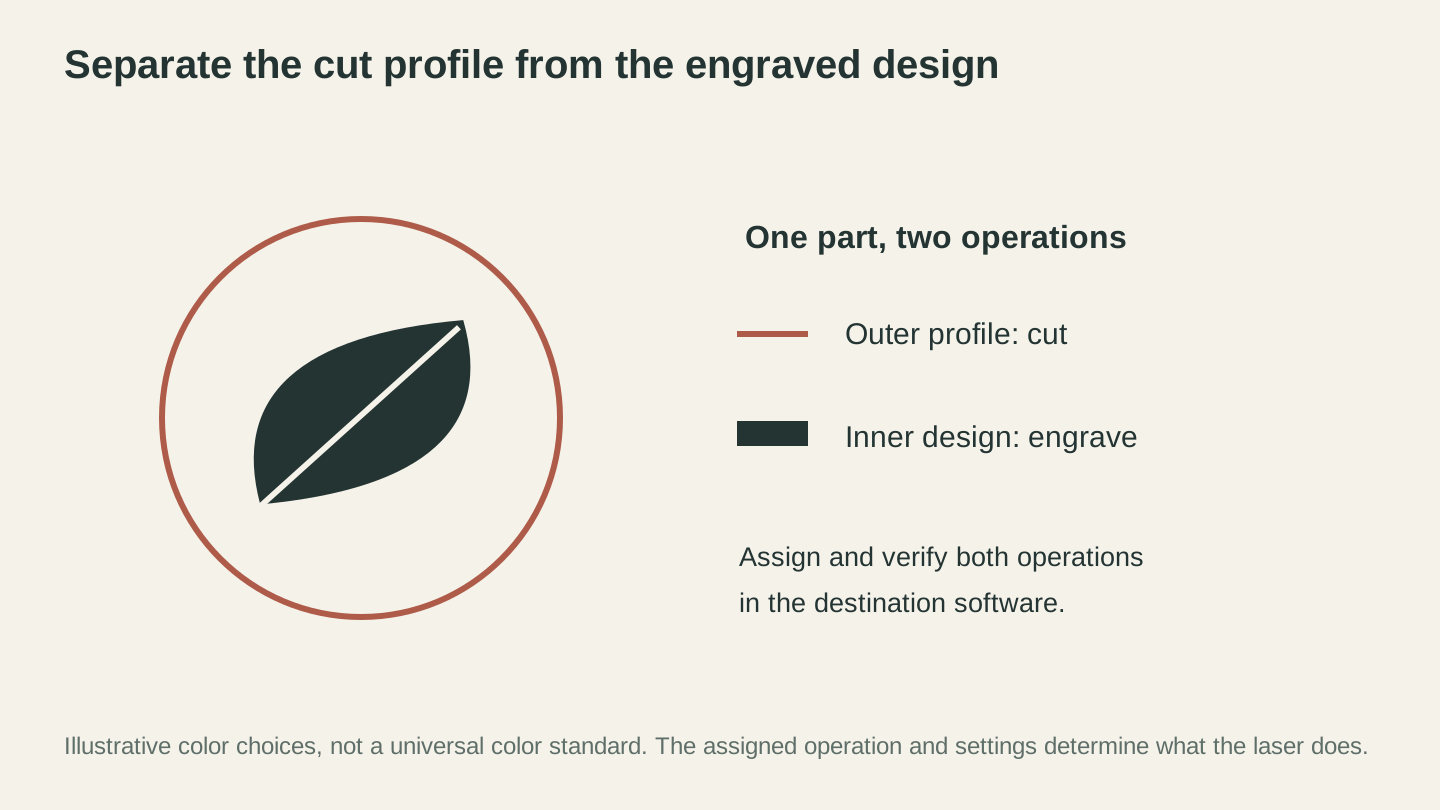
Assign the profile and surface design to the intended operations. The colors here are illustrative; verify what each layer does in your software.
Power, Speed, and Layer Settings Explained
Every layer in your design needs three core settings: power, speed, and the operation type. There is no universal settings table: safe starting points depend on the exact machine, firmware, optics, material composition and thickness, focus, air-assist configuration, and intended result. Use your machine manufacturer's documentation and the material supplier's laser guidance first, then validate on scrap from the same batch while actively supervising the test. Our laser settings for wood guide explains how to build a test process for different wood species.
Warning
Settings copied from another machine are not a safety specification. Confirm the material is laser-compatible, run the specified exhaust and ventilation, remain at the machine for the entire test, and stop immediately if you see sustained flame or unexpected smoke, odor, or residue.
Power (%)
Power is the command sent to the laser source. A displayed percentage is relative to that machine and its controller; 100% on one system is not equivalent to 100% on another, and some manufacturers restrict maximum usable power or duty cycle. Use the documented starting range for your exact machine and material, then make the smallest practical supervised test matrix.
Speed (mm/min or mm/s)
How fast the laser head moves. Slower speed means more energy deposited per unit length, which means deeper cuts and darker engraves. Faster speed means lighter results.
Applications may display speed in mm/s or mm/min. Confirm the unit before entering any value: 300mm/min equals 5mm/s, while 300mm/s is sixty times faster. Do not assume a program's default unit; check the current machine profile and documentation.
| Variable | Why it changes the result | How to verify |
|---|---|---|
| Machine and laser source | Available power, beam shape, and control behavior differ | Use the manufacturer's settings guidance for the exact model |
| Material composition and thickness | Additives, adhesives, density, color, and thickness change absorption and fire behavior | Confirm laser compatibility and test scrap from the same batch |
| Focus, optics, and air assist | Spot size and gas flow change energy density and edge quality | Follow the machine setup procedure before every test |
| Operation type | Cutting, scoring, line engraving, and raster engraving need different test patterns | Run a small supervised matrix for the intended operation |
| Speed unit | Confusing mm/min with mm/s changes motion by a factor of 60 | Verify the displayed unit and preview the estimated job time |
Passes
Passes are the number of times the laser repeats the same path. Do not add passes as a generic fix for a failed cut: repeated passes can accumulate heat, ignite material, widen the kerf, and worsen fumes or charring. If the machine and material documentation permits multiple passes, validate the complete pass count on a small scrap coupon while remaining at the machine. Stop before changing settings if the first pass produces flame, unexpected residue, or incomplete extraction.
DPI / LPI (Raster Engraving Only)
DPI (dots per inch) or LPI (lines per inch) controls the requested resolution of raster engraving. Higher values request closer lines and slower processing, but the machine's spot size and the material determine whether the extra resolution produces useful detail.
The table below illustrates the workflow tradeoff only; it is not a material or machine prescription. Use the manufacturer's supported range and a scrap test to choose the lowest resolution that captures the detail you need.
| DPI | Quality | Speed | Best for |
|---|---|---|---|
| 150 | Low | Fast | Draft, testing |
| 254 | Medium | Moderate | Most engraving |
| 300 | Good | Moderate | Detailed graphics |
| 500 | High | Slow | Fine photo engraving |
| 1000+ | Extreme | Very slow | Rarely needed |
Wood grain, focus, beam size, motion accuracy, and image preparation all affect the useful resolution. Compare labeled test swatches on the actual material instead of assuming that one DPI value is a universal sweet spot.
Kerf Compensation: The Most Overlooked Step
Kerf is the full width of material removed by the laser beam. It is not the same thing as the offset applied to one edge. If the measured kerf is K, a centerline toolpath removes approximately K / 2 from each side of that path. Kerf changes with the exact material and batch, thickness, focus, optics, power, speed, pass count, air assist, and machine condition, so measure it on the setup you will actually use.
That distinction matters for boxes, puzzles, inlays, and mechanical parts. A small error on every mating edge can turn a planned press-fit into a loose joint or prevent the parts from assembling at all. Desired fit clearance or interference is a separate design choice that you apply after compensating for kerf.
How Kerf Works
Imagine a nominal 50mm square drawn as a centerline path. If the full kerf K is 0.24mm, the outside piece is approximately 49.76mm wide because the beam removes 0.12mm from each opposite edge. The opening left in the sheet is approximately 50.24mm wide for the same reason.
To restore the nominal dimension, move the toolpath by the per-edge amount K / 2 toward the waste side: outward for an exterior profile, and inward into the waste of an interior opening. That restores the intended geometry before you add any separate allowance for a loose, sliding, or press fit.
Measuring Your Kerf
Measure kerf only with a manufacturer-confirmed laser-compatible material and settings that have already passed a supervised scrap test:
- Draw a closed test shape with a known nominal dimension, such as a 50mm square.
- Cut it from scrap taken from the same material batch, using the focus, power, speed, pass count, air assist, and extraction intended for the job.
- Let the part cool, then measure the outside piece with calipers. For a 50mm nominal square, full kerf K = 50mm - measured piece width.
- If the opening can be measured reliably, cross-check with full kerf K = measured opening width - 50mm.
- Repeat the coupon and average consistent measurements. The design offset for one edge is K / 2.
For example, a 50mm nominal square that produces a 49.76mm piece has a full kerf of 50mm - 49.76mm = 0.24mm. The per-edge compensation is 0.24mm / 2 = 0.12mm. Calling 0.12mm the full kerf would be incorrect; it is the radial or per-edge offset.
Tip
Record the material manufacturer, product, batch, thickness, machine, optics, focus, power, speed, pass count, air-assist setup, and measured full kerf. Re-measure after any of those inputs changes. A prior kerf value is not transferable to an unidentified material or a different machine setup.
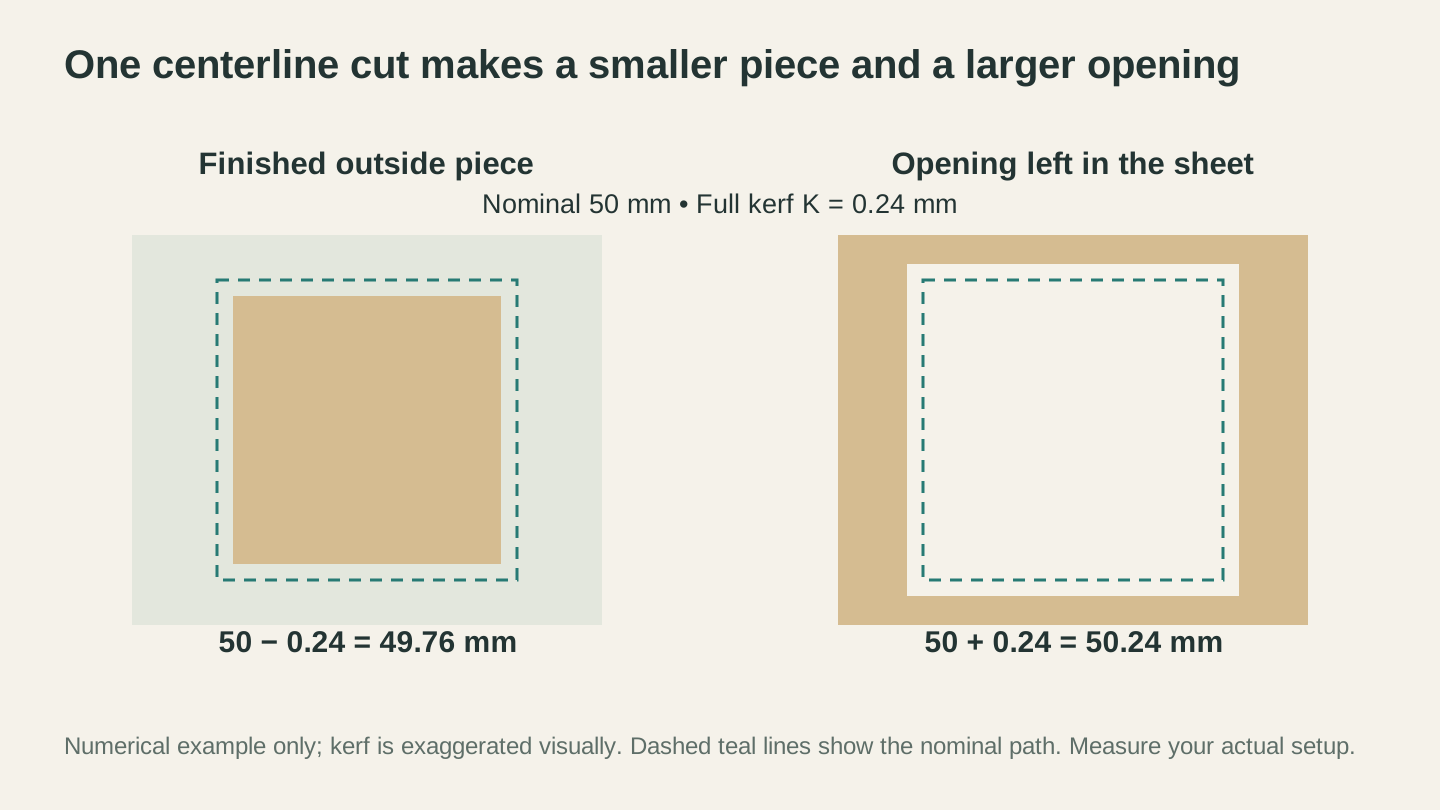
With an illustrative full kerf of 0.24 mm, a centered cut removes material on both sides of the nominal path. The diagram exaggerates the gap; measure your actual setup.
Applying Kerf Compensation
There are two reliable approaches. In both cases, decide which side is the finished material and move the cut toward the waste:
Method 1: Offset the geometry in your design software. For an exterior profile, offset the toolpath outward into the surrounding waste by K / 2. For an interior opening, offset the toolpath inward into the opening's waste by K / 2. Keep an uncompensated master design so the manufacturing offset does not become confused with the nominal geometry.
Method 2: Use cut-side or kerf compensation in the laser software. Choose the equivalent of outside for an exterior profile and inside for an interior opening. Software differs: one application may ask for the full kerf K, another for the per-edge offset K / 2, and another may derive the offset after you choose the cut side. Read the documentation for the installed version instead of assuming what the field means.
| Finished feature | Put the beam on this side | Geometric move for a manual offset | Result before fit allowance |
|---|---|---|---|
| Exterior part/profile | Outside, in the surrounding waste | Outward by K / 2 | Restores the outside part dimension |
| Interior hole/slot | Inside, in the opening waste | Inward by K / 2 | Restores the opening dimension |
After basic kerf compensation, add any desired clearance or interference separately and verify the result with a joint coupon. Do not use an untested "quick fix" on every tab or slot: fit depends on material compression, grain, humidity, geometry, and assembly direction as well as kerf.
Warning
Preview the compensated paths at high zoom and cut a small supervised coupon before the full job. Confirm that exterior paths move into exterior waste and interior paths move into opening waste. If the software's field does not clearly state whether it expects full kerf or per-edge offset, stop and consult its current documentation.
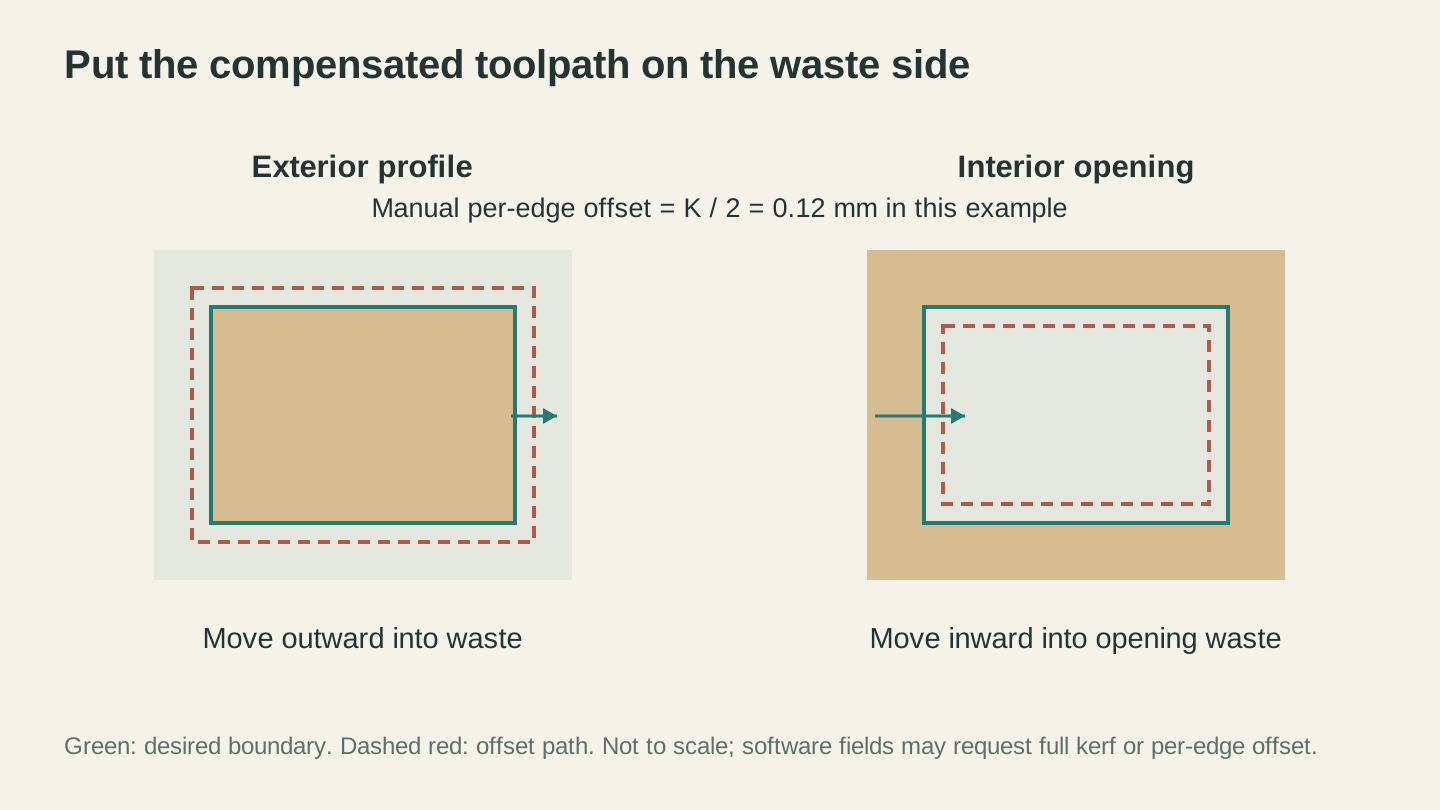
Move a manual offset toward the waste. In this example the per-edge amount is 0.12 mm, half the 0.24 mm full kerf; check what the software’s field expects.
What Changes Kerf
There is no safe universal kerf table. Even two sheets sold under the same material name can measure differently. Use a coupon rather than inferring kerf from laser category or wattage.
| Variable | Why it matters |
|---|---|
| Material product, batch, and thickness | Density, pigments, adhesives, and manufacturing tolerances change the cut |
| Focus and optics | Spot size and focal position change the width and shape of the cut |
| Power, speed, and pass count | Energy delivered to the edge changes removal and heat accumulation |
| Air assist and extraction | Gas flow affects flame, debris removal, edge quality, and fumes |
| Machine condition | Alignment, cleanliness, motion, and beam delivery affect repeatability |
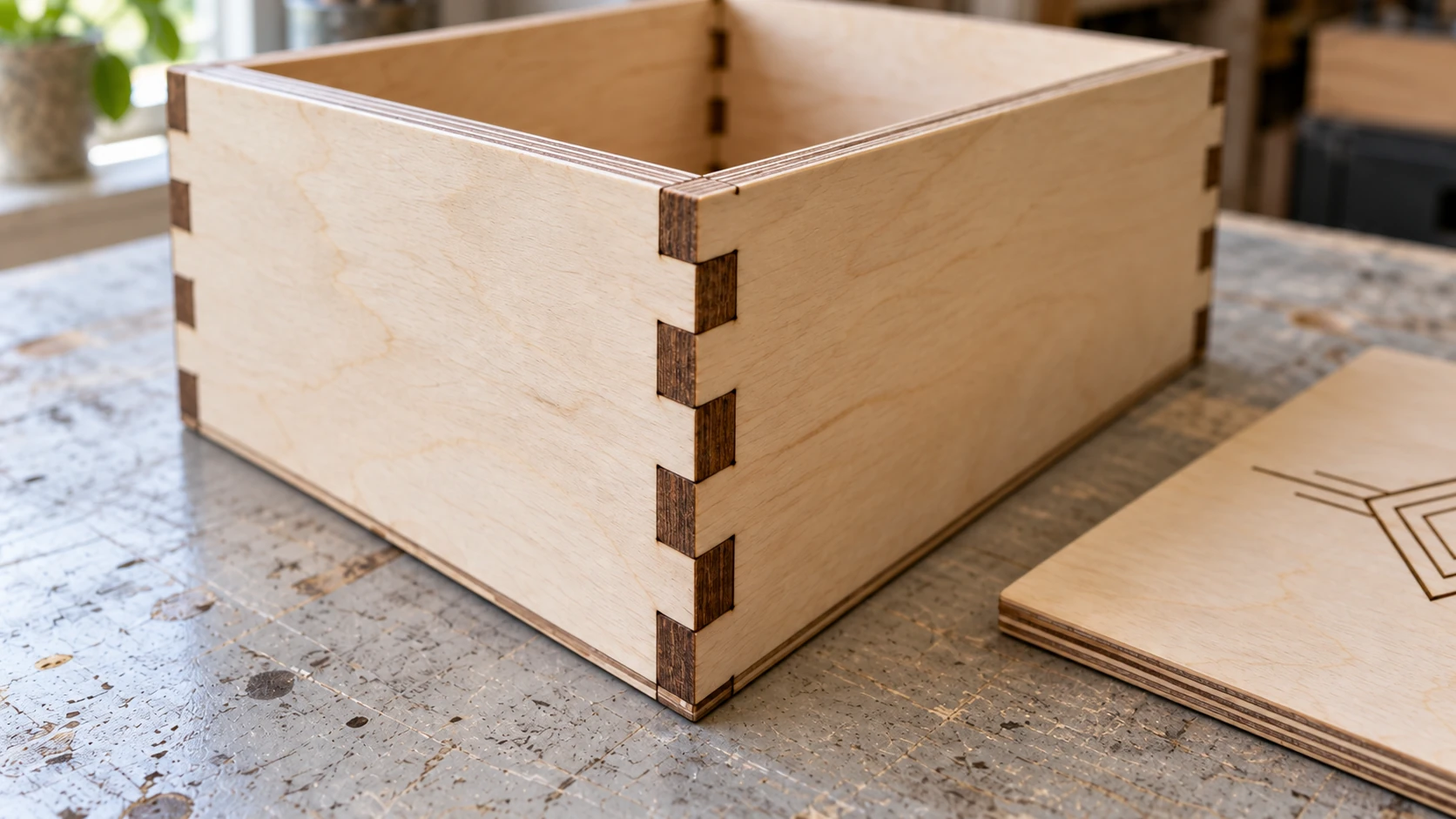
The two walls meet at alternating fingers, with plywood layers visible on the exposed edges. Check a joint sample before preparing the full set of panels.
Design Rules for Laser Cutting
Before you export anything, your design needs to follow some physical constraints. Lasers are precise, but materials have limits.
Minimum Line Spacing
Your laser beam has a physical width (the kerf we just discussed). If two cut lines are too close together, they merge into one wider cut, or the thin strip between them is too fragile and breaks.
Do not use a universal minimum spacing. Start with the machine and material supplier's documented limits, then cut a spacing coupon that includes the smallest gaps in your design. Thin, brittle, adhesive-backed, or heat-sensitive materials generally need more separation, but only the tested coupon establishes a usable limit for that setup.
This also applies to engraving near cut lines. If you engrave close to a cut edge, the combined heat can scorch or distort the engraving. Include edge distance in the scrap coupon and increase it until the result remains intact across repeated tests.
Minimum Feature Size
Very small features (thin tabs, tiny holes, delicate text) are limited by measured kerf, heat effects, focus, and the material's structural properties. Build a feature coupon around the actual design instead of treating a generic size table as a guarantee.
| Feature | Include in the coupon | Reject the size when |
|---|---|---|
| Tab/bridge | Several widths and orientations | It chars excessively, breaks, or will not hold the part |
| Hole/slot | Several nominal sizes with labels | The measured opening or mating fit is outside tolerance |
| Text | The actual font at several sizes | Counters close, strokes disappear, or letters become unreadable |
| Thin detail | The narrowest lines and gaps in the design | Adjacent cuts merge or the material loses strength |
Info
Serif fonts often have thin strokes that fail before a similarly sized sans-serif font. Test the actual font, size, material, and process on scrap; switching to a font with more uniform strokes can improve durability and readability.
Text: Always Convert to Outlines
This is non-negotiable. If your design has text, convert it to outlines (also called "converting to paths" or "expanding text") in your design software before exporting.
Why? Because text in a vector file is stored as font references. The letter "A" in Helvetica isn't a shape in your file. It's an instruction that says "render the letter A using the Helvetica font." If your laser software doesn't have Helvetica installed, it substitutes a default font. Your carefully chosen typography turns into Times New Roman or, worse, a missing glyph box.
Converting to outlines turns each letter into a fixed geometric shape. The font is baked into the geometry. It looks the same regardless of what fonts are installed on the receiving machine.
Select your text, then use your vector editor's outline/path conversion command. It's usually labeled something like "Object to Path," "Create Outlines," or "Convert to Curves," depending on your software.
Bridge Tabs for Parts That Fall Through
When you cut a piece completely free from the surrounding sheet, it drops through your honeycomb bed (or onto the slats, or into the void below). For small or delicate pieces, this can cause problems. The piece might land at an angle and catch the laser head. Or it might fall into an area where air assist blows it around.
Bridge tabs are small uncut sections that keep the piece attached to the surrounding material. After the job finishes, you snap or cut the tabs with a craft knife and sand the nubs.
To add bridge tabs in your design:
- Find the cut path for your piece.
- Add short uncut segments at enough locations to keep the part stable without trapping excessive heat.
- Size and place the tabs with a supervised scrap coupon, then confirm that the head, air assist, and extraction cannot move the part into the travel path.
Not all pieces need tabs, and size alone does not determine the answer. Part geometry, mass, bed type, airflow, cut order, and machine clearance all matter. Use the machine manufacturer's approved hold-down methods and a tested coupon rather than a universal part-size threshold.
Overlapping and Duplicate Paths
This is the silent killer of laser files. Two paths stacked on top of each other look like one path on screen. But your laser runs both of them, burning the same line twice. On thin material, this can cut all the way through when you only wanted a score. On any material, it wastes time and increases charring.
Common causes of duplicate paths:
- Copy/pasting a shape and forgetting about the original underneath
- Boolean operations that leave remnant paths
- Importing the same file twice
- SVGs with both a stroke and a fill that get converted to two separate paths
How to check in your design software: Select everything and look for an object count or similar readout. If you have more objects than expected, start selecting individual items to find the duplicates. Many vector editors also have a find/search tool that can flag identical paths.
How to check in your laser software: Turn on any "show travel moves" option in the preview. If you see the laser returning to the same area twice, you have duplicate paths. Many laser applications also have an optimization setting that removes overlapping lines automatically.
Common Software Workflows
Info
Software interfaces change. Menu paths and English labels below are examples from common releases, not a promise that every version, operating system, license, or controller exposes the same command. Use the current official documentation for the installed version when a label or behavior differs.
Inkscape (Free, Cross-Platform)
Inkscape is the most popular free vector editor for makers. It's not the prettiest tool, but it handles SVG natively and does everything you need for laser file prep.
Laser prep workflow in Inkscape:
-
Set your document size to match your material or cutting bed. File > Document Properties > set width, height, and units (millimeters recommended).
-
Organize by color. Use different stroke colors for different operations. Red for cuts, black for engraves, blue for scores. No fill on cut and score paths (fill causes raster operations in some laser software).
-
Convert text to paths. Select all text, Path > Object to Path.
-
Convert objects to paths. Rectangles, circles, and other shapes should be converted to paths for reliable import. Select all, Path > Object to Path.
-
Check for overlapping paths. Use the overlap, intersection, or duplicate inspection tools available in your installed version. You can also move a copy of an object temporarily to look for hidden geometry underneath, then undo the move.
-
Set stroke widths. For cut lines, set stroke width to the minimum your software recognizes (0.001mm or "hairline"). Some laser software interprets thick strokes as engrave areas rather than cut lines.
-
Export as Plain SVG. File > Save As > Plain SVG (not Inkscape SVG). The Inkscape format includes extra metadata that can confuse some laser software.
Tip
In Inkscape, the XML editor can help verify that paths contain expected geometry and styling. If imported dimensions are wrong, consult the current Inkscape documentation for applying transforms before export; extension names and menu locations vary by installation.
Adobe Illustrator
If you're already paying for Illustrator, it's an excellent tool for laser file prep. The path handling is more robust than Inkscape, and the interface is more intuitive for complex designs.
Laser prep workflow in Illustrator:
-
Set your artboard to match your material size. Use millimeters.
-
Use separate layers or colors for each operation. The Layers panel keeps things organized, but what actually matters for LightBurn import is the stroke color.
-
Set all strokes to 0.001pt or "hairline." Illustrator's default stroke width is 1pt, which some laser software interprets as a thick line to be engraved rather than a cut path.
-
Create outlines on all text. Type > Create Outlines.
-
Expand all objects. Object > Expand. This converts strokes, effects, and other Illustrator features into simple paths.
-
Remove fills on cut paths. Cut lines should have a stroke color and no fill. Filled shapes get interpreted as raster engrave areas.
-
Save as SVG. File > Save As > SVG. Use SVG 1.1 profile, set images to Embed (if you have any), and set CSS Properties to "Presentation Attributes" for best compatibility with laser software.
LightBurn
LightBurn isn't just laser control software. It's also a capable design tool. For simple modifications and layout, you may not need a separate design program at all.
Useful LightBurn design features:
- Boolean operations. Select two shapes and use the toolbar to union, subtract, intersect, or XOR them. Great for creating cutouts and combined shapes.
- Text tool. Add and format text directly in LightBurn. It renders text to paths automatically, so font compatibility isn't an issue.
- Array/grid. Duplicate your design in a grid pattern to fill a sheet. Edit > Select All > Tools > Array.
- Offset tool. Create inset or outset paths at a specified distance. Useful for creating borders or adding kerf compensation manually.
- Node editing. Double-click a shape to edit individual nodes and curves. Fix problem areas without going back to your design software.
Import tips:
- If your imported SVG has color layers, they appear automatically in the Cuts/Layers panel. If everything imports as a single color, your SVG probably doesn't have color information.
- After import, use the duplicate or overlapping-line inspection available in your LightBurn version. Preview again after cleanup to make sure intentional geometry was not removed.
- Use the Preview window (Alt+P) before every job. It shows exactly what the laser will do, including travel moves, operation order, and estimated time.
LaserGRBL
LaserGRBL is used with many GRBL-based diode-laser workflows. Check its current official documentation for operating-system support, licensing, supported file types, and controller requirements.
File prep for LaserGRBL:
LaserGRBL is primarily an image-to-G-code tool. It excels at raster engraving (photos, filled graphics) but has limited vector support. For cutting, you'll typically use SVG files converted to G-code.
-
For raster engraving: Import your PNG or JPG directly. LaserGRBL handles the dithering and line-by-line conversion internally. Adjust brightness, contrast, and the dithering algorithm in the import dialog.
-
For vector cutting: Import your SVG. LaserGRBL converts the paths to G-code. Set your speed and power in the import settings. Note that LaserGRBL doesn't support multi-color layer mapping like LightBurn, so you may need to run separate files for cut vs engrave.
-
For mixed jobs: Split your design into separate files (engrave elements and cut elements) and run them sequentially with the same origin point.
If the current LaserGRBL workflow does not support the layer handling or preview you need, compare other software using its current compatibility, licensing, and pricing information. Validate any replacement with your controller before changing a production workflow.
Preparing Photos for Laser Engraving
Raster engraving (photos, filled graphics, logos) is a different workflow from vector cutting. Instead of path geometry, you're working with pixel data that gets converted to a dot pattern.
For a deep dive into photo-to-laser workflows, our photo engraving guide covers the entire process. Here's the file preparation summary.
Image Resolution
Your source image needs to be high enough resolution for the DPI you plan to engrave at. The math is simple:
Required pixels = physical size (inches) x DPI
So if you're engraving a 4" x 6" photo at 300 DPI, you need at least a 1200 x 1800 pixel image. Starting with a smaller image means the software has to upscale it, which adds blur.
Image Processing
Raw photos rarely engrave well. The continuous tones and gradients that look great on screen don't translate to laser burns on wood. You have two options:
Dithered engraving: Your laser software converts the grayscale photo into a pattern of dots. Multiple dithering algorithms exist (Floyd-Steinberg, Jarvis, Stucki, ordered), and each produces a different look. This works but requires careful tuning of contrast, brightness, and dithering settings for each material.
Line art conversion: Convert the photo to clean black-and-white line art before importing. The result can resemble a pen-and-ink drawing and may be easier to test than continuous tones. Photo Converter provides an AI-assisted conversion workflow. Check the current tool interface for availability, credit use, and file limits.
File Format for Raster Engraving
Use PNG for raster engrave files. PNG is lossless, so there are no compression artifacts in your image data. JPG introduces compression noise that can show up as random dots in your engraving, especially in light areas.
If your source file is a JPG (most photos are), that's fine as a starting point. But after you've processed it (adjusted contrast, converted to grayscale, applied dithering), save the final version as PNG before importing into your laser software.
Grayscale Conversion
Color images need to be converted to grayscale before engraving. Your laser software will do this automatically, but doing it yourself gives you more control.
In any image editor, convert your image to grayscale. Then adjust the levels or curves to boost contrast. Laser engraving tends to compress the tonal range (darks get very dark, lights get washed out), so starting with a higher-contrast image produces better results.
Converting Files Between Formats
Sometimes the file you have isn't the file you need. Maybe you designed in a vector editor but your machine wants DXF. Maybe someone sent you a PNG logo and you need to cut it. Maybe you downloaded a design as a PDF and need to extract the vectors.
Raster to Vector (PNG/JPG to SVG)
If you have a raster image (PNG, JPG) and need vector cut paths, you need to vectorize it. MonoTrace traces the image into SVG paths, with a Sketch mode for photographed drawings. Inspect the exported geometry and preview it before treating it as cut-ready.
MonoTrace works best with high-contrast images: logos, text, line art, silhouettes, and simple graphics. It's not designed for photographs (those should be engraved as raster images, not vectorized). For a detailed walkthrough, see our PNG to SVG conversion guide.
SVG to DXF
When your laser software or controller requires DXF format, File Converter can convert an SVG to DXF. Inspect dimensions, curves, layers, and duplicate paths in the destination software; conversion quality depends on the source geometry and the importing controller.
Our SVG to DXF guide covers the common issues with this conversion, including unit mismatches, double-cut paths, and DXF version compatibility.
Other Useful Conversions
| From | To | Tool | Use case |
|---|---|---|---|
| PNG/JPG | SVG | MonoTrace | Vectorize logos or graphics for cutting |
| SVG | DXF | File Converter | Machine requires DXF format |
| DXF | SVG | File Converter | Sharing files with web-based tools |
| SVG | File Converter | Glowforge import, sharing designs | |
| SVG | File Converter | Extracting vectors from PDF designs |
Info
Availability, sign-in requirements, credits, and file limits can change. Treat the current MonoTrace and File Converter interfaces as the source of truth, and always inspect the converted file before sending it to a machine.
The Pre-Cut Checklist
Before you send any job to your laser, run through this checklist. Tape it to the wall next to your machine if you need to. Every experienced laser user has a mental version of this list. New users need to do it explicitly until it becomes habit.
File Integrity
- All text converted to outlines/paths
- No hidden or locked layers containing objects
- No objects outside the artboard/canvas
- File saved in correct format (SVG or DXF)
- Units match your laser software's workspace (mm recommended)
Path Quality
- No duplicate/overlapping paths (check in your laser software's preview)
- No open paths on shapes that should be closed (joins/boxes)
- All strokes set to hairline width for cut/score lines
- No fills on cut/score paths (fills trigger raster operations)
- Shapes converted from objects to paths (not rectangles, ellipses, etc.)
Layer Setup
- Each operation (cut, engrave, score) uses a different color
- Layers configured with correct operation type (Line vs Fill)
- Power, speed, and pass count come from current machine/material guidance and passed a supervised scrap test
- Layer order: engrave first, score second, cut last
- Full kerf, per-edge offset, cut side, and any separate fit allowance were verified with a coupon
Layout
- Design fits within the cutting bed
- Margins from material edges passed the layout coupon for this material and process
- Parallel cuts and small features meet the tested spacing limits for this setup
- Bridge tabs added for small parts that might fall through
- Parts oriented for efficient material use (nesting)
Material and Machine
- Exact material, coating, film, binder, and adhesive identified and confirmed laser-compatible by the manufacturer
- Current SDS and machine/material instructions reviewed; unknown plastics, coatings, leather treatments, MDF binders, and adhesives excluded
- Correct confirmed-compatible material loaded and secured
- Focus set for material thickness
- Air assist configured as specified by the machine/material guidance
- Enclosure, exhaust, and ventilation running as specified
- Honeycomb bed clean (debris causes reflection and uneven focus)
- Appropriate fire extinguisher and emergency stop accessible
- Operator will remain at the running laser for the entire job
Final Verification
- Run your laser software's preview and verify all operations
- Check estimated time (sanity check on settings)
- No unexpected travel moves or extra passes visible
- Origin/start position set correctly
- Small supervised scrap coupon completed before the full job
Warning
The preview step is not optional, but it does not certify material safety or settings. Use the preview available in your software to inspect duplicate paths, operation types, cut sides, and layer order, then run a supervised scrap coupon. Never leave the full job unattended.
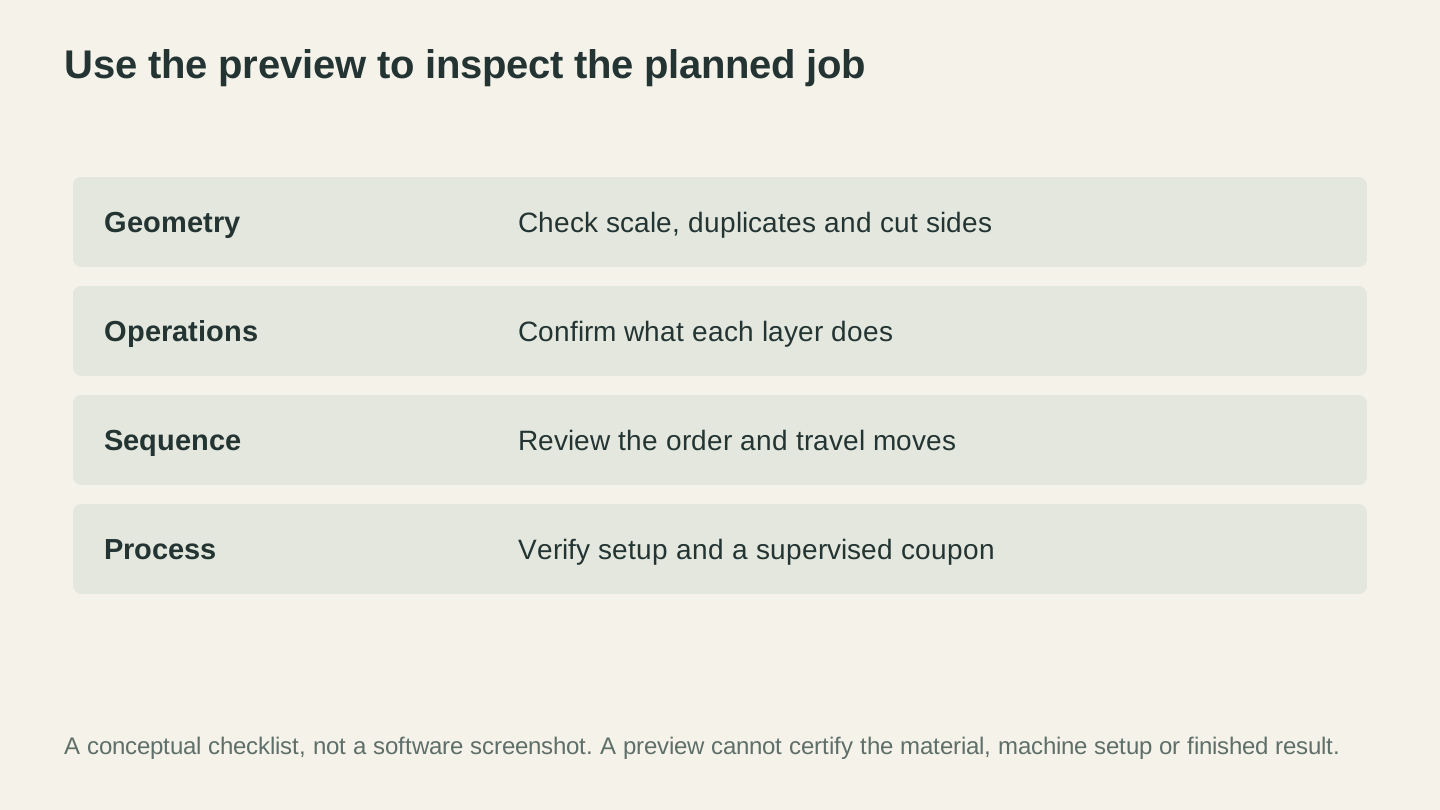
Preview the planned operations and order, then verify the setup and a supervised material coupon. A preview alone cannot establish the finished result.
Common Mistakes and How to Fix Them
"My cut pieces don't fit together"
Cause: No kerf compensation. Your tabs are slightly too small and your slots are slightly too large because the laser removed material on both sides of every cut line.
Fix: Measure the full kerf K as described above, confirm whether the software expects K or the per-edge offset K / 2, and place exterior and interior cuts on the waste side. Add the intended clearance or interference separately, then verify the joint with a coupon. Do not apply an unmeasured fixed amount to every tab and slot.
"The laser cuts the same line twice"
Cause: Duplicate paths stacked on top of each other. Looks like one line but your file contains two.
Fix: In your laser software, select all objects and look for a "delete duplicates" or similar cleanup command. In your design software, check for hidden copies and remove them. Many vector editors let you cycle through overlapping objects at the same position with a repeated click or a dedicated shortcut.
"My text looks different than the design"
Cause: Text wasn't converted to outlines. The laser software substituted a different font.
Fix: Go back to your design software, select all text, and convert to outlines/paths. Re-export and re-import.
"Everything imported as one big engrave instead of separate cuts"
Cause: Your design doesn't have color differentiation, or your shapes have fills instead of (or in addition to) strokes.
Fix: In your design software, set cut paths to have a colored stroke and no fill. Each distinct operation should use a different color. For SVGs, make sure you're using "stroke" attributes, not "fill."
"The cut didn't go all the way through"
Cause: Insufficient power, too fast, material thicker than expected, or focus is off.
Fix: This is usually a process issue, not a file issue, but confirm that the cut line contains one intended path. Verify material identity and thickness, stop the job, and follow the machine/material troubleshooting guidance for focus, optics, air assist, speed, power, and permitted pass count. Validate the revised process on supervised scrap rather than adding a pass or increasing power during the production job.
"Fine details broke or burned away"
Cause: Features too small for the material and kerf. Thin tabs, tiny text, or delicate details that can't survive the laser's heat.
Fix: Increase feature sizes based on the failed and successful samples in your feature coupon. Use a more robust font for small text. Remove overly delicate elements or simplify them.
"My design is the wrong size"
Cause: Unit mismatch between your design software and your laser software. Common when importing SVGs where the document was set to pixels instead of millimeters.
Fix: In your design software, set the document units to millimeters and verify the physical dimensions of your design. In your laser software, verify the imported size and scale if needed.
"Engravings are blurry or have lines through them"
Cause for blurry: Source image resolution too low for the engraving DPI. If you're engraving at 300 DPI but your source image is 72 DPI, it's being upscaled 4x and losing detail.
Cause for lines: Mechanical issue (loose belt, dirty guide rails) or bidirectional scanning offset is miscalibrated. The latter shows up as a consistent horizontal shift on alternating scan lines.
Fix for blurry: Use a higher resolution source image. For raster engraving, source resolution should match or exceed your DPI setting.
Fix for lines: Follow the current machine and software documentation for scanning-offset calibration and run the documented test pattern at the intended engraving speed.
"Parts moved during the job and engraving is misaligned"
Cause: Cut operation ran before engrave operation. Cut pieces shifted on the bed before the engraving pass.
Fix: Reorder your layers: engrave first, cut last. In your laser software, drag the engrave layers above the cut layers in the layers panel.
"The file imports but nothing shows up on the canvas"
Cause: Objects are placed far from the origin (0,0), or they're on a hidden layer, or the import scaled them down to near-invisible size.
Fix: After import, select all in your laser software, then use its center or fit-to-view command. If nothing selects, the objects might be on a hidden layer. Check the layers panel and make sure all layers are visible.
Putting It All Together: A Complete Workflow Example
Let's walk through a real example. You're making a wooden coaster with an engraved design and a cut outline.
Step 1: Design. In your vector editor, create your coaster. Draw a 90mm circle in red (stroke only, no fill) for the cut line. Place your design inside the circle in black (fill for engraved areas, stroke for vector engrave lines).
Step 2: Text. Any text in the design gets converted to paths using your software's outline/path conversion command.
Step 3: Check paths. Select all and check the object count. Look for duplicate paths by dragging objects and checking for hidden copies underneath.
Step 4: Verify units. Set the document units to mm. Circle diameter reads 90mm, not 90px.
Step 5: Export. Save as a plain SVG (without editor-specific metadata, if your software offers that option).
Step 6: Import into your laser software. Your red circle appears on one layer, and your black design appears on another.
Step 7: Configure layers. Set the black layer to the raster-fill operation and the red layer to the line-cut operation using the labels in your installed version. Use settings from current machine/material guidance that have passed a supervised scrap test. Arrange the job so engraving happens before cutting.
Step 8: Kerf compensation. The circle is an exterior profile. If the coaster must finish at 90mm, place the beam in the exterior waste. For a measured full kerf K, a manual geometry offset moves outward by K / 2. If software compensation is used, enter the full-kerf or per-edge value its current documentation requests and verify the cut side in the preview and a coupon.
Step 9: Preview. Run your laser software's preview. It should show the raster engrave operation first (sweeping back and forth filling the black areas), followed by the cut circle. No duplicate paths, no unexpected operations.
Step 10: Position and cut. Set the origin, follow the documented focus procedure, and confirm the enclosure, air assist, exhaust, and ventilation are configured for the verified material. Keep the emergency stop and appropriate extinguisher accessible, remain at the laser, and stop immediately for sustained flame or unexpected smoke, odor, or residue.
That's the whole process. Design, prepare, verify, cut. Once you've done it a few times, it becomes automatic. The checklist gets shorter because you stop making the mistakes it catches.
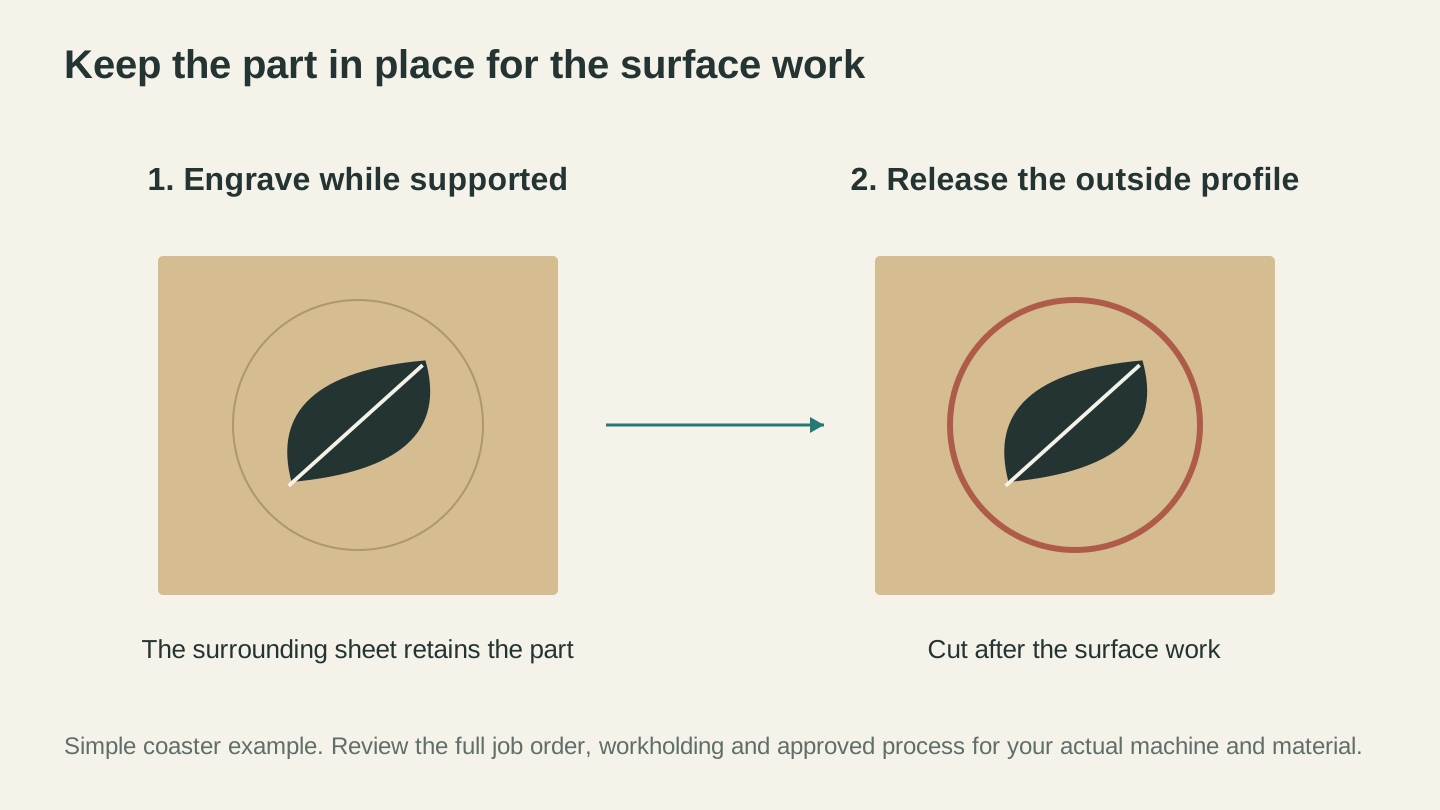
For this simple example, complete the surface work while the surrounding sheet retains the part, then cut the outside profile. Review the actual job’s full sequence.
Material-Specific File Tips
Different materials have different tolerances and behaviors. Here are file preparation notes for the most common laser materials.
Wood
Wood products vary by species, moisture, finish, glue, and sheet construction. Only use stock whose manufacturer confirms compatibility with the intended laser process. For detailed selection guidance, see our best wood for laser engraving guide.
- Measure kerf on the exact sheet, machine, focus, and tested settings; do not infer it from laser type
- Grain direction affects engraving appearance. Engravings across the grain look different than along the grain
- Use MDF only when the manufacturer confirms that the complete product and binder system are laser-compatible; review its SDS and extraction requirements
- Determine bridge-tab size and placement with a coupon so small parts remain secure without excessive heat buildup
- Include the heat-affected edge zone in the spacing coupon instead of assuming a fixed margin
Acrylic
Acrylic cuts beautifully but has its quirks. Our acrylic cutting guide covers material selection and settings in depth.
- Measure kerf on the exact acrylic product, thickness, machine, and tested settings
- Leave masking in place only when the acrylic manufacturer identifies it as purpose-made and laser-safe for the intended process; remove unknown film or paper according to manufacturer guidance
- Acrylic can stress-crack near cut edges, so establish line spacing and edge distance with a coupon rather than a universal minimum
- For edge-lit designs, engrave and cut in the same job to maintain alignment
Leather
- Do not assume that compression cancels kerf; measure the finished feature on the exact leather product
- Use leather only when the manufacturer confirms the substrate, tanning process, dyes, finishes, coatings, and adhesives are compatible with laser processing; review the SDS and extraction requirements. For leather-specific guidance, see our leather engraving guide
- Avoid very fine details. Leather doesn't hold small features as well as wood or acrylic
- Never laser unidentified leather or synthetic leather. PVC and other chlorine-bearing materials are prohibited, and unknown coatings or binders remain prohibited until the manufacturer confirms laser safety
Paper and Cardstock
- Measure kerf and feature survival on the exact paper or cardstock instead of assuming compensation is unnecessary
- Use tested tabs or another machine-approved hold-down method when cut parts could shift; make sure the method cannot obstruct the head or airflow
- Establish minimum feature width with a coupon; paper is fragile and ignites readily
- Use only the pass count allowed by the documented and tested process; repeated passes can accumulate heat and start a fire
- Secure material only with methods approved by the machine manufacturer. Do not add magnets or weights that can obstruct the head, alter airflow, or interfere with the machine
Metal (Marking Only)
Metal capability depends on the exact laser source, power, enclosure, optics, material, and manufacturer-approved process. Do not assume that a laser can cut or mark a metal because another machine of the same broad type can. For marking guidance, check our metal engraving guide and the machine/material documentation.
- Design files for metal marking are typically raster (engraving only, no cutting)
- High contrast, simple designs work best
- Use only purpose-made marking compounds that the compound and laser manufacturers approve for the exact process. Follow the current SDS, ventilation, application, curing, cleanup, and PPE instructions; do not laser an unidentified coating
Wrapping Up
File preparation isn't the exciting part of laser cutting. Nobody builds a laser to get really good at exporting SVGs. But it's the skill that separates people who get consistent, professional results from people who waste material and troubleshoot endlessly.
The core principles are simple. Use vector formats for cutting. Separate your operations by color. Convert text to outlines. Check for duplicate paths. Compensate for kerf on anything that fits together. Preview before you cut.
Once these habits are automatic, you spend your time on the creative work (designing, choosing materials, planning projects) instead of debugging files. And that's the whole point.
If you're just getting started with laser work, pair this guide with the laser engraving beginner's guide for machine setup and your first test engrave. If you're already comfortable with your machine and want to improve your material process, the wood settings guide and acrylic cutting guide explain how to evaluate the exact material and machine safely.
Need a clean vector to start from? Convert a photo or sketch into laser-ready SVG paths for free with MonoTrace, or turn photos into engraving-ready line art with Photo Converter.
Happy cutting.
Related Tools
MonoTrace
Turn photos and artwork into SVG outlines for free, with an optional sketch mode.
File Converter
Convert supported combinations of vector, document, raster-image, and 3D-mesh formats.
Plan required for downloads
Photo Converter
Convert a photo into engraving-oriented line art with standard or inverted output.
Ready to try these tools?
Sign up free, no credit card required. Free tools available immediately.
Start Free